49.3 exec, attach and logs: get inside and read output
Friends, the container is running but something is wrong. What now? Read the logs first, then go inside with exec. Today we learn docker logs, docker exec and docker attach by doing.
मित्रांनो, container चालू आहे पण काहीतरी चुकलंय. आता काय करायचं? आधी logs वाचा, मग exec ने आत जा. आज docker logs, docker exec आणि docker attach हाताने शिकू.
दोस्तों, container चल रहा है पर कुछ गड़बड़ है. अब क्या? पहले logs पढ़िए, फिर exec से अंदर जाइए. आज docker logs, docker exec और docker attach करके सीखेंगे.
1. Start from a story
It is 2 a.m. at Zomato. The menu API returns errors. The on-call engineer is half asleep. She has two tools: read what the app printed, or go inside and look around.
Think of a doctor. First the doctor asks: what happened? That is docker logs. Then the doctor checks you with a stethoscope. That is docker exec. Doctors do not operate before they ask. In the same way, we read logs first and go inside second.
There is also docker attach, which connects your keyboard and screen to the main process itself. It is powerful but risky, and we will see why.
2. Reading output: docker logs
Step 1: docker logs basics
Why: Every container app prints to stdout and stderr. Docker saves it.
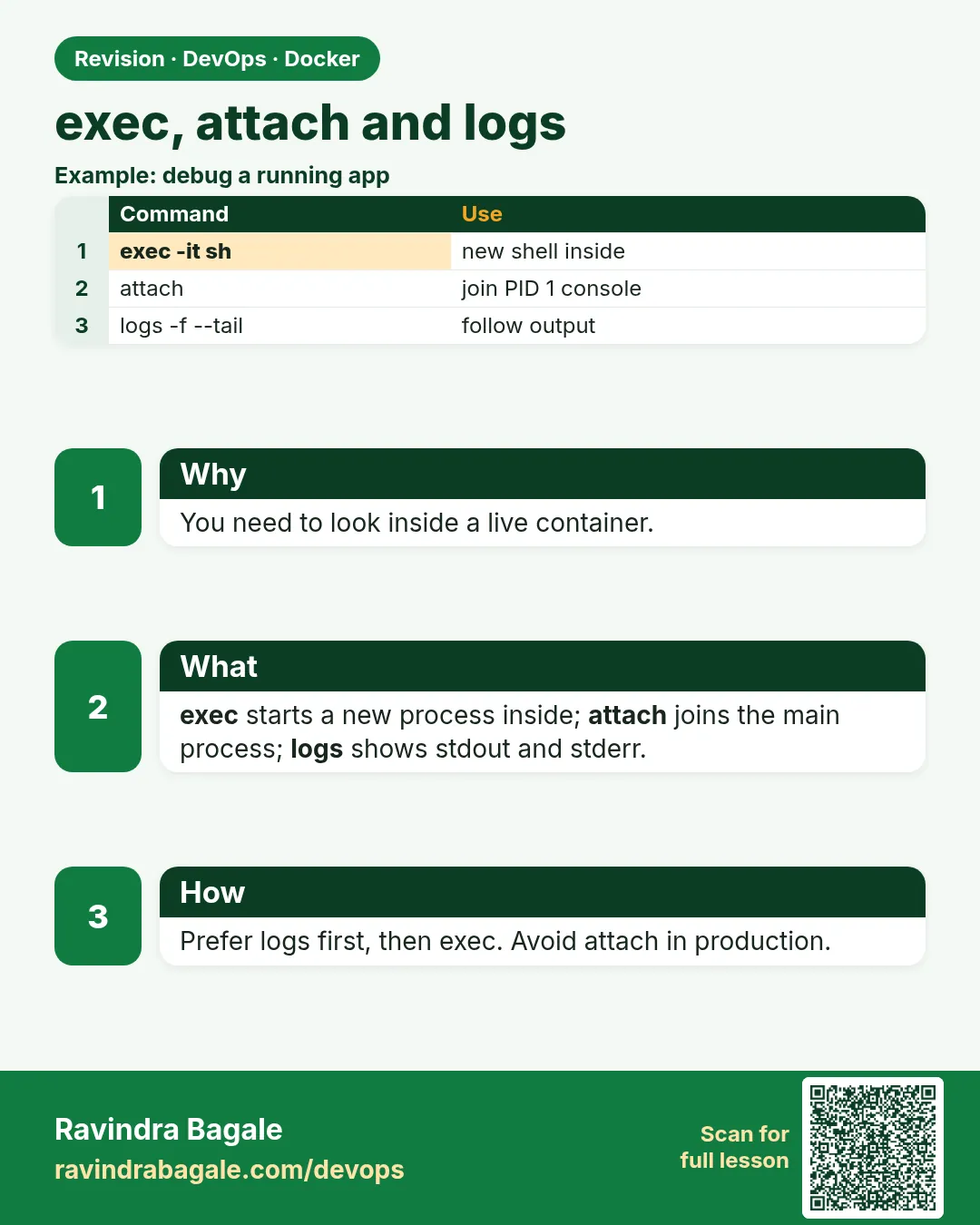
What: docker logs NAME shows everything the main process printed since it started.
Example 1: Start an app
Type this:
docker run -d --name menu -p 8080:80 nginx:1.27
curl -s localhost:8080 > /dev/null
You will see:
(no output)
What it means: We made one request.
Example 2: Read the logs
Type this:
docker logs menu | tail -2
You will see:
/docker-entrypoint.sh: Configuration complete; ready for start up
172.17.0.1 - - [25/Oct/2026:05:40:01 +0000] "GET / HTTP/1.1" 200 615 "-" "curl/8.5.0"
What it means: Start-up lines and the access log line.
Example 3: Logs of an exited container
Type this:
docker run --name boom alpine:3.20 sh -c 'echo starting; echo failed: no DB >&2; exit 1'
docker logs boom
You will see:
starting
failed: no DB
What it means: Logs stay after the container stops. This is how you find why it died.
Step 2: -f and --tail: follow live
Why: At 2 a.m. you want only the newest lines, live.
What: -f follows new lines as they come. --tail N starts from the last N lines.
Example 4: Last 5 lines
Type this:
docker logs --tail 5 menu
You will see:
...5 lines...
What it means: Only the end.
Example 5: Follow live
Type this:
docker logs -f --tail 0 menu
You will see:
(waits)
What it means: Now send a request in another terminal and watch the line appear. Ctrl+C stops following, not the container.
Example 6: Both together
Type this:
docker logs -f --tail 20 menu
You will see:
...last 20 lines, then live...
What it means: The most common pair in real on-call work.
Step 3: --since, --until and -t: time windows
Why: The error began at 1:55. You do not want logs from yesterday.
What: --since and --until pick a time window, like 10m or a full date. -t adds a timestamp to each line.
Example 7: Last 10 minutes
Type this:
docker logs --since 10m menu | wc -l
You will see:
3
What it means: Only recent lines.
Example 8: Add timestamps
Type this:
docker logs -t --tail 1 menu
You will see:
2026-10-25T05:40:01.512Z 172.17.0.1 - - "GET / HTTP/1.1" 200
What it means: Docker's own time, in UTC.
Example 9: A fixed window
Type this:
docker logs --since 2026-10-25T05:30:00 --until 2026-10-25T05:45:00 menu | wc -l
You will see:
4
What it means: Times are UTC. 05:30 UTC is 11:00 IST.
Step 4: stdout vs stderr
Why: Errors often go to stderr, and grep misses them.
What: docker logs sends the container's stdout to your stdout and its stderr to your stderr. To grep both, add 2>&1.
Example 10: grep misses stderr
Type this:
docker logs boom | grep failed
You will see:
failed: no DB
What it means: It looks found, but it came from stderr straight to the screen, not through grep.
Example 11: Prove it
Type this:
docker logs boom 2>/dev/null
You will see:
starting
What it means: Hide stderr and the error line is gone.
Example 12: grep both
Type this:
docker logs boom 2>&1 | grep -c failed
You will see:
1
What it means: Always add 2>&1 when you grep logs.
Step 5: Where logs are stored
Why: At Flipkart a server disk filled up overnight. The cause was one huge log file.
What: With the default json-file driver, each container has one log file on the host. Docker reads it for docker logs. It grows for ever unless you set rotation, which lesson 49.8 covers.
Example 13: Find the file
Type this:
docker inspect menu --format '{{.LogPath}}'
You will see:
/var/lib/docker/containers/3c9e.../3c9e...-json.log
What it means: One file per container.
Example 14: See its size
Type this:
sudo ls -lh $(docker inspect menu --format '{{.LogPath}}')
You will see:
-rw-r----- 1 root root 4.2K Oct 25 11:12 3c9e...-json.log
What it means: Small now, but it never shrinks by itself.
Example 15: One line inside
Type this:
sudo tail -1 $(docker inspect menu --format '{{.LogPath}}')
You will see:
{"log":"172.17.0.1 - - GET / 200\n","stream":"stdout","time":"2026-10-25T05:40:01Z"}
What it means: Each line is JSON: the text, the stream and the time.
3. Going inside: docker exec
Step 6: docker exec -it: open a shell
Why: Logs say: file not found. You want to look at the files.
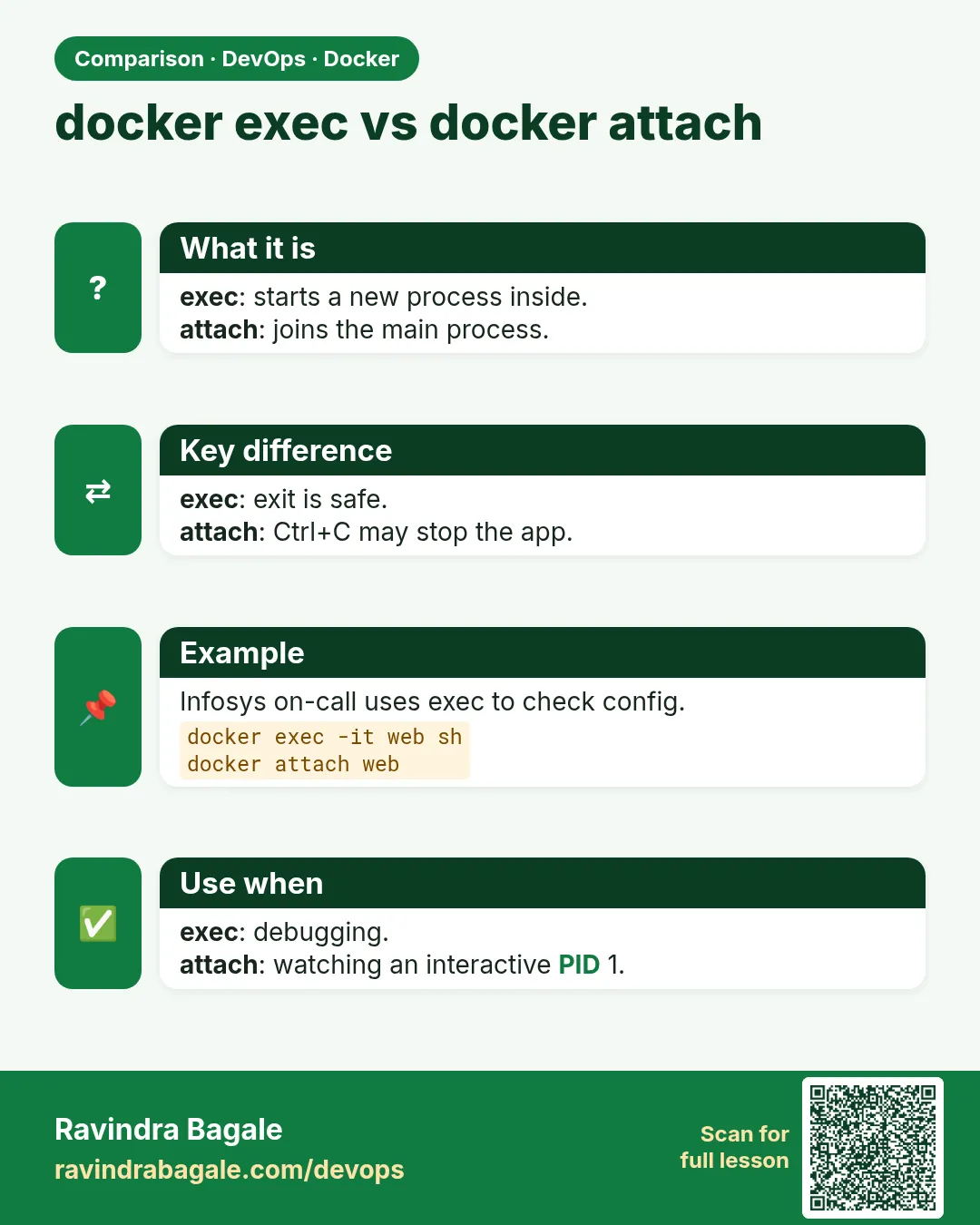
What: docker exec -it NAME sh starts a new shell inside a running container. When you exit, only that shell ends; the app keeps running.
Example 16: Open a shell
Type this:
docker exec -it menu sh
You will see:
#
What it means: You are inside, as root by default.
Example 17: Look around
Type this:
ls /usr/share/nginx/html
cat /etc/nginx/conf.d/default.conf | grep listen
You will see:
50x.html  index.html
    listen       80;
What it means: Real files of the running app.
Example 18: Leave safely
Type this:
exit
docker ps --filter name=menu --format '{{.Status}}'
You will see:
Up 5 minutes
What it means: The app is still running.
Step 7: Run one command without a shell
Why: Scripts cannot type into a shell.
What: docker exec NAME command runs a single command and prints its output.
Example 19: Check the config
Type this:
docker exec menu nginx -t
You will see:
nginx: configuration file /etc/nginx/nginx.conf test is successful
What it means: Test nginx config inside the container.
Example 20: Reload
Type this:
docker exec menu nginx -s reload
You will see:
(no output)
What it means: nginx reloads without a restart.
Example 21: No bash in small images
Type this:
docker exec -it menu-alpine bash
You will see:
OCI runtime exec failed: exec: "bash": executable file not found in $PATH
What it means: Alpine images have sh, not bash. Use sh.
Step 8: exec flags: -u, -w, -e
Why: You want to run a command as another user, in a folder, with a setting.
What: -u picks the user, -w the folder, -e an environment variable. -d runs it in the background.
Example 22: As another user
Type this:
docker exec -u nginx menu id
You will see:
uid=101(nginx) gid=101(nginx) groups=101(nginx)
What it means: Not root.
Example 23: In a folder
Type this:
docker exec -w /etc/nginx menu ls | head -3
You will see:
conf.d
fastcgi_params
mime.types
What it means: Like cd before the command.
Example 24: With a variable
Type this:
docker exec -e REGION=ap-south-1 menu sh -c 'echo $REGION'
You will see:
ap-south-1
What it means: Only for this one command.
Step 9: exec needs a running container
Why: Learners try to exec into a crashed container.
What: exec works only on running containers. For a stopped one, read logs, copy files out with docker cp, or start a debug copy.
Example 25: Fails on exited
Type this:
docker exec boom ls
You will see:
Error response from daemon: container 5c1d... is not running
What it means: boom has exited.
Example 26: Copy files out instead
Type this:
docker cp boom:/etc/os-release . && head -1 os-release
You will see:
NAME="Alpine Linux"
What it means: docker cp works on stopped containers.
Example 27: Start a debug copy
Type this:
docker commit boom boom-debug
docker run -it --rm --entrypoint sh boom-debug
You will see:
/ #
What it means: Same files, but a shell instead of the failing command.
Step 10: Debug a container with no shell
Why: Distroless images at Google have no sh at all, so exec sh fails.
What: You can start a helper container that shares the target's process and network namespaces. It brings its own tools.
Example 28: No shell inside
Type this:
docker run -d --name tiny gcr.io/distroless/static-debian12 sleep 1d 2>/dev/null; docker exec -it tiny sh
You will see:
OCI runtime exec failed: exec: "sh": executable file not found in $PATH
What it means: Nothing to run inside.
Example 29: Share its network
Type this:
docker run --rm -it --network container:menu nicolaka/netshoot curl -sI localhost:80 | head -1
You will see:
HTTP/1.1 200 OK
What it means: The helper sees menu's localhost.
Example 30: Share its processes
Type this:
docker run --rm -it --pid container:menu alpine:3.20 ps
You will see:
PID USER COMMAND
 1 root nginx: master process
29 101  nginx: worker process
What it means: The helper sees menu's processes.
4. Joining the main process: docker attach
exec and logs cover almost every debug job. attach is different. It does not open a new door into the container; it sits down at the main desk, in front of PID 1. Whatever you type goes to the real app, and if you close that desk, the shop closes. That is why senior engineers at Infosys and TCS tell freshers: use exec, not attach, unless you know why you need attach.
Step 11: docker attach
Why: Some old apps read commands from their console.
What: docker attach connects your terminal to the main process (PID 1). You see its output and your keys go to it. It does not start a new process.
Example 31: Run an interactive main process
Type this:
docker run -dit --name calc alpine:3.20 sh
You will see:
...
What it means: The main process is a shell.
Example 32: Attach to it
Type this:
docker attach calc
echo hi from PID 1
You will see:
hi from PID 1
What it means: You are talking to the main process.
Example 33: Danger: exit stops it
Type this:
exit
docker ps -a --filter name=calc --format '{{.Status}}'
You will see:
Exited (0) 2 seconds ago
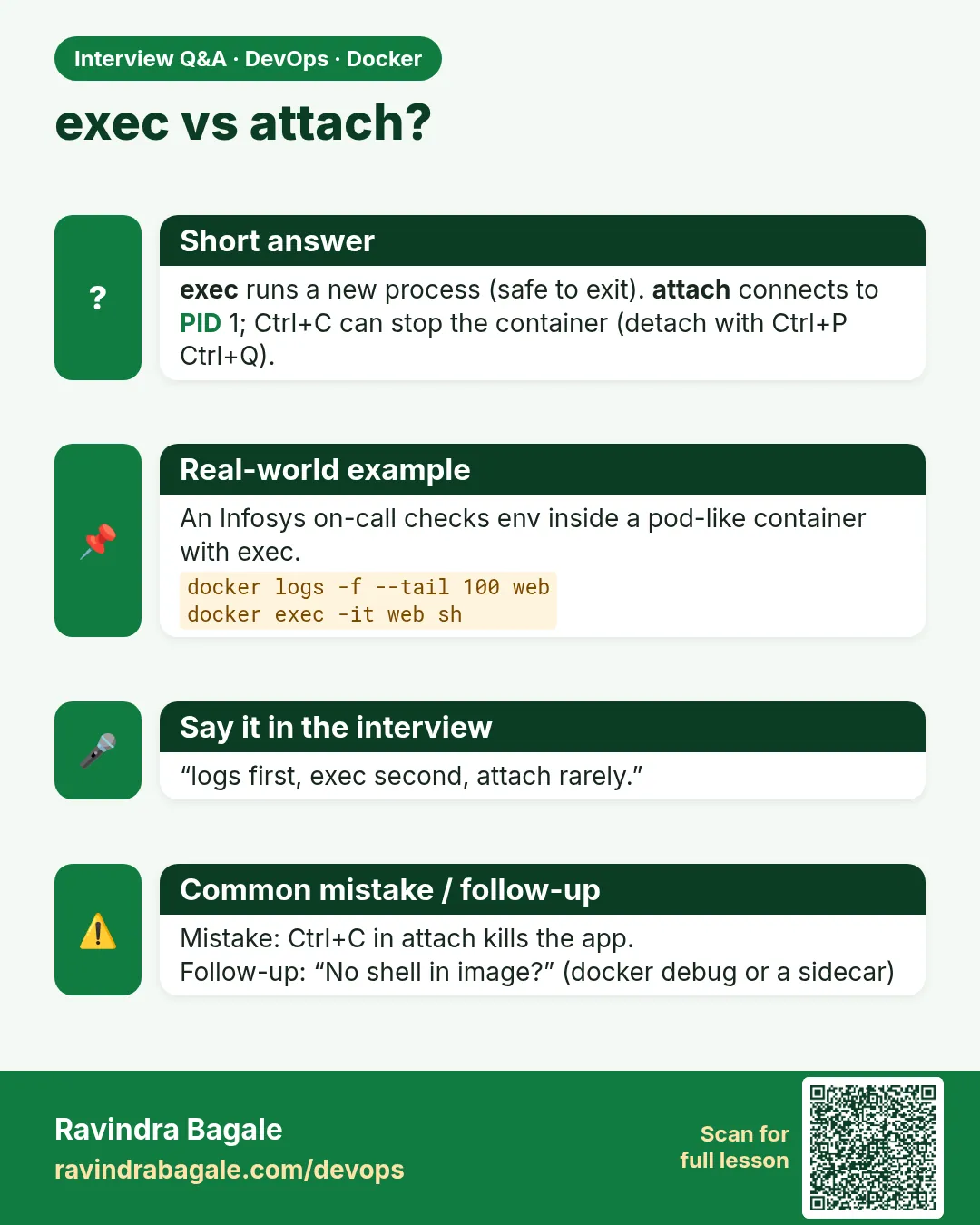
What it means: Exiting the main process stops the whole container.
Step 12: Detach safely: Ctrl+P, Ctrl+Q
Why: You attached and want to leave without stopping the app.
What: Press Ctrl+P then Ctrl+Q to detach. You can change the keys with --detach-keys.
Example 34: Detach
Type this:
docker start calc && docker attach calc
(press Ctrl+P, Ctrl+Q)
You will see:
read escape sequence
What it means: You are out; the container keeps running.
Example 35: Check
Type this:
docker ps --filter name=calc --format '{{.Status}}'
You will see:
Up 20 seconds
What it means: Still running.
Example 36: Custom keys
Type this:
docker attach --detach-keys='ctrl-x' calc
You will see:
(press Ctrl+X to leave)
What it means: Useful if your terminal uses Ctrl+P.
Step 13: exec vs attach
Why: Interviewers at Infosys ask this a lot.
What: exec starts a new process; exiting it is safe. attach joins the main process; exiting can stop the container. For debugging, use exec.
Example 37: Count processes with exec
Type this:
docker exec menu sh -c 'ls /proc | grep -c ^[0-9]'
You will see:
4
What it means: nginx master, workers and our sh.
Example 38: attach adds none
Type this:
docker top calc -o pid,comm
You will see:
PID    COMMAND
51200  sh
What it means: Only the main process.
Example 39: Clean up
Type this:
docker rm -f menu boom calc
You will see:
menu
boom
calc
What it means: All removed.
Check yourself
Q1. What should you check first when a container fails?
docker logs.
Q2. Does Ctrl+C on docker logs -f stop the container?
No, it only stops following.
Q3. How do you grep stderr in logs?
Add 2>&1 before the pipe.
Q4. Can you exec into an exited container?
No. Use logs, docker cp, or a debug copy.
Q5. How do you leave attach without stopping?
Ctrl+P then Ctrl+Q.
Friends, ask like a doctor: logs first, then exec. If you exit inside attach, the container stops, so remember Ctrl+P Ctrl+Q. Did you understand? Let us try it once more. Now create the boom container again and find its mistake in the logs.
मित्रांनो, doctor सारखं विचारायचं: आधी logs, मग exec. Attach मध्ये exit केलं तर container बंद होतो, म्हणून Ctrl+P Ctrl+Q लक्षात ठेवा. समजलं का? चला, पुन्हा एकदा करून पाहू. आता boom container परत बनवून त्याची चूक logs मधून शोधा.
दोस्तों, doctor की तरह पूछिए: पहले logs, फिर exec. Attach में exit किया तो container बंद हो जाता है, इसलिए Ctrl+P Ctrl+Q याद रखिए. समझ आया? चलिए, एक बार फिर करके देखते हैं। अब boom container फिर बनाइए और उसकी गलती logs में ढूँढिए.
Ravindra Bagale's Tip
On call, always start with docker logs -f --tail 50, and do not forget 2>&1 when you grep.
On-call मध्ये नेहमी docker logs -f --tail 50 ने सुरुवात करा, आणि grep करताना 2>&1 विसरू नका.
On-call में हमेशा docker logs -f --tail 50 से शुरू कीजिए, और grep करते समय 2>&1 मत भूलिए.
Lab: try at home
- Run nginx, make three requests, and read the logs with --tail and -t.
- Make a container that writes to stderr and grep it with 2>&1.
- Open a shell with exec, test the nginx config and reload it.
- Try exec on an exited container and then copy a file out with docker cp.
- Attach to an interactive container and detach with Ctrl+P Ctrl+Q.
Recap
- Logs first: -f, --tail, --since, -t.
- Add 2>&1 to grep stderr.
- exec starts a new process; safe to exit.
- attach joins PID 1; detach with Ctrl+P Ctrl+Q.
- exec needs a running container.
 Revision card
 Interview card
 Comparison card