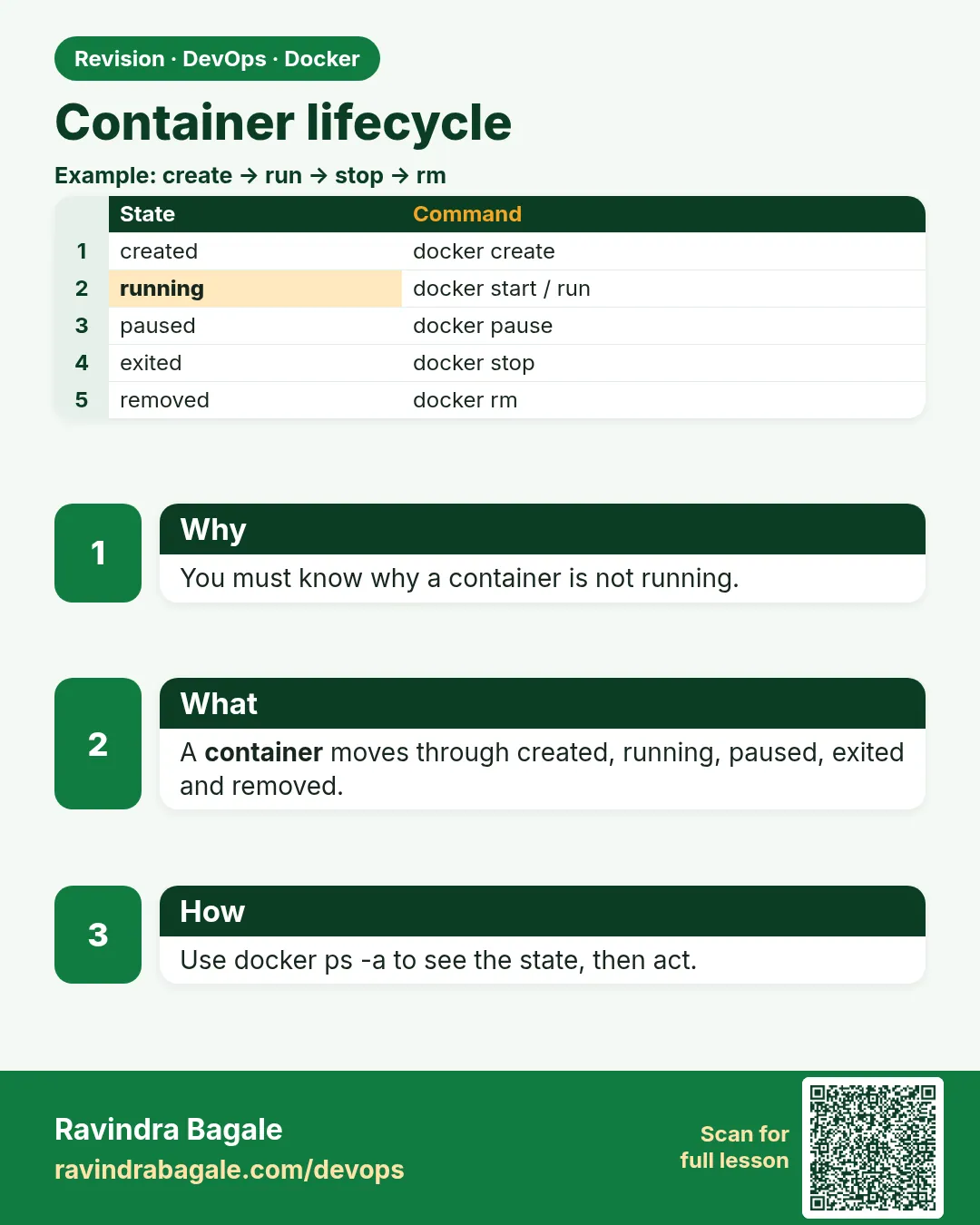
49.1 Container lifecycle: created, running, paused, stopped, removed
Chala mitrano! Today we follow a container from birth to the end: created, running, paused, exited and removed. Each state has a command, and we run every command ourselves.
चला मित्रांनो! आज container चा जन्मापासून शेवटपर्यंतचा प्रवास बघू: created, running, paused, exited आणि removed. प्रत्येक state साठी एक command आहे, आणि प्रत्येक command आपण स्वतः चालवून बघणार.
चलो दोस्तों! आज container का जन्म से अंत तक का सफ़र देखेंगे: created, running, paused, exited और removed. हर state के लिए एक command है, और हर command हम खुद चलाएँगे.
1. Start from a story
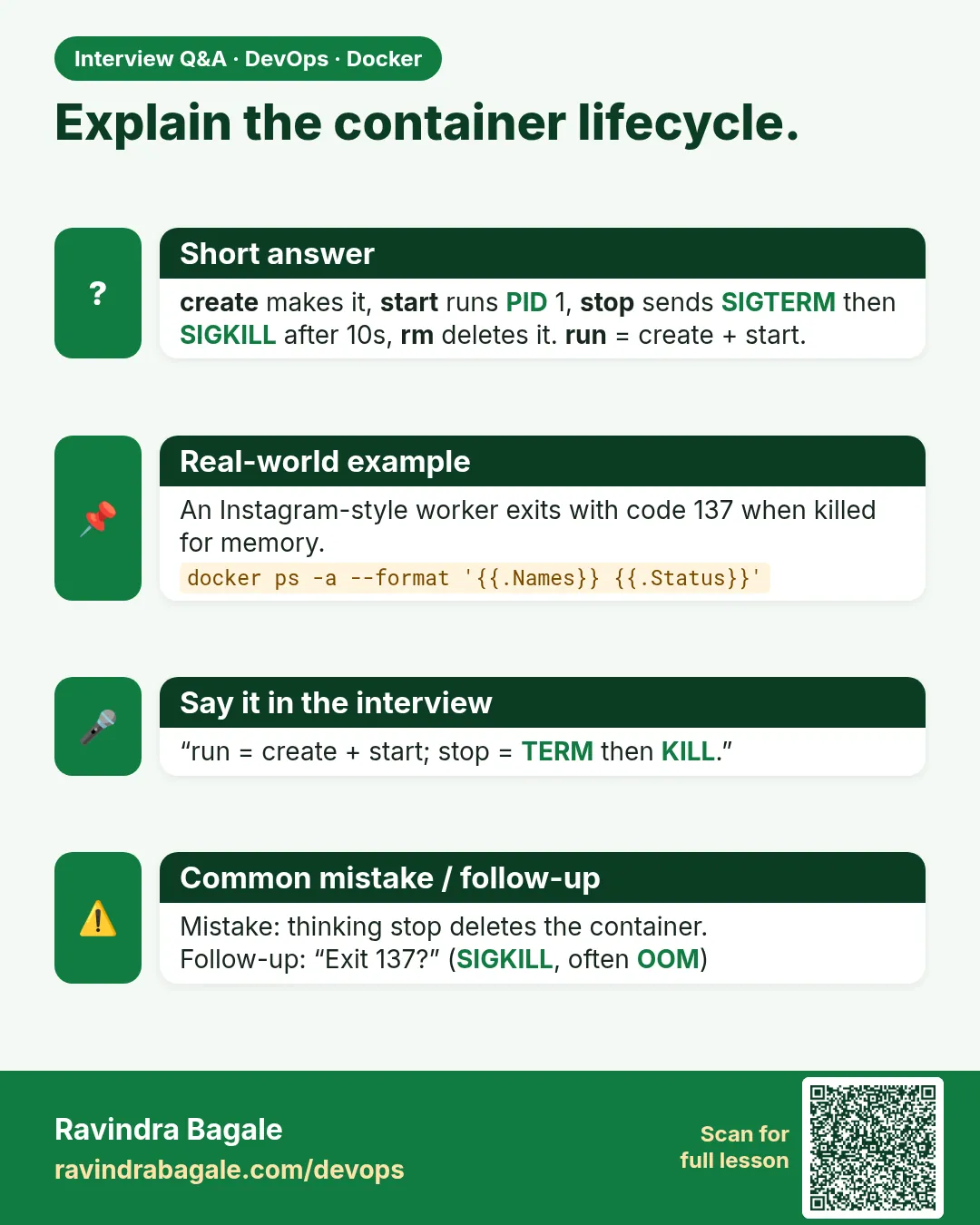
It is Monday morning on the Instagram feed team. A new teammate runs docker ps and sees nothing. She panics: our feed container is gone! Then a senior runs docker ps -a and the container is there, with the status Exited (137).
Is it dead? Is it deleted? Can we start it again? To answer these questions, we must know the life of a container.
A container is like a phone app. You install it (created). You open it (running). You put it in the background and it freezes (paused). You close it (exited). You uninstall it (removed). Closing an app does not delete it. In the same way, a stopped container is not a removed container.
2. Being born: created and running
Step 1: docker create: a container that has not started
Why: Sometimes you want to prepare a container now and start it later, for example during a planned release window at HDFC Bank.
What: docker create makes the container: it picks the image, sets the name, ports and settings, and makes the writable layer. But it does not start the process. The status is Created.
Example 1: Create a container
Type this:
docker create --name feed nginx:1.27
You will see:
3f2a9c1b7d4e8a0c...
What it means: Docker prints the long container ID. Nothing runs yet.
Example 2: See its state
Type this:
docker ps -a --filter name=feed --format '{{.Names}} {{.Status}}'
You will see:
feed Created
What it means: Created means ready, but not running.
Example 3: docker ps hides it
Type this:
docker ps --filter name=feed
You will see:
CONTAINER ID IMAGE COMMAND CREATED STATUS PORTS NAMES
What it means: Plain docker ps shows only running containers. Use -a to see all.
Step 2: docker start: from created to running
Why: The prepared container must now begin its work.
What: docker start runs the main process of a created or exited container. It keeps the same ID, name and writable layer.
Example 4: Start it
Type this:
docker start feed
You will see:
feed
What it means: Docker prints the name when it starts.
Example 5: Check the state
Type this:
docker ps --filter name=feed --format '{{.Names}} {{.Status}}'
You will see:
feed Up 4 seconds
What it means: Up means running. The clock shows how long.
Example 6: Read the state field
Type this:
docker inspect feed --format '{{.State.Status}} pid={{.State.Pid}}'
You will see:
running pid=48213
What it means: The container is a real Linux process with a PID on the host.
Step 3: docker run = create + start
Why: Most of the time you want to create and start in one step.
What: docker run pulls the image if needed, creates the container, and starts it. With -d it runs in the background.
Example 7: Run in one step
Type this:
docker run -d --name feed2 nginx:1.27
You will see:
9b1c4d2e...
What it means: One command did create and start.
Example 8: Run in the foreground
Type this:
docker run --rm alpine:3.20 echo hello from Swiggy
You will see:
hello from Swiggy
What it means: Without -d you see the output. The process ended, so the container exited.
Example 9: --rm removes it at exit
Type this:
docker ps -a --filter ancestor=alpine:3.20 --format '{{.Status}}' | wc -l
You will see:
0
What it means: --rm deleted the container as soon as it finished.
3. Freezing: paused
Step 4: docker pause and unpause
Why: At Zomato, an engineer wants to take a quick disk snapshot while a container is still, without stopping it.
What: docker pause freezes every process in the container using the cgroup freezer. Memory stays, but the CPU is not used. docker unpause continues from the same spot.
Example 10: Pause it
Type this:
docker pause feed
docker ps --filter name=feed --format '{{.Status}}'
You will see:
feed
Up 2 minutes (Paused)
What it means: The container is alive but frozen.
Example 11: A paused container does not answer
Type this:
docker exec feed ls
You will see:
Error response from daemon: Container 3f2a9c1b is paused, unpause the container first
What it means: You cannot run commands in a frozen container.
Example 12: Unpause it
Type this:
docker unpause feed
docker inspect feed --format '{{.State.Status}}'
You will see:
feed
running
What it means: Back to normal, same process, same memory.
4. Stopping: exited
Step 5: docker stop: the polite way
Why: A payment app at Paytm must finish the current payment before it shuts down.
What: docker stop sends SIGTERM, a polite request to stop. The app gets 10 seconds to finish. If it is still running, Docker sends SIGKILL. Use -t to change the wait.
Example 13: Stop it
Type this:
time docker stop feed
You will see:
feed
real 0m0.4s
What it means: nginx handled SIGTERM fast and exited.
Example 14: See the exit code
Type this:
docker ps -a --filter name=feed --format '{{.Status}}'
You will see:
Exited (0) 5 seconds ago
What it means: Exit code 0 means a clean stop.
Example 15: Give more time
Type this:
docker start feed && docker stop -t 30 feed
You will see:
feed
feed
What it means: -t 30 waits up to 30 seconds before SIGKILL.
Step 6: docker kill: the hard way
Why: Sometimes a container hangs and does not answer SIGTERM.
What: docker kill sends SIGKILL at once. The app gets no time to clean up. You can send another signal with -s.
Example 16: Kill it
Type this:
docker start feed && docker kill feed
You will see:
feed
feed
What it means: No waiting.
Example 17: Exit code 137
Type this:
docker inspect feed --format '{{.State.ExitCode}}'
You will see:
137
What it means: 137 = 128 + 9. Signal 9 is SIGKILL.
Example 18: Send a different signal
Type this:
docker start feed && docker kill -s HUP feed
docker ps --filter name=feed --format '{{.Status}}'
You will see:
feed
feed
Up 3 seconds
What it means: SIGHUP makes nginx reload its config. It does not stop it.
Step 7: Exit codes tell the story
Why: The Instagram teammate saw Exited (137). What does it mean?
What: The exit code shows why a container stopped. 0 is normal. 1 is an app error. 125 means docker run itself failed. 126 means the command cannot run. 127 means the command was not found. 137 means SIGKILL or out of memory. 143 means SIGTERM.
Example 19: Code 1: app error
Type this:
docker run --name e1 alpine:3.20 sh -c 'exit 1'
docker inspect e1 --format '{{.State.ExitCode}}'
You will see:
1
What it means: The app said: I failed.
Example 20: Code 127: command not found
Type this:
docker run --name e127 alpine:3.20 hello-swiggy; docker inspect e127 --format '{{.State.ExitCode}}'
You will see:
docker: Error response from daemon: ... exec: "hello-swiggy": executable file not found in $PATH
127
What it means: There is no such program inside the image.
Example 21: Was it out of memory?
Type this:
docker run --name oom -m 20m alpine:3.20 sh -c 'x=a; while true; do x=$x$x; done'
docker inspect oom --format '{{.State.ExitCode}} OOMKilled={{.State.OOMKilled}}'
You will see:
137 OOMKilled=true
What it means: 137 with OOMKilled=true means the memory limit was hit. Chapter 49.6 covers limits.
Step 8: docker restart
Why: After a config change, an engineer at Ola wants a quick stop and start.
What: docker restart is stop followed by start. The container keeps its ID, name, writable layer and settings.
Example 22: Restart
Type this:
docker restart feed
You will see:
feed
What it means: Stop, then start.
Example 23: Same container ID
Type this:
docker inspect feed --format '{{.Id}}' | cut -c1-12
You will see:
3f2a9c1b7d4e
What it means: The ID did not change.
Example 24: Started time changed
Type this:
docker inspect feed --format '{{.State.StartedAt}}'
You will see:
2026-10-25T05:12:44.18Z
What it means: StartedAt shows the new start time.
Step 9: docker ps: reading the list
Why: The Instagram teammate missed the container because she read the wrong list.
What: docker ps lists running containers. -a adds stopped ones, -q prints only IDs, --filter picks some, and --format chooses the columns. -s adds the size of the writable layer.
Example 25: All containers with status
Type this:
docker ps -a --format 'table {{.Names}}\t{{.Status}}'
You will see:
NAMES     STATUS
feed2     Up 3 minutes
feed      Exited (0) 1 minute ago
What it means: A clean table of names and states.
Example 26: Only exited ones
Type this:
docker ps -a --filter status=exited --format '{{.Names}}'
You will see:
feed
What it means: Filter by status: created, running, paused, exited.
Example 27: Show the size
Type this:
docker ps -s --format '{{.Names}} {{.Size}}'
You will see:
feed2 1.09kB (virtual 192MB)
What it means: 1.09 kB is the writable layer; 192 MB is the shared image.
5. The end: removed
Step 10: docker rm
Why: Exited containers still take disk space and keep their names busy.
What: docker rm deletes a stopped container and its writable layer. Add -f to stop and remove a running one. Add -v to remove its anonymous volumes too.
Example 28: Name already in use
Type this:
docker run -d --name feed nginx:1.27
You will see:
docker: Error response from daemon: Conflict. The container name "/feed" is already in use
What it means: The old exited container still holds the name.
Example 29: Remove it
Type this:
docker rm -f feed
You will see:
feed
What it means: -f stops it first if it is running.
Example 30: It is really gone
Type this:
docker ps -a --filter name=feed -q | wc -l
You will see:
0
What it means: Removed means gone for ever, with its writable layer.
Step 11: Clean up many at once
Why: After a day of practice, docker ps -a shows 40 exited containers.
What: docker container prune removes all stopped containers. You can also pass IDs from docker ps -aq.
Example 31: Count the exited ones
Type this:
docker ps -a --filter status=exited -q | wc -l
You will see:
4
What it means: Four stopped containers.
Example 32: Prune
Type this:
docker container prune -f
You will see:
Deleted Containers:
e1...
e127...
oom...
Total reclaimed space: 12B
What it means: All stopped containers are removed.
Example 33: Remove by filter
Type this:
docker rm $(docker ps -aq --filter status=created)
You will see:
9a1b...
What it means: Only created ones are removed.
6. Watching the lifecycle live
So far we checked the state after each command. In real work at companies like Flipkart, monitoring tools watch the Docker event stream instead. When a container dies, they get the die event at once, with the exit code, and can page the on-call engineer. Let us see that stream ourselves.
Step 12: docker events
Why: You want to see each state change as it happens.
What: docker events prints a live line for each create, start, pause, die and destroy.
Example 34: Open a watcher
Type this:
docker events --filter container=life --format '{{.Status}}'
You will see:
(waits)
What it means: Leave this running in a second terminal.
Example 35: Walk the life
Type this:
docker run -d --name life nginx:1.27; docker pause life; docker unpause life; docker stop life; docker rm life
You will see:
life ...
What it means: Run this in the first terminal.
Example 36: What the watcher printed
Type this:
(second terminal)
You will see:
create
start
pause
unpause
kill
die
stop
destroy
What it means: Every state change, in order.
Check yourself
Q1. Is an exited container deleted?
No. It stays until docker rm.
Q2. What does docker run do?
Create plus start.
Q3. What does exit code 137 mean?
SIGKILL, often from docker kill or the out-of-memory killer.
Q4. Difference between stop and kill?
stop sends SIGTERM and waits; kill sends SIGKILL at once.
Q5. Which command shows stopped containers?
docker ps -a.
Friends, remember the journey: created, running, paused, exited, removed. Exited does not mean deleted. Did you understand? Let us try it once more. Keep docker events running once and repeat all the commands.
मित्रांनो, container चा प्रवास लक्षात ठेवा: created, running, paused, exited, removed. Exited म्हणजे delete नाही. समजलं का? चला, पुन्हा एकदा करून पाहू. एकदा docker events चालू ठेवून सगळे commands परत चालवा.
दोस्तों, सफ़र याद रखिए: created, running, paused, exited, removed. Exited मतलब delete नहीं. समझ आया? चलिए, एक बार फिर करके देखते हैं। एक बार docker events चालू रखकर सारे commands फिर चलाइए.
Ravindra Bagale's Tip
Interviews ask about exit codes 137 and 143. 137 means SIGKILL or out of memory, 143 means SIGTERM.
Interview मध्ये exit code 137 आणि 143 विचारतात. 137 म्हणजे SIGKILL किंवा OOM, 143 म्हणजे SIGTERM.
Interview में exit code 137 और 143 पूछते हैं. 137 मतलब SIGKILL या OOM, 143 मतलब SIGTERM.
Lab: try at home
- Create a container with docker create and check its status.
- Start, pause, unpause and stop it, checking docker ps -a each time.
- Make exit codes 1, 127 and 137 and read them with docker inspect.
- Run docker events in a second terminal while you walk the life.
- Prune all stopped containers.
Recap
- States: created, running, paused, exited, removed.
- docker run is create plus start.
- stop is polite, kill is instant.
- Exit codes explain why it stopped.
- rm deletes; exited does not.
 Revision card
 Interview card