49.2 docker run and its most important flags
Friends, docker run is the most used Docker command. Today we learn its key flags one by one: -d, --name, -p, -e, -v, --network, -u, -w, --rm, -it and limits. Three examples for each flag.
मित्रांनो, docker run हा Docker मधला सगळ्यात जास्त वापरला जाणारा command. आज त्याचे महत्त्वाचे flags एकेक करून शिकू: -d, --name, -p, -e, -v, --network, -u, -w, --rm, -it आणि limits. प्रत्येक flag ला तीन उदाहरणं.
दोस्तों, docker run Docker का सबसे ज़्यादा इस्तेमाल होने वाला command है. आज इसके ज़रूरी flags एक-एक करके सीखेंगे: -d, --name, -p, -e, -v, --network, -u, -w, --rm, -it और limits. हर flag के तीन उदाहरण.
1. Start from a story
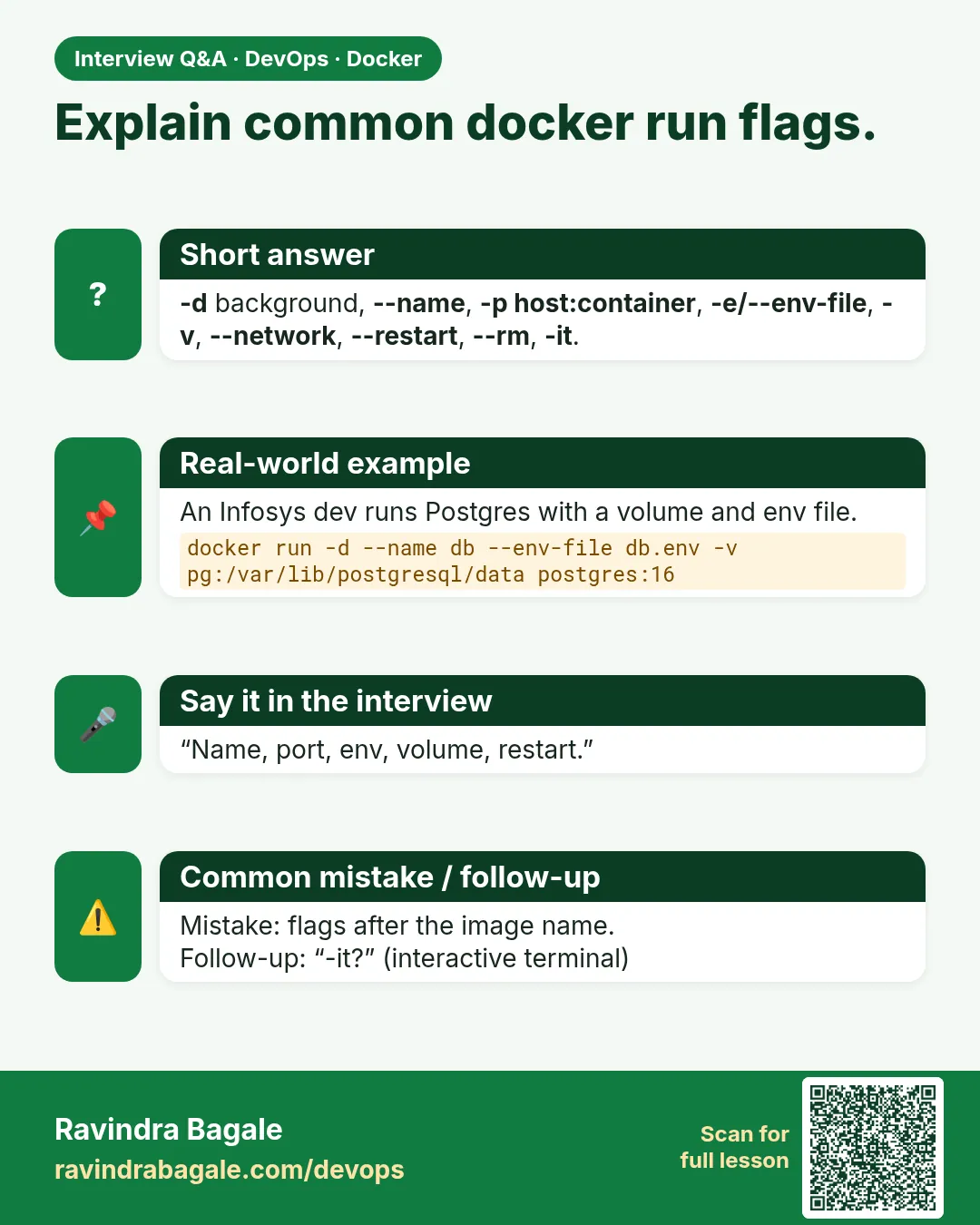
At Swiggy, a new engineer must start the order API on a test server. The senior gives her one long line: docker run -d --name order-api -p 8080:80 -e APP_ENV=test -v orders:/data --restart unless-stopped nginx:1.27.
It looks scary. But it is only a list of small choices. What name? Which port? Which settings? Where to keep data? What to do on a crash?
Think of ordering food on the Swiggy app. You choose the restaurant (the image), then add choices: extra cheese, no onion, deliver to office. Each docker run flag is one such choice. Today we learn them one by one.
2. How and where it runs
Step 1: -d: run in the background
Why: Servers must keep running after you close the terminal.
What: -d means detached. The container runs in the background and Docker prints only its ID. Without -d, the output comes to your terminal and Ctrl+C stops it.
Example 1: Foreground
Type this:
docker run --rm nginx:1.27
You will see:
/docker-entrypoint.sh: Configuration complete; ready for start up
What it means: The terminal is busy. Press Ctrl+C to stop.
Example 2: Background
Type this:
docker run -d nginx:1.27
You will see:
a81f5c2e9b3d...
What it means: You get the prompt back at once.
Example 3: Read its output later
Type this:
docker logs $(docker ps -lq) | tail -1
You will see:
/docker-entrypoint.sh: Configuration complete; ready for start up
What it means: docker ps -lq gives the latest container ID.
Step 2: --name: give it a friendly name
Why: Random names like quirky_turing are hard to use in scripts.
What: --name sets a fixed name. You use it in every other command instead of the ID. Names must be unique on the host.
Example 4: Random name
Type this:
docker run -d nginx:1.27 && docker ps -l --format '{{.Names}}'
You will see:
...
focused_hopper
What it means: Docker made up a name.
Example 5: Fixed name
Type this:
docker run -d --name order-api nginx:1.27
docker ps --filter name=order-api --format '{{.Names}}'
You will see:
...
order-api
What it means: Easy to remember and to script.
Example 6: Use the name
Type this:
docker stop order-api && docker rm order-api
You will see:
order-api
order-api
What it means: No need to copy IDs.
Step 3: --rm: clean up at exit
Why: Quick test containers pile up as exited containers.
What: --rm deletes the container as soon as its process ends. Use it for one-time jobs and tests.
Example 7: Without --rm
Type this:
docker run alpine:3.20 date
docker ps -a -l --format '{{.Status}}'
You will see:
Sun Oct 25 05:30:10 UTC 2026
Exited (0) 2 seconds ago
What it means: The container stays behind.
Example 8: With --rm
Type this:
docker run --rm alpine:3.20 date
docker ps -a -l --format '{{.Image}}'
You will see:
Sun Oct 25 05:30:22 UTC 2026
alpine:3.20
What it means: The last remaining one is the old run; the new one is gone.
Example 9: Good for tools
Type this:
docker run --rm curlimages/curl:8.10.1 -sI https://www.zomato.com | head -1
You will see:
HTTP/2 200
What it means: Run a tool once without installing it.
Step 4: -it: talk to the container
Why: You want a shell inside a fresh container.
What: -i keeps input open. -t gives a terminal. Together, -it lets you type into the container.
Example 10: Open a shell
Type this:
docker run -it --rm alpine:3.20 sh
You will see:
/ #
What it means: You are inside. Type exit to leave.
Example 11: Without -t
Type this:
docker run -i --rm alpine:3.20 sh -c 'read x; echo got $x' <<< hello
You will see:
got hello
What it means: -i alone is fine for piping input.
Example 12: Without -i
Type this:
docker run -t --rm alpine:3.20 sh
You will see:
/ # (typing does nothing)
What it means: No input reaches the shell. Always use both for a shell.
3. Reaching the app: ports
Step 5: -p: publish a port
Why: An app inside a container cannot be reached from outside by default.
What: -p HOST:CONTAINER connects a port on the host to a port in the container. You can bind to one IP, and pick tcp or udp.
Example 13: Map 8080 to 80
Type this:
docker run -d --name web -p 8080:80 nginx:1.27
curl -s localhost:8080 | grep title
You will see:
<title>Welcome to nginx!</title>
What it means: The host port 8080 reaches nginx on 80.
Example 14: Only on localhost
Type this:
docker run -d --name web2 -p 127.0.0.1:8081:80 nginx:1.27
docker port web2
You will see:
80/tcp -> 127.0.0.1:8081
What it means: Other machines cannot reach it. Good for admin tools.
Example 15: Port already used
Type this:
docker run -d -p 8080:80 nginx:1.27
You will see:
docker: Error response from daemon: ... Bind for 0.0.0.0:8080 failed: port is already allocated
What it means: Pick another host port, like 8082.
Step 6: -P: publish all exposed ports
Why: For quick tests you do not care which host port.
What: -P maps every EXPOSE port of the image to a random free host port.
Example 16: Random ports
Type this:
docker run -d --name rnd -P nginx:1.27
docker port rnd
You will see:
80/tcp -> 0.0.0.0:32768
What it means: Docker picked 32768.
Example 17: Use it
Type this:
curl -s -o /dev/null -w '%{http_code}\n' localhost:32768
You will see:
200
What it means: It works.
Example 18: Clean up
Type this:
docker rm -f web web2 rnd
You will see:
web
web2
rnd
What it means: Three removed.
4. Giving it settings and data
Step 7: -e and --env-file: settings
Why: The same image must run in test and production with different settings.
What: -e NAME=value sets an environment variable. --env-file reads many from a file. Never put real passwords on the command line; they show in docker inspect and shell history.
Example 19: One variable
Type this:
docker run --rm -e APP_ENV=test alpine:3.20 sh -c 'echo $APP_ENV'
You will see:
test
What it means: The app reads it.
Example 20: From a file
Type this:
printf 'APP_ENV=prod\nREGION=ap-south-1\n' > app.env
docker run --rm --env-file app.env alpine:3.20 env | grep -E 'APP|REG'
You will see:
APP_ENV=prod
REGION=ap-south-1
What it means: Good for many settings.
Example 21: They are visible
Type this:
docker run -d --name envt -e APP_ENV=test nginx:1.27
docker inspect envt --format '{{.Config.Env}}' | tr ' ' '\n' | head -1
You will see:
[APP_ENV=test
What it means: Anyone with docker access can read them. Use secrets for passwords (chapter 53).
Step 8: -v and --mount: keep data
Why: Data inside a container is lost when it is removed.
What: -v NAME:/path mounts a named volume. -v /host/dir:/path mounts a host folder. --mount is the long, clearer form. Add :ro for read-only.
Example 22: Named volume
Type this:
docker run --rm -v orders:/data alpine:3.20 sh -c 'echo order-1 > /data/o.txt'
docker run --rm -v orders:/data alpine:3.20 cat /data/o.txt
You will see:
order-1
What it means: The file outlived the first container.
Example 23: Host folder, read-only
Type this:
mkdir -p site && printf 'Hi Swiggy\n' > site/index.html
docker run -d --name s1 -p 8083:80 -v $PWD/site:/usr/share/nginx/html:ro nginx:1.27
curl -s localhost:8083
You will see:
Hi Swiggy
What it means: nginx serves our folder.
Example 24: --mount form
Type this:
docker run --rm --mount type=volume,source=orders,target=/data alpine:3.20 ls /data
You will see:
o.txt
What it means: Same as -v, but every part is named. Chapter 50 goes deep.
Step 9: -w and -u: folder and user
Why: Running as root inside a container is risky.
What: -w sets the working folder. -u sets the user ID that runs the process.
Example 25: Working folder
Type this:
docker run --rm -w /app alpine:3.20 pwd
You will see:
/app
What it means: Docker makes the folder if needed.
Example 26: Run as a normal user
Type this:
docker run --rm -u 1000:1000 alpine:3.20 id
You will see:
uid=1000 gid=1000
What it means: Not root.
Example 27: Default is root
Type this:
docker run --rm alpine:3.20 id -u
You will see:
0
What it means: Many images run as root unless you say -u or USER in the Dockerfile.
5. Network, restart and limits
Step 10: --network: which network
Why: The order API must talk to its database by name.
What: --network attaches the container to a network. On a user-made network, containers find each other by name.
Example 28: Make a network
Type this:
docker network create shop
You will see:
8d3c...
What it means: A new bridge network.
Example 29: Run two containers on it
Type this:
docker run -d --name db --network shop -e POSTGRES_PASSWORD=example postgres:16
docker run --rm --network shop alpine:3.20 ping -c1 db
You will see:
1 packets transmitted, 1 packets received
What it means: db is found by name. The example password is for practice only.
Example 30: No network at all
Type this:
docker run --rm --network none alpine:3.20 ip -brief addr
You will see:
lo UNKNOWN 127.0.0.1/8
What it means: Only loopback. Good for jobs that must not talk out.
Step 11: --restart: what to do on a crash
Why: Servers reboot, and apps crash at night.
What: --restart no, on-failure, always or unless-stopped tells Docker when to start the container again. Lesson 49.5 covers each one.
Example 31: Set it
Type this:
docker run -d --name api --restart unless-stopped nginx:1.27
You will see:
...
What it means: It comes back after a crash or reboot.
Example 32: Read it
Type this:
docker inspect api --format '{{.HostConfig.RestartPolicy.Name}}'
You will see:
unless-stopped
What it means: Stored in the container's settings.
Example 33: Change it later
Type this:
docker update --restart on-failure:3 api
You will see:
api
What it means: No need to recreate.
Step 12: -m and --cpus: limits
Why: One greedy container can slow every other one on the server.
What: -m caps memory. --cpus caps CPU. Lesson 49.6 covers them in depth.
Example 34: Run with limits
Type this:
docker run -d --name lim -m 256m --cpus 0.5 nginx:1.27
You will see:
...
What it means: At most 256 MB and half a CPU.
Example 35: Check them
Type this:
docker stats --no-stream lim --format '{{.MemUsage}}'
You will see:
3.2MiB / 256MiB
What it means: The limit shows as the right-hand number.
Example 36: Clean up everything
Type this:
docker rm -f envt s1 db api lim; docker network rm shop
You will see:
envt
s1
db
api
lim
shop
What it means: All removed.
Step 13: Replacing the command
Why: The image has a default command, but sometimes you need another.
What: Words after the image name replace CMD. --entrypoint replaces ENTRYPOINT.
Example 37: Replace CMD
Type this:
docker run --rm nginx:1.27 nginx -v
You will see:
nginx version: nginx/1.27.2
What it means: Instead of starting the server, print the version.
Example 38: Replace ENTRYPOINT
Type this:
docker run --rm --entrypoint cat nginx:1.27 /etc/os-release | head -1
You will see:
PRETTY_NAME="Debian GNU/Linux 12 (bookworm)"
What it means: cat runs instead of the entrypoint script.
Example 39: The full Swiggy line
Type this:
docker run -d --name order-api -p 8080:80 -e APP_ENV=test -v orders:/data --restart unless-stopped nginx:1.27
docker ps --filter name=order-api --format '{{.Names}} {{.Ports}}'
You will see:
order-api 0.0.0.0:8080->80/tcp
What it means: Now every part of the scary line makes sense.
Check yourself
Q1. What does -d do?
Runs the container in the background.
Q2. What is the order in -p 8080:80?
Host port first, container port second.
Q3. Why not put passwords in -e?
They show in docker inspect and shell history.
Q4. How do you replace the default command?
Write it after the image name, or use --entrypoint.
Q5. Which flag deletes the container at exit?
--rm.
Friends, docker run is like a Swiggy order: the image is the restaurant, the flags are your choices. In -p the host comes first, then the container. Did you understand? Let us try it once more. Write the long Swiggy line again yourself.
मित्रांनो, docker run म्हणजे Swiggy order: image म्हणजे restaurant, flags म्हणजे तुमच्या choices. -p मध्ये आधी host, मग container. समजलं का? चला, पुन्हा एकदा करून पाहू. Swiggy ची लांब line परत स्वतः लिहून बघा.
दोस्तों, docker run मतलब Swiggy order: image मतलब restaurant, flags मतलब आपकी choices. -p में पहले host, फिर container. समझ आया? चलिए, एक बार फिर करके देखते हैं। Swiggy वाली लंबी line फिर खुद लिखकर देखिए.
Ravindra Bagale's Tip
In scripts always name containers with --name, and use --rm for tests, so no junk piles up on the server.
Script मध्ये नाव नेहमी --name ने द्या, आणि test साठी --rm वापरा, म्हणजे server वर कचरा जमत नाही.
Script में नाम हमेशा --name से दीजिए, और test के लिए --rm इस्तेमाल कीजिए, ताकि server पर कचरा जमा न हो.
Lab: try at home
- Run nginx in the foreground, then with -d.
- Publish it on 8080 and on 127.0.0.1:8081.
- Pass settings with -e and --env-file and print them.
- Save a file in a named volume and read it from a new container.
- Write the full order-api line from memory and explain each flag.
Recap
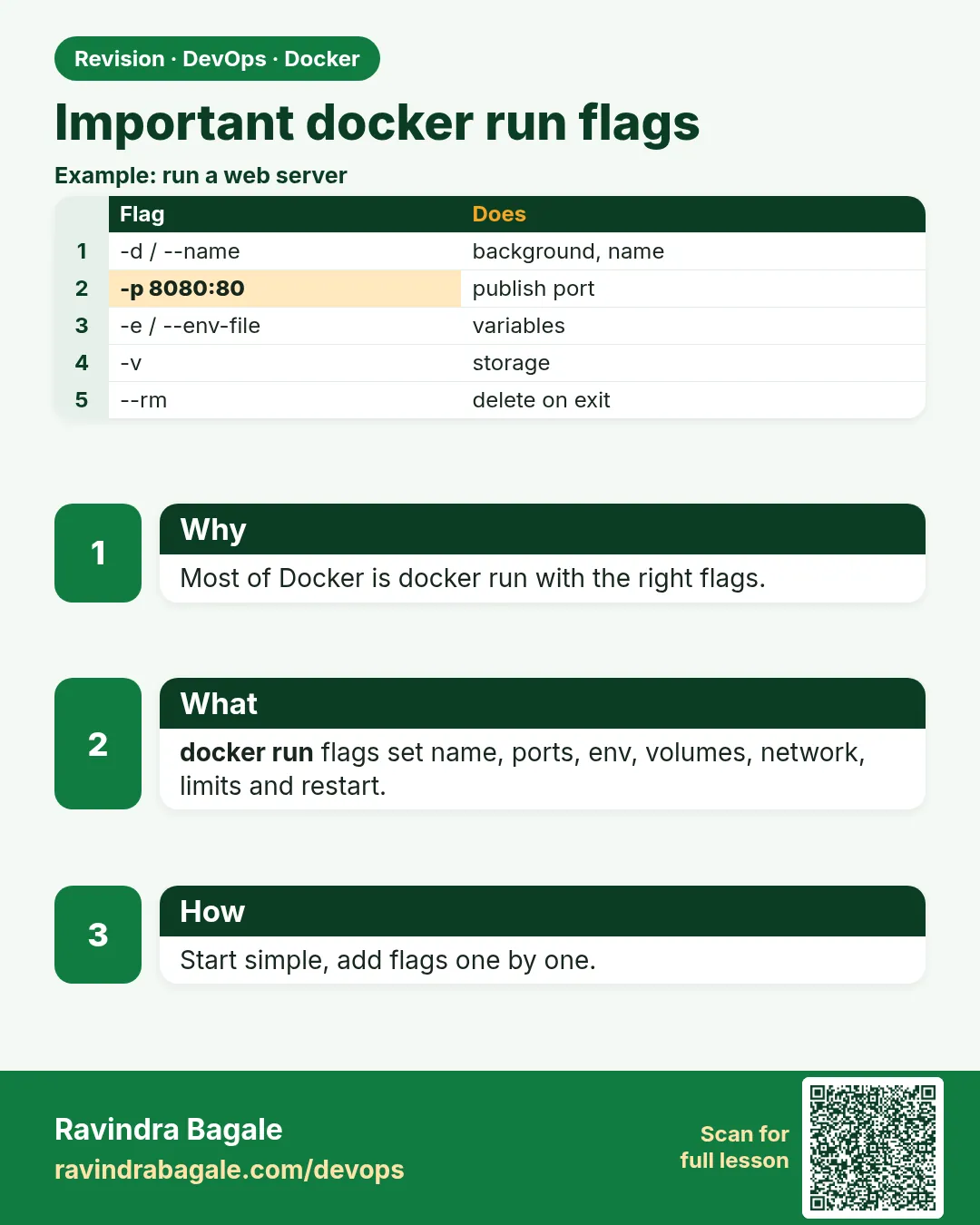
- -d background, --name name, --rm clean up, -it shell.
- -p HOST:CONTAINER publishes a port.
- -e and --env-file pass settings; not passwords.
- -v and --mount keep data.
- --network, --restart, -m and --cpus control the rest.
 Revision card
 Interview card