49.8 Logging drivers and log rotation
Friends, logs can sometimes fill the server's disk. Today we learn where Docker logs go, what a logging driver is, and how to set rotation. This is very important in production.
मित्रांनो, logs कधी कधी server ची disk भरून टाकतात. आज Docker logs कुठे जातात, logging driver म्हणजे काय, आणि rotation कसं लावायचं हे हाताने शिकू. हे production मध्ये खूप महत्त्वाचं आहे.
दोस्तों, logs कभी-कभी server की disk भर देते हैं. आज सीखेंगे Docker logs कहाँ जाते हैं, logging driver क्या है, और rotation कैसे लगाएँ. यह production में बहुत ज़रूरी है.
1. Start from a story
At an online grocery company like BigBasket, a server stopped taking orders on a Sunday. The disk was 100 percent full. The cause was one container log file of 61 GB. The app printed every request, and Docker kept every line for months.
Think of a diary. If you write every day and never tear out old pages, the diary grows until it does not fit in your bag. Log rotation means: keep only the last few small diaries and throw away the oldest.
A logging driver decides where the diary goes: a file on this server, the system journal, or a central service like Amazon CloudWatch.
2. The default driver: json-file
Step 1: Which driver am I using
Why: Before you change anything, find out the current setup.
What: docker info shows the default driver for new containers. docker inspect shows the driver of one container.
Example 1: Default driver
Type this:
docker info --format '{{.LoggingDriver}}'
You will see:
json-file
What it means: json-file is the default on most hosts.
Example 2: Driver of one container
Type this:
docker run -d --name shop nginx:1.27
docker inspect shop --format '{{.HostConfig.LogConfig.Type}}'
You will see:
...
json-file
What it means: This container uses json-file.
Example 3: Its options
Type this:
docker inspect shop --format '{{json .HostConfig.LogConfig.Config}}'
You will see:
{}
What it means: Empty: no size limit. The file can grow for ever.
Step 2: Watch a log file grow
Why: You must see the danger with your own eyes.
What: Every line the app prints becomes one JSON line in a file under /var/lib/docker/containers.
Example 4: A chatty app
Type this:
docker run -d --name chatty alpine:3.20 sh -c 'while true; do echo order placed id=$RANDOM; done'
You will see:
5f2d...
What it means: Prints as fast as it can.
Example 5: Check the size
Type this:
sleep 10; sudo du -h $(docker inspect chatty --format '{{.LogPath}}')
You will see:
48M /var/lib/docker/containers/5f2d.../5f2d...-json.log
What it means: 48 MB in 10 seconds.
Example 6: Stop it now
Type this:
docker rm -f chatty
You will see:
chatty
What it means: Removing the container also removes its log file.
3. Rotation for one container
Step 3: --log-opt max-size and max-file
Why: The chatty app must never use more than 30 MB of disk.
What: With json-file, max-size sets the size of one file, and max-file sets how many files to keep. When a file is full, Docker starts a new one and deletes the oldest.
Example 7: Run with rotation
Type this:
docker run -d --name chatty2 --log-opt max-size=10m --log-opt max-file=3 alpine:3.20 sh -c 'while true; do echo order placed id=$RANDOM; done'
You will see:
8a1c...
What it means: At most 3 files of 10 MB.
Example 8: See the files
Type this:
sleep 20; sudo ls -lh $(dirname $(docker inspect chatty2 --format '{{.LogPath}}')) | grep json
You will see:
-rw-r----- 1 root root 9.8M ...-json.log
-rw-r----- 1 root root  10M ...-json.log.1
-rw-r----- 1 root root  10M ...-json.log.2
What it means: Never more than three.
Example 9: Total stays small
Type this:
sleep 20; sudo du -ch $(dirname $(docker inspect chatty2 --format '{{.LogPath}}'))/*json* | tail -1
You will see:
30M total
What it means: Disk use is capped.
Step 4: compress old files
Why: You want to keep more history in the same space.
What: compress=true gzips the rotated files.
Example 10: Run with compress
Type this:
docker run -d --name chatty3 --log-opt max-size=10m --log-opt max-file=5 --log-opt compress=true alpine:3.20 sh -c 'while true; do echo order id=$RANDOM; done'
You will see:
...
What it means: Five files, old ones compressed.
Example 11: See .gz files
Type this:
sleep 30; sudo ls $(dirname $(docker inspect chatty3 --format '{{.LogPath}}')) | grep json
You will see:
...-json.log
...-json.log.1.gz
...-json.log.2.gz
What it means: Old files are small now.
Example 12: docker logs still reads them
Type this:
docker logs chatty3 | head -1
You will see:
order id=1834
What it means: Docker unzips as it reads.
4. Rotation for the whole host
Step 5: daemon.json: default for all
Why: Nobody will remember --log-opt on every docker run.
What: Set the default driver and options in /etc/docker/daemon.json. They apply to containers created after the daemon restarts.
Example 13: Write the file
Type this:
sudo mkdir -p /etc/docker
printf '{\n  "log-driver": "local",\n  "log-opts": {"max-size": "10m", "max-file": "3"}\n}\n' | sudo tee /etc/docker/daemon.json
You will see:
{
  "log-driver": "local",
  "log-opts": {"max-size": "10m", "max-file": "3"}
}
What it means: The local driver is compact and rotates by default.
Example 14: Check the JSON and restart
Type this:
python3 -m json.tool /etc/docker/daemon.json >/dev/null && sudo systemctl restart docker && docker info --format '{{.LoggingDriver}}'
You will see:
local
What it means: A broken JSON file stops Docker from starting, so check it first.
Example 15: Old containers are not changed
Type this:
docker inspect shop --format '{{.HostConfig.LogConfig.Type}}'
You will see:
json-file
What it means: Recreate old containers to pick up the new default.
Step 6: The local driver
Why: Docker recommends local for most single hosts.
What: local stores logs in a compact binary format, rotates by default (20 MB, 5 files), and docker logs still works.
Example 16: Run one
Type this:
docker run -d --name loc --log-driver local nginx:1.27
You will see:
...
What it means: Uses local.
Example 17: Read logs
Type this:
curl -s -o /dev/null localhost 2>/dev/null; docker logs --tail 1 loc
You will see:
/docker-entrypoint.sh: Configuration complete; ready for start up
What it means: docker logs works the same.
Example 18: Its options
Type this:
docker inspect loc --format '{{.HostConfig.LogConfig.Type}}'
You will see:
local
What it means: Small and safe.
5. Other drivers
Step 7: journald
Why: Many Linux teams already read all logs with journalctl.
What: The journald driver sends container logs to the systemd journal, with the container name as a field.
Example 19: Run with journald
Type this:
docker run -d --name jr --log-driver journald alpine:3.20 sh -c 'echo hello journal; sleep 1d'
You will see:
...
What it means: Logs go to the journal.
Example 20: Read with journalctl
Type this:
sudo journalctl CONTAINER_NAME=jr --no-pager | tail -1
You will see:
Oct 25 13:05:11 ip-10-0-1-5 3b1a...: hello journal
What it means: Same line, in the host journal.
Example 21: docker logs still works
Type this:
docker logs jr
You will see:
hello journal
What it means: journald supports docker logs.
Step 8: awslogs: Amazon CloudWatch
Why: At Swiggy, logs from 400 servers must be in one place.
What: awslogs sends logs straight to CloudWatch Logs. The host needs an IAM role with permission to write logs.
Example 22: Run with awslogs
Type this:
docker run -d --name cw --log-driver awslogs --log-opt awslogs-region=ap-south-1 --log-opt awslogs-group=/shop/api --log-opt awslogs-create-group=true nginx:1.27
You will see:
...
What it means: Logs go to CloudWatch in Mumbai.
Example 23: Read them with the AWS CLI
Type this:
aws logs tail /shop/api --since 5m | tail -1
You will see:
2026-10-25T07:36:02 3b1a... /docker-entrypoint.sh: Configuration complete; ready for start up
What it means: Times from AWS are UTC; 07:36 UTC is 13:06 IST.
Example 24: Missing permission
Type this:
docker logs cw
You will see:
Error response from daemon: configured logging driver does not support reading
What it means: awslogs does not keep a local copy unless dual logging is on. Read in CloudWatch.
Step 9: fluentd, gelf and dual logging
Why: Some teams use a central ELK or Graylog stack.
What: fluentd and gelf send logs over the network. Since Docker 20.10, dual logging keeps a local copy, so docker logs works with any driver.
Example 25: Run with fluentd
Type this:
docker run -d --name fl --log-driver fluentd --log-opt fluentd-address=10.0.1.20:24224 --log-opt tag=shop.api nginx:1.27
You will see:
...
What it means: Logs go to a Fluentd server.
Example 26: Driver not reachable
Type this:
docker run --rm --log-driver fluentd --log-opt fluentd-address=10.0.9.9:24224 alpine:3.20 true
You will see:
docker: Error response from daemon: failed to initialize logging driver: dial tcp 10.0.9.9:24224: connect: connection refused
What it means: Add --log-opt fluentd-async=true so the app starts even if Fluentd is down.
Example 27: Clean up
Type this:
docker rm -f shop chatty2 chatty3 loc jr cw fl
You will see:
...
What it means: All removed.
Step 10: syslog
Why: Older companies, like many banks, collect logs with a central syslog server.
What: The syslog driver sends each line to a syslog address over UDP or TCP. You can set the facility and a tag.
Example 28: Run with syslog
Type this:
docker run -d --name sl --log-driver syslog --log-opt syslog-address=udp://10.0.1.30:514 --log-opt tag=billing alpine:3.20 sh -c 'echo bill created; sleep 1d'
You will see:
...
What it means: Each line goes to the syslog server.
Example 29: On the syslog server
Type this:
sudo tail -1 /var/log/messages
You will see:
Oct 25 13:10:02 ip-10-0-1-5 billing[812]: bill created
What it means: The tag tells you which app it was.
Example 30: Local syslog
Type this:
docker run --rm --log-driver syslog alpine:3.20 echo hello local syslog; sudo tail -1 /var/log/syslog
You will see:
Oct 25 13:11:40 ip-10-0-1-5 3c9e1a2b4d5f[812]: hello local syslog
What it means: Without an address it uses the local syslog.
Step 11: Tags: name your log lines
Why: In a central log system, 400 containers all look the same.
What: --log-opt tag sets a label on each line. It can use templates like {{.Name}} and {{.ImageName}}.
Example 31: Tag with the name
Type this:
docker run -d --name tg --log-driver journald --log-opt tag='{{.ImageName}}/{{.Name}}' alpine:3.20 sh -c 'echo tagged; sleep 1d'
You will see:
...
What it means: The tag has the image and name.
Example 32: Read it
Type this:
sudo journalctl -t alpine:3.20/tg --no-pager | tail -1
You will see:
Oct 25 13:12:01 ip-10-0-1-5 alpine:3.20/tg[812]: tagged
What it means: Easy to search.
Example 33: Clean up
Type this:
docker rm -f sl tg
You will see:
sl
tg
What it means: Removed.
Step 12: Good log habits
Why: Logs are useful only if people can search them.
What: Print to stdout, not to files inside the container. Print one event per line. Use JSON for apps. Never print passwords or tokens.
Example 34: JSON log line
Type this:
docker run --rm alpine:3.20 sh -c 'echo {\"level\":\"info\",\"msg\":\"order placed\",\"id\":42}'
You will see:
{"level":"info","msg":"order placed","id":42}
What it means: Easy to search by field.
Example 35: Find big logs on a host
Type this:
sudo sh -c 'du -h /var/lib/docker/containers/*/*-json.log' | sort -h | tail -3
You will see:
12K ...
4.0M ...
61G ...
What it means: Find the 61 GB file before it fills the disk.
Example 36: Empty a huge file safely
Type this:
sudo truncate -s 0 /var/lib/docker/containers/ID/ID-json.log
You will see:
(no output)
What it means: An emergency step only. Set rotation so it never happens again.
Check yourself
Q1. What is the default logging driver?
json-file.
Q2. Which two options rotate json-file logs?
max-size and max-file.
Q3. Do daemon.json changes affect old containers?
No, only containers created after the restart.
Q4. Which driver does Docker suggest for one host?
local.
Q5. Which driver sends logs to CloudWatch?
awslogs.
Friends, a log is a diary. Without rotation the diary fills the disk. In daemon.json always set the local driver with max-size and max-file. Did you understand? Let us try it once more. Now run the chatty container and watch rotation yourself.
मित्रांनो, log म्हणजे diary. Rotation नसेल तर diary disk भरते. daemon.json मध्ये local driver आणि max-size, max-file नक्की ठेवा. समजलं का? चला, पुन्हा एकदा करून पाहू. आता chatty container चालवून rotation स्वतः बघा.
दोस्तों, log मतलब diary. Rotation न हो तो diary disk भर देती है. daemon.json में local driver और max-size, max-file ज़रूर रखिए. समझ आया? चलिए, एक बार फिर करके देखते हैं। अब chatty container चलाकर rotation खुद देखिए.
Ravindra Bagale's Tip
First job on a new server: log rotation in daemon.json. Then no disk-full phone call at night.
नवीन server घेतला की पहिलं काम: daemon.json मध्ये log rotation. मग disk full चा phone रात्री येत नाही.
नया server लेते ही पहला काम: daemon.json में log rotation. फिर रात को disk full का phone नहीं आता.
Lab: try at home
- Find the default driver and the log file of one container.
- Run a chatty app and watch its log grow.
- Run it again with max-size=10m and max-file=3 and see the cap.
- Set local as the default in daemon.json and restart Docker.
- Send one container's logs to journald and read them with journalctl.
Recap
- Drivers decide where logs go.
- json-file has no limit unless you set max-size and max-file.
- daemon.json sets defaults for new containers.
- local rotates by default.
- awslogs, fluentd and gelf send logs to central systems.
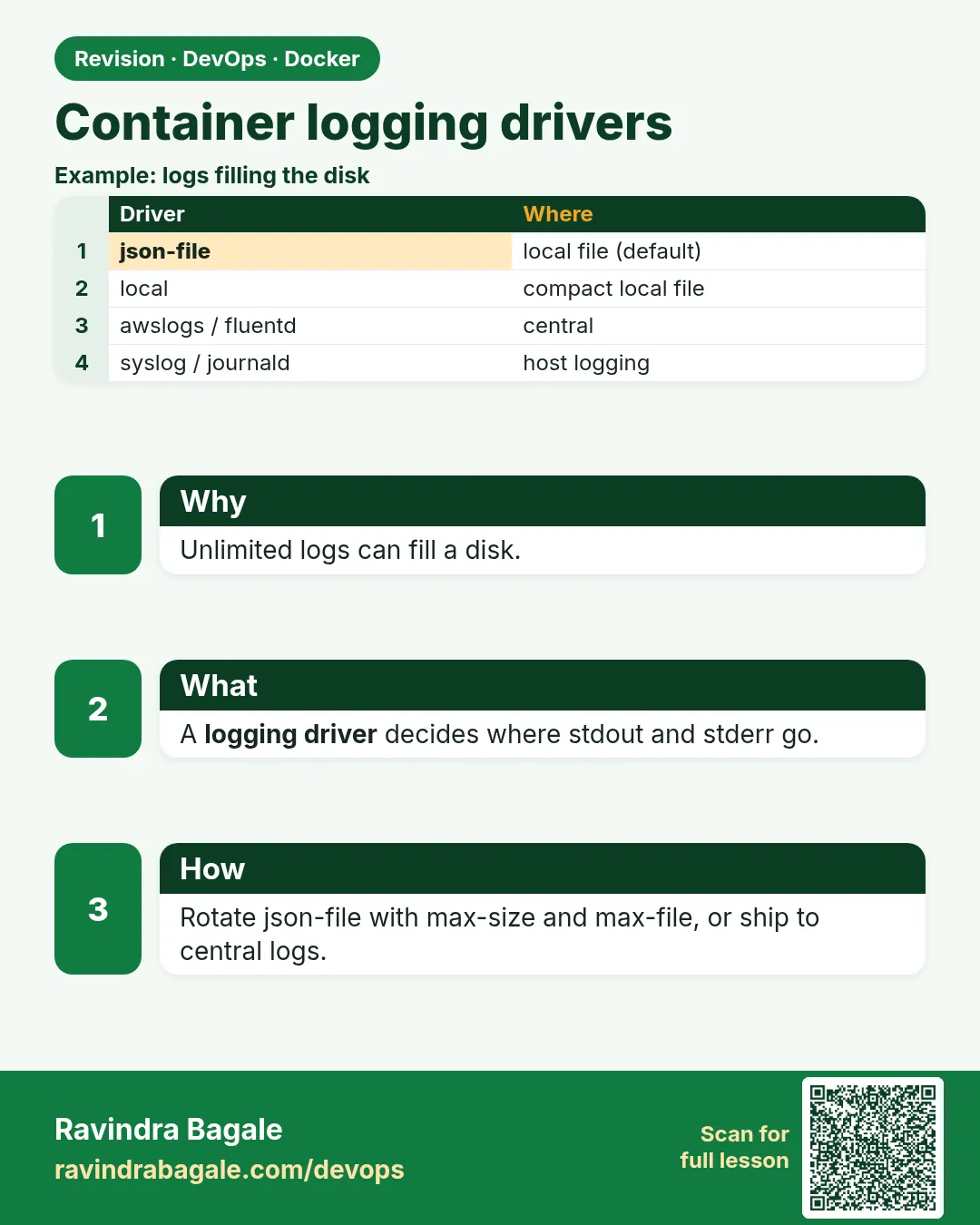 Revision card
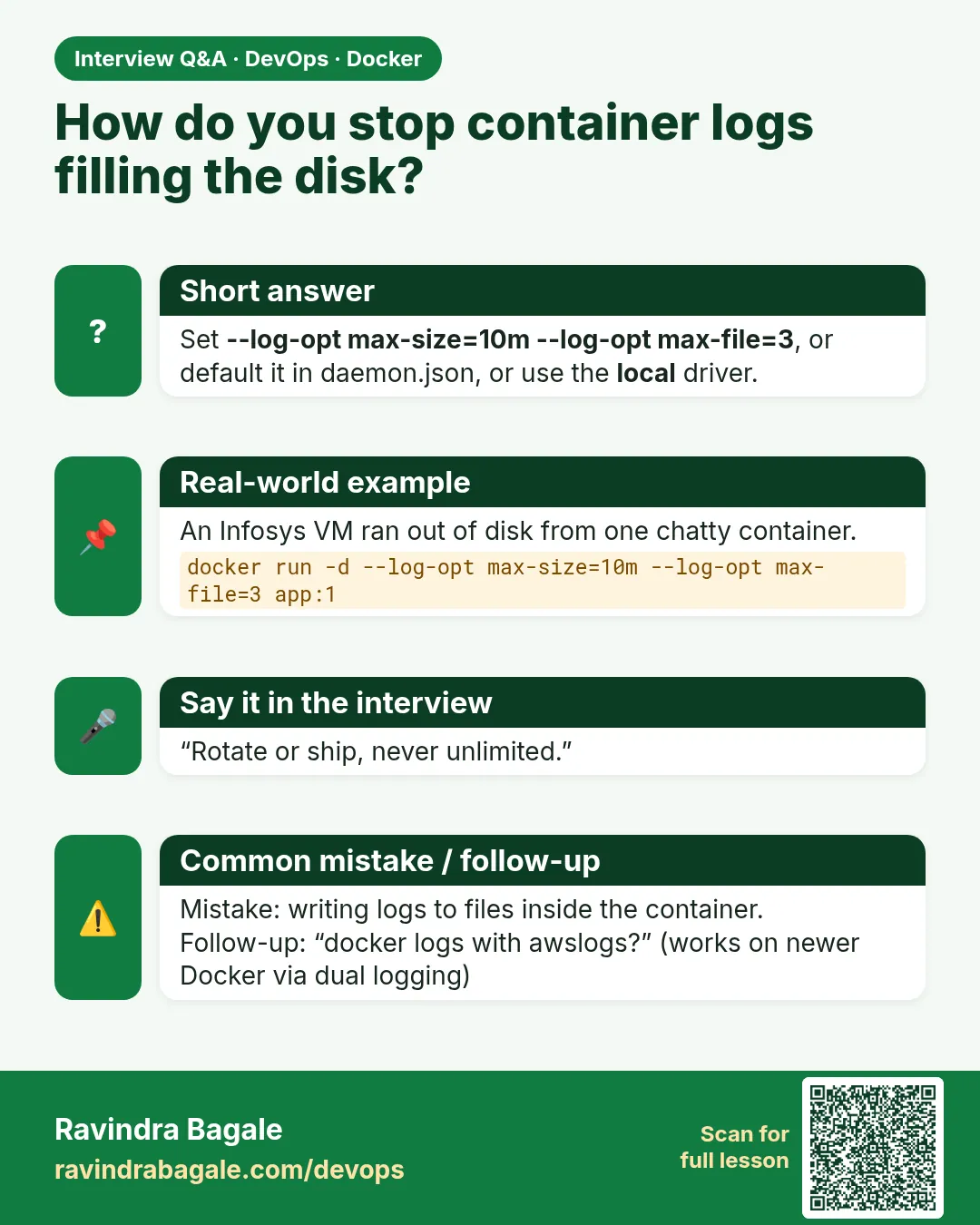 Interview card