Chapter 16: Capstone — Ship It End-to-End
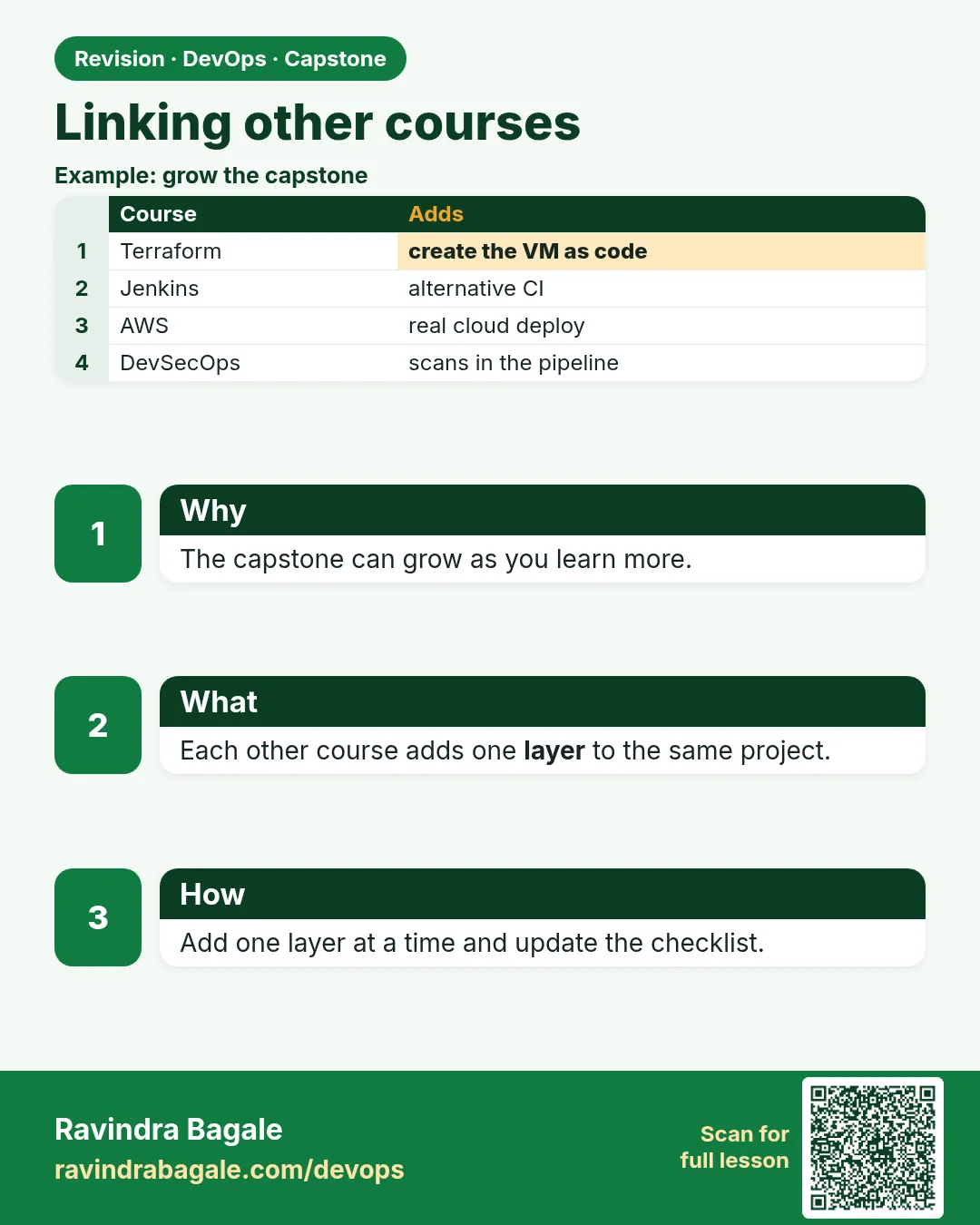
16.12 Linking other courses
Why: the problem
Suppose your capstone runs on your laptop and in kind. An Infosys AWS client asks: "Can it run in our account?" The AWS and Terraform chapters taught the pieces. This lesson links them: push the image to Amazon ECR, create a small EC2 VM with Terraform that pulls and runs it at boot, and check it. Same app, real cloud.
What we will build
The badge API on AWS: image in ECR, an EC2 instance created by a full Terraform file with user data that installs Docker and runs the image, and a .NET version of the API to show any stack can ride the same path.
What: every term in plain English
- ECR — Amazon Elastic Container Registry: private image storage in AWS.
- EC2 — A virtual machine in AWS.
- User data — A script EC2 runs once at first boot.
- IAM instance profile — Gives the EC2 VM permissions (like pulling from ECR) without storing keys.
- Terraform — Infrastructure as code: describe AWS resources in .tf files and create them with apply.
How: step by step
-
Create the ECR repo
aws ecr create-repository --repository-name badge-api --region ap-south-1What it does: A private image repository in Mumbai.
Output
"repositoryUri": "111122223333.dkr.ecr.ap-south-1.amazonaws.com/badge-api" -
Log Docker in to ECR
aws ecr get-login-password --region ap-south-1 | docker login --username AWS --password-stdin 111122223333.dkr.ecr.ap-south-1.amazonaws.comWhat it does: Short-lived login, no stored password.
Output
Login Succeeded -
Tag and push
docker tag badge-api:local 111122223333.dkr.ecr.ap-south-1.amazonaws.com/badge-api:v1 && docker push 111122223333.dkr.ecr.ap-south-1.amazonaws.com/badge-api:v1What it does: Uploads the image.
Output
v1: digest: sha256:8d1f... size: 1789 -
Apply Terraform
cd infra && terraform init && terraform apply -auto-approveWhat it does: Creates the VM (Example 1).
Output
Apply complete! Resources: 5 added, 0 changed, 0 destroyed. Outputs: public_ip = "13.233.10.20" -
Call it
curl -s http://$(terraform output -raw public_ip)/healthWhat it does: Checks the cloud copy (wait ~2 minutes for boot).
Output
{"status":"ok","version":"v1"}
Example 1: Create the EC2 host with Terraform and run the ECR image at boot
Stack. Terraform 1.8, AWS
Goal. Create the EC2 host with Terraform and run the ECR image at boot.
infra/main.tf
terraform {
  required_providers {
    aws = { source = "hashicorp/aws", version = "~> 5.0" }
  }
}
provider "aws" { region = "ap-south-1" }

variable "image" { default = "111122223333.dkr.ecr.ap-south-1.amazonaws.com/badge-api:v1" }
variable "my_ip" { description = "your IP in CIDR form, e.g. 198.51.100.7/32" }

data "aws_ami" "al2023" {
  most_recent = true
  owners      = ["amazon"]
  filter {
    name   = "name"
    values = ["al2023-ami-*-x86_64"]
  }
}

resource "aws_iam_role" "ec2" {
  name = "badge-api-ec2"
  assume_role_policy = jsonencode({
    Version = "2012-10-17"
    Statement = [{ Effect = "Allow", Action = "sts:AssumeRole", Principal = { Service = "ec2.amazonaws.com" } }]
  })
}
resource "aws_iam_role_policy_attachment" "ecr_read" {
  role       = aws_iam_role.ec2.name
  policy_arn = "arn:aws:iam::aws:policy/AmazonEC2ContainerRegistryReadOnly"
}
resource "aws_iam_instance_profile" "ec2" {
  name = "badge-api-ec2"
  role = aws_iam_role.ec2.name
}

resource "aws_security_group" "web" {
  name = "badge-api-web"
  ingress {
    from_port   = 80
    to_port     = 80
    protocol    = "tcp"
    cidr_blocks = [var.my_ip]
  }
  egress {
    from_port   = 0
    to_port     = 0
    protocol    = "-1"
    cidr_blocks = ["0.0.0.0/0"]
  }
}

resource "aws_instance" "api" {
  ami                    = data.aws_ami.al2023.id
  instance_type          = "t3.micro"
  iam_instance_profile   = aws_iam_instance_profile.ec2.name
  vpc_security_group_ids = [aws_security_group.web.id]
  user_data = templatefile("${path.module}/user_data.sh", { image = var.image })
  tags = { Name = "badge-api", Project = "shipit" }
}

output "public_ip" { value = aws_instance.api.public_ip }
user_data.sh
#!/bin/bash
dnf install -y docker
systemctl enable --now docker
REG=$(echo ${image} | cut -d/ -f1)
aws ecr get-login-password --region ap-south-1 | docker login --username AWS --password-stdin $REG
docker run -d --restart unless-stopped -p 80:3000 -e APP_VERSION=v1 ${image}
What each line does
provider "aws" { region = "ap-south-1" }— Works in the Mumbai region.data "aws_ami" "al2023"— Finds the newest Amazon Linux 2023 image.aws_iam_role + AmazonEC2ContainerRegistryReadOnly— The VM may only read from ECR. No keys stored.cidr_blocks = [var.my_ip]— Only your IP can reach port 80.user_data = templatefile(...)— Reads user_data.sh and fills in the image name. Boot script: install Docker, log in to ECR, run the image.--restart unless-stopped— Survives reboots.output "public_ip"— Prints the address after apply.
Green output
$ terraform apply -var my_ip=198.51.100.7/32 -auto-approve
aws_iam_role.ec2: Creation complete
aws_instance.api: Creation complete after 13s [id=i-0abc123def4567890]
Apply complete! Resources: 5 added, 0 changed, 0 destroyed.
public_ip = "13.233.10.20"
Expected result. One command creates a VM that runs your image.
Example 2: Push from CI to ECR with OIDC (no stored AWS keys)
Stack. GitHub Actions, AWS OIDC
Goal. Push from CI to ECR with OIDC (no stored AWS keys).
.github/workflows/ecr.yml
name: ecr
on:
  push:
    branches: [main]
permissions:
  id-token: write
  contents: read
jobs:
  push:
    runs-on: ubuntu-latest
    steps:
      - uses: actions/checkout@v4
      - uses: aws-actions/configure-aws-credentials@v4
        with:
          role-to-assume: arn:aws:iam::111122223333:role/gha-ecr-push
          aws-region: ap-south-1
      - id: ecr
        uses: aws-actions/amazon-ecr-login@v2
      - run: |
          IMG=${{ steps.ecr.outputs.registry }}/badge-api:${{ github.sha }}
          docker build --build-arg APP_VERSION=${{ github.sha }} -t $IMG .
          docker push $IMG
What each line does
id-token: write— Lets the job get a GitHub OIDC token.role-to-assume— AWS trusts GitHub for this role; no access keys anywhere.amazon-ecr-login— Logs Docker in to ECR.steps.ecr.outputs.registry— The ECR registry address.
Green output
push
  ✓ Configure AWS credentials
  ✓ Login to Amazon ECR
  ✓ Run docker push ...badge-api:3f2a1c9e...
Expected result. Every merge lands in ECR, tagged by SHA.
Example 3: Prove any stack works: the badge API in
Stack. .NET 8
Goal. Prove any stack works: the badge API in .NET 8 with its Dockerfile.
dotnet/Program.cs
using System.Text.RegularExpressions;
var app = WebApplication.CreateBuilder(args).Build();
var version = Environment.GetEnvironmentVariable("APP_VERSION") ?? "dev";
var userRe = new Regex("^[a-z0-9_]{3,30}$");

app.MapGet("/health", () => Results.Ok(new { status = "ok", version }));
app.MapGet("/badge/{user}", (string user) =>
    userRe.IsMatch(user)
        ? Results.Ok(new { user, badge = "verified-learner", issuedBy = "shipit" })
        : Results.BadRequest(new { error = "invalid username" }));

app.Run("http://0.0.0.0:3000");
dotnet/Dockerfile
FROM mcr.microsoft.com/dotnet/sdk:8.0 AS build
WORKDIR /src
COPY . .
RUN dotnet publish -c Release -o /out

FROM mcr.microsoft.com/dotnet/aspnet:8.0
WORKDIR /app
COPY --from=build /out .
USER app
EXPOSE 3000
ENTRYPOINT ["dotnet", "BadgeApi.dll"]
What each line does
WebApplication.CreateBuilder(args).Build()— Creates a minimal .NET web app.app.MapGet(...)— Registers an endpoint.Results.BadRequest(...)— HTTP 400.app.Run("http://0.0.0.0:3000")— Same port as Node, so the Terraform and Compose files work unchanged.USER app— .NET 8 images include a non-root user called app.
Green output
$ cd dotnet && dotnet new web -n BadgeApi -o . --force && docker build -t badge-api:dotnet . && docker run -d -p 3000:3000 badge-api:dotnet
$ curl -s localhost:3000/health
{"status":"ok","version":"dev"}
Expected result. Same contract, different stack: the deploy path does not care.
Example 4: Link a CloudWatch-style log check from the AWS course
Stack. Docker
Goal. Link a CloudWatch-style log check from the AWS course.
commands
docker logs --since 10m badge-api 2>&1 | grep -c '"level":"error"'
docker logs --since 10m badge-api 2>&1 | tail -3
What each line does
--since 10m— Only recent logs.grep -c— Count error lines.
Green output
0
{"level":"info","msg":"GET /health 200"}
{"level":"info","msg":"GET /badge/ravi 200"}
Expected result. The same check you learn with CloudWatch Logs Insights in the AWS course, done locally.
Example 5: Reuse the Linux course disk check as an ops script
Stack. Bash
Goal. Reuse the Linux course disk check as an ops script.
ops/disk.sh
#!/usr/bin/env bash
use=$(df --output=pcent / | tail -1 | tr -dc '0-9')
if [ "$use" -ge 80 ]; then echo "WARN disk ${use}%"; exit 1; fi
echo "OK disk ${use}%"
What each line does
df --output=pcent— Only the percent column.tr -dc 0-9— Keep digits only.-ge 80— Warn at 80% or more.
Green output
OK disk 32%
Expected result. Skills from other courses become real parts of the capstone.
Verify: did it work?
-
Instance health
aws ec2 describe-instance-status --instance-ids $(terraform output -raw instance_id 2>/dev/null || echo i-0abc123def4567890) --query "InstanceStatuses[0].InstanceStatus.Status"What it does: Checks EC2 status checks.
Output
"ok" -
Image in ECR
aws ecr list-images --repository-name badge-api --query "imageIds[].imageTag"What it does: Lists pushed tags.
Output
["v1", "3f2a1c9e..."]
When it is red 1
Error: creating EC2 Instance: UnauthorizedOperation
Cause. Your IAM user cannot create EC2 or IAM roles.
Fix, step by step
- Ask your admin for EC2 + IAM role permissions in the lab account.
- Or use a sandbox account.
- Rerun apply.
When it is red 2
curl: (28) Connection timed out
Cause. Security group allows a different IP, or boot is not done.
Fix, step by step
- curl ifconfig.me to find your IP.
- Rerun apply with -var my_ip=
/32. - Wait 2 minutes after apply.
When it is red 3
no basic auth credentials (in user data log /var/log/cloud-init-output.log)
Cause. The VM role lacks ECR read.
Fix, step by step
- Check the policy attachment exists.
- SSM or SSH in and read the log.
- Re-create the instance: terraform apply -replace=aws_instance.api.
When it is red 4
WARN disk 85%
Cause. Images and logs fill the disk.
Fix, step by step
- docker system prune -f
- Rotate logs with logrotate.
Cleanup
-
Destroy AWS resources
terraform destroy -auto-approveWhat it does: Deletes the VM, role and security group. Do it the same day.
Output
Destroy complete! Resources: 5 destroyed. -
Delete the ECR repo
aws ecr delete-repository --repository-name badge-api --force --region ap-south-1What it does: Removes images too.
Output
"repositoryName": "badge-api"
Ravindra Bagale's Tip
When the AWS lab ends, run terraform destroy at once — before the bill arrives.
AWS lab संपला की लगेच terraform destroy. Bill येण्याआधी.
AWS lab खत्म होते ही terraform destroy. Bill आने से पहले.
Practice tasks
Easy ECR repo
Why: Doing it once with your own hands makes it stick.
What to do: Create the repo.
- aws ecr create-repository ...
Check: URI printed.
Easy Push
Why: Doing it once with your own hands makes it stick.
What to do: Push v1.
- login, tag, push
Check: Digest printed.
Easy Apply
Why: Doing it once with your own hands makes it stick.
What to do: terraform apply.
- init
- apply
Check: public_ip output.
Easy Curl
Why: Doing it once with your own hands makes it stick.
What to do: Call /health on EC2.
- curl
Check: v1.
Medium Boot log
Why: Doing it once with your own hands makes it stick.
What to do: Read cloud-init log.
- SSM/SSH
- cat /var/log/cloud-init-output.log
Check: docker run line.
Medium v2
Why: Doing it once with your own hands makes it stick.
What to do: Push v2 and replace.
- Change var.image.
- apply -replace
Check: v2 serves.
Medium .NET
Why: Doing it once with your own hands makes it stick.
What to do: Build the .NET image.
- docker build
Check: Same /health.
Medium OIDC
Why: Doing it once with your own hands makes it stick.
What to do: Set up ecr.yml.
- Create the IAM role.
- Push to main.
Check: SHA tag in ECR.
Hard Plan diff
Why: Doing it once with your own hands makes it stick.
What to do: Change type via variable.
- terraform plan
Check: Diff shows change.
Hard Destroy
Why: Doing it once with your own hands makes it stick.
What to do: Destroy everything.
- terraform destroy
- delete-repository
Check: Nothing left.
Homework: try at home
Try at home
Change instance_type to t3.small via a variable, add a tag Owner=
Recap
- ECR stores images; EC2 runs them.
- Terraform creates the VM, role and firewall.
- Instance profiles and OIDC avoid stored keys.
- Any stack fits the same path.
- Destroy the same day.
FAQ
Is t3.micro free?
It may be in the AWS free tier for new accounts; check your account.
Why Mumbai?
Close to learners in India. Use any region.
ECS instead of EC2?
Yes, ECS Fargate is a great next step.
Where do I see user data errors?
/var/log/cloud-init-output.log.
Is 111122223333 real?
No, it is a sample account ID.
Do I need to finish other courses first?
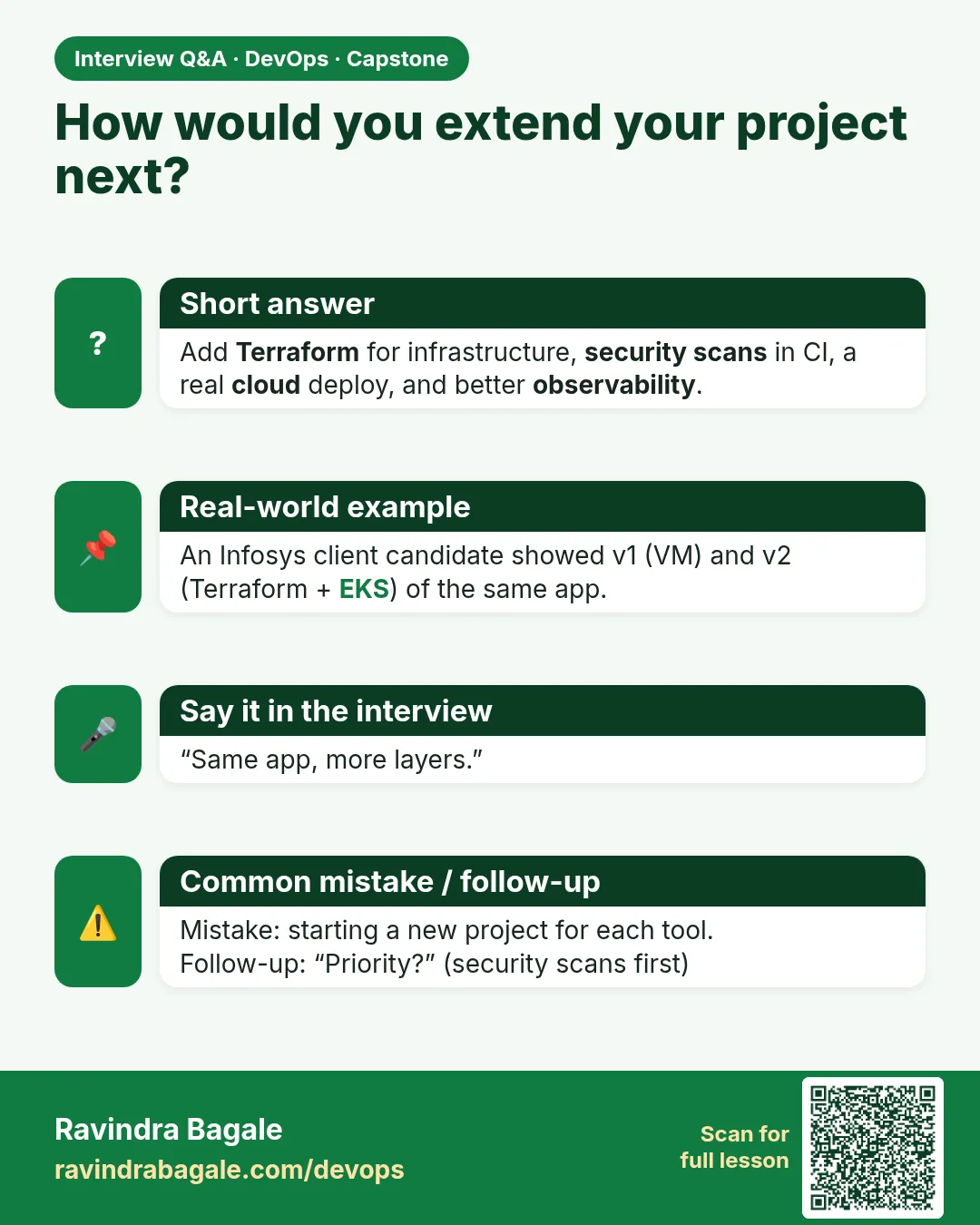
No. Link what you know; add more later.
Interview questions
-
How does EC2 pull from ECR securely?
Instance profile with ECR read-only policy.
-
How do you deploy from CI to AWS without keys?
OIDC federation to an IAM role.
-
What is user data?
First-boot script for EC2.
-
How do you replace an instance with Terraform?
terraform apply -replace=ADDRESS.
-
How do you control lab costs?
Small types, tags, destroy, budgets.
Quick quiz
Q1. Why use an instance profile?
The VM gets temporary credentials; no keys on disk.
Q2. What does user data do?
Runs a script at first boot.
Q3. Why limit port 80 to your IP?
Lab safety.
Q4. What is OIDC in CI?
CI proves its identity to AWS and gets short-lived credentials.
Q5. What must you run after the lab?
terraform destroy.
Did you understand? Let us try it once more.
 Revision card
 Interview card