8.8 What a junior watches on a red pipeline
Why: the problem
It is your first month as a junior DevOps engineer at a Pune company that builds apps for Swiggy-style food delivery. A message comes in the team chat: "main is red, please check". Your heart beats fast. Where do you even start? Many juniors open random files or restart the runner. Seniors follow the same calm order every time. Which job is red? Which step inside the job? What is the first red line in the log, not the last? Did this pass yesterday? What changed since then: code, a library, the runner image or a secret? This lesson gives you that order as a checklist. With it, most red pipelines are fixed in minutes, and you stop guessing.
What we will build
You will break the badge API pipeline in four common ways: a failing test, a missing library, an expired secret and a changed runner image. For each one you will follow the same five-step checklist, find the first red line, reproduce it on your laptop and fix it. You will also learn to rerun only failed jobs and to read logs from the terminal.
What: every term in plain English
- First red line — The first error in the log. Later lines are often just side effects.
- Reproduce — Run the same command on your laptop or in the same Docker image to see the same error.
- Rerun failed jobs — Run only the red jobs again, not the whole pipeline.
- Flaky — Fails sometimes and passes sometimes with no code change.
- Runner image — The base machine image for the job, like ubuntu-latest. It changes over time.
- Debug logging — Extra log lines you can switch on, like ACTIONS_STEP_DEBUG or CI_DEBUG_TRACE.
- Last green — The most recent run that passed. Compare with it.
How: step by step
-
1. Find the red job and step
gh run list --limit 3 && gh run view --log-failedWhat it does: Shows the latest runs and only the failed log lines.
Output
X main cicd a3f2c1d failed test Run python -m pytest -q FAILED test_app.py::test_health -
2. Find the first red line
gh run view --log-failed | grep -n -m1 -E "Error|FAILED|error:"What it does: Search from the top. The first match is usually the real cause.
Output
14: FAILED test_app.py::test_health - assert 500 == 200 -
3. Compare with last green
git log --oneline LAST_GREEN_SHA..HEADWhat it does: Lists commits since the last green run. The bug is in one of them.
Output
a3f2c1d change health json 91be0aa bump flask -
4. Reproduce in the same image
docker run --rm -v "$PWD":/src -w /src python:3.12-slim sh -c "pip install -q -r requirements.txt && python -m pytest -q"What it does: Same image as CI, so you see the same error.
Output
FAILED test_app.py::test_health - assert 500 == 200 -
5. Fix, push and rerun
git commit -am "fix health" && git pushWhat it does: A new run starts. For a flaky or network error, use gh run rerun --failed instead.
Output
completed success
Example 1: Red because of a failing test: read the assert
Stack. pytest log
Goal. Red because of a failing test: read the assert.
Log (GitHub Actions)
Run python -m pytest -q
F                                                                [100%]
=================================== FAILURES ===================================
_________________________________ test_health __________________________________
    def test_health():
        r = app.test_client().get("/health")
>       assert r.status_code == 200
E       assert 500 == 200
app.py:12: in health
    return jsonify(status="ok", env=ENV, db=DB.ping())
E   NameError: name 'DB' is not defined
Error: Process completed with exit code 1.
What each line does
F— One test failed.assert 500 == 200— The page crashed with error 500.NameError: name 'DB' is not defined— The real cause: new code uses DB but it was never created.exit code 1— Why the step is red.
Green output
$ git log -1 -p app.py | grep DB
+    return jsonify(status="ok", env=ENV, db=DB.ping())
(fix: remove db=DB.ping() or import DB)
$ python -m pytest -q
1 passed in 0.20s
Expected result. Read past the assert to the real error. The assert only says something broke. The NameError says what.
Example 2: Red because of a missing library or runner change
Stack. GitLab CI, Jenkins
Goal. Red because of a missing library or runner change.
Log (GitLab CI)
$ ruff check .
/bin/sh: 1: ruff: not found
ERROR: Job failed: exit code 127
Log (Jenkins)
+ docker build -t badge-api:91be0aa .
/var/jenkins_home/workspace/badge-api@tmp/durable-1a2b/script.sh: 1: docker: not found
script returned exit code 127
Fix in .gitlab-ci.yml
lint:
  image: python:3.12-slim
  script:
    - pip install ruff
    - ruff check .
What each line does
exit code 127— Command not found. The tool is not installed on that runner.ruff: not found— The job never installs ruff, or the image changed.docker: not found— The Jenkins agent has no Docker. Use an agent label with Docker.pip install ruff— Install tools inside the job. Do not trust the runner to have them.
Green output
$ pip install ruff
Successfully installed ruff-0.6.9
$ ruff check .
All checks passed!
Job succeeded
Expected result. Exit code 127 always means "not found". Install the tool in the job or pick the right image or agent.
Example 3: Red because of an expired secret
Stack. GitHub Actions, Docker Hub
Goal. Red because of an expired secret.
Log (GitHub Actions)
Run docker/login-action@v3
Logging into Docker Hub...
Error: Error response from daemon: Get "https://registry-1.docker.io/v2/": unauthorized: incorrect username or password
Fix steps
1. Docker Hub > Account settings > Personal access tokens > Generate new token (Read and Write).
2. Repo Settings > Secrets and variables > Actions > DOCKERHUB_TOKEN > Update.
3. gh run rerun --failed
What each line does
unauthorized— The registry did not accept the login.Nothing changed in code— Last green was yesterday and the diff is only README. That points to a secret or outside change.Update the secret— Paste the new token. The value never goes in Git.gh run rerun --failed— Reruns only the red job with the new secret.
Green output
$ gh run rerun --failed
build-push  succeeded
  pushed ravi/badge-api:sha-91be0aa
Expected result. When code did not change but the run went red, check secrets, the registry and the runner first.
Verify: did it work?
-
Check the fix is real
gh run list --limit 1What it does: The newest run on main must be green.
Output
completed success fix health cicd main -
Check for flakiness
gh run rerun RUN_ID && gh run watchWhat it does: Rerun the same commit. It must stay green.
Output
completed success
When it is red 1
Error: The log was not found. It may have been deleted based on retention settings.
Cause. Old logs expire.
Fix, step by step
- Rerun the commit to get a fresh log.
- Keep important logs as artifacts.
When it is red 2
Test passes on my laptop but fails in CI
Cause. Your laptop has a different Python, a cached file or a local setting.
Fix, step by step
- Reproduce inside the same Docker image as CI.
- Delete local caches and venv and try again.
- Pin versions in requirements.txt.
When it is red 3
Fails one time in five with: Connection reset by peer
Cause. A flaky network call in a test.
Fix, step by step
- Mark it, open a ticket and fix it this week.
- Mock the network call in unit tests.
- Do not just keep pressing rerun.
Cleanup
-
Close the incident note
echo "main red 10:05-10:22, cause NameError DB, fixed in 7c1e0b2" >> notes/ci-incidents.mdWhat it does: A one-line note helps the next person.
Output
(no output)
Ravindra Bagale's Tip
Do not read a red log from the bottom — read from the top. The first error line is usually the real cause. Keep that in mind!
Red log खालीपासून नाही, वरून वाचा. पहिली error line खरी कारण असते. लक्षात ठेवा!
Red log नीचे से नहीं, ऊपर से पढ़ो. पहली error line अक्सर असली कारण होती है. याद रखो!
Practice tasks
Easy Use log-failed
Why: Read only what matters.
What to do: Run gh run view --log-failed on a red run.
- Find the first error.
Check: You find it in under one minute.
Medium Reproduce in Docker
Why: Stop "works on my machine".
What to do: Run the CI command inside python:3.12-slim.
- Compare outputs.
Check: Same error as CI.
Hard Write a red build runbook
Why: Help the next junior.
What to do: Write the five-step checklist with commands for your tool.
- Share with a friend and let them use it.
Check: They fix a red build alone.
Easy Say debugging a red pipeline in two lines
Why: If you can say it simply, you understand it. Juniors and interviewers both want the short version first.
What to do: Write two short lines about debugging a red pipeline for a fresher who knows only Linux, Git and Docker basics.
- Write the problem it solves.
- Write the one pipeline line or command you use for it.
- Read it aloud to a friend.
Check: A fresher understands it without asking a question.
Easy Keep a throwaway lab repo
Why: Practice needs a repo you can break. If it gets messy, you delete it and start again.
What to do: Make a small practice repo called badge-api with one Python file, one test and one Dockerfile.
- mkdir badge-api and cd into it
- git init -b main
- Add app.py, test_app.py and Dockerfile from this chapter, then commit.
Check: git log shows one commit and pytest prints 1 passed.
Medium Do it in a second CI tool
Why: CI/CD is the idea. The tool is only the syntax. The same stages must work in GitHub Actions, GitLab CI and Jenkins.
What to do: Write the pipeline from this lesson in a second CI tool.
- If you used GitHub Actions, write .gitlab-ci.yml or a Jenkinsfile now.
- Keep the same stage names and the same commands.
- Only the wrapper syntax should change.
Check: Same green result, same stage names, different tool.
Medium Break it on purpose
Why: You must know the red log by face. In a real outage there is no time to read slowly.
What to do: Cause one error from the "When it is red" part of this lesson and fix it.
- Follow the error section.
- Copy the exact red line from the job log into your notes.
- Write the fix in one line.
Check: You fixed it using only the steps, without searching the web.
Medium Write a one-page runbook
Why: At 2 a.m. nobody remembers pipeline menus. A short page saves the on-call person.
What to do: Write a one-page runbook for this lesson.
- Title, when to use, exact steps or pipeline lines, how to check, how to undo.
Check: A teammate can follow it alone.
Hard Explain it like an interview
Why: Interviewers want real stories, not definitions.
What to do: Record a 60 second answer about this lesson.
- Say the problem, the pipeline lines you wrote, and one error you hit.
Check: Your answer has a real pipeline line and a real error message.
Hard Draw the flow top to bottom
Why: A drawing shows the order of work and which stage waits for which.
What to do: Draw this lesson as boxes from top to bottom.
- Start at git push, go through each stage, end at the green run or the deployed app.
Check: Each box matches a real line in your job log.
Homework: try at home
Try at home
At home, break your pipeline in the four ways from this lesson. For each, write the first red line, the cause and the fix in a table, and time how long the fix took.
Recap
- Find the red job, then the step, then the first red line.
- Compare with the last green run.
- Reproduce in the same image.
- Exit 127 means not found; unauthorized means secret or login.
- Fix flaky tests, do not just rerun.
FAQ
Should I restart the runner first?
No. Read the log first. Restart is rarely the fix.
Who should fix a red main?
The person whose change broke it, with help. See lesson 8.8c.
Can I turn on more logs?
Yes. Set ACTIONS_STEP_DEBUG to true in GitHub, or CI_DEBUG_TRACE in GitLab, for one run.
How to find last green?
Filter runs by status success on the branch.
Is it ok to revert?
Yes. Revert first to make main green, then fix calmly.
Interview questions
-
How do you debug a failing pipeline?
Find the failed job and step, read the first error, compare with the last green run, reproduce in the same image, fix and rerun.
-
What causes "works locally, fails in CI"?
Different versions, missing tools, caches, env vars or secrets. Use the same image and pinned versions.
-
How do you handle flaky tests?
Track them, quarantine if needed, and fix the root cause like timing or network calls.
-
What is your first step when main is red?
Tell the team you are on it, then read the first error. If needed, revert to restore green.
-
What does exit code 127 mean?
The shell could not find the command.
Quick quiz
Q1. What do you look for first in a red log?
The first red line, not the last.
Q2. What does exit code 127 mean?
Command not found.
Q3. Code did not change but CI is red. What do you check?
Secrets, runner image, registry and outside services.
Q4. How do you reproduce a CI error?
Run the same command in the same Docker image.
Q5. What should you not do with a flaky test?
Keep pressing rerun without fixing it.
Did you understand? Let us try it once more.
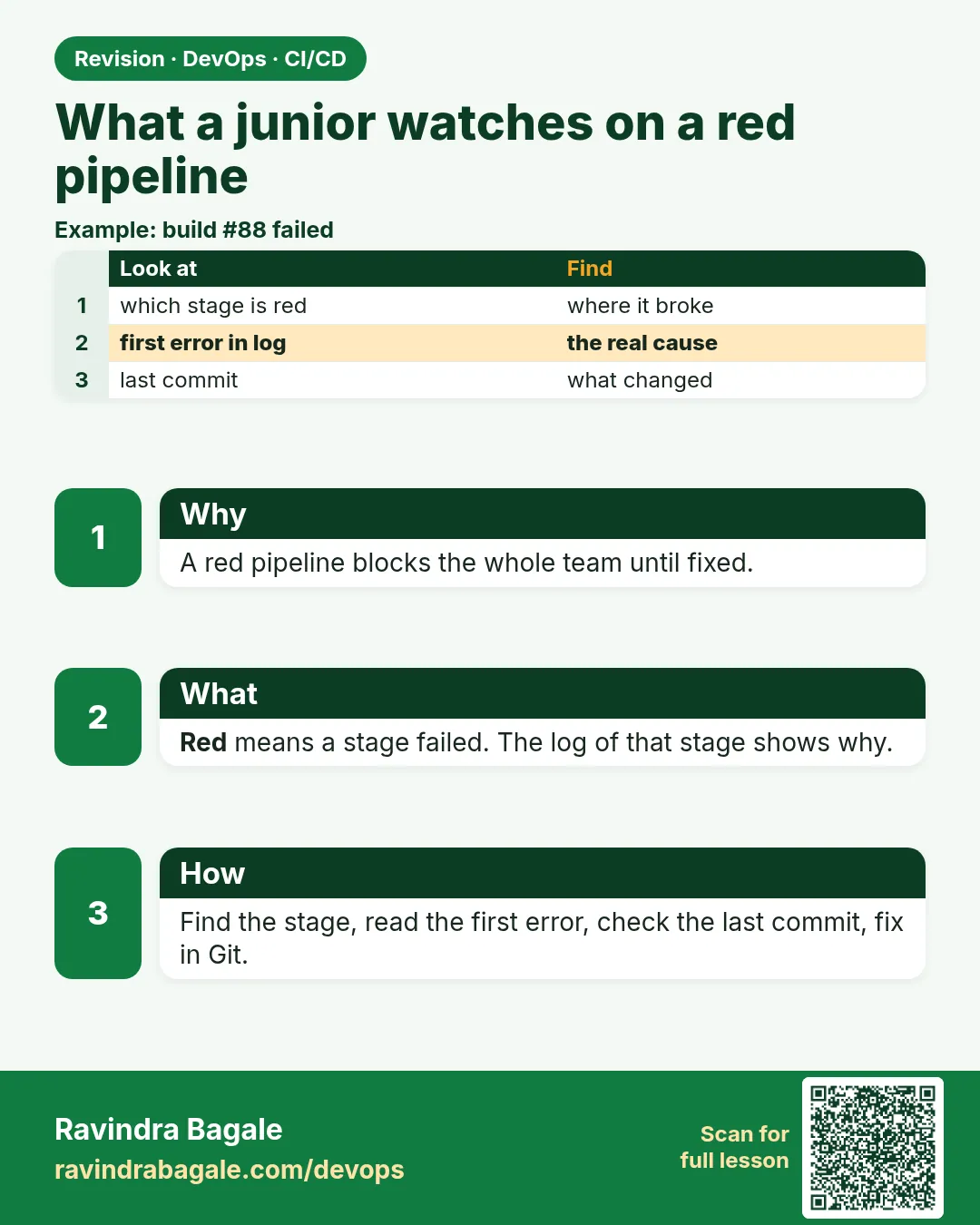 Revision card
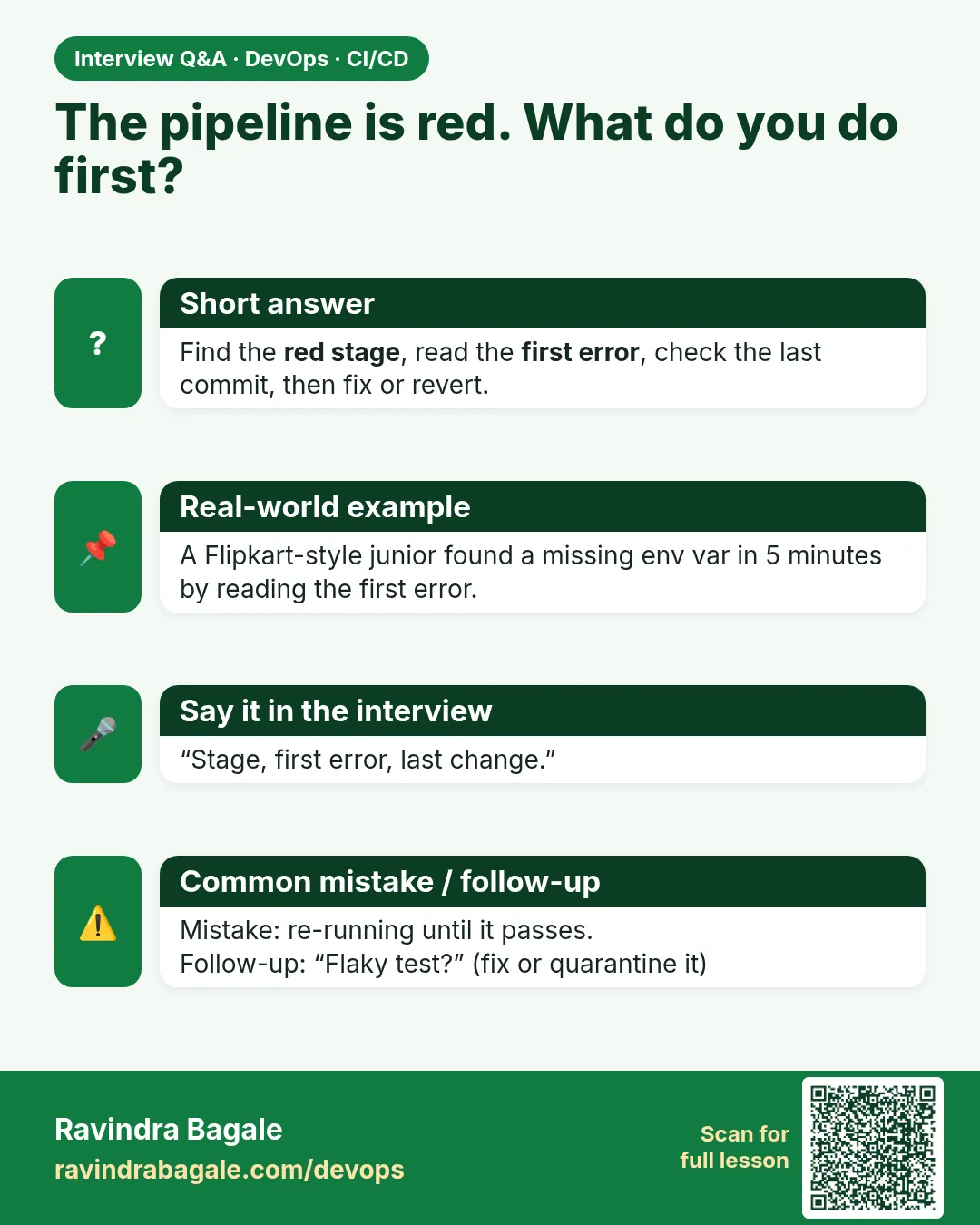 Interview card