8.0 A Netflix-style release — CI/CD is the practice, Jenkins is a tool
Why: the problem
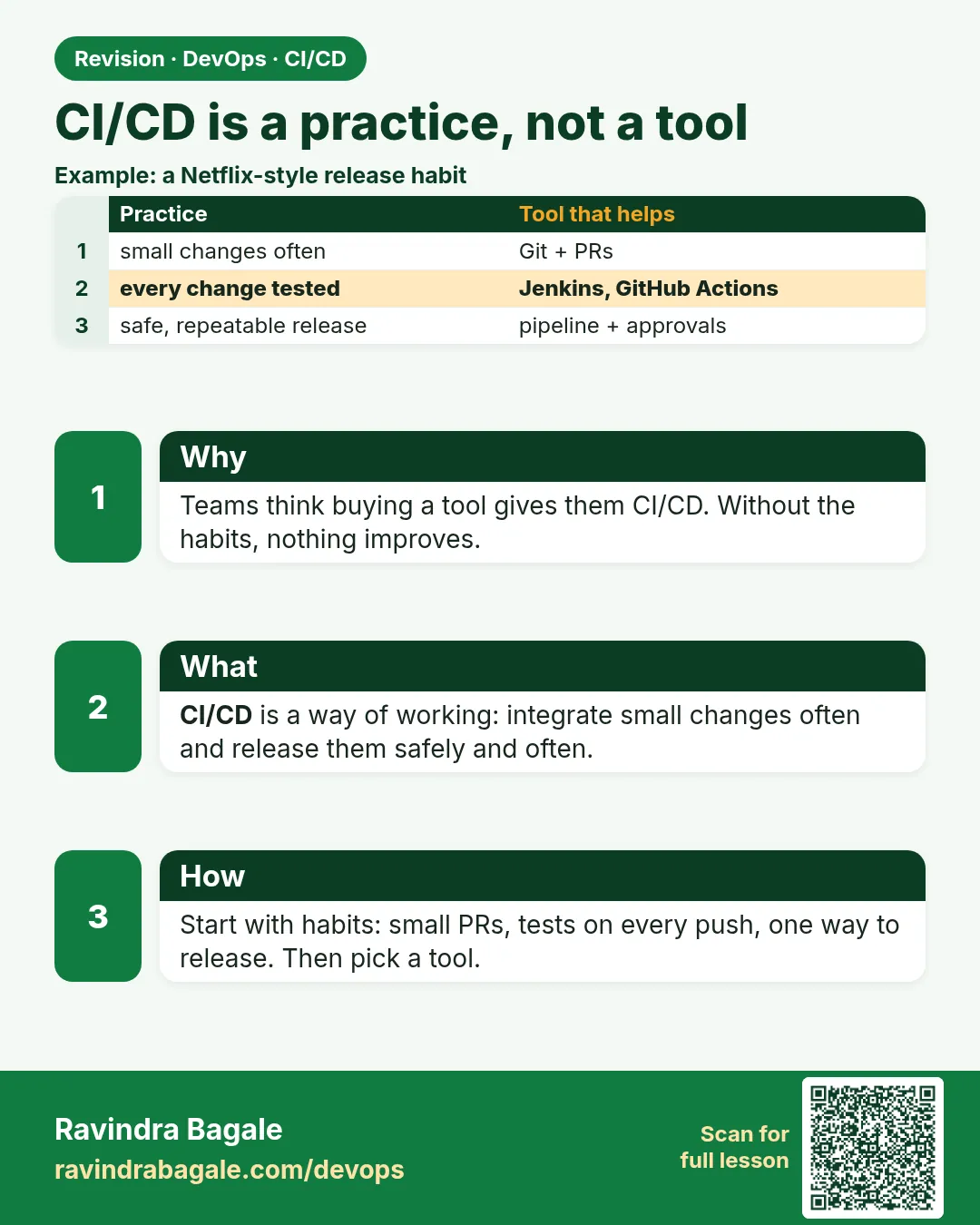
Think about Netflix. Many times every day, engineers change the app. A new button. A bug fix. A faster video page. You never see the site go down for this. How? Nobody copies files to servers by hand. Every change goes through the same fixed path. The code is checked, tested, packed and shipped by a machine. That fixed path is called a pipeline. The practice of working this way is called CI/CD. Now think of a small team at Swiggy or an Infosys client project without it. One engineer builds the app on his laptop. He forgets one test. He copies a file with a typo to the server. The order page breaks on a Friday night. CI/CD exists to stop this. Students often mix two things. They say "I know CI/CD" when they mean "I clicked Jenkins once". CI/CD is the practice. Jenkins, GitHub Actions and GitLab CI are only tools that run it. In this chapter you learn the practice first, so any tool becomes easy.
What we will build
You will make a tiny Instagram-style badge API in Python with one test. Then you will run the same check three ways: GitHub Actions, GitLab CI and Jenkins. You will see that the stages and commands stay the same. Only the wrapper file changes. This is the main idea of the whole chapter.
What: every term in plain English
- CI (Continuous Integration) — Every push is merged often and checked automatically: build plus tests.
- CD (Continuous Delivery) — Every green change is ready to ship. A human may still press the final button.
- CD (Continuous Deployment) — Every green change goes to production automatically. No button.
- Pipeline — The fixed list of steps a change goes through, like lint, test, build, deploy.
- Stage — One step in the pipeline. Example: the test stage.
- Job — The work done inside a stage, on one machine.
- Runner or agent — The machine that runs the job. GitHub calls it a runner, Jenkins calls it an agent.
- Tool — The software that runs pipelines: GitHub Actions, GitLab CI, Jenkins, CircleCI, Azure Pipelines.
- Green or red — Green means every step passed. Red means one step failed and the pipeline stopped.
How: step by step
-
Make the practice repo
mkdir badge-api && cd badge-api && git init -b mainWhat it does: A fresh Git repo. Every pipeline starts from a Git push.
Output
Initialized empty Git repository in /home/ravi/badge-api/.git/ -
Add the app and the test
Create app.py, test_app.py and requirements.txt from Example 1What it does: A tiny API with one test. Small, but real.
Output
(3 files created) -
Run the test on your laptop first
pip install -r requirements.txt && python -m pytest -qWhat it does: Never put a command in a pipeline that you did not run by hand first.
Output
1 passed in 0.21s -
Add a pipeline file
Add .github/workflows/ci.yml from Example 2What it does: This file tells the CI tool what to run on each push.
Output
(file created) -
Push and watch
git add . && git commit -m "add ci" && git push origin mainWhat it does: The push starts the pipeline on a runner.
Output
main -> main -
Read the result
Open the repo > Actions tab > latest run > test jobWhat it does: Each step shows a tick or a cross. The last step decides green or red.
Output
test succeeded in 24s
Example 1: The badge API and its one test: what every pipeline protects
Stack. Python 3.12, Flask, pytest
Goal. The badge API and its one test: what every pipeline protects.
app.py
from flask import Flask, jsonify
app = Flask(__name__)

@app.get("/health")
def health():
    return jsonify(status="ok")

@app.get("/badge/USER")
def badge(user):
    return jsonify(user=user, badge="verified")
test_app.py
from app import app

def test_health():
    client = app.test_client()
    r = client.get("/health")
    assert r.status_code == 200
    assert r.get_json()["status"] == "ok"
requirements.txt
flask==3.0.3
pytest==8.3.2
What each line does
Flask(__name__)— Makes a small web app.@app.get("/health")— A health URL. Load balancers and pipelines call it to see if the app is alive.jsonify(status="ok")— Returns {"status": "ok"} as JSON.app.test_client()— A fake browser for tests. No server needed.assert r.status_code == 200— The test fails if the page is not 200 OK.flask==3.0.3— Exact versions. The pipeline and your laptop install the same thing.
Green output
$ python -m pytest -q
.                                                                [100%]
1 passed in 0.21s
Expected result. One green test on your laptop. Now we let a machine run the same test on every push.
Example 2: The same check in GitHub Actions
Stack. GitHub Actions
Goal. The same check in GitHub Actions.
.github/workflows/ci.yml
name: ci
on: [push, pull_request]
jobs:
  test:
    runs-on: ubuntu-latest
    steps:
      - uses: actions/checkout@v4
      - uses: actions/setup-python@v5
        with:
          python-version: "3.12"
      - run: pip install -r requirements.txt
      - run: python -m pytest -q
What each line does
on: [push, pull_request]— Run on every push and every pull request.runs-on: ubuntu-latest— A fresh hosted Ubuntu machine, deleted after the job.uses: actions/checkout@v4— Downloads your code onto the runner.uses: actions/setup-python@v5— Installs Python 3.12 on the runner.run: pip install ...— Same command you ran on your laptop.run: python -m pytest -q— The test. Exit code 0 means green.
Green output
Run actions/checkout@v4
Run actions/setup-python@v5
  Successfully set up CPython (3.12.5)
Run pip install -r requirements.txt
  Successfully installed flask-3.0.3 pytest-8.3.2
Run python -m pytest -q
.                                                                [100%]
1 passed in 0.19s
Expected result. A green tick next to the commit. Every teammate sees it.
Example 3: The same check in GitLab CI: only the wrapper changes
Stack. GitLab CI
Goal. The same check in GitLab CI: only the wrapper changes.
.gitlab-ci.yml
stages: [test]
test:
  stage: test
  image: python:3.12-slim
  script:
    - pip install -r requirements.txt
    - python -m pytest -q
What each line does
stages: [test]— The list of stages, in order.test:— The job name.image: python:3.12-slim— GitLab runs the job inside this Docker image. Python is already there.script:— The shell lines. They are the same two lines again.
Green output
$ pip install -r requirements.txt
Successfully installed flask-3.0.3 pytest-8.3.2
$ python -m pytest -q
.                                                                [100%]
1 passed in 0.18s
Job succeeded
Expected result. Same test, same result, a different tool.
Example 4: The same check in Jenkins: still the same two lines
Stack. Jenkins with Docker agent
Goal. The same check in Jenkins: still the same two lines.
Jenkinsfile
pipeline {
    agent { docker { image 'python:3.12-slim' } }
    stages {
        stage('Test') {
            steps {
                sh 'pip install -r requirements.txt'
                sh 'python -m pytest -q'
            }
        }
    }
}
What each line does
agent { docker { image 'python:3.12-slim' } }— Run the stages inside a Python container on the Jenkins agent.stage('Test')— The stage name shown in Jenkins.sh 'pip install ...'— Same install line.sh 'python -m pytest -q'— Same test line.
Green output
[Pipeline] { (Test)
+ pip install -r requirements.txt
Successfully installed flask-3.0.3 pytest-8.3.2
+ python -m pytest -q
1 passed in 0.20s
Finished: SUCCESS
Expected result. Three tools, one practice. Write this table in your notes: install line, test line, result. They never changed.
Verify: did it work?
-
Check the pipeline ran on the last commit
git log -1 --format=%h && echo "compare with the commit shown in the CI run"What it does: The run must match your latest commit, not an old one.
Output
a3f2c1d -
Check the result from the terminal (GitHub CLI)
gh run list --limit 1What it does: Shows the latest run and its status without opening a browser.
Output
completed success add ci ci main push 24s
When it is red 1
ModuleNotFoundError: No module named 'flask'
Error: Process completed with exit code 2.
Cause. The runner is a fresh machine. It has nothing you installed on your laptop.
Fix, step by step
- Add flask to requirements.txt.
- Make sure the pipeline runs pip install -r requirements.txt before the test.
- Push again.
When it is red 2
No workflow runs found. (nothing appears in the Actions tab)
Cause. The file is in the wrong folder or has the wrong extension.
Fix, step by step
- The path must be exactly .github/workflows/ci.yml.
- The extension must be .yml or .yaml.
- Commit and push the file to the branch you are on.
When it is red 3
yaml: line 9: did not find expected key
Cause. YAML uses spaces for nesting. One line has wrong indentation or a tab.
Fix, step by step
- Open the file and turn on "show whitespace" in your editor.
- Use 2 spaces per level, never tabs.
- Check that every - run: line starts at the same column.
Cleanup
-
Keep the repo, remove local junk
rm -rf .pytest_cache __pycache__What it does: Only cache folders are removed. Your code stays.
Output
(no output)
Practice tasks
Easy Run the test by hand first
Why: Never automate what you have not run yourself.
What to do: Run pytest on your laptop before writing any pipeline file.
- pip install -r requirements.txt
- python -m pytest -q
Check: You see 1 passed.
Medium Make the pipeline red
Why: Know what red looks like.
What to do: Change the expected status in the test to 201 and push.
- Open the failed run.
- Find the assert line.
Check: You find the failing line in under a minute.
Hard Write a fourth wrapper
Why: Prove the idea is tool neutral.
What to do: Write the same check for CircleCI or Azure Pipelines using their docs.
- Keep the same install and test lines.
Check: Only the wrapper differs.
Easy Say CI/CD as a practice in two lines
Why: If you can say it simply, you understand it. Juniors and interviewers both want the short version first.
What to do: Write two short lines about CI/CD as a practice for a fresher who knows only Linux, Git and Docker basics.
- Write the problem it solves.
- Write the one pipeline line or command you use for it.
- Read it aloud to a friend.
Check: A fresher understands it without asking a question.
Easy Keep a throwaway lab repo
Why: Practice needs a repo you can break. If it gets messy, you delete it and start again.
What to do: Make a small practice repo called badge-api with one Python file, one test and one Dockerfile.
- mkdir badge-api and cd into it
- git init -b main
- Add app.py, test_app.py and Dockerfile from this chapter, then commit.
Check: git log shows one commit and pytest prints 1 passed.
Medium Do it in a second CI tool
Why: CI/CD is the idea. The tool is only the syntax. The same stages must work in GitHub Actions, GitLab CI and Jenkins.
What to do: Write the pipeline from this lesson in a second CI tool.
- If you used GitHub Actions, write .gitlab-ci.yml or a Jenkinsfile now.
- Keep the same stage names and the same commands.
- Only the wrapper syntax should change.
Check: Same green result, same stage names, different tool.
Medium Break it on purpose
Why: You must know the red log by face. In a real outage there is no time to read slowly.
What to do: Cause one error from the "When it is red" part of this lesson and fix it.
- Follow the error section.
- Copy the exact red line from the job log into your notes.
- Write the fix in one line.
Check: You fixed it using only the steps, without searching the web.
Medium Write a one-page runbook
Why: At 2 a.m. nobody remembers pipeline menus. A short page saves the on-call person.
What to do: Write a one-page runbook for this lesson.
- Title, when to use, exact steps or pipeline lines, how to check, how to undo.
Check: A teammate can follow it alone.
Hard Explain it like an interview
Why: Interviewers want real stories, not definitions.
What to do: Record a 60 second answer about this lesson.
- Say the problem, the pipeline lines you wrote, and one error you hit.
Check: Your answer has a real pipeline line and a real error message.
Hard Draw the flow top to bottom
Why: A drawing shows the order of work and which stage waits for which.
What to do: Draw this lesson as boxes from top to bottom.
- Start at git push, go through each stage, end at the green run or the deployed app.
Check: Each box matches a real line in your job log.
Homework: try at home
Try at home
At home, make the badge-api repo, push it with the GitHub Actions file and get one green run. Then change "ok" to "okk" in app.py, push, and watch the run turn red. Fix it and push again.
Recap
- CI/CD is a practice. Jenkins, GitHub Actions and GitLab CI are tools.
- CI builds and tests every push.
- Continuous Delivery keeps every green change ready; Continuous Deployment ships it automatically.
- Run every command by hand before you put it in a pipeline.
- Across tools, the commands stay the same and only the wrapper changes.
FAQ
Which CI tool should I learn first?
Learn one well, GitHub Actions or GitLab CI, then read Jenkins. The ideas move across.
Do small teams need CI/CD?
Yes. Even one test on every push saves you from Friday night bugs.
Is CI/CD only for web apps?
No. Mobile apps, data jobs and Terraform code all use pipelines.
Does CI/CD replace testers?
No. It runs the tests they and developers write, every time.
Do I need Docker for CI/CD?
Not always, but most modern pipelines build a Docker image.
Is a pipeline the same as a script?
A pipeline is a script with stages, triggers, logs and results that the whole team can see.
Interview questions
-
What is CI/CD in simple words?
CI checks every change with build and tests. CD gets every green change ready to ship, or ships it automatically.
-
Is Jenkins CI/CD?
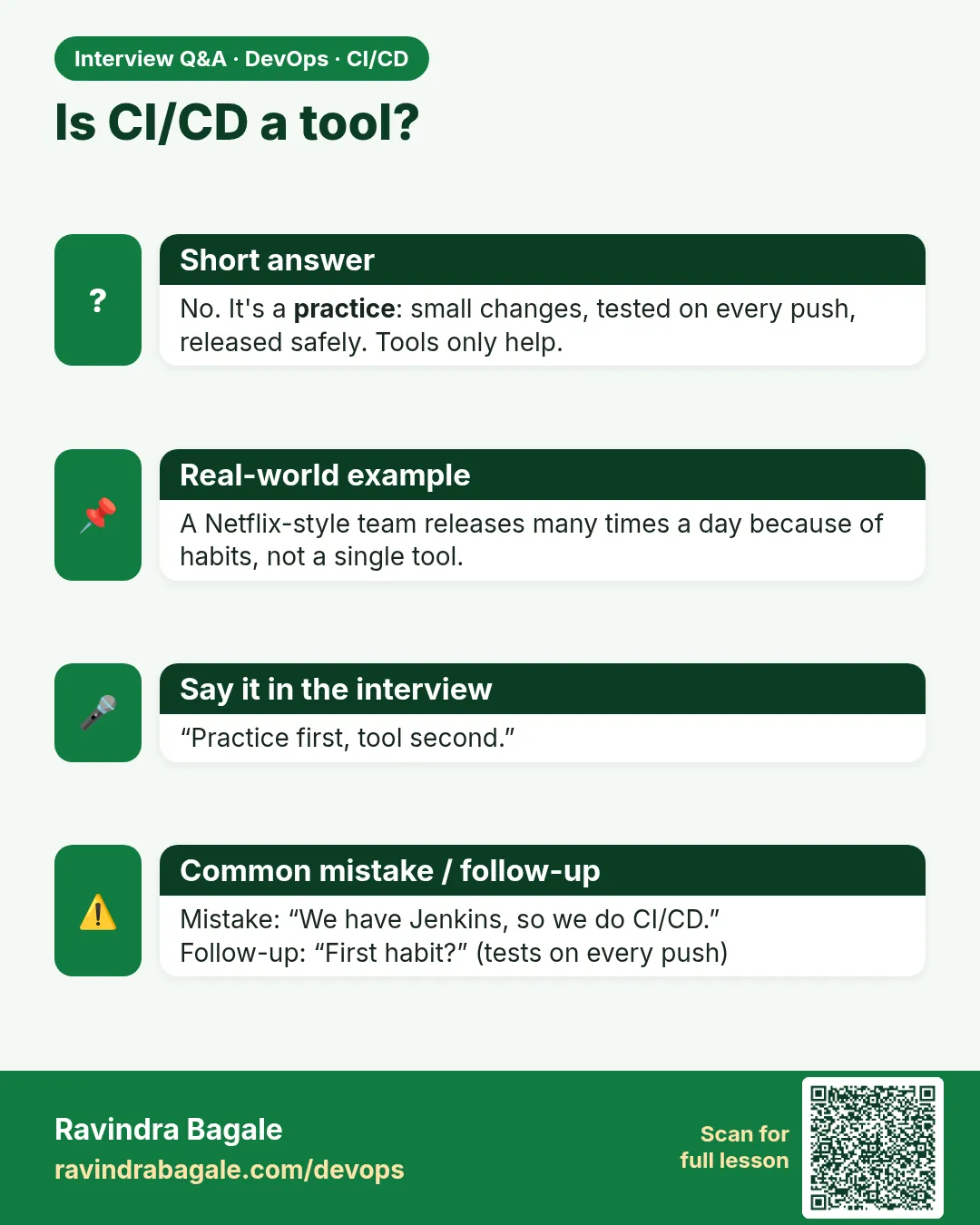
Jenkins is a tool that runs CI/CD. CI/CD itself is the practice.
-
Continuous Delivery vs Continuous Deployment?
Delivery stops before production and waits for a human. Deployment goes to production automatically when all checks pass.
-
Name three CI/CD tools.
GitHub Actions, GitLab CI and Jenkins. Also CircleCI and Azure Pipelines.
-
What happens when a pipeline step fails?
The pipeline stops, turns red and nothing after that step runs. The team fixes the code first.
-
How would you move a pipeline from Jenkins to GitHub Actions?
Keep the same stages and shell commands. Rewrite only the wrapper: triggers, runner and step syntax.
Quick quiz
Q1. Is CI/CD a tool?
No. It is a practice. Tools like Jenkins or GitHub Actions run it.
Q2. What does CI check on every push?
It builds the code and runs the tests.
Q3. What is the difference between delivery and deployment?
Delivery: ready to ship, a human presses the button. Deployment: ships automatically.
Q4. What is a runner?
The machine that runs the pipeline job.
Q5. What changed between the three tool examples?
Only the wrapper syntax. The commands stayed the same.
Samajla ka?
 Revision card
 Interview card