Chapter 6: Why Docker, Images and How a Container Is Created
6.4 Way 1 — docker run an image that already exists
Why. You do not write a Dockerfile to see a container. The official nginx image is enough.
Suppose we are operations, asked to prove the laptop (or the lab EC2) can run a container before the badge PHP is ready.
Steps — run official nginx
docker pull nginxdocker image lsand findnginx.docker run -d --name badge-nginx -p 8080:80 nginxdocker pscurl -I http://127.0.0.1:8080docker logs badge-nginx- When you pause:
docker stop badge-nginx
What you see
docker psshowsbadge-nginx, status Up, and a ports column like0.0.0.0:8080->80/tcp.curl -IshowsHTTP/1.1 200 OKand a server header from nginx.- An empty log plus "connection refused" usually means you curled the wrong host port.
-p 8080:80 means traffic that hits the host on 8080 goes to port 80 inside the container. You can map differently: -p 3000:8080 means host 3000 → container 8080. EXPOSE in a Dockerfile only documents a port. It does not open the host door. Publish only the port you need. This nginx is a lab front door, not a database.
docker start badge-nginx brings the stopped container back. Do not docker run a second time with the same --name.
The day-to-day container, network, volume and Compose commands are a full section in Chapter 7. Build, history and push stay in this chapter. The image and run commands that belong here are the list at the end of this section, then build in 6.5, commit in 6.7, history in 6.9, and login, tag, push and logout in 6.11.
| Symptom | Likely cause | What to try |
|---|---|---|
docker: command not found |
Docker not installed or not on PATH | Install from Docker's docs; reopen the terminal |
| Container exits immediately | App crash or wrong command | docker logs on that name |
| curl to the host port fails | No -p, or the app listens only on 127.0.0.1 |
Add -p; listen on 0.0.0.0 |
port is already allocated |
Another process uses the host port | Stop that container or pick another host port |
Commands — engine, images, and run
docker version
Operations — the server-side employee — types this before any badge work, to see that the Docker client and the engine both answer. Each block in this list is one command.
Suppose we are on the Infosys client server the morning the Instagram-style badge is installed. What you see: a Client block and a Server block, each with a version. If the client prints and the server errors, the engine is not running. Start it, then run docker version again.
docker info
This prints how the engine is set up: storage, how many images and containers this machine has, and where Docker keeps its files. Operations types it when docker version worked but a pull or a run still fails.
Suppose we are on that client server and a pull of the badge image stopped halfway. What you see: a long report. The lines that matter are Server Version, Storage Driver, Containers, Images, and Docker Root Dir. A full disk shows up here. Do not blame the badge PHP until you have read those lines.
docker pull nginx
This downloads an image from a registry onto this machine. Operations types it when the front door should be the official nginx image, not a folder copied by hand onto the EC2.
Suppose we are proving the laptop can run a container before the badge PHP image exists. What you see: layer lines, then Status: Downloaded newer image for nginx:latest, or Image is up to date if it was already local.
docker pull php:8-apache
Same command, the base the badge image is built from. Operations types it when the client server must have that official PHP-and-Apache image before a build.
Suppose we are preparing the Infosys client server for badge-php. What you see: layers for php:8-apache, then a status line that the image is downloaded or already present. This does not start a container.
docker images
This lists images stored on this machine. Operations types it to see whether nginx or badge-php is already local before pulling or building again.
Suppose we are checking the client server after a Netflix-style rollback to an older tag. What you see: a table with repository, tag, image id, and size. badge-php can appear on more than one tag. Two names can share one image id.
docker image ls
This is the same list as docker images. Operations types either form. They are not two different tools.
Suppose we are on the same server a minute later. What you see: the same rows. After section 6.5, badge-php is there with tag 1.0.
docker run -d badge-php:1.0
-d starts the container in the background and returns the terminal. Operations types the detached form so the Instagram-style badge keeps running after the shell closes. The five docker run lines here are the flags, not five containers to start. If that name is already in docker ps -a, do not run a second one. This line has no name and no published port. Skip it when badge-php already exists. The named lines below are the ones you keep.
Suppose we are only proving the image starts. What you see: one long container id. docker ps shows a random name and status Up. Curl from the laptop does not reach it, because nothing published a host port.
docker run -d --name badge-php badge-php:1.0
--name is the name later commands will use. One name belongs to only one container. Operations types it so the badge PHP is badge-php, not a random name.
Suppose we are the server-side employee bringing the badge up beside nginx. What you see: a container id, and docker ps shows badge-php. If Docker says the name is already in use, do not run it again. Starting a stopped container is Chapter 7.
docker run -d --name badge-php -p 8081:80 badge-php:1.0
-p 8081:80 publishes host port 8081 to port 80 inside the container. Operations types this when a browser must reach the badge. EXPOSE in a Dockerfile does not publish the host port. The official php:8-apache image starts Apache as root so it can bind port 80. USER www-data on that image does not give you a working port 80.
Suppose we are curling the Instagram-style badge while badge-nginx already holds host port 8080. What you see: docker ps shows 0.0.0.0:8081->80/tcp. curl http://127.0.0.1:8081/ returns instagram-style badge lab.
docker run -d --name badge-php --network badge-net -p 8081:80 -e MYSQL_HOST=badge-mysql -e MYSQL_PASSWORD=lab-only-change-me badge-php:1.0
-e sets an environment variable for this container only. Operations types it so the badge knows the database host and the lab password without baking either into the image. --network badge-net is how badge-php resolves the name badge-mysql. The full three-container picture is section 6.8. Do not start a second container if that name is already taken.
Suppose we are starting the badge PHP for the Infosys client on the private network, not by copying a password into the Dockerfile. What you see: the container comes Up. lab-only-change-me is a placeholder, not a real secret. It must not be committed, and it does not belong in docker history.
docker run --rm --name badge-php-check badge-php:1.0 php -r 'echo "instagram-style badge lab\n";'
--rm deletes the container when the process exits. Operations types it for a one-off check so the machine does not fill with stopped containers.
Suppose we are confirming the badge image on the client server without leaving a container behind. What you see: the text instagram-style badge lab, then the shell prompt. docker ps -a has no badge-php-check.
docker image inspect badge-php:1.0
This prints the image record as JSON: id, tags, environment baked into the image, and the start command. Operations types it when a Netflix-style tag must be checked before it is the one they run.
Suppose we are comparing the tag just built with the tag the client already runs. What you see: JSON. RepoTags includes badge-php:1.0. The start command is Apache. A real database password must not appear in this JSON.
docker image rm badge-php:emergency
This deletes a local image tag that no container is using. Operations types it to drop the emergency image from section 6.7 after a real docker build has replaced it. It does not delete a running container, and it does not delete badge-php:1.0 unless you name that tag.
Suppose we are cleaning the laptop after the emergency copy, not the tag the Instagram-style badge is running. What you see: Untagged: badge-php:emergency and a deleted line. If a container still uses that image, Docker refuses. Stop and remove that container first.
docker rmi badge-php:emergency
docker rmi is the same remove as docker image rm. Operations types one form, not both, for the same tag.
Suppose we are on the Infosys client server and the emergency tag was loaded there by mistake. What you see: the same untagged line, or a short "no such image" line if it was already gone. The tag badge-php:1.0 stays.
docker save badge-php:1.0 -o badge-php-1.0.tar
This writes the image into a tar file. Operations types it when the client server cannot reach a registry and someone will carry the file instead.
Suppose we are packing the Instagram-style badge for a server with no route to Docker Hub. What you see: the shell returns and the file badge-php-1.0.tar is in the current directory. The file is the image. Do not save an image that has a real password in a layer.
docker load -i badge-php-1.0.tar
This reads that tar and creates the image on this machine. Operations types it on the other machine instead of docker pull, when the tar is how the image arrived.
Suppose we are standing on the Infosys client server with the tar in the current directory. What you see: Loaded image: badge-php:1.0. docker images then shows that tag. Publish it with the named -p command above when you want curl to reach it.
Build is section 6.5. Commit, emergency only, is section 6.7. History is section 6.9. Login, tag, push, and logout are section 6.11.
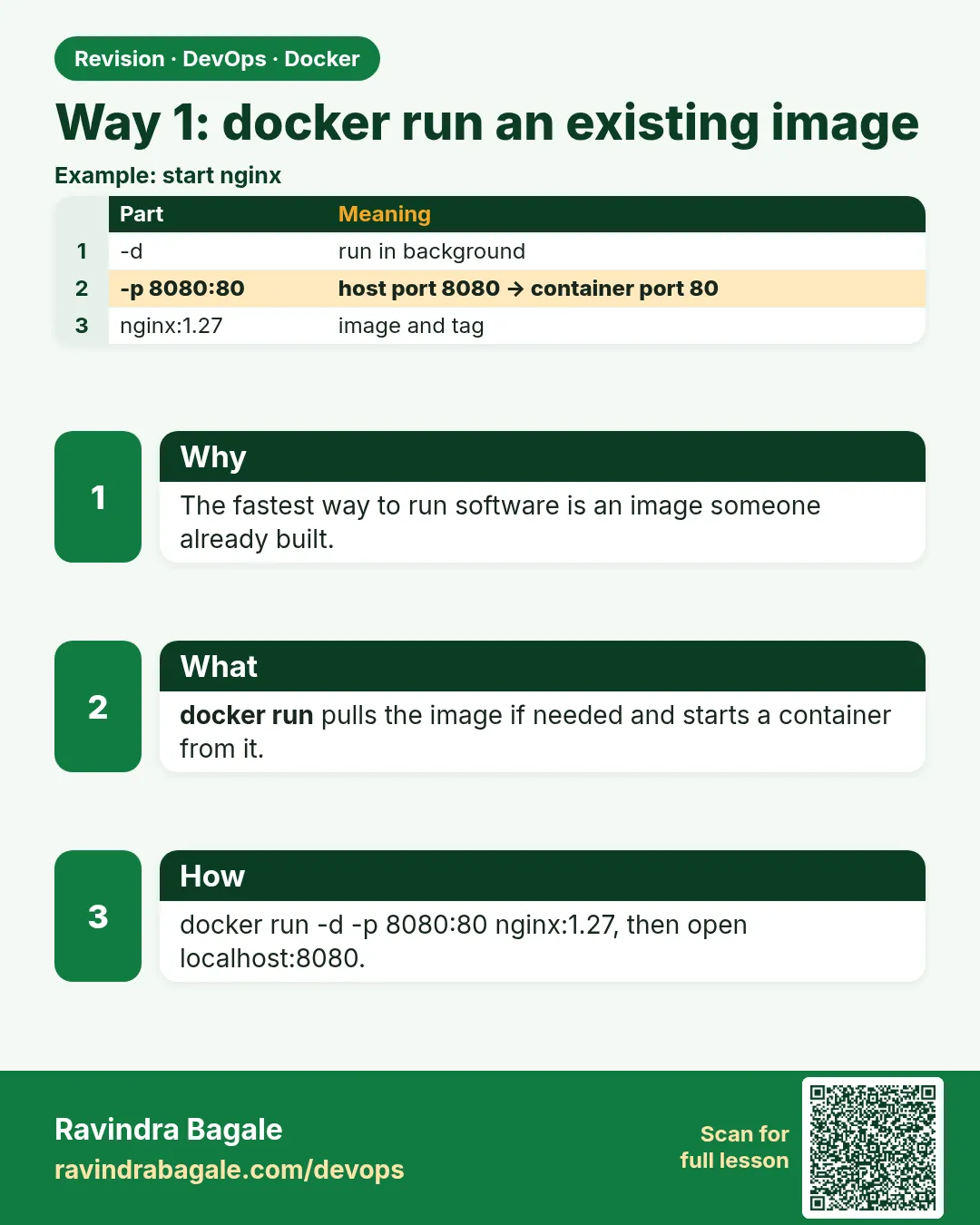 Revision card
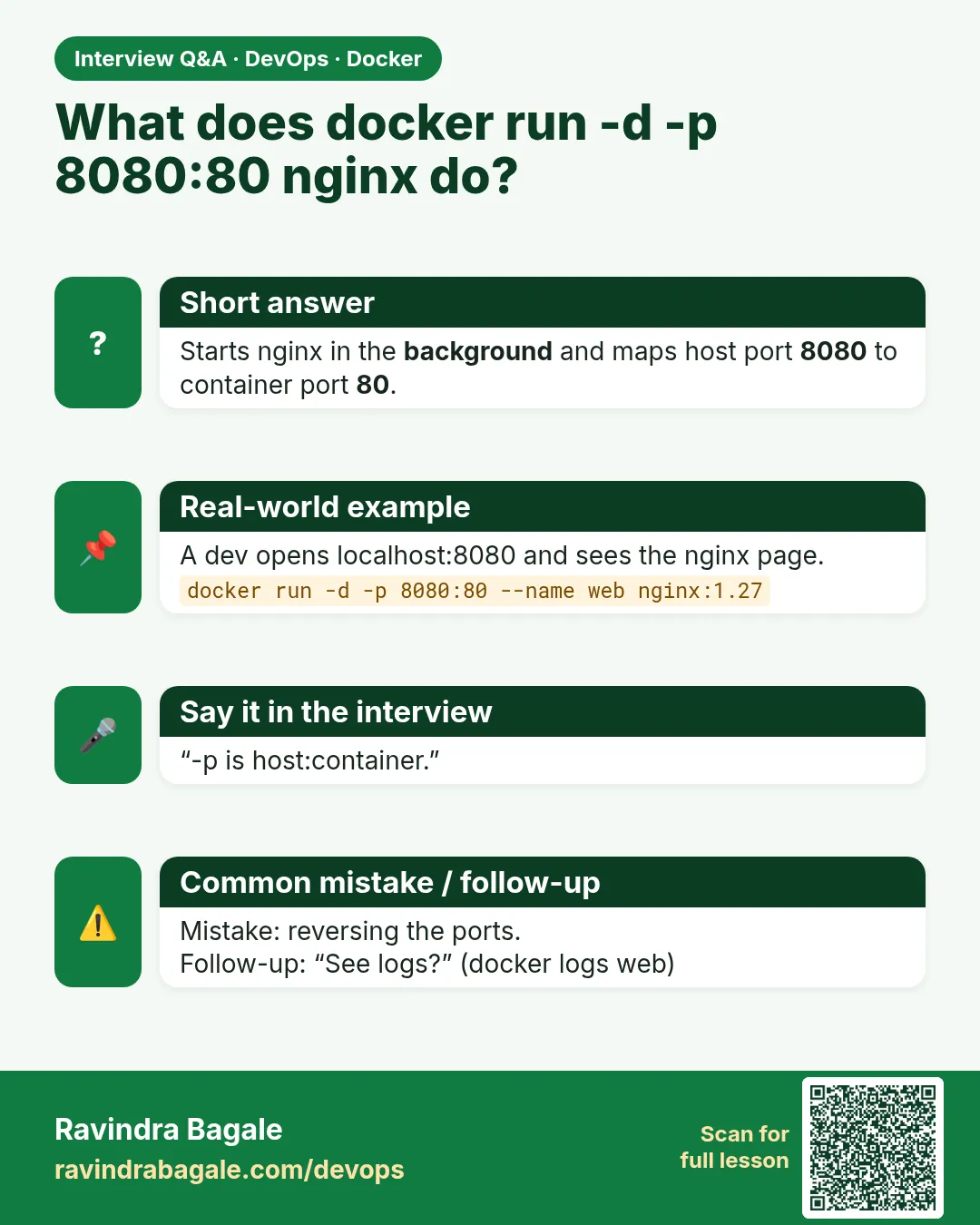 Interview card