Excel XMATCH Function
Chala mitrano — xMATCH is MATCH with seatbelts: wildcards, reverse search, and clearer modes. Still returns a position, not the final value.
चला मित्रांनो — XMATCH म्हणजे seatbelt असलेले MATCH: wildcards, reverse search, स्पष्ट modes. अजूनही position मिळते, अंतिम value नाही.
चलो दोस्तों — XMATCH मतलब seatbelt वाला MATCH: wildcards, reverse search, साफ़ modes. फिर भी position मिलती है, अंतिम value नहीं.
Purpose
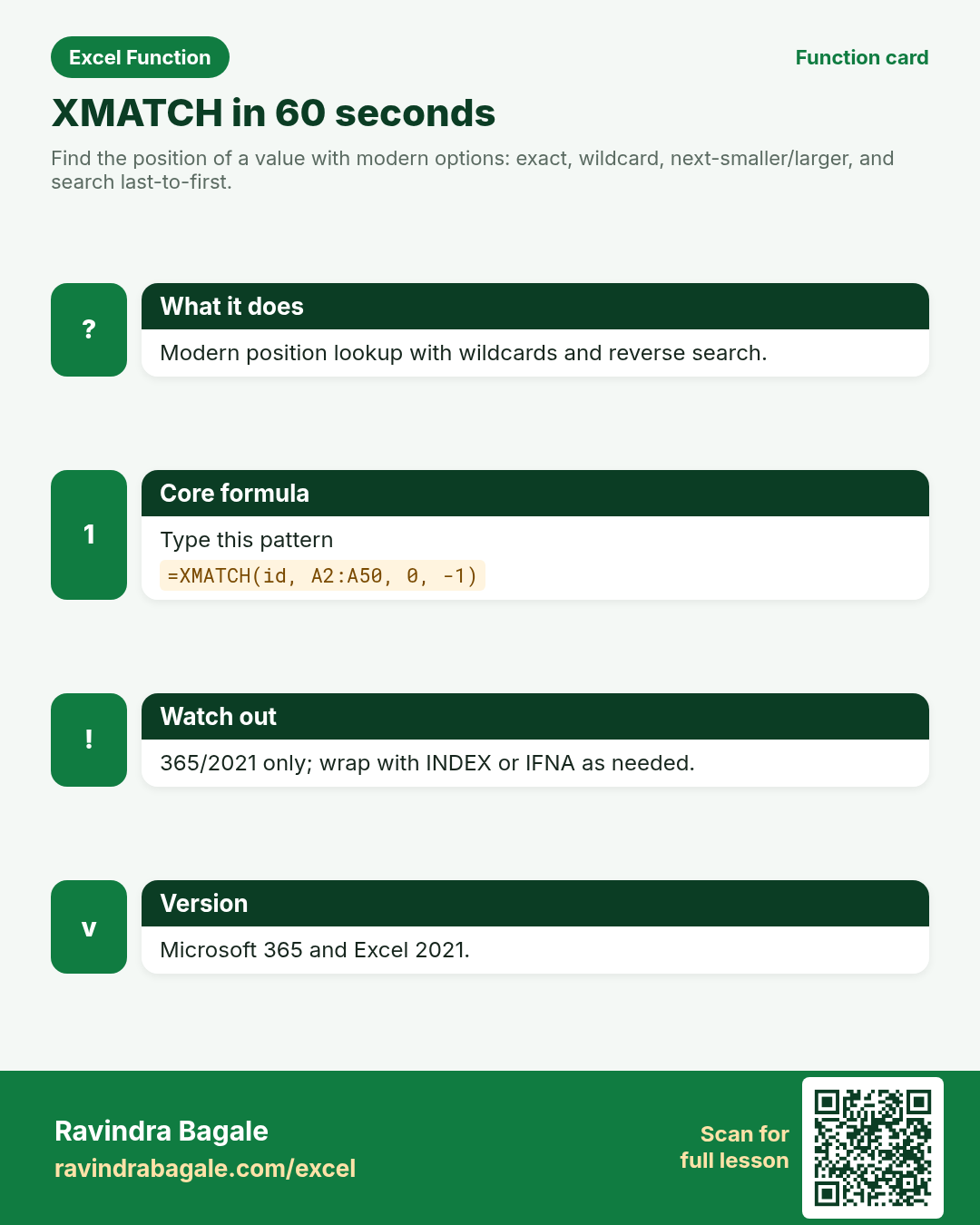
Find the position of a value with modern options: exact, wildcard, next-smaller/larger, and search last-to-first.
Return value
1-based position inside the lookup array, or #N/A / if_not_found behaviour when wrapped.
Syntax
Arguments
| Argument | Required? | Description |
|---|---|---|
lookup_value | Required | Value to find. |
lookup_array | Required | One row or one column to search. |
match_mode | Optional | 0 exact (default), -1 exact or next smaller, 1 exact or next larger, 2 wildcard. |
search_mode | Optional | 1 first-to-last (default), -1 last-to-first, 2 binary asc, -2 binary desc. |
Version
Microsoft 365 and Excel 2021. Not in Excel 2019 or older. LibreOffice: may be missing — use MATCH as fallback.
How to use — Why → What → How
Why: Queues and logs need “where is the latest ticket for this ID?” not only the first. XMATCH is the modern position finder: exact by default, wildcards with match_mode 2, and search_mode -1 for the last match — perfect when Ananya appears twice in a Kochi helpdesk l...
What: XMATCH returns the position of lookup_value using the match and search modes you choose. Read the arguments table carefully; each one changes the answer in a specific way.
How — numbered steps:
- Type =XMATCH(.
- Select the value to find.
- Select the key column.
- Optionally set match_mode (0 or 2) and search_mode (-1 for last).
- Enter, then wrap with INDEX if you need the value.
- Compare your result with the Answers sheet only after you attempt it.
- Write one sentence in your own words explaining when you would use this function at work.
Ravindra Bagale's Tip
Friends, search_mode -1 is perfect when the same customer appears twice and you want the latest row’s position.
Ravindra Bagale's Tip – मराठी
मित्रांनो, search_mode -1 तेव्हा उत्तम जेव्हा तोच customer दोनदा येतो आणि तुम्हाला शेवटच्या row ची position हवी असते.
Ravindra Bagale's Tip – हिंदी
दोस्तों, search_mode -1 तब बेहतरीन जब वही customer दो बार आए और आपको आखिरी row की position चाहिए.
Ravindra Bagale's Tip
On Excel 2019 use MATCH instead. Keep a fallback note in shared workbooks.
Ravindra Bagale's Tip – मराठी
Excel 2019 वर MATCH वापरा. Shared workbooks मध्ये fallback note ठेवा.
Ravindra Bagale's Tip – हिंदी
Excel 2019 पर MATCH इस्तेमाल करो. Shared workbooks में fallback note रखो.
Ravindra Bagale's Tip
Friends, after class open a blank sheet and rebuild one XMATCH example without looking. That memory test beats re-reading the page.
Ravindra Bagale's Tip – मराठी
मित्रांनो, class नंतर रिकाम्या sheet वर XMATCH चे एक उदाहरण न पाहता पुन्हा लिहा. हे memory test पृष्ठ पुन्हा वाचण्यापेक्षा जास्त मदत करते.
Ravindra Bagale's Tip – हिंदी
दोस्तों, class के बाद खाली sheet पर XMATCH का एक उदाहरण बिना देखे फिर से लिखो. यह memory test पेज दोबारा पढ़ने से ज़्यादा मदद करता है.
Download practice file: practice-xmatch.xlsx (includes sheet About this data, practice sheets, and Answers).
Worked examples
1) Exact position
Kochi helpdesk tickets.
| Ticket | Agent | Credit (₹) |
|---|---|---|
| T-21 | Ananya | 200 |
| T-25 | Ravi | 0 |
| T-29 | Ananya | 150 |
Result: 2
What it means: Default exact match; T-25 is position 2.
2) Last match with search_mode -1
Ananya appears twice; take the last ticket position.
| Agent | Ticket |
|---|---|
| Ananya | T-21 |
| Ravi | T-25 |
| Ananya | T-29 |
Result: 3
What it means: Search from the bottom → position 3.
3) Wildcard match_mode 2
Find first ticket starting with T-2.
| Ticket |
|---|
| T-19 |
| T-21 |
| T-25 |
Result: 2
What it means: Wildcard mode; T-21 is first T-2*.
4) INDEX + XMATCH city
Toronto row with CA$ note.
| Ticket | City | Note |
|---|---|---|
| T-21 | Kochi | ₹200 |
| T-40 | Toronto | CA$15 |
| T-29 | Kochi | ₹150 |
Result: Toronto
What it means: XMATCH finds position 2; INDEX returns City.
5) Missing ID
T-99 not in list.
| Ticket |
|---|
| T-21 |
| T-25 |
Result: #N/A
What it means: No match → #N/A; wrap with IFNA in reports.
6) Classroom recap
Quick check before you close the XMATCH lesson.
| Ticket | Agent | Credit (₹) |
|---|---|---|
| T-21 | Ananya | 200 |
| T-25 | Ravi | 0 |
| T-29 | Ananya | 150 |
Result: 2
What it means: Same pattern as example 1 — rebuild it from memory on the Practice sheet, then check Answers.
Common errors and fixes
Notes and tips
- Binary search modes need sorted data.
- XMATCH does not have if_not_found — use IFNA around it.
- Prefer XLOOKUP when you need the value directly.
- XMATCH is the modern position finder: exact by default, wildcards with match_mode 2, and search_mode -1 for the last match — perfect when Ananya appears twice in a Kochi helpdesk log and you need the latest ticket row. It still returns a position; wrap with INDEX (or prefer XLOOKUP) when you need the value. Excel 2019 users must fall back to MATCH.
- Use XMATCH when you need a position with modern modes; use XLOOKUP when you need the matching value directly.
- Fictional sample data only — practice amounts and names are made for learning.
- After you finish the 10 tasks, re-read the errors table once; most class mistakes are listed there.
- Keep ranges locked with absolute references when you copy formulas down a column of inputs.
- Say the business question in plain words before you type the equals sign — it prevents wrong arguments.
In real work
XMATCH is the modern position finder: exact by default, wildcards with match_mode 2, and search_mode -1 for the last match — perfect when Ananya appears twice in a Kochi helpdesk log and you need the latest ticket row. It still returns a position; wrap with INDEX (or prefer XLOOKUP) when you need the value. Excel 2019 users must fall back to MATCH.
How it compares
Use XMATCH when you need a position with modern modes; use XLOOKUP when you need the matching value directly.
Interview corner
- How do you get the last match position?
- search_mode -1.
- Does XMATCH have if_not_found?
- No — wrap with IFNA.
- Minimum Excel version?
- Microsoft 365 or Excel 2021.
Related functions
Practice tasks (10)
- Task 1. Find position of T-25.Hint: default modes are fine.
- Task 2. Find last position of agent Ananya.Hint: search_mode -1.
- Task 3. Wildcard: first ticket like T-2*.Hint: match_mode 2.
- Task 4. Return City for T-40 with INDEX+XMATCH.Hint: XMATCH inside INDEX.
- Task 5. Show Missing for T-99 via IFNA.Hint: wrap XMATCH.
- Task 6. Compare MATCH vs XMATCH for the same ID.Hint: both should agree on exact mode.
- Task 7. Explain when you need XLOOKUP instead.Hint: when you want the value, not the position.
- Task 8. Use a cell reference as lookup_value.Hint: point at the ticket cell.
- Task 9. Document the Excel version note for your team.Hint: 365/2021 only.
- Task 10. Bonus: return Credit for the last Ananya ticket.Hint: INDEX + XMATCH with search_mode -1.
Quick quiz
Answers: Q1=False, Q2=Last match, Q3=2, Q4=False, Q5=INDEX (check after you try).
Revision card
Standalone card (no tip or photo strip). QR opens this lesson. Download the PNG and revise offline.