55.8 Docker Swarm basics: init, services, scaling, rolling updates
Friends, one server is a single point of failure. If it dies, the app dies. Docker Swarm joins several Docker hosts into one cluster, built right into Docker. You say 'I want 3 copies of this app' and Swarm keeps 3 running, moves them when a server dies, and updates them one at a time. Today, step by step: init, join, services, scaling, rolling updates, rollback and draining a node.
मित्रांनो, एकच server म्हणजे single point of failure. तो पडला तर app पडतं. Docker Swarm अनेक Docker hosts ना एका cluster मध्ये जोडतो, आणि तो Docker मध्येच built-in आहे. तुम्ही म्हणता 'या app च्या 3 copies हव्यात' आणि Swarm 3 चालू ठेवतो, server पडला तर त्या हलवतो, आणि एका वेळी एक update करतो. आज step by step: init, join, services, scaling, rolling updates, rollback आणि node drain.
दोस्तों, एक ही server यानी single point of failure. वह गिरा तो app गिरता है. Docker Swarm कई Docker hosts को एक cluster में जोड़ता है, और यह Docker में ही built-in है. आप कहते हैं 'इस app की 3 copies चाहिए' और Swarm 3 चालू रखता है, server गिरे तो उन्हें हटाकर दूसरी जगह चलाता है, और एक-एक करके update करता है. आज step by step: init, join, services, scaling, rolling updates, rollback और node drain.
1. Start from a story
At Nykaa, a small internal catalogue-tools site ran with docker compose on one EC2 instance. One night AWS retired the underlying hardware and the instance stopped. The site was down for 40 minutes until someone woke up.
The DevOps engineer on that team, Amit, did not want Kubernetes for it yet; the team was three people. He created three EC2 instances in three availability zones and ran docker swarm init on one and docker swarm join on the others.
Now the web service runs 3 replicas. When he tested by stopping one instance, Swarm started the missing replica on another node in seconds, and the load balancer never saw an error.
Releases became calm too. docker service update replaces one replica at a time, and a bad release is rolled back with one command. Today we do all of it.
2. Build the swarm step by step
Step 1: Swarm words
Why: Five terms to know.
What: A node is a Docker host in the swarm. A manager decides; a worker runs containers. A service is what you want running. A task is one container of a service.
Example 1: Check mode
Type this:
docker info --format '{{.Swarm.LocalNodeState}}'
You will see:
inactive
What it means: Not in a swarm yet.
Example 2: Ports to open
Type this:
printf '2377/tcp cluster management\n7946/tcp+udp node discovery\n4789/udp overlay network traffic\n'
You will see:
2377/tcp cluster management
7946/tcp+udp node discovery
4789/udp overlay network traffic
What it means: Open these between nodes in the security group, not to the internet.
Example 3: Names in this lesson
Type this:
printf 'mgr1 10.0.1.10, wrk1 10.0.2.10, wrk2 10.0.3.10\n'
You will see:
mgr1 10.0.1.10, wrk1 10.0.2.10, wrk2 10.0.3.10
What it means: Three VMs with private IPs.
Step 2: docker swarm init
Why: Create the cluster on the first node.
What: init makes this node a manager and prints a join command with a token.
Example 4: Init
Type this:
docker swarm init --advertise-addr 10.0.1.10
You will see:
Swarm initialized: current node (k3x9...) is now a manager.

To add a worker to this swarm, run the following command:

    docker swarm join --token SWMTKN-1-xxxx-example 10.0.1.10:2377
What it means: --advertise-addr is the IP others use.
Example 5: State
Type this:
docker info --format '{{.Swarm.LocalNodeState}} manager={{.Swarm.ControlAvailable}}'
You will see:
active manager=true
What it means: Now a manager.
Example 6: Single-node practice
Type this:
docker swarm init 2>/dev/null || echo 'already in a swarm'; docker node ls --format '{{.Hostname}} {{.ManagerStatus}}'
You will see:
mgr1 Leader
What it means: One machine is enough to practise.
Step 3: Join workers and managers
Why: Use the tokens.
What: Workers join with the worker token. For high availability use 3 managers, so the cluster survives one manager failing.
Example 7: Get the token
Type this:
docker swarm join-token worker | grep token
You will see:
docker swarm join --token SWMTKN-1-xxxx-example 10.0.1.10:2377
What it means: Run this on the manager any time.
Example 8: Join from wrk1
Type this:
ssh ubuntu@10.0.2.10 'docker swarm join --token SWMTKN-1-xxxx-example 10.0.1.10:2377'
You will see:
This node joined a swarm as a worker.
What it means: Repeat on wrk2.
Example 9: List nodes
Type this:
docker node ls
You will see:
ID            HOSTNAME  STATUS  AVAILABILITY  MANAGER STATUS  ENGINE VERSION
k3x9... *     mgr1      Ready   Active        Leader          27.3.1
m2a8...       wrk1      Ready   Active                        27.3.1
q7c1...       wrk2      Ready   Active                        27.3.1
What it means: Three ready nodes.
3. Services step by step
Step 4: docker service create
Why: Declare what should run.
What: A service says which image, how many replicas and which ports. Swarm makes it true and keeps it true.
Example 10: Create
Type this:
docker service create --name web --replicas 3 -p 8080:80 nginx:1.27-alpine
You will see:
k8m2...
overall progress: 3 out of 3 tasks
verify: Service k8m2... converged
What it means: Three replicas running.
Example 11: List services
Type this:
docker service ls
You will see:
ID       NAME  MODE        REPLICAS  IMAGE              PORTS
k8m2...  web   replicated  3/3       nginx:1.27-alpine  *:8080->80/tcp
What it means: 3 of 3.
Example 12: Where they run
Type this:
docker service ps web --format '{{.Name}} {{.Node}} {{.CurrentState}}'
You will see:
web.1 mgr1 Running 20 seconds ago
web.2 wrk1 Running 20 seconds ago
web.3 wrk2 Running 20 seconds ago
What it means: Spread across nodes.
Step 5: The routing mesh
Why: Any node answers on the published port.
What: With -p, every node listens on 8080 and forwards to a healthy replica, even a node running no replica.
Example 13: Hit each node
Type this:
for ip in 10.0.1.10 10.0.2.10 10.0.3.10; do curl -s -o /dev/null -w "$ip %{http_code}\n" $ip:8080; done
You will see:
10.0.1.10 200
10.0.2.10 200
10.0.3.10 200
What it means: All three answer.
Example 14: Put an ALB in front
Type this:
printf 'Target group: all three nodes on port 8080, health check path /.\n'
You will see:
Target group: all three nodes on port 8080, health check path /.
What it means: The ALB spreads users; Swarm spreads to replicas.
Example 15: See the virtual IP
Type this:
docker service inspect -f '{{range .Endpoint.VirtualIPs}}{{.Addr}} {{end}}' web
You will see:
10.0.0.5/24
What it means: Internal load-balancing address.
Step 6: Self-healing
Why: Swarm replaces dead tasks.
What: If a container dies or a node goes down, the manager sees fewer replicas than wanted and starts new ones.
Example 16: Kill a task
Type this:
docker rm -f $(docker ps -q -f name=web.1) && sleep 5 && docker service ps web --format '{{.Name}} {{.CurrentState}}' | head -2
You will see:
web.1 Running 3 seconds ago
 \_ web.1 Failed 5 seconds ago
What it means: A new web.1 replaced it.
Example 17: Stop a whole node
Type this:
ssh ubuntu@10.0.3.10 'sudo systemctl stop docker' && sleep 15 && docker node ls --format '{{.Hostname}} {{.Status}}'
You will see:
mgr1 Ready
wrk1 Ready
wrk2 Down
What it means: wrk2 is down.
Example 18: Replicas moved
Type this:
docker service ps web --filter desired-state=running --format '{{.Name}} {{.Node}}'
You will see:
web.1 mgr1
web.2 wrk1
web.3 mgr1
What it means: web.3 moved off wrk2. Start Docker on wrk2 again after.
Step 7: Scaling
Why: Change the replica count.
What: docker service scale or update --replicas changes the count live.
Example 19: Scale up
Type this:
docker service scale web=6
You will see:
web scaled to 6
overall progress: 6 out of 6 tasks
verify: Service web converged
What it means: Big sale, more copies.
Example 20: Check
Type this:
docker service ls --format '{{.Name}} {{.Replicas}}'
You will see:
web 6/6
What it means: Six running.
Example 21: Scale down
Type this:
docker service update --replicas 3 web >/dev/null && docker service ls --format '{{.Name}} {{.Replicas}}'
You will see:
web 3/3
What it means: Back to normal.
Step 8: Rolling updates
Why: One at a time, with a pause.
What: Set how many tasks update together, the delay between batches, and what to do if one fails.
Example 22: Configure and update
Type this:
docker service update --update-parallelism 1 --update-delay 10s --update-failure-action rollback --image nginx:1.27.2-alpine web
You will see:
web
overall progress: 3 out of 3 tasks
1/3: running   [==================================================>]
verify: Service web converged
What it means: Replaced one by one, 10 seconds apart.
Example 23: History
Type this:
docker service ps web --format '{{.Name}} {{.Image}} {{.DesiredState}}' | head -4
You will see:
web.1 nginx:1.27.2-alpine Running
 \_ web.1 nginx:1.27-alpine Shutdown
web.2 nginx:1.27.2-alpine Running
 \_ web.2 nginx:1.27-alpine Shutdown
What it means: Old tasks are kept as history.
Example 24: Start first
Type this:
docker service update --update-order start-first web >/dev/null && docker service inspect -f '{{.Spec.UpdateConfig.Order}}' web
You will see:
start-first
What it means: New task starts before the old one stops: no gap.
Step 9: Rollback
Why: Undo a bad release.
What: Swarm remembers the previous spec. docker service rollback returns to it.
Example 25: Ship a broken image
Type this:
docker service update --image nginx:does-not-exist web 2>&1 | tail -1
You will see:
rollback: update rolled back due to failure or early termination of task
What it means: failure-action rollback did it automatically.
Example 26: Manual rollback
Type this:
docker service rollback web
You will see:
web
rollback: manually requested rollback
overall progress: rolling back update: 3 out of 3 tasks
verify: Service web converged
What it means: Back to the previous spec.
Example 27: Confirm
Type this:
docker service inspect -f '{{.Spec.TaskTemplate.ContainerSpec.Image}}' web
You will see:
nginx:1.27-alpine@sha256:...
What it means: Previous image, pinned by digest.
Step 10: Health checks drive updates
Why: Do not send traffic to a broken task.
What: With a healthcheck, Swarm waits until a new task is healthy before moving on, and replaces unhealthy tasks.
Example 28: Add a healthcheck
Type this:
docker service update --health-cmd 'wget -qO- localhost/ || exit 1' --health-interval 5s --health-retries 3 web >/dev/null && echo updated
You will see:
updated
What it means: Applied as a rolling update.
Example 29: See health
Type this:
docker ps --filter name=web. --format '{{.Names}} {{.Status}}' | head -2
You will see:
web.1.ab12 Up 30 seconds (healthy)
web.2.cd34 Up 20 seconds (healthy)
What it means: Healthy tasks only take traffic.
Example 30: Monitor period
Type this:
docker service update --update-monitor 30s web >/dev/null && docker service inspect -f '{{.Spec.UpdateConfig.Monitor}}' web
You will see:
30s
What it means: Watch each new task for 30 seconds before calling it good.
4. Node maintenance and placement
Step 11: Drain a node for maintenance
Why: Move work away first.
What: Drain tells Swarm to move all tasks off a node. After patching, make it active again.
Example 31: Drain
Type this:
docker node update --availability drain wrk1 && sleep 5 && docker service ps web --filter desired-state=running --format '{{.Node}}' | sort | uniq -c
You will see:
wrk1
      2 mgr1
      1 wrk2
What it means: Nothing on wrk1.
Example 32: Patch
Type this:
ssh ubuntu@10.0.2.10 'sudo apt-get -qq update && sudo apt-get -qq -y upgrade && sudo reboot' ; echo patched
You will see:
patched
What it means: Safe now.
Example 33: Activate
Type this:
docker node update --availability active wrk1 && docker node ls --format '{{.Hostname}} {{.Availability}}'
You will see:
wrk1
mgr1 Active
wrk1 Active
wrk2 Active
What it means: Ready for new tasks; use docker service update --force web to rebalance.
Step 12: Placement, labels and limits
Why: Control where tasks run.
What: Label nodes and use constraints, and give each task CPU and memory limits and reservations.
Example 34: Label a node
Type this:
docker node update --label-add zone=ap-south-1c wrk2 && docker node inspect -f '{{.Spec.Labels}}' wrk2
You will see:
wrk2
map[zone:ap-south-1c]
What it means: Your own labels.
Example 35: Constraint and spread
Type this:
docker service create --name api --replicas 3 --constraint 'node.role==worker' --placement-pref 'spread=node.labels.zone' --limit-memory 256m --reserve-memory 128m --limit-cpu 0.5 nginx:1.27-alpine >/dev/null && docker service ps api --format '{{.Node}}'
You will see:
wrk1
wrk2
wrk1
What it means: Only workers, spread by zone, with limits.
Example 36: Global mode
Type this:
docker service create --name agent --mode global --mount type=bind,src=/var/run/docker.sock,dst=/var/run/docker.sock,readonly alpine:3.20 sleep 1d >/dev/null && docker service ls --format '{{.Name}} {{.Mode}} {{.Replicas}}' | grep agent
You will see:
agent global 3/3
What it means: One task on every node, like a monitoring agent.
5. Common mistakes and how Amit avoids them
Mistake one: only one manager. Amit runs three managers so the cluster survives losing one; never an even number.
Mistake two: opening 2377 to the internet. Swarm ports are open only inside the VPC security group.
Mistake three: no healthcheck. Without it, a rolling update moves on even when the new version is broken.
Mistake four: rebooting a node without draining. He drains first, patches, then activates.
Mistake five: using :latest. Every service uses a version tag, and Swarm pins the digest.
Check yourself
Q1. What is the difference between a service and a task?
A service is the desired state; a task is one container of it.
Q2. Which command creates the swarm?
docker swarm init.
Q3. What does --update-failure-action rollback do?
Rolls back automatically when a new task fails during an update.
Q4. Why drain a node before maintenance?
So Swarm moves its tasks elsewhere and users see no outage.
Friends, swarm init, join, service create with replicas, scale, rolling update with a healthcheck, rollback, and drain before maintenance. Did you understand? Let us try it once more. On one machine, init a swarm, run 3 nginx replicas, update the image, break it, and roll back.
मित्रांनो, swarm init, join, replicas सोबत service create, scale, healthcheck सोबत rolling update, rollback, आणि maintenance आधी drain. समजलं का? चला, पुन्हा एकदा करून पाहू. एका machine वर swarm init करा, 3 nginx replicas चालवा, image update करा, तोडा, आणि rollback करा.
दोस्तों, swarm init, join, replicas के साथ service create, scale, healthcheck के साथ rolling update, rollback, और maintenance से पहले drain. समझ आया? चलिए, एक बार फिर करके देखते हैं। एक machine पर swarm init कीजिए, 3 nginx replicas चलाइए, image update कीजिए, तोड़िए, और rollback कीजिए.
Ravindra Bagale's Tip
Swarm is a great first cluster for a small team. Learn services, rolling updates and drain here, and the same ideas carry straight into Kubernetes Deployments.
छोट्या team साठी Swarm हा उत्तम पहिला cluster आहे. Services, rolling updates आणि drain इथे शिका, हेच विचार थेट Kubernetes Deployments मध्ये लागू होतात.
छोटी team के लिए Swarm एक बढ़िया पहला cluster है. Services, rolling updates और drain यहाँ सीखिए, यही विचार सीधे Kubernetes Deployments में काम आते हैं.
Lab: try at home
- Run docker swarm init and list nodes.
- Create web with 3 replicas on port 8080.
- Kill a task and watch it come back.
- Scale to 6 and back to 3.
- Do a rolling update with parallelism 1 and delay 10s.
- Push a broken image and see automatic rollback.
- Drain a node and activate it again.
Recap
- Swarm is built into Docker.
- Managers decide, workers run tasks.
- A service declares replicas, image and ports.
- The routing mesh answers on every node.
- Rolling updates plus healthchecks plus rollback make releases safe.
- Drain nodes before maintenance; use 3 managers.
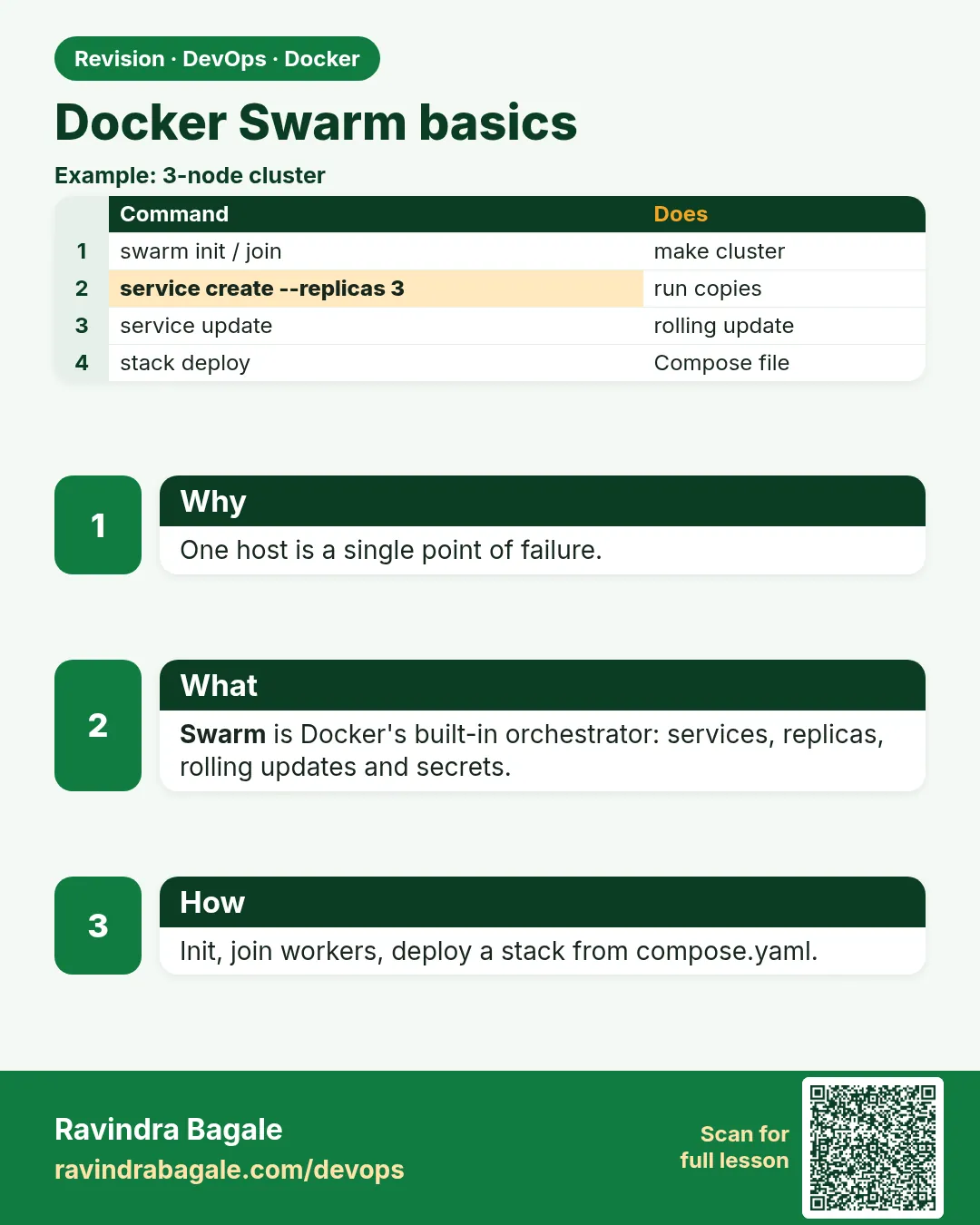 Revision card
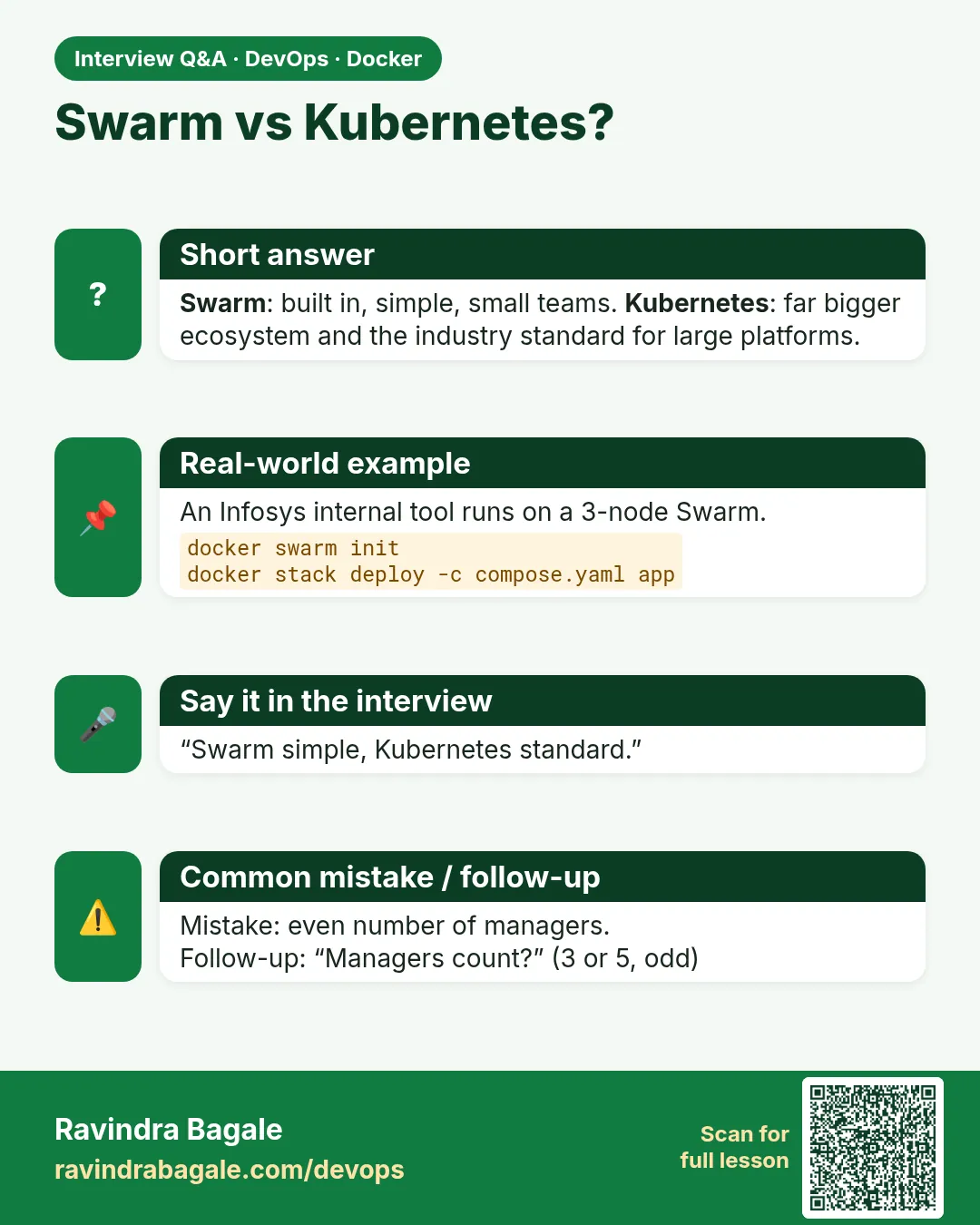 Interview card
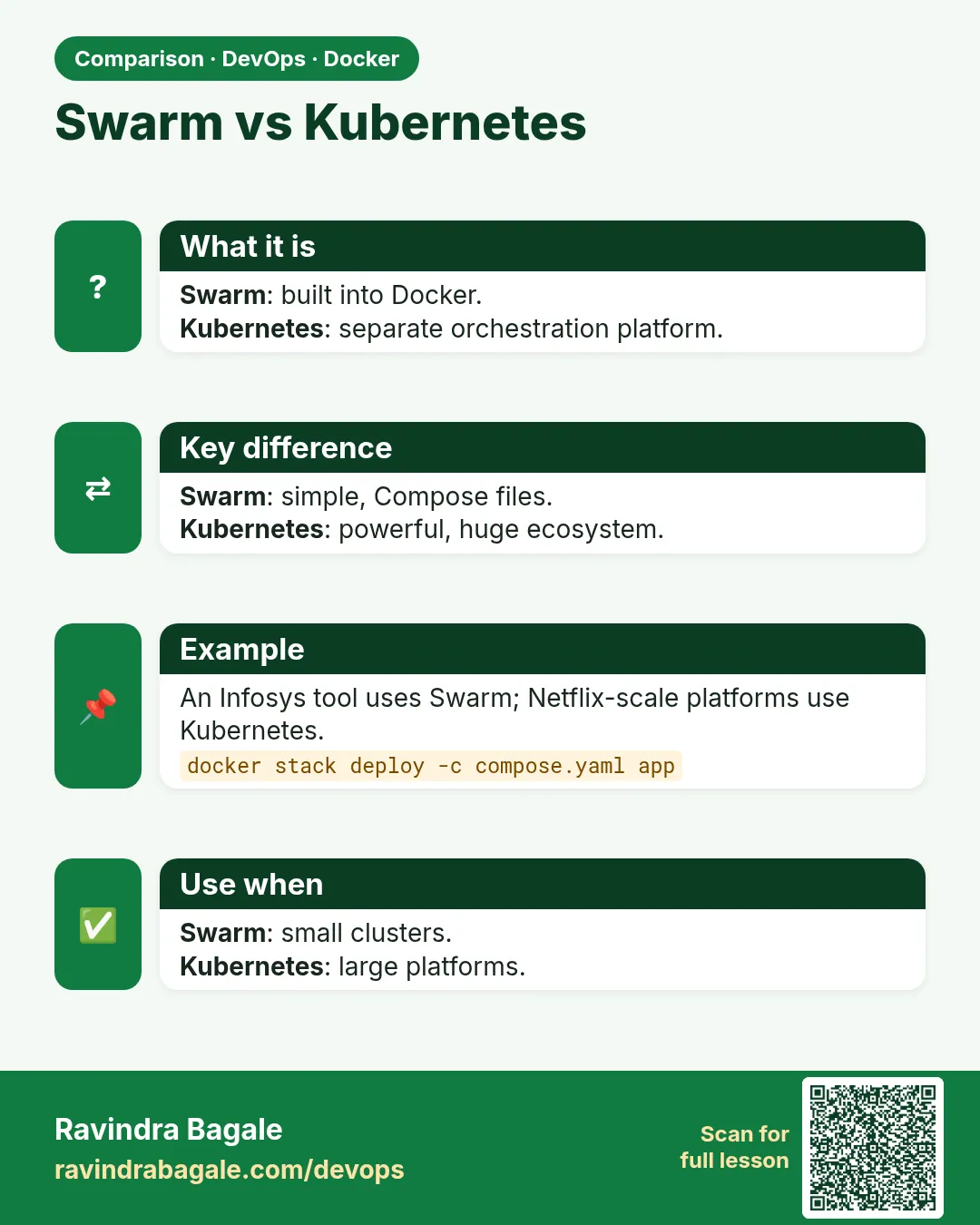 Comparison card