55.7 Monitoring: docker stats, cAdvisor, Prometheus and Grafana
Friends, logs tell you what happened. Metrics tell you how healthy things are right now: CPU, memory, network, restarts. Today, step by step, we start with docker stats and events on one host, then build a real monitoring stack with cAdvisor, Node Exporter, Prometheus, Grafana and an alert, all in one Compose file.
मित्रांनो, logs सांगतात काय घडलं. Metrics सांगतात आत्ता सगळं किती healthy आहे: CPU, memory, network, restarts. आज step by step एका host वर docker stats आणि events ने सुरुवात करूया, मग cAdvisor, Node Exporter, Prometheus, Grafana आणि एक alert असा खरा monitoring stack एकाच Compose file मध्ये बनवूया.
दोस्तों, logs बताते हैं क्या हुआ. Metrics बताते हैं अभी सब कितना healthy है: CPU, memory, network, restarts. आज step by step एक host पर docker stats और events से शुरू करेंगे, फिर cAdvisor, Node Exporter, Prometheus, Grafana और एक alert वाला असली monitoring stack एक ही Compose file में बनाएँगे.
1. Start from a story
At Meesho, during a sale, customers complained that the catalogue was slow. The logs showed nothing wrong; every request eventually succeeded.
An SRE named Vikram opened Grafana. The memory graph for the image-resize container showed a sawtooth: it climbed to its 512 MB limit, got OOMKilled, restarted, and climbed again every four minutes. Each restart made requests wait.
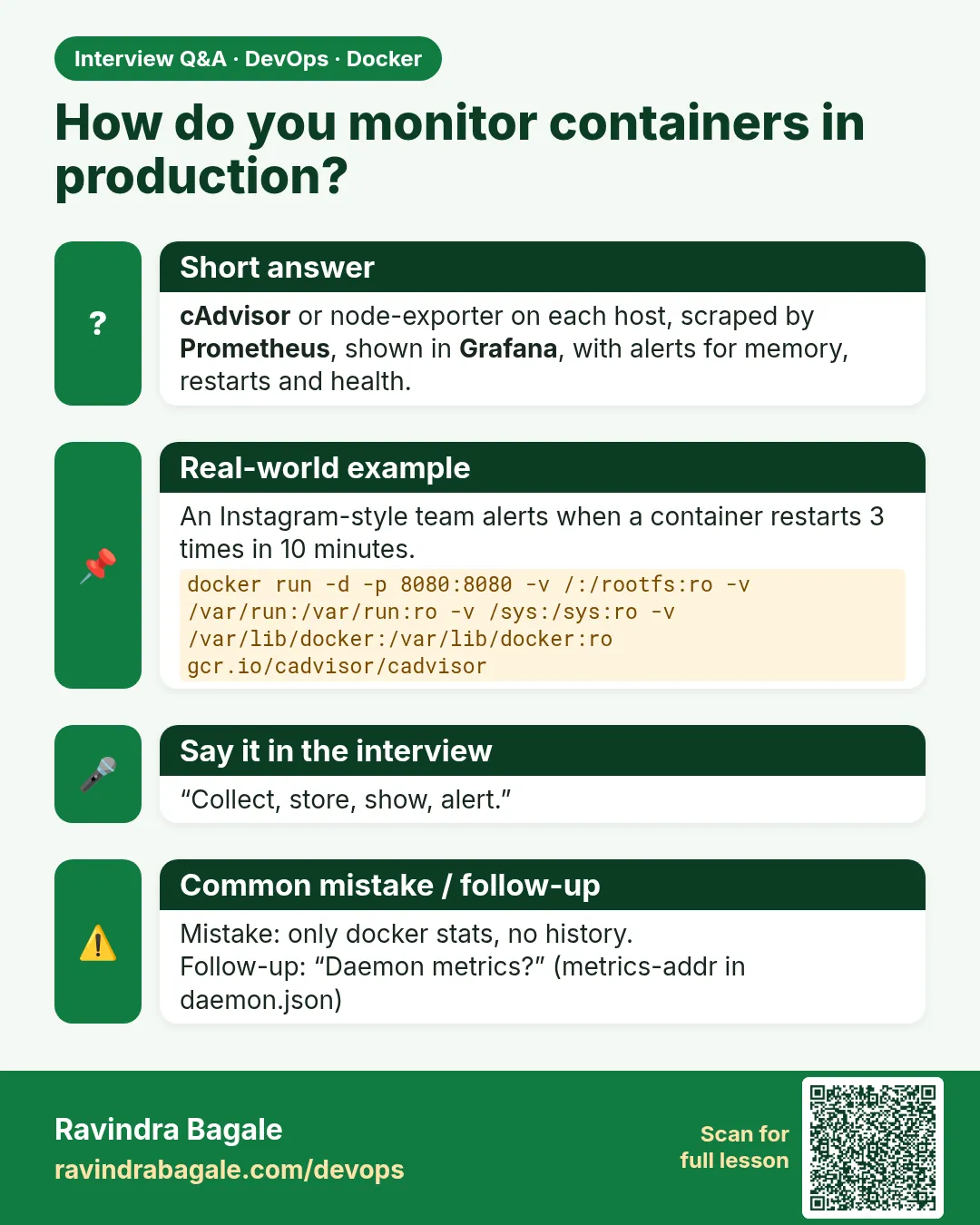
The graphs came from cAdvisor, which reads per-container numbers from the kernel, and Prometheus, which stores them. Vikram raised the limit, fixed the leak the next day, and added an alert: if any container restarts more than three times in ten minutes, page the on-call.
Without metrics they would have kept reading logs that looked fine. Today we build Vikram's stack.
2. Built-in tools step by step
Step 1: docker stats
Why: Live numbers for every container.
What: docker stats shows CPU, memory, network, disk I/O and process count, refreshed every second.
Example 1: Start some load
Type this:
docker run -d --name busy --memory 256m alpine:3.20 sh -c 'while true; do :; done' && docker run -d --name web -p 8085:80 nginx:1.27-alpine && echo up
You will see:
up
What it means: One busy and one idle container.
Example 2: One snapshot
Type this:
docker stats --no-stream
You will see:
CONTAINER ID   NAME   CPU %    MEM USAGE / LIMIT   MEM %   NET I/O       BLOCK I/O   PIDS
3a1f...        busy   99.80%   520KiB / 256MiB     0.20%   1.1kB / 0B    0B / 0B     1
7c2e...        web    0.00%    9.2MiB / 15.6GiB    0.06%   1.3kB / 0B    0B / 4kB    9
What it means: busy takes a full core.
Example 3: Custom format
Type this:
docker stats --no-stream --format 'table {{.Name}}\t{{.CPUPerc}}\t{{.MemUsage}}'
You will see:
NAME   CPU %    MEM USAGE / LIMIT
busy   99.71%   520KiB / 256MiB
web    0.00%    9.2MiB / 15.6GiB
What it means: Only the columns you want.
Step 2: docker top and docker events
Why: Processes and a live event feed.
What: docker top lists the processes inside one container. docker events streams starts, stops, OOM kills and health changes.
Example 4: Processes
Type this:
docker top web -o pid,user,args
You will see:
PID     USER    COMMAND
41021   root    nginx: master process nginx -g daemon off;
41080   101     nginx: worker process
What it means: Seen from the host.
Example 5: Watch events
Type this:
docker events --since 5m --filter type=container --format '{{.Time}} {{.Action}} {{.Actor.Attributes.name}}' | head -3
You will see:
1761374810 create busy
1761374810 start busy
1761374811 start web
What it means: Unix times; 1761374810 is 12:16 PM IST.
Example 6: Catch an OOM
Type this:
docker run --name oom --memory 32m python:3.12-alpine python -c 'b=bytearray(100*2**20)'; docker events --since 1m --until 0s --filter event=oom --format '{{.Action}} {{.Actor.Attributes.name}}'
You will see:
oom oom
What it means: The kernel kill is an event.
Step 3: Health status as a metric
Why: HEALTHCHECK feeds monitoring.
What: A container with a healthcheck reports healthy or unhealthy, which tools can count.
Example 7: Add a healthcheck
Type this:
docker run -d --name hc --health-cmd 'wget -qO- localhost || exit 1' --health-interval 5s nginx:1.27-alpine && sleep 8 && docker inspect -f '{{.State.Health.Status}}' hc
You will see:
healthy
What it means: Checked every 5 seconds.
Example 8: List unhealthy
Type this:
docker ps --filter health=unhealthy --format '{{.Names}}'
You will see:
What it means: None right now.
Example 9: Restart count
Type this:
docker inspect -f '{{.Name}} restarts={{.RestartCount}}' hc
You will see:
/hc restarts=0
What it means: Vikram's sawtooth shows here as a growing number.
3. The monitoring stack step by step
Step 4: cAdvisor
Why: Per-container metrics for Prometheus.
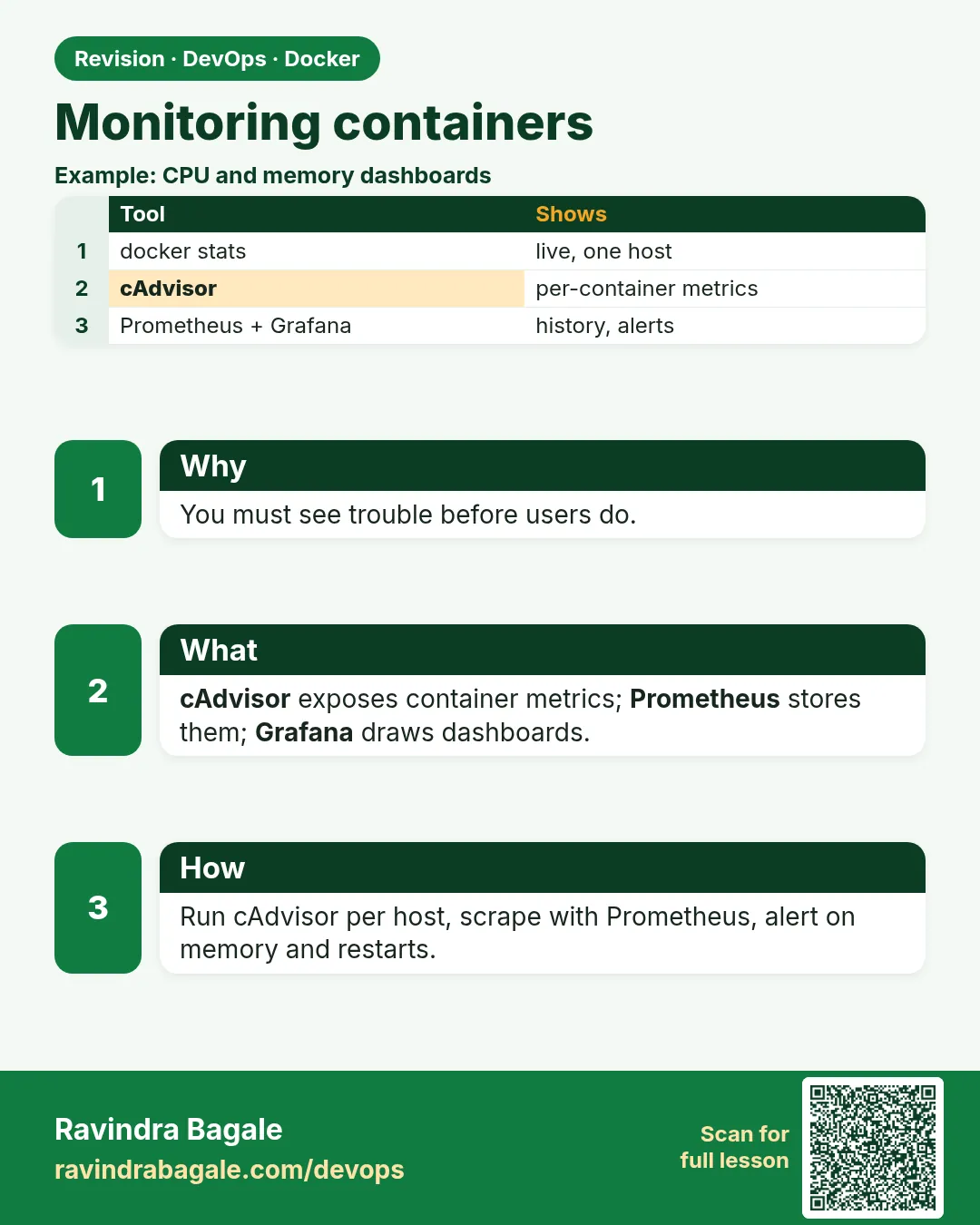
What: cAdvisor from Google reads cgroup data for every container and exposes it on port 8080 at /metrics.
Example 10: Run it
Type this:
docker run -d --name cadvisor -p 8086:8080 -v /:/rootfs:ro -v /var/run:/var/run:ro -v /sys:/sys:ro -v /var/lib/docker/:/var/lib/docker:ro gcr.io/cadvisor/cadvisor:v0.49.1 && sleep 3 && curl -s -o /dev/null -w '%{http_code}\n' localhost:8086/metrics
You will see:
200
What it means: All mounts are read-only.
Example 11: Read a metric
Type this:
curl -s localhost:8086/metrics | grep 'container_memory_usage_bytes{' | grep 'name="web"' | head -1
You will see:
container_memory_usage_bytes{...,name="web"} 9.646e+06
What it means: Memory of web in bytes.
Example 12: CPU counter
Type this:
curl -s localhost:8086/metrics | grep '^container_cpu_usage_seconds_total' | grep -c 'name='
You will see:
5
What it means: One series per named container.
Step 5: Node Exporter
Why: Host metrics.
What: Node Exporter shows the server itself: CPU, RAM, disk, network.
Example 13: Run it
Type this:
docker run -d --name node --pid host --net host -v /:/host:ro,rslave prom/node-exporter:v1.8.2 --path.rootfs=/host && sleep 2 && curl -s localhost:9100/metrics | grep -c '^node_'
You will see:
1284
What it means: Over a thousand host metrics.
Example 14: Free disk
Type this:
curl -s localhost:9100/metrics | grep 'node_filesystem_avail_bytes{.*mountpoint="/"'
You will see:
node_filesystem_avail_bytes{device="/dev/nvme0n1p1",fstype="ext4",mountpoint="/"} 2.1e+10
What it means: About 21 GB free.
Example 15: Load
Type this:
curl -s localhost:9100/metrics | grep '^node_load1 '
You will see:
node_load1 1.02
What it means: The busy loop shows.
Step 6: Prometheus
Why: Scrape and store.
What: Prometheus pulls /metrics from each target on a schedule and stores the time series.
Example 16: Config
Type this:
printf '%s\n' 'global:' ' scrape_interval: 15s' 'rule_files: [/etc/prometheus/alerts.yml]' 'scrape_configs:' ' - job_name: cadvisor' ' static_configs: [{targets: ["cadvisor:8080"]}]' ' - job_name: node' ' static_configs: [{targets: ["node:9100"]}]' > prometheus.yml && echo written
You will see:
written
What it means: Two jobs.
Example 17: Validate
Type this:
docker run --rm -v $PWD:/w --entrypoint promtool prom/prometheus:v2.54.1 check config /w/prometheus.yml 2>&1 | tail -1
You will see:
FAILED: error checking rule file ... no such file
What it means: It wants the alerts file, which we write next.
Example 18: Alert rules
Type this:
printf '%s\n' 'groups:' '- name: containers' ' rules:' ' - alert: ContainerRestarting' ' expr: increase(container_start_time_seconds{name!=""}[10m]) > 3' ' labels: {severity: page}' ' - alert: ContainerMemoryHigh' ' expr: container_memory_usage_bytes{name!=""} / container_spec_memory_limit_bytes{name!=""} > 0.9' ' for: 5m' > alerts.yml && cp alerts.yml /tmp/ && docker run --rm -v $PWD:/w --entrypoint promtool prom/prometheus:v2.54.1 check rules /w/alerts.yml | tail -1
You will see:
SUCCESS: 2 rules found
What it means: Restarts and memory near the limit.
Step 7: The whole stack in Compose
Why: One file, one command.
What: Put cAdvisor, Node Exporter, Prometheus and Grafana together on one network.
Example 19: compose.yaml
Type this:
printf '%s\n' 'services:' ' cadvisor:' ' image: gcr.io/cadvisor/cadvisor:v0.49.1' ' volumes: ["/:/rootfs:ro","/var/run:/var/run:ro","/sys:/sys:ro","/var/lib/docker/:/var/lib/docker:ro"]' ' node:' ' image: prom/node-exporter:v1.8.2' ' prometheus:' ' image: prom/prometheus:v2.54.1' ' volumes: ["./prometheus.yml:/etc/prometheus/prometheus.yml:ro","./alerts.yml:/etc/prometheus/alerts.yml:ro","promdata:/prometheus"]' ' ports: ["9090:9090"]' ' grafana:' ' image: grafana/grafana:11.2.0' ' environment: ["GF_SECURITY_ADMIN_PASSWORD=change-me"]' ' ports: ["3000:3000"]' ' volumes: ["grafdata:/var/lib/grafana"]' 'volumes: {promdata: {}, grafdata: {}}' > compose.yaml && docker rm -f cadvisor node >/dev/null; docker compose up -d && echo up
You will see:
up
What it means: Practice password only.
Example 20: Targets up
Type this:
sleep 20 && curl -s localhost:9090/api/v1/targets | python3 -c "import json,sys;[print(t['labels']['job'],t['health']) for t in json.load(sys.stdin)['data']['activeTargets']]"
You will see:
cadvisor up
node up
What it means: Prometheus is scraping both.
Example 21: A query
Type this:
curl -s 'localhost:9090/api/v1/query' --data-urlencode 'query=topk(1, rate(container_cpu_usage_seconds_total{name!=""}[1m]))' | grep -o '"name":"[a-z-]*"'
You will see:
"name":"busy"
What it means: PromQL finds the hungriest container.
Step 8: Useful PromQL for containers
Why: Five queries to remember.
What: These answer the daily questions: who uses CPU, who is near the memory limit, who restarts.
Example 22: CPU per container
Type this:
printf 'sum by (name) (rate(container_cpu_usage_seconds_total{name!=""}[5m]))\n'
You will see:
sum by (name) (rate(container_cpu_usage_seconds_total{name!=""}[5m]))
What it means: Cores used per container.
Example 23: Memory percent of limit
Type this:
printf 'container_memory_working_set_bytes{name!=""} / container_spec_memory_limit_bytes{name!=""} * 100\n'
You will see:
container_memory_working_set_bytes{name!=""} / container_spec_memory_limit_bytes{name!=""} * 100
What it means: Above 90 means trouble soon.
Example 24: Network in
Type this:
printf 'sum by (name) (rate(container_network_receive_bytes_total{name!=""}[5m]))\n'
You will see:
sum by (name) (rate(container_network_receive_bytes_total{name!=""}[5m]))
What it means: Bytes per second.
Step 9: Grafana dashboard
Why: See it as graphs.
What: Add Prometheus as a data source through the API, then import a ready Docker dashboard by its id.
Example 25: Add data source
Type this:
curl -s -u admin:change-me -H 'Content-Type: application/json' -X POST localhost:3000/api/datasources -d '{"name":"Prometheus","type":"prometheus","url":"http://prometheus:9090","access":"proxy","isDefault":true}' | grep -o '"message":"[^"]*"'
You will see:
"message":"Datasource added"
What it means: Grafana now talks to Prometheus.
Example 26: Import dashboard
Type this:
printf 'Grafana, Dashboards, New, Import, id 19792 (cAdvisor), choose Prometheus, Import.\n'
You will see:
Grafana, Dashboards, New, Import, id 19792 (cAdvisor), choose Prometheus, Import.
What it means: A ready board with CPU, memory and network per container.
Example 27: Health of Grafana
Type this:
curl -s localhost:3000/api/health
You will see:
{
  "database": "ok",
  "version": "11.2.0"
}
What it means: Open http://SERVER:3000 in the browser.
Step 10: Firing an alert
Why: Prove the rule works.
What: Make a container restart repeatedly and watch the alert move from inactive to firing.
Example 28: A crash loop
Type this:
docker run -d --name crashy --restart always alpine:3.20 sh -c 'sleep 20; exit 1' && echo started
You will see:
started
What it means: Restarts every 20 seconds.
Example 29: Check alerts
Type this:
sleep 120 && curl -s localhost:9090/api/v1/alerts | grep -o '"alertname":"[A-Za-z]*",[^}]*"state":"[a-z]*"' | head -1
You will see:
"alertname":"ContainerRestarting",..."state":"firing"
What it means: The rule caught it.
Example 30: Route to on-call
Type this:
printf 'Add Alertmanager and send firing alerts to Slack, email or PagerDuty.\n'
You will see:
Add Alertmanager and send firing alerts to Slack, email or PagerDuty.
What it means: Vikram's page at 3 AM.
Step 11: Managed options on AWS
Why: When you do not want to run Prometheus.
What: CloudWatch Container Insights collects container metrics for ECS and EKS. Amazon Managed Prometheus and Managed Grafana run the same tools for you.
Example 31: Container Insights on ECS
Type this:
aws ecs update-cluster-settings --cluster shop --settings name=containerInsights,value=enabled --region ap-south-1 --query 'cluster.settings'
You will see:
[
    {
        "name": "containerInsights",
        "value": "enabled"
    }
]
What it means: Metrics per task and service.
Example 32: CloudWatch agent on EC2
Type this:
printf 'Install the CloudWatch agent and enable the docker metrics section for plain EC2 hosts.\n'
You will see:
Install the CloudWatch agent and enable the docker metrics section for plain EC2 hosts.
What it means: No Prometheus server to manage.
Example 33: Cost check
Type this:
printf 'Container Insights is billed per metric; enable it on the clusters that need it.\n'
You will see:
Container Insights is billed per metric; enable it on the clusters that need it.
What it means: Know the price before turning it on everywhere.
Step 12: A quick health script without a stack
Why: For one small server.
What: On a single VM you can still get early warnings with a tiny cron script built on docker ps and docker stats.
Example 34: Unhealthy or restarting
Type this:
docker ps --filter health=unhealthy --filter status=restarting --format '{{.Names}} {{.Status}}'
You will see:
crashy Restarting (1) 3 seconds ago
What it means: Anything listed needs attention.
Example 35: Memory over 90 percent
Type this:
docker stats --no-stream --format '{{.Name}} {{.MemPerc}}' | awk '{gsub("%","",$2); if ($2+0 > 90) print $1, $2"%"}'
You will see:
imgresize 93.4%
What it means: Close to its limit.
Example 36: Run every 5 minutes
Type this:
printf '%s\n' '#!/bin/sh' 'docker ps --filter health=unhealthy --format "{{.Names}}" | grep . && logger -t dockerwatch unhealthy containers' > /usr/local/bin/dockerwatch && chmod 0755 /usr/local/bin/dockerwatch && printf '*/5 * * * * /usr/local/bin/dockerwatch\n' | crontab - && crontab -l
You will see:
*/5 * * * * /usr/local/bin/dockerwatch
What it means: Writes to syslog; a real stack is better once you grow.
4. Read the graphs
5. Common mistakes and how Vikram avoids them
Mistake one: only logs, no metrics. Vikram runs cAdvisor and Node Exporter on every host.
Mistake two: graphs with no alerts. He has alerts for restarts, memory near the limit and disk free under 10 percent.
Mistake three: Prometheus data in the container layer. He keeps it in a named volume.
Mistake four: Grafana open with the default password. He sets a strong one from a secret and keeps port 3000 behind a VPN or a login proxy.
Mistake five: too many alerts. Each alert must mean a human should act.
Check yourself
Q1. Which command shows live CPU and memory per container?
docker stats.
Q2. What does cAdvisor do?
Exposes per-container metrics from the kernel on /metrics.
Q3. Does Prometheus push or pull?
It pulls by scraping targets on a schedule.
Q4. What does a sawtooth memory graph usually mean?
The container hits its memory limit, is OOMKilled and restarts.
Friends, start with docker stats and docker events, then run cAdvisor, Node Exporter, Prometheus and Grafana with one Compose file, and write alerts for restarts and memory. Did you understand? Let us try it once more. Bring up the stack, find the busiest container with PromQL, and make the restart alert fire.
मित्रांनो, docker stats आणि docker events ने सुरुवात करा, मग एकाच Compose file ने cAdvisor, Node Exporter, Prometheus आणि Grafana चालवा, आणि restarts व memory साठी alerts लिहा. समजलं का? चला, पुन्हा एकदा करून पाहू. Stack चालू करा, PromQL ने सगळ्यात busy container शोधा, आणि restart alert fire करून दाखवा.
दोस्तों, docker stats और docker events से शुरू कीजिए, फिर एक ही Compose file से cAdvisor, Node Exporter, Prometheus और Grafana चलाइए, और restarts व memory के लिए alerts लिखिए. समझ आया? चलिए, एक बार फिर करके देखते हैं। Stack चालू कीजिए, PromQL से सबसे busy container ढूँढिए, और restart alert fire करके दिखाइए.
Ravindra Bagale's Tip
Always graph memory against the limit, not just raw usage. 400 MB means nothing; 95 percent of the limit means a restart is coming.
Memory नेहमी limit च्या तुलनेत graph करा, फक्त raw usage नाही. 400 MB चा काही अर्थ नाही; limit च्या 95 टक्के म्हणजे restart येणार.
Memory हमेशा limit के मुकाबले graph कीजिए, सिर्फ़ raw usage नहीं. 400 MB का कोई मतलब नहीं; limit का 95 प्रतिशत यानी restart आने वाला है.
Lab: try at home
- Use docker stats with a custom format.
- Watch docker events and catch an OOM event.
- Run cAdvisor and read one container metric.
- Write prometheus.yml and alerts.yml and validate them with promtool.
- Bring up the full Compose stack and check targets.
- Add Prometheus to Grafana and import a dashboard.
- Start a crash loop and see the alert fire.
Recap
- docker stats, top and events are built in.
- cAdvisor gives container metrics, Node Exporter host metrics.
- Prometheus scrapes and stores; promtool validates.
- Grafana shows dashboards.
- Alert on restarts, memory near limit and disk.
- AWS offers Container Insights and managed Prometheus.
 Revision card
 Interview card