55.6 Logging drivers and central logs
Friends, when a container crashes at 2 AM, logs are the only witness. But by default Docker keeps logs in a JSON file on the host that grows forever, and when the container is removed the logs go with it. Today, step by step: how docker logs works, rotation so the disk never fills, logging drivers, and sending every container's logs to one central place like CloudWatch or Loki.
मित्रांनो, रात्री 2 वाजता container crash झाला तर logs हाच एकमेव साक्षीदार. पण default ने Docker logs host वर एका JSON file मध्ये ठेवतो जी कायम वाढत राहते, आणि container remove केला की logs पण जातात. आज step by step: docker logs कसं चालतं, disk कधीच भरू नये म्हणून rotation, logging drivers, आणि प्रत्येक container चे logs CloudWatch किंवा Loki सारख्या एका central जागी पाठवणं.
दोस्तों, रात 2 बजे container crash हुआ तो logs ही इकलौते गवाह हैं. पर default में Docker logs host पर एक JSON file में रखता है जो हमेशा बढ़ती रहती है, और container remove करते ही logs भी चले जाते हैं. आज step by step: docker logs कैसे काम करता है, disk कभी न भरे इसलिए rotation, logging drivers, और हर container के logs को CloudWatch या Loki जैसी एक central जगह भेजना.
1. Start from a story
At Ola, an on-call engineer named Pooja got a disk-full alert on a production EC2 host at 3 AM. The root disk was at 100 percent and new containers could not start.
She ran du and found one file: a single container's JSON log, 38 GB, because a debug flag was left on and nobody had set log rotation.
The quick fix was to truncate the file. The real fix took one afternoon: max-size and max-file in daemon.json for every host, and the awslogs driver for production so logs land in CloudWatch, survive container removal, and can be searched across all servers.
The next time a container crashed, Pooja searched one CloudWatch log group instead of logging in to six servers. Today we set up both.
2. docker logs step by step
Step 1: Apps must log to stdout and stderr
Why: Docker only sees the two standard streams.
What: Docker captures what the main process prints. Logs written to files inside the container are invisible to docker logs.
Example 1: A chatty container
Type this:
docker run -d --name chat alpine:3.20 sh -c 'i=0; while true; do i=$((i+1)); echo "order $i placed"; sleep 1; done' && sleep 3 && docker logs chat
You will see:
order 1 placed
order 2 placed
order 3 placed
What it means: stdout is captured.
Example 2: stderr too
Type this:
docker run --rm alpine:3.20 sh -c 'echo ok; echo boom >&2' 2>/dev/null; docker run --name err alpine:3.20 sh -c 'echo boom >&2'; docker logs err 2>&1
You will see:
boom
What it means: stderr is captured as well.
Example 3: Official images link files to stdout
Type this:
docker run --rm nginx:1.27-alpine ls -l /var/log/nginx
You will see:
lrwxrwxrwx 1 root root 11 access.log -> /dev/stdout
lrwxrwxrwx 1 root root 11 error.log -> /dev/stderr
What it means: That trick makes file logs visible.
Step 2: Follow, tail and time filters
Why: Read only what you need.
What: -f follows live, --tail limits lines, --since and --until pick a time window, -t adds timestamps.
Example 4: Last 2 lines
Type this:
docker logs --tail 2 chat
You will see:
order 9 placed
order 10 placed
What it means: Fast on huge logs.
Example 5: With timestamps
Type this:
docker logs -t --tail 1 chat
You will see:
2026-10-25T06:31:12.512345678Z order 12 placed
What it means: Times are UTC; that is 12:01 PM IST.
Example 6: Time window
Type this:
docker logs --since 10s chat | wc -l
You will see:
10
What it means: Only the last 10 seconds.
Step 3: Where the log file lives
Why: Find and measure it.
What: With the json-file driver, each container has one file on the host. docker inspect shows its path.
Example 7: Path
Type this:
docker inspect -f '{{.LogPath}}' chat
You will see:
/var/lib/docker/containers/4f1c.../4f1c...-json.log
What it means: One file per container.
Example 8: One line
Type this:
sudo tail -1 $(docker inspect -f '{{.LogPath}}' chat)
You will see:
{"log":"order 20 placed\n","stream":"stdout","time":"2026-10-25T06:31:20.51Z"}
What it means: JSON with stream and time.
Example 9: Size
Type this:
sudo du -h $(docker inspect -f '{{.LogPath}}' chat)
You will see:
12K /var/lib/docker/containers/4f1c.../4f1c...-json.log
What it means: Watch this grow.
3. Rotation so the disk never fills
Step 4: Rotation per container
Why: max-size and max-file.
What: --log-opt max-size sets the size of one file, and max-file how many to keep. Old files are deleted.
Example 10: Run with rotation
Type this:
docker run -d --name rot --log-opt max-size=1m --log-opt max-file=3 alpine:3.20 sh -c 'while true; do head -c 2000 /dev/urandom | base64; done' && sleep 10 && sudo ls -lh $(dirname $(docker inspect -f '{{.LogPath}}' rot)) | grep json
You will see:
-rw-r----- 1 root root 1.0M rot-json.log
-rw-r----- 1 root root 1.0M rot-json.log.1
-rw-r----- 1 root root 1.0M rot-json.log.2
What it means: Never more than 3 MB.
Example 11: Inspect
Type this:
docker inspect -f '{{.HostConfig.LogConfig}}' rot
You will see:
{json-file map[max-file:3 max-size:1m]}
What it means: Saved with the container.
Example 12: Clean up
Type this:
docker rm -f rot >/dev/null && echo removed
You will see:
removed
What it means: Its logs are gone with it.
Step 5: Rotation for every container
Why: Set it once in daemon.json.
What: Defaults in daemon.json apply to new containers. Existing containers keep their old settings until recreated.
Example 13: Write defaults
Type this:
printf '{\n "log-driver": "json-file",\n "log-opts": {"max-size": "10m", "max-file": "5"}\n}\n' | sudo tee /etc/docker/daemon.json && sudo systemctl restart docker
You will see:
{
  "log-driver": "json-file",
  "log-opts": {"max-size": "10m", "max-file": "5"}
}
What it means: 50 MB max per container. Merge with existing keys.
Example 14: Check
Type this:
docker info --format '{{.LoggingDriver}}' && docker run -d --name new1 alpine:3.20 sleep 300 && docker inspect -f '{{.HostConfig.LogConfig.Config}}' new1
You will see:
json-file
map[max-file:5 max-size:10m]
What it means: New containers get it.
Example 15: Recreate old ones
Type this:
docker compose up -d --force-recreate && echo recreated
You will see:
recreated
What it means: Old containers need recreation to pick it up.
Step 6: The local driver
Why: Compressed and rotated by default.
What: The local driver stores logs in a compact format with rotation built in, and docker logs still works.
Example 16: Use it
Type this:
docker run -d --name loc --log-driver local alpine:3.20 sh -c 'echo hello local; sleep 300' && sleep 1 && docker logs loc
You will see:
hello local
What it means: docker logs still reads it.
Example 17: Defaults
Type this:
docker inspect -f '{{.HostConfig.LogConfig.Type}}' loc
You will see:
local
What it means: Defaults are 20 MB per file, 5 files, compressed.
Example 18: Emergency truncate
Type this:
sudo truncate -s 0 $(docker inspect -f '{{.LogPath}}' chat) && echo emptied
You will see:
emptied
What it means: Pooja's 3 AM fix. Safe, but set rotation so you never need it.
4. Central logging
Step 7: awslogs driver to CloudWatch
Why: Native AWS option.
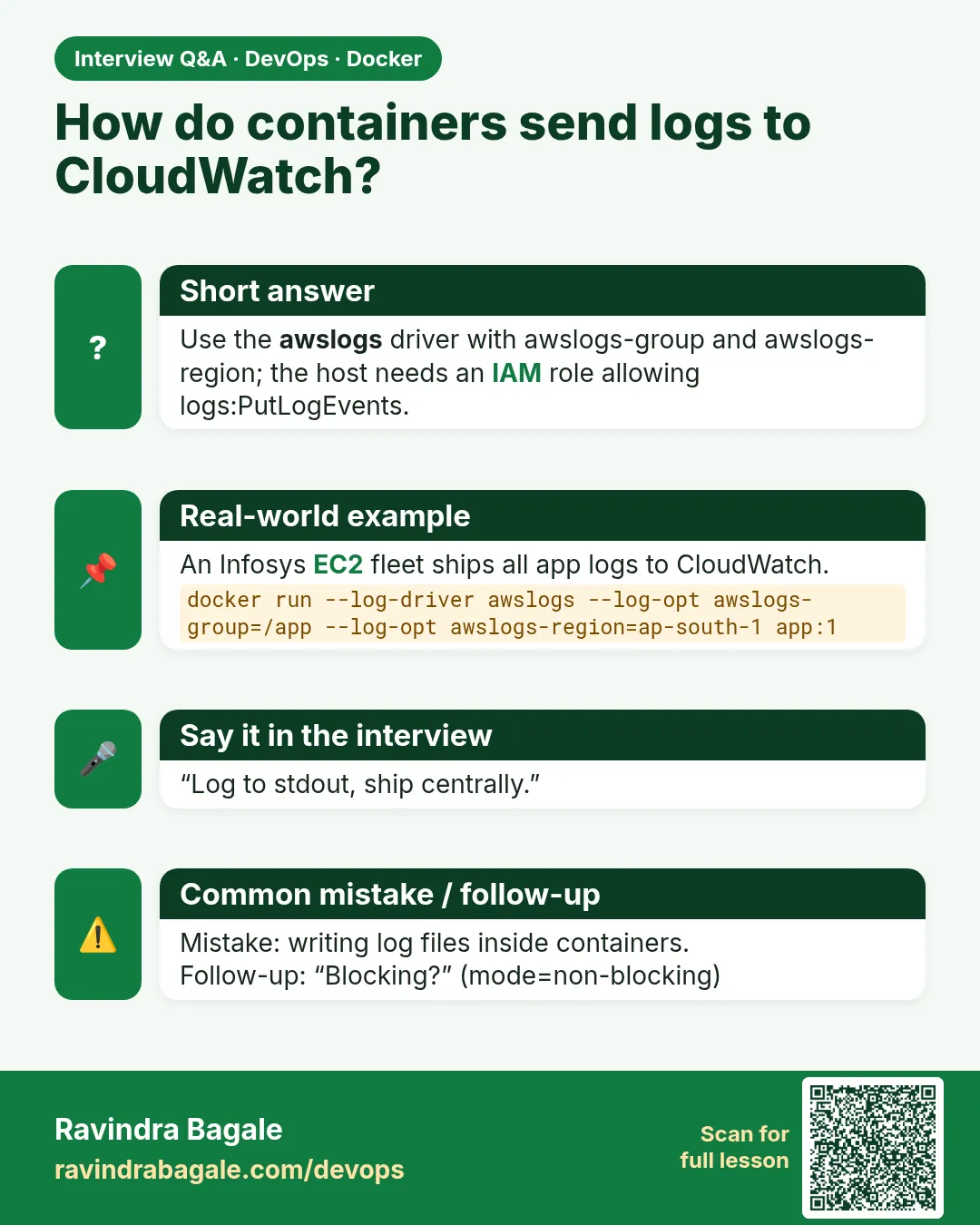
What: On EC2 with an IAM role that allows logs:CreateLogStream and logs:PutLogEvents, Docker sends logs straight to CloudWatch.
Example 19: Create a group
Type this:
aws logs create-log-group --log-group-name /shop/api --region ap-south-1 && aws logs put-retention-policy --log-group-name /shop/api --retention-in-days 14 --region ap-south-1 && echo ok
You will see:
ok
What it means: 14 days retention.
Example 20: Run with awslogs
Type this:
docker run -d --name api1 --log-driver awslogs --log-opt awslogs-region=ap-south-1 --log-opt awslogs-group=/shop/api --log-opt awslogs-stream=api1 alpine:3.20 sh -c 'echo payment ok; sleep 300' && echo started
You will see:
started
What it means: No access keys, the host role is used.
Example 21: Read in CloudWatch
Type this:
aws logs tail /shop/api --since 5m --region ap-south-1
You will see:
2026-10-25T06:40:02 api1 payment ok
What it means: Survives docker rm.
Step 8: Search across servers
Why: CloudWatch Logs Insights.
What: One query searches every stream in the group.
Example 22: Start a query
Type this:
aws logs start-query --log-group-name /shop/api --start-time $(date -d '-1 hour' +%s) --end-time $(date +%s) --query-string 'fields @timestamp, @message | filter @message like /error/ | limit 20' --region ap-south-1 --query queryId --output text
You will see:
7a1b2c3d-1111-2222-3333-444455556666
What it means: Query id.
Example 23: Results
Type this:
aws logs get-query-results --query-id 7a1b2c3d-1111-2222-3333-444455556666 --region ap-south-1 --query 'results[0][1].value' --output text
You will see:
payment error: timeout to bank
What it means: Found on whichever host it happened.
Example 24: Alarm on errors
Type this:
aws logs put-metric-filter --log-group-name /shop/api --filter-name errors --filter-pattern error --metric-transformations metricName=ApiErrors,metricNamespace=Shop,metricValue=1 --region ap-south-1 && echo filter
You will see:
filter
What it means: Then a CloudWatch alarm on ApiErrors.
Step 9: Fluent Bit as a log shipper
Why: One agent, many destinations.
What: The fluentd driver sends logs to a Fluent Bit container, which can forward them to Loki, Elasticsearch, S3 or CloudWatch.
Example 25: Start Fluent Bit
Type this:
printf '%s\n' '[INPUT]' ' Name forward' ' Listen 0.0.0.0' ' Port 24224' '[OUTPUT]' ' Name stdout' ' Match *' > fluent-bit.conf && docker run -d --name fb -p 24224:24224 -v $PWD/fluent-bit.conf:/fluent-bit/etc/fluent-bit.conf:ro fluent/fluent-bit:3.1 && echo up
You will see:
up
What it means: Prints what it receives, for practice.
Example 26: Send a container's logs
Type this:
docker run --rm --log-driver fluentd --log-opt fluentd-address=localhost:24224 --log-opt tag=shop.api alpine:3.20 echo 'cart created'
You will see:
What it means: Goes to Fluent Bit, not to a local file.
Example 27: See it arrive
Type this:
docker logs fb 2>&1 | grep -m1 'cart created'
You will see:
[0] shop.api: [1761374400.123, {"container_name"=>"/eager_kare", "source"=>"stdout", "log"=>"cart created"}]
What it means: With container name and tag.
Step 10: Loki and Grafana with Compose
Why: A free central stack.
What: Grafana Loki stores logs cheaply; Promtail or the Loki driver ships them; Grafana searches them.
Example 28: compose.yaml
Type this:
printf '%s\n' 'services:' ' loki:' ' image: grafana/loki:3.2.0' ' ports: ["3100:3100"]' ' grafana:' ' image: grafana/grafana:11.2.0' ' ports: ["3000:3000"]' > compose.yaml && docker compose up -d && echo up
You will see:
up
What it means: Loki on 3100, Grafana on 3000.
Example 29: Loki plugin
Type this:
docker plugin install grafana/loki-docker-driver:3.2.0 --alias loki --grant-all-permissions && docker plugin ls --format '{{.Name}} {{.Enabled}}'
You will see:
loki:latest true
What it means: A logging driver plugin.
Example 30: Send and query
Type this:
docker run --rm --log-driver loki --log-opt loki-url=http://localhost:3100/loki/api/v1/push alpine:3.20 echo 'reel uploaded' && sleep 2 && curl -sG localhost:3100/loki/api/v1/query_range --data-urlencode 'query={container_name=~".+"}' | grep -o 'reel uploaded' | head -1
You will see:
reel uploaded
What it means: Searchable in Grafana Explore.
Step 11: Structured JSON logs
Why: Easier to search.
What: Log one JSON object per line with level, message and ids. Central tools can then filter on fields.
Example 31: Print JSON
Type this:
docker run --rm python:3.12-alpine python -c 'import json,time;print(json.dumps({"level":"error","msg":"payment failed","order":"A123","ts":time.time()}))'
You will see:
{"level": "error", "msg": "payment failed", "order": "A123", "ts": 1761374400.5}
What it means: One event per line.
Example 32: Filter locally
Type this:
docker logs chat 2>&1 | tail -3 | grep -c placed
You will see:
3
What it means: Plain text needs grep.
Example 33: Insights on fields
Type this:
printf 'fields order, msg | filter level = "error"\n'
You will see:
fields order, msg | filter level = "error"
What it means: CloudWatch parses JSON fields automatically.
Step 12: Logging in Compose
Why: Same options in YAML.
What: Every service can have its own logging block.
Example 34: Per service
Type this:
printf '%s\n' 'services:' ' api:' ' image: nginx:1.27-alpine' ' logging:' ' driver: json-file' ' options:' ' max-size: 10m' ' max-file: "5"' > compose.logs.yaml && docker compose -f compose.logs.yaml config -q && echo valid
You will see:
valid
What it means: max-file must be a string.
Example 35: Up
Type this:
docker compose -f compose.logs.yaml up -d && docker inspect -f '{{.HostConfig.LogConfig}}' $(docker compose -f compose.logs.yaml ps -q api)
You will see:
{json-file map[max-file:5 max-size:10m]}
What it means: Applied.
Example 36: All services' logs
Type this:
docker compose -f compose.logs.yaml logs --tail 2 --timestamps
You will see:
api-1 | 2026-10-25T06:45:01.1Z /docker-entrypoint.sh: Configuration complete; ready for start up
What it means: compose logs merges every service.
5. Common mistakes and how Pooja avoids them
Mistake one: no rotation. Pooja sets max-size and max-file in daemon.json on every host on day one.
Mistake two: writing logs to files inside the container. Her apps log to stdout and stderr.
Mistake three: logs only on the server. Production logs go to CloudWatch or Loki so they survive and can be searched.
Mistake four: secrets in logs. She never prints passwords or tokens; the central store keeps logs for weeks.
Mistake five: no retention. Every CloudWatch group has a retention policy so the bill does not grow forever.
Check yourself
Q1. Which streams does docker logs capture?
stdout and stderr of the main process.
Q2. Which two options rotate json-file logs?
max-size and max-file.
Q3. What happens to json-file logs on docker rm?
They are deleted with the container.
Q4. Name a driver that sends logs to CloudWatch.
awslogs.
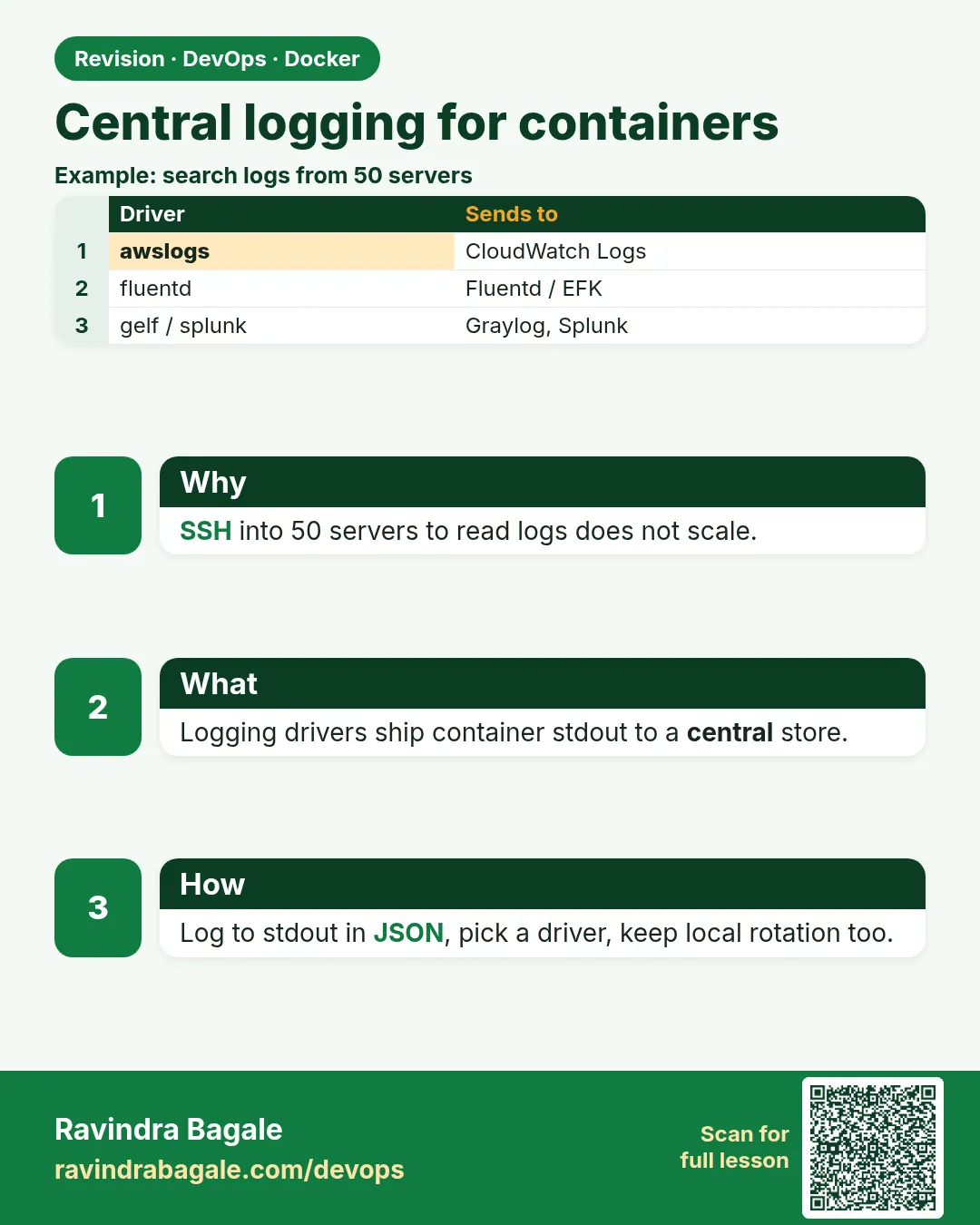
Friends, log to stdout, rotate with max-size and max-file, and ship production logs to one central place with awslogs, Fluent Bit or Loki. Did you understand? Let us try it once more. Set rotation in daemon.json, prove it with docker inspect, and send one container's logs to Fluent Bit.
मित्रांनो, stdout वर log करा, max-size आणि max-file ने rotate करा, आणि production logs awslogs, Fluent Bit किंवा Loki ने एका central जागी पाठवा. समजलं का? चला, पुन्हा एकदा करून पाहू. daemon.json मध्ये rotation लावा, docker inspect ने सिद्ध करा, आणि एका container चे logs Fluent Bit ला पाठवा.
दोस्तों, stdout पर log कीजिए, max-size और max-file से rotate कीजिए, और production logs awslogs, Fluent Bit या Loki से एक central जगह भेजिए. समझ आया? चलिए, एक बार फिर करके देखते हैं। daemon.json में rotation लगाइए, docker inspect से साबित कीजिए, और एक container के logs Fluent Bit को भेजिए.
Ravindra Bagale's Tip
Put log rotation in the same script that installs Docker. A full disk takes down every container on the host, not just the noisy one.
Docker install करणाऱ्या script मध्येच log rotation टाका. Disk भरली की फक्त गोंगाट करणारा नाही, host वरचा प्रत्येक container बंद पडतो.
Docker install करने वाली script में ही log rotation डालिए. Disk भरी तो सिर्फ़ शोर करने वाला नहीं, host का हर container बंद होता है.
Lab: try at home
- Run the chatty container and read it with --tail, -t and --since.
- Find its JSON log file and measure it.
- Run a container with max-size 1m and max-file 3 and watch rotation.
- Set defaults in daemon.json and check a new container.
- Send logs to Fluent Bit with the fluentd driver.
- Start Loki and Grafana and query one message.
Recap
- Docker captures stdout and stderr.
- json-file grows forever unless rotated.
- Set max-size and max-file in daemon.json.
- local driver rotates and compresses.
- awslogs, Fluent Bit and Loki centralise logs.
- Log JSON, never secrets, and set retention.
 Revision card
 Interview card