55.4 Scan images: Trivy and Docker Scout
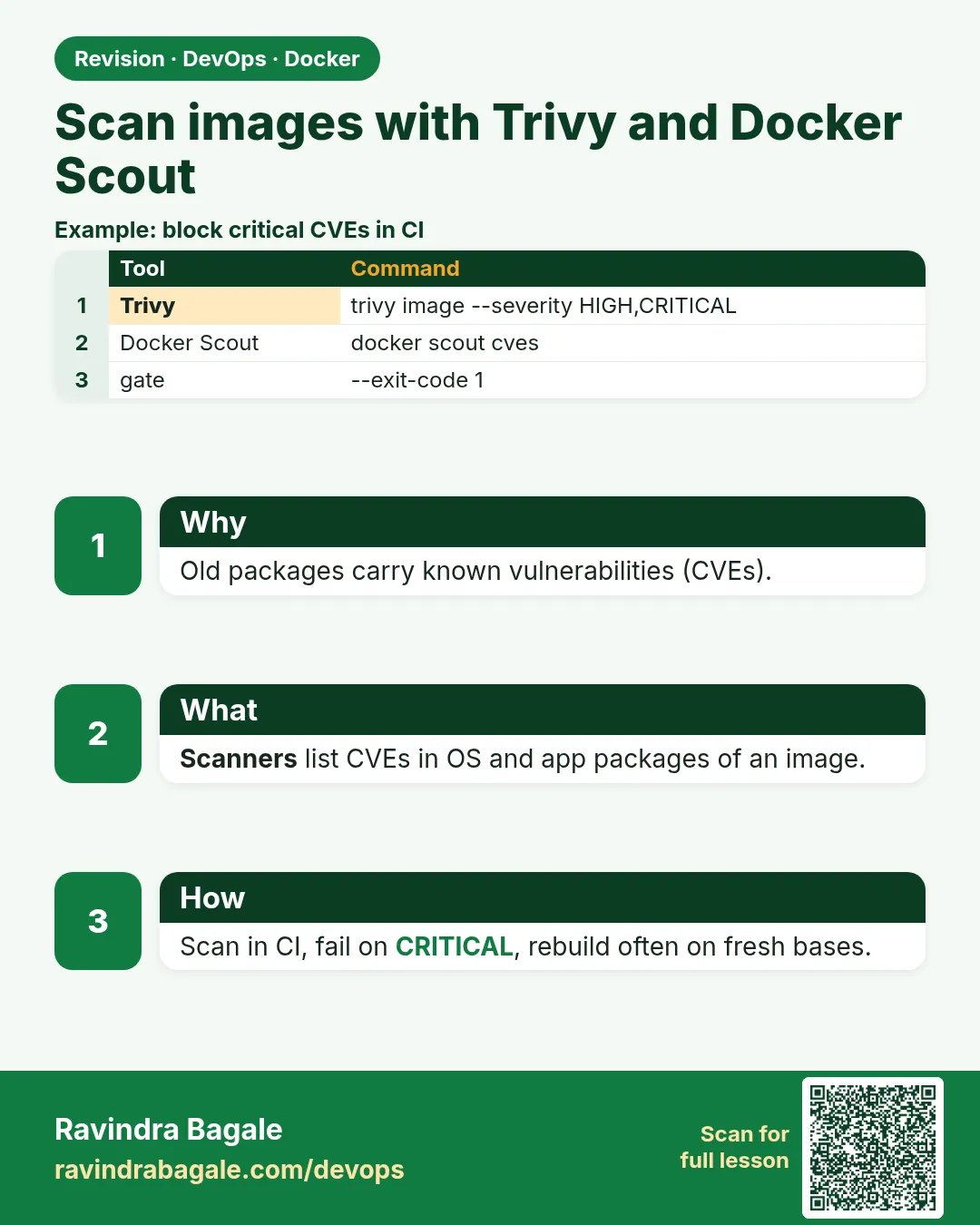
Friends, every image carries hundreds of packages, and some of them have known security holes called CVEs. A scanner reads the list of packages in your image and matches it against public CVE databases. Today, step by step, we scan with Trivy and Docker Scout, read the report, fix real findings, and make the CI pipeline fail when a CRITICAL appears.
मित्रांनो, प्रत्येक image मध्ये शेकडो packages असतात, आणि त्यातल्या काहींमध्ये CVE नावाची माहीत असलेली security छिद्रं असतात. Scanner तुमच्या image मधल्या packages ची यादी वाचतो आणि public CVE databases शी जुळवतो. आज step by step Trivy आणि Docker Scout ने scan करूया, report वाचूया, खरे findings fix करूया, आणि CRITICAL आला तर CI pipeline fail करूया.
दोस्तों, हर image में सैकड़ों packages होते हैं, और उनमें से कुछ में CVE नाम के जाने-पहचाने security छेद होते हैं. Scanner आपकी image के packages की सूची पढ़ता है और public CVE databases से मिलाता है. आज step by step Trivy और Docker Scout से scan करेंगे, report पढ़ेंगे, असली findings fix करेंगे, और CRITICAL आए तो CI pipeline fail करेंगे.
1. Start from a story
At Swiggy, a team shipped a Python service on an old python:3.8 base image that nobody had touched for a year.
During an audit, a security engineer named Neha ran one command, trivy image, on it. The report showed 9 CRITICAL and 61 HIGH vulnerabilities, mostly in OpenSSL and old system libraries the app never needed.
Neha changed the base to python:3.12-slim, rebuilt, and scanned again. CRITICAL dropped to zero and HIGH to two, both in a Python library with a fixed version available. One line in requirements.txt fixed those.
Then she added the scan to Jenkins so any new CRITICAL stops the build. Today we do exactly that.
2. Trivy step by step
Step 1: Run Trivy without installing
Why: Use the official container.
What: Trivy runs as a container. Mount the Docker socket so it can read local images, and a cache folder so the database downloads only once.
Example 1: Version
Type this:
docker run --rm -v /var/run/docker.sock:/var/run/docker.sock -v $HOME/.cache/trivy:/root/.cache aquasec/trivy:0.56.2 --version | head -1
You will see:
Version: 0.56.2
What it means: Works without any install.
Example 2: First scan
Type this:
docker run --rm -v /var/run/docker.sock:/var/run/docker.sock -v $HOME/.cache/trivy:/root/.cache aquasec/trivy:0.56.2 image -q alpine:3.20 | head -3
You will see:
alpine:3.20 (alpine 3.20.3)

Total: 0 (UNKNOWN: 0, LOW: 0, MEDIUM: 0, HIGH: 0, CRITICAL: 0)
What it means: A small, fresh base is clean.
Example 3: Cache saved
Type this:
du -sh $HOME/.cache/trivy
You will see:
72M /home/ubuntu/.cache/trivy
What it means: The CVE database, reused next time.
Step 2: Scan an old image
Why: See what age does.
What: Older tags were built with older packages, so they collect CVEs over time.
Example 4: Old Python
Type this:
docker run --rm -v /var/run/docker.sock:/var/run/docker.sock -v $HOME/.cache/trivy:/root/.cache aquasec/trivy:0.56.2 image -q python:3.8 2>/dev/null | grep '^Total'
You will see:
Total: 1023 (UNKNOWN: 6, LOW: 571, MEDIUM: 330, HIGH: 107, CRITICAL: 9)
What it means: A full Debian base with old packages.
Example 5: Slim and new
Type this:
docker run --rm -v /var/run/docker.sock:/var/run/docker.sock -v $HOME/.cache/trivy:/root/.cache aquasec/trivy:0.56.2 image -q python:3.12-slim | grep '^Total'
You will see:
Total: 38 (UNKNOWN: 0, LOW: 30, MEDIUM: 6, HIGH: 2, CRITICAL: 0)
What it means: Fewer packages, newer versions.
Example 6: Image sizes
Type this:
docker images --format '{{.Repository}}:{{.Tag}} {{.Size}}' | grep -E 'python:3.(8|12-slim)'
You will see:
python:3.8 997MB
python:3.12-slim 130MB
What it means: Less software, less risk.
Step 3: Filter by severity
Why: Focus on what matters first.
What: Use --severity to show only HIGH and CRITICAL. --ignore-unfixed hides CVEs that have no fix yet.
Example 7: Only serious
Type this:
docker run --rm -v /var/run/docker.sock:/var/run/docker.sock -v $HOME/.cache/trivy:/root/.cache aquasec/trivy:0.56.2 image -q --severity HIGH,CRITICAL python:3.12-slim | grep '^Total'
You will see:
Total: 2 (HIGH: 2, CRITICAL: 0)
What it means: Two to look at.
Example 8: Only fixable
Type this:
docker run --rm -v /var/run/docker.sock:/var/run/docker.sock -v $HOME/.cache/trivy:/root/.cache aquasec/trivy:0.56.2 image -q --severity HIGH,CRITICAL --ignore-unfixed python:3.12-slim | grep '^Total'
You will see:
Total: 0 (HIGH: 0, CRITICAL: 0)
What it means: Nothing you can fix today in the base.
Example 9: Read one row
Type this:
docker run --rm -v /var/run/docker.sock:/var/run/docker.sock -v $HOME/.cache/trivy:/root/.cache aquasec/trivy:0.56.2 image -q --severity HIGH python:3.12-slim | grep -m1 -E 'CVE-[0-9]+'
You will see:
│ libexpat1 │ CVE-2024-45491 │ HIGH │ affected │ 2.5.0-1 │ │ libexpat: Integer Overflow ... │
What it means: Library, CVE id, severity, status, installed and fixed version.
Step 4: Scan your own app image
Why: Libraries count too.
What: Trivy also reads requirements.txt, package-lock.json, jar files and Go binaries inside the image.
Example 10: Build an app with an old library
Type this:
printf 'flask==2.0.0\nrequests==2.25.0\n' > requirements.txt && printf '%s\n' 'FROM python:3.12-slim' 'COPY requirements.txt .' 'RUN pip install -q -r requirements.txt' > Dockerfile && docker build -q -t shop-api:1.0 . >/dev/null && echo built
You will see:
built
What it means: Deliberately old versions.
Example 11: Scan
Type this:
docker run --rm -v /var/run/docker.sock:/var/run/docker.sock -v $HOME/.cache/trivy:/root/.cache aquasec/trivy:0.56.2 image -q --severity HIGH,CRITICAL shop-api:1.0 | grep -E 'Python|requests|flask|werkzeug' | head -4
You will see:
Python (python-pkg)
│ flask    │ CVE-2023-30861 │ HIGH │ fixed │ 2.0.0 │ 2.3.2, 2.2.5 │
│ requests │ CVE-2024-35195 │ MEDIUM...
│ werkzeug │ CVE-2023-25577 │ HIGH │ fixed │ 2.0.3 │ 2.2.3 │
What it means: App libraries with fixed versions.
Example 12: Fix and rescan
Type this:
printf 'flask==3.0.3\nrequests==2.32.3\n' > requirements.txt && docker build -q -t shop-api:1.1 . >/dev/null && docker run --rm -v /var/run/docker.sock:/var/run/docker.sock -v $HOME/.cache/trivy:/root/.cache aquasec/trivy:0.56.2 image -q --severity HIGH,CRITICAL shop-api:1.1 | grep '^Total' | tail -1
You will see:
Total: 0 (HIGH: 0, CRITICAL: 0)
What it means: Clean after the update.
Step 5: Scan files and config, not just images
Why: Dockerfiles and folders too.
What: trivy fs scans a project folder for vulnerable libraries and secrets. trivy config checks a Dockerfile for bad practices.
Example 13: Folder scan
Type this:
docker run --rm -v $PWD:/src aquasec/trivy:0.56.2 fs -q --severity HIGH,CRITICAL /src | grep '^Total'
You will see:
Total: 0 (HIGH: 0, CRITICAL: 0)
What it means: Same rules, before you even build.
Example 14: Dockerfile check
Type this:
docker run --rm -v $PWD:/src aquasec/trivy:0.56.2 config -q /src | grep -E 'AVD-DS' | head -2
You will see:
AVD-DS-0002 (HIGH): Specify at least 1 USER command in Dockerfile with non-root user
AVD-DS-0026 (LOW): Add HEALTHCHECK instruction in your Dockerfile
What it means: It points out a missing USER.
Example 15: Fix it
Type this:
printf '%s\n' 'RUN useradd -r -u 10001 app' 'USER 10001' >> Dockerfile && docker run --rm -v $PWD:/src aquasec/trivy:0.56.2 config -q /src | grep -c AVD-DS-0002
You will see:
0
What it means: The HIGH finding is gone.
Step 6: Make a build fail on CRITICAL
Why: --exit-code turns a report into a gate.
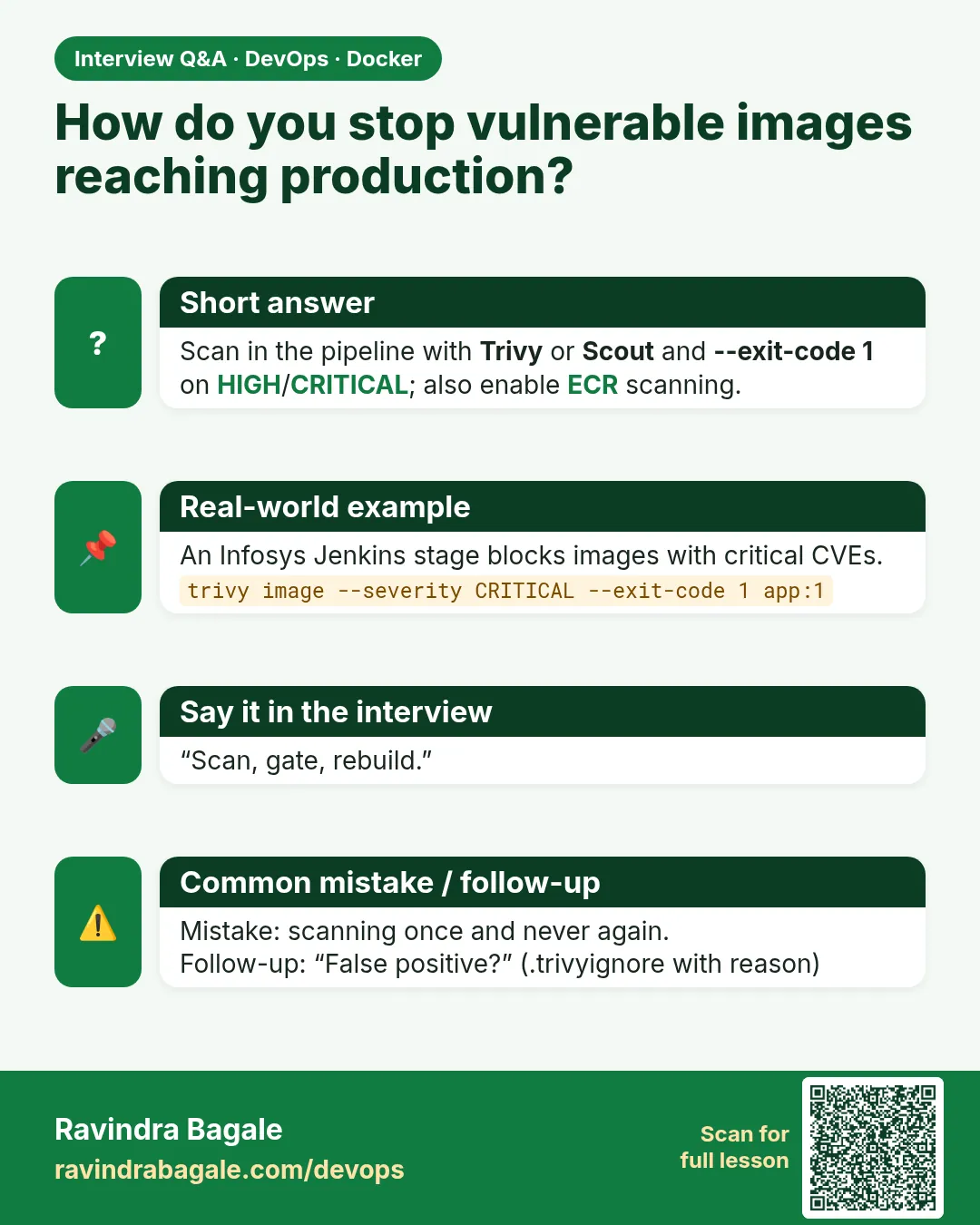
What: --exit-code 1 makes Trivy return 1 when it finds anything at the chosen severity. CI treats that as a failure.
Example 16: Gate on the old image
Type this:
docker run --rm -v /var/run/docker.sock:/var/run/docker.sock -v $HOME/.cache/trivy:/root/.cache aquasec/trivy:0.56.2 image -q --exit-code 1 --severity CRITICAL python:3.8 >/dev/null; echo exit $?
You will see:
exit 1
What it means: The pipeline would stop.
Example 17: Gate on the new image
Type this:
docker run --rm -v /var/run/docker.sock:/var/run/docker.sock -v $HOME/.cache/trivy:/root/.cache aquasec/trivy:0.56.2 image -q --exit-code 1 --severity CRITICAL --ignore-unfixed shop-api:1.1 >/dev/null; echo exit $?
You will see:
exit 0
What it means: Safe to push.
Example 18: Jenkins stage
Type this:
printf '%s\n' "stage('Scan') {" ' steps {' ' sh "trivy image --exit-code 1 --severity CRITICAL --ignore-unfixed shop-api:${BUILD_NUMBER}"' ' }' '}' > scan.groovy && cat scan.groovy
You will see:
stage('Scan') {
  steps {
    sh "trivy image --exit-code 1 --severity CRITICAL --ignore-unfixed shop-api:${BUILD_NUMBER}"
  }
}
What it means: Runs after build, before push.
Step 7: Accept a risk with .trivyignore
Why: Document exceptions, do not hide them.
What: Sometimes a CVE does not affect you and has no fix. Put its id in .trivyignore with a comment and a review date.
Example 19: Write the file
Type this:
printf '%s\n' '# libexpat not used by our code path; review 2026-12-01' 'CVE-2024-45491' > .trivyignore && cat .trivyignore
You will see:
# libexpat not used by our code path; review 2026-12-01
CVE-2024-45491
What it means: A reason and a date.
Example 20: Scan with it
Type this:
docker run --rm -v /var/run/docker.sock:/var/run/docker.sock -v $PWD:/w -w /w aquasec/trivy:0.56.2 image -q --severity HIGH python:3.12-slim | grep '^Total'
You will see:
Total: 1 (HIGH: 1, CRITICAL: 0)
What it means: One fewer than before.
Example 21: Review regularly
Type this:
grep -c CVE .trivyignore
You will see:
1
What it means: Keep this list short.
Step 8: Reports for audits and SBOMs
Why: Machine-readable output.
What: Use -f json or -f table, and produce an SBOM, the full list of packages, in CycloneDX or SPDX format.
Example 22: JSON report
Type this:
docker run --rm -v /var/run/docker.sock:/var/run/docker.sock -v $HOME/.cache/trivy:/root/.cache aquasec/trivy:0.56.2 image -q -f json shop-api:1.1 > report.json && python3 -c "import json;print(len(json.load(open('report.json'))['Results']))"
You will see:
2
What it means: Results per OS and per language.
Example 23: SBOM
Type this:
docker run --rm -v /var/run/docker.sock:/var/run/docker.sock -v $HOME/.cache/trivy:/root/.cache aquasec/trivy:0.56.2 image -q -f cyclonedx shop-api:1.1 > sbom.json && grep -c '"name"' sbom.json
You will see:
142
What it means: About 142 components listed.
Example 24: Scan the SBOM later
Type this:
docker run --rm -v $PWD:/w aquasec/trivy:0.56.2 sbom -q /w/sbom.json | grep '^Total' | tail -1
You will see:
Total: 0 (UNKNOWN: 0, LOW: 4, MEDIUM: 1, HIGH: 0, CRITICAL: 0)
What it means: Re-check old releases without the image.
3. Docker Scout step by step
Step 9: Docker Scout quickview
Why: Built into the Docker CLI.
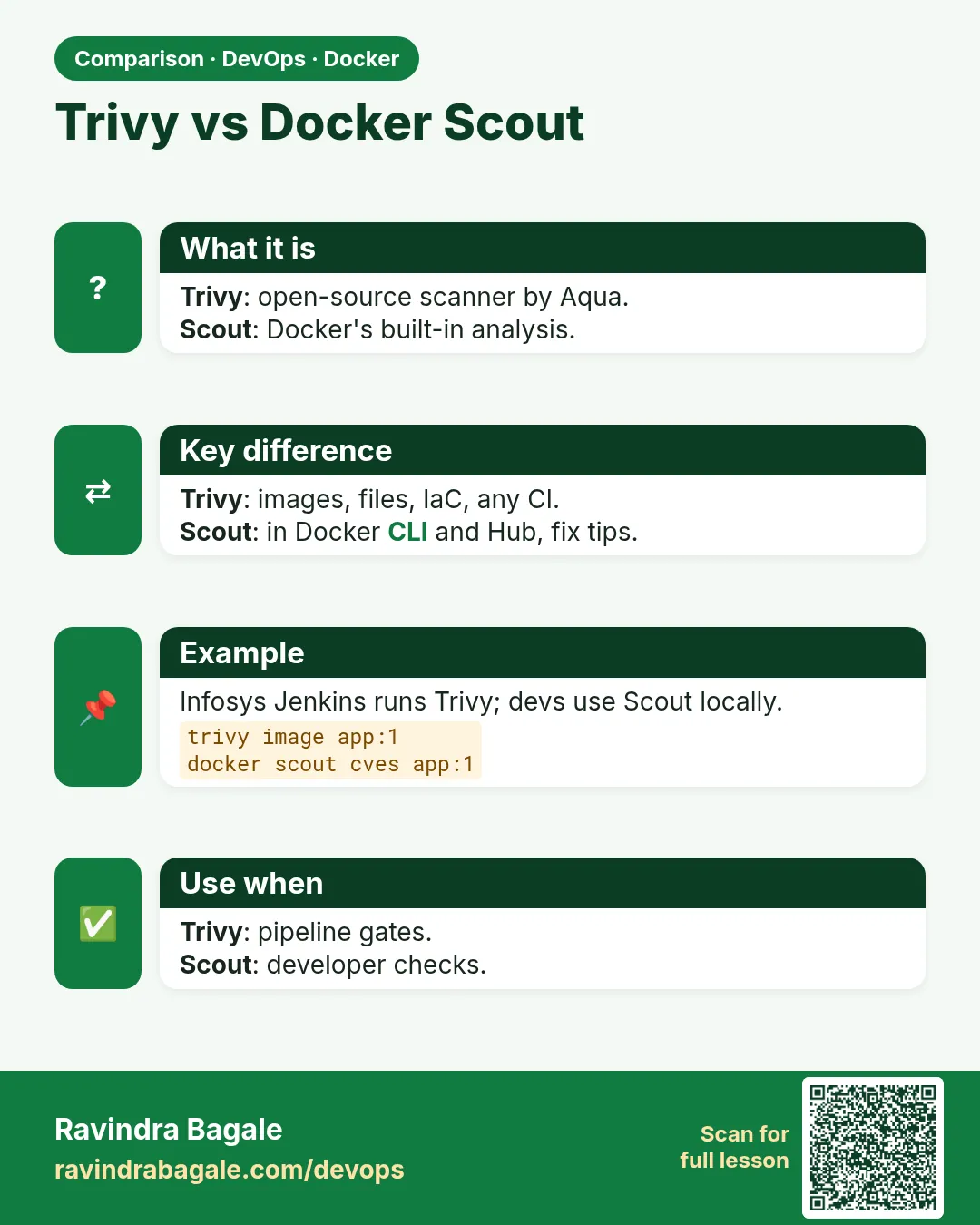
What: Docker Scout is in Docker Desktop and recent Docker CLI. Log in to Docker Hub first; a free account works for a few repos.
Example 25: Quick summary
Type this:
docker scout quickview python:3.8
You will see:
Target   │  python:3.8  │    9C   107H   330M   571L
  digest │  2f3a...     │
Base image │  buildpack-deps:bullseye │
What it means: Counts by severity.
Example 26: CVE list
Type this:
docker scout cves --only-severity critical python:3.8 | grep -m2 CVE
You will see:
✗ CRITICAL CVE-2023-38545
✗ CRITICAL CVE-2024-5535
What it means: The worst ones.
Example 27: Your image
Type this:
docker scout quickview shop-api:1.1 | head -2
You will see:
Target │ shop-api:1.1 │ 0C 0H 6M 30L
What it means: Matches the Trivy result.
Step 10: Scout recommendations
Why: It suggests a better base.
What: Scout knows which base images have fewer CVEs and tells you what to change.
Example 28: Ask
Type this:
docker scout recommendations python:3.8 | grep -A2 'Recommended'
You will see:
Recommended fixes
Tag 3.12-slim   │ Benefits: image is 870 MB smaller, 9 fewer critical
What it means: Points to the same fix Neha made.
Example 29: Compare two images
Type this:
docker scout compare shop-api:1.1 --to shop-api:1.0 | grep -E 'vulnerabilities' | head -1
You will see:
vulnerabilities │ 0C 0H 6M 30L │ 0C 4H 7M 30L
What it means: New versus old side by side.
Example 30: Policy check
Type this:
docker scout policy shop-api:1.1 2>&1 | grep -m1 -i 'critical'
You will see:
✓ No fixable critical or high vulnerabilities
What it means: Green.
Step 11: Registry scanning in Amazon ECR
Why: Scan on push as a second check.
What: ECR can scan each pushed image. Basic scanning is free; enhanced scanning uses Amazon Inspector.
Example 31: Turn on scan on push
Type this:
aws ecr put-image-scanning-configuration --repository-name shop-api --image-scanning-configuration scanOnPush=true --region ap-south-1 --query imageScanningConfiguration
You will see:
{
    "scanOnPush": true
}
What it means: Every push is scanned.
Example 32: Read findings
Type this:
aws ecr describe-image-scan-findings --repository-name shop-api --image-id imageTag=1.1 --region ap-south-1 --query 'imageScanFindings.findingSeverityCounts'
You will see:
{
    "MEDIUM": 6,
    "LOW": 30
}
What it means: No HIGH or CRITICAL.
Example 33: Rescan old tags
Type this:
printf 'Images in ECR keep aging. Enhanced scanning rescans them when new CVEs are published.\n'
You will see:
Images in ECR keep aging. Enhanced scanning rescans them when new CVEs are published.
What it means: Yesterday's clean image can be today's risk.
Step 12: Keep images clean over time
Why: Scanning is not one-time.
What: New CVEs appear every day. Rebuild on a schedule so base updates flow in, and rescan what is running.
Example 34: Pull the newest base
Type this:
docker build --pull -q -t shop-api:1.2 . && echo rebuilt
You will see:
sha256:9c0d...
rebuilt
What it means: --pull fetches the latest patch of the base tag.
Example 35: Scan running images
Type this:
docker ps --format '{{.Image}}' | sort -u | xargs -I{} sh -c 'docker run --rm -v /var/run/docker.sock:/var/run/docker.sock -v $HOME/.cache/trivy:/root/.cache aquasec/trivy:0.56.2 image -q --severity CRITICAL {} | grep ^Total | sed "s|^|{} |"'
You will see:
shop-api:1.2 Total: 0 (CRITICAL: 0)
nginx:1.27-alpine Total: 0 (CRITICAL: 0)
What it means: Check what is actually live.
Example 36: Weekly cron
Type this:
printf '0 3 * * 1 cd /srv/shop && docker build --pull -t shop-api:weekly . && trivy image --exit-code 1 --severity CRITICAL shop-api:weekly\n' | crontab - && crontab -l
You will see:
0 3 * * 1 cd /srv/shop && docker build --pull -t shop-api:weekly . && trivy image --exit-code 1 --severity CRITICAL shop-api:weekly
What it means: Monday 3 AM rebuild and scan.
4. Common mistakes and how Neha avoids them
Mistake one: scanning once and never again. Neha scans in CI and rebuilds weekly with --pull.
Mistake two: panicking about every LOW finding. She fixes CRITICAL and HIGH with a fix first, and documents the rest.
Mistake three: ignoring app libraries. She reads the language sections of the report, not only the OS part.
Mistake four: a huge base image. She uses slim, alpine or distroless bases so there are fewer packages to patch.
Mistake five: a .trivyignore that grows forever. Every entry has a reason and a review date.
Check yourself
Q1. What does a scanner compare?
The packages and versions in your image against CVE databases.
Q2. Which Trivy flag makes CI fail?
--exit-code 1 with a --severity filter.
Q3. What does --ignore-unfixed hide?
Vulnerabilities that have no fixed version yet.
Q4. Why rebuild images on a schedule?
New CVEs appear daily and base images get patched; --pull brings the fixes in.
Friends, scan every image with Trivy, read both the OS and the library sections, fix CRITICAL and HIGH that have a fix, and gate the pipeline with --exit-code 1. Use Scout recommendations to pick a better base, and rebuild weekly. Did you understand? Let us try it once more. Scan python:3.8 and python:3.12-slim, compare the totals, and fix one library in your own image.
मित्रांनो, प्रत्येक image Trivy ने scan करा, OS आणि library दोन्ही sections वाचा, fix असलेले CRITICAL आणि HIGH सुधारा, आणि --exit-code 1 ने pipeline ला gate लावा. चांगला base निवडायला Scout recommendations वापरा, आणि दर आठवड्याला rebuild करा. समजलं का? चला, पुन्हा एकदा करून पाहू. python:3.8 आणि python:3.12-slim scan करा, totals तुलना करा, आणि तुमच्या image मधली एक library fix करा.
दोस्तों, हर image को Trivy से scan कीजिए, OS और library दोनों sections पढ़िए, fix वाले CRITICAL और HIGH सुधारिए, और --exit-code 1 से pipeline पर gate लगाइए. अच्छा base चुनने के लिए Scout recommendations इस्तेमाल कीजिए, और हर हफ़्ते rebuild कीजिए. समझ आया? चलिए, एक बार फिर करके देखते हैं। python:3.8 और python:3.12-slim scan कीजिए, totals की तुलना कीजिए, और अपनी image की एक library fix कीजिए.
Ravindra Bagale's Tip
The fastest way to remove a hundred CVEs is to change one line: the FROM line. Pick a slim, current base before you chase single packages.
शंभर CVE काढायचा सगळ्यात जलद मार्ग म्हणजे एकच line बदलणं: FROM line. एक एक package मागे लागण्याआधी slim, नवीन base निवडा.
सौ CVE हटाने का सबसे तेज़ तरीका एक ही line बदलना है: FROM line. एक-एक package के पीछे भागने से पहले slim, नया base चुनिए.
Lab: try at home
- Run Trivy from its container on alpine:3.20.
- Compare python:3.8 and python:3.12-slim totals.
- Build shop-api with old Flask, find the HIGH CVEs, and fix them.
- Run trivy config on your Dockerfile and fix the USER finding.
- Gate a build with --exit-code 1 and see exit 1, then 0.
- Make a CycloneDX SBOM and scan it.
- Try docker scout quickview and recommendations.
Recap
- Scanners match packages to CVE databases.
- Trivy scans images, folders, Dockerfiles and SBOMs.
- Filter with --severity and --ignore-unfixed.
- --exit-code 1 makes CI fail on CRITICAL.
- Scout recommends a better base.
- Rebuild with --pull and rescan regularly.
 Revision card
 Interview card
 Comparison card