55.3 Secrets: never bake passwords into images
Friends, a password inside an image is a password given to everyone who can pull that image. Docker history, layers and even a deleted file still keep it. Today, step by step, we see how secrets leak, and then the right ways: BuildKit secret mounts at build time, and secret files, env files and a secrets manager at run time.
मित्रांनो, image मधला password म्हणजे ती image pull करू शकणाऱ्या प्रत्येकाला दिलेला password. Docker history, layers आणि delete केलेली file सुद्धा तो जपून ठेवते. आज step by step बघूया secret कसे leak होतात, आणि मग योग्य मार्ग: build वेळी BuildKit secret mounts, आणि run वेळी secret files, env files आणि secrets manager.
दोस्तों, image के अंदर का password यानी वह image pull कर सकने वाले हर व्यक्ति को दिया गया password. Docker history, layers और delete की हुई file भी उसे रखे रहती है. आज step by step देखेंगे secret कैसे leak होते हैं, और फिर सही तरीके: build के समय BuildKit secret mounts, और run के समय secret files, env files और secrets manager.
1. Start from a story
At CRED, a developer named Rohit needed a private npm token to build the frontend image. He added ENV NPM_TOKEN to the Dockerfile and pushed the image to a public Docker Hub repository by mistake.
Two days later the security team got an alert. Automated bots scan public images for tokens, and someone had already used it to read their private packages.
The team revoked the token and rewrote the build. The token now comes in through a BuildKit secret mount that is never saved in any layer. At run time the database password is a file under /run/secrets, read from AWS Secrets Manager.
Rohit now runs one check before every push: docker history and a secret scan. Today we learn all of it, using only fake values like change-me.
2. How secrets leak, step by step
Step 1: ENV keeps the value forever
Why: Image config is public to anyone who pulls.
What: Every ENV line is stored in the image config. docker inspect and docker history show it.
Example 1: Bad Dockerfile
Type this:
printf '%s\n' 'FROM alpine:3.20' 'ENV DB_PASSWORD=change-me' > Dockerfile.bad && docker build -q -t leak:1 -f Dockerfile.bad . >/dev/null && echo built
You will see:
built
What it means: Looks harmless.
Example 2: inspect shows it
Type this:
docker inspect -f '{{.Config.Env}}' leak:1
You will see:
[PATH=/usr/local/sbin:/usr/local/bin:/usr/sbin:/usr/bin:/sbin:/bin DB_PASSWORD=change-me]
What it means: Anyone with the image sees it.
Example 3: history shows it
Type this:
docker history --no-trunc leak:1 | grep -o 'ENV DB_PASSWORD=[a-z-]*'
You will see:
ENV DB_PASSWORD=change-me
What it means: Even without running it.
Step 2: ARG is not secret either
Why: Build args are recorded in history.
What: People switch from ENV to ARG, but the value still shows in the history of any RUN that used it.
Example 4: Build with ARG
Type this:
printf '%s\n' 'FROM alpine:3.20' 'ARG TOKEN' 'RUN echo using $TOKEN > /dev/null' > Dockerfile.arg && docker build -q --build-arg TOKEN=fake-token-123 -t leak:2 -f Dockerfile.arg . >/dev/null && echo built
You will see:
built
What it means: Seems temporary.
Example 5: history
Type this:
docker history --no-trunc leak:2 | grep -o 'TOKEN=fake-token-123'
You will see:
TOKEN=fake-token-123
What it means: Recorded in the RUN step.
Example 6: Lesson
Type this:
printf 'ARG is for versions and flags, never for passwords or tokens.\n'
You will see:
ARG is for versions and flags, never for passwords or tokens.
What it means: Use a secret mount instead.
Step 3: Deleting a file does not remove it
Why: Layers keep old files.
What: COPY a file and rm it in a later step, and the file is still inside the earlier layer.
Example 7: Copy then delete
Type this:
printf 'API_KEY=fake-key-999\n' > .env && printf '%s\n' 'FROM alpine:3.20' 'COPY .env /app/.env' 'RUN rm /app/.env' > Dockerfile.rm && docker build -q -t leak:3 -f Dockerfile.rm . >/dev/null && docker run --rm leak:3 ls /app
You will see:
What it means: Gone in the final view.
Example 8: Save and dig
Type this:
docker save leak:3 -o leak3.tar && mkdir -p dig && tar -xf leak3.tar -C dig && for l in dig/blobs/sha256/*; do tar -tf $l 2>/dev/null | grep -q app/.env && tar -xOf $l app/.env; done
You will see:
API_KEY=fake-key-999
What it means: Still there in the old layer.
Example 9: .dockerignore stops it
Type this:
printf '%s\n' '.env' '*.pem' 'secrets/' > .dockerignore && cat .dockerignore
You will see:
.env
*.pem
secrets/
What it means: Never send secret files to the build.
3. Build-time secrets the right way
Step 4: BuildKit secret mount
Why: Available only during one RUN.
What: RUN --mount=type=secret puts the secret at /run/secrets/ID for that one step. It is never written to a layer.
Example 10: Dockerfile
Type this:
printf '%s\n' '# syntax=docker/dockerfile:1' 'FROM alpine:3.20' 'RUN --mount=type=secret,id=npm_token cat /run/secrets/npm_token | wc -c' > Dockerfile.sec && echo ok
You will see:
ok
What it means: The first line enables the new syntax.
Example 11: Build
Type this:
printf 'fake-npm-token\n' > npm_token.txt && docker build --progress=plain --secret id=npm_token,src=npm_token.txt -t safe:1 -f Dockerfile.sec . 2>&1 | grep -E '^#[0-9]+ [0-9.]+ [0-9]+$'
You will see:
#5 0.21 15
What it means: The step read 15 bytes.
Example 12: Not in history
Type this:
docker history --no-trunc safe:1 | grep -c fake-npm-token
You will see:
0
What it means: Nothing leaked.
Step 5: Secret from an environment variable
Why: Good for CI pipelines.
What: In CI the token is usually an env variable. BuildKit can read it with env= instead of a file.
Example 13: Export a fake
Type this:
export NPM_TOKEN=fake-ci-token && echo set
You will see:
set
What it means: CI injects the real one.
Example 14: Build
Type this:
docker build -q --secret id=npm_token,env=NPM_TOKEN -t safe:2 -f Dockerfile.sec . && echo built
You will see:
sha256:7b1e...
built
What it means: Same mount, different source.
Example 15: npm style use
Type this:
printf '%s\n' '# syntax=docker/dockerfile:1' 'FROM node:20-alpine' 'WORKDIR /app' 'COPY package*.json ./' 'RUN --mount=type=secret,id=npm_token NPM_TOKEN=$(cat /run/secrets/npm_token) npm ci' > Dockerfile.npm && echo written
You will see:
written
What it means: The token lives only for npm ci.
Step 6: SSH mount for private repos
Why: Use your agent, not a copied key.
What: To clone a private repo during build, forward your SSH agent with --mount=type=ssh. Never COPY a private key.
Example 16: Dockerfile
Type this:
printf '%s\n' '# syntax=docker/dockerfile:1' 'FROM alpine:3.20' 'RUN apk add -q openssh-client git' 'RUN --mount=type=ssh ssh-add -l' > Dockerfile.ssh && echo ok
You will see:
ok
What it means: Lists keys from your agent.
Example 17: Build
Type this:
eval $(ssh-agent) >/dev/null && ssh-add ~/.ssh/id_ed25519 2>/dev/null; docker build -q --ssh default -f Dockerfile.ssh -t sshtest . && echo built
You will see:
built
What it means: The key never enters the image.
Example 18: Check
Type this:
docker history --no-trunc sshtest | grep -c 'PRIVATE KEY'
You will see:
0
What it means: No key in any layer.
4. Run-time secrets the right way
Step 7: --env-file instead of -e
Why: Keep values out of shell history.
What: docker run -e PASS=... saves the value in your shell history and in ps output. An env file with safe permissions is better for local work.
Example 19: Create the file
Type this:
printf 'DB_USER=app\nDB_PASSWORD=change-me\n' > app.env && chmod 0600 app.env && ls -l app.env
You will see:
-rw------- 1 ubuntu ubuntu 37 app.env
What it means: Only you can read it.
Example 20: Use it
Type this:
docker run --rm --env-file app.env alpine:3.20 sh -c 'echo user=$DB_USER'
You will see:
user=app
What it means: Values reach the app.
Example 21: Still visible in inspect
Type this:
docker run -d --name e1 --env-file app.env alpine:3.20 sleep 300 && docker inspect -f '{{.Config.Env}}' e1 | grep -o 'DB_PASSWORD=[a-z-]*'
You will see:
DB_PASSWORD=change-me
What it means: Env vars are visible to anyone with docker access, so files are better.
Step 8: Secret as a mounted file
Why: The app reads a file, not an env var.
What: Mount the secret read-only into /run/secrets. Many official images support a _FILE variable for this.
Example 22: Make the file
Type this:
mkdir -p secrets && printf 'change-me' > secrets/db_password && chmod 0600 secrets/db_password && echo ok
You will see:
ok
What it means: Fake value for practice.
Example 23: Postgres with _FILE
Type this:
docker run -d --name pgs -e POSTGRES_PASSWORD_FILE=/run/secrets/db_password -v $PWD/secrets/db_password:/run/secrets/db_password:ro postgres:16-alpine && sleep 4 && docker logs pgs 2>&1 | tail -1
You will see:
LOG: database system is ready to accept connections
What it means: The password came from the file.
Example 24: Not in env
Type this:
docker inspect -f '{{.Config.Env}}' pgs | grep -c change-me
You will see:
0
What it means: Only the path is visible.
Step 9: Compose secrets
Why: The same idea in YAML.
What: Compose has a top-level secrets key. Each service lists the secrets it needs and gets them under /run/secrets.
Example 25: compose.yaml
Type this:
printf '%s\n' 'services:' ' db:' ' image: postgres:16-alpine' ' environment:' ' POSTGRES_PASSWORD_FILE: /run/secrets/db_password' ' secrets: [db_password]' 'secrets:' ' db_password:' ' file: ./secrets/db_password' > compose.yaml && docker compose config -q && echo valid
You will see:
valid
What it means: The secret file stays outside the image.
Example 26: Up
Type this:
docker rm -f pgs >/dev/null; docker compose up -d && sleep 4 && docker compose exec db ls -l /run/secrets
You will see:
-rw------- 1 root root 9 db_password
What it means: Mounted for the db service only.
Example 27: Add to .gitignore
Type this:
printf 'secrets/\n*.env\n' >> .gitignore && cat .gitignore
You will see:
secrets/
*.env
What it means: Never commit the secret files.
Step 10: Fetch from AWS Secrets Manager at start
Why: Real production pattern.
What: On EC2 or ECS, the host has an IAM role. A small entrypoint fetches the secret and writes it to a tmpfs file before starting the app.
Example 28: Store a fake secret
Type this:
aws secretsmanager create-secret --name demo/db --secret-string 'change-me' --region ap-south-1 --query Name --output text
You will see:
demo/db
What it means: Once, by an admin.
Example 29: Entrypoint
Type this:
printf '%s\n' '#!/bin/sh' 'set -e' 'aws secretsmanager get-secret-value --secret-id demo/db --query SecretString --output text > /run/secrets/db_password' 'exec "$@"' > entrypoint.sh && chmod 0755 entrypoint.sh && echo written
You will see:
written
What it means: The value lands on tmpfs, never in a layer.
Example 30: Run with tmpfs
Type this:
docker run --rm --tmpfs /run/secrets:size=1m myapp:1.0 sh -c 'wc -c /run/secrets/db_password'
You will see:
9 /run/secrets/db_password
What it means: Fetched with the host IAM role, no keys in the container.
Step 11: Scan for leaked secrets
Why: Check before every push.
What: Trivy and gitleaks find tokens in images and repos. Run them in CI so a leak never ships.
Example 31: Scan the bad image
Type this:
docker run --rm -v /var/run/docker.sock:/var/run/docker.sock aquasec/trivy:0.56.2 image --scanners secret -q leak:3 | grep -m1 -i 'secret'
You will see:
Total: 1 (UNKNOWN: 0, LOW: 0, MEDIUM: 0, HIGH: 1, CRITICAL: 0)
What it means: Trivy flags the old layer.
Example 32: Scan the good image
Type this:
docker run --rm -v /var/run/docker.sock:/var/run/docker.sock aquasec/trivy:0.56.2 image --scanners secret -q safe:1 | grep -c HIGH
You will see:
0
What it means: Clean.
Example 33: Scan the repo
Type this:
docker run --rm -v $PWD:/repo zricethezav/gitleaks:v8.21.2 dir /repo --no-banner 2>&1 | tail -1
You will see:
WRN leaks found: 2
What it means: Finds app.env and npm_token.txt; they belong in .gitignore.
Step 12: Rotate a secret without rebuilding
Why: Change the value, restart the container.
What: Because the secret lives outside the image, rotation is a change in the store plus a restart. The image tag stays the same.
Example 34: New value in the store
Type this:
aws secretsmanager put-secret-value --secret-id demo/db --secret-string 'change-me-2' --region ap-south-1 --query VersionId --output text
You will see:
a1b2c3d4-5678-90ab-cdef-111122223333
What it means: A new version, same name.
Example 35: Restart to pick it up
Type this:
docker restart app1 && docker exec app1 wc -c /run/secrets/db_password
You will see:
app1
11 /run/secrets/db_password
What it means: The entrypoint fetched the new value.
Example 36: Local file rotation
Type this:
printf 'change-me-2' > secrets/db_password && docker compose up -d --force-recreate db && echo rotated
You will see:
rotated
What it means: Compose remounts the new file.
5. Common mistakes and how Rohit avoids them
Mistake one: ENV or ARG for a password. Rohit uses secret mounts at build time and files at run time.
Mistake two: COPY . . with a .env in the folder. He keeps .env and keys in .dockerignore.
Mistake three: deleting a secret in a later layer. He knows old layers keep it, so it never enters at all.
Mistake four: committing secret files to git. He adds them to .gitignore and runs gitleaks in CI.
Mistake five: a leaked secret that is only deleted. He always revokes and rotates it, because a pushed secret is a public secret.
Check yourself
Q1. Why is ENV bad for a password?
It is saved in the image config and visible with docker inspect and history.
Q2. How does a BuildKit secret mount stay safe?
It exists only during one RUN step and is never written to a layer.
Q3. What does POSTGRES_PASSWORD_FILE do?
Makes Postgres read the password from a file instead of an env var.
Q4. What must you do after a secret is pushed?
Revoke and rotate it, not just delete it.
Friends, never ENV, never ARG, never COPY for a secret. At build time use --mount=type=secret or --mount=type=ssh. At run time use files in /run/secrets, filled from a secrets manager. Did you understand? Let us try it once more. Build the leaky image, find the fake secret with docker history, then build it again the safe way and prove it is gone.
मित्रांनो, secret साठी कधीच ENV, कधीच ARG, कधीच COPY नाही. Build वेळी --mount=type=secret किंवा --mount=type=ssh. Run वेळी /run/secrets मधल्या files, secrets manager मधून भरलेल्या. समजलं का? चला, पुन्हा एकदा करून पाहू. Leak होणारी image बनवा, docker history ने fake secret शोधा, मग safe पद्धतीने परत बनवा आणि तो गेला हे सिद्ध करा.
दोस्तों, secret के लिए कभी ENV नहीं, कभी ARG नहीं, कभी COPY नहीं. Build के समय --mount=type=secret या --mount=type=ssh. Run के समय /run/secrets की files, secrets manager से भरी हुई. समझ आया? चलिए, एक बार फिर करके देखते हैं। Leak वाली image बनाइए, docker history से fake secret ढूँढिए, फिर safe तरीके से दोबारा बनाइए और साबित कीजिए कि वह चला गया.
Ravindra Bagale's Tip
Treat every pushed image as public. If a secret ever reached a layer, revoke it first and fix the Dockerfile second.
Push केलेली प्रत्येक image public समजा. Secret कधी layer मध्ये गेला असेल तर आधी revoke करा, नंतर Dockerfile सुधारा.
Push की हुई हर image को public मानिए. Secret कभी layer में गया हो तो पहले revoke कीजिए, बाद में Dockerfile सुधारिए.
Lab: try at home
- Build leak:1 with ENV and find the value with docker inspect.
- Build leak:3, delete the file, and recover it from docker save.
- Rebuild with a BuildKit secret mount and prove history is clean.
- Run Postgres with POSTGRES_PASSWORD_FILE.
- Write a Compose file with a secrets block.
- Scan both images with Trivy and the folder with gitleaks.
Recap
- ENV and ARG values stay in the image.
- Deleted files stay in old layers.
- Use --mount=type=secret and --mount=type=ssh at build.
- Use files in /run/secrets at run time.
- Fetch from a secrets manager with an IAM role.
- Scan, and revoke anything that leaked.
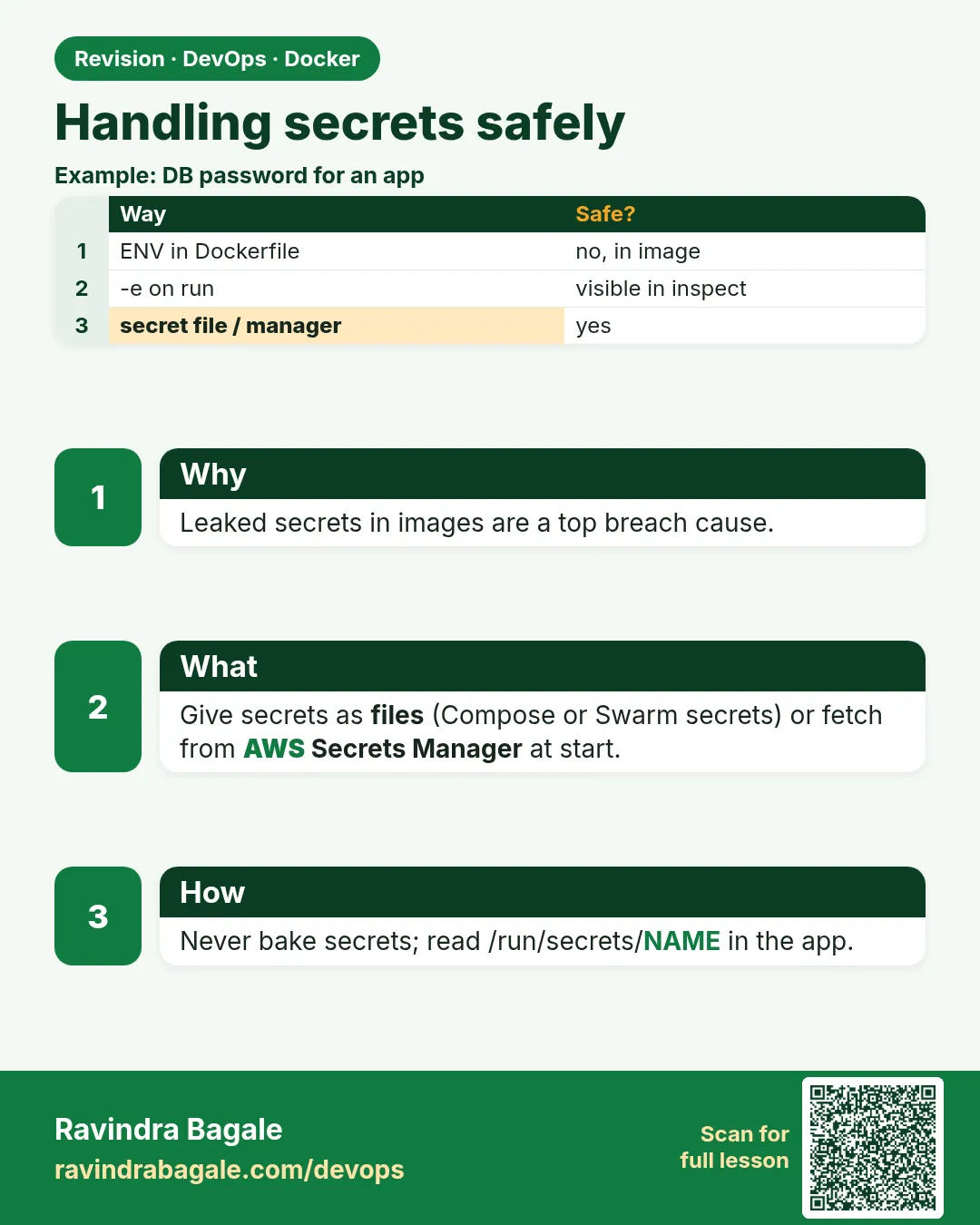 Revision card
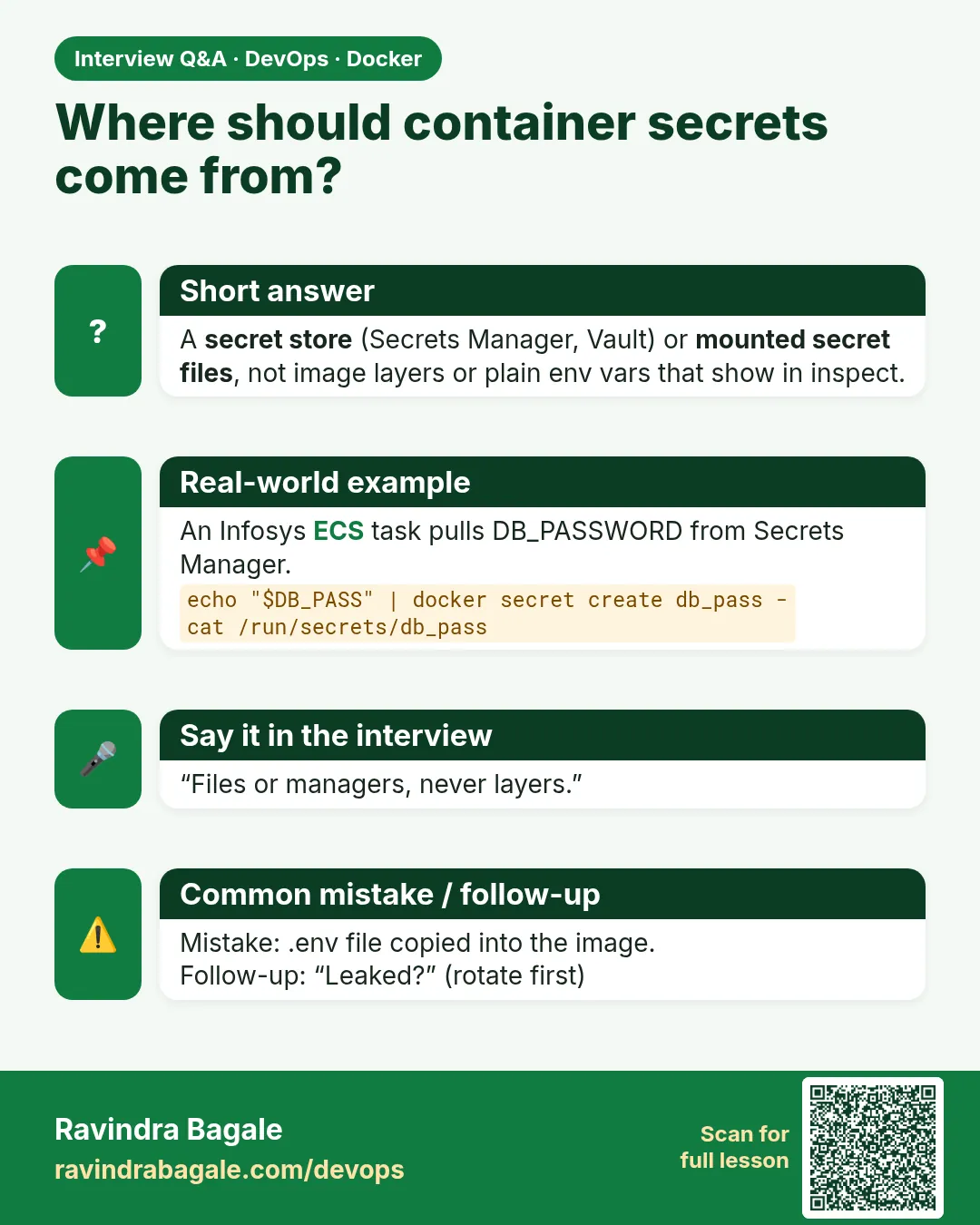 Interview card
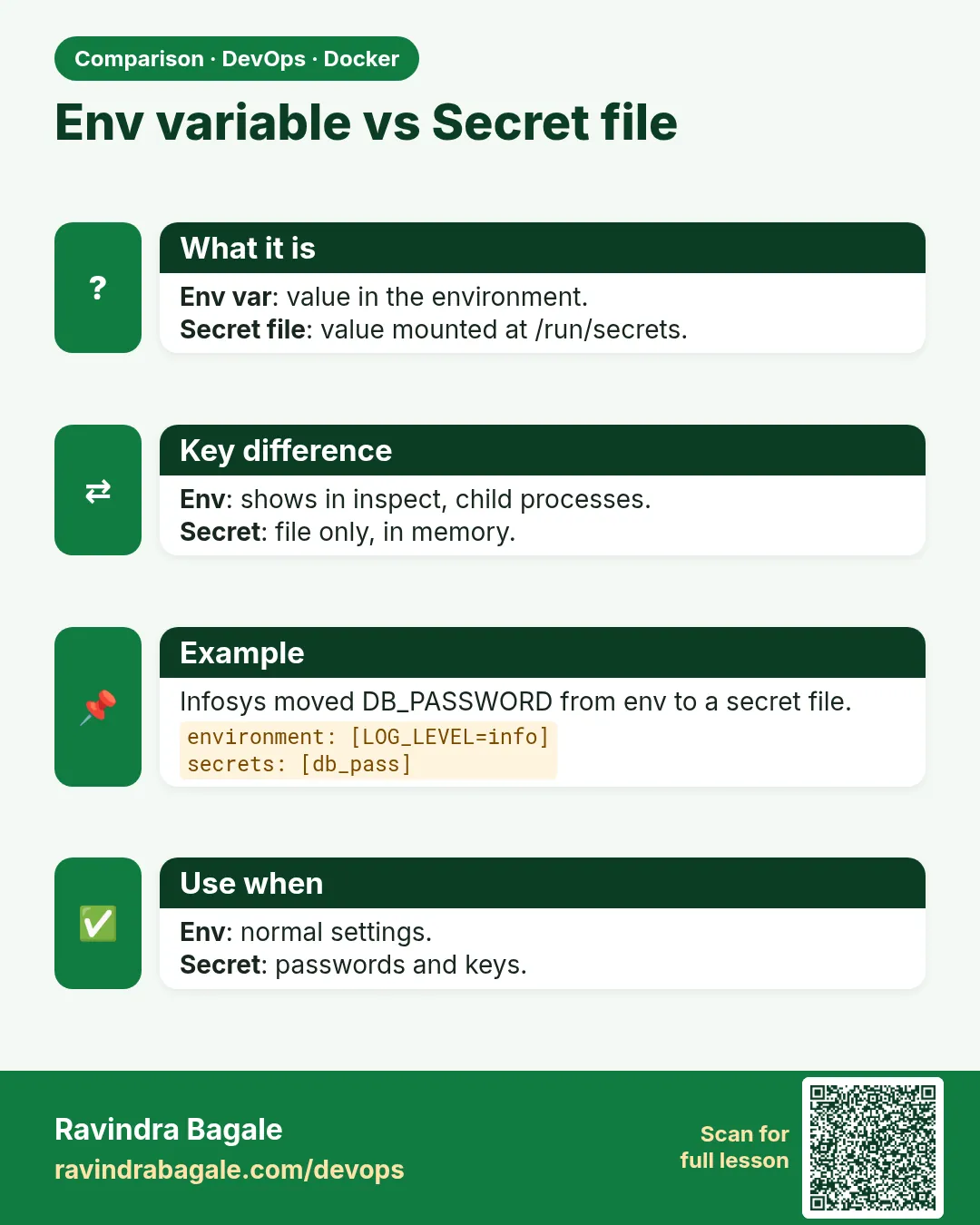 Comparison card