55.1 Run containers as non-root and drop capabilities
Friends, by default a process in a container runs as root. If an attacker finds a bug in your app, they get root inside the container, plus about 14 Linux capabilities. Today, step by step, we take those powers away: a non-root USER, --cap-drop ALL, adding back only what is needed, no-new-privileges, and never --privileged.
मित्रांनो, default ने container मधली process root म्हणून चालते. Attacker ला तुमच्या app मध्ये bug सापडला तर त्याला container मध्ये root मिळतो, आणि सोबत सुमारे 14 Linux capabilities. आज step by step ते अधिकार काढून घेऊया: non-root USER, --cap-drop ALL, फक्त गरजेचं परत add करणं, no-new-privileges, आणि --privileged कधीच नाही.
दोस्तों, default में container की process root के रूप में चलती है. Attacker को आपके app में bug मिला तो उसे container में root मिलता है, साथ में लगभग 14 Linux capabilities. आज step by step वे अधिकार हटाएँगे: non-root USER, --cap-drop ALL, सिर्फ़ ज़रूरी वापस add करना, no-new-privileges, और --privileged कभी नहीं.
1. Start from a story
At PhonePe, a security engineer named Aditi ran a routine review of a small internal image-resize service. It ran as root with default capabilities.
During a test, she used a known bug in an old image library to run a shell inside the container. As root she could change any file in the container, open raw sockets and sniff traffic, and change file owners.
Aditi rebuilt the service with USER 10001, --cap-drop ALL, --read-only and no-new-privileges. She ran the same exploit again. This time the shell was a powerless user that could not write files, open raw sockets or become root.
The bug was still there until it was patched, but the damage it could do was tiny. That is defence in depth, and today we build it.
2. Users and capabilities step by step
Step 1: See the default user
Why: Root unless you change it.
What: Most official images run as root. Check with id.
Example 1: Default
Type this:
docker run --rm alpine:3.20 id
You will see:
uid=0(root) gid=0(root) groups=0(root),1(bin),2(daemon),3(sys),4(adm),6(disk),10(wheel),11(floor),20(dialout),26(tape),27(video)
What it means: Root, with many groups.
Example 2: Image config
Type this:
docker inspect -f '{{.Config.User}}' nginx:1.27
You will see:
What it means: Empty means root.
Example 3: Some images are non-root
Type this:
docker inspect -f '{{.Config.User}}' gcr.io/distroless/static-debian12:nonroot
You will see:
65532
What it means: Distroless nonroot uses 65532.
Step 2: USER in the Dockerfile
Why: Make non-root the default.
What: Create a system user with a fixed UID and switch to it before CMD. Use a number so Kubernetes can verify it is not root.
Example 4: Dockerfile
Type this:
printf '%s\n' 'FROM python:3.12-slim' 'RUN useradd -r -u 10001 -s /usr/sbin/nologin app' 'WORKDIR /app' 'COPY --chown=10001:10001 app.py .' 'USER 10001' 'CMD ["python", "app.py"]' > Dockerfile && printf 'print("running")\n' > app.py && docker build -q -t resize:1.0 . && echo built
You will see:
sha256:41c9...
built
What it means: USER comes after installs that need root.
Example 5: Check
Type this:
docker run --rm resize:1.0 id
You will see:
uid=10001(app) gid=10001(app) groups=10001(app)
What it means: Non-root by default.
Example 6: Numeric user
Type this:
docker inspect -f '{{.Config.User}}' resize:1.0
You will see:
10001
What it means: A number, not a name, works with runAsNonRoot.
Step 3: --user at run time
Why: Override without rebuilding.
What: You can force a UID and GID when running any image.
Example 7: Run as 1000
Type this:
docker run --rm --user 1000:1000 alpine:3.20 id
You will see:
uid=1000 gid=1000 groups=1000
What it means: The user need not exist in /etc/passwd.
Example 8: Match your host user
Type this:
docker run --rm --user $(id -u):$(id -g) -v "$PWD":/w -w /w alpine:3.20 touch made.txt && ls -l made.txt
You will see:
-rw-r--r-- 1 ubuntu ubuntu 0 made.txt
What it means: Files on mounts belong to you, not root.
Example 9: Try root actions
Type this:
docker run --rm --user 1000 alpine:3.20 apk add curl 2>&1 | tail -1
You will see:
ERROR: Unable to lock database: Permission denied
What it means: Non-root cannot install packages.
Step 4: Fix permission errors the right way
Why: Ownership, not open permissions.
What: When a non-root app cannot write, give the folder to its user. Never open it to everyone.
Example 10: The error
Type this:
docker run --rm --user 10001 alpine:3.20 sh -c 'echo hi > /app/data.txt' 2>&1
You will see:
sh: can't create /app/data.txt: nonexistent directory
What it means: The folder does not exist or belongs to root.
Example 11: Create with owner
Type this:
printf '%s\n' 'FROM alpine:3.20' 'RUN adduser -D -u 10001 app && mkdir -p /app/data && chown 10001:10001 /app/data' 'USER 10001' > Dockerfile.data && docker build -q -f Dockerfile.data -t datafix:1.0 . >/dev/null && docker run --rm datafix:1.0 sh -c 'echo hi > /app/data/x.txt && ls -l /app/data'
You will see:
-rw-r--r-- 1 app app 3 x.txt
What it means: Owned by the app user only.
Example 12: Volume ownership
Type this:
docker volume create appdata >/dev/null && docker run --rm -v appdata:/app/data datafix:1.0 ls -ld /app/data
You will see:
drwxr-xr-x 2 app app 4096 /app/data
What it means: A new named volume copies the owner from the image folder.
Step 5: What capabilities are
Why: Root split into pieces.
What: Linux splits root powers into capabilities such as CHOWN, NET_RAW and NET_BIND_SERVICE. Docker gives containers a default set.
Example 13: Default set
Type this:
docker run --rm alpine:3.20 sh -c 'grep CapEff /proc/self/status'
You will see:
CapEff: 00000000a80425fb
What it means: A bitmask of about 14 capabilities.
Example 14: Decode
Type this:
docker run --rm alpine:3.20 sh -c 'apk add -q libcap && capsh --decode=00000000a80425fb'
You will see:
0x00000000a80425fb=cap_chown,cap_dac_override,cap_fowner,cap_fsetid,cap_kill,cap_setgid,cap_setuid,cap_setpcap,cap_net_bind_service,cap_net_raw,cap_sys_chroot,cap_mknod,cap_audit_write,cap_setfcap
What it means: These are the defaults.
Example 15: NET_RAW in action
Type this:
docker run --rm alpine:3.20 ping -c1 -W1 1.1.1.1 | tail -1
You will see:
round-trip min/avg/max = 2.1/2.1/2.1 ms
What it means: ping needs NET_RAW, which attackers also use to sniff.
Step 6: --cap-drop ALL
Why: Start from zero.
What: Drop every capability. Most web apps need none.
Example 16: Drop all
Type this:
docker run --rm --cap-drop ALL alpine:3.20 sh -c 'grep CapEff /proc/self/status'
You will see:
CapEff: 0000000000000000
What it means: No special powers.
Example 17: ping now fails
Type this:
docker run --rm --cap-drop ALL alpine:3.20 ping -c1 1.1.1.1 2>&1 | tail -1
You will see:
ping: permission denied (are you root?)
What it means: NET_RAW is gone.
Example 18: chown fails
Type this:
docker run --rm --cap-drop ALL alpine:3.20 chown nobody /etc/hostname 2>&1
You will see:
chown: /etc/hostname: Operation not permitted
What it means: Even root inside cannot change owners.
Step 7: --cap-add only what is needed
Why: Add back one at a time.
What: If the app breaks, read the error, add one capability, and test again.
Example 19: Port 80 as non-root
Type this:
docker run --rm --user 101 --cap-drop ALL nginx:1.27-alpine 2>&1 | grep -m1 emerg
You will see:
nginx: [emerg] bind() to 0.0.0.0:80 failed (13: Permission denied)
What it means: Ports under 1024 need NET_BIND_SERVICE.
Example 20: Better: high port
Type this:
docker run -d --name web --user 101 --cap-drop ALL -p 8080:8080 nginxinc/nginx-unprivileged:1.27-alpine && sleep 1 && curl -s -o /dev/null -w '%{http_code}\n' localhost:8080
You will see:
200
What it means: nginx-unprivileged listens on 8080 and needs no capability.
Example 21: Inspect
Type this:
docker inspect -f '{{.HostConfig.CapDrop}} {{.HostConfig.CapAdd}}' web
You will see:
[ALL] []
What it means: Nothing added back.
Step 8: no-new-privileges
Why: Block setuid tricks.
What: Even as a normal user, a setuid binary like su could raise rights. no-new-privileges stops that.
Example 22: setuid exists
Type this:
docker run --rm alpine:3.20 sh -c 'ls -l /bin/su'
You will see:
-rwsr-xr-x 1 root root ... /bin/su
What it means: The s bit means setuid.
Example 23: Enable it
Type this:
docker run --rm --user 1000 --security-opt no-new-privileges:true alpine:3.20 sh -c 'grep NoNewPrivs /proc/self/status'
You will see:
NoNewPrivs: 1
What it means: Kernel flag set.
Example 24: Daemon default
Type this:
printf '{\n "no-new-privileges": true\n}\n' | sudo tee /etc/docker/daemon.json && sudo systemctl restart docker && echo set
You will see:
{
  "no-new-privileges": true
}
set
What it means: Turn it on for every container. Merge with existing keys if the file exists.
3. Put it together
Step 9: Never use --privileged
Why: Almost full host access.
What: --privileged gives every capability and all host devices. A root process can then mount the host disk.
Example 25: Capabilities
Type this:
docker run --rm --privileged alpine:3.20 sh -c 'grep CapEff /proc/self/status'
You will see:
CapEff: 000001ffffffffff
What it means: Everything.
Example 26: Host devices
Type this:
docker run --rm --privileged alpine:3.20 sh -c 'ls /dev | grep -c -E "^(sd|nvme|xvd)"'
You will see:
3
What it means: It can see host disks.
Example 27: Find it in your fleet
Type this:
docker ps -q | xargs -r docker inspect -f '{{.Name}} {{.HostConfig.Privileged}}' | grep true
You will see:
/old-monitor true
What it means: Fix these first.
Step 10: The Docker socket is root
Why: Do not mount it casually.
What: Mounting /var/run/docker.sock gives the container control of Docker, which means root on the host.
Example 28: Find mounts
Type this:
docker ps -q | xargs -r docker inspect -f '{{.Name}} {{range .Mounts}}{{.Source}} {{end}}' | grep docker.sock
You will see:
/ci-runner /var/run/docker.sock
What it means: Only trusted tools such as a CI runner, and only when needed.
Example 29: Why it is root
Type this:
printf 'With the socket, a container can run: docker run -v /:/host --privileged ... and own the host.\n'
You will see:
With the socket, a container can run: docker run -v /:/host --privileged ... and own the host.
What it means: Treat the socket like the root password.
Example 30: Alternative
Type this:
printf 'Use rootless Docker, Kaniko or BuildKit for CI builds instead of the host socket.\n'
You will see:
Use rootless Docker, Kaniko or BuildKit for CI builds instead of the host socket.
What it means: Less power for CI jobs.
Step 11: Hardened run in Compose
Why: The same flags in YAML.
What: Every flag has a Compose key, so the safe setup is saved in Git.
Example 31: compose.yaml
Type this:
printf '%s\n' 'services:' ' web:' ' image: nginxinc/nginx-unprivileged:1.27-alpine' ' user: "101:101"' ' cap_drop: [ALL]' ' security_opt: ["no-new-privileges:true"]' ' read_only: true' ' tmpfs: [/tmp]' ' ports: ["8080:8080"]' > compose.yaml && docker compose config -q && echo valid
You will see:
valid
What it means: All safety settings in one file.
Example 32: Up
Type this:
docker rm -f web >/dev/null; docker compose up -d && sleep 1 && curl -s -o /dev/null -w '%{http_code}\n' localhost:8080
You will see:
200
What it means: Still serves pages.
Example 33: Verify
Type this:
docker compose exec web sh -c 'id -u; grep CapEff /proc/self/status; touch /etc/x' 2>&1
You will see:
101
CapEff: 0000000000000000
touch: /etc/x: Read-only file system
What it means: Non-root, no capabilities, read-only.
Step 12: Rootless Docker and user namespaces
Why: Root inside, normal user outside.
What: Rootless mode runs the whole Docker daemon as a normal user. userns-remap maps container root to a high host UID.
Example 34: Install rootless
Type this:
dockerd-rootless-setuptool.sh install 2>&1 | tail -1
You will see:
[INFO] Make sure the following environment variable(s) are set (or add them to ~/.bashrc):
What it means: Runs under your own user.
Example 35: Check
Type this:
docker info --format '{{.SecurityOptions}}'
You will see:
[name=seccomp,profile=builtin name=rootless name=cgroupns]
What it means: rootless shows in security options.
Example 36: Outside view
Type this:
docker run -d --name s alpine:3.20 sleep 300 && ps -o user= -p $(pgrep -f 'sleep 300')
You will see:
ubuntu
What it means: Root in the container is your normal user on the host.
4. Common mistakes and how Aditi avoids them
Mistake one: leaving the default root user. Aditi sets USER 10001 in every Dockerfile.
Mistake two: opening permissions to everyone to fix a permission error. She uses chown to the app user instead.
Mistake three: keeping default capabilities. She uses --cap-drop ALL and adds back one only when an error proves it is needed.
Mistake four: --privileged or the Docker socket for convenience. She removes them.
Mistake five: port 80 inside the container. She uses a high port and maps it.
Check yourself
Q1. Who does a container run as by default?
root, unless the image sets USER.
Q2. What does --cap-drop ALL do?
Removes every Linux capability from the container.
Q3. Why not open folder permissions to everyone?
It lets every user write; give ownership to the app user instead.
Q4. Why is mounting docker.sock dangerous?
It gives control of Docker, which means root on the host.
Friends, non-root USER, --cap-drop ALL, add back only what errors prove, no-new-privileges, never --privileged, and guard the Docker socket. Did you understand? Let us try it once more. Harden one of your containers and prove it with id and CapEff.
मित्रांनो, non-root USER, --cap-drop ALL, error ने सिद्ध झालं तरच परत add, no-new-privileges, --privileged कधीच नाही, आणि Docker socket जपून. समजलं का? चला, पुन्हा एकदा करून पाहू. तुमचा एक container harden करा आणि id व CapEff ने सिद्ध करा.
दोस्तों, non-root USER, --cap-drop ALL, error साबित करे तभी वापस add, no-new-privileges, --privileged कभी नहीं, और Docker socket संभालकर. समझ आया? चलिए, एक बार फिर करके देखते हैं। अपना एक container harden कीजिए और id व CapEff से साबित कीजिए.
Ravindra Bagale's Tip
Start strict and loosen only when an error tells you to. It is much easier than starting open and trying to close holes later.
आधी कडक ठेवा आणि error सांगेल तेव्हाच सैल करा. आधी उघडं ठेवून नंतर छिद्रं बंद करण्यापेक्षा हे खूप सोपं आहे.
पहले सख्त रखिए और error बताए तभी ढील दीजिए. पहले खुला रखकर बाद में छेद बंद करने से यह बहुत आसान है.
Lab: try at home
- Check the default user of alpine, nginx and a distroless image.
- Build an image with USER 10001 and verify with id.
- Run with --cap-drop ALL and see ping and chown fail.
- Serve nginx-unprivileged on 8080 with no capabilities.
- Add no-new-privileges and check NoNewPrivs.
- Write the hardened compose.yaml and verify all three checks.
Recap
- Containers run as root by default.
- Set USER with a numeric UID.
- Drop all capabilities, add back only what is proven.
- Enable no-new-privileges.
- Never --privileged; guard docker.sock.
- Use high ports and put flags in Compose.
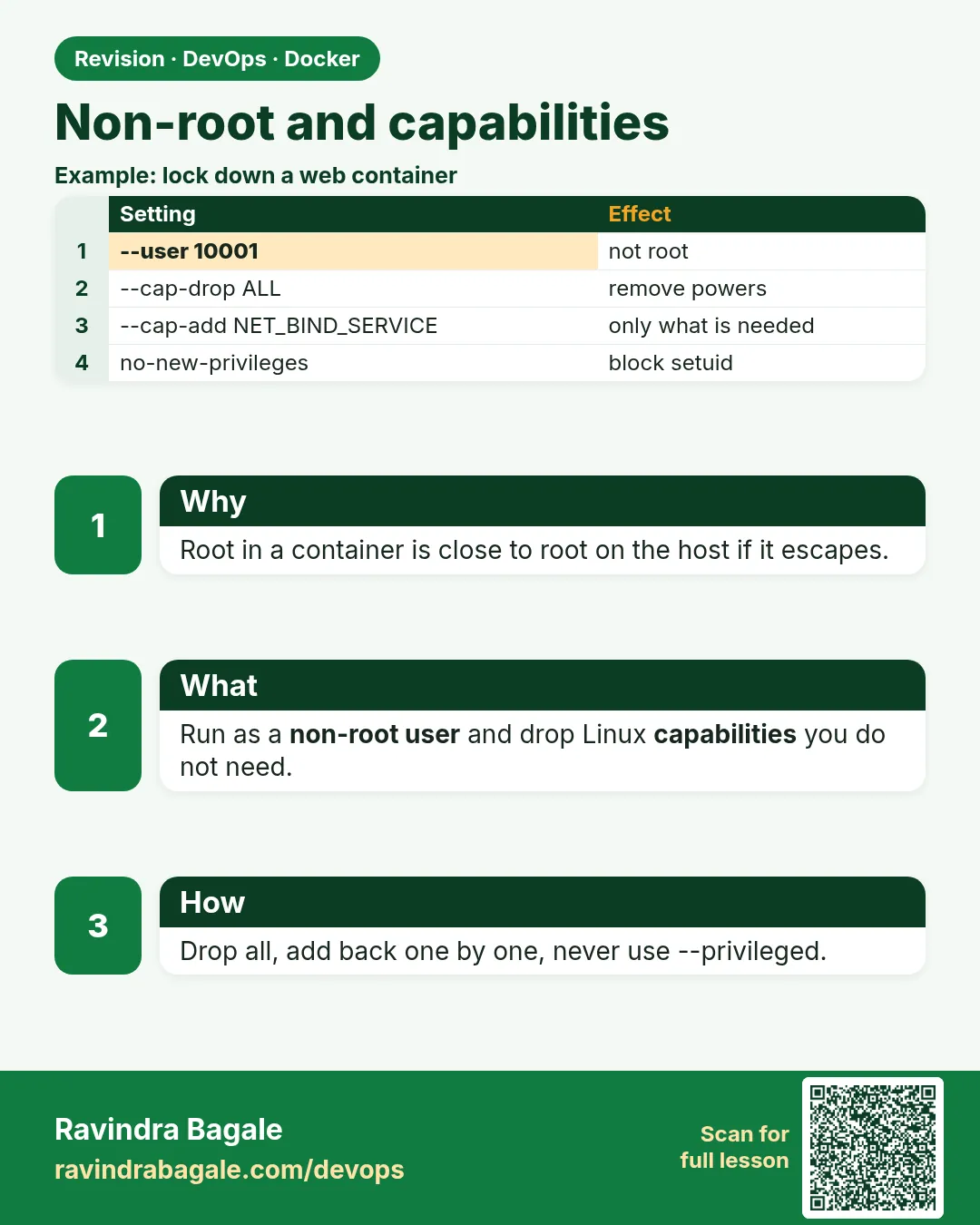 Revision card
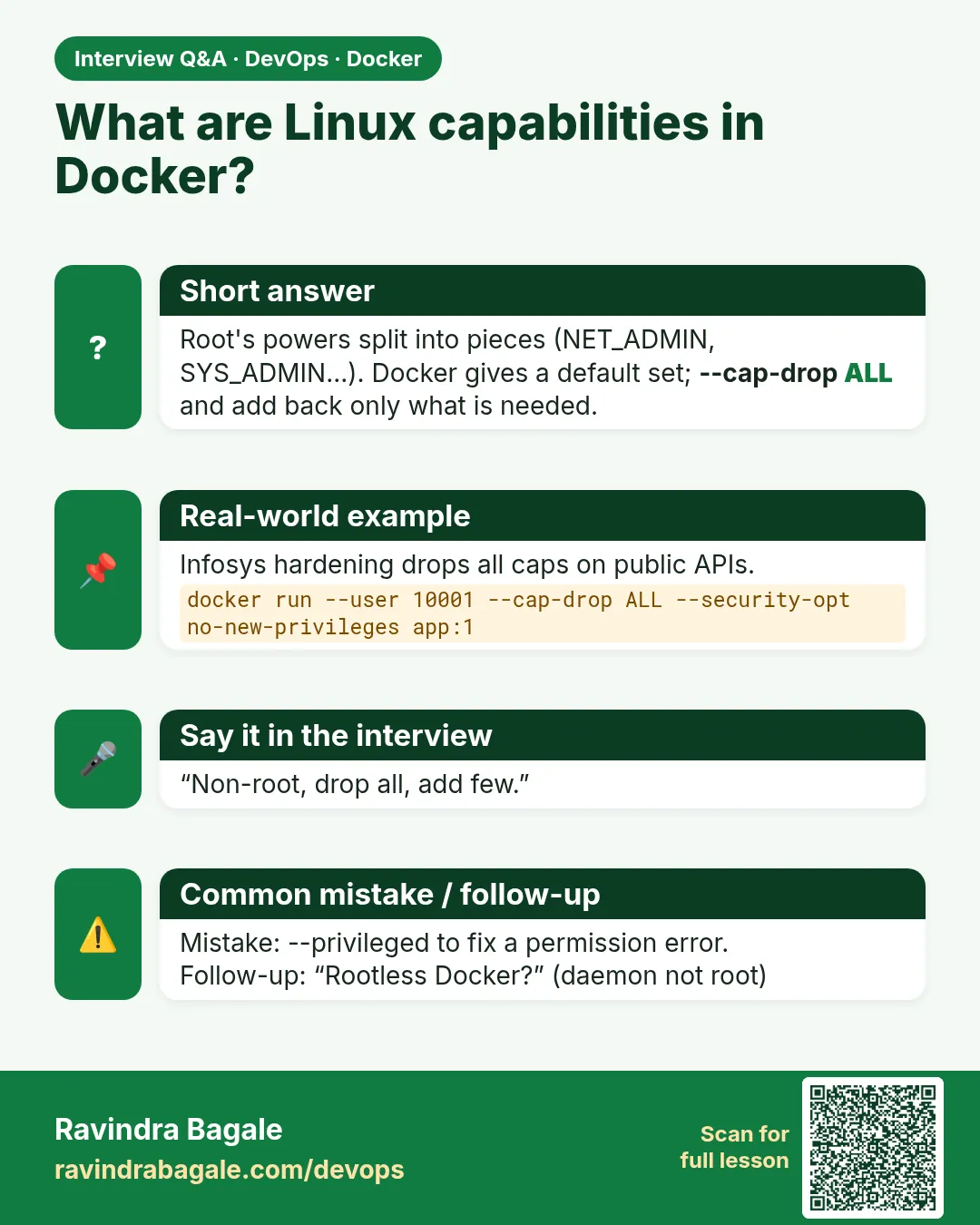 Interview card