55.2 Read-only filesystem, tmpfs and resource limits
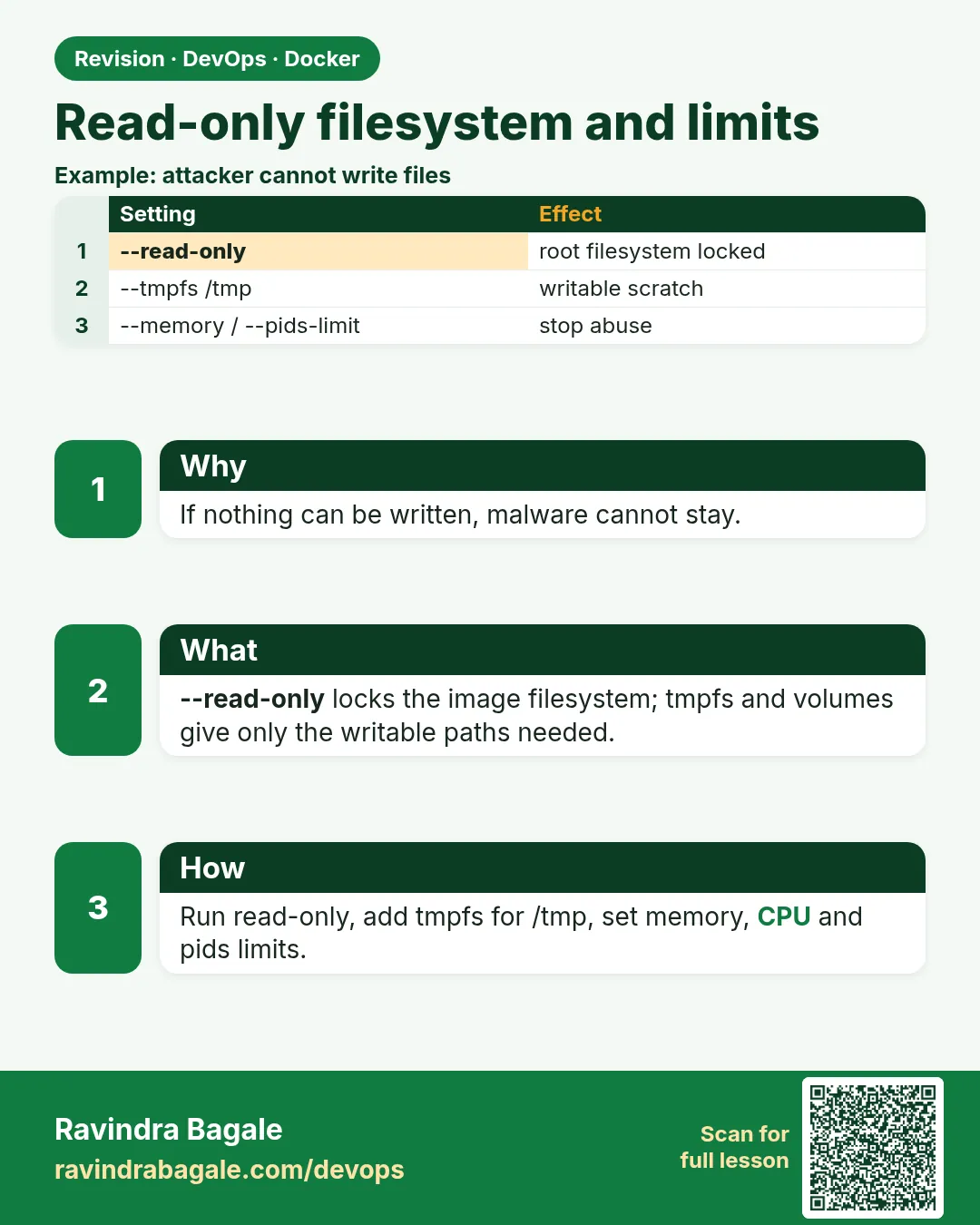
Friends, an attacker who gets into a container first tries to write a file: a script, a miner, a backdoor. And a buggy app first eats all the memory or CPU on the server. Today, step by step, we stop both: a read-only root filesystem with small tmpfs folders for scratch, and hard limits for memory, CPU, processes and open files.
मित्रांनो, container मध्ये घुसलेला attacker आधी file लिहायचा प्रयत्न करतो: script, miner, backdoor. आणि bug असलेलं app आधी server ची सगळी memory किंवा CPU खातं. आज step by step दोन्ही थांबवूया: read-only root filesystem, scratch साठी लहान tmpfs folders, आणि memory, CPU, processes व open files साठी पक्क्या limits.
दोस्तों, container में घुसा attacker पहले file लिखने की कोशिश करता है: script, miner, backdoor. और bug वाला app पहले server की सारी memory या CPU खा जाता है. आज step by step दोनों रोकेंगे: read-only root filesystem, scratch के लिए छोटे tmpfs folders, और memory, CPU, processes व open files के लिए पक्की limits.
1. Start from a story
At Zomato, on a busy Friday night, one API container on a shared EC2 host had a memory leak. Within twenty minutes it used 14 GB of the 16 GB on the machine.
The Linux kernel started killing processes to save itself. It killed the payment worker running next to the leaky API. Orders stopped for every restaurant served by that host.
A platform engineer named Karan fixed it the next morning. He gave every container a --memory limit, a --cpus limit and a --pids-limit. He also made the API filesystem read-only, because a week earlier a scanner had found a crypto miner dropped into /tmp of a different service.
Now when the API leaks, only the API is restarted. The payment worker never notices. Today we learn exactly what Karan did.
2. Read-only filesystem step by step
Step 1: What --read-only does
Why: The image layers and the container layer become read-only.
What: Normally a container can write anywhere in its filesystem. With --read-only, every write to the root filesystem fails. Mounted volumes and tmpfs folders can still be writable.
Example 1: Normal container writes
Type this:
docker run --rm alpine:3.20 sh -c 'echo hacked > /etc/motd && cat /etc/motd'
You will see:
hacked
What it means: Anyone inside can change system files.
Example 2: Read-only blocks it
Type this:
docker run --rm --read-only alpine:3.20 sh -c 'echo hacked > /etc/motd'
You will see:
sh: can't create /etc/motd: Read-only file system
What it means: The write is refused.
Example 3: Check the flag
Type this:
docker run -d --name ro --read-only alpine:3.20 sleep 300 && docker inspect -f '{{.HostConfig.ReadonlyRootfs}}' ro
You will see:
true
What it means: Docker records the setting.
Step 2: Find what your app writes
Why: Learn before you lock.
What: Most apps write a few places: /tmp, a cache folder, a pid file. Run the app normally and ask Docker which files changed.
Example 4: Run normally
Type this:
docker run -d --name web1 nginx:1.27-alpine && sleep 1 && echo started
You will see:
started
What it means: Default, writable.
Example 5: docker diff
Type this:
docker diff web1
You will see:
C /var
C /var/cache
C /var/cache/nginx
A /var/cache/nginx/client_temp
C /run
A /run/nginx.pid
What it means: A is added, C is changed. These are the folders nginx needs.
Example 6: Try read-only
Type this:
docker run --rm --read-only nginx:1.27-alpine 2>&1 | tail -1
You will see:
nginx: [emerg] mkdir() "/var/cache/nginx/client_temp" failed (30: Read-only file system)
What it means: Exactly the folder docker diff showed.
Step 3: tmpfs for scratch folders
Why: Writable memory folders that vanish on stop.
What: A tmpfs mount lives in RAM. Give one to each folder the app must write. Its contents disappear when the container stops, which is what you want for temp files.
Example 7: nginx fixed
Type this:
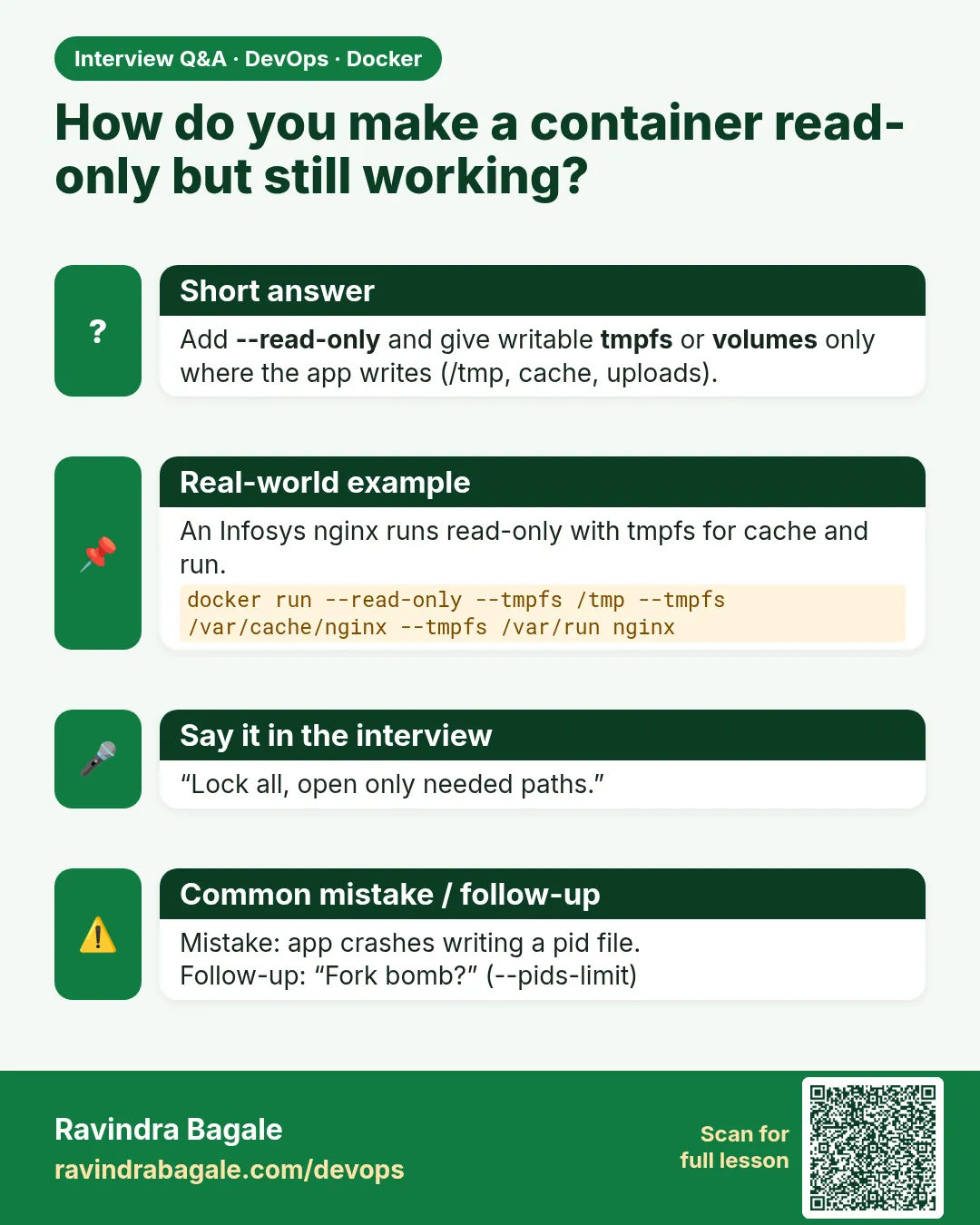
docker run -d --name web2 --read-only --tmpfs /var/cache/nginx --tmpfs /run -p 8081:80 nginx:1.27-alpine && sleep 1 && curl -s -o /dev/null -w '%{http_code}\n' localhost:8081
You will see:
200
What it means: Read-only root, writable scratch.
Example 8: See the mounts
Type this:
docker exec web2 sh -c 'mount | grep tmpfs | grep -E "cache|run"'
You will see:
tmpfs on /var/cache/nginx type tmpfs (rw,nosuid,nodev,noexec,relatime)
tmpfs on /run type tmpfs (rw,nosuid,nodev,noexec,relatime)
What it means: Mounted with noexec by default.
Example 9: Root still locked
Type this:
docker exec web2 sh -c 'touch /usr/share/nginx/html/x' 2>&1
You will see:
touch: /usr/share/nginx/html/x: Read-only file system
What it means: Website files cannot be defaced.
Step 4: Size and options for tmpfs
Why: Keep scratch small and safe.
What: Without a size, tmpfs can grow up to half the host RAM. Set a size, and keep noexec so a dropped file cannot be run.
Example 10: With size
Type this:
docker run --rm --read-only --tmpfs /tmp:rw,size=16m,noexec alpine:3.20 sh -c 'df -h /tmp | tail -1'
You will see:
tmpfs 16.0M 0 16.0M 0% /tmp
What it means: Capped at 16 MB.
Example 11: Fill past the cap
Type this:
docker run --rm --read-only --tmpfs /tmp:size=16m alpine:3.20 sh -c 'dd if=/dev/zero of=/tmp/big bs=1M count=20 2>&1 | tail -1'
You will see:
dd: error writing '/tmp/big': No space left on device
What it means: The cap protects host memory.
Example 12: noexec stops scripts
Type this:
docker run --rm --read-only --tmpfs /tmp:noexec alpine:3.20 sh -c 'printf "#!/bin/sh\necho pwned\n" > /tmp/x.sh && chmod 0755 /tmp/x.sh && /tmp/x.sh' 2>&1
You will see:
sh: /tmp/x.sh: Permission denied
What it means: The file exists but cannot run.
Step 5: Volumes for real data
Why: Read-only root, writable data.
What: Data the app must keep, like uploads, goes in a named volume. The rest stays locked.
Example 13: Postgres read-only
Type this:
docker run -d --name pg --read-only --tmpfs /tmp --tmpfs /run/postgresql -v pgdata:/var/lib/postgresql/data -e POSTGRES_PASSWORD=change-me postgres:16-alpine && sleep 4 && docker logs pg 2>&1 | tail -1
You will see:
LOG: database system is ready to accept connections
What it means: The database works with a locked root.
Example 14: Data goes to the volume
Type this:
docker exec pg psql -U postgres -c 'create table t(id int);' && docker exec pg sh -c 'ls /var/lib/postgresql/data | head -3'
You will see:
CREATE TABLE
PG_VERSION
base
global
What it means: Writes land only in pgdata.
Example 15: Read-only volume
Type this:
docker run --rm -v pgdata:/data:ro alpine:3.20 touch /data/x 2>&1
You will see:
touch: /data/x: Read-only file system
What it means: Add :ro to volumes a container only reads.
3. Resource limits step by step
Step 6: --memory: a hard RAM cap
Why: The container is killed, not the host.
What: Set --memory and the kernel kills only this container when it goes over. Docker reports it as OOMKilled with exit code 137.
Example 16: Set a limit
Type this:
docker run -d --name m1 --memory 64m alpine:3.20 sleep 300 && docker inspect -f '{{.HostConfig.Memory}}' m1
You will see:
67108864
What it means: 64 MB in bytes.
Example 17: Go over it
Type this:
docker run --name hog --memory 64m python:3.12-alpine python -c 'x=bytearray(200*1024*1024)'; echo exit $?
You will see:
exit 137
What it means: Killed for using too much.
Example 18: Confirm OOM
Type this:
docker inspect -f '{{.State.OOMKilled}} {{.State.ExitCode}}' hog
You will see:
true 137
What it means: Proof it was the memory limit.
Step 7: --memory-swap and reservation
Why: Control swap and soft limits.
What: Set --memory-swap equal to --memory to forbid swap. --memory-reservation is a soft target used when the host is short of RAM.
Example 19: No swap
Type this:
docker run -d --name m2 --memory 128m --memory-swap 128m alpine:3.20 sleep 300 && docker inspect -f '{{.HostConfig.MemorySwap}}' m2
You will see:
134217728
What it means: Same as memory, so zero swap.
Example 20: Soft reservation
Type this:
docker run -d --name m3 --memory 256m --memory-reservation 128m alpine:3.20 sleep 300 && docker inspect -f '{{.HostConfig.MemoryReservation}}' m3
You will see:
134217728
What it means: Aim for 128 MB, never above 256 MB.
Example 21: Watch usage
Type this:
docker stats --no-stream --format '{{.Name}} {{.MemUsage}}' m2 m3
You will see:
m2 512KiB / 128MiB
m3 508KiB / 256MiB
What it means: Usage against the limit.
Step 8: --cpus: share of CPU
Why: Stop one container from taking every core.
What: --cpus 0.5 means at most half of one core. The app is slowed, not killed, when it hits the limit.
Example 22: Burn CPU with a limit
Type this:
docker run -d --name c1 --cpus 0.5 alpine:3.20 sh -c 'while true; do :; done' && sleep 3 && docker stats --no-stream --format '{{.Name}} {{.CPUPerc}}' c1
You will see:
c1 50.12%
What it means: Held at half a core.
Example 23: Without a limit
Type this:
docker run -d --name c2 alpine:3.20 sh -c 'while true; do :; done' && sleep 3 && docker stats --no-stream --format '{{.Name}} {{.CPUPerc}}' c2
You will see:
c2 99.87%
What it means: A full core taken.
Example 24: Change live
Type this:
docker update --cpus 0.25 c2 && sleep 3 && docker stats --no-stream --format '{{.Name}} {{.CPUPerc}}' c2
You will see:
c2
c2 25.03%
What it means: docker update changes limits without a restart.
Step 9: --cpuset-cpus and --cpu-shares
Why: Pin cores or set relative weight.
What: --cpuset-cpus picks which cores to use. --cpu-shares gives a weight that matters only when cores are busy.
Example 25: Pin to core 0
Type this:
docker run --rm --cpuset-cpus 0 alpine:3.20 nproc
You will see:
1
What it means: The container sees one core.
Example 26: Two cores
Type this:
docker run --rm --cpuset-cpus 0,1 alpine:3.20 nproc
You will see:
2
What it means: Pin a database to fixed cores.
Example 27: Relative weight
Type this:
docker run -d --name low --cpu-shares 256 alpine:3.20 sleep 300 && docker inspect -f '{{.HostConfig.CPUShares}}' low
You will see:
256
What it means: Default is 1024, so this gets a quarter when busy.
Step 10: --pids-limit: stop fork bombs
Why: Cap the number of processes.
What: A fork bomb or a runaway thread pool can create thousands of processes and freeze the host. --pids-limit caps them.
Example 28: Set a cap
Type this:
docker run -d --name p1 --pids-limit 50 alpine:3.20 sleep 300 && docker inspect -f '{{.HostConfig.PidsLimit}}' p1
You will see:
50
What it means: At most 50 processes.
Example 29: Hit the cap
Type this:
docker run --rm --pids-limit 10 alpine:3.20 sh -c 'for i in $(seq 1 20); do sleep 30 & done; wait' 2>&1 | tail -1
You will see:
sh: can't fork: Resource temporarily unavailable
What it means: New processes are refused, the host is fine.
Example 30: Current count
Type this:
docker stats --no-stream --format '{{.Name}} {{.PIDs}}' p1
You will see:
p1 1
What it means: Watch the PIDs column.
Step 11: --ulimit: open files and more
Why: Per-process limits inside the container.
What: Busy servers need many open files. Set nofile with a soft and hard value, and nproc if needed.
Example 31: Default
Type this:
docker run --rm alpine:3.20 sh -c 'ulimit -n'
You will see:
1048576
What it means: Very high by default on many hosts.
Example 32: Set it
Type this:
docker run --rm --ulimit nofile=4096:8192 alpine:3.20 sh -c 'ulimit -Sn; ulimit -Hn'
You will see:
4096
8192
What it means: Soft 4096, hard 8192.
Example 33: Daemon default
Type this:
printf '{\n "default-ulimits": {"nofile": {"Name": "nofile", "Soft": 4096, "Hard": 8192}}\n}\n' | sudo tee /etc/docker/daemon.json >/dev/null && sudo systemctl restart docker && echo ok
You will see:
ok
What it means: For every container. Merge with existing keys.
Step 12: Limits and the read-only root in Compose
Why: Save the safe setup in YAML.
What: Compose has keys for all of these, so the limits live in Git with the app.
Example 34: compose.yaml
Type this:
printf '%s\n' 'services:' ' api:' ' image: nginx:1.27-alpine' ' read_only: true' ' tmpfs:' ' - /var/cache/nginx:size=32m' ' - /run:size=1m' ' mem_limit: 256m' ' cpus: 0.5' ' pids_limit: 100' ' ulimits:' ' nofile: {soft: 4096, hard: 8192}' ' ports: ["8082:80"]' > compose.yaml && docker compose config -q && echo valid
You will see:
valid
What it means: All limits in one file.
Example 35: Up and test
Type this:
docker compose up -d && sleep 1 && curl -s -o /dev/null -w '%{http_code}\n' localhost:8082
You will see:
200
What it means: Works with every limit on.
Example 36: Verify
Type this:
docker inspect -f '{{.HostConfig.ReadonlyRootfs}} {{.HostConfig.Memory}} {{.HostConfig.NanoCpus}} {{.HostConfig.PidsLimit}}' $(docker compose ps -q api)
You will see:
true 268435456 500000000 100
What it means: Read-only, 256 MB, half a CPU, 100 processes.
4. Common mistakes and how Karan avoids them
Mistake one: no memory limit on a shared host. Karan sets --memory on every container, sized from docker stats under real load plus some headroom.
Mistake two: a limit too tight, so the app is OOMKilled at every peak. He checks OOMKilled in docker inspect and raises the limit with data, not guesses.
Mistake three: --read-only with no tmpfs, so the app crashes on start. He runs docker diff first and gives a tmpfs to each folder it shows.
Mistake four: tmpfs with no size. He always sets size so scratch cannot eat RAM.
Mistake five: Java or Node not told about the limit. He sets -XX:MaxRAMPercentage=75 for Java and --max-old-space-size for Node so the runtime fits inside the cap.
Check yourself
Q1. What does --read-only change?
The root filesystem of the container becomes read-only; volumes and tmpfs can still be writable.
Q2. How do you find which folders need tmpfs?
Run the app normally and use docker diff.
Q3. What exit code and flag show a memory kill?
Exit code 137 and State.OOMKilled true.
Q4. Which flag stops a fork bomb?
--pids-limit.
Friends, lock the root filesystem with --read-only, give small tmpfs folders with a size and noexec, and cap memory, CPU, processes and open files. Did you understand? Let us try it once more. Take your own nginx container, make it read-only, and prove the limits with docker inspect and docker stats.
मित्रांनो, --read-only ने root filesystem lock करा, size आणि noexec सोबत लहान tmpfs folders द्या, आणि memory, CPU, processes व open files ला cap लावा. समजलं का? चला, पुन्हा एकदा करून पाहू. तुमचा nginx container read-only करा, आणि docker inspect व docker stats ने limits सिद्ध करा.
दोस्तों, --read-only से root filesystem lock कीजिए, size और noexec के साथ छोटे tmpfs folders दीजिए, और memory, CPU, processes व open files पर cap लगाइए. समझ आया? चलिए, एक बार फिर करके देखते हैं। अपना nginx container read-only कीजिए, और docker inspect व docker stats से limits साबित कीजिए.
Ravindra Bagale's Tip
Size limits from real numbers. Run docker stats during a load test, take the peak, add about 30 percent, and use that as --memory.
Limits खऱ्या आकड्यांवरून ठरवा. Load test चालू असताना docker stats बघा, peak घ्या, सुमारे 30 टक्के जोडा, आणि तो --memory म्हणून वापरा.
Limits असली आँकड़ों से तय कीजिए. Load test के दौरान docker stats देखिए, peak लीजिए, लगभग 30 प्रतिशत जोड़िए, और उसे --memory के रूप में इस्तेमाल कीजिए.
Lab: try at home
- Run nginx normally and list its writes with docker diff.
- Run it with --read-only and the needed tmpfs folders.
- Prove noexec on /tmp stops a script.
- Get a container OOMKilled and read exit code 137.
- Limit a busy loop to --cpus 0.5 and change it live with docker update.
- Trigger --pids-limit and see fork refused.
- Write the compose.yaml with all limits and verify with docker inspect.
Recap
- --read-only locks the root filesystem.
- docker diff shows which folders need tmpfs.
- Give tmpfs a size and keep noexec.
- --memory kills only the leaker, exit 137.
- --cpus slows, it does not kill.
- --pids-limit and --ulimit cap processes and files.
- Put it all in Compose.
 Revision card
 Interview card