55.5 Content trust, image signing and distroless bases
Friends, how does your server know the image it pulls is the one your pipeline built, and not something an attacker pushed with the same tag? A digest pins the exact image, and a signature proves who built it. Today, step by step: digests, cosign signing and verifying, Docker Content Trust, SBOM attestations, and distroless bases that carry almost nothing an attacker can use.
मित्रांनो, server जी image pull करतो ती तुमच्या pipeline ने बनवलेलीच आहे, attacker ने same tag ने push केलेली नाही, हे त्याला कसं कळणार? Digest नेमकी image pin करतो, आणि signature सिद्ध करते की ती कोणी बनवली. आज step by step: digests, cosign ने sign आणि verify, Docker Content Trust, SBOM attestations, आणि distroless bases ज्यात attacker ला वापरता येईल असं जवळजवळ काहीच नसतं.
दोस्तों, server जो image pull करता है वह आपकी pipeline की बनाई हुई ही है, attacker की same tag से push की हुई नहीं, यह उसे कैसे पता चलेगा? Digest ठीक वही image pin करता है, और signature साबित करता है कि उसे किसने बनाया. आज step by step: digests, cosign से sign और verify, Docker Content Trust, SBOM attestations, और distroless bases जिनमें attacker के काम का लगभग कुछ नहीं होता.
1. Start from a story
At Razorpay, a platform engineer named Sneha was asked a simple audit question: can you prove that the payments image running in production was built by your CI and not changed since?
Tags could not prove it. Anyone with push rights could move the 2.4 tag to a different image.
Sneha changed three things. Deployments now use the image digest, not only the tag. CI signs every image with cosign right after the push. And the servers verify the signature before they run anything.
She also moved the payments service to a distroless base. There is no shell and no package manager inside, so even if the app had a bug, an attacker would find almost no tools. Today we build all three layers of trust.
2. Digests and a local practice registry
Step 1: Run a local registry
Why: Practice without touching a real one.
What: registry:2 is a tiny registry you can run on your laptop. We push test images there.
Example 1: Start it
Type this:
docker run -d --name reg -p 5000:5000 registry:2 && sleep 1 && curl -s localhost:5000/v2/_catalog
You will see:
{"repositories":[]}
What it means: Empty registry on port 5000.
Example 2: Push an image
Type this:
docker tag alpine:3.20 localhost:5000/demo/app:1.0 && docker push -q localhost:5000/demo/app:1.0
You will see:
localhost:5000/demo/app:1.0
What it means: Pushed.
Example 3: List
Type this:
curl -s localhost:5000/v2/demo/app/tags/list
You will see:
{"name":"demo/app","tags":["1.0"]}
What it means: Our tag is there.
Step 2: Tags move, digests do not
Why: A digest is the fingerprint of content.
What: A tag is a label that can point anywhere. The digest is a sha256 of the image manifest; change one byte and it changes.
Example 4: Get the digest
Type this:
docker inspect -f '{{index .RepoDigests 0}}' localhost:5000/demo/app:1.0
You will see:
localhost:5000/demo/app@sha256:1e42bbe2508154c9126d48c2b8a75420c3544343bf86fd041fb7527e017a4b4a
What it means: The exact content.
Example 5: Move the tag
Type this:
docker tag busybox:1.36 localhost:5000/demo/app:1.0 && docker push -q localhost:5000/demo/app:1.0 && docker inspect -f '{{index .RepoDigests 0}}' localhost:5000/demo/app:1.0
You will see:
localhost:5000/demo/app@sha256:9ae97d36d26566ff84e8893c64a6dc4fe8ca6d1144bf5b87b2b85a32def253c7
What it means: Same tag, completely different image.
Example 6: Pull by digest
Type this:
docker pull -q localhost:5000/demo/app@sha256:1e42bbe2508154c9126d48c2b8a75420c3544343bf86fd041fb7527e017a4b4a
You will see:
localhost:5000/demo/app@sha256:1e42bbe2...
What it means: Always the original alpine, whatever the tag says.
Step 3: Use digests in deploy files
Why: Pin what runs.
What: Put tag and digest together. Humans read the tag, Docker uses the digest.
Example 7: Compose with a digest
Type this:
printf '%s\n' 'services:' ' api:' ' image: localhost:5000/demo/app:1.0@sha256:1e42bbe2508154c9126d48c2b8a75420c3544343bf86fd041fb7527e017a4b4a' ' command: ["sleep","300"]' > compose.yaml && docker compose config -q && echo valid
You will see:
valid
What it means: Both are allowed in one reference.
Example 8: Run it
Type this:
docker compose up -d && docker compose exec api cat /etc/os-release | head -1
You will see:
NAME="Alpine Linux"
What it means: The digest won, not the moved tag.
Example 9: Pin the base too
Type this:
printf 'FROM python:3.12-slim@sha256:af4e85f1cac90dd3771e47292ea7c8a9830abfabbe4faa5c53f158854c2e819d\n' > Dockerfile.pin && head -1 Dockerfile.pin
You will see:
FROM python:3.12-slim@sha256:af4e85f1cac90dd3771e47292ea7c8a9830abfabbe4faa5c53f158854c2e819d
What it means: Builds are repeatable; update the pin on purpose.
3. Signing with cosign step by step
Step 4: Install cosign
Why: From the Sigstore project.
What: cosign signs and verifies container images. It is a single binary, or you can use its container.
Example 10: Container way
Type this:
docker run --rm cgr.dev/chainguard/cosign:latest version 2>&1 | grep GitVersion
You will see:
GitVersion: v2.4.1
What it means: No install needed.
Example 11: Binary way
Type this:
curl -sLo cosign https://storage.googleapis.com/cosign-releases/v2.4.1/cosign-linux-amd64 && sudo install -m 0755 cosign /usr/local/bin/cosign && cosign version | grep GitVersion
You will see:
GitVersion: v2.4.1
What it means: Installed with a safe 0755 mode.
Example 12: Help
Type this:
cosign --help | grep -E '^ (sign|verify) '
You will see:
sign        Sign the supplied container image.
verify      Verify a signature on the supplied container image
What it means: The two commands we need.
Step 5: Make a key pair
Why: Practice keys only.
What: cosign generate-key-pair makes cosign.key, which is private and password-protected, and cosign.pub, which you share.
Example 13: Generate
Type this:
COSIGN_PASSWORD=change-me cosign generate-key-pair && ls -l cosign.*
You will see:
Private key written to cosign.key
Public key written to cosign.pub
-rw------- 1 ubuntu ubuntu 653 cosign.key
-rw-r--r-- 1 ubuntu ubuntu 178 cosign.pub
What it means: Private key mode 0600.
Example 14: Keep it out of git
Type this:
printf 'cosign.key\n' >> .gitignore && tail -1 .gitignore
You will see:
cosign.key
What it means: Never commit the private key.
Example 15: In real life
Type this:
printf 'Store the key in AWS KMS: cosign generate-key-pair --kms awskms:///alias/cosign\n'
You will see:
Store the key in AWS KMS: cosign generate-key-pair --kms awskms:///alias/cosign
What it means: The private key never leaves KMS.
Step 6: Sign an image
Why: Sign the digest, not the tag.
What: Push the image, then sign its digest. The signature is stored in the registry next to the image.
Example 16: Push a fresh image
Type this:
docker tag alpine:3.20 localhost:5000/demo/pay:2.4 && docker push -q localhost:5000/demo/pay:2.4 && DIG=$(docker inspect -f '{{index .RepoDigests 0}}' localhost:5000/demo/pay:2.4) && echo $DIG
You will see:
localhost:5000/demo/pay@sha256:1e42bbe2...
What it means: Remember the digest.
Example 17: Sign
Type this:
COSIGN_PASSWORD=change-me cosign sign --yes --key cosign.key --allow-insecure-registry $DIG 2>&1 | tail -1
You will see:
Pushing signature to: localhost:5000/demo/pay
What it means: Signed.
Example 18: See it in the registry
Type this:
curl -s localhost:5000/v2/demo/pay/tags/list
You will see:
{"name":"demo/pay","tags":["2.4","sha256-1e42bbe2508154c9126d48c2b8a75420c3544343bf86fd041fb7527e017a4b4a.sig"]}
What it means: The .sig tag holds the signature.
Step 7: Verify before you run
Why: Refuse what is not signed.
What: cosign verify checks the signature with the public key. A script runs the container only if verify passes.
Example 19: Verify good
Type this:
cosign verify --key cosign.pub --allow-insecure-registry localhost:5000/demo/pay:2.4 2>&1 | grep -m1 'verified'
You will see:
- The signatures were verified against the specified public key
What it means: Trusted.
Example 20: Verify unsigned
Type this:
cosign verify --key cosign.pub --allow-insecure-registry localhost:5000/demo/app:1.0 2>&1 | tail -1
You will see:
Error: no signatures found
What it means: Refused.
Example 21: Gate the run
Type this:
cosign verify --key cosign.pub --allow-insecure-registry localhost:5000/demo/pay:2.4 >/dev/null 2>&1 && docker run --rm localhost:5000/demo/pay:2.4 echo ran || echo blocked
You will see:
ran
What it means: Only signed images start.
Step 8: Keyless signing in CI
Why: No key file at all.
What: In CI, cosign can sign with a short-lived certificate tied to the pipeline identity. Verify checks that identity.
Example 22: Sign in CI
Type this:
printf 'cosign sign --yes $IMAGE@$DIGEST # uses the CI OIDC token, no key\n'
You will see:
cosign sign --yes $IMAGE@$DIGEST # uses the CI OIDC token, no key
What it means: Common with Jenkins OIDC, GitLab CI and cloud build services.
Example 23: Verify identity
Type this:
printf 'cosign verify --certificate-identity-regexp "^https://ci.example.com/.*" --certificate-oidc-issuer https://ci.example.com $IMAGE\n'
You will see:
cosign verify --certificate-identity-regexp "^https://ci.example.com/.*" --certificate-oidc-issuer https://ci.example.com $IMAGE
What it means: Only images from your CI pass.
Example 24: Kubernetes policy
Type this:
printf 'Kyverno or Sigstore policy-controller can verify signatures before a Pod is admitted.\n'
You will see:
Kyverno or Sigstore policy-controller can verify signatures before a Pod is admitted.
What it means: The cluster enforces it for you.
Step 9: Docker Content Trust
Why: The older built-in method.
What: DOCKER_CONTENT_TRUST=1 makes docker pull and push require Notary signatures. Docker Hub official images are signed this way.
Example 25: Enable
Type this:
export DOCKER_CONTENT_TRUST=1 && docker pull -q alpine:3.20
You will see:
Pull (1 of 1): alpine:3.20@sha256:1e42bbe2...
docker.io/library/alpine:3.20
What it means: Pull goes through the signed digest.
Example 26: Unsigned refused
Type this:
docker pull someuser/unsigned-demo:1 2>&1 | tail -1
You will see:
Error: remote trust data does not exist for docker.io/someuser/unsigned-demo
What it means: Blocked when no signature exists.
Example 27: Turn off
Type this:
unset DOCKER_CONTENT_TRUST && echo off
You will see:
off
What it means: New projects mostly prefer cosign.
Step 10: Attach an SBOM attestation
Why: Prove what is inside.
What: Signing proves who built it. An attestation proves what is inside, such as the SBOM, signed with the same key.
Example 28: Make an SBOM
Type this:
docker run --rm -v /var/run/docker.sock:/var/run/docker.sock aquasec/trivy:0.56.2 image -q -f cyclonedx localhost:5000/demo/pay:2.4 > sbom.json && echo made
You will see:
made
What it means: Package list.
Example 29: Attest
Type this:
COSIGN_PASSWORD=change-me cosign attest --yes --key cosign.key --type cyclonedx --predicate sbom.json --allow-insecure-registry $DIG 2>&1 | tail -1
You will see:
Pushing attestation to: localhost:5000/demo/pay
What it means: Stored next to the image.
Example 30: Verify it
Type this:
cosign verify-attestation --key cosign.pub --type cyclonedx --allow-insecure-registry localhost:5000/demo/pay:2.4 2>&1 | grep -m1 verified
You will see:
- The cosign claims were validated
What it means: Signed SBOM confirmed.
4. Distroless and minimal bases
Step 11: What distroless means
Why: Only your app and its runtime.
What: Distroless images from Google contain the language runtime and CA certificates, and no shell or package manager.
Example 31: No shell
Type this:
docker run --rm gcr.io/distroless/python3-debian12 sh -c 'echo hi' 2>&1 | tail -1
You will see:
docker: Error response from daemon: ... exec: "sh": executable file not found in $PATH
What it means: An attacker gets no shell.
Example 32: Size
Type this:
docker pull -q gcr.io/distroless/static-debian12:nonroot >/dev/null && docker images --format '{{.Repository}}:{{.Tag}} {{.Size}}' | grep distroless/static
You will see:
gcr.io/distroless/static-debian12:nonroot 2.0MB
What it means: Two megabytes.
Example 33: CVE count
Type this:
docker run --rm -v /var/run/docker.sock:/var/run/docker.sock aquasec/trivy:0.56.2 image -q gcr.io/distroless/static-debian12:nonroot | grep '^Total'
You will see:
Total: 0 (UNKNOWN: 0, LOW: 0, MEDIUM: 0, HIGH: 0, CRITICAL: 0)
What it means: Almost nothing to patch.
Step 12: Build a Go app on distroless
Why: Multi-stage into a tiny runtime.
What: Compile in a full Go image, copy only the binary into distroless static, and run as the built-in nonroot user.
Example 34: App and Dockerfile
Type this:
printf 'package main\nimport ("fmt";"net/http")\nfunc main(){http.HandleFunc("/",func(w http.ResponseWriter,r *http.Request){fmt.Fprintln(w,"pay ok")});http.ListenAndServe(":8080",nil)}\n' > main.go && printf '%s\n' 'FROM golang:1.23 AS build' 'WORKDIR /src' 'COPY main.go .' 'RUN go mod init pay && CGO_ENABLED=0 go build -o /pay' 'FROM gcr.io/distroless/static-debian12:nonroot' 'COPY --from=build /pay /pay' 'USER nonroot' 'EXPOSE 8080' 'ENTRYPOINT ["/pay"]' > Dockerfile && docker build -q -t pay:distroless . >/dev/null && echo built
You will see:
built
What it means: Two stages.
Example 35: Run
Type this:
docker run -d --name pay -p 8090:8080 pay:distroless && sleep 1 && curl -s localhost:8090
You will see:
pay ok
What it means: Works.
Example 36: Size
Type this:
docker images --format '{{.Tag}} {{.Size}}' pay
You will see:
distroless 9.1MB
What it means: Binary plus 2 MB base.
Step 13: Debug a distroless container
Why: No shell inside, so bring one.
What: Use a debug variant during development, or attach a tools container to the same namespaces.
Example 37: Debug tag
Type this:
docker run --rm --entrypoint sh gcr.io/distroless/static-debian12:debug -c 'echo busybox here'
You will see:
busybox here
What it means: The :debug tag adds busybox, for testing only.
Example 38: Share the namespace
Type this:
docker run --rm -it --pid container:pay --network container:pay nicolaka/netshoot ss -lntp | tail -1
You will see:
LISTEN 0 4096 *:8080 *:* users:(("pay",pid=1,fd=3))
What it means: See the app from a tools container.
Example 39: docker debug
Type this:
docker debug pay 2>&1 | head -1
You will see:
Note: This is a sandbox shell. All changes will not affect the actual container.
What it means: Docker Desktop or a paid plan; covered more in chapter 56.
5. Common mistakes and how Sneha avoids them
Mistake one: deploying by tag only. Sneha deploys by digest, so a moved tag changes nothing.
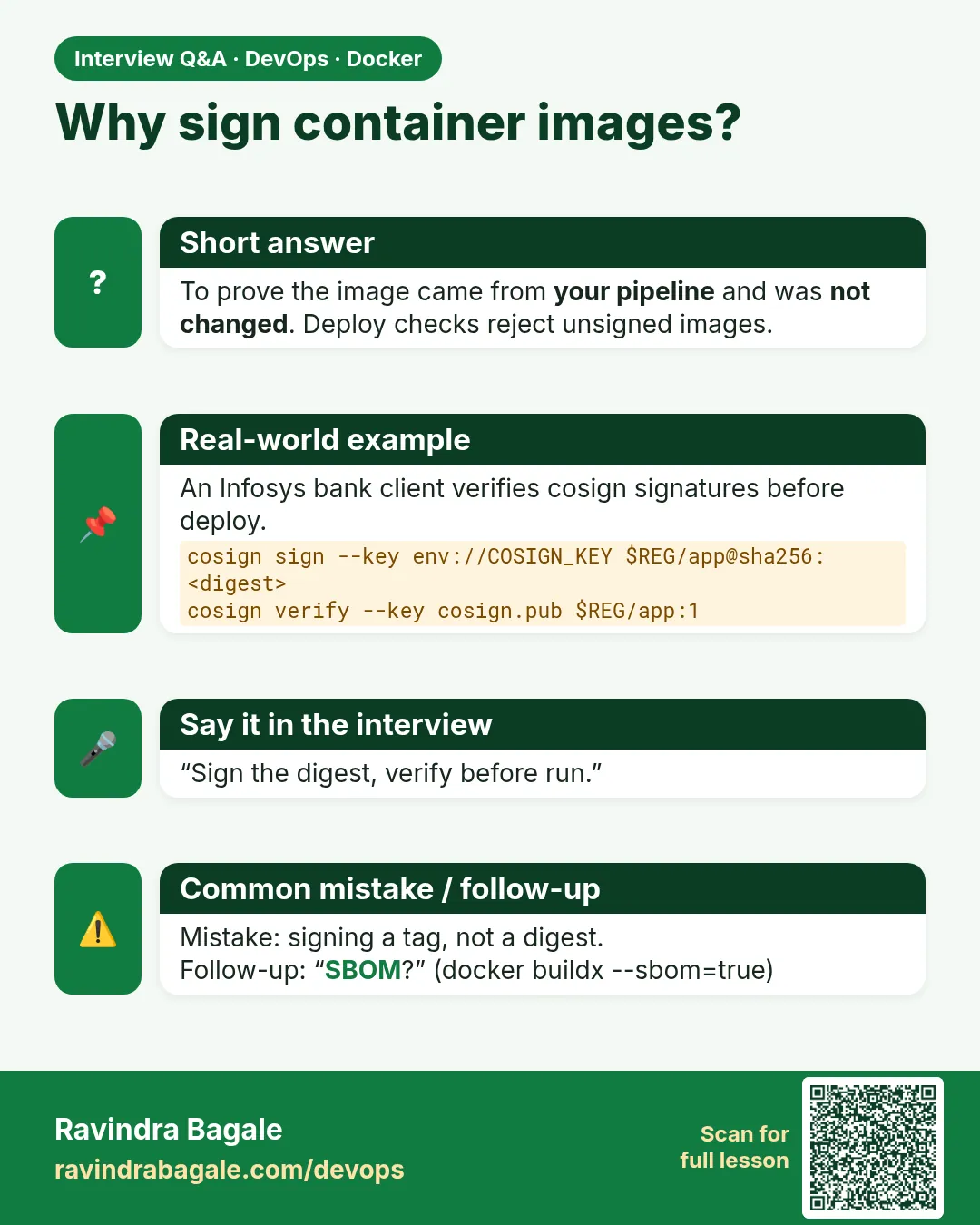
Mistake two: signing the tag instead of the digest. She always signs IMAGE at sha256 digest.
Mistake three: signing but never verifying. The servers and the cluster check signatures before running.
Mistake four: a private key in a repo or on a laptop. She uses KMS or keyless signing in CI.
Mistake five: distroless in production but no way to debug. She keeps a :debug build for staging and uses netshoot alongside.
Check yourself
Q1. Why is a digest safer than a tag?
A tag can be moved; a digest is the hash of the exact content.
Q2. What does cosign verify prove?
That the image was signed by the holder of the matching key or CI identity.
Q3. What is missing in a distroless image?
A shell and a package manager.
Q4. What is an attestation?
Signed data about an image, such as its SBOM.
Friends, pin images by digest, sign every image in CI with cosign, verify before you run, attach a signed SBOM, and use a distroless or minimal base. Did you understand? Let us try it once more. Run a local registry, sign one image, then prove an unsigned image is refused.
मित्रांनो, images digest ने pin करा, CI मध्ये प्रत्येक image cosign ने sign करा, run करण्याआधी verify करा, signed SBOM जोडा, आणि distroless किंवा minimal base वापरा. समजलं का? चला, पुन्हा एकदा करून पाहू. Local registry चालवा, एक image sign करा, आणि unsigned image नाकारली जाते हे सिद्ध करा.
दोस्तों, images को digest से pin कीजिए, CI में हर image को cosign से sign कीजिए, run करने से पहले verify कीजिए, signed SBOM जोड़िए, और distroless या minimal base इस्तेमाल कीजिए. समझ आया? चलिए, एक बार फिर करके देखते हैं। Local registry चलाइए, एक image sign कीजिए, और साबित कीजिए कि unsigned image मना हो जाती है.
Ravindra Bagale's Tip
A signature nobody checks is decoration. Put cosign verify in the deploy script on the same day you add cosign sign in CI.
कोणी तपासत नसेल तर signature फक्त सजावट आहे. CI मध्ये cosign sign जोडता त्याच दिवशी deploy script मध्ये cosign verify टाका.
कोई जाँचे नहीं तो signature सिर्फ़ सजावट है. CI में cosign sign जोड़ें उसी दिन deploy script में cosign verify डालिए.
Lab: try at home
- Run registry:2 and push an image.
- Move a tag and pull the original by digest.
- Generate a practice cosign key pair with a fake password.
- Sign by digest and verify with the public key.
- Show that an unsigned image fails verify.
- Attach and verify an SBOM attestation.
- Build the Go app on distroless and compare its size.
Recap
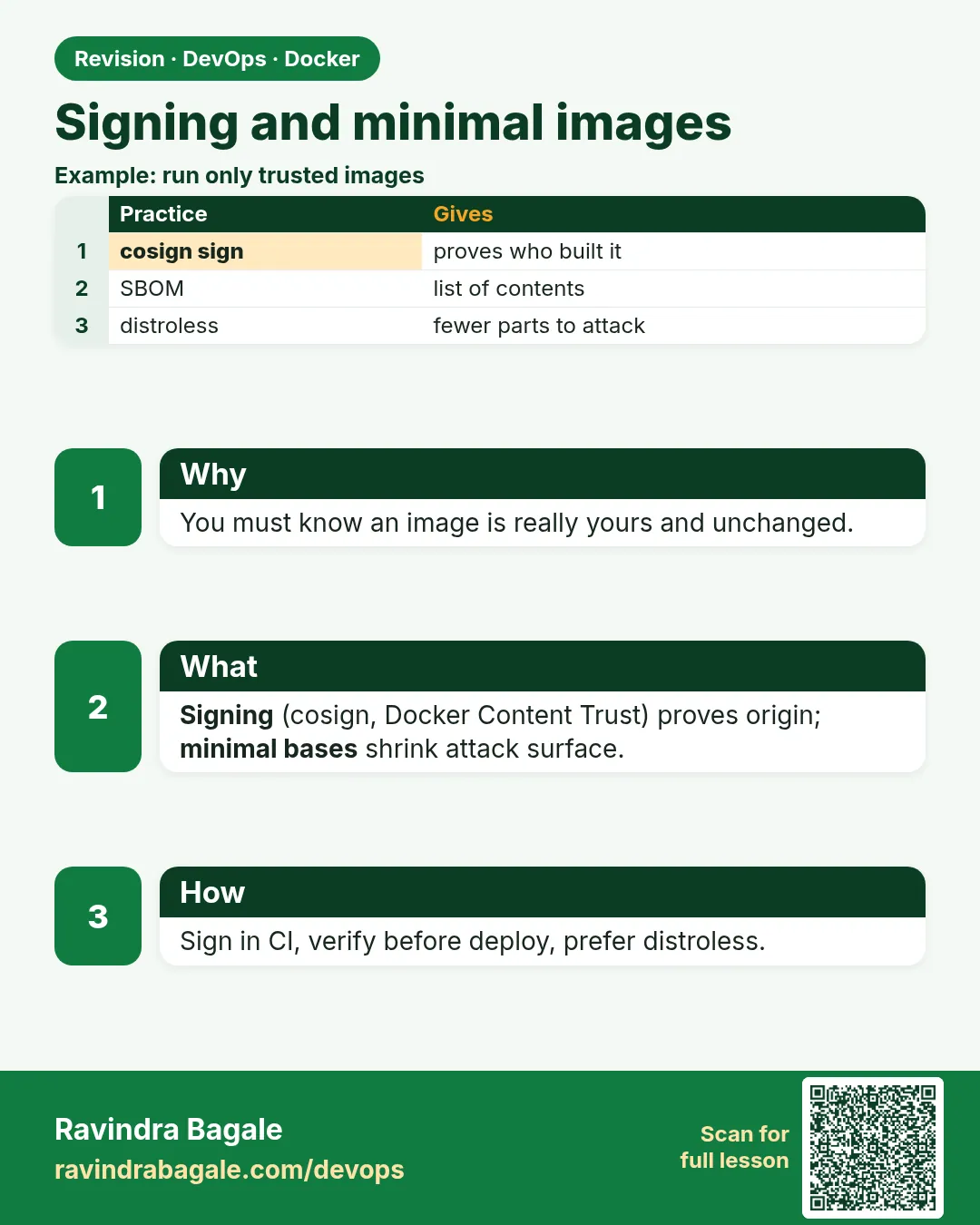
- Tags move, digests do not.
- Deploy with tag and digest together.
- cosign signs the digest and stores the signature in the registry.
- Verify before you run; keep keys in KMS or go keyless.
- Attestations prove what is inside.
- Distroless removes the shell and package manager.
 Revision card
 Interview card