Chapter 44: Terraform AWS Guides EC2 RDS S3 Security Groups IAM ALB and Auto Scaling
44.1 How to launch an EC2 instance with Terraform
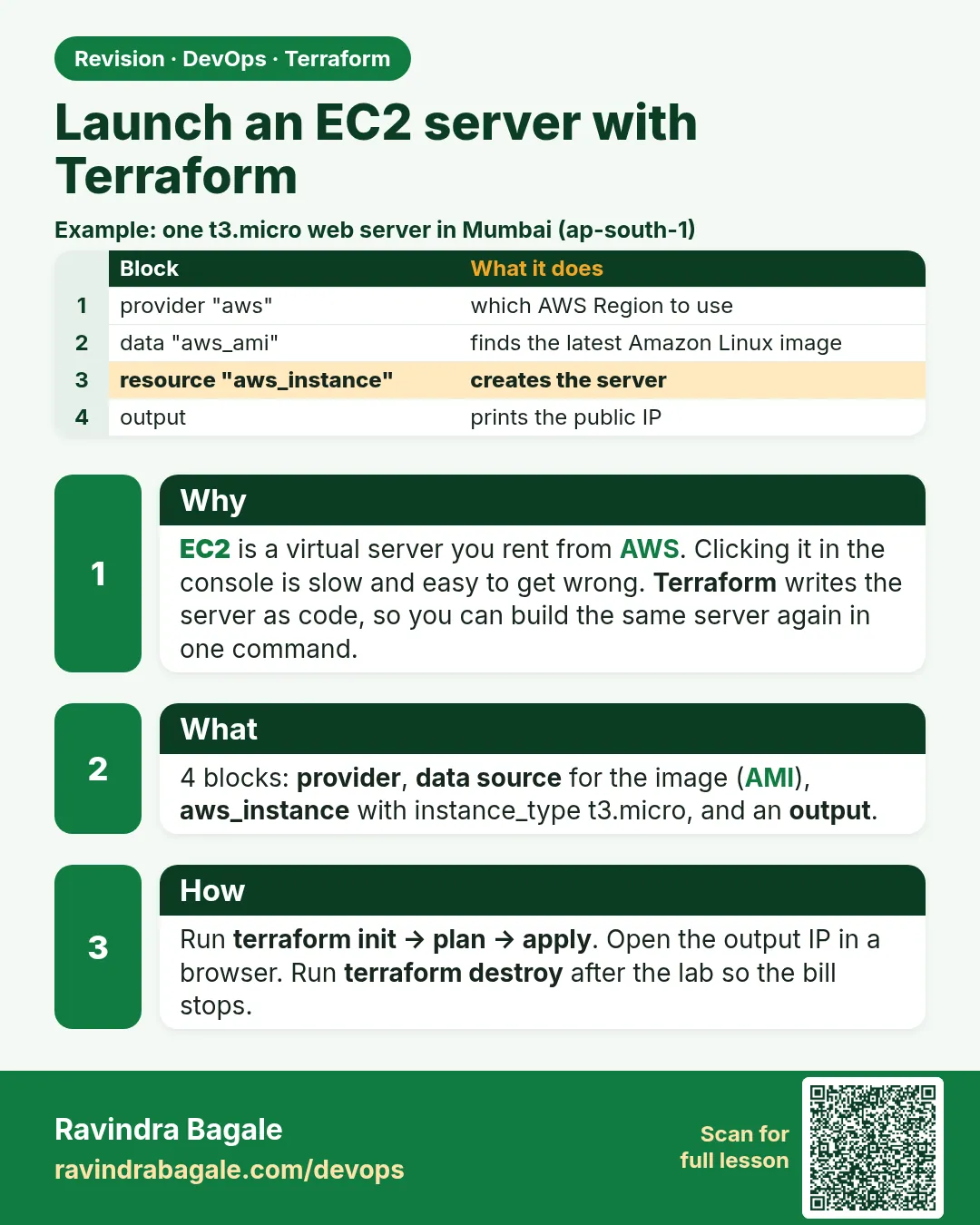
Story. Suppose we are on a Netflix-style platform team and a developer needs one test web server for a demo today. Clicking through the console takes ten screens and nobody remembers which options were picked. With Terraform the same server comes from four small files, the review happens in a pull request, and terraform destroy removes it when the demo is over. This guide uses the default VPC so you can focus only on EC2.
Steps
- Create a folder ec2-guide with the four .tf files and user_data.sh.
- Run terraform init to download the AWS provider.
- Run terraform fmt and terraform validate.
- Run terraform plan and confirm 4 to add.
- Run terraform apply and type yes.
- Wait two minutes, then curl the web_url output.
- Run terraform destroy and type yes.
File layout
ec2-guide/
├── versions.tf
├── variables.tf
├── main.tf
├── outputs.tf
└── user_data.sh
# ---- versions.tf ----
terraform {
  required_version = ">= 1.6"
  required_providers {
    aws = {
      source  = "hashicorp/aws"
      version = "~> 5.0"
    }
  }
}

provider "aws" {
  region = var.region
}

# ---- variables.tf ----
variable "region" {
  type    = string
  default = "ap-south-1"
}

variable "instance_type" {
  type    = string
  default = "t3.micro"
}

# ---- main.tf ----
data "aws_ami" "al2023" {
  most_recent = true
  owners      = ["amazon"]
  filter {
    name   = "name"
    values = ["al2023-ami-2023.*-x86_64"]
  }
}

data "aws_vpc" "default" {
  default = true
}

data "aws_subnets" "default" {
  filter {
    name   = "vpc-id"
    values = [data.aws_vpc.default.id]
  }
}

resource "aws_security_group" "web" {
  name        = "guide-ec2-web"
  description = "HTTP in, all out"
  vpc_id      = data.aws_vpc.default.id
}

resource "aws_vpc_security_group_ingress_rule" "http" {
  security_group_id = aws_security_group.web.id
  cidr_ipv4         = "0.0.0.0/0"
  ip_protocol       = "tcp"
  from_port         = 80
  to_port           = 80
}

resource "aws_vpc_security_group_egress_rule" "all" {
  security_group_id = aws_security_group.web.id
  cidr_ipv4         = "0.0.0.0/0"
  ip_protocol       = "-1"
}

resource "aws_instance" "web" {
  ami                         = data.aws_ami.al2023.id
  instance_type               = var.instance_type
  subnet_id                   = data.aws_subnets.default.ids[0]
  vpc_security_group_ids      = [aws_security_group.web.id]
  associate_public_ip_address = true

  metadata_options {
    http_tokens = "required"
  }

  root_block_device {
    volume_size = 8
    volume_type = "gp3"
    encrypted   = true
  }

  user_data = file("${path.module}/user_data.sh")

  tags = {
    Name = "guide-ec2-web"
  }
}

# ---- user_data.sh ----
#!/bin/bash
dnf install -y nginx
echo "Hello from Terraform EC2" > /usr/share/nginx/html/index.html
systemctl enable --now nginx

# ---- outputs.tf ----
output "public_ip" {
  value = aws_instance.web.public_ip
}

output "web_url" {
  value = "http://${aws_instance.web.public_dns}"
}
What each line does
required_providers { aws = { version = "~> 5.0" } }— Pins the AWS provider to any 5.x release.provider "aws" { region = var.region }— Every resource is created in the region from variables.tf (Mumbai, ap-south-1, by default).data "aws_ami" "al2023" {— Looks up an AMI instead of hard-coding an id, so it works in any region.owners = ["amazon"]— Only trusts images published by Amazon.values = ["al2023-ami-2023.*-x86_64"]— Name pattern for Amazon Linux 2023 on Intel/AMD.data "aws_vpc" "default" { default = true }— Reads the default VPC that every account has in each region.data "aws_subnets" "default"— Lists the default VPC subnets; we pick the first one.resource "aws_security_group" "web"— The instance firewall.aws_vpc_security_group_ingress_rule "http"— Allows port 80 from anywhere. There is no port 22 rule.ip_protocol = "-1"— Outbound to everything, so dnf can download nginx.ami = data.aws_ami.al2023.id— Uses the AMI found above.instance_type = var.instance_type— t3.micro by default; change it in one place.associate_public_ip_address = true— Gives the server a public IP so the browser can reach it.http_tokens = "required"— Forces IMDSv2, which blocks a common credential-theft trick.root_block_device { encrypted = true }— 8 GB gp3 disk, encrypted.user_data = file("${path.module}/user_data.sh")— Reads the boot script from user_data.sh: install nginx, write a page, start nginx.output "web_url"— Prints the address to open after apply.
When it is green.
$ terraform apply
Plan: 4 to add, 0 to change, 0 to destroy.
aws_instance.web: Creation complete after 13s [id=i-0a1b2c3d4e5f...]
Apply complete! Resources: 4 added, 0 changed, 0 destroyed.
Outputs:
web_url = "http://ec2-13-xxx-xxx-xxx.ap-south-1.compute.amazonaws.com"

$ curl -s $(terraform output -raw web_url)
Hello from Terraform EC2

Plan: 0 to add, 0 to change, 4 to destroy.
Destroy complete! Resources: 4 destroyed.
When it is red.
Error: creating EC2 Instance: InvalidParameterCombination:
The specified instance type is not eligible for Free Tier
  -- or --
Error: no matching EC2 AMI found
Fix. For the instance type, pick one offered in your region (t3.micro or t2.micro). For the AMI, check the name filter and the region; run aws ec2 describe-images --owners amazon --filters Name=name,Values=al2023-ami-2023.*-x86_64 to see what matches. If curl times out, wait two minutes for user_data to finish, then check the port 80 rule.
What: every term in plain English
- EC2 instance — A virtual server in AWS. You choose the image (AMI), size (instance type), network and disk.
- AMI — Amazon Machine Image: the operating system disk the server starts from, for example Amazon Linux 2023.
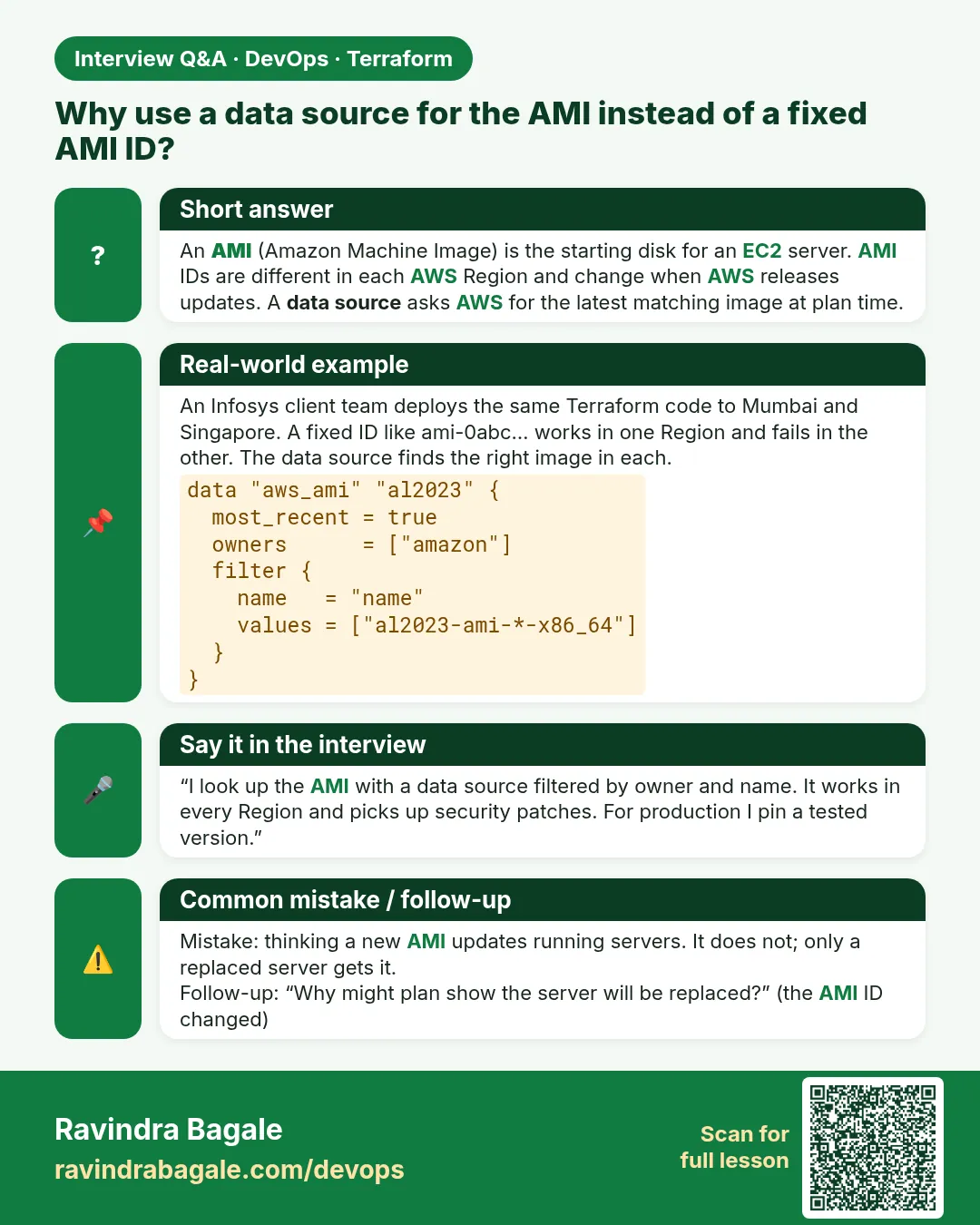
- data "aws_ami" — A lookup that finds the newest matching AMI at plan time, so you never hard-code an id that differs per region.
- instance type — The size of the server, such as t3.micro (2 vCPU, 1 GB RAM).
- default VPC — The network AWS creates in every region. Good for quick guides, not for production.
- user_data — A script EC2 runs once at first boot. Here it lives in user_data.sh and is read with file().
- root_block_device — The main disk of the server: size, type (gp3) and encryption.
- IMDSv2 — Token-based instance metadata. http_tokens = "required" blocks SSRF credential theft.
Example 1: Find the AMI with a data source
AMI ids differ in every region and change every month. TCS cloud teams always look them up with a filter, so the same code works in Mumbai and Hyderabad.
- Write the aws_ami data block.
- Print it in terraform console.
- Use it in aws_instance.
data "aws_ami" "al2023" {
  most_recent = true
  owners      = ["amazon"]
  filter {
    name   = "name"
    values = ["al2023-ami-2023.*-x86_64"]
  }
}
terraform console
> data.aws_ami.al2023.id
> data.aws_ami.al2023.name
Output
"ami-0a1b2c3d4e5f67890"
"al2023-ami-2023.6.20261020.0-kernel-6.1-x86_64"
What it shows: owners = ["amazon"] makes sure you get the official image, not a look-alike from a stranger.
Example 2: Keep the boot script in its own file
Long scripts inside HCL are hard to read and cannot be linted. A separate user_data.sh can be checked with shellcheck on your laptop.
- Create user_data.sh beside main.tf.
- Read it with file().
- Lint it.
#!/bin/bash
# user_data.sh
dnf install -y nginx
echo "Hello from Terraform EC2" > /usr/share/nginx/html/index.html
systemctl enable --now nginx
user_data = file("${path.module}/user_data.sh")
shellcheck user_data.sh && echo "script clean"
Output
script clean
What it shows: path.module is the folder of the .tf file, so the path works wherever you run terraform.
Example 3: Plan, apply and open the page
The full loop in under five minutes. Freshers at Accenture boot camps do this on day one so Terraform feels real.
- Run init, plan and apply.
- Wait two minutes for user_data.
- Curl the web_url output.
terraform init
terraform plan -out tfplan
terraform apply tfplan
sleep 120
curl -s $(terraform output -raw web_url)
Output
Plan: 4 to add, 0 to change, 0 to destroy.
Apply complete! Resources: 4 added, 0 changed, 0 destroyed.
Hello from Terraform EC2
What it shows: 4 resources: the security group, two rules and the instance.
Example 4: Change the size safely
Changing instance_type stops and starts the server in place. Read the plan to make sure it says update, not replace.
- Set instance_type to t3.small.
- Plan.
- Read the ~ symbol.
terraform plan -var instance_type=t3.small | grep -E "instance_type|Plan:"
Output
      ~ instance_type                        = "t3.micro" -> "t3.small"
Plan: 0 to add, 1 to change, 0 to destroy.
What it shows: ~ means update in place. If you change user_data instead, the plan shows replace, because user_data runs only at first boot.
Example 5: Check the disk is encrypted and IMDSv2 is on
Security scanners at Infosys flag unencrypted disks and IMDSv1. Check both from the CLI after apply.
- Get the instance id.
- Query the metadata options.
- Query the volume encryption.
ID=$(terraform state show aws_instance.web | awk '/^ *id /{print $3}' | tr -d '"')
aws ec2 describe-instances --instance-ids $ID --query "Reservations[0].Instances[0].MetadataOptions.HttpTokens"
aws ec2 describe-volumes --filters Name=attachment.instance-id,Values=$ID --query "Volumes[0].Encrypted"
Output
"required"
true
What it shows: Both settings come from the code, so every server built from it passes the scan.
Example 6: Replace a server after changing the script
user_data runs once. To apply a new boot script you must build a new server; -replace does it cleanly.
- Edit the echo line in user_data.sh.
- Apply with -replace.
- Curl the new page.
sed -i 's/Hello from Terraform EC2/Version 2/' user_data.sh
terraform apply -replace=aws_instance.web -auto-approve | tail -n 1
sleep 120 && curl -s $(terraform output -raw web_url)
Output
Apply complete! Resources: 1 added, 0 changed, 1 destroyed.
Version 2
What it shows: The public IP changes on replace. That is why we print web_url as an output.
Command cheat sheet
| Command | What it does | When to use it |
|---|---|---|
data "aws_ami" |
Find the latest AMI | Every EC2 |
file("${path.module}/user_data.sh") |
Reads the boot script | user_data |
terraform output -raw web_url |
Prints the URL | Testing |
terraform apply -replace=ADDR |
Rebuild one resource | New user_data |
aws ec2 describe-instances |
Instance details | Verify |
terraform destroy |
Delete all | End of guide |
Verify: did it work?
-
Page answers
curl -s $(terraform output -raw web_url)Output
Hello from Terraform EC2 -
IMDSv2 on
aws ec2 describe-instances --instance-ids $ID --query "Reservations[0].Instances[0].MetadataOptions.HttpTokens"Output
"required" -
Disk encrypted
aws ec2 describe-volumes --filters Name=attachment.instance-id,Values=$ID --query "Volumes[0].Encrypted"Output
true
When it is red 1
Error: Your query returned no results. Please change your search criteria and try again.
Cause. The AMI name filter matches nothing in this region.
Fix, step by step
- Run aws ec2 describe-images with the same filter.
- Fix the pattern.
When it is red 2
Error: creating EC2 Instance: Unsupported: Your requested instance type (t3.micro) is not supported in your requested Availability Zone
Cause. The default subnet zone does not offer that type.
Fix, step by step
- Pick another subnet.
- Or use t2.micro.
When it is red 3
curl: (28) Failed to connect to ec2-13-233-1-2.ap-south-1.compute.amazonaws.com port 80: Connection timed out
Cause. user_data is still running or the port 80 rule is missing.
Fix, step by step
- Wait two minutes.
- Check the http ingress rule.
Cleanup
terraform destroy -auto-approve
Ravindra Bagale's Tip
Never hard-code an AMI id. Look it up with a data source and pin the filter, so code works in every region.
Practice tasks
Easy Print the AMI name
Why: Data sources.
What to do: Show the AMI name in terraform console.
- data.aws_ami.al2023.name
Check: An al2023 name.
Easy Change the page
Why: user_data.
What to do: Edit user_data.sh and replace the server.
- -replace.
Check: New text.
Medium Resize
Why: In-place update.
What to do: Plan a t3.small change and read it.
- -var instance_type.
Check: 1 to change.
Hard Add a tag map
Why: Tagging.
What to do: Add default_tags in the provider for Owner and Project.
- default_tags block.
Check: Tags on every resource.
Easy Say it in two lines
Why: If you can say it simply, you understand it.
What to do: Write two short lines about this lesson for a fresher.
- Write the problem it solves.
- Write the one command or file you use.
- Read it aloud.
Check: A fresher understands it without a question.
Easy Start a safe lab folder
Why: Practice needs a throwaway place.
What to do: Make a new folder with versions.tf and a random_pet resource, so no AWS cost.
- mkdir tf-lab and cd into it.
- Add the hashicorp/random provider and one random_pet.
- Run terraform init and terraform apply.
Check: Apply complete! with 1 added.
Medium Break it on purpose
Why: You must know the red output by face.
What to do: Cause one error from the red part of this lesson and fix it.
- Follow one red section.
- Copy the exact message to your notes.
- Write the fix in one line.
Check: You fixed it without searching the web.
Medium Run it twice
Why: A second run must be quiet.
What to do: Run the same plan two times with no edits.
- Run terraform plan.
- Run it again.
- Explain any change it still shows.
Check: The second plan says No changes, or you can explain each line.
Medium Write a runbook page
Why: At 2 a.m. nobody remembers flags.
What to do: Write a one-page runbook for this lesson.
- Title, when to use, exact commands, how to check, how to undo.
Check: A teammate can follow it alone.
Medium Run it from a pipeline
Why: Real teams run Terraform from CI, not from laptops.
What to do: Run the main command of this lesson inside a GitHub Actions or Jenkins job.
- Add a job with hashicorp/setup-terraform or a Terraform Docker image.
- Give it AWS access through an IAM role, never a key in the file.
- Run init, then the command from this lesson.
Check: The job log shows the same output you saw on your laptop.
Medium Check the cost
Why: Labs left running cost real money.
What to do: Find what this lesson would cost per day if you forgot to destroy it.
- Open the AWS Pricing Calculator.
- Add each resource from your plan.
- Write the daily cost in your notes.
Check: You know the daily cost and you ran terraform destroy.
Hard Draw the flow top to bottom
Why: A drawing shows the order of work.
What to do: Draw this lesson as boxes from top to bottom.
- Start at your code, go through plan and state, end at AWS.
- Mark where each command reads or writes.
Check: Each box matches a real step you ran.
Hard Explain it like an interview
Why: Interviewers want real stories.
What to do: Record a 60 second answer about this lesson.
- Say the problem, the command, and one error you hit.
Check: Your answer has a real command and a real error message.
Homework: try at home
Try at home
Launch an EC2 server that shows your name and the date on its page, using user_data.sh with file(), then destroy it.
Recap
- Look up AMIs with a data source.
- Keep boot scripts in .sh files.
- Read the plan for update vs replace.
- Encrypt disks and require IMDSv2.
- Destroy after every guide.
FAQ
Why no SSH rule?
The guide does not need SSH; use Session Manager when you do.
Why default VPC?
It keeps the guide focused on EC2.
Does destroy delete the AMI?
No, AMIs belong to AWS.
Why outputs?
The IP changes; outputs always show the current one.
Interview questions
-
How do you avoid hard-coding AMI ids?
Use the aws_ami data source with owners and a name filter.
-
What happens when you change user_data?
The instance is replaced.
-
How do you enforce IMDSv2?
metadata_options with http_tokens = "required".
-
Difference between ~ and -/+ in a plan?
~ is update in place; -/+ is destroy then create.
Quick quiz
Q1. Function to read user_data.sh?
file
Q2. AMI owner value?
amazon
Q3. Disk type used?
gp3
Q4. Resources in the plan?
4
Q5. Flag to rebuild a server?
-replace
Samajla ka?
 Revision card
 Interview card