Chapter 31: Backup, Configuration as Code and Jenkins Operations
31.1 Backup JENKINS_HOME
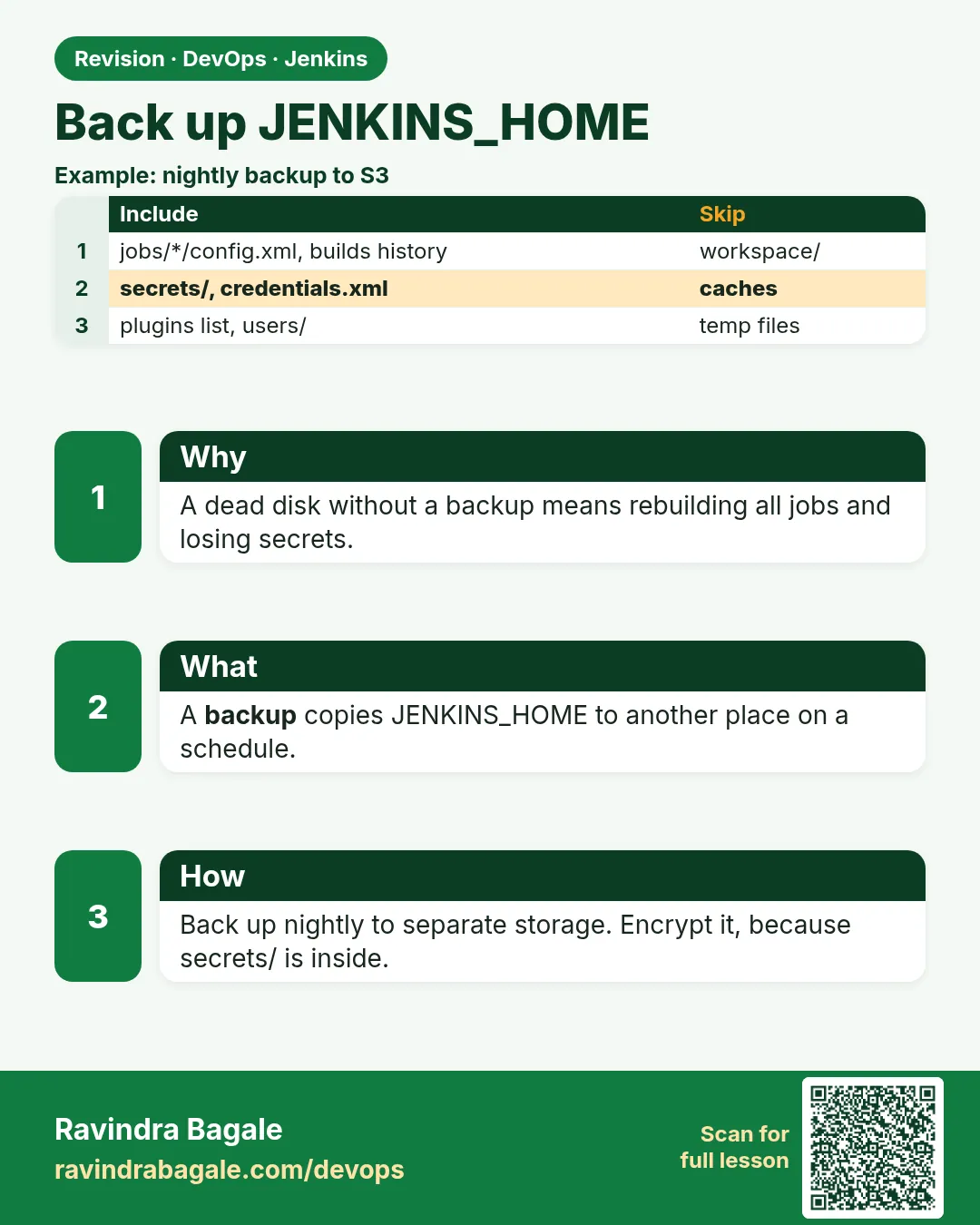
Why: the problem
Suppose we run Jenkins for the Swiggy delivery team. Two hundred jobs, credentials, build history and plugin settings live in one folder called JENKINS_HOME. One night the disk fails. Without a backup, the team spends two weeks rebuilding jobs from memory, and nobody can deploy. A backup is a copy of that folder, taken every night, stored somewhere else, and checked.
What we will build
A nightly backup of JENKINS_HOME for three kinds of install: Jenkins on a Linux VM (bash + cron), Jenkins in Docker (volume backup), and Jenkins in Kubernetes (CronJob to a second PVC). Each one skips big folders you do not need, such as workspace.
What: every term in plain English
- JENKINS_HOME — The folder that holds all Jenkins data: config.xml, jobs, users, plugins, secrets.
- Backup — A copy of data kept somewhere else so you can restore it.
- Exclude — Folders you skip, such as workspace and caches, because Jenkins can rebuild them.
- tar.gz — One compressed file that holds a whole folder.
- Checksum — A sha256 fingerprint to prove the file did not change.
- Retention — How long you keep old backups, such as 14 days.
- Off-site copy — A copy on another machine or in S3, not on the same disk.
How: step by step
-
Find JENKINS_HOME
sudo systemctl show jenkins -p Environment | tr " " "\n" | grep JENKINS_HOMEWhat it does: Shows the folder path on a VM install.
Output
JENKINS_HOME=/var/lib/jenkins -
See what is big
sudo du -sh /var/lib/jenkins/* | sort -h | tail -5What it does: Workspace is often the biggest, and you can skip it.
Output
1.2G /var/lib/jenkins/plugins 3.8G /var/lib/jenkins/jobs 9.4G /var/lib/jenkins/workspace -
Install the script
sudo mkdir -p /opt/jenkins-backup && sudo nano /opt/jenkins-backup/backup.sh # paste Example 1What it does: The backup script lives in one known place.
Output
(saved) -
Run it once by hand
sudo bash /opt/jenkins-backup/backup.shWhat it does: Always run by hand before you schedule it.
Output
backup ok: /backup/jenkins/jenkins-home-2026-10-25-0130.tgz -
Check the file
ls -lh /backup/jenkins/ && sha256sum -c /backup/jenkins/*.sha256What it does: File exists and checksum matches.
Output
-rw-r--r-- 1 root root 1.9G jenkins-home-2026-10-25-0130.tgz jenkins-home-2026-10-25-0130.tgz: OK -
Schedule it nightly
echo "30 1 * * * root bash /opt/jenkins-backup/backup.sh >> /var/log/jenkins-backup.log 2>&1" | sudo tee /etc/cron.d/jenkins-backupWhat it does: Runs at 01:30 every night when builds are quiet.
Output
30 1 * * * root bash /opt/jenkins-backup/backup.sh >> /var/log/jenkins-backup.log 2>&1 -
Copy it off the server
aws s3 cp /backup/jenkins/ s3://shipit-jenkins-backups/ --recursive --exclude "*" --include "*$(date +%F)*"What it does: A backup on the same disk dies with the disk.
Output
upload: backup/jenkins/jenkins-home-2026-10-25-0130.tgz to s3://shipit-jenkins-backups/jenkins-home-2026-10-25-0130.tgz
Example 1: Linux VM: bash script and cron
Stack. Ubuntu 22.04, Jenkins LTS (apt), bash, cron
Goal. Linux VM: bash script and cron. The simplest backup for Jenkins installed with apt or yum.
backup.sh
#!/usr/bin/env bash
# /opt/jenkins-backup/backup.sh - nightly JENKINS_HOME backup (VM install)
set -euo pipefail
JH=/var/lib/jenkins
DEST=/backup/jenkins
STAMP=$(date +%F-%H%M)
mkdir -p "$DEST"
tar --exclude="$JH/workspace" --exclude="$JH/caches" \
    --exclude="$JH/war" --exclude="$JH/.cache" \
    -czf "$DEST/jenkins-home-$STAMP.tgz" -C "$(dirname $JH)" "$(basename $JH)"
sha256sum "$DEST/jenkins-home-$STAMP.tgz" > "$DEST/jenkins-home-$STAMP.tgz.sha256"
find "$DEST" -name "jenkins-home-*.tgz*" -mtime +14 -delete
echo "backup ok: $DEST/jenkins-home-$STAMP.tgz"
What each line does
set -euo pipefail— Stop at the first error, so a half backup is not reported as ok.--exclude=$JH/workspace— Skip build workspaces; jobs rebuild them.tar -czf— Make one compressed file.sha256sum— Save a fingerprint for later checks.find ... -mtime +14 -delete— Keep 14 days, delete older backups.
Green output
$ sudo bash /opt/jenkins-backup/backup.sh
backup ok: /backup/jenkins/jenkins-home-2026-10-25-0130.tgz
$ sha256sum -c /backup/jenkins/jenkins-home-2026-10-25-0130.tgz.sha256
jenkins-home-2026-10-25-0130.tgz: OK
Expected result. A dated, checked backup file; older than 14 days are removed.
Example 2: Docker: back up the jenkins_home volume with a throwaway container
Stack. Docker 27, jenkins/jenkins:lts-jdk17, alpine
Goal. Docker: back up the jenkins_home volume with a throwaway container. Works without stopping Jenkins for a lab; for production stop or use quiet-down first.
backup-docker.sh
# backup-docker.sh - Jenkins running in Docker with volume jenkins_home
set -euo pipefail
STAMP=$(date +%F-%H%M)
docker run --rm \
  -v jenkins_home:/data:ro \
  -v "$PWD/backups":/out \
  alpine:3.20 \
  tar --exclude=/data/workspace --exclude=/data/caches -czf /out/jenkins-home-$STAMP.tgz -C /data .
ls -lh backups/
What each line does
-v jenkins_home:/data:ro— Mount the Jenkins volume read-only, so the backup cannot change it.-v $PWD/backups:/out— Write the archive to a folder on the host.alpine:3.20— A tiny image that has tar.--rm— Remove the helper container when done.
Green output
$ bash backup-docker.sh
total 1.1G
-rw-r--r-- 1 root root 1.1G Oct 25 01:31 jenkins-home-2026-10-25-0131.tgz
Expected result. A tgz of the volume in ./backups.
Example 3: Kubernetes: a CronJob that tars the Jenkins PVC into a second PVC every night
Stack. Kubernetes (kind or EKS), Jenkins Helm chart, CronJob
Goal. Kubernetes: a CronJob that tars the Jenkins PVC into a second PVC every night.
k8s/jenkins-backup-cronjob.yaml
# k8s/jenkins-backup-cronjob.yaml - Jenkins in Kubernetes with PVC jenkins-home
apiVersion: batch/v1
kind: CronJob
metadata:
  name: jenkins-backup
  namespace: jenkins
spec:
  schedule: "30 1 * * *"          # 01:30 every night
  concurrencyPolicy: Forbid
  jobTemplate:
    spec:
      template:
        spec:
          restartPolicy: OnFailure
          containers:
            - name: backup
              image: alpine:3.20
              command: ["sh", "-c"]
              args:
                - tar --exclude=./workspace --exclude=./caches -czf /backup/jenkins-$(date +%F).tgz -C /var/jenkins_home . && ls -lh /backup
              volumeMounts:
                - { name: home, mountPath: /var/jenkins_home, readOnly: true }
                - { name: backup, mountPath: /backup }
          volumes:
            - name: home
              persistentVolumeClaim: { claimName: jenkins-home }
            - name: backup
              persistentVolumeClaim: { claimName: jenkins-backup }
What each line does
schedule: "30 1 * * *"— Cron time: 01:30 daily.concurrencyPolicy: Forbid— Never run two backups at once.readOnly: true— The backup Pod cannot change Jenkins data.claimName: jenkins-backup— A separate volume for archives.
Green output
$ kubectl -n jenkins create job --from=cronjob/jenkins-backup backup-now
job.batch/backup-now created
$ kubectl -n jenkins logs job/backup-now
-rw-r--r--    1 root     root      1.3G Oct 25 01:30 jenkins-2026-10-25.tgz
Expected result. A nightly archive in the backup PVC; you can trigger one now with create job --from.
Verify: did it work?
-
Check last night ran
grep "backup ok" /var/log/jenkins-backup.log | tail -1What it does: The log shows a success line.
Output
backup ok: /backup/jenkins/jenkins-home-2026-10-25-0130.tgz -
Check the archive opens
tar -tzf /backup/jenkins/jenkins-home-2026-10-25-0130.tgz | grep -c config.xmlWhat it does: Counts config.xml files inside. One per job plus the main one.
Output
214 -
Check the off-site copy
aws s3 ls s3://shipit-jenkins-backups/ | tail -1What it does: The newest file is in S3.
Output
2026-10-25 01:33:10 2040109832 jenkins-home-2026-10-25-0130.tgz
When it is red 1
tar: /var/lib/jenkins/jobs/api/builds/57/log: file changed as we read it
Cause. A build was writing while tar read it.
Fix, step by step
- Run backup at a quiet time.
- Or put Jenkins in quiet-down mode first (Manage Jenkins > Prepare for Shutdown).
- Or exclude builds/*/log if history is not needed.
When it is red 2
tar: /backup/jenkins: Cannot write: No space left on device
Cause. The backup disk is full.
Fix, step by step
- Run df -h /backup.
- Lower retention or exclude workspace.
- Move old archives to S3.
When it is red 3
upload failed: ... An error occurred (AccessDenied) when calling the PutObject operation
Cause. The server role cannot write to the S3 bucket.
Fix, step by step
- Check the instance role policy allows s3:PutObject on the bucket.
- Do not put access keys in the script; use the instance role.
Cleanup
-
Remove a test archive
rm /backup/jenkins/jenkins-home-test.tgzWhat it does: Delete practice files only.
Output
(no output) -
Remove the Docker helper output
rm -r backups/What it does: Lab only.
Output
(no output) -
Delete the test job in Kubernetes
kubectl -n jenkins delete job backup-nowWhat it does: The CronJob stays.
Output
job.batch "backup-now" deleted
Practice tasks
Easy Measure JENKINS_HOME
Why: Know your size before planning.
What to do: Run du on each top folder.
- sudo du -sh /var/lib/jenkins/*
Check: You know the 3 biggest folders.
Medium Add retention
Why: Disks fill up.
What to do: Keep only 7 days.
- Change -mtime +14 to +7.
- Run the script.
Check: Only 7 days of files remain.
Medium Trigger the CronJob now
Why: Test without waiting for night.
What to do: Use create job --from.
- kubectl -n jenkins create job --from=cronjob/jenkins-backup now1
Check: Job completes.
Easy Say Jenkins backup in two lines
Why: If you can say it simply, you understand it.
What to do: Write two short lines about Jenkins backup for a fresher.
- Write the problem.
- Write the command or file you use.
Check: A fresher understands it.
Easy Start a fresh lab Jenkins
Why: Practice needs a throwaway Jenkins.
What to do: Run Jenkins LTS in Docker with a named volume.
- docker volume create jenkins_home
- docker run -d --name jenkins -p 8080:8080 -v jenkins_home:/var/jenkins_home jenkins/jenkins:lts-jdk17
- docker logs jenkins | grep -A2 "initialAdminPassword"
Check: The Jenkins login page opens on localhost:8080.
Medium Do it on the second setup
Why: The idea must work on VM, Docker and Kubernetes.
What to do: Repeat this lesson on a different setup than the one you used.
- Pick Docker if you used a VM, or kind if you used Docker.
- Run the same steps.
Check: Same result on the second setup.
Medium Break it on purpose
Why: You must know the red output by face.
What to do: Cause one error from "When it is red" and fix it.
- Follow the error section.
- Write down the exact message.
Check: You fixed it using the steps.
Medium Write a runbook page
Why: At 2 a.m. nobody remembers.
What to do: Write a one-page runbook for this lesson.
- Title, when to use, steps, how to check.
Check: A teammate can follow it alone.
Hard Explain it like an interview
Why: Interviewers want real stories.
What to do: Record a 60 second answer.
- Problem, command, one error you hit.
Check: Your answer has a real command and a real error.
Hard Draw the flow top to bottom
Why: A drawing shows the order.
What to do: Draw this lesson as boxes from top to bottom.
- Start at the trigger, end at the check.
Check: Each box matches a real step you ran.
Homework: try at home
Try at home
At home, back up your Docker lab Jenkins, create a test job, back up again and compare sizes. Then write which folders you skipped and why.
Recap
- All Jenkins state lives in JENKINS_HOME.
- Back it up every night, skip workspace and caches.
- Save a checksum and keep an off-site copy.
- Run the script by hand before you schedule it.
- The same idea works on VM, Docker and Kubernetes.
FAQ
Do I need to stop Jenkins?
For a perfect copy, use quiet-down or stop. Many teams back up live at night and accept small risk.
Is the secrets folder needed?
Yes. Without secrets/ and secret.key, saved credentials cannot be decrypted.
Is a disk snapshot enough?
Snapshots help, but also keep a file backup you can restore anywhere.
Should I use a backup plugin?
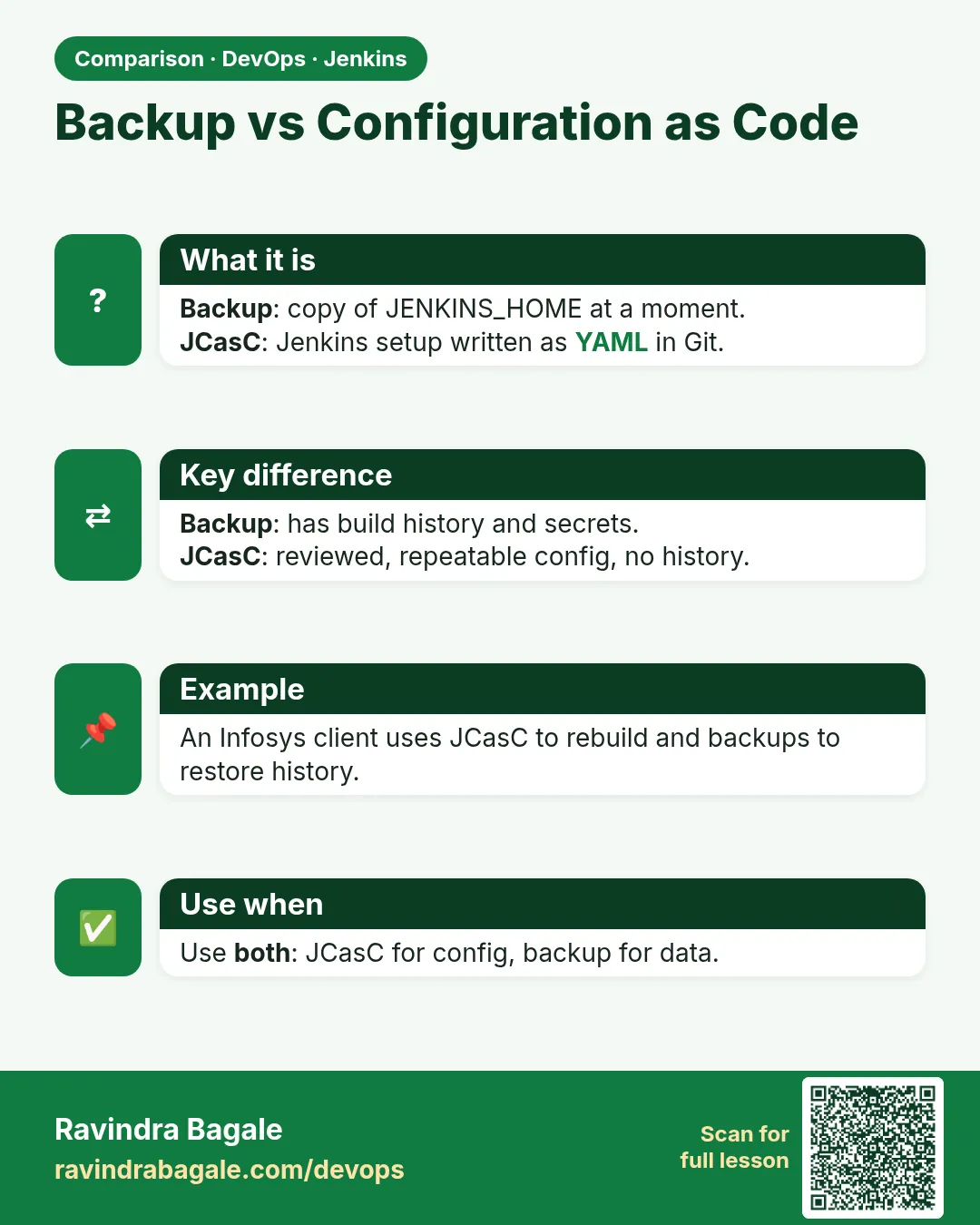
Plugins exist, but a simple script is easy to read and test.
How big is a backup?
Usually a few GB once workspace is excluded.
Interview questions
-
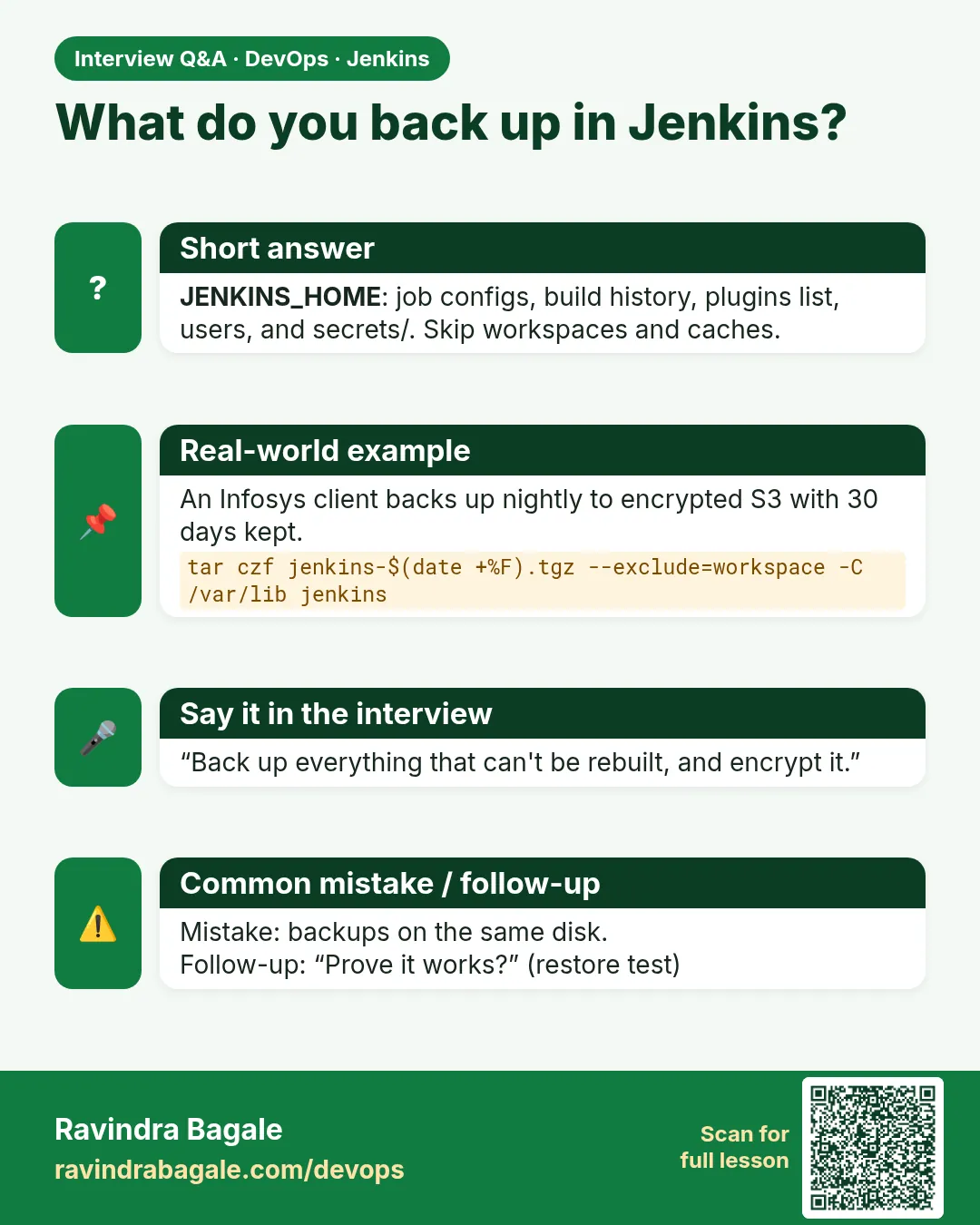
What do you back up in Jenkins?
JENKINS_HOME: config.xml, jobs, users, plugins, nodes, secrets; exclude workspace and caches.
-
Why include secrets?
They hold the keys that decrypt stored credentials.
-
How do you schedule backups?
cron on a VM, a Docker helper, or a Kubernetes CronJob.
-
How do you protect backups?
Off-site copy, encryption, limited access, retention.
-
How do you know a backup works?
Only by restoring it in a test.
Quick quiz
Q1. Which folder holds all Jenkins data?
JENKINS_HOME.
Q2. Name a folder you can skip.
workspace.
Q3. Why off-site?
A backup on the same disk dies with it.
Q4. Why run by hand first?
To see errors before cron hides them.
Q5. What does sha256sum -c prove?
The file did not change.
Samajla ka?
 Revision card
 Interview card
 Comparison card