Chapter 7: Docker Commands, Networks, Volumes and Compose
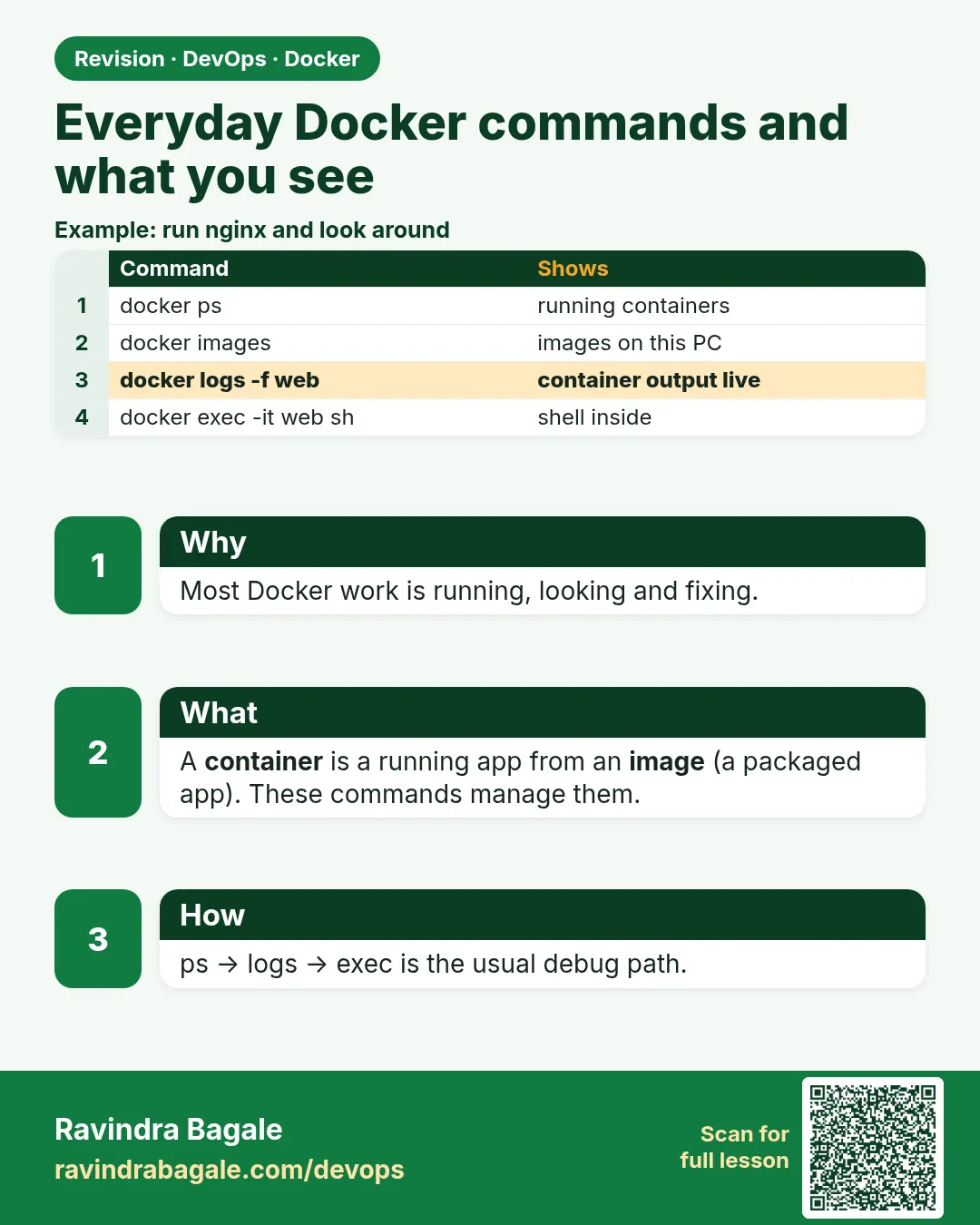
7.1 Everyday commands and what you see
Chapter 6 owns docker build, docker run, docker history and docker push. Use those there. This list is what operations — the server-side employee — types when the badge page looks wrong and nobody should reinstall PHP by hand.
Suppose we are the day after the three containers. The Instagram-style badge is badge-nginx, badge-php and badge-mysql on badge-net. A Netflix-style update shipped badge-php:1.1 and the page is blank. You need ps, logs and exec, then the previous tag from Chapter 6. If your names differ, use the names docker ps prints.
Bring nginx back alone only if the stack is already gone:
docker run -d --name badge-nginx -p 8080:80 nginx
This starts the official nginx image in the background, names it badge-nginx, and publishes host port 8080. Operations — the server-side employee — types it only when the three-container stack is already gone and they need the front door back alone.
Suppose we are the Instagram-style badge with no PHP container left on the laptop. What you see: a container id. docker ps shows badge-nginx Up and 0.0.0.0:8080->80/tcp. Curl to that host port returns nginx's own page, not the badge text, until badge-php is on badge-net again.
Image build, docker history, and docker push stay in Chapter 6. So do docker images and docker rmi. If a remove says the image is in use, stop and remove the container first. Do not make -f a habit on an image you cannot get back.
The blocks below are a catalog. They are not one script to run from the top. If a name is missing, create that container in Chapter 6 first. Network types stay in section 7.2. Volume types stay in section 7.4.
Container commands
docker ps
This lists only containers that are running. Operations — the server-side employee — types it first when the Instagram-style badge looks down.
Suppose we are the day after badge-nginx, badge-php, and badge-mysql were started on badge-net. What you see: those names, status Up, and a ports column. badge-nginx shows a mapping like 0.0.0.0:8080->80/tcp. badge-mysql has no host port. A missing name means it is stopped or was never created. It is not in this list.
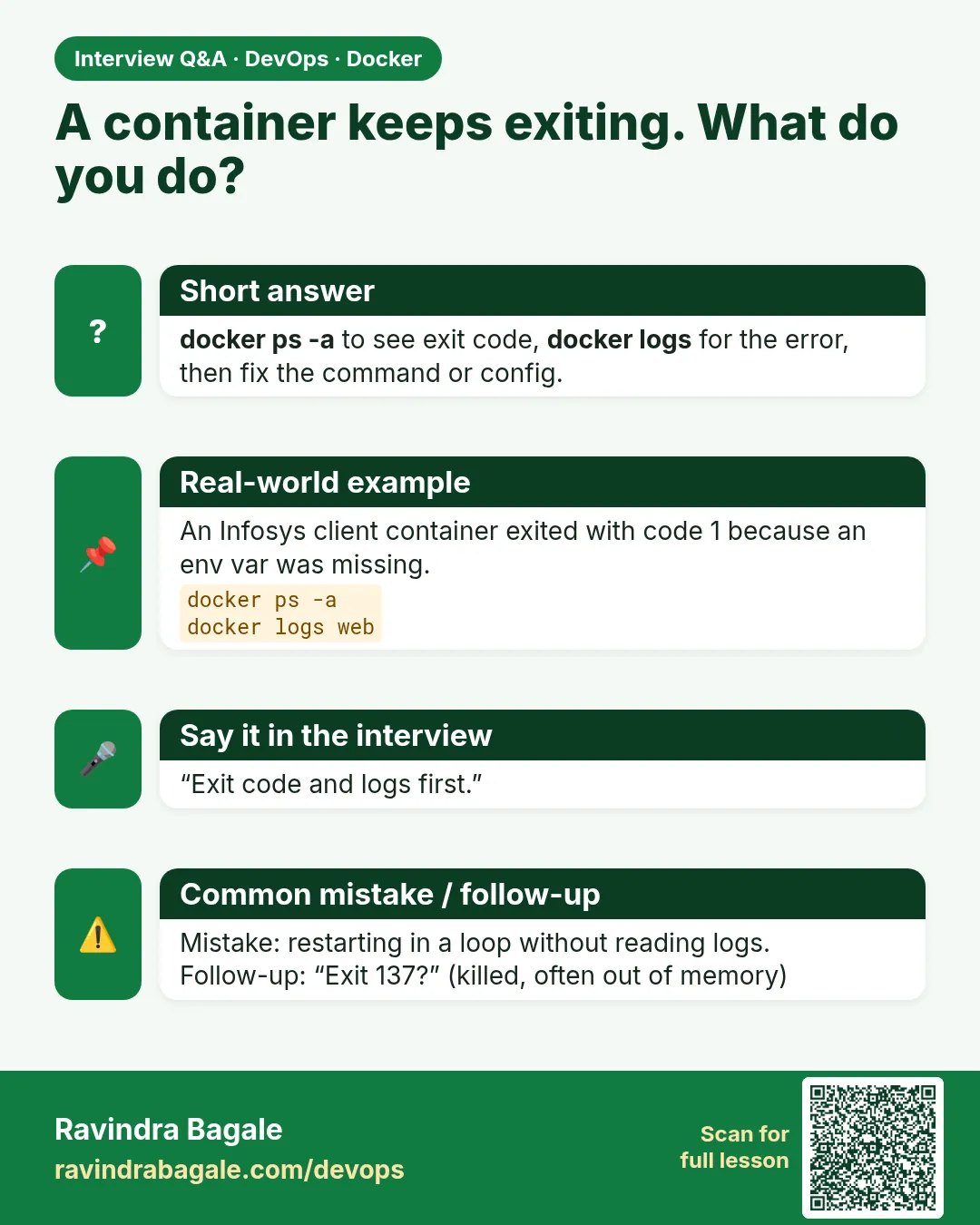
docker ps -a
This lists running and stopped containers. Operations types it when docker ps is empty but the badge was working yesterday.
Suppose we are after a Netflix-style update that stopped the old PHP container and started a new one. What you see: Up rows and Exited rows. An Exited row is still on disk until docker rm. The image is still there either way.
docker start badge-nginx
This starts a container that already exists and is stopped. Operations types it to bring the front door back. Do not docker run a second container with the same name.
Suppose we are opening the Instagram-style badge on the lab machine in the morning. What you see: the name badge-nginx. docker ps then shows Up.
docker stop badge-mysql
This asks the main process to finish, waits, then kills it if it is still there. Operations types stop, not kill, for MySQL so it can flush badge rows.
Suppose we are pausing the database on the Infosys client server at the end of a lab, and the named volume must keep the rows. What you see: the name badge-mysql after a short wait. docker ps no longer lists it. docker ps -a shows Exited. Start it again with docker start badge-mysql if the badge should stay up.
docker restart badge-php
This stops the container and starts the same container again. It does not pull a new image and it does not change the tag. Operations types it when the process is stuck and the files on disk are still the right ones.
Suppose we are looking at a blank Instagram-style badge and a Netflix-style text change is already inside this same container. What you see: the name badge-php, then status Up. If the page is still wrong, restarting again will not roll it back. The previous tag is Chapter 6.
docker rm badge-nginx
This deletes a stopped container. The image stays. Operations types it when that container name must be free for a new docker run. It fails if the container is still running.
Suppose we are replacing the front door on the client server after docker stop badge-nginx. What you see: the name badge-nginx. docker ps -a no longer has that row. Chapter 6's docker run creates it again. Do not confuse this with removing the image.
docker kill badge-nginx
This signals the main process to die now. It does not wait the way stop does. Operations types it only when docker stop is stuck. Use stop for badge-mysql.
Suppose we are the front door on a Netflix-style update and docker stop badge-nginx never returns. What you see: the name comes back at once, and docker ps shows it gone. docker start badge-nginx brings the same container back if you still need it and you did not docker rm it.
docker logs --tail 20 badge-php
This prints the last lines the process wrote. Operations types it when the page is blank and nobody should reinstall PHP on the EC2.
Suppose we are debugging the Instagram-style badge. What you see: up to 20 lines. A PHP error is a reason the page is blank. An empty log plus "connection refused" from curl usually means the host port is wrong, not that the log command failed.
docker logs -f badge-mysql
-f follows the log and keeps printing new lines. Operations types it while MySQL is starting, or while a Netflix-style update is coming up. Ctrl-c stops the follow. It does not stop badge-mysql.
Suppose we are waiting for the database on the Infosys client server. What you see: lines as MySQL writes them, ending on a ready line when it is healthy, or a restart loop when it is not. Ctrl-c returns the shell. docker ps still shows the container Up.
docker exec badge-php getent hosts badge-mysql
This runs one command inside a running container, then exits. Operations types it to prove the badge PHP can see the database by name.
Suppose we are the Instagram-style badge returning a database error. What you see: an address and the name badge-mysql. An error means badge-php is not on badge-net, or badge-mysql is stopped. localhost inside badge-php is not the database.
docker exec -it badge-php bash
-it attaches your keyboard to a shell inside the container. Operations types it when one command is not enough and they must look around. Type exit to leave. Leaving the shell does not stop Apache.
Suppose we are on the Infosys client server and the badge file inside the container must be read, not guessed. What you see: a shell prompt in /var/www/html. exit returns you to the host. The official PHP image's main process is still the one docker ps showed.
docker inspect badge-mysql
This prints JSON for one container: state, network, and mounts. Operations types it when the container exists but the badge rows or the name lookup do not match what you expect.
Suppose we are on the client server and badge-mysql is Up but PHP cannot find it. What you see: JSON. State.Status is running when it is up. NetworkSettings.Networks includes badge-net when section 6.8 was used. Mounts names badge-mysql-data when the named volume is attached. No such mount means the rows are only in the container layer.
docker cp badge-nginx:/usr/share/nginx/html/index.html ./nginx-index.html
This copies a file out of a container onto the host. Operations types it to read a file without a shell inside. The other direction, host path then container path, is the same command.
Suppose we are checking what the Instagram-style front door image actually contains. What you see: nginx-index.html in the current folder. That file is nginx's own page. The badge text comes from badge-php, which you curl. It is not this file unless you copied the badge there yourself.
docker stats --no-stream badge-php badge-mysql
This prints CPU and memory once, then ends. Without --no-stream it keeps refreshing until Ctrl-c. Operations types it when the client says the badge is slow.
Suppose we are on the Infosys client server during a Netflix-style spike of badge traffic. What you see: one table with CPU and memory for those two names, then the shell prompt. A high memory number is a clue. It is not, by itself, a reason to prune volumes.
docker port badge-nginx
This prints the published ports for one container. Operations types it when curl uses a port and docker ps is hard to read.
Suppose we are checking the Instagram-style front door from the laptop. What you see: 80/tcp -> 0.0.0.0:8080 when Chapter 6 published 8080:80. A different -p shows a different host port. No line means nothing was published.
docker rename badge-nginx badge-front
This changes the container name. The process keeps running. Operations types it when a name collided with a note or a script. There is no output on success.
Suppose we are labelling the front door during a short Netflix-style check. What you see: nothing printed. docker ps shows badge-front. The badge is the same container.
docker rename badge-front badge-nginx
This puts the name back. Later commands in this chapter say badge-nginx. Type this before you leave the rename, or the next lines will not match the machine.
Suppose we are done with that check on the Instagram-style front door. What you see: nothing printed. docker ps shows badge-nginx again.
docker top badge-php
This lists processes inside the container. Operations types it to see that Apache is the process running the badge, not a second program someone started by hand.
Suppose we are on the Infosys client server and the badge is up but a restart looks wrong. What you see: a process table. The command column shows Apache. An empty answer means the container is stopped.
docker diff badge-php
This lists files added or changed in the container's writable layer since the image was created. Operations types it before anyone is tempted to docker commit. Commit stays an emergency in Chapter 6.
Suppose we are checking a Netflix-style hotfix that was typed inside the running container instead of built into a tag. What you see: lines starting with A (added) or C (changed), or no lines if nothing in the writable layer changed. Those lines are not a Dockerfile. Rebuild the image if the change must survive.
docker pause badge-nginx
This freezes the processes in the container. It does not delete the container and it does not remove the image. Operations types it only for a short lab pause, not as a deploy.
Suppose we are freezing the Instagram-style front door for a minute while a note is written. What you see: the name badge-nginx. docker ps shows Paused. Curl to host port 8080 does not get a page until you unpause.
docker unpause badge-nginx
This thaws a paused container. Operations types it to undo docker pause. It does nothing useful on a container that was stopped with docker stop.
Suppose we are bringing that front door back after the pause. What you see: the name badge-nginx. docker ps shows Up. The badge answers on port 8080 again.
docker wait badge-mysql
This blocks until the container stops, then prints the exit code. Operations types it in a script that must not continue until MySQL has exited. In an open terminal it looks stuck on purpose.
Suppose we are a Netflix-style cleanup that must not start the next step while badge-mysql is still running. What you see: no output yet. Stop the container in another terminal and this one prints a number, the exit code. Do not use wait as a way to watch a healthy database. Use docker logs -f for that.
docker attach badge-nginx
This wires your terminal to the container's main process. Operations almost never needs it for the badge. Prefer docker logs -f. Detach with Ctrl-p then Ctrl-q. Ctrl-c can stop the process and take the front door down. That is the opposite of detach.
Suppose we are attached by mistake during an Infosys client demo of the Instagram-style badge. What you see: nginx's output in this terminal, or a blank wait. Ctrl-p then Ctrl-q returns the shell and leaves the container Up. If you pressed Ctrl-c and the container exited, docker start badge-nginx brings it back.
docker update --restart unless-stopped badge-php
This changes a setting on an existing container. Here it sets the restart policy so the badge PHP comes back after the Docker engine starts. It does not change the image tag and it is not a code deploy.
Suppose we are the Infosys client server and a reboot should bring badge-php back without a person typing docker start. What you see: the name badge-php. A Netflix-style code change is still a new tag from Chapter 6, then a new container. docker update does not build that tag.
Disk commands
docker system df
This shows how much disk images, containers, and volumes are using. Operations types it before anyone talks about deleting things.
Suppose we are on the Infosys client server and the disk alert fired during a Netflix-style update. What you see: a table with types, sizes, and a reclaimable column. Read it. Do not jump to prune.
docker system prune
This removes stopped containers, unused networks, and dangling images. It asks Are you sure?. Operations types it only to clear lab leftovers, and only after docker system df. Answer n unless you mean it. docker system prune -a also removes images no container is using. Adding --volumes deletes volumes no container is using. That can be the MySQL data in badge-mysql-data. Do not add --volumes on a machine where the Instagram-style badge rows matter.
Suppose we are cleaning a lab laptop, not the client database. What you see: the question Are you sure?. If you answer yes, a list of deleted objects and a reclaimed size. badge-mysql-data is still there because this command, without --volumes, does not remove volumes.
Network commands
docker network ls
This lists Docker networks on this machine. Bridge, host, none, overlay, and macvlan — when to use each — stay in section 7.2. Operations types this command to see whether badge-net exists before creating it again.
Suppose we are opening the Instagram-style stack on the Infosys client server. What you see: at least bridge, host, and none. After Chapter 6, also badge-net with driver bridge. That one is user-defined even though the driver name is still bridge.
docker network create badge-net
This creates a user-defined bridge. Containers on it can reach each other by name. Operations types it once, before the three badge containers. Section 6.8 already has the picture.
Suppose we are building that private lane for badge-nginx, badge-php, and badge-mysql. What you see: a network id when the name is new. If Chapter 6 already created it, Docker says the network already exists. Leave it. Do not delete it to "start clean" while the badge is using it.
docker network inspect badge-net
This prints JSON for one network, including which containers are attached. Operations types it when a name lookup fails and they need the membership, not a guess.
Suppose we are the Instagram-style badge and PHP cannot see MySQL. What you see: JSON. The containers list includes badge-php and badge-mysql when both were started with --network badge-net. A container missing from that list is why the name does not resolve.
docker network connect badge-net badge-php
This attaches a running container to a network. Operations types it when badge-php was started on the default bridge and must now reach badge-mysql by name.
Suppose we are fixing the Infosys client server without rebuilding the image. What you see: no output when the connect works. docker exec badge-php getent hosts badge-mysql then prints an address. If Docker says the container is already on the network, you are done.
docker network disconnect badge-net badge-nginx
This detaches one container from one network. The container keeps running, but it loses that lane. Operations types it only to prove a point or to take the front door off the badge network on purpose.
Suppose we are showing why the Instagram-style front door fails when it is not on badge-net. What you see: no output. Nginx can no longer use the name badge-php. Put it back with the next command before you leave the lab.
docker network connect badge-net badge-nginx
This is the same connect command, used to undo the disconnect. Operations types it so the front door is on badge-net again.
Suppose we are restoring the badge after that proof. What you see: no output. Curl to host port 8080 returns the PHP text when badge-nginx.conf from Chapter 6 is mounted. Stock nginx, without that file, shows its own welcome page.
docker network rm badge-scratch
This deletes a network that has no containers. Create a throwaway first if you need a safe target: docker network create badge-scratch. Operations does not point rm at badge-net while badge-mysql is attached.
Suppose we are tidying an unused lab network on the client server, not the badge lane. What you see: the name badge-scratch. docker network rm badge-net while the badge containers are attached prints an error about active endpoints. That error is the protection. Leave badge-net in place.
Volume commands
docker volume ls
This lists volumes Docker knows on this machine. Named, bind, tmpfs, and anonymous volumes stay in section 7.4. Operations types this command to see badge-mysql-data before assuming the badge rows have somewhere to live.
Suppose we are checking the Infosys client server after a reboot. What you see: badge-mysql-data with driver local, once Chapter 6 created it. A long hex name is an anonymous volume. That is the mess section 7.4 tells you not to keep.
docker volume create badge-mysql-data
This creates a named volume. Operations types it before the MySQL container, so badge rows survive docker rm. The container command that mounts it is in Chapter 6 and in section 7.4.
Suppose we are giving the Instagram-style database a place to store rows. What you see: the name badge-mysql-data. If it already exists, Docker prints the name again. Creating it does not, by itself, start MySQL.
docker volume inspect badge-mysql-data
This prints JSON for one volume, including the path where Docker stored it. Operations types it to prove the name, not to edit files by hand.
Suppose we are writing the volume name into the lab notes for the client server. What you see: JSON with Name set to badge-mysql-data and a mountpoint under Docker's data directory. Do not copy badge files out of that path with a text editor.
docker volume rm badge-vol-scratch
This deletes a volume that no container is using. The rows in that volume go with it. Create a disposable name first if you must see the command work: docker volume create badge-vol-scratch. Do not use this on badge-mysql-data to tidy a disk. That volume is the Instagram-style badge data.
Suppose we are removing a scratch volume on a lab laptop. What you see: the name badge-vol-scratch. docker volume rm badge-mysql-data while badge-mysql is using it fails and says the volume is in use. If it is not in use and you remove it anyway, the badge rows are gone. There is no undo in this command.
Compose commands
docker compose up
This creates and starts the stack in the foreground and streams logs in this terminal. Type it in the folder that contains the Compose file from section 7.5. That stack is the Instagram-style badge API and Postgres. Service names in the file are api and db. Build, history, and push of an image stay in Chapter 6. Operations types up the first time on a laptop, when they want to watch the badge API come up. Ctrl-c stops those containers.
Suppose we are bringing the badge API up on a lab machine and we want the log on screen. What you see: lines for api and db, then their logs. The terminal stays busy. Ctrl-c stops the stack. Use the next command when the badge should keep running after you disconnect.
docker compose up -d
-d starts the same stack in the background and returns the shell. Operations types this on the Infosys client server so the badge stays up.
Suppose we are leaving the badge API running after a Netflix-style restart of the stack. What you see: service names, then the prompt. docker compose ps shows them running. Curl the published port from section 7.5.
docker compose ps
This lists containers for this Compose project only. Operations types it instead of reading every container on the machine.
Suppose we are checking the badge API stack and badge-nginx from Chapter 6 is also on the host. What you see: api and db for this file, not the nginx row. Status is running or exited. A different folder is a different project.
docker compose logs --tail 20 api
This prints recent logs for one service. Operations types it when the badge API page is blank and the database might be fine.
Suppose we are tracing a Netflix-style update of the API only. What you see: up to 20 lines from api. Add -f when you must follow (docker compose logs -f api is the form section 7.7 uses). Ctrl-c stops a follow. It does not remove the stack.
docker compose exec api sh
This runs a command inside a service container. Operations types it for the same reason as docker exec: look inside without installing the app on the host. The database form in the lab is docker compose exec db psql -U postgres.
Suppose we are on the client server and the badge API must be checked from inside the container. What you see: a shell prompt in the api container. exit leaves it. The service keeps running.
docker compose stop
This stops the Compose containers and leaves them in place. Volumes stay. Operations types it at the end of the day when the badge should go quiet but the database files must remain.
Suppose we are stopping the Instagram-style API on the lab machine overnight. What you see: the service names as they stop. docker compose ps -a shows them exited. docker compose up -d brings the same project back. Rows in the named volume are still there.
docker compose down
This removes the containers and the network Compose created for this file. Named volumes stay. Operations types it when the stack should be gone but the badge database must survive.
Suppose we are tearing down the API on the Infosys client server without wiping Postgres. What you see: lines that stop and remove the containers, then remove the network. docker volume ls still shows badge-api_pgdata. The next docker compose up -d can read the same rows.
docker compose down -v
-v also deletes volumes declared in the Compose file. Operations types it only for a wipe they mean. The Postgres data for this badge API is in that volume. After this, the rows are gone. This is the same class of mistake as docker system prune --volumes.
Suppose we are resetting a lab on purpose, not cleaning a disk in a hurry. What you see: the usual down lines, plus a line that removes the volume. A Netflix-style rollback of code does not need -v. Leave -v off unless the data is supposed to disappear.
docker compose build
This builds images for services that use build:. The Dockerfile lesson is Chapter 6. Operations types this when the API source changed and they are not ready to start the stack yet.
Suppose we are preparing a Netflix-style update of the badge API before up. What you see: build steps, then a finished image. db is not built. It uses postgres:16, which is pulled, not built from this folder.
docker compose pull
This pulls images named in the file. It does not rebuild the service that has build:. Operations types it to refresh Postgres before a start.
Suppose we are on the Infosys client server and the database image should match the tag in the file. What you see: layer lines for postgres:16, or a line that the image is up to date. The api image does not move unless the file says image: for it.
docker compose config
This prints the merged Compose file after env substitution. It does not start anything. Operations types it when up failed and the first question is whether the file and .env merged.
Suppose we are checking the badge API file before a start, with .env holding the lab placeholder. What you see: YAML. POSTGRES_PASSWORD is filled from .env. It must still be a placeholder in this course, not a real secret. Fix indentation here, before you start the stack.
Ravindra Bagale's Tip
Khup students docker system prune --volumes "disk full" mhanun martat. MySQL cha data volume pan jato. Dhyan rakho!
 Revision card
 Interview card