51.7 Every docker network command: full reference
Friends, this lesson is a reference page. Every docker network command is here in one place, in groups, with three examples each. Keep it open while you work and bookmark it for interviews.
मित्रांनो, हा lesson म्हणजे reference page. docker network चे सगळे commands एकाच जागी, गटानुसार, प्रत्येकाला तीन उदाहरणं. काम करताना हे उघडं ठेवा आणि interview साठी bookmark करा.
दोस्तों, यह lesson एक reference page है. docker network के सारे commands एक जगह, groups में, हर एक के तीन उदाहरण. काम करते समय इसे खुला रखिए और interview के लिए bookmark कीजिए.
1. Start from a story
Kiran joined Infosys as a fresher. On day three his lead gave him a runbook page and said: from today you look after the networks on our test servers.
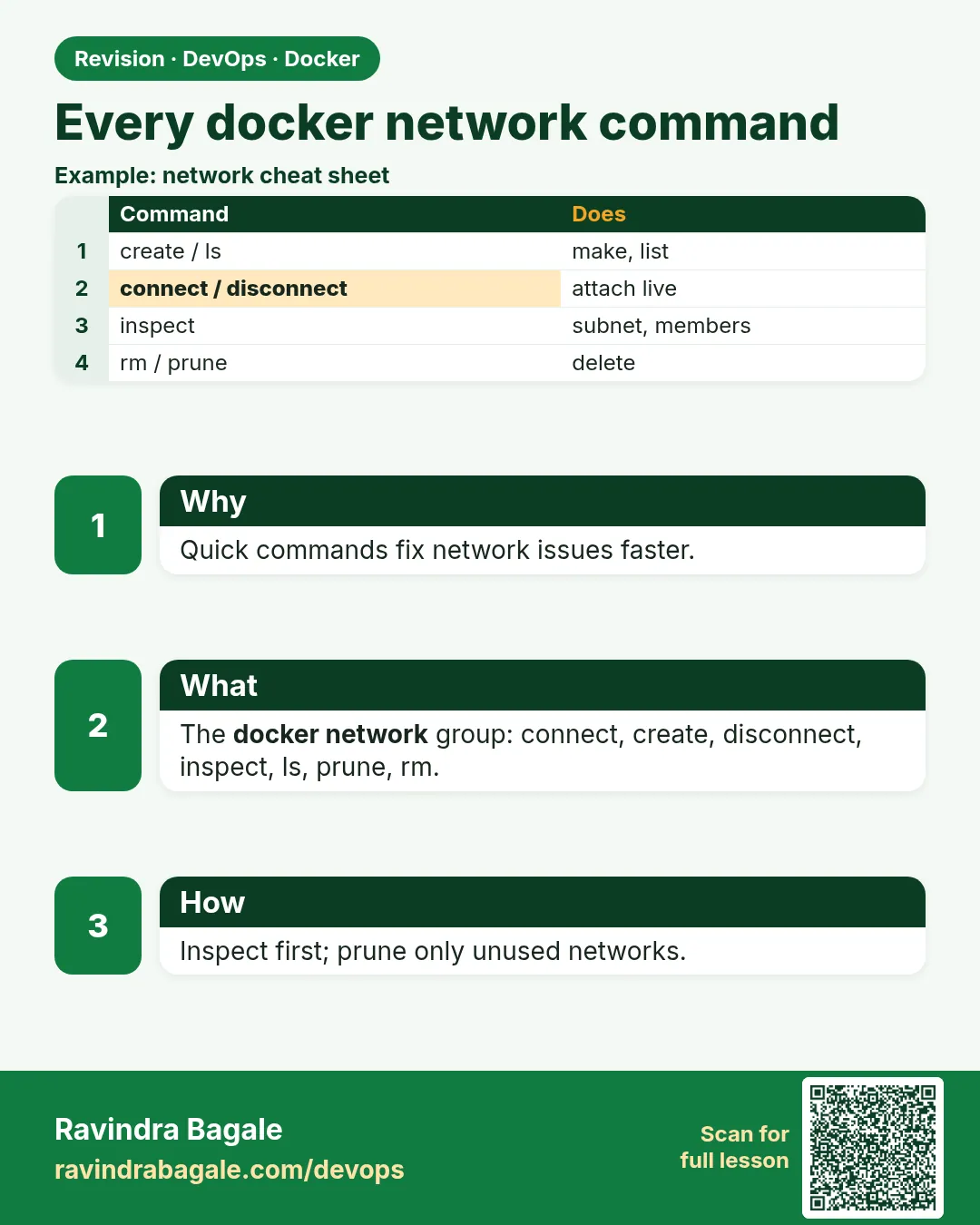
Kiran was nervous. He knew docker run, but networks felt like magic. His lead smiled and said that the whole docker network family has only seven commands: create, ls, inspect, connect, disconnect, rm and prune.
The trick is to learn them in groups. First you create and list. Then you look inside. Then you attach and detach containers. Last you clean up. That is the same order as the life of a network.
Kiran wrote the groups on a sticky note and put it on his monitor. Within a week he was fixing network issues alone. In this lesson we build the same sticky note, and we try every command on a real server.
2. Create and list
Step 1: docker network create
Why: Make your own network so containers find each other by name.
What: The default driver is bridge. You can choose a subnet, a gateway and labels.
Example 1: Simple
Type this:
docker network create shop
You will see:
c1a9f0e2b7d4...
What it means: A new bridge network named shop.
Example 2: With subnet
Type this:
docker network create --subnet 10.20.0.0/24 --gateway 10.20.0.1 billing
You will see:
7b3e1d...
What it means: You decide the IP range.
Example 3: With label
Type this:
docker network create --label team=payments --label env=test paynet
You will see:
4f8a2c...
What it means: Labels help filtering later.
Step 2: docker network create --internal
Why: A network with no way out to the internet.
What: Containers on it can talk to each other but cannot reach outside. Good for databases.
Example 4: Create
Type this:
docker network create --internal dbnet
You will see:
9d2e7a...
What it means: No outside route.
Example 5: Try outside
Type this:
docker run --rm --network dbnet busybox:1.36 ping -c1 -W2 8.8.8.8
You will see:
ping: sendto: Network unreachable
What it means: Blocked, as planned.
Example 6: Inside works
Type this:
docker run -d --name pg --network dbnet -e POSTGRES_PASSWORD=example-only postgres:16
You will see:
a3c1...
What it means: The database lives on the private network.
Step 3: docker network create -d overlay
Why: A network across many servers (Swarm).
What: --attachable lets plain docker run containers join it too.
Example 7: Overlay
Type this:
docker network create -d overlay --attachable mesh
You will see:
q8w2e4r6t1y3...
What it means: A cluster-wide network.
Example 8: Check driver
Type this:
docker network inspect mesh -f '{{.Driver}} {{.Scope}}'
You will see:
overlay swarm
What it means: Scope is swarm, not local.
Example 9: Encrypted
Type this:
docker network create -d overlay --opt encrypted secure-mesh
You will see:
z5x7c9...
What it means: Traffic between nodes is encrypted.
Step 4: docker network ls
Why: See every network on this host.
What: Three built-in networks always exist: bridge, host and none.
Example 10: All
Type this:
docker network ls
You will see:
NETWORK ID     NAME      DRIVER    SCOPE
1f2e3d4c5b6a   bridge    bridge    local
c1a9f0e2b7d4   shop      bridge    local
8e7d6c5b4a39   host      host      local
2b3c4d5e6f70   none      null      local
What it means: Built-in plus our own.
Example 11: Filter driver
Type this:
docker network ls --filter driver=overlay
You will see:
NETWORK ID     NAME   DRIVER    SCOPE
q8w2e4r6t1y3   mesh   overlay   swarm
What it means: Only overlays.
Example 12: Names only
Type this:
docker network ls --format '{{.Name}}' --filter label=env=test
You will see:
paynet
What it means: Good for scripts.
3. Look inside
Step 5: docker network inspect
Why: Show the full details of a network as JSON.
What: Subnet, gateway, driver, options and the containers attached.
Example 13: Subnet
Type this:
docker network inspect billing -f '{{range .IPAM.Config}}{{.Subnet}} {{.Gateway}}{{end}}'
You will see:
10.20.0.0/24 10.20.0.1
What it means: Range and gateway.
Example 14: Members
Type this:
docker network inspect shop -f '{{range .Containers}}{{.Name}}={{.IPv4Address}} {{end}}'
You will see:
web=172.21.0.2/16 api=172.21.0.3/16
What it means: Who is attached, with IPs.
Example 15: Internal?
Type this:
docker network inspect dbnet -f '{{.Internal}}'
You will see:
true
What it means: Confirms no outside route.
Step 6: Inspect from the container side
Why: Sometimes you start from a container, not a network.
What: docker inspect on a container lists all its networks and IPs.
Example 16: Networks of api
Type this:
docker inspect api -f '{{range $k,$v := .NetworkSettings.Networks}}{{$k}} {{end}}'
You will see:
shop
What it means: api is on shop only.
Example 17: IP on shop
Type this:
docker inspect api -f '{{.NetworkSettings.Networks.shop.IPAddress}}'
You will see:
172.21.0.3
What it means: Its address.
Example 18: Aliases
Type this:
docker inspect api -f '{{.NetworkSettings.Networks.shop.Aliases}}'
You will see:
[api 5e1f2a3b4c5d]
What it means: Names other containers can use.
4. Attach and detach
Step 7: docker run --network
Why: Join a network when the container starts.
What: This is the most common way. Add --network-alias for an extra DNS name.
Example 19: Join
Type this:
docker run -d --name api --network shop nginx:1.27
You will see:
5e1f...
What it means: api is on shop.
Example 20: Alias
Type this:
docker run -d --name api2 --network shop --network-alias backend nginx:1.27
You will see:
6a2b...
What it means: Others can call it backend.
Example 21: Test name
Type this:
docker run --rm --network shop busybox:1.36 nslookup backend | tail -1
You will see:
Address: 172.21.0.4
What it means: The alias resolves.
Step 8: docker network connect
Why: Attach a running container to another network.
What: No restart is needed. A container can be on many networks.
Example 22: Connect
Type this:
docker network connect billing api
You will see:
(no output)
What it means: api is now on two networks.
Example 23: Fixed IP
Type this:
docker network connect --ip 10.20.0.50 billing worker
You will see:
(no output)
What it means: Only works on networks with a --subnet.
Example 24: Check
Type this:
docker inspect api -f '{{range $k,$v := .NetworkSettings.Networks}}{{$k}} {{end}}'
You will see:
billing shop
What it means: Both listed.
Step 9: docker network disconnect
Why: Detach a container from a network.
What: Use it to isolate a container while you investigate.
Example 25: Detach
Type this:
docker network disconnect billing api
You will see:
(no output)
What it means: api leaves billing.
Example 26: Force
Type this:
docker network disconnect -f shop old-api
You will see:
(no output)
What it means: For a container stuck in a bad state.
Example 27: Verify
Type this:
docker exec api ping -c1 -W2 worker
You will see:
ping: bad address 'worker'
What it means: No longer reachable.
5. Clean up
Step 10: docker network rm
Why: Remove one or more networks.
What: A network with containers attached cannot be removed.
Example 28: Remove
Type this:
docker network rm paynet
You will see:
paynet
What it means: Gone.
Example 29: Still in use
Type this:
docker network rm shop
You will see:
Error response from daemon: error while removing network: network shop id c1a9 has active endpoints
What it means: Detach first.
Example 30: Many
Type this:
docker network rm billing dbnet
You will see:
billing
dbnet
What it means: Several in one line.
Step 11: docker network prune
Why: Remove all networks that no container uses.
What: Built-in networks are never removed. Use filters on shared servers.
Example 31: Prune
Type this:
docker network prune -f
You will see:
Deleted Networks:
testnet1
testnet2
What it means: Unused ones removed.
Example 32: Old only
Type this:
docker network prune -f --filter until=24h
You will see:
Deleted Networks:
ci-run-881
What it means: Only older than a day.
Example 33: By label
Type this:
docker network prune -f --filter label=env=test
You will see:
Deleted Networks:
paynet
What it means: Only test networks.
Step 12: Daemon defaults
Why: Change the default address pools for new networks.
What: Useful when Docker's 172.x ranges clash with the office VPN.
Example 34: Write config
Type this:
printf '{"default-address-pools":[{"base":"10.200.0.0/16","size":24}]}' | sudo tee /etc/docker/daemon.json
You will see:
{"default-address-pools":[{"base":"10.200.0.0/16","size":24}]}
What it means: New networks will use 10.200.x.0/24.
Example 35: Restart
Type this:
sudo systemctl restart docker
You will see:
(no output)
What it means: Daemon reloads the setting.
Example 36: Check
Type this:
docker network create t1 && docker network inspect t1 -f '{{range .IPAM.Config}}{{.Subnet}}{{end}}'
You will see:
10.200.1.0/24
What it means: No more VPN clash.
Step 13: --help and short forms
Why: Never memorise flags; ask Docker.
What: Every subcommand has its own help page.
Example 37: Family help
Type this:
docker network --help | tail -9
You will see:
Commands:
  connect     Connect a container to a network
  create      Create a network
  disconnect  Disconnect a container from a network
  inspect     Display detailed information on one or more networks
  ls          List networks
  prune       Remove all unused networks
  rm          Remove one or more networks
What it means: All seven in one view.
Example 38: Create help
Type this:
docker network create --help | grep -c -- '--'
You will see:
22
What it means: Many options, read when needed.
Example 39: Alias
Type this:
docker network list
You will see:
NETWORK ID     NAME      DRIVER    SCOPE
...
What it means: list works the same as ls.
6. Common mistakes and how Kiran avoids them
Mistake one: using the default bridge network for an app. On the default bridge, containers cannot find each other by name; only IPs work, and IPs change after a restart. Kiran always creates a user network first, even for a two-container test.
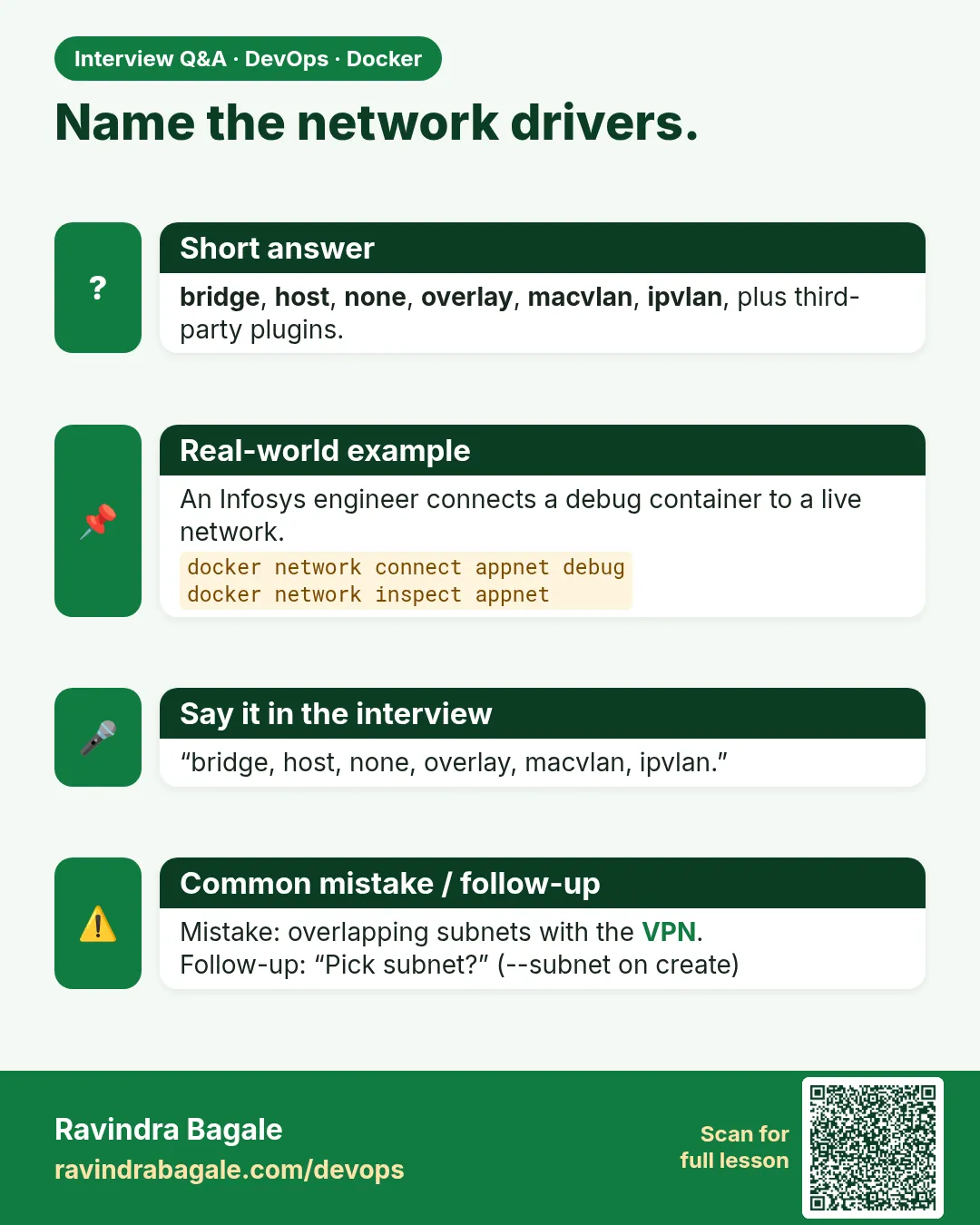
Mistake two: choosing a subnet without asking. If you pick 10.0.0.0/16 and the office VPN uses the same range, laptops lose access to the server the moment the network is created. Kiran asks the network team for a free range and writes it in the runbook.
Mistake three: running docker network prune on a shared server without a filter. A network that looks unused might belong to a stack that is stopped for maintenance tonight. When the stack starts, it fails because its network is gone. Kiran always adds a label filter or an until filter.
Mistake four: forgetting that connect and disconnect are live. Disconnecting a production container from its database network cuts traffic at once. Kiran does it only on test servers, or after telling the team in the incident channel.
Mistake five: reading the whole inspect JSON by eye. It is long and easy to misread. Kiran uses -f with a small Go template so that one question gives one clear answer, the same way we did in every example above.
Write these five mistakes on the back of your sticky note. Read them once before every change on a shared server, and you will avoid most network incidents that freshers cause.
Check yourself
Q1. Which command attaches a running container to a network?
docker network connect.
Q2. Why can docker network rm fail?
Containers are still attached.
Q3. What does --internal do?
Blocks any route to the outside.
Q4. How do you remove only test networks?
docker network prune --filter label=env=test.
Friends, remember the sticky note: create and ls, inspect, connect and disconnect, rm and prune. Did you understand? Let us try it once more. Keep this page open and look after one test server like Kiran.
मित्रांनो, sticky note लक्षात ठेवा: create आणि ls, inspect, connect आणि disconnect, rm आणि prune. समजलं का? चला, पुन्हा एकदा करून पाहू. हे page उघडं ठेवून Kiran सारखा एक test server सांभाळा.
दोस्तों, sticky note याद रखिए: create और ls, inspect, connect और disconnect, rm और prune. समझ आया? चलिए, एक बार फिर करके देखते हैं। यह page खुला रखकर Kiran की तरह एक test server सँभालिए.
Ravindra Bagale's Tip
Give every network you create a label such as env and team. Cleanup then becomes one safe prune command.
तुम्ही बनवलेल्या प्रत्येक network ला env आणि team सारखं label द्या. मग साफसफाई म्हणजे एकच सुरक्षित prune command.
आप जो भी network बनाएँ उसे env और team जैसा label दीजिए. फिर सफ़ाई एक ही सुरक्षित prune command बन जाती है.
Lab: try at home
- Create shop, billing and dbnet with labels.
- Run api on shop and connect it to billing.
- Inspect both networks and write down the IPs.
- Disconnect api from billing and test with ping.
- Try to rm shop while api runs and read the error.
- Prune only env=test networks.
Recap
- Seven commands: create, ls, inspect, connect, disconnect, rm, prune.
- --internal blocks outside access.
- connect and disconnect work live.
- rm fails while containers are attached.
- Use labels and filters for safe cleanup.
- default-address-pools fixes VPN clashes.
 Revision card
 Interview card