51.5 macvlan and ipvlan: containers on the real LAN
Friends, sometimes a container needs its own real IP on the office LAN, like a printer or a laptop has. macvlan and ipvlan do that. Today we do it calmly, step by step.
मित्रांनो, कधी container ला office च्या LAN वर स्वतःचा खरा IP हवा असतो, जसा एखाद्या printer किंवा laptop ला असतो. ते काम macvlan आणि ipvlan करतात. आज ते शांतपणे, step by step करू.
दोस्तों, कभी container को office के LAN पर अपना असली IP चाहिए होता है, जैसे किसी printer या laptop का होता है. यह काम macvlan और ipvlan करते हैं. आज इसे आराम से, step by step करेंगे.
1. Start from a story
Meera manages servers at an Infosys office in Pune. An old billing tool must sit on the office LAN with its own IP, 192.168.1.50, because the accounts team's machines and a licence checker only talk to that IP.
The tool now runs in a container. With a normal bridge, it hides behind the server's IP and needs port mapping. The old clients cannot work with that.
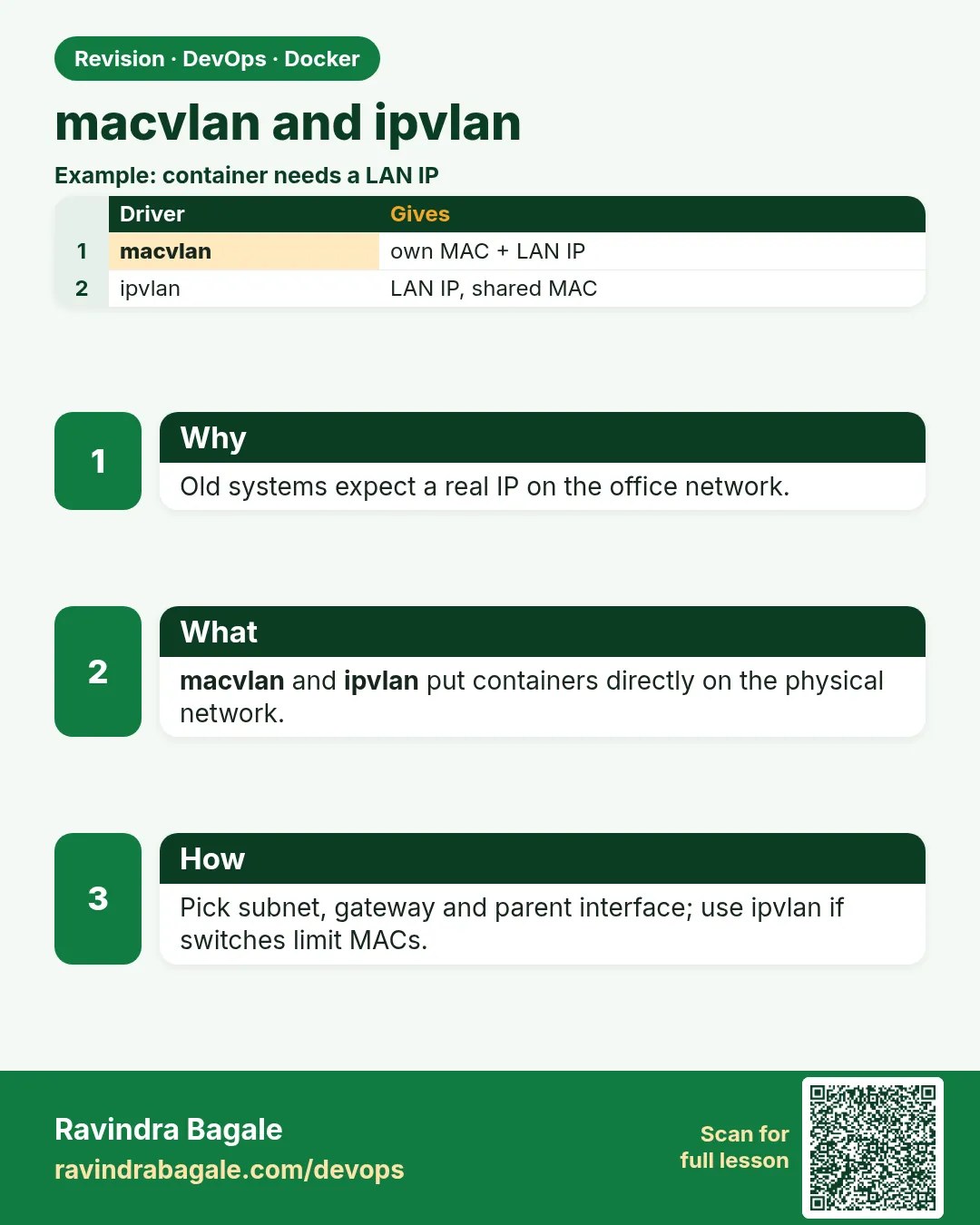
macvlan gives the container its own MAC address and its own IP on the real LAN. To the office network it looks like one more physical machine plugged into the switch.
Think of a building where each flat gets its own postal address on the main road, instead of everyone sharing the building's address. The postman delivers straight to the flat. That is macvlan.
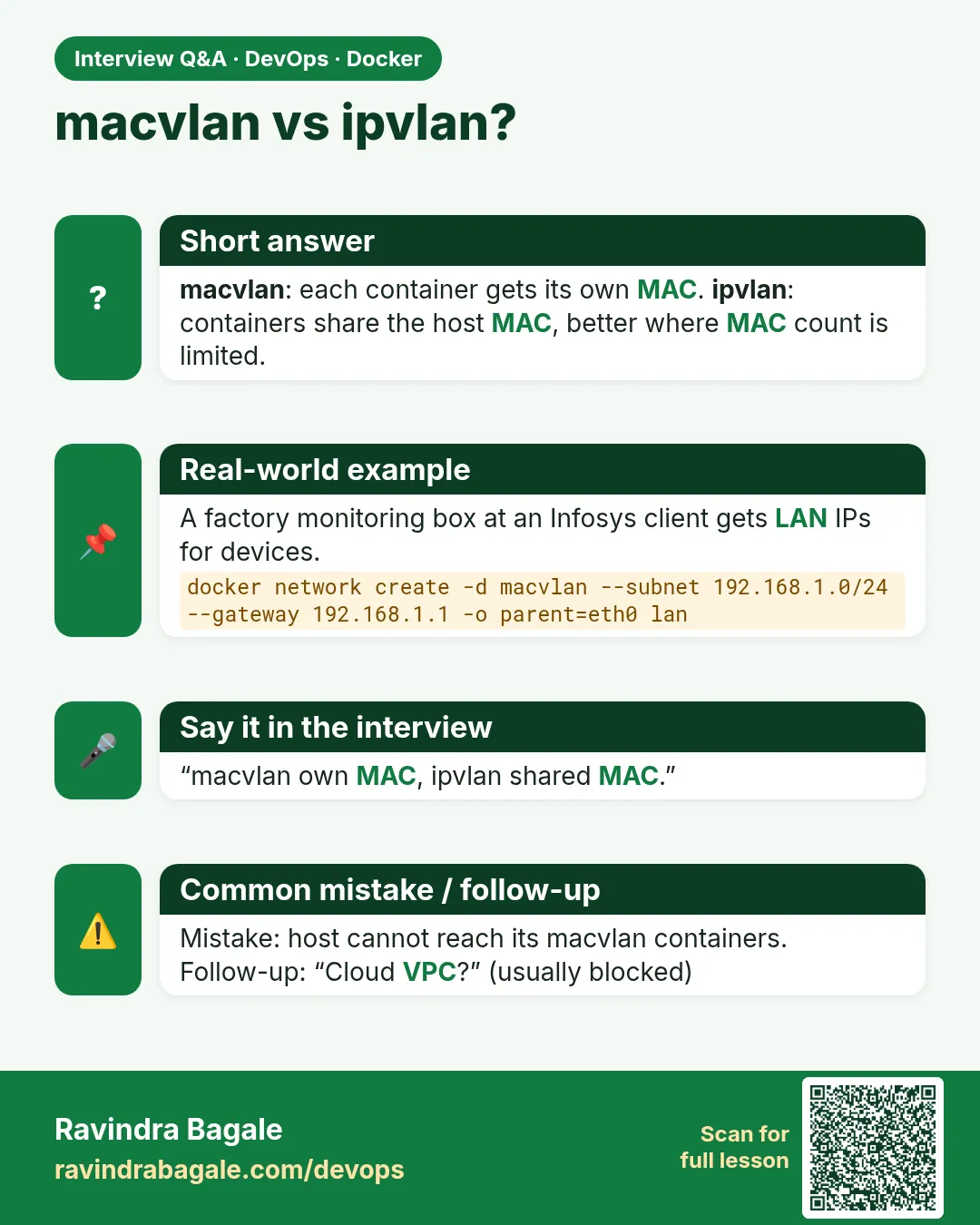
ipvlan is a close cousin. Containers get their own IPs but share the server's MAC address. Some networks, like many cloud VPCs and Wi-Fi, block extra MAC addresses, and ipvlan helps there.
These drivers need Linux and a wired LAN card. They usually do not work on Docker Desktop, and AWS VPCs block macvlan by default.
2. Know your LAN first
Step 1: Find the parent card and subnet
Why: macvlan sits on a real network card, called the parent.
What: You need the card name, the subnet, the gateway and a range of free IPs that the office DHCP will not hand out.
Example 1: Card and IP
Type this:
ip -o -4 addr show | grep -v ' lo '
You will see:
2: eth0 inet 192.168.1.10/24 brd 192.168.1.255 scope global eth0
What it means: Parent is eth0, subnet 192.168.1.0/24.
Example 2: Gateway
Type this:
ip route | grep default
You will see:
default via 192.168.1.1 dev eth0
What it means: Gateway 192.168.1.1.
Example 3: Agree a free range
Type this:
echo 'IT reserved 192.168.1.48 - 192.168.1.63 for containers'
You will see:
IT reserved 192.168.1.48 - 192.168.1.63 for containers
What it means: Never guess. Ask the network team, or you will clash with laptops.
Step 2: Promiscuous mode
Why: Some switches and VMs drop frames for unknown MACs.
What: On VMware or VirtualBox, the virtual card must allow promiscuous mode for macvlan. On a real switch with port security, extra MACs may be blocked.
Example 4: Turn it on in Linux
Type this:
sudo ip link set eth0 promisc on
You will see:
(no output)
What it means: Lets the card accept frames for the container MACs.
Example 5: Check
Type this:
ip link show eth0 | grep -o PROMISC
You will see:
PROMISC
What it means: Enabled.
Example 6: Cloud check
Type this:
echo 'AWS VPC: macvlan blocked; use ipvlan or the VPC CNI instead'
You will see:
AWS VPC: macvlan blocked; use ipvlan or the VPC CNI instead
What it means: Know the limit before trying.
3. macvlan bridge mode
Step 3: Create a macvlan network
Why: One command builds it.
What: Driver macvlan, the same subnet and gateway as the LAN, an ip-range for containers and -o parent=eth0.
Example 7: Create
Type this:
docker network create -d macvlan --subnet 192.168.1.0/24 --gateway 192.168.1.1 --ip-range 192.168.1.48/28 -o parent=eth0 officelan
You will see:
b7c3...
What it means: Containers will get .48 to .63.
Example 8: Inspect
Type this:
docker network inspect officelan -f '{{.Driver}} {{.Options.parent}}'
You will see:
macvlan eth0
What it means: Driver and parent.
Example 9: Range
Type this:
docker network inspect officelan -f '{{(index .IPAM.Config 0).IPRange}}'
You will see:
192.168.1.48/28
What it means: Matches what IT reserved.
Step 4: Run the billing container
Why: Give it the fixed IP the clients expect.
What: Pass --network officelan and --ip. The app listens on its normal port; no -p.
Example 10: Run
Type this:
docker run -d --name billing --network officelan --ip 192.168.1.50 nginx:1.27
You will see:
4a9d...
What it means: Own IP on the LAN.
Example 11: Its MAC
Type this:
docker inspect billing -f '{{range .NetworkSettings.Networks}}{{.MacAddress}}{{end}}'
You will see:
02:42:c0:a8:01:32
What it means: A unique MAC built from the IP.
Example 12: From an office PC
Type this:
curl -s -o /dev/null -w '%{http_code}\n' http://192.168.1.50
You will see:
200
What it means: The accounts PC reaches it like any machine.
Step 5: The host cannot reach its own macvlan containers
Why: Everyone hits this and thinks it is broken.
What: By Linux design, the parent card cannot talk to its macvlan children. Other machines can; the host itself cannot.
Example 13: From the host
Type this:
curl -s -m 3 http://192.168.1.50 || echo unreachable
You will see:
unreachable
What it means: Expected.
Example 14: Add a shim on the host
Type this:
sudo ip link add mvshim link eth0 type macvlan mode bridge && sudo ip addr add 192.168.1.62/32 dev mvshim && sudo ip link set mvshim up && sudo ip route add 192.168.1.48/28 dev mvshim
You will see:
(no output)
What it means: A small macvlan card for the host itself, using a reserved IP.
Example 15: Try again
Type this:
curl -s -o /dev/null -w '%{http_code}\n' http://192.168.1.50
You will see:
200
What it means: The host now talks through the shim.
Step 6: Several containers on the LAN
Why: Each gets its own address.
What: Without --ip, Docker picks the next free one from the ip-range.
Example 16: Auto IP
Type this:
docker run -d --name printer-svc --network officelan nginx:1.27 && docker inspect printer-svc -f '{{range .NetworkSettings.Networks}}{{.IPAddress}}{{end}}'
You will see:
192.168.1.48
What it means: First free in the range.
Example 17: Another
Type this:
docker run -d --name scan-svc --network officelan nginx:1.27 && docker inspect scan-svc -f '{{range .NetworkSettings.Networks}}{{.IPAddress}}{{end}}'
You will see:
192.168.1.49
What it means: Next one.
Example 18: They talk by name
Type this:
docker run --rm --network officelan busybox:1.36 ping -c1 billing | head -1
You will see:
PING billing (192.168.1.50): 56 data bytes
What it means: Docker DNS still works on macvlan.
4. VLANs and ipvlan
Step 7: macvlan on a VLAN
Why: Offices split networks into VLANs, like VLAN 20 for finance.
What: Use parent=eth0.20. Docker creates the VLAN sub-card for you.
Example 19: Create
Type this:
docker network create -d macvlan --subnet 10.20.0.0/24 --gateway 10.20.0.1 -o parent=eth0.20 finance
You will see:
e1f0...
What it means: Tagged VLAN 20.
Example 20: Sub-card exists
Type this:
ip -d link show eth0.20 | grep -o 'vlan protocol 802.1Q id 20'
You will see:
vlan protocol 802.1Q id 20
What it means: Made automatically.
Example 21: Run
Type this:
docker run -d --name ledger --network finance --ip 10.20.0.30 nginx:1.27
You will see:
7b2e...
What it means: Only the finance VLAN sees it.
Step 8: ipvlan L2
Why: When extra MACs are blocked.
What: All containers share the parent's MAC but get their own IPs on the same subnet. Works where port security or cloud rules allow one MAC per port.
Example 22: Create
Type this:
docker network create -d ipvlan --subnet 192.168.1.0/24 --gateway 192.168.1.1 --ip-range 192.168.1.64/28 -o parent=eth0 -o ipvlan_mode=l2 lan2
You will see:
a3c1...
What it means: L2 is the default mode.
Example 23: Run
Type this:
docker run -d --name legacy --network lan2 --ip 192.168.1.66 nginx:1.27
You will see:
9f1d...
What it means: Own IP.
Example 24: Same MAC as host
Type this:
docker exec legacy cat /sys/class/net/eth0/address; cat /sys/class/net/eth0/address
You will see:
0a:1b:2c:3d:4e:5f
0a:1b:2c:3d:4e:5f
What it means: Container and host share one MAC.
Step 9: ipvlan L3
Why: For routed setups with many subnets.
What: In L3 mode the host acts as a router. No broadcast, no gateway option; the upstream router needs a route to the container subnet through the host.
Example 25: Create
Type this:
docker network create -d ipvlan --subnet 10.50.0.0/24 -o parent=eth0 -o ipvlan_mode=l3 routed
You will see:
c6e2...
What it means: No --gateway in L3.
Example 26: Run
Type this:
docker run -d --name r1 --network routed --ip 10.50.0.10 nginx:1.27
You will see:
2d8a...
What it means: IP from a separate subnet.
Example 27: Router side
Type this:
echo 'ip route 10.50.0.0/24 via 192.168.1.10'
You will see:
ip route 10.50.0.0/24 via 192.168.1.10
What it means: Ask the network team to add this on the office router.
5. Check and clean
Step 10: Troubleshoot
Why: Most failures are IP clashes or blocked MACs.
What: Check the range, check for duplicates with arping, and check the switch.
Example 28: Duplicate check
Type this:
sudo arping -D -I eth0 -c2 192.168.1.50; echo exit $?
You will see:
exit 1
What it means: Exit 1 means someone answered: the IP is in use. Exit 0 means it is free.
Example 29: Container logs
Type this:
docker logs billing 2>&1 | tail -1
You will see:
192.168.1.21 - - [25/Oct/2026:05:10:01 +0000] "GET / HTTP/1.1" 200
What it means: Requests are arriving from an office PC. The time is UTC, which is 10:40 AM IST.
Example 30: Watch traffic
Type this:
sudo tcpdump -ni eth0 host 192.168.1.50 -c 2
You will see:
2 packets captured
What it means: Traffic reaches the parent card.
Step 11: Remove everything
Why: Free the IPs for others.
What: Remove containers, networks and the host shim.
Example 31: Containers
Type this:
docker rm -f billing printer-svc scan-svc ledger legacy r1
You will see:
billing
printer-svc
scan-svc
ledger
legacy
r1
What it means: All gone.
Example 32: Networks
Type this:
docker network rm officelan finance lan2 routed
You will see:
officelan
finance
lan2
routed
What it means: eth0.20 is removed with finance.
Example 33: Shim
Type this:
sudo ip link del mvshim
You will see:
(no output)
What it means: Host back to normal.
Step 12: macvlan in Compose
Why: Teams keep this setup in a file so it is repeatable.
What: Declare the network with driver macvlan, driver_opts parent and an ipam config. Give the service an ipv4_address.
Example 34: Write it
Type this:
printf 'services:\n billing:\n image: nginx:1.27\n networks:\n lan:\n ipv4_address: 192.168.1.51\nnetworks:\n lan:\n driver: macvlan\n driver_opts:\n parent: eth0\n ipam:\n config:\n - subnet: 192.168.1.0/24\n gateway: 192.168.1.1\n ip_range: 192.168.1.48/28\n' > compose.yaml
You will see:
(no output)
What it means: Everything from the command line, now in one file.
Example 35: Start
Type this:
docker compose up -d
You will see:
Network demo_lan  Created
Container demo-billing-1  Started
What it means: Compose made the macvlan network.
Example 36: Check IP
Type this:
docker inspect demo-billing-1 -f '{{range .NetworkSettings.Networks}}{{.IPAddress}}{{end}}'
You will see:
192.168.1.51
What it means: As written. Run docker compose down afterwards.
Step 13: Bridge vs macvlan: decide
Why: Do not pick macvlan just because it sounds advanced.
What: Use bridge with -p for almost every web app. Use macvlan only when old clients or licences need a real LAN IP, or when the app must receive LAN broadcasts.
Example 37: Web API
Type this:
echo 'bridge + -p 8080:80'
You will see:
bridge + -p 8080:80
What it means: Simple and portable.
Example 38: Old billing tool needing .50
Type this:
echo 'macvlan with --ip 192.168.1.50'
You will see:
macvlan with --ip 192.168.1.50
What it means: Real LAN identity.
Example 39: Cloud VM
Type this:
echo 'bridge or ipvlan; not macvlan'
You will see:
bridge or ipvlan; not macvlan
What it means: Cloud networks drop unknown MACs.
Check yourself
Q1. What does macvlan give a container?
Its own IP and MAC on the real LAN.
Q2. Why can't the host reach its macvlan containers?
Linux blocks parent-to-child traffic; add a host shim.
Q3. When pick ipvlan over macvlan?
When the network allows only one MAC per port, like many clouds.
Q4. How do you put containers on VLAN 20?
parent=eth0.20.
Q5. Why ask IT for an ip-range?
To avoid clashing with DHCP and other devices.
Friends, macvlan gives a container its own address on the LAN. Did you understand? Let us try it once more. Always get the IP range from the network team; do not guess.
मित्रांनो, macvlan म्हणजे container ला LAN वर स्वतःचा पत्ता. समजलं का? चला, पुन्हा एकदा करून पाहू. IP range नेहमी network team कडून घ्या, अंदाज लावू नका.
दोस्तों, macvlan मतलब container का LAN पर अपना पता. समझ आया? चलिए, एक बार फिर करके देखते हैं। IP range हमेशा network team से लीजिए, अंदाज़ा मत लगाइए.
Ravindra Bagale's Tip
If the host cannot see the container, do not worry; that is normal. Create an mvshim card.
Host वरून container दिसत नसेल तर घाबरू नका, ते normal आहे. mvshim card बनवा.
Host से container न दिखे तो घबराइए मत, यह normal है. mvshim card बनाइए.
Lab: try at home
- Find your parent card, subnet and gateway.
- Create a macvlan with a small ip-range.
- Run nginx with a fixed IP and open it from another machine.
- Add a host shim and reach it from the host.
- Create an ipvlan L2 network and compare MAC addresses.
- Remove all containers, networks and the shim.
Recap
- macvlan puts containers on the LAN with their own MAC and IP.
- Reserve an ip-range with the network team.
- The host needs a shim to reach its macvlan containers.
- parent=eth0.ID handles VLANs.
- ipvlan shares the host MAC; L3 mode routes.
- Check clashes with arping and traffic with tcpdump.
 Revision card
 Interview card