51.6 Troubleshoot container networking
Friends, an alert comes at 2 AM: the API cannot reach Redis. Do not sit guessing. Today we learn a fixed order: name, IP, port, firewall. For each step, one command, and we learn to read its output.
मित्रांनो, रात्री 2 वाजता alert येतो: API Redis ला पोचत नाही. अंदाज लावत बसायचं नाही. आज एक ठरावीक क्रम शिकू: नाव, IP, port, firewall. प्रत्येक step ला एक command आणि त्याचा output वाचायला शिकू.
दोस्तों, रात 2 बजे alert आता है: API Redis तक नहीं पहुँच रहा. अंदाज़े मत लगाइए. आज एक तय क्रम सीखेंगे: नाम, IP, port, firewall. हर step पर एक command, और उसका output पढ़ना सीखेंगे.
1. Start from a story
Sana is on Instagram's on-call rota. At 2 AM her phone rings. The alert says: API cannot reach Redis, users see errors when they like a reel.
A new engineer would restart everything and hope. Sana follows a fixed routine. Is the container running? Does the name resolve? Can it reach the IP? Is the port open? Is something blocking it?
Think of a doctor. She does not guess. She checks pulse, then temperature, then blood test, in order. Each check rules out a cause. Networking problems are the same.
Many images, like Redis and distroless apps, have no ping or curl inside. So we also learn the netshoot trick: start a toolbox container that shares the broken container's network.
In this lesson we build a broken setup on purpose and fix it step by step.
2. Build the broken lab
Step 1: Set up the problem
Why: Practise on a safe copy first.
What: We put api on one network and redis on another, so they cannot see each other.
Example 1: Networks
Type this:
docker network create front && docker network create back
You will see:
3a1f...
8c2d...
What it means: Two separate bridges.
Example 2: Redis on back
Type this:
docker run -d --name redis --network back redis:7
You will see:
5e9b...
What it means: Redis is only on back.
Example 3: API on front
Type this:
docker run -d --name api --network front -e REDIS_HOST=redis busybox:1.36 sleep 3600
You will see:
b2c7...
What it means: The API looks for redis.
3. The checks
Step 2: Check 1: is it running?
Why: A stopped container is the easiest cause.
What: docker ps shows state. docker logs shows why something crashed.
Example 4: State
Type this:
docker ps -a --format '{{.Names}} {{.Status}}' | grep -E 'api|redis'
You will see:
redis Up 2 minutes
api Up 2 minutes
What it means: Both are up.
Example 5: Logs
Type this:
docker logs --tail 3 redis
You will see:
* Ready to accept connections tcp
What it means: Redis is happy.
Example 6: Restart count
Type this:
docker inspect redis -f '{{.RestartCount}}'
You will see:
0
What it means: No crash loop.
Step 3: Check 2: same network?
Why: Containers on different user networks cannot talk.
What: List each container's networks and compare.
Example 7: API networks
Type this:
docker inspect api -f '{{range $k,$v := .NetworkSettings.Networks}}{{$k}} {{end}}'
You will see:
front
What it means: Only front.
Example 8: Redis networks
Type this:
docker inspect redis -f '{{range $k,$v := .NetworkSettings.Networks}}{{$k}} {{end}}'
You will see:
back
What it means: Only back. Found the problem.
Example 9: Who is on back
Type this:
docker network inspect back -f '{{range .Containers}}{{.Name}} {{end}}'
You will see:
redis
What it means: api is missing.
Step 4: Check 3: does the name resolve?
Why: Even before fixing, confirm the symptom.
What: Use nslookup from inside the caller.
Example 10: From api
Type this:
docker exec api nslookup redis
You will see:
** server can't find redis: NXDOMAIN
What it means: Name unknown on front.
Example 11: Docker DNS alive?
Type this:
docker exec api nslookup api
You will see:
Name:      api
Address:   172.19.0.2
What it means: DNS works; only redis is missing.
Example 12: Resolver
Type this:
docker exec api cat /etc/resolv.conf | head -1
You will see:
nameserver 127.0.0.11
What it means: Correct embedded DNS.
Step 5: Fix: connect the network
Why: Join api to back.
What: docker network connect, live, no restart.
Example 13: Connect
Type this:
docker network connect back api
You will see:
(no output)
What it means: api is now on both.
Example 14: Resolve again
Type this:
docker exec api nslookup redis | tail -1
You will see:
Address: 172.20.0.2
What it means: Found.
Example 15: Ping
Type this:
docker exec api ping -c1 redis | tail -1
You will see:
round-trip min/avg/max = 0.08/0.08/0.08 ms
What it means: IP reachable.
Step 6: Check 4: is the port open?
Why: Name and ping work but the app still fails? Check the port.
What: nc -zv tests a TCP port without sending data.
Example 16: Redis port
Type this:
docker exec api nc -zv redis 6379
You will see:
redis (172.20.0.2:6379) open
What it means: Port open.
Example 17: Wrong port
Type this:
docker exec api nc -zv -w2 redis 6380
You will see:
nc: redis (172.20.0.2:6380): Connection refused
What it means: Refused means the host answered but nothing listens there. Check the config.
Example 18: Timeout vs refused
Type this:
docker exec api nc -zv -w2 10.9.9.9 6379
You will see:
nc: 10.9.9.9 (10.9.9.9:6379): Operation timed out
What it means: Timeout means something drops packets: a firewall or no route.
4. Tools for images without tools
Step 7: netshoot: a toolbox container
Why: Redis and distroless images have no curl, dig or tcpdump.
What: nicolaka/netshoot is an image full of network tools. Run it inside the target container's network with --network container:NAME.
Example 19: Join redis's network
Type this:
docker run --rm --network container:redis nicolaka/netshoot ss -tlnp
You will see:
State  Local Address:Port
LISTEN 0.0.0.0:6379
What it means: Redis listens on all addresses.
Example 20: dig
Type this:
docker run --rm --network back nicolaka/netshoot dig +short redis
You will see:
172.20.0.2
What it means: Same as nslookup, shorter.
Example 21: curl an HTTP app
Type this:
docker run -d --name web --network back nginx:1.27 && docker run --rm --network back nicolaka/netshoot curl -s -o /dev/null -w '%{http_code}\n' http://web
You will see:
200
What it means: curl without installing anything in web.
Step 8: Check 5: what does the app listen on?
Why: A classic: app bound to 127.0.0.1 inside.
What: If ss shows 127.0.0.1:PORT, other containers cannot reach it. It must be 0.0.0.0.
Example 22: Broken app
Type this:
docker run -d --name py --network back python:3.12-slim python -m http.server 8000 --bind 127.0.0.1
You will see:
6f0a...
What it means: Bound to localhost inside.
Example 23: See it
Type this:
docker run --rm --network container:py nicolaka/netshoot ss -tln | grep 8000
You will see:
LISTEN 0 5 127.0.0.1:8000 0.0.0.0:*
What it means: Wrong address.
Example 24: From a neighbour
Type this:
docker exec api nc -zv -w2 py 8000
You will see:
nc: py (172.20.0.5:8000): Connection refused
What it means: Fix: bind to 0.0.0.0 and restart.
Step 9: tcpdump: see the packets
Why: When everything looks right but fails, look at the wire.
What: Capture on the container's network from netshoot.
Example 25: Capture
Type this:
docker run --rm --network container:redis nicolaka/netshoot tcpdump -ni eth0 port 6379 -c 4
You will see:
4 packets captured
What it means: Run a client in another terminal while this waits.
Example 26: Client
Type this:
docker exec api sh -c 'printf "PING\r\n" | nc -w1 redis 6379'
You will see:
+PONG
What it means: The packets showed a request and a reply.
Example 27: No packets?
Type this:
echo 'traffic never arrives: wrong network, firewall or wrong IP'
You will see:
traffic never arrives: wrong network, firewall or wrong IP
What it means: Zero packets points to routing, not the app.
5. Host-side checks
Step 10: Host firewall and iptables
Why: Sometimes the block is on the server.
What: Docker manages iptables. Custom rules belong in the DOCKER-USER chain. Check it when outside traffic fails.
Example 28: DOCKER-USER
Type this:
sudo iptables -L DOCKER-USER -n --line-numbers
You will see:
Chain DOCKER-USER (1 references)
num  target  prot opt source  destination
1    DROP    tcp  --  0.0.0.0/0 0.0.0.0/0 tcp dpt:8080
2    RETURN  all  --  0.0.0.0/0 0.0.0.0/0
What it means: Rule 1 drops 8080.
Example 29: Remove it
Type this:
sudo iptables -D DOCKER-USER 1
You will see:
(no output)
What it means: Only if you are sure it is a mistake.
Example 30: Forwarding on?
Type this:
sysctl net.ipv4.ip_forward
You will see:
net.ipv4.ip_forward = 1
What it means: Must be 1 for containers to reach outside.
Step 11: DNS to the outside
Why: Container cannot resolve example.com but the host can.
What: Containers copy the host's DNS unless the host uses 127.0.0.53. Set DNS per container or in daemon.json.
Example 31: Test
Type this:
docker run --rm busybox:1.36 nslookup example.com
You will see:
nslookup: can't resolve 'example.com'
What it means: Outside DNS broken.
Example 32: Per container
Type this:
docker run --rm --dns 1.1.1.1 busybox:1.36 nslookup example.com | tail -1
You will see:
Address: 93.184.215.14
What it means: Works with a public resolver.
Example 33: For all containers
Type this:
printf '{\n "dns": ["10.0.0.2", "1.1.1.1"]\n}\n' | sudo tee /etc/docker/daemon.json && sudo systemctl restart docker
You will see:
{
  "dns": ["10.0.0.2", "1.1.1.1"]
}
What it means: 10.0.0.2 here is the VPC resolver. Restart applies it.
Step 12: Clean the lab
Why: Leave the server tidy after the drill.
What: Remove containers and networks you created.
Example 34: Containers
Type this:
docker rm -f api redis web py
You will see:
api
redis
web
py
What it means: Gone.
Example 35: Networks
Type this:
docker network rm front back
You will see:
front
back
What it means: Gone.
Example 36: Write the runbook
Type this:
printf 'ps -> inspect networks -> nslookup -> ping -> nc -zv -> ss -tln\n' > runbook.txt && cat runbook.txt
You will see:
ps -> inspect networks -> nslookup -> ping -> nc -zv -> ss -tln
What it means: Keep it near your pager.
Step 13: Users outside cannot reach a published port
Why: A different ticket: the page will not open from a laptop.
What: Walk the path from outside in: is the port published, does the host listen, does curl work on the host, is the cloud firewall open.
Example 37: Published?
Type this:
docker port web
You will see:
(no output)
What it means: web was started without -p. Recreate it with -p 8080:80.
Example 38: Host listening?
Type this:
docker rm -f web && docker run -d --name web --network back -p 8080:80 nginx:1.27 && sudo ss -tln | grep 8080
You will see:
LISTEN 0 4096 0.0.0.0:8080 0.0.0.0:*
What it means: Now the host has the door open.
Example 39: On the host
Type this:
curl -s -o /dev/null -w '%{http_code}\n' http://localhost:8080
You will see:
200
What it means: Works on the host. If a laptop still times out, open 8080 in the security group.
Step 14: Compose projects
Why: Most real apps run under Compose, so debug the Compose way.
What: Compose names containers project-service-N and the network project_default. Use docker compose ps, logs and exec.
Example 40: Status
Type this:
docker compose ps --format '{{.Service}} {{.State}}'
You will see:
api running
redis exited
What it means: redis exited. That is the real problem.
Example 41: Why
Type this:
docker compose logs --tail 2 redis
You will see:
redis-1 | Fatal error, can't open config file '/etc/redis.conf': No such file or directory
What it means: A missing config file, not the network.
Example 42: Test from inside
Type this:
docker compose exec api nc -zv redis 6379
You will see:
redis (172.21.0.3:6379) open
What it means: After fixing the file and running up -d, the port is open.
Check yourself
Q1. Name not found from one container to another. First suspect?
They are on different networks.
Q2. What does Connection refused tell you?
The host answered but nothing listens on that port.
Q3. What does a timeout tell you?
Packets are dropped: firewall or no route.
Q4. How do you debug an image without curl?
Run netshoot with --network container:NAME.
Q5. Where do custom firewall rules for Docker go?
The DOCKER-USER chain.
Friends, read the error message carefully: not found, refused and timeout are three different illnesses. Did you understand? Let us try it once more. Do not skip the order; check one thing at a time.
मित्रांनो, error message नीट वाचा: not found, refused, timeout हे तीन वेगळे आजार आहेत. समजलं का? चला, पुन्हा एकदा करून पाहू. क्रम सोडू नका, एक एक check करा.
दोस्तों, error message ध्यान से पढ़िए: not found, refused, timeout ये तीन अलग बीमारियाँ हैं. समझ आया? चलिए, एक बार फिर करके देखते हैं। क्रम मत छोड़िए, एक-एक check कीजिए.
Ravindra Bagale's Tip
Pull the netshoot image in advance; it helps when the internet is slow at night.
netshoot image आधीच pull करून ठेवा, रात्री internet slow असेल तर कामी येईल.
netshoot image पहले से pull करके रखिए, रात को internet slow हो तो काम आएगी.
Lab: try at home
- Build the front/back lab and reproduce the name error.
- Fix it with docker network connect.
- Show refused and timeout with nc.
- Find a 127.0.0.1-bound app with netshoot ss.
- Capture Redis packets with tcpdump.
- Write your own one-line runbook.
Recap
- Follow a fixed order: running, network, name, IP, port, listen address.
- Not found means network; refused means port; timeout means firewall.
- netshoot brings tools into any container's network.
- Apps must listen on 0.0.0.0 inside.
- DOCKER-USER holds custom firewall rules.
- Fix outside DNS with --dns or daemon.json.
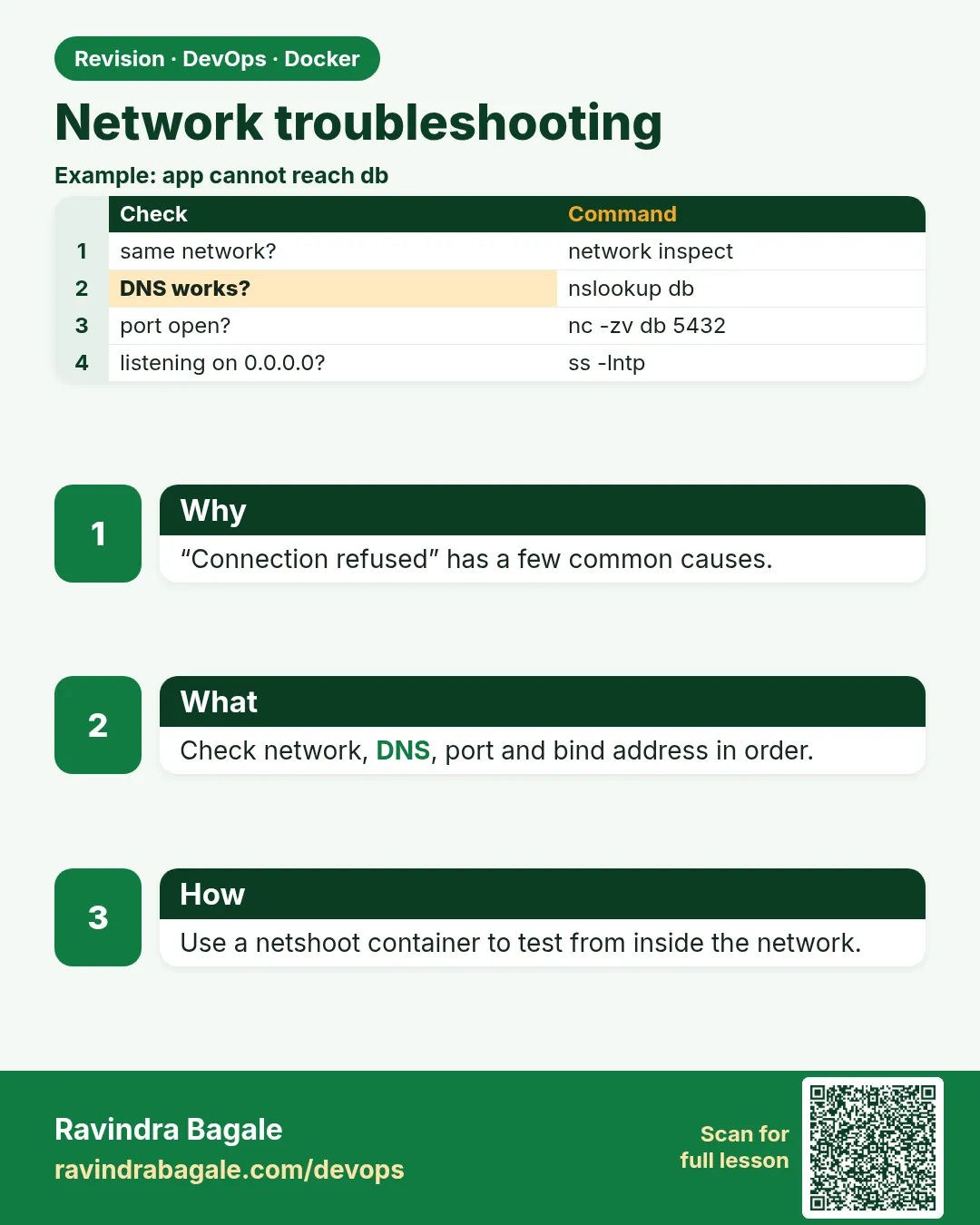 Revision card
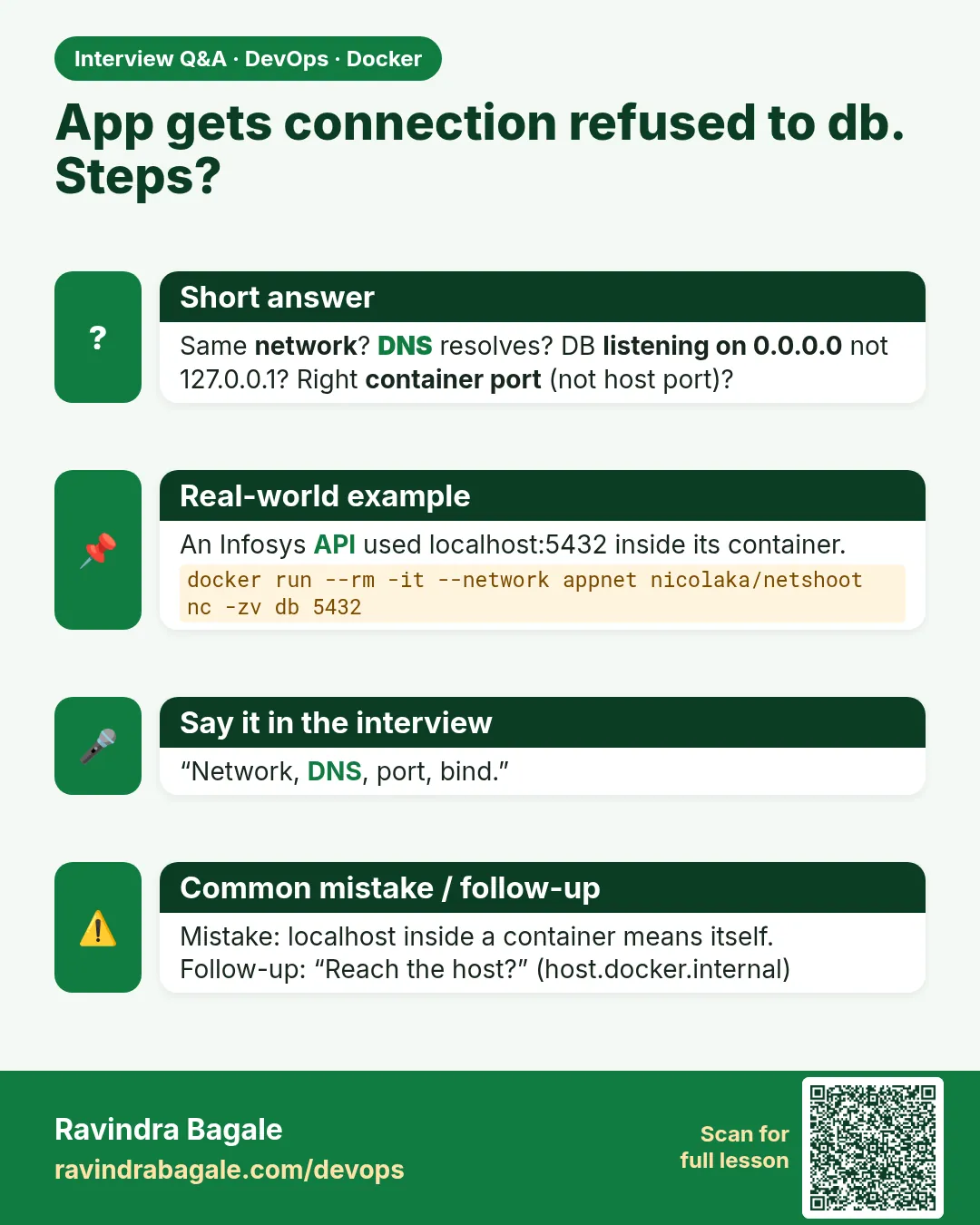 Interview card