51.4 Overlay networks across hosts
Friends, a bridge network is enough on one server. But what if orders runs on one server and payments on another? Then we need an overlay network. Today we take two EC2s and build an overlay by hand.
मित्रांनो, एका server वर bridge network पुरतो. पण orders एका server वर आणि payments दुसऱ्या server वर असतील तर? तेव्हा overlay network लागतो. आज दोन EC2 घेऊन overlay हाताने बनवू.
दोस्तों, एक server पर bridge network काफ़ी है. पर orders एक server पर और payments दूसरे पर हों तो? तब overlay network चाहिए. आज दो EC2 लेकर overlay खुद बनाएँगे.
1. Start from a story
Karan is on a Swiggy team. The orders service runs on server A. The payments service runs on server B. Orders must call payments by a simple name, http://payments:8080, not by a server IP.
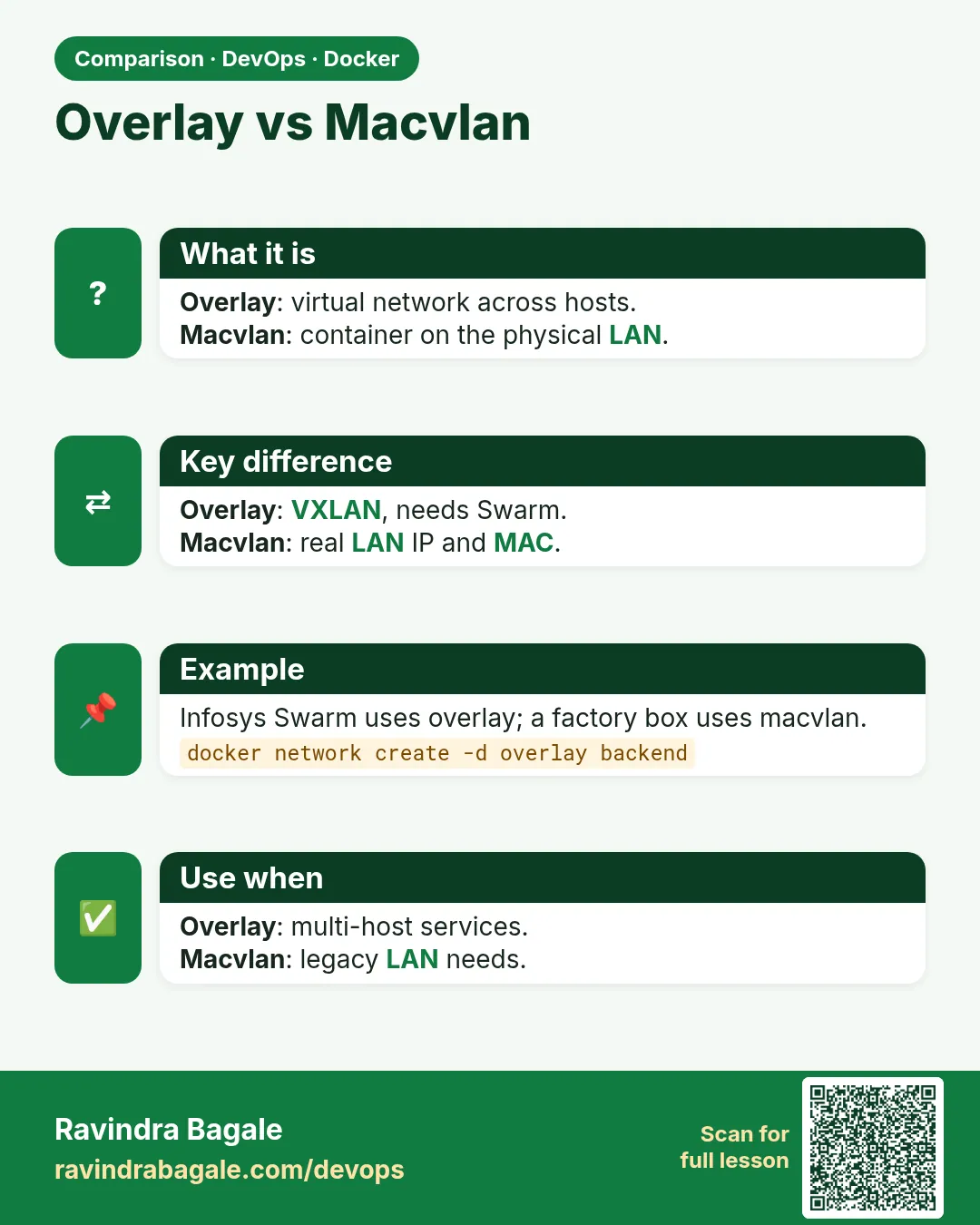
A bridge network lives inside one server only. Containers on server A cannot see a bridge on server B. Karan needs one network that stretches across both servers.
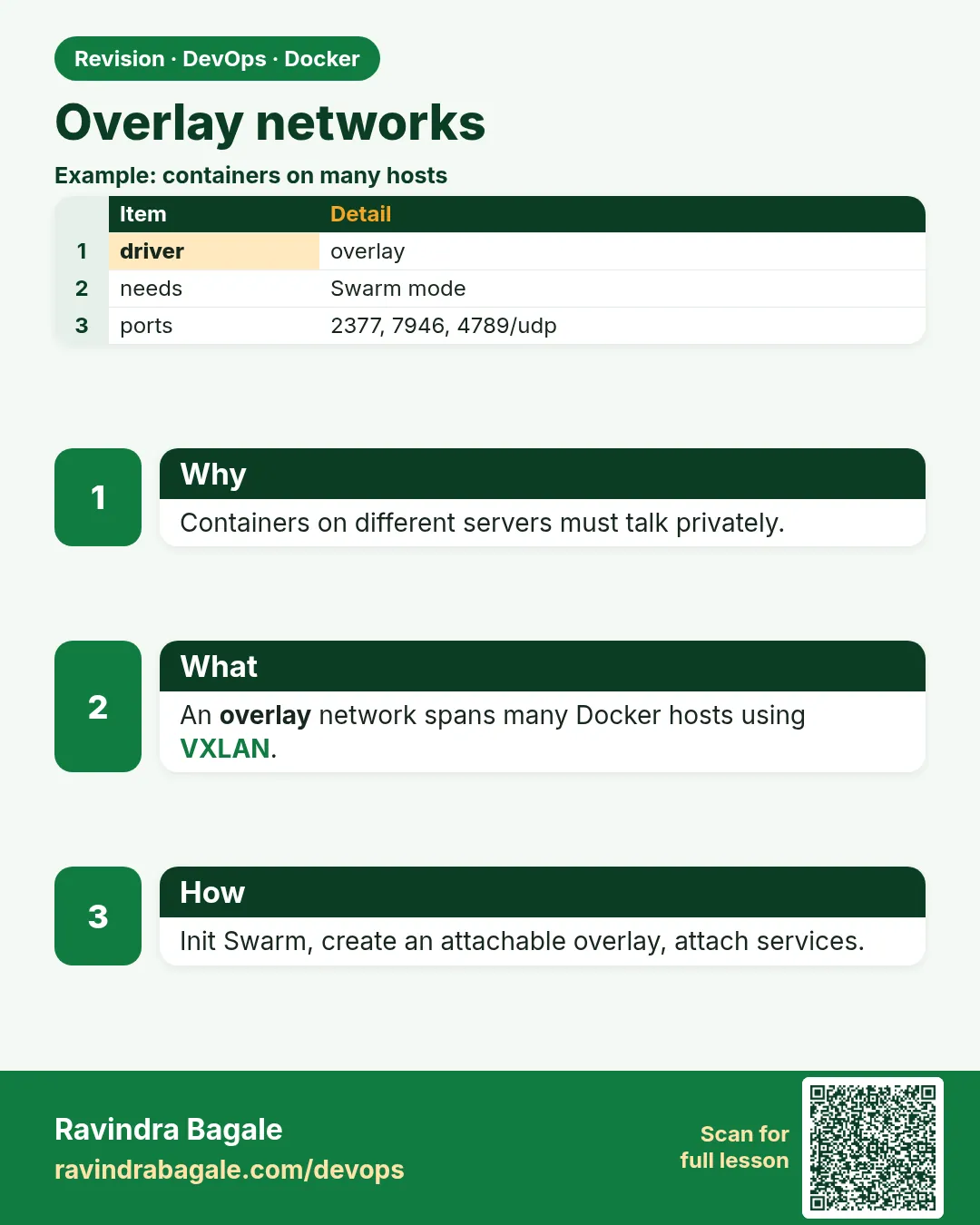
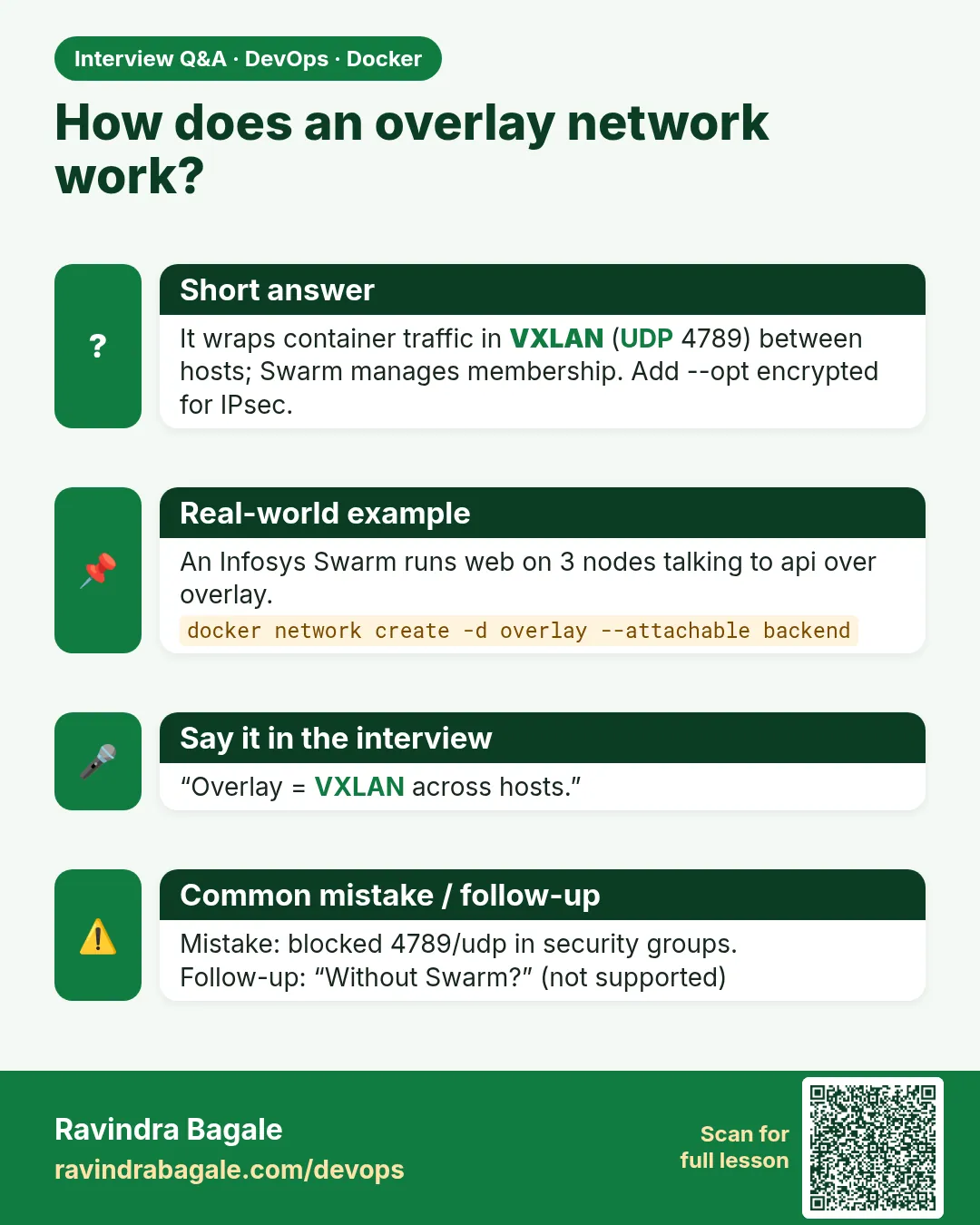
That is an overlay network. Docker wraps container traffic inside normal packets between the servers, a method called VXLAN, so containers on different machines feel like they sit on one switch.
Think of two office buildings joined by a private tunnel. People in both buildings use the same internal phone numbers. The tunnel is invisible to them. The overlay is that tunnel.
Overlay networks need Docker Swarm mode turned on, because Swarm keeps the shared map of which container is where. In this lesson we set up two servers, open the right ports, create an overlay and test names across hosts.
2. Prepare the servers
Step 1: Two servers with Docker
Why: You need at least two machines to see an overlay work.
What: Use two Linux VMs or EC2s in the same VPC. Both need Docker installed and private IPs that can reach each other.
Example 1: Server A IP
Type this:
hostname -I | awk '{print $1}'
You will see:
10.0.1.10
What it means: Private IP of server A.
Example 2: Server B IP
Type this:
hostname -I | awk '{print $1}'
You will see:
10.0.1.20
What it means: Run this on server B.
Example 3: Can they talk?
Type this:
ping -c2 10.0.1.20 | tail -1
You will see:
rtt min/avg/max/mdev = 0.412/0.430/0.448/0.018 ms
What it means: From A to B works.
Step 2: Open the Swarm ports
Why: Overlay fails silently if a port is blocked.
What: TCP 2377 for cluster management, TCP and UDP 7946 for node talk, UDP 4789 for overlay data. Open them only between the two servers' security group.
Example 4: 2377
Type this:
aws ec2 authorize-security-group-ingress --group-id sg-0swarm1 --protocol tcp --port 2377 --source-group sg-0swarm1
You will see:
{"Return": true}
What it means: Only members of the same group.
Example 5: 7946 both
Type this:
aws ec2 authorize-security-group-ingress --group-id sg-0swarm1 --ip-permissions IpProtocol=tcp,FromPort=7946,ToPort=7946,UserIdGroupPairs=[{GroupId=sg-0swarm1}] IpProtocol=udp,FromPort=7946,ToPort=7946,UserIdGroupPairs=[{GroupId=sg-0swarm1}]
You will see:
{"Return": true}
What it means: Gossip between nodes.
Example 6: 4789 UDP
Type this:
aws ec2 authorize-security-group-ingress --group-id sg-0swarm1 --protocol udp --port 4789 --source-group sg-0swarm1
You will see:
{"Return": true}
What it means: The tunnel itself.
Step 3: Start Swarm on server A
Why: Overlay needs a Swarm cluster.
What: docker swarm init makes server A the manager and prints a join command with a token.
Example 7: Init
Type this:
docker swarm init --advertise-addr 10.0.1.10
You will see:
Swarm initialized: current node (k3x9...) is now a manager.

    docker swarm join --token SWMTKN-1-EXAMPLE-TOKEN 10.0.1.10:2377
What it means: Copy the join line. The token shown here is a placeholder.
Example 8: Get it again later
Type this:
docker swarm join-token worker -q
You will see:
SWMTKN-1-EXAMPLE-TOKEN
What it means: Prints only the token.
Example 9: Check state
Type this:
docker info -f '{{.Swarm.LocalNodeState}}'
You will see:
active
What it means: Swarm is on.
Step 4: Join server B
Why: Now the second server joins the cluster.
What: Run the join command on server B. It becomes a worker.
Example 10: Join
Type this:
docker swarm join --token SWMTKN-1-EXAMPLE-TOKEN 10.0.1.10:2377
You will see:
This node joined a swarm as a worker.
What it means: Run on server B.
Example 11: List nodes on A
Type this:
docker node ls
You will see:
ID        HOSTNAME    STATUS  AVAILABILITY  MANAGER STATUS
k3x9... * server-a    Ready   Active        Leader
m7q2...   server-b    Ready   Active
What it means: Two nodes, both Ready.
Example 12: Label server B
Type this:
docker node update --label-add role=payments server-b
You will see:
server-b
What it means: We will use this label to place payments.
3. Create and use the overlay
Step 5: docker network create -d overlay
Why: The shared network.
What: Create it on the manager. --attachable lets normal docker run containers join, not only services.
Example 13: Create
Type this:
docker network create -d overlay --attachable shopnet
You will see:
x8r1...
What it means: Created on the manager.
Example 14: List
Type this:
docker network ls -f driver=overlay
You will see:
NETWORK ID   NAME      DRIVER    SCOPE
q1w2...      ingress   overlay   swarm
x8r1...      shopnet   overlay   swarm
What it means: Scope swarm means cluster-wide. ingress is Swarm's own.
Example 15: Subnet
Type this:
docker network inspect shopnet -f '{{(index .IPAM.Config 0).Subnet}}'
You will see:
10.0.2.0/24
What it means: Docker picked a range.
Step 6: Run payments on server B
Why: Place a service on the labelled node.
What: docker service create runs a container managed by Swarm. --constraint picks the node.
Example 16: Create service
Type this:
docker service create --name payments --network shopnet --constraint node.labels.role==payments hashicorp/http-echo:1.0 -listen=:8080 -text=paid
You will see:
overall progress: 1 out of 1 tasks
verify: Service converged
What it means: Runs on server B.
Example 17: Where is it?
Type this:
docker service ps payments --format '{{.Node}} {{.CurrentState}}'
You will see:
server-b Running 10 seconds ago
What it means: Placed as asked.
Example 18: Network exists on B now
Type this:
docker network ls -f name=shopnet --format '{{.Name}} {{.Scope}}'
You will see:
shopnet swarm
What it means: Run on B. The overlay appears only when a task needs it.
Step 7: Call by name from server A
Why: This is Karan's goal.
What: An attachable container on server A joins shopnet and calls payments by name.
Example 19: Call
Type this:
docker run --rm --network shopnet curlimages/curl:8.10.1 -s http://payments:8080
You will see:
paid
What it means: From server A to server B by name.
Example 20: Look up the name
Type this:
docker run --rm --network shopnet busybox:1.36 nslookup payments | tail -2
You will see:
Name:      payments
Address:   10.0.2.2
What it means: A virtual IP for the service.
Example 21: Look up tasks
Type this:
docker run --rm --network shopnet busybox:1.36 nslookup tasks.payments | tail -1
You will see:
Address: 10.0.2.3
What it means: tasks.NAME gives each real container IP.
Step 8: Load balancing inside the overlay
Why: Scale payments and calls spread out.
What: The service name points to a virtual IP. Swarm spreads calls across every replica.
Example 22: Scale
Type this:
docker service update --constraint-rm node.labels.role==payments payments && docker service scale payments=3
You will see:
payments scaled to 3
verify: Service converged
What it means: Constraint removed so replicas can land on both servers.
Example 23: Where
Type this:
docker service ps payments --format '{{.Node}}' | sort | uniq -c
You will see:
2 server-a
1 server-b
What it means: Spread over two nodes.
Example 24: All task IPs
Type this:
docker run --rm --network shopnet busybox:1.36 nslookup tasks.payments | grep Address | tail -3
You will see:
Address:   10.0.2.3
Address:   10.0.2.6
Address:   10.0.2.7
What it means: Three replicas behind one name.
4. Safety and troubleshooting
Step 9: Encrypt overlay traffic
Why: Payment data crossing servers should be encrypted.
What: --opt encrypted turns on IPsec between nodes for this network. It costs some speed.
Example 25: Create
Type this:
docker network create -d overlay --opt encrypted --attachable paysecure
You will see:
p9z...
What it means: Encrypted overlay.
Example 26: Check
Type this:
docker network inspect paysecure -f '{{.Options}}'
You will see:
map[com.docker.network.driver.overlay.vxlanid_list:4098 encrypted:]
What it means: encrypted is set.
Example 27: Firewall note
Type this:
echo 'allow protocol 50 (ESP) between nodes'
You will see:
allow protocol 50 (ESP) between nodes
What it means: IPsec needs ESP open too.
Step 10: Debug a broken overlay
Why: Names resolve but calls time out: usually port 4789.
What: Check node state, then capture packets on UDP 4789 on the receiving server.
Example 28: Nodes healthy?
Type this:
docker node ls --format '{{.Hostname}} {{.Status}}'
You will see:
server-a Ready
server-b Ready
What it means: Both Ready.
Example 29: Watch the tunnel on B
Type this:
sudo tcpdump -ni ens5 udp port 4789 -c 3
You will see:
3 packets captured
What it means: Packets arrive, so the tunnel works. Zero packets means the security group blocks 4789.
Example 30: Peers seen by the network
Type this:
docker network inspect shopnet -f '{{range .Peers}}{{.Name}} {{.IP}} {{end}}'
You will see:
server-a 10.0.1.10 server-b 10.0.1.20
What it means: Both servers are peers.
Step 11: Overlay in a stack file
Why: Real teams describe all of this in Compose format.
What: docker stack deploy reads a compose file. Networks with driver overlay span the cluster.
Example 31: Write it
Type this:
printf 'services:\n payments:\n image: hashicorp/http-echo:1.0\n command: ["-listen=:8080","-text=paid"]\n deploy:\n replicas: 2\n networks: [shop]\nnetworks:\n shop:\n driver: overlay\n' > stack.yaml
You will see:
(no output)
What it means: One service on an overlay.
Example 32: Deploy
Type this:
docker stack deploy -c stack.yaml swg
You will see:
Creating network swg_shop
Creating service swg_payments
What it means: Prefix swg_ is the stack name.
Example 33: Remove
Type this:
docker stack rm swg
You will see:
Removing service swg_payments
Removing network swg_shop
What it means: Clean.
Step 12: Clean up the lab
Why: Leave servers tidy.
What: Remove services, the network, then leave the swarm.
Example 34: Services
Type this:
docker service rm payments
You will see:
payments
What it means: Containers stop on both nodes.
Example 35: Networks
Type this:
docker network rm shopnet paysecure
You will see:
shopnet
paysecure
What it means: Now unused.
Example 36: Leave
Type this:
docker swarm leave --force
You will see:
Node left the swarm.
What it means: Run on B first, then on A.
Step 13: The ingress routing mesh
Why: Users outside also need to reach a service, from any server.
What: When a Swarm service publishes a port, every node listens on it. A request to any node is passed through the ingress overlay to a healthy replica, even on another server.
Example 37: Publish
Type this:
docker service create --name web --replicas 1 -p 8088:80 nginx:1.27
You will see:
overall progress: 1 out of 1 tasks
verify: Service converged
What it means: One replica, port 8088 on every node.
Example 38: Hit server B
Type this:
curl -s -o /dev/null -w '%{http_code}\n' http://10.0.1.20:8088
You will see:
200
What it means: Even if the replica runs on server A.
Example 39: Remove
Type this:
docker service rm web
You will see:
web
What it means: The mesh is great behind a load balancer that checks every node.
Check yourself
Q1. Which ports does an overlay need?
TCP 2377, TCP and UDP 7946, UDP 4789.
Q2. Why does overlay need Swarm?
Swarm keeps the shared map of containers and networks.
Q3. What does --attachable allow?
Plain docker run containers can join the overlay.
Q4. What does tasks.payments return?
The IP of every replica.
Q5. How do you encrypt overlay traffic?
--opt encrypted.
Friends, an overlay is an invisible tunnel between two servers. Did you understand? Let us try it once more. If it does not work, first check that UDP 4789 is open in the security group.
मित्रांनो, overlay म्हणजे दोन server मधला अदृश्य बोगदा. समजलं का? चला, पुन्हा एकदा करून पाहू. काम नाही केलं तर आधी UDP 4789 security group मध्ये उघडा आहे का ते तपासा.
दोस्तों, overlay मतलब दो servers के बीच की अदृश्य सुरंग. समझ आया? चलिए, एक बार फिर करके देखते हैं। काम न करे तो पहले जाँचिए कि UDP 4789 security group में खुला है या नहीं.
Ravindra Bagale's Tip
Open the overlay ports only to the cluster's security group, never to the internet.
Overlay चे ports फक्त cluster च्या security group ला उघडा, internet ला कधीही नाही.
Overlay के ports सिर्फ़ cluster के security group के लिए खोलिए, internet के लिए कभी नहीं.
Lab: try at home
- Start two VMs and open 2377, 7946 and 4789 between them.
- Init Swarm on one and join the other.
- Create an attachable overlay and run a service on server B.
- Call it by name from a container on server A.
- Scale to 3 and look up tasks.NAME.
- Remove everything and leave the swarm.
Recap
- Overlay networks span many Docker hosts.
- They need Swarm and three firewall ports.
- --attachable lets docker run containers join.
- Service names give a virtual IP with load balancing.
- --opt encrypted adds IPsec.
- Debug with node ls, tcpdump on 4789 and network inspect.
 Revision card
 Interview card
 Comparison card