51.2 Default bridge vs user-defined bridge and DNS
Friends, how does one container find another by name? Should we remember IPs? No. Today we learn bridge networks and Docker's DNS, so the api container reaches the database just by writing 'db'.
मित्रांनो, एक container दुसऱ्या container ला नाव घेऊन कसा शोधतो? IP लक्षात ठेवायचा का? नाही. आज bridge network आणि Docker चा DNS शिकू, ज्यामुळे api container फक्त 'db' असं नाव लिहून database ला पोचतो.
दोस्तों, एक container दूसरे container को नाम से कैसे ढूँढता है? IP याद रखें? नहीं. आज bridge network और Docker का DNS सीखेंगे, जिससे api container सिर्फ़ 'db' लिखकर database तक पहुँचता है.
1. Start from a story
Rahul joined an Infosys project last month. The team runs a Spring Boot API and a MySQL database in two containers on one server.
On day one he wrote the database IP, 172.17.0.3, in the API config. It worked. Next morning the server rebooted, the containers started in a different order, and MySQL got 172.17.0.2. The API crashed with connection refused.
His senior said: never use container IPs. Put both containers on your own network and call the database by its name, db. Docker will find the right IP every time.
Think of an office phone directory. People change desks, so their desk numbers change. But you dial by name and reception connects you. Docker's built-in DNS is that reception desk.
In this lesson we see the default bridge, build our own bridge, use names and aliases, move containers between networks and keep a back-end network private.
2. The default bridge
Step 1: What is a bridge network?
Why: Containers on one server need a way to talk to each other.
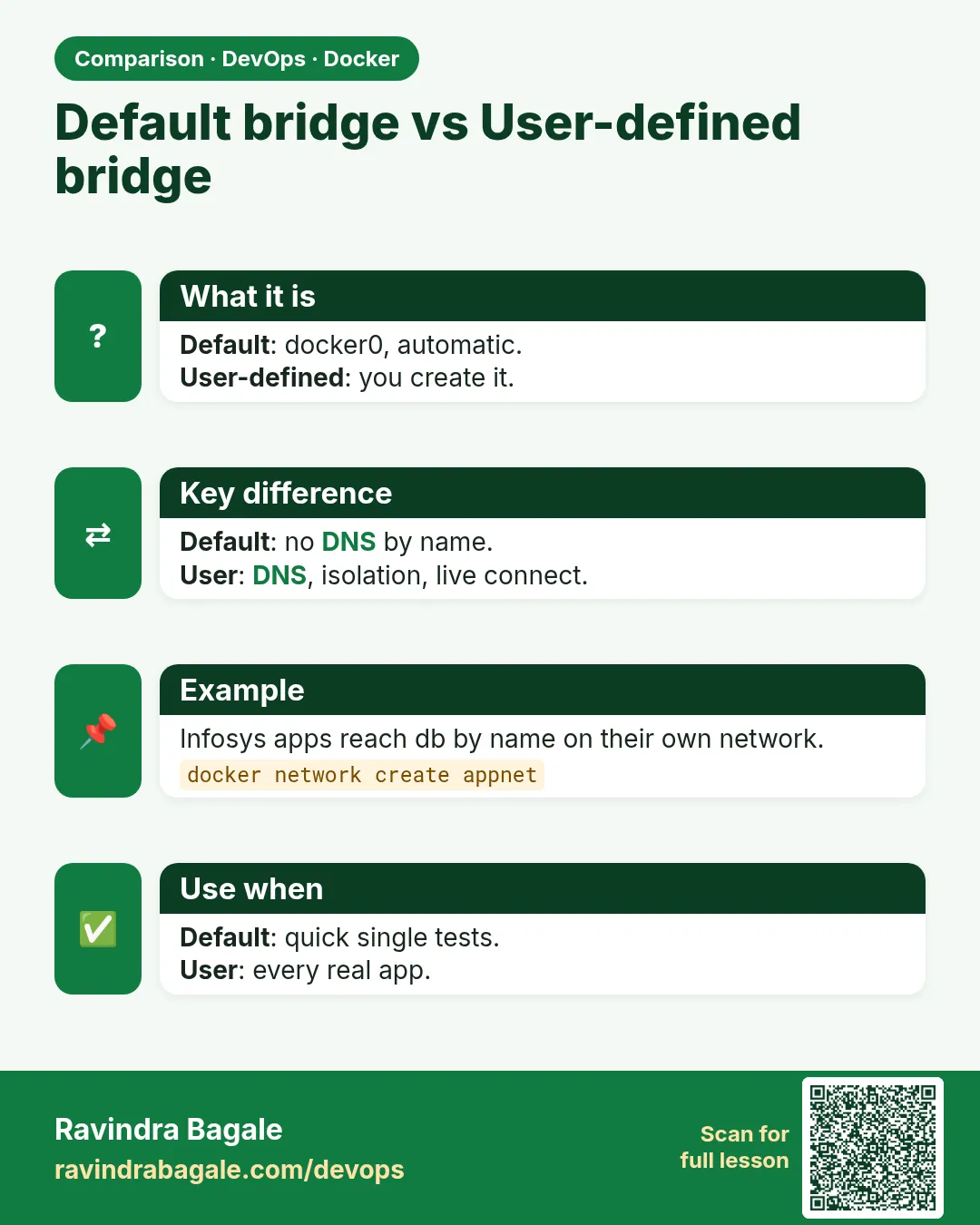
What: A bridge is a virtual switch inside the server. Docker creates one called bridge (the Linux device docker0). Every container joins it unless you say otherwise.
Example 1: List networks
Type this:
docker network ls
You will see:
NETWORK ID     NAME      DRIVER    SCOPE
1a2b3c4d5e6f   bridge    bridge    local
7a8b9c0d1e2f   host      host      local
3c4d5e6f7a8b   none      null      local
What it means: Three networks come with every Docker install.
Example 2: See docker0
Type this:
ip addr show docker0 | grep inet
You will see:
inet 172.17.0.1/16 brd 172.17.255.255 scope global docker0
What it means: The host side of the switch is 172.17.0.1.
Example 3: Inspect the subnet
Type this:
docker network inspect bridge -f '{{(index .IPAM.Config 0).Subnet}}'
You will see:
172.17.0.0/16
What it means: Containers get IPs from this range.
Step 2: Default bridge has no names
Why: This is the trap Rahul fell into.
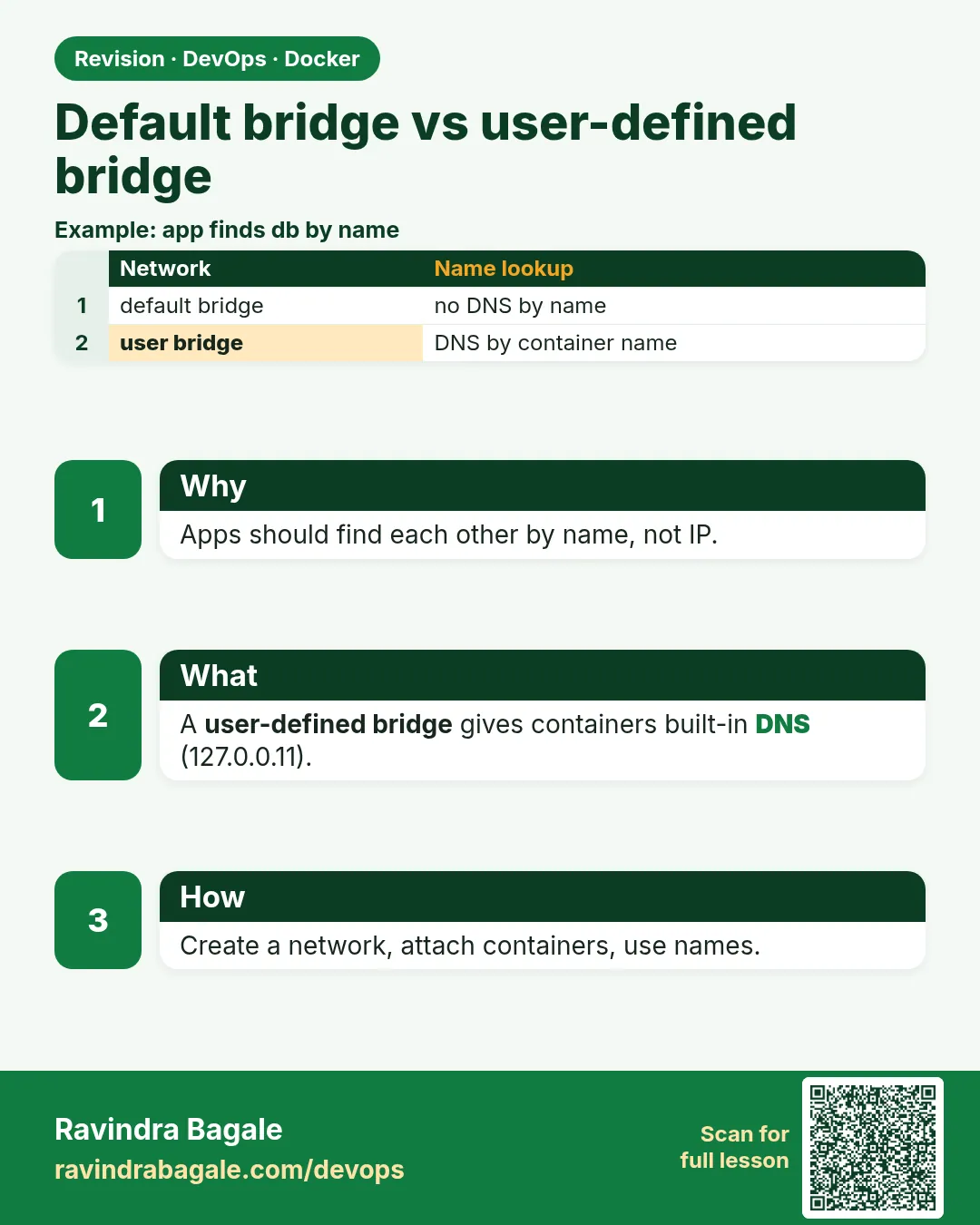
What: On the default bridge, containers can reach each other by IP only. Names do not resolve.
Example 4: Start a target
Type this:
docker run -d --name web1 nginx:1.27
You will see:
b41e...
What it means: On the default bridge.
Example 5: Ping by name
Type this:
docker run --rm busybox:1.36 ping -c1 web1
You will see:
ping: bad address 'web1'
What it means: No DNS for names here.
Example 6: Ping by IP
Type this:
docker run --rm busybox:1.36 ping -c1 $(docker inspect web1 -f '{{.NetworkSettings.IPAddress}}')
You will see:
64 bytes from 172.17.0.2: seq=0 ttl=64 time=0.09 ms
What it means: IP works, but IPs change.
Step 3: The old --link flag
Why: You may find it in old tutorials and projects.
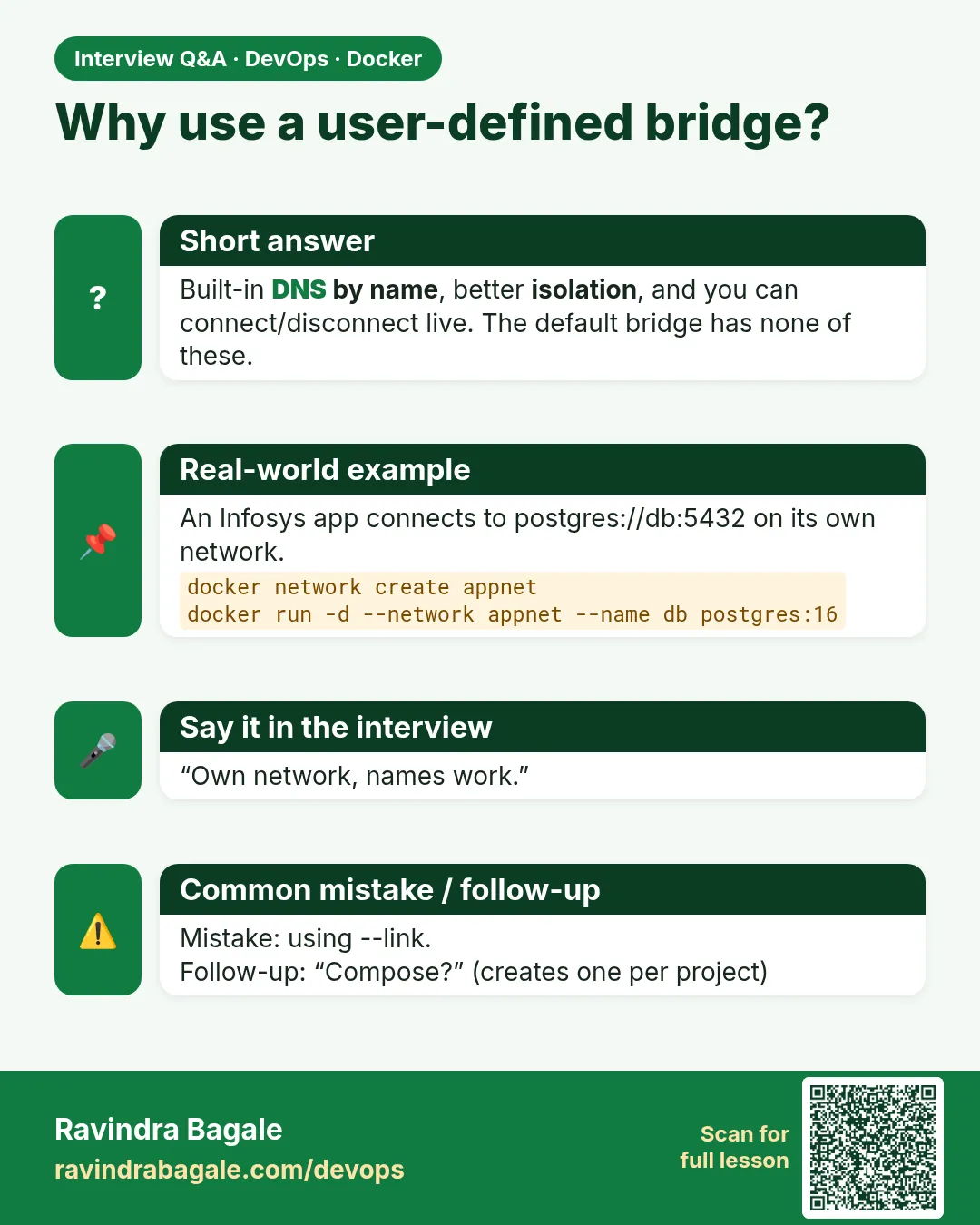
What: --link added a hosts-file line on the default bridge. Docker marks it legacy. Use a user-defined network instead.
Example 7: Old way
Type this:
docker run --rm --link web1:web busybox:1.36 ping -c1 web
You will see:
64 bytes from 172.17.0.2: seq=0 ttl=64
What it means: It works, but only one way and only on the default bridge.
Example 8: What it did
Type this:
docker run --rm --link web1:web busybox:1.36 grep web /etc/hosts
You will see:
172.17.0.2 web b41e... web1
What it means: A static hosts entry. It breaks if web1 restarts with a new IP.
Example 9: Remove the target
Type this:
docker rm -f web1
You will see:
web1
What it means: We move to the modern way now.
3. Your own bridge with DNS
Step 4: docker network create
Why: Fixes the name problem in one command.
What: A user-defined bridge gives automatic DNS by container name, better isolation and the ability to connect and disconnect running containers.
Example 10: Create
Type this:
docker network create shopnet
You will see:
8f2d6a...
What it means: Driver bridge is the default.
Example 11: With your own range
Type this:
docker network create --subnet 172.30.0.0/24 --gateway 172.30.0.1 paynet
You will see:
c3a9...
What it means: Choose a range that does not clash with your office VPN.
Example 12: Check
Type this:
docker network ls -f driver=bridge --format '{{.Name}}'
You will see:
bridge
paynet
shopnet
What it means: Two new bridges.
Step 5: Names resolve automatically
Why: This is what the API needs.
What: Every container on a user-defined network is reachable by its --name. Docker's DNS server lives at 127.0.0.11 inside each container.
Example 13: Start MySQL
Type this:
docker run -d --name db --network shopnet -e MYSQL_ROOT_PASSWORD=example mysql:8.4
You will see:
5c7d...
What it means: example is a sample password for the lab only.
Example 14: Look it up
Type this:
docker run --rm --network shopnet busybox:1.36 nslookup db
You will see:
Server:    127.0.0.11
Address:   127.0.0.11:53

Name:      db
Address:   172.18.0.2
What it means: DNS found db.
Example 15: See the resolver
Type this:
docker run --rm --network shopnet busybox:1.36 cat /etc/resolv.conf
You will see:
nameserver 127.0.0.11
options ndots:0
What it means: Docker points every container to its own DNS.
Step 6: Connect an app by name
Why: Now the API uses db, never an IP.
What: Pass the hostname through an environment variable. The app connects to db:3306.
Example 16: Run a client
Type this:
docker run --rm --network shopnet mysql:8.4 mysqladmin -h db -uroot -pexample ping
You will see:
mysqld is alive
What it means: The client reached MySQL by name.
Example 17: Restart db
Type this:
docker restart db && docker inspect db -f '{{range .NetworkSettings.Networks}}{{.IPAddress}}{{end}}'
You will see:
db
172.18.0.2
What it means: Even if the IP changed, the name still works.
Example 18: App style
Type this:
docker run -d --name api --network shopnet -e DB_HOST=db -e DB_PORT=3306 nginx:1.27
You will see:
e2f1...
What it means: Config holds the name db, never an IP.
Step 7: Network aliases
Why: Sometimes many containers should answer to one name, or an app expects a different name.
What: --network-alias adds extra DNS names. If two containers share an alias, DNS returns both IPs (simple round robin).
Example 19: Alias redis
Type this:
docker run -d --name cache1 --network shopnet --network-alias redis redis:7
You will see:
1a7f...
What it means: Reachable as cache1 and redis.
Example 20: Second with same alias
Type this:
docker run -d --name cache2 --network shopnet --network-alias redis redis:7
You will see:
9e3b...
What it means: Now two answer to redis.
Example 21: Look up
Type this:
docker run --rm --network shopnet busybox:1.36 nslookup redis | grep Address | tail -2
You will see:
Address:   172.18.0.4
Address:   172.18.0.5
What it means: Both IPs come back.
4. Move and isolate containers
Step 8: Isolation between networks
Why: Payments should not see the shop's database.
What: Containers on different user-defined networks cannot reach each other at all.
Example 22: Container on paynet
Type this:
docker run --rm --network paynet busybox:1.36 ping -c1 -W2 db
You will see:
ping: bad address 'db'
What it means: paynet cannot even resolve db.
Example 23: By IP also fails
Type this:
docker run --rm --network paynet busybox:1.36 ping -c1 -W2 172.18.0.2
You will see:
1 packets transmitted, 0 packets received, 100% packet loss
What it means: Blocked by Docker rules.
Example 24: Inspect who is on shopnet
Type this:
docker network inspect shopnet -f '{{range .Containers}}{{.Name}} {{end}}'
You will see:
db api cache1 cache2
What it means: Only these can talk to db.
Step 9: connect and disconnect
Why: You can change networks without restarting the container.
What: docker network connect adds a running container to a network. disconnect removes it. A container can be on many networks.
Example 25: Add api to paynet
Type this:
docker network connect paynet api
You will see:
(no output)
What it means: api is now on both networks.
Example 26: Check
Type this:
docker inspect api -f '{{range $k,$v := .NetworkSettings.Networks}}{{$k}} {{end}}'
You will see:
paynet shopnet
What it means: Two networks, two IPs.
Example 27: Remove it
Type this:
docker network disconnect paynet api
You will see:
(no output)
What it means: Back to only shopnet.
Step 10: --internal networks
Why: A database network should not reach the internet.
What: --internal creates a bridge with no route outside. Containers on it can talk to each other only.
Example 28: Create
Type this:
docker network create --internal backnet
You will see:
4b6e...
What it means: No gateway to the outside.
Example 29: Try internet
Type this:
docker run --rm --network backnet busybox:1.36 wget -T3 -q -O- http://example.com || echo no-internet
You will see:
wget: bad address 'example.com'
no-internet
What it means: Cut off by design.
Example 30: Inside still works
Type this:
docker run -d --name vault --network backnet nginx:1.27 && docker run --rm --network backnet busybox:1.36 wget -q -O- http://vault | head -c 15
You will see:
<!DOCTYPE html>
What it means: Neighbours on the network still talk.
Step 11: Networks in Compose
Why: Compose creates a user-defined network for you.
What: Every service in one compose.yaml joins a project network and can use the service name as hostname.
Example 31: Write it
Type this:
printf 'services:\n db:\n image: redis:7\n app:\n image: busybox:1.36\n command: ping -c2 db\n' > compose.yaml
You will see:
(no output)
What it means: Two services, no network written.
Example 32: Run
Type this:
docker compose up app
You will see:
app-1 | 64 bytes from 172.20.0.2: seq=0 ttl=64
What it means: app found db by service name.
Example 33: See the network
Type this:
docker network ls -f name=demo --format '{{.Name}}'
You will see:
demo_default
What it means: Compose made project_default for you.
Step 12: Fixed IP when you really need it
Why: A few old tools, like licence servers, insist on a fixed IP.
What: On a user-defined network with a --subnet you can pass --ip. Use it rarely; names are still better.
Example 34: Run with a fixed IP
Type this:
docker run -d --name lic --network paynet --ip 172.30.0.50 nginx:1.27
You will see:
7c2a...
What it means: The IP must be inside paynet's subnet.
Example 35: Check
Type this:
docker inspect lic -f '{{.NetworkSettings.Networks.paynet.IPAddress}}'
You will see:
172.30.0.50
What it means: Fixed as asked.
Example 36: Wrong network
Type this:
docker run -d --name bad --ip 172.17.0.50 nginx:1.27
You will see:
docker: Error response from daemon: user specified IP address is supported on user defined networks only.
What it means: The default bridge does not allow it.
Step 13: Remove networks safely
Why: Old networks pile up on build servers.
What: docker network rm deletes one network; it fails if containers still use it. docker network prune deletes all unused user networks.
Example 37: Try while in use
Type this:
docker network rm shopnet
You will see:
Error response from daemon: error while removing network: network shopnet has active endpoints
What it means: Stop or disconnect containers first.
Example 38: Clean up
Type this:
docker rm -f db api cache1 cache2 lic vault bad; docker network rm shopnet paynet backnet
You will see:
shopnet
paynet
backnet
What it means: Containers first, then networks.
Example 39: Prune
Type this:
docker network prune -f
You will see:
Deleted Networks:
demo_default
What it means: Removes every unused user network. The three built-in ones stay.
Check yourself
Q1. Do names work on the default bridge?
No, only IPs.
Q2. Where is Docker's DNS inside a container?
127.0.0.11.
Q3. How do you give one container a second name?
--network-alias.
Q4. Which flag cuts a network off from the internet?
--internal.
Q5. Can two containers on different user-defined networks talk?
No, unless one joins the other's network.
Friends, one rule: create your own network and call containers by name. Did you understand? Let us try it once more. If you write an IP in config, the app will break after a reboot.
मित्रांनो, नियम एकच: स्वतःचं network बनवा आणि container ला नावाने बोलवा. समजलं का? चला, पुन्हा एकदा करून पाहू. IP config मध्ये लिहिलात तर reboot नंतर app पडेल.
दोस्तों, नियम एक ही: अपना network बनाइए और container को नाम से बुलाइए. समझ आया? चलिए, एक बार फिर करके देखते हैं। IP config में लिखा तो reboot के बाद app गिर जाएगा.
Ravindra Bagale's Tip
Keep the database on an --internal network and join only the API to that network.
Database ला --internal network वर ठेवा आणि फक्त API ला त्या network वर join करा.
Database को --internal network पर रखिए और सिर्फ़ API को उस network से join कीजिए.
Lab: try at home
- Create shopnet and run MySQL as db on it.
- Ping db from busybox on shopnet and on the default bridge, compare.
- Add two redis containers with one alias and nslookup it.
- Make an --internal network and prove it has no internet.
- Connect and disconnect a running container.
- Run a two-service compose file and find its network.
Recap
- The default bridge gives IPs but no names.
- User-defined bridges give DNS by name through 127.0.0.11.
- Aliases add names; shared aliases give round robin.
- Different networks are isolated.
- connect and disconnect change networks live.
- --internal blocks the internet; Compose makes a network for you.
 Revision card
 Interview card
 Comparison card