51.3 host and none networks
Friends, sometimes a container needs the server's real network, and sometimes no network at all. Today we see two different network modes, host and none: when to use them and when not.
मित्रांनो, कधी container ला server चं खरं network हवं असतं, आणि कधी network अजिबात नको असतं. आज host आणि none हे दोन वेगळे network modes बघू, कधी वापरायचे आणि कधी नाही.
दोस्तों, कभी container को server का असली network चाहिए होता है, और कभी network बिल्कुल नहीं. आज host और none ये दो अलग network modes देखेंगे, कब इस्तेमाल करें और कब नहीं.
1. Start from a story
Anita is on a Netflix monitoring team. They run node-exporter on every server. Its job is to read the server's real network cards and report traffic numbers to Prometheus.
When she ran it in a normal container, it only saw one small fake network card, eth0, inside the container. The numbers were useless. She needed the container to see the server's real network.
The same week, a security review asked for the opposite. A job that converts uploaded videos must have no network at all, so even if a bad file tricks it, nothing can leak out.
Think of a house. Normal bridge mode is a flat with its own door. Host mode is living in the owner's own room, sharing everything. None mode is a locked room with no door and no window.
In this lesson we use --network host, --network none, compare them with bridge, and learn the limits of each.
2. Host mode
Step 1: What --network host does
Why: Some tools must see the real network.
What: The container uses the host's network stack directly. No private IP, no NAT, no port mapping. If the app listens on 9100, the host's port 9100 is open. Works on Linux; on Docker Desktop it behaves differently.
Example 1: Compare interfaces in bridge
Type this:
docker run --rm busybox:1.36 ip -o link | awk '{print $2}'
You will see:
lo:
eth0@if12:
What it means: Only a loopback and one fake card.
Example 2: Interfaces in host mode
Type this:
docker run --rm --network host busybox:1.36 ip -o link | awk '{print $2}'
You will see:
lo:
ens5:
docker0:
veth3a1b@if11:
What it means: The real server cards are visible.
Example 3: Hostname is the host's
Type this:
docker run --rm --network host busybox:1.36 hostname
You will see:
ip-172-31-5-20
What it means: Same name as the EC2 server.
Step 2: No -p needed
Why: In host mode the app port is the host port.
What: Port mapping is ignored. Docker prints a warning if you pass -p with host mode.
Example 4: Run nginx on host
Type this:
docker run -d --name hweb --network host nginx:1.27
You will see:
2f8e...
What it means: nginx binds to the host's port 80.
Example 5: Test
Type this:
curl -s -o /dev/null -w '%{http_code}\n' http://localhost:80
You will see:
200
What it means: Reached without any -p.
Example 6: -p is ignored
Type this:
docker run -d --name hweb2 --network host -p 8080:80 nginx:1.27
You will see:
WARNING: Published ports are discarded when using host network mode
What it means: And this second nginx fails because port 80 is already used.
Step 3: Port clashes in host mode
Why: Two apps cannot share one port on the host.
What: Because there is no private network, every container in host mode competes with every program on the server for ports.
Example 7: Check logs of the clash
Type this:
docker logs hweb2 2>&1 | tail -1
You will see:
nginx: [emerg] bind() to 0.0.0.0:80 failed (98: Address already in use)
What it means: Port 80 is taken by hweb.
Example 8: See who owns 80
Type this:
sudo ss -tlnp | grep ':80 '
You will see:
LISTEN 0 511 0.0.0.0:80 0.0.0.0:* users:(("nginx",pid=3120))
What it means: The first nginx.
Example 9: Clean up
Type this:
docker rm -f hweb hweb2
You will see:
hweb
hweb2
What it means: Remember: in host mode you manage ports yourself.
Step 4: Real example: node-exporter
Why: This is Anita's actual job.
What: node-exporter reads /proc and network stats. Host network plus host PID gives true numbers.
Example 10: Run it
Type this:
docker run -d --name nodeexp --network host --pid host -v /:/host:ro,rslave prom/node-exporter:v1.8.2 --path.rootfs=/host
You will see:
9a0c...
What it means: Read-only view of the host disk.
Example 11: Scrape locally
Type this:
curl -s http://localhost:9100/metrics | grep -m1 node_network_receive_bytes_total
You will see:
node_network_receive_bytes_total{device="ens5"} 8.123456e+08
What it means: Real traffic of the real card ens5.
Example 12: Clean
Type this:
docker rm -f nodeexp
You will see:
nodeexp
What it means: Done.
Step 5: Performance of host mode
Why: Some teams use host mode for speed.
What: Without NAT and the bridge, network calls skip a small hop. For most web apps the gain is tiny; for very high packet rates it can matter.
Example 13: Bridge latency
Type this:
docker run --rm busybox:1.36 ping -c3 -q 172.31.5.20 | tail -1
You will see:
round-trip min/avg/max = 0.071/0.084/0.101 ms
What it means: Through the bridge.
Example 14: Host latency
Type this:
docker run --rm --network host busybox:1.36 ping -c3 -q 172.31.5.20 | tail -1
You will see:
round-trip min/avg/max = 0.031/0.040/0.052 ms
What it means: Slightly faster.
Example 15: Decision
Type this:
echo 'use host mode only when the tool needs it'
You will see:
use host mode only when the tool needs it
What it means: Isolation is usually worth more than 40 microseconds.
Step 6: Risks of host mode
Why: Sharing the network means less isolation.
What: A container in host mode can see every service on localhost, including ones meant to be private, like a Redis on 127.0.0.1.
Example 16: A private service on the host
Type this:
docker run -d --name hidden -p 127.0.0.1:6379:6379 redis:7
You will see:
5d1e...
What it means: Meant only for the server.
Example 17: Bridge container cannot reach it
Type this:
docker run --rm redis:7 redis-cli -h 127.0.0.1 ping
You will see:
Could not connect to Redis at 127.0.0.1:6379: Connection refused
What it means: 127.0.0.1 inside bridge is the container itself.
Example 18: Host container can
Type this:
docker run --rm --network host redis:7 redis-cli -h 127.0.0.1 ping
You will see:
PONG
What it means: Host mode sees private host services. Use it carefully.
3. None mode
Step 7: What --network none does
Why: For jobs that must never talk to the network.
What: The container gets only the loopback card lo. No IP, no DNS, no internet, no other containers.
Example 19: Interfaces
Type this:
docker run --rm --network none busybox:1.36 ip -o link | awk '{print $2}'
You will see:
lo:
What it means: Only loopback.
Example 20: Try the internet
Type this:
docker run --rm --network none busybox:1.36 wget -T3 -q -O- http://example.com || echo none
You will see:
wget: bad address 'example.com'
none
What it means: No DNS, no route.
Example 21: Loopback still works
Type this:
docker run --rm --network none busybox:1.36 sh -c 'nc -l -p 5000 -e echo hi & sleep 1; nc 127.0.0.1 5000'
You will see:
hi
What it means: Programs inside can still talk to themselves.
Step 8: Real example: safe file processing
Why: Anita's video converter.
What: Mount input and output folders, run with no network. If the file is malicious, it cannot call home.
Example 22: Prepare
Type this:
mkdir -p in out && printf 'hello reels\n' > in/a.txt
You will see:
(no output)
What it means: A stand-in for an uploaded file.
Example 23: Process with no network
Type this:
docker run --rm --network none -v $PWD/in:/in:ro -v $PWD/out:/out alpine:3.20 sh -c 'tr a-z A-Z < /in/a.txt > /out/a.txt'
You will see:
(no output)
What it means: Read-only input, writable output, no network.
Example 24: Check result
Type this:
cat out/a.txt
You will see:
HELLO REELS
What it means: Job done, nothing could leak.
Step 9: none in Compose
Why: You can set the mode per service.
What: Use network_mode: none or network_mode: host in compose.yaml.
Example 25: Write it
Type this:
printf 'services:\n job:\n image: busybox:1.36\n network_mode: none\n command: ip -o link\n' > compose.yaml
You will see:
(no output)
What it means: One isolated job.
Example 26: Run
Type this:
docker compose run --rm job
You will see:
1: lo: ...
What it means: Only lo again.
Example 27: Host in Compose
Type this:
printf 'services:\n mon:\n image: busybox:1.36\n network_mode: host\n command: hostname\n' > compose.yaml && docker compose run --rm mon
You will see:
ip-172-31-5-20
What it means: Same as --network host.
4. Check and choose
Step 10: Find a container's mode
Why: When debugging, first find which mode it uses.
What: docker inspect shows HostConfig.NetworkMode.
Example 28: Bridge
Type this:
docker run -d --name m1 nginx:1.27 && docker inspect m1 -f '{{.HostConfig.NetworkMode}}'
You will see:
bridge
What it means: Default.
Example 29: Host
Type this:
docker run -d --name m2 --network host busybox:1.36 sleep 300 && docker inspect m2 -f '{{.HostConfig.NetworkMode}}'
You will see:
host
What it means: Shared.
Example 30: None
Type this:
docker run -d --name m3 --network none busybox:1.36 sleep 300 && docker inspect m3 -f '{{.HostConfig.NetworkMode}}'
You will see:
none
What it means: Isolated.
Step 11: Cannot mix host or none with others
Why: A common error when people connect networks later.
What: A container in host or none mode cannot also join a bridge network.
Example 31: Try connect
Type this:
docker network create extra && docker network connect extra m3
You will see:
Error response from daemon: container cannot be disconnected from host network or connected to host network
What it means: none and host are exclusive.
Example 32: Same for host
Type this:
docker network connect extra m2
You will see:
Error response from daemon: container sharing network namespace with another container or host cannot be connected to any other network
What it means: Pick the mode at docker run time.
Example 33: Clean
Type this:
docker rm -f m1 m2 m3 hidden && docker network rm extra
You will see:
m1
m2
m3
hidden
extra
What it means: All removed.
Step 12: Share another container's network
Why: A third, useful mode for debugging.
What: --network container:NAME puts a new container inside another container's network. Both see the same IP and ports.
Example 34: Target
Type this:
docker run -d --name app nginx:1.27
You will see:
1b9c...
What it means: A normal bridge container.
Example 35: Join its network
Type this:
docker run --rm --network container:app busybox:1.36 wget -q -O- http://127.0.0.1 | head -c 15
You will see:
<!DOCTYPE html>
What it means: 127.0.0.1 is now app's own localhost.
Example 36: Clean
Type this:
docker rm -f app
You will see:
app
What it means: Great for debugging apps without tools inside.
Step 13: Reach the host from a bridge container
Why: The opposite need: a bridge container must call a service on the host.
What: Inside a bridge container, 127.0.0.1 is the container. Use the special name host.docker.internal; on Linux add it with --add-host host.docker.internal:host-gateway.
Example 37: Without the flag on Linux
Type this:
docker run --rm busybox:1.36 ping -c1 -W2 host.docker.internal
You will see:
ping: bad address 'host.docker.internal'
What it means: Linux does not add the name by default.
Example 38: With host-gateway
Type this:
docker run --rm --add-host host.docker.internal:host-gateway busybox:1.36 grep host.docker /etc/hosts
You will see:
172.17.0.1 host.docker.internal
What it means: It points to docker0, the host side of the bridge.
Example 39: Call a host service
Type this:
docker run --rm --add-host host.docker.internal:host-gateway curlimages/curl:8.10.1 -s -o /dev/null -w '%{http_code}\n' http://host.docker.internal:9100/metrics
You will see:
200
What it means: Bridge isolation kept, and the host service is still reachable when it listens on 0.0.0.0 or 172.17.0.1.
Check yourself
Q1. Does -p work with --network host?
No, it is ignored with a warning.
Q2. What does a none container have?
Only the loopback card lo.
Q3. Why is host mode risky?
It can reach private services on the host's localhost.
Q4. Which mode does node-exporter need?
host, so it sees real network cards.
Q5. How do you share another container's network?
--network container:NAME.
Friends, use the default bridge. Host is only for tools like monitoring, and none for jobs that need no network. Did you understand? Let us try it once more. The mode must be decided at docker run time.
मित्रांनो, default bridge वापरा. Host फक्त monitoring सारख्या tools साठी, आणि none अशा jobs साठी ज्यांना network नकोच. समजलं का? चला, पुन्हा एकदा करून पाहू. Mode docker run लाच ठरवावा लागतो.
दोस्तों, default bridge इस्तेमाल कीजिए. Host सिर्फ़ monitoring जैसे tools के लिए, और none उन jobs के लिए जिन्हें network नहीं चाहिए. समझ आया? चलिए, एक बार फिर करके देखते हैं। Mode docker run के समय ही तय करना पड़ता है.
Ravindra Bagale's Tip
In host mode you must handle port clashes yourself, so check ss -tlnp first.
Host mode मध्ये port clash तुम्हालाच सांभाळावा लागतो, म्हणून आधी ss -tlnp बघा.
Host mode में port clash आपको ही सँभालना पड़ता है, इसलिए पहले ss -tlnp देखिए.
Lab: try at home
- Compare ip link output in bridge, host and none.
- Run nginx in host mode and reach it without -p.
- Process a file with --network none and mounted folders.
- Find NetworkMode of three containers with docker inspect.
- Debug an nginx container with --network container:NAME.
Recap
- bridge gives isolation and needs -p.
- host shares the server network; no -p, watch port clashes.
- host mode can reach private host services.
- none gives only loopback; good for risky jobs.
- host and none cannot join other networks.
- container:NAME shares another container's network.
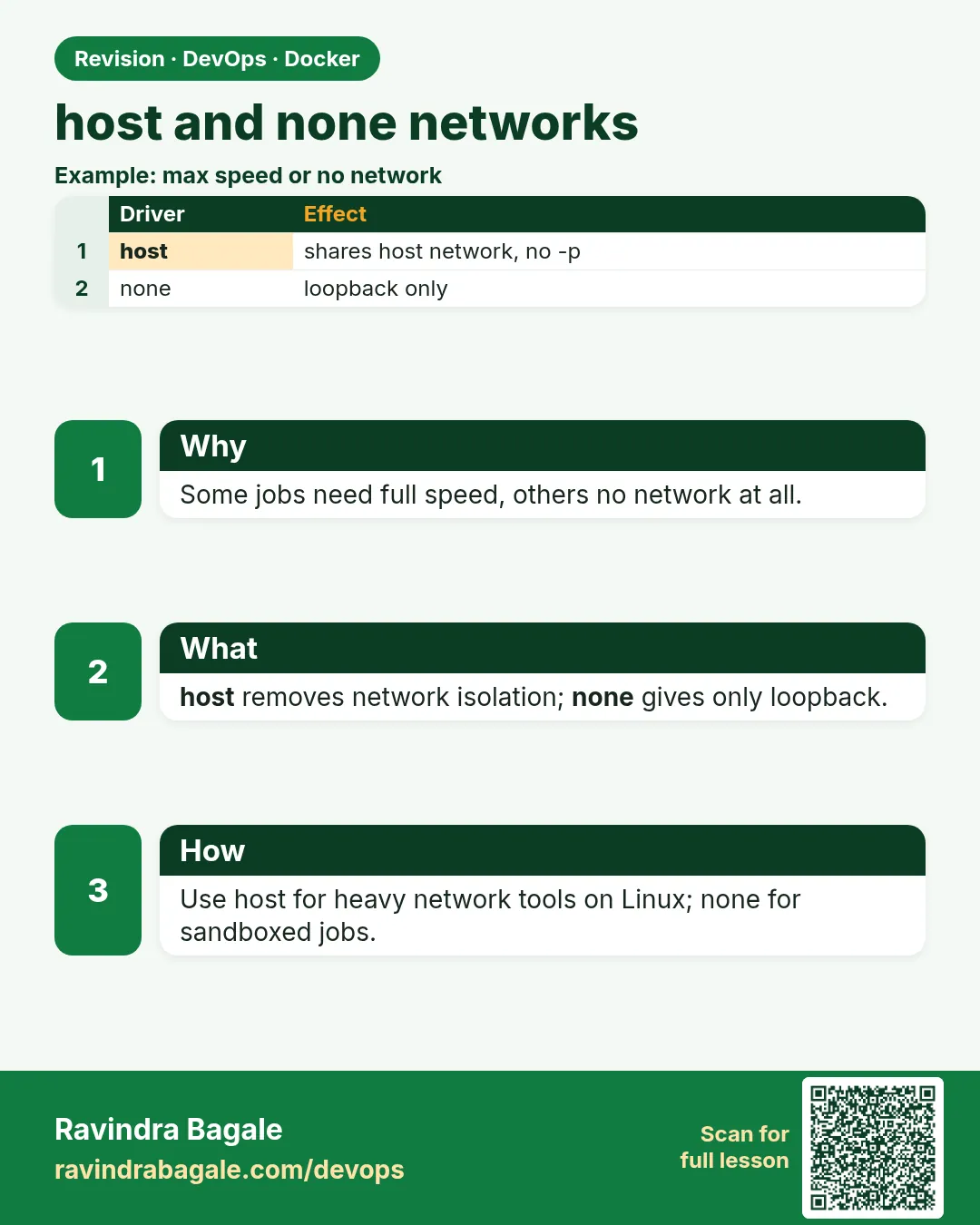 Revision card
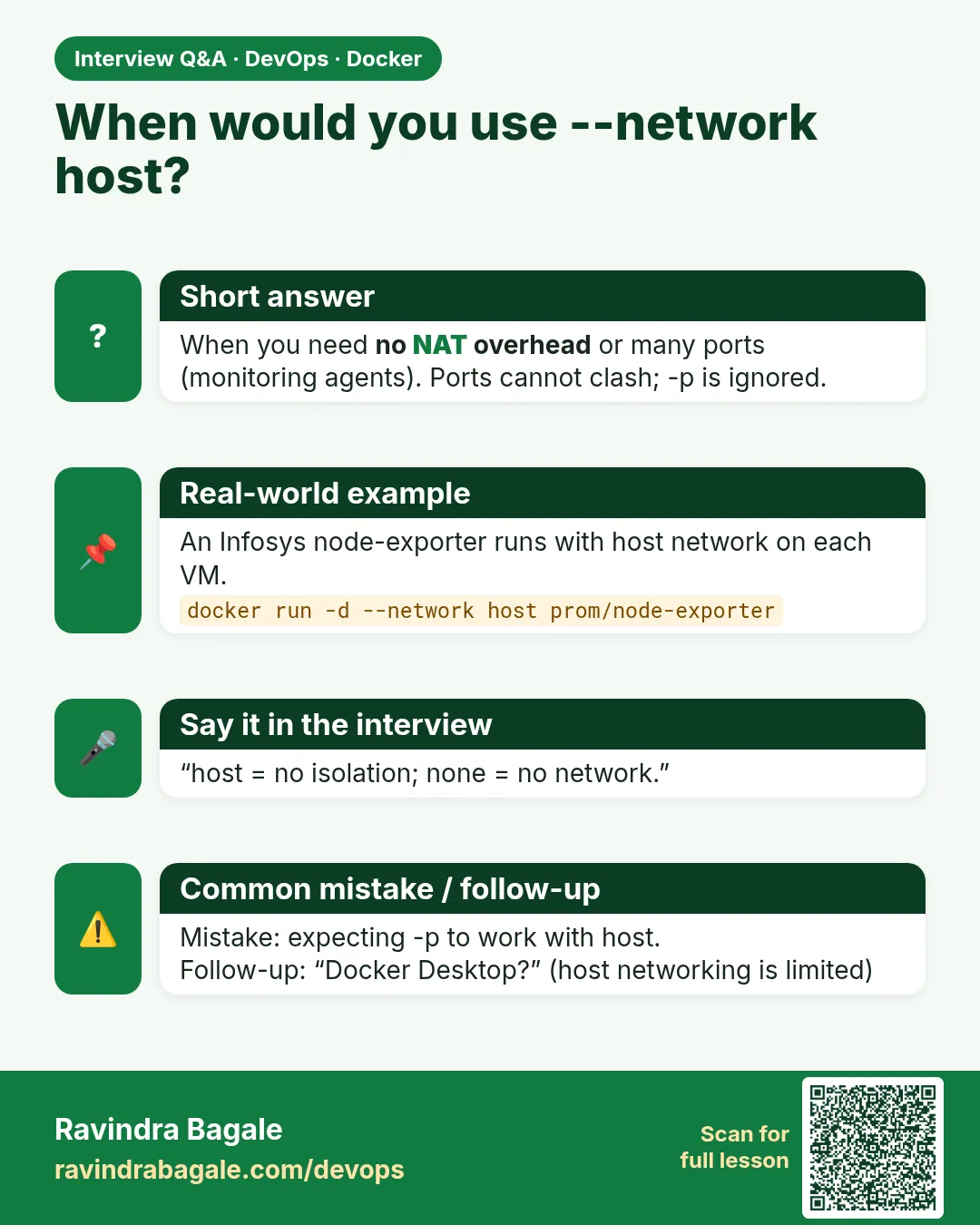 Interview card
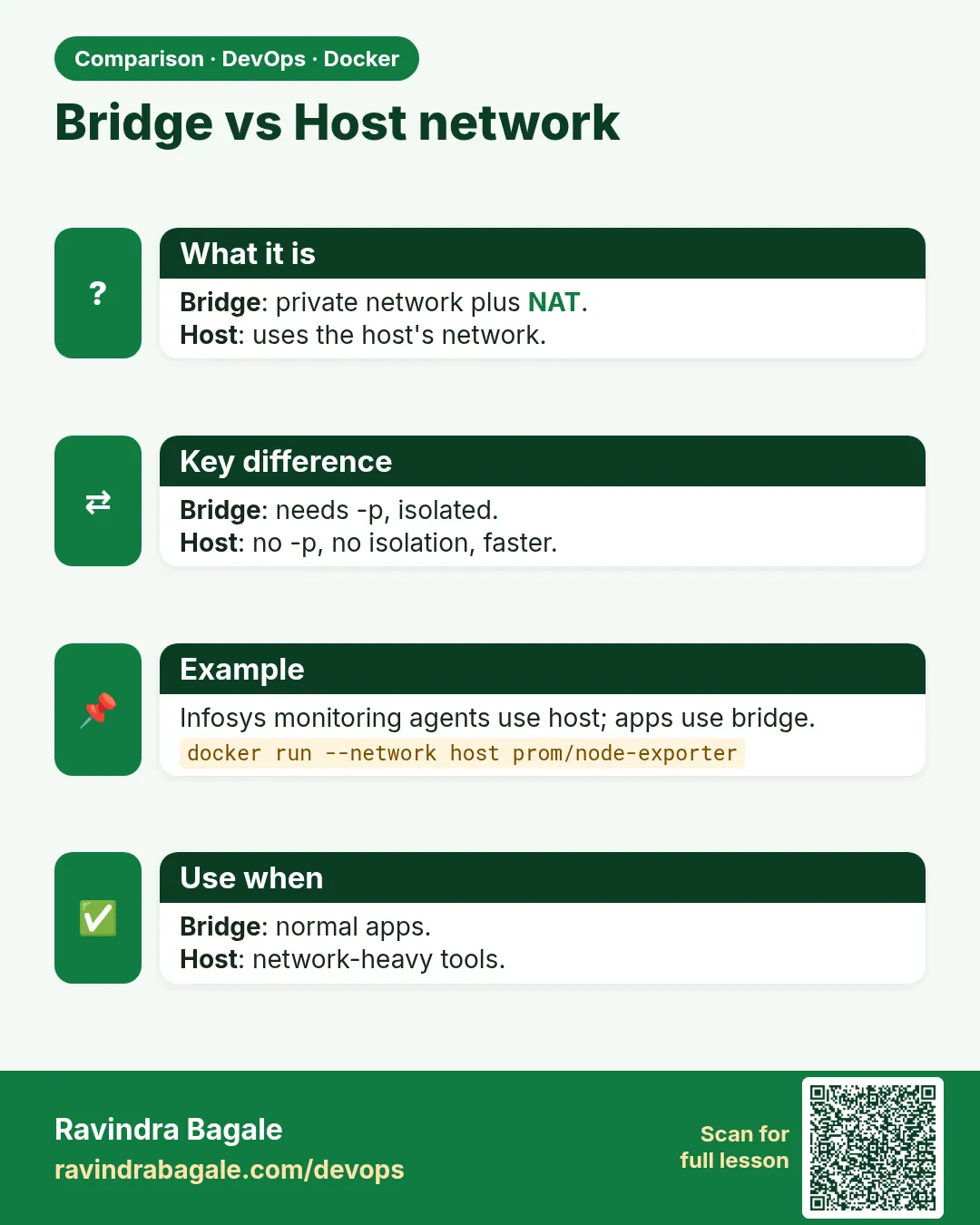 Comparison card