51.1 Port publishing: reach a container from outside
Friends, 'the container is running but the page does not open in the browser' is the most common classroom question. Today we learn port publishing from the very start: the container's port, the host's port and how they connect.
मित्रांनो, 'container चालू आहे पण browser मध्ये page येत नाही' हा classroom मध्ये सगळ्यात जास्त येणारा प्रश्न. आज port publishing अगदी सुरुवातीपासून शिकू: container चा port, host चा port, आणि त्यांचं जोडणं.
दोस्तों, 'container चल रहा है पर browser में page नहीं आता' यह classroom का सबसे आम सवाल है. आज port publishing बिल्कुल शुरू से सीखेंगे: container का port, host का port, और उनका जुड़ना.
1. Start from a story
Priya works on a small team at Instagram. Her job today is simple: launch a landing page for a new feature. The page runs in an nginx container on an EC2 server in Mumbai.
She types docker run nginx and the container starts. She opens the browser with the server IP. Nothing. The page just keeps loading and then shows an error.
The container is fine. The problem is the door. A container lives inside its own small private network on the server. Nobody outside can knock on it unless we open a door from the server to the container.
Think of a big apartment building. The building has one gate number on the road, like 8080. Inside, every flat has its own flat number, like 80. The watchman at the gate knows: whoever comes to gate 8080 goes to flat 80. That watchman is port publishing.
In this lesson we learn what a port is, how to open the door with -p, how to choose which network card listens, how to check the mapping, and how to fix the usual mistakes.
2. Ports and the first door
Step 1: What is a port?
Why: A server runs many programs. The port number tells the computer which program should get the message.
What: An IP address finds the computer. A port finds the program on that computer. Web servers usually use 80 for HTTP and 443 for HTTPS. A port is a number from 1 to 65535.
Example 1: See who listens on the host
Type this:
sudo ss -tlnp | head -4
You will see:
State  Recv-Q Send-Q Local Address:Port  Peer Address:Port Process
LISTEN 0      128    0.0.0.0:22          0.0.0.0:*     users:(("sshd",pid=812))
What it means: Only SSH on port 22 is open. Nothing on 8080 yet.
Example 2: Run nginx without a door
Type this:
docker run -d --name nodoor nginx:1.27
You will see:
3f9a1c0d7b2e...
What it means: The container started. Docker printed its long ID.
Example 3: Try to reach it
Type this:
curl -s -m 3 http://localhost:80 || echo failed
You will see:
failed
What it means: Port 80 on the host has nobody listening. The container's port 80 is private.
Step 2: The container's private address
Why: To understand the door, first see the flat number inside the building.
What: Every container on the default bridge gets a private IP like 172.17.0.2. The host can reach it, but the outside world cannot.
Example 4: Find the IP
Type this:
docker inspect nodoor -f '{{.NetworkSettings.IPAddress}}'
You will see:
172.17.0.2
What it means: This IP lives only inside the server.
Example 5: Reach it from the host
Type this:
curl -s http://172.17.0.2 | grep -o '<title>.*</title>'
You will see:
<title>Welcome to nginx!</title>
What it means: It works from the host itself.
Example 6: Clean up
Type this:
docker rm -f nodoor
You will see:
nodoor
What it means: Private IPs change on every run, so we never give them to users.
Step 3: -p HOST:CONTAINER
Why: This is the door. It is the most used flag after -d.
What: The left number is the host port that users hit. The right number is the port inside the container. Docker forwards traffic from left to right.
Example 7: Open 8080 to 80
Type this:
docker run -d --name land -p 8080:80 nginx:1.27
You will see:
a71c4e09d2f3...
What it means: Gate 8080 now leads to flat 80.
Example 8: Test locally
Type this:
curl -s -o /dev/null -w '%{http_code}\n' http://localhost:8080
You will see:
200
What it means: 200 means OK. The page is served.
Example 9: See it in docker ps
Type this:
docker ps --format '{{.Names}} {{.Ports}}'
You will see:
land 0.0.0.0:8080->80/tcp, [::]:8080->80/tcp
What it means: Read the arrow: host 8080 goes to container 80, for IPv4 and IPv6.
Step 4: Same container port, many host ports
Why: You may run three copies of the same app on one server.
What: Each container can use port 80 inside, because each has its own network. But host ports must be different, because the host has only one port 8080.
Example 10: Second copy
Type this:
docker run -d --name land2 -p 8081:80 nginx:1.27
You will see:
5be0f1...
What it means: Inside it is still port 80.
Example 11: Clash on purpose
Type this:
docker run -d --name land3 -p 8080:80 nginx:1.27
You will see:
docker: Error response from daemon: ... Bind for 0.0.0.0:8080 failed: port is already allocated.
What it means: Two containers cannot share one host port.
Example 12: Clean the failed one
Type this:
docker rm land3
You will see:
land3
What it means: The container was created but never started, so remove it.
3. Choose who can reach the door
Step 5: Bind to one IP
Why: Sometimes only the server itself should reach the app, like an admin page or a database.
What: Write the host IP before the ports: -p 127.0.0.1:9090:80. Now only programs on the same server can connect.
Example 13: Localhost only
Type this:
docker run -d --name admin -p 127.0.0.1:9090:80 nginx:1.27
You will see:
9d2e...
What it means: Gate 9090 opens only from inside the building.
Example 14: Check from the host
Type this:
curl -s -o /dev/null -w '%{http_code}\n' http://127.0.0.1:9090
You will see:
200
What it means: Works locally.
Example 15: Check from your laptop
Type this:
curl -s -m 3 http://13.233.10.20:9090 || echo blocked
You will see:
blocked
What it means: The outside world cannot reach it. Safe.
Step 6: Random host port with -P
Why: In test labs you do not care which port, you only want no clash.
What: Capital -P publishes every port the image declares with EXPOSE, each to a random high port like 32768. docker port shows the choice.
Example 16: Run with -P
Type this:
docker run -d --name rnd -P nginx:1.27
You will see:
c1b2...
What it means: No numbers given.
Example 17: Ask which port
Type this:
docker port rnd
You will see:
80/tcp -> 0.0.0.0:32768
80/tcp -> [::]:32768
What it means: Docker picked 32768.
Example 18: Test it
Type this:
curl -s -o /dev/null -w '%{http_code}\n' http://localhost:32768
You will see:
200
What it means: Random port, same page.
Step 7: Random host port with -p
Why: You want a random host port only for one container port.
What: Leave the host side empty: -p 80. Or give a range: -p 8000-8010:80 and Docker picks a free one from the range.
Example 19: Empty host side
Type this:
docker run -d --name r2 -p 80 nginx:1.27 && docker port r2 80
You will see:
0.0.0.0:32769
What it means: Random again.
Example 20: From a range
Type this:
docker run -d --name r3 -p 8000-8010:80 nginx:1.27 && docker port r3 80
You will see:
0.0.0.0:8000
What it means: First free port in the range.
Example 21: Another from the range
Type this:
docker run -d --name r4 -p 8000-8010:80 nginx:1.27 && docker port r4 80
You will see:
0.0.0.0:8001
What it means: 8000 was taken, so it got 8001.
Step 8: TCP and UDP
Why: Some apps, like DNS or game servers, use UDP instead of TCP.
What: By default -p means TCP. Add /udp to publish UDP. You can publish both for the same port.
Example 22: UDP only
Type this:
docker run -d --name dns -p 5353:53/udp alpine:3.20 sleep 600
You will see:
4e7a...
What it means: Only UDP 5353 is open.
Example 23: Both
Type this:
docker run -d --name both -p 5354:53/tcp -p 5354:53/udp alpine:3.20 sleep 600
You will see:
8b3c...
What it means: Two -p flags, one per protocol.
Example 24: Check
Type this:
docker port both
You will see:
53/tcp -> 0.0.0.0:5354
53/udp -> 0.0.0.0:5354
What it means: Docker lists both.
4. EXPOSE, Compose and what happens underneath
Step 9: EXPOSE in a Dockerfile
Why: Beginners think EXPOSE opens the port. It does not.
What: EXPOSE is only a note for humans and for -P. It says which port the app listens on. Only -p or -P actually opens the door.
Example 25: See the note
Type this:
docker image inspect nginx:1.27 -f '{{json .Config.ExposedPorts}}'
You will see:
{"80/tcp":{}}
What it means: The nginx image says it uses 80.
Example 26: Write your own
Type this:
printf 'FROM nginx:1.27\nEXPOSE 80 8443\n' > Dockerfile && docker build -q -t land:exp .
You will see:
sha256:7f1e...
What it means: Image now notes two ports.
Example 27: Run without -p
Type this:
docker run -d --name exp land:exp && docker port exp
You will see:
(no output)
What it means: EXPOSE alone opened nothing.
Step 10: ports in Compose
Why: Most teams write ports in compose.yaml, not on the command line.
What: The ports list uses the same HOST:CONTAINER text. Always quote it, because YAML can read some numbers strangely.
Example 28: Write the file
Type this:
printf 'services:\n web:\n image: nginx:1.27\n ports:\n - "8082:80"\n - "127.0.0.1:9091:80"\n' > compose.yaml
You will see:
(no output)
What it means: Two doors: public 8082, local 9091.
Example 29: Start it
Type this:
docker compose up -d
You will see:
Container demo-web-1 Started
What it means: Same as two -p flags.
Example 30: Check
Type this:
docker compose port web 80
You will see:
0.0.0.0:8082
What it means: Compose shows the first mapping.
Step 11: What Docker does underneath
Why: When something breaks, knowing the machinery helps you debug.
What: Docker adds NAT rules in iptables (or nftables) that send host port traffic to the container IP. A helper called docker-proxy also listens for local traffic.
Example 31: See NAT rules
Type this:
sudo iptables -t nat -L DOCKER -n | grep 8080
You will see:
DNAT tcp -- 0.0.0.0/0 0.0.0.0/0 tcp dpt:8080 to:172.17.0.3:80
What it means: Traffic to 8080 is rewritten to the container IP.
Example 32: See the proxy
Type this:
ps -ef | grep docker-proxy | grep 8080 | head -1
You will see:
root 2211 ... /usr/bin/docker-proxy -proto tcp -host-ip 0.0.0.0 -host-port 8080 -container-ip 172.17.0.3 -container-port 80
What it means: One proxy process per published port.
Example 33: Host now listens
Type this:
sudo ss -tlnp | grep 8080
You will see:
LISTEN 0 4096 0.0.0.0:8080 0.0.0.0:* users:(("docker-proxy",pid=2211))
What it means: The gate is really open.
5. Fix the usual problems
Step 12: Works locally, not from the internet
Why: The most common ticket on EC2.
What: If curl on the server gives 200 but your laptop times out, the cloud firewall is blocking. On AWS open the port in the security group, only to the IPs that need it.
Example 34: Symptom
Type this:
curl -s -m 5 http://13.233.10.20:8080 || echo timeout
You will see:
timeout
What it means: Laptop cannot reach.
Example 35: Open the port
Type this:
aws ec2 authorize-security-group-ingress --group-id sg-0abc12345 --protocol tcp --port 8080 --cidr 203.0.113.7/32
You will see:
{"Return": true}
What it means: Only your office IP is allowed.
Example 36: Try again
Type this:
curl -s -o /dev/null -w '%{http_code}\n' http://13.233.10.20:8080
You will see:
200
What it means: Fixed.
Step 13: App listens on 127.0.0.1 inside
Why: Port is published, firewall is open, still connection reset.
What: The app inside must listen on 0.0.0.0. If it listens on 127.0.0.1 inside the container, traffic from Docker never reaches it.
Example 37: Run a wrong app
Type this:
docker run -d --name py -p 8090:8000 python:3.12-slim python -m http.server 8000 --bind 127.0.0.1
You will see:
6a1f...
What it means: The app hides on its own localhost.
Example 38: Test
Type this:
curl -s -m 3 http://localhost:8090 || echo reset
You will see:
reset
What it means: Door opens to an empty room.
Example 39: Fix it
Type this:
docker rm -f py && docker run -d --name py -p 8090:8000 python:3.12-slim python -m http.server 8000 --bind 0.0.0.0 && sleep 1 && curl -s -o /dev/null -w '%{http_code}\n' http://localhost:8090
You will see:
200
What it means: Listening on 0.0.0.0 inside fixes it.
Check yourself
Q1. Which side of -p 8080:80 is the host?
The left side, 8080.
Q2. Does EXPOSE open a port?
No. Only -p or -P opens it.
Q3. How do you make a port reachable only from the server?
-p 127.0.0.1:HOST:CONTAINER.
Q4. Two containers want host port 8080. What happens?
The second fails with port is already allocated.
Q5. curl works on the server but not from a laptop. First check?
The cloud security group or firewall.
Friends, remember: in -p, left is the host, right is the container. Did you understand? Let us try it once more. If the page does not open, check three things: the port in docker ps, whether the app listens on 0.0.0.0, and the security group.
मित्रांनो, लक्षात ठेवा: -p मध्ये डावा host, उजवा container. समजलं का? चला, पुन्हा एकदा करून पाहू. Page येत नसेल तर तीन गोष्टी तपासा: docker ps मधला port, app 0.0.0.0 वर आहे का, आणि security group.
दोस्तों, याद रखिए: -p में बायाँ host, दायाँ container. समझ आया? चलिए, एक बार फिर करके देखते हैं। Page न आए तो तीन चीज़ें जाँचिए: docker ps में port, app 0.0.0.0 पर है या नहीं, और security group.
Ravindra Bagale's Tip
Never open a database port on 0.0.0.0. Use 127.0.0.1: or do not publish it at all.
Database चा port कधीही 0.0.0.0 वर उघडू नका. 127.0.0.1: वापरा किंवा publish च करू नका.
Database का port कभी 0.0.0.0 पर मत खोलिए. 127.0.0.1: इस्तेमाल कीजिए या publish ही मत कीजिए.
Lab: try at home
- Run nginx with -p 8080:80 and open it in a browser.
- Run a second nginx on 8081 and try a third on 8080 to see the error.
- Publish an admin container on 127.0.0.1:9090 and test from outside.
- Run with -P and find the port with docker port.
- Write a compose.yaml with two ports and check docker compose port.
- Clean up with docker rm -f on every container you made.
Recap
- A port finds the program; the IP finds the computer.
- -p HOST:CONTAINER opens the door; host ports must be unique.
- Add 127.0.0.1: to keep a port private to the server.
- -P and empty host ports pick random ports.
- EXPOSE is only a note.
- When it fails, check docker ps, the app's listen address and the security group.
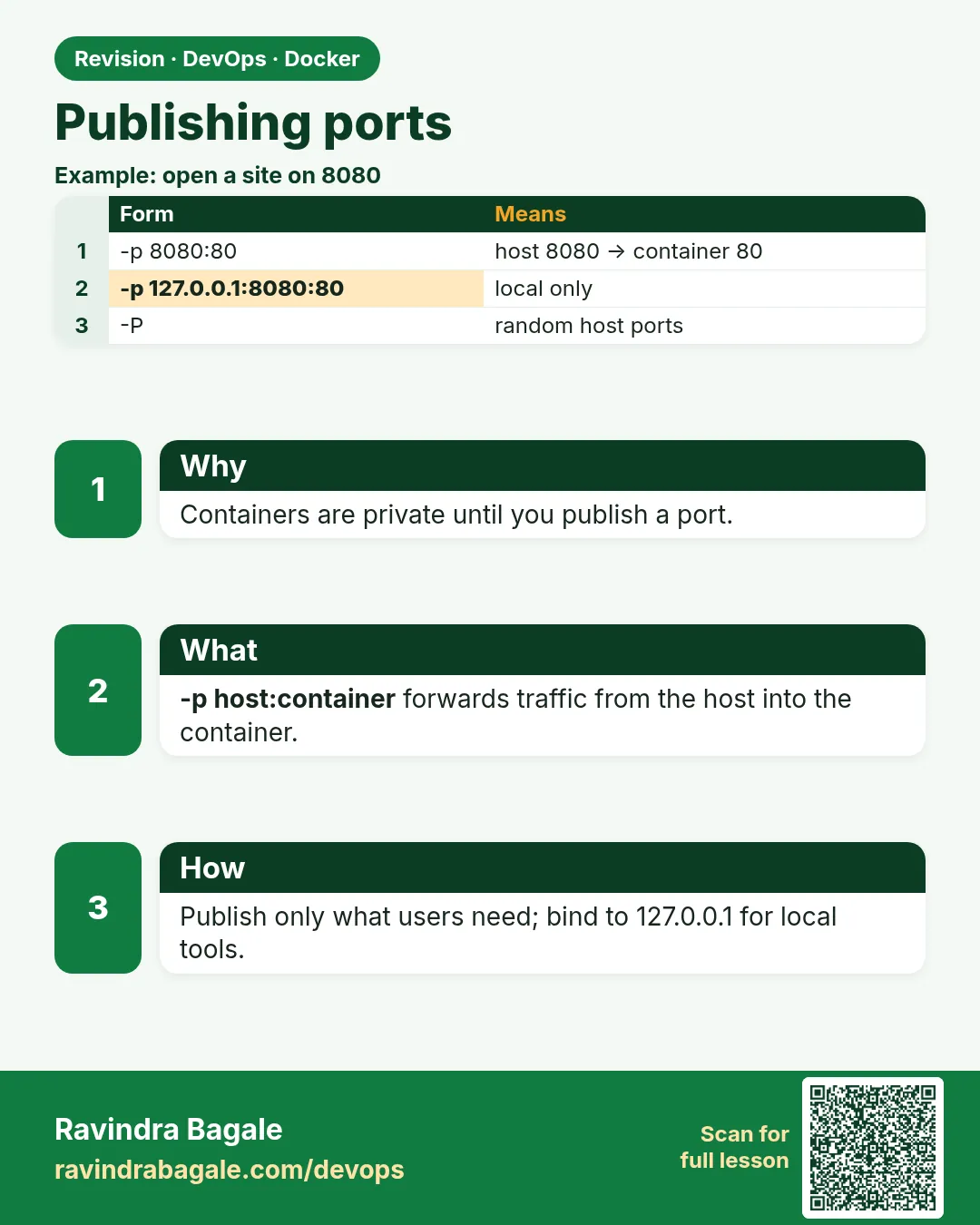 Revision card
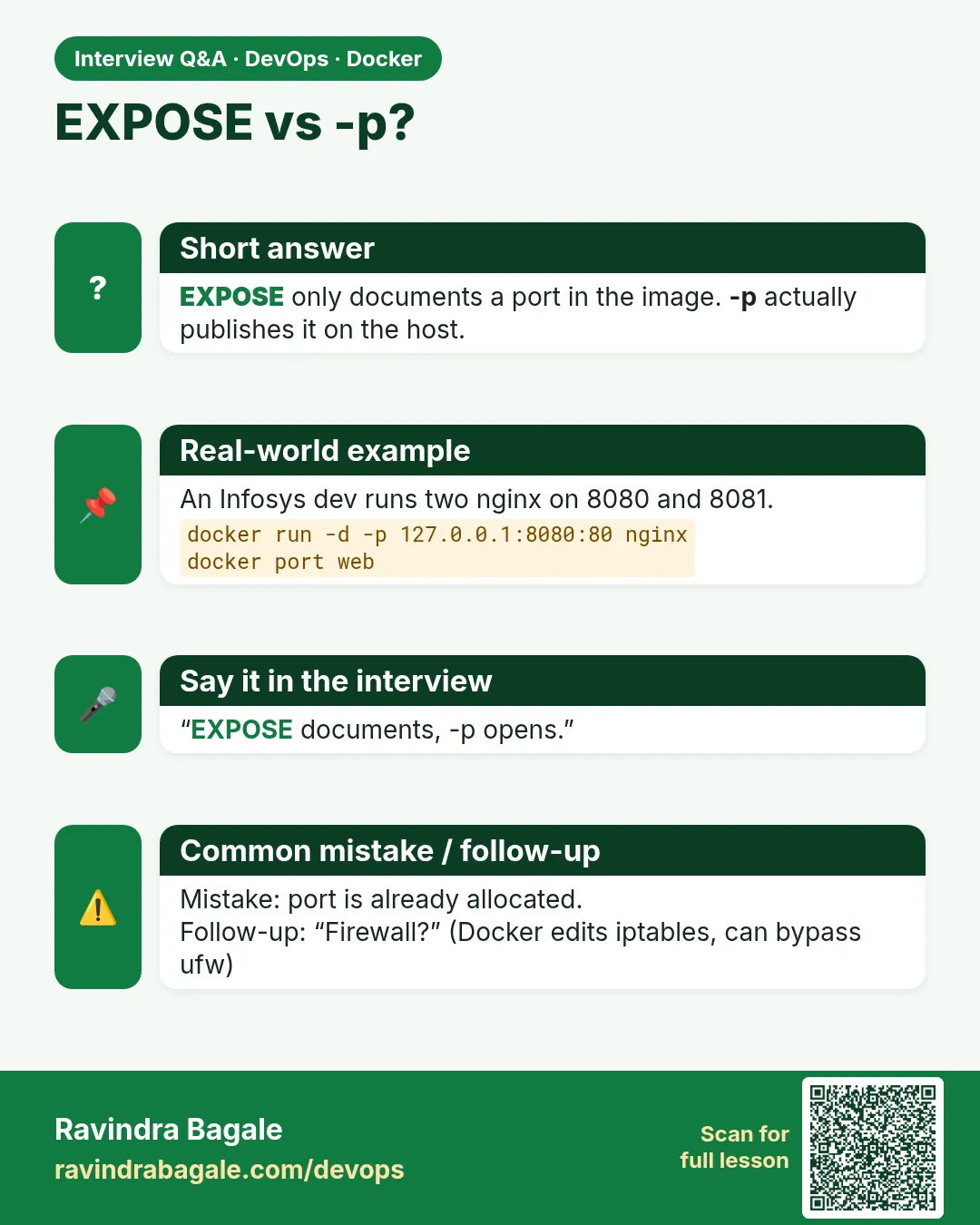 Interview card