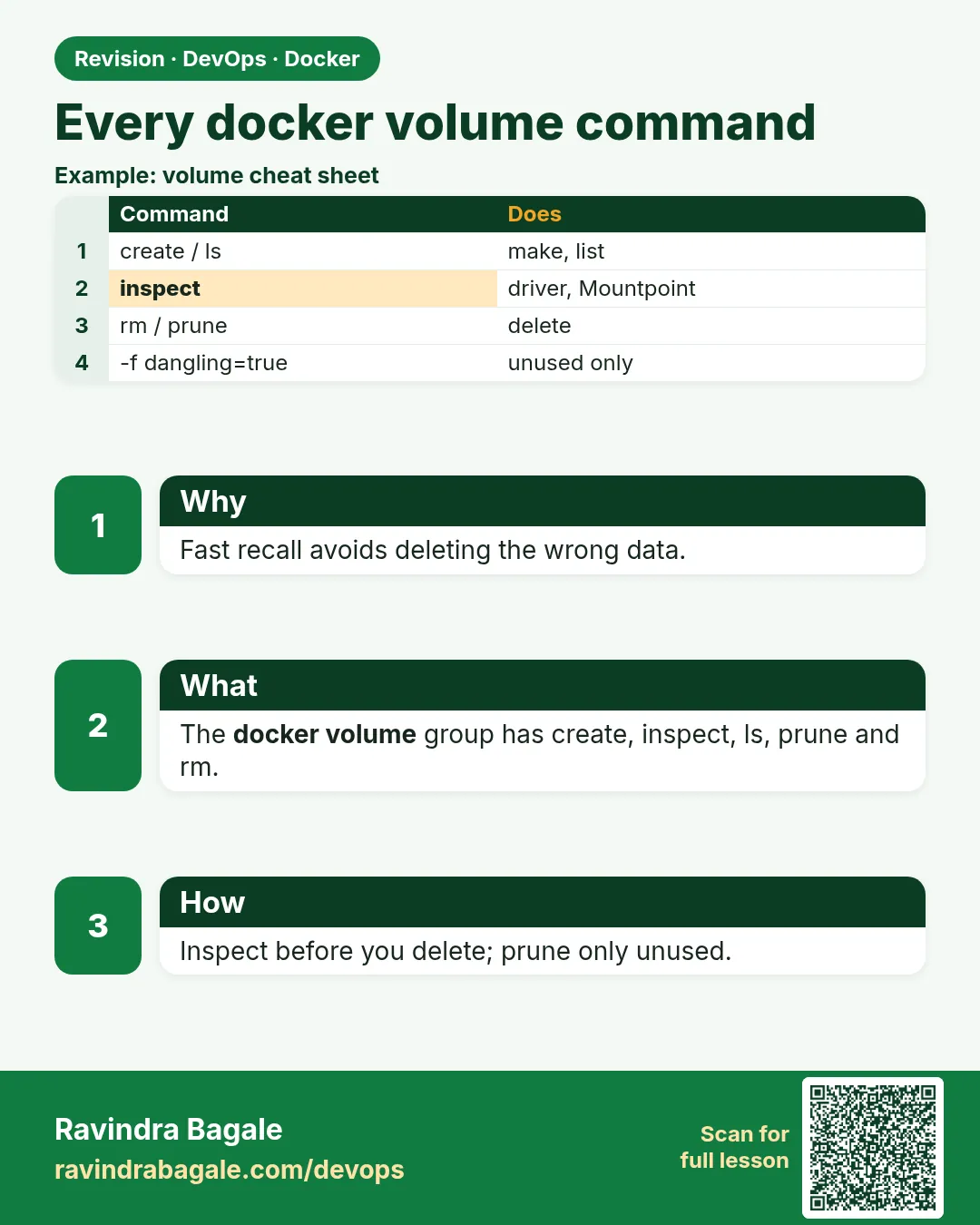
50.7 Every docker volume command: full reference
Friends, this is the last lesson of the chapter. Here are all docker volume commands and their key flags in one place, three short examples for each. Bookmark this lesson; you will come back to it at work.
मित्रांनो, हा chapter चा शेवटचा lesson. इथे docker volume चे सगळे commands आणि त्यांचे महत्त्वाचे flags एकाच जागी, प्रत्येक command ला तीन छोटी उदाहरणं. हा lesson bookmark करा, काम करताना परत परत लागेल.
दोस्तों, यह chapter का आख़िरी lesson है. यहाँ docker volume के सारे commands और उनके ज़रूरी flags एक जगह, हर command के तीन छोटे उदाहरण. यह lesson bookmark कीजिए, काम में बार-बार लगेगा.
1. Start from a story
At Ola, an on-call engineer gets an alert at 3 AM: the disk on a build server is 95 percent full. She has five minutes. She must find which volumes are big, which are unused, and remove only the safe ones.
She does not have time to search the internet. She needs every volume command in her head, with the right flags. This lesson is that list, each command with three small examples you can type.
Think of a mechanic's toolbox. Each tool has one job. A good mechanic knows exactly which tool to pick. docker volume has six sub-commands, plus the -v and --mount flags on docker run. That is the whole toolbox.
We go in the order you will use them in real life: create, list, inspect, use, check space, remove and prune.
2. Make and find volumes
Step 1: docker volume create
Why: First tool in the box.
What: Flags: --driver (-d), --opt (-o), --label. Without a name, Docker makes a random one.
Example 1: Named
Type this:
docker volume create cabs
You will see:
cabs
What it means: Simple.
Example 2: Random name
Type this:
docker volume create
You will see:
5d0b8f3a1c2e4b7d9f...
What it means: An anonymous-style volume; avoid in real work.
Example 3: With options
Type this:
docker volume create -d local -o type=tmpfs -o device=tmpfs -o o=size=50m ramvol
You will see:
ramvol
What it means: A volume that is really tmpfs, reusable by name.
Step 2: docker volume ls
Why: See everything on the host.
What: Flags: -q for names only, --filter, --format.
Example 4: All
Type this:
docker volume ls
You will see:
DRIVER    VOLUME NAME
local     5d0b8f3a1c2e...
local     cabs
local     ramvol
What it means: Three volumes.
Example 5: Unused only
Type this:
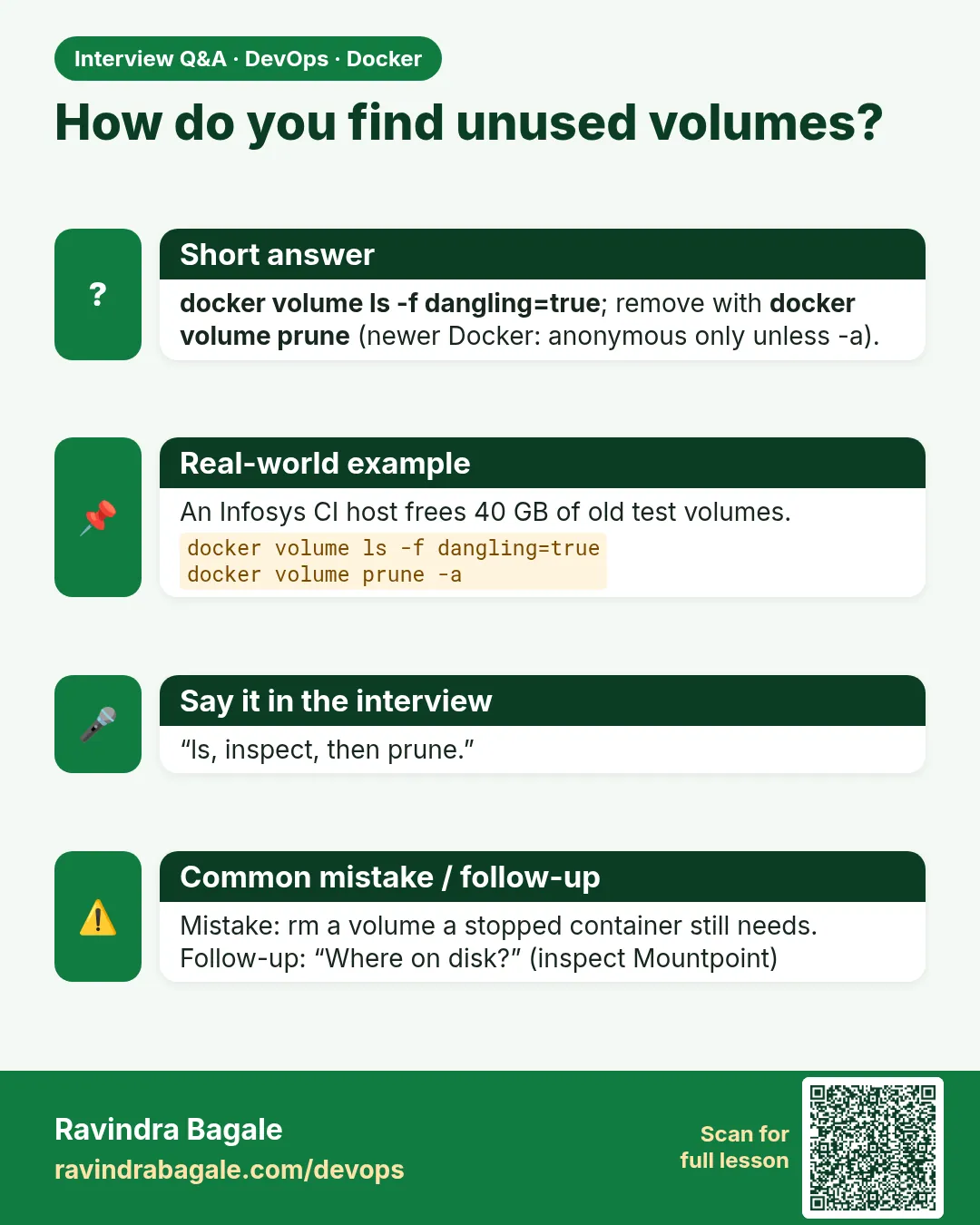
docker volume ls -f dangling=true -q
You will see:
5d0b8f3a1c2e...
cabs
ramvol
What it means: dangling means no container uses it.
Example 6: Custom columns
Type this:
docker volume ls --format '{{.Name}}\t{{.Driver}}\t{{.Scope}}'
You will see:
cabs local local
What it means: Scope local means this host only.
Step 3: docker volume ls filters
Why: On a server with 200 volumes you need to narrow down.
What: Filters: dangling, driver, label, name.
Example 7: By name
Type this:
docker volume ls -f name=cab
You will see:
DRIVER    VOLUME NAME
local     cabs
What it means: Partial match.
Example 8: By label
Type this:
docker volume create --label team=rides rides-db; docker volume ls -f label=team=rides -q
You will see:
rides-db
rides-db
What it means: First line is create, second is ls.
Example 9: By driver
Type this:
docker volume ls -f driver=local -q | wc -l
You will see:
4
What it means: Count by driver.
Step 4: docker volume inspect
Why: Read the details of one or more volumes.
What: Flag: --format (-f) to pick fields.
Example 10: Many at once
Type this:
docker volume inspect cabs rides-db --format '{{.Name}} {{.CreatedAt}}'
You will see:
cabs 2026-10-25T06:40:10Z
rides-db 2026-10-25T06:40:22Z
What it means: Times are UTC, which is 12:10 PM IST.
Example 11: Options
Type this:
docker volume inspect ramvol -f '{{json .Options}}'
You will see:
{"device":"tmpfs","o":"size=50m","type":"tmpfs"}
What it means: The driver options.
Example 12: Missing volume
Type this:
docker volume inspect nothere
You will see:
[]
Error response from daemon: get nothere: no such volume
What it means: Exit code 1, handy in scripts.
3. Use volumes in containers
Step 5: -v syntax
Why: The short form you will see most.
What: -v NAME:/path[:ro] for a volume, -v /host:/path[:ro] for a bind mount, -v /path alone for an anonymous volume.
Example 13: Named
Type this:
docker run --rm -v cabs:/data alpine:3.20 sh -c 'echo trip-1 > /data/t; cat /data/t'
You will see:
trip-1
What it means: Saved in cabs.
Example 14: Anonymous
Type this:
docker run -d --name anon -v /data alpine:3.20 sleep 600
docker inspect anon -f '{{range .Mounts}}{{.Name}}{{end}}'
You will see:
...
8e1f2a...
What it means: Random name; removed only with rm -v.
Example 15: Read-only
Type this:
docker run --rm -v cabs:/data:ro alpine:3.20 rm /data/t
You will see:
rm: can't remove '/data/t': Read-only file system
What it means: Protected.
Step 6: --mount syntax
Why: The long, clear form.
What: Keys: type (volume, bind, tmpfs), source, target, readonly, volume-opt, tmpfs-size.
Example 16: Volume
Type this:
docker run --rm --mount type=volume,src=cabs,dst=/data alpine:3.20 cat /data/t
You will see:
trip-1
What it means: src and dst are short keys.
Example 17: Bind
Type this:
docker run --rm --mount type=bind,src=/etc/hostname,dst=/h,readonly alpine:3.20 cat /h
You will see:
build-01
What it means: One host file, read-only.
Example 18: tmpfs
Type this:
docker run --rm --mount type=tmpfs,dst=/t,tmpfs-size=8m alpine:3.20 df -h /t | tail -1
You will see:
tmpfs 8.0M 0 8.0M 0% /t
What it means: All three types, one syntax.
Step 7: --volumes-from
Why: Copy another container's mounts.
What: Mounts every volume from the named container at the same paths. Add :ro for read-only.
Example 19: Share
Type this:
docker run --rm --volumes-from anon alpine:3.20 ls -d /data
You will see:
/data
What it means: Same anonymous volume.
Example 20: Read-only
Type this:
docker run --rm --volumes-from anon:ro alpine:3.20 touch /data/x
You will see:
touch: /data/x: Read-only file system
What it means: Safe reader.
Example 21: Back up with it
Type this:
docker run --rm --volumes-from anon -v $PWD:/b alpine:3.20 tar czf /b/anon.tgz /data
You will see:
tar: removing leading '/' from member names
What it means: Handy for anonymous volumes.
Step 8: Compose volume keys
Why: Most teams declare volumes in compose.yaml, so know the keys.
What: Top-level volumes: name, driver, driver_opts, labels, external. Service-level: short form NAME:/path:ro, or long form with type, source, target, read_only.
Example 22: Fixed name and labels
Type this:
printf 'services:\n  db:\n    image: postgres:16\n    environment:\n      POSTGRES_PASSWORD: example\n    volumes:\n      - type: volume\n        source: data\n        target: /var/lib/postgresql/data\nvolumes:\n  data:\n    name: rides-pg\n    labels:\n      team: rides\n' > compose.yaml
docker compose up -d
You will see:
Volume "rides-pg"  Created
Container demo-db-1  Started
What it means: name: stops Compose adding the project prefix.
Example 23: List project volumes
Type this:
docker compose volumes
You will see:
DRIVER    VOLUME NAME
local     rides-pg
What it means: Shows only this project's volumes.
Example 24: Read-only long form
Type this:
docker compose run --rm -v rides-pg:/d:ro db ls /d | head -2
You will see:
base
global
What it means: Same rules as docker run.
Step 9: Volume commands in scripts
Why: Ola's on-call runbook is a script, not memory.
What: Use -q, --format and exit codes so scripts can decide. Always print before deleting.
Example 25: Exists check
Type this:
docker volume inspect rides-pg >/dev/null 2>&1 && echo yes || echo no
You will see:
yes
What it means: Exit code 0 means it exists.
Example 26: Loop with a dry run
Type this:
for v in $(docker volume ls -qf dangling=true); do echo would remove $v; done
You will see:
would remove 5d0b8f3a1c2e...
What it means: Print first, delete after review.
Example 27: Size of each
Type this:
for v in $(docker volume ls -q); do printf '%s ' $v; docker run --rm -v $v:/v alpine:3.20 du -sh /v | cut -f1; done
You will see:
rides-pg 47.2M
What it means: du inside a helper container measures each volume. Then docker compose down -v to clean.
4. Check space
Step 10: docker system df
Why: The Ola alert: what is using the disk?
What: Shows space used by images, containers, volumes and build cache. -v gives per-volume sizes.
Example 28: Summary
Type this:
docker system df
You will see:
TYPE            TOTAL  ACTIVE  SIZE      RECLAIMABLE
Images          12     3       3.1GB     2.2GB (70%)
Containers      4      1       12kB      8kB (66%)
Local Volumes   6      1       4.8GB     4.7GB (97%)
Build Cache     40     0       1.3GB     1.3GB
What it means: Volumes are the big one here.
Example 29: Per volume
Type this:
docker system df -v | sed -n '/VOLUME NAME/,/^$/p'
You will see:
VOLUME NAME   LINKS   SIZE
ci-cache      0       4.6GB
cabs          0       7B
What it means: ci-cache is huge and unused.
Example 30: Who uses it
Type this:
docker ps -a --filter volume=ci-cache --format '{{.Names}}'
You will see:
(no output)
What it means: Nobody. Safe to remove after a quick backup check.
5. Remove and prune
Deleting is the one step you cannot undo. Before any rm or prune, the Ola engineer follows the same three checks every time: which volumes are big, which containers use them, and whether a backup exists. Only then does she delete, and she starts with the smallest safe scope: one name, then one label, and only last the whole host.
Step 11: docker volume rm
Why: Delete specific volumes.
What: Flag: -f to skip the error for missing names. It still refuses volumes in use.
Example 31: One
Type this:
docker volume rm ci-cache
You will see:
ci-cache
What it means: 4.6 GB freed.
Example 32: Many
Type this:
docker volume rm cabs ramvol
You will see:
cabs
ramvol
What it means: Space separated.
Example 33: In use
Type this:
docker volume rm $(docker inspect anon -f '{{range .Mounts}}{{.Name}}{{end}}')
You will see:
Error response from daemon: remove 8e1f2a...: volume is in use - [anon]
What it means: Remove the container first.
Step 12: docker volume prune
Why: Bulk cleanup of unused volumes.
What: Default: anonymous unused volumes only. -a includes named ones. --filter label= limits it. -f skips the prompt.
Example 34: Prompt
Type this:
docker volume prune
You will see:
WARNING! This will remove anonymous local volumes not used by at least one container.
Are you sure you want to continue? [y/N]
What it means: Read before saying y.
Example 35: Only a team
Type this:
docker volume prune -a -f --filter label=team=rides
You will see:
Deleted Volumes:
rides-db
What it means: Limited by label.
Example 36: Everything unused
Type this:
docker rm -f anon; docker volume prune -a -f
You will see:
anon
Deleted Volumes:
8e1f2a...
5d0b8f3a1c2e...
What it means: Use with care; never blindly on production.
Step 13: Related commands
Why: Volumes also go away with other cleanup commands.
What: docker rm -v removes a container's anonymous volumes. docker system prune --volumes removes unused volumes along with other junk. docker compose down -v removes a project's volumes.
Example 37: rm -v
Type this:
docker run -d --name t -v /x alpine:3.20 sleep 60; docker rm -f -v t
You will see:
...
t
What it means: Its anonymous volume went too.
Example 38: system prune
Type this:
docker system prune --volumes -f
You will see:
Total reclaimed space: 1.4GB
What it means: Containers, networks, images and anonymous volumes.
Example 39: compose down -v
Type this:
docker compose down -v
You will see:
Volume demo_db Removed
What it means: Only that project's volumes.
A safe daily routine with volumes
Start the day with docker system df -v to see which volumes are large. Then use docker ps -a --filter volume=NAME to see which containers use each one. Only after that decide what to remove.
Give every volume labels such as team and env when you create it. Then cleanup becomes docker volume prune --filter label=env=test, which touches only test data and never a production database.
Before any upgrade, take a backup with a small alpine container and tar, and check that the file size is not zero.
Check yourself
Q1. Which command shows volume sizes?
docker system df -v.
Q2. What does dangling=true mean?
Not used by any container.
Q3. What does prune remove by default now?
Only anonymous unused volumes; add -a for named.
Q4. How do you find which container uses a volume?
docker ps -a --filter volume=NAME.
Q5. Which flag removes anonymous volumes with a container?
docker rm -v.
Friends, remember this toolbox: create, ls, inspect, rm, prune, and -v or --mount in run. Did you understand? Let us try it once more. Before a prune, always check system df -v and ps --filter volume.
मित्रांनो, हा toolbox लक्षात ठेवा: create, ls, inspect, rm, prune आणि run मध्ये -v किंवा --mount. समजलं का? चला, पुन्हा एकदा करून पाहू. Prune करण्याआधी नेहमी system df -v आणि ps --filter volume बघा.
दोस्तों, यह toolbox याद रखिए: create, ls, inspect, rm, prune और run में -v या --mount. समझ आया? चलिए, एक बार फिर करके देखते हैं। Prune से पहले हमेशा system df -v और ps --filter volume देखिए.
Ravindra Bagale's Tip
Never run prune -a blindly on a production server. Use a label filter.
Production server वर prune -a कधीही आंधळेपणाने चालवू नका. Label filter वापरा.
Production server पर prune -a कभी आँख बंद करके मत चलाइए. Label filter इस्तेमाल कीजिए.
Lab: try at home
- Create three volumes with labels and list them by filter.
- Inspect two at once with a custom format.
- Use -v, --mount and --volumes-from on the same volume.
- Find the biggest volume with system df -v.
- Prune only one label's volumes.
Recap
- create, ls, inspect, rm and prune are the six-tool box with system df.
- Filters and --format make ls and inspect script-friendly.
- -v, --mount and --volumes-from attach volumes.
- Check size and users before deleting.
- prune is anonymous-only unless you add -a.
Lab
- Lose MySQL data without a volume, then keep it with one.
- Bind-mount a config file read-only into nginx.
- Back up and restore a volume.
- Run a container with --read-only and tmpfs /tmp.
Practice task
Run Postgres with a named volume, insert data, back it up with both tar and pg_dump, delete everything, restore into a new volume and prove the rows are back.
Ravindra Bagale's Tip
Always give a database a named volume, and test your backup by restoring it. A backup you never tested is not a backup.
Database ला नेहमी named volume द्या, आणि backup restore करून test करा. Test न केलेला backup म्हणजे backup नाही.
Database को हमेशा named volume दीजिए, और backup को restore करके test कीजिए. Test न किया हुआ backup, backup नहीं है.
In short
- The writable layer dies with the container.
- Named volumes for data, bind mounts for dev code and config, tmpfs for scratch.
- Use --mount for clarity.
- Back up by tar with the DB stopped, or with dump tools live.
- Use NFS/EFS for shared data across hosts.
 Revision card
 Interview card