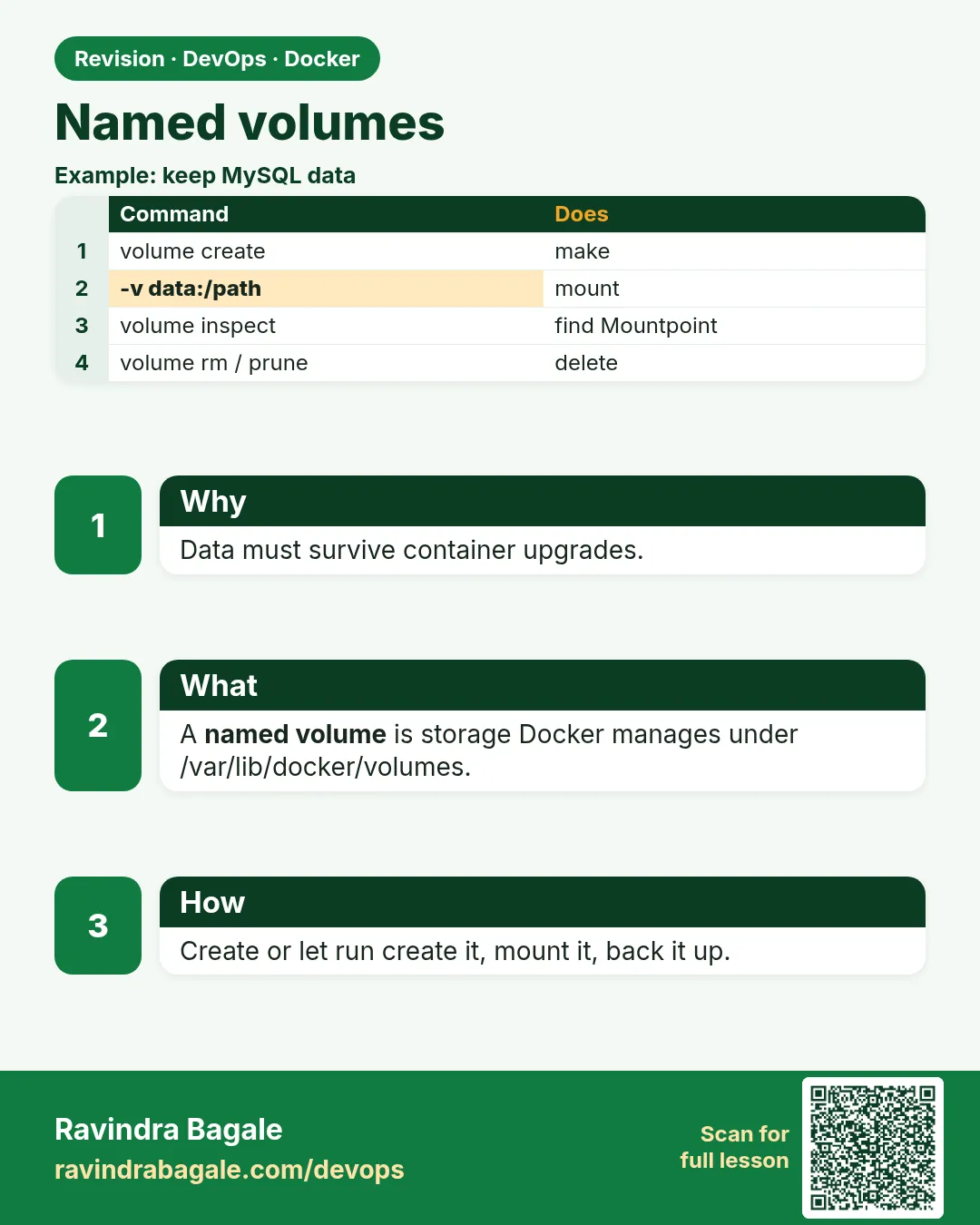
50.2 Named volumes in depth
Friends, last lesson we saw that a named volume is a locker. Today we do everything with this locker by hand: create, use, share, read-only, labels and clean up. Three examples for each.
मित्रांनो, मागच्या lesson मध्ये पाहिलं की named volume म्हणजे locker. आज या locker च्या सगळ्या गोष्टी हाताने करू: बनवणं, वापरणं, share करणं, read-only, labels आणि साफ करणं. प्रत्येकाला तीन उदाहरणं.
दोस्तों, पिछले lesson में देखा कि named volume मतलब locker. आज इस locker के सारे काम खुद करेंगे: बनाना, इस्तेमाल करना, share करना, read-only, labels और साफ़ करना. हर एक के तीन उदाहरण.
1. Start from a story
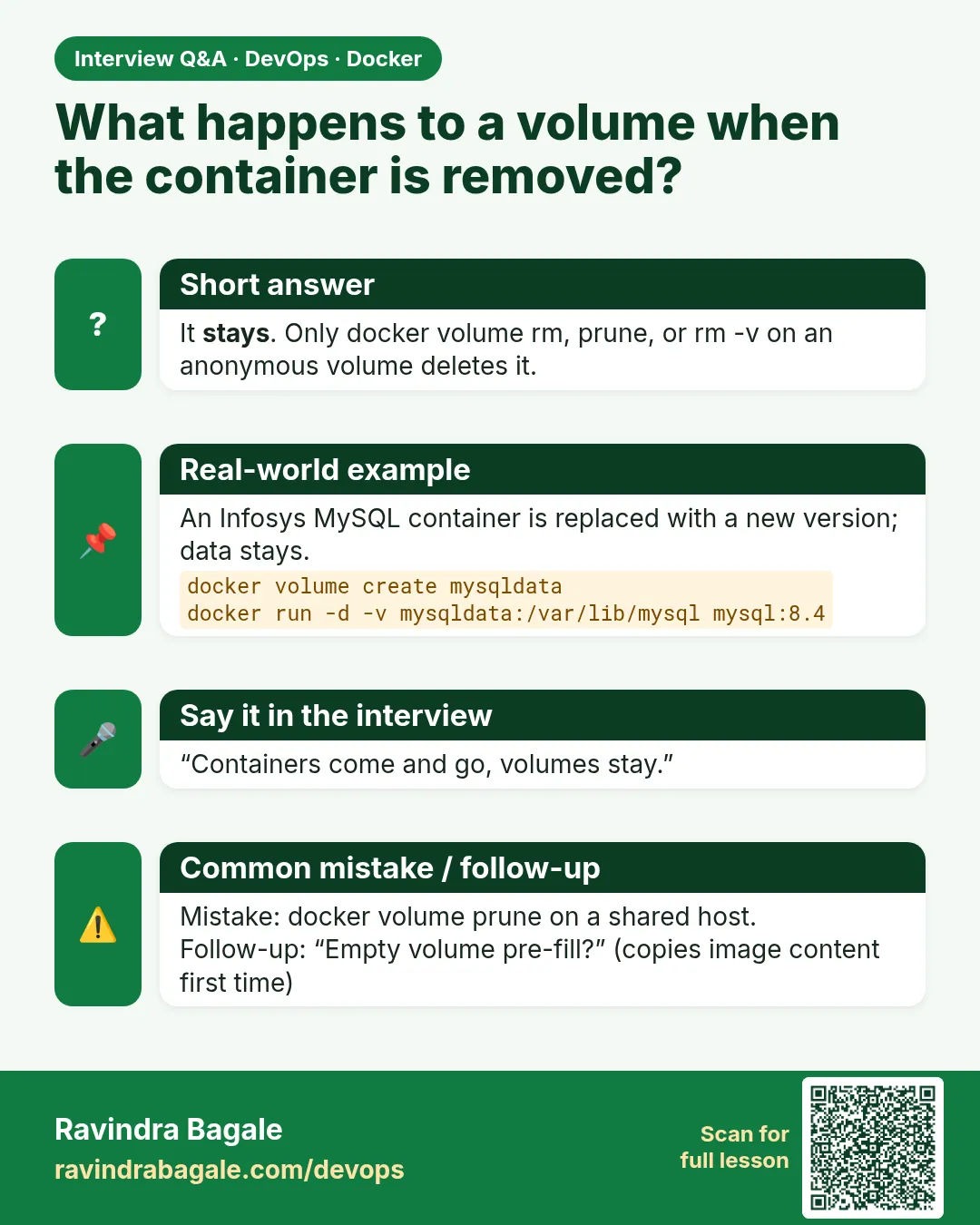
At Swiggy, the restaurant-menu service runs PostgreSQL in Docker on a test server. Every week the team updates the Postgres container to a new patch version. Each time they remove the old container and start a new one.
The menus must never disappear during this update. The answer is a named volume. The container is thrown away; the volume stays and is plugged into the new container.
Think of a pen drive. You can plug it into any laptop. If one laptop breaks, your files are safe on the pen drive. A named volume is a pen drive for containers.
2. Create and look at volumes
Step 1: docker volume create
Why: You want the volume to exist before any container uses it.
What: docker volume create NAME makes an empty named volume using the local driver.
Example 1: Create
Type this:
docker volume create menudata
You will see:
menudata
What it means: The name is printed back.
Example 2: Create with a label
Type this:
docker volume create --label team=menu --label env=test menulogs
You will see:
menulogs
What it means: Labels help you find and clean volumes later.
Example 3: Create twice
Type this:
docker volume create menudata
You will see:
menudata
What it means: No error. Creating an existing volume is safe.
Step 2: docker volume ls
Why: On a busy server you need to see all volumes.
What: docker volume ls lists volumes. -q prints only names. --filter narrows the list.
Example 4: List all
Type this:
docker volume ls
You will see:
DRIVER    VOLUME NAME
local     menudata
local     menulogs
What it means: Two volumes, both local.
Example 5: Only names
Type this:
docker volume ls -q
You will see:
menudata
menulogs
What it means: Good for scripts.
Example 6: Filter by label
Type this:
docker volume ls --filter label=team=menu
You will see:
DRIVER    VOLUME NAME
local     menulogs
What it means: Only the labelled one.
Step 3: docker volume inspect
Why: You need to know where a volume lives and how it was made.
What: docker volume inspect shows the driver, mountpoint, labels and creation time as JSON.
Example 7: Full details
Type this:
docker volume inspect menulogs
You will see:
[ { "CreatedAt": "2026-10-25T05:10:02Z", "Driver": "local", "Labels": { "env": "test", "team": "menu" }, "Mountpoint": "/var/lib/docker/volumes/menulogs/_data", "Name": "menulogs", ... } ]
What it means: All facts in one place.
Example 8: Just the path
Type this:
docker volume inspect menudata --format '{{.Mountpoint}}'
You will see:
/var/lib/docker/volumes/menudata/_data
What it means: --format picks one field.
Example 9: Just the labels
Type this:
docker volume inspect menulogs --format '{{json .Labels}}'
You will see:
{"env":"test","team":"menu"}
What it means: Useful for audits.
3. Use volumes with containers
Step 4: Auto-create on run
Why: Typing create every time is slow.
What: If you use -v NAME:/path and the volume does not exist, docker run creates it for you.
Example 10: Run with a new name
Type this:
docker run --rm -v autovol:/data alpine:3.20 touch /data/x
You will see:
(no output)
What it means: autovol did not exist before.
Example 11: It now exists
Type this:
docker volume ls -q | grep autovol
You will see:
autovol
What it means: Docker made it.
Example 12: Watch for typos
Type this:
docker run --rm -v menudta:/data alpine:3.20 ls /data
You will see:
(empty)
What it means: A typo makes a new empty volume instead of an error. Check names carefully.
Step 5: Image data is copied into a new volume
Why: Some images ship default files in the folder you mount.
What: When an empty named volume is mounted on a folder that has files in the image, Docker copies those files into the volume first. Bind mounts do not do this.
Example 13: Mount on nginx html
Type this:
docker run --rm -v webhtml:/usr/share/nginx/html nginx:1.27 ls /usr/share/nginx/html
You will see:
50x.html
index.html
What it means: The image files were copied in.
Example 14: They stay in the volume
Type this:
docker run --rm -v webhtml:/x alpine:3.20 ls /x
You will see:
50x.html
index.html
What it means: Now any container sees them.
Example 15: Bind mount hides them
Type this:
mkdir -p empty
docker run --rm -v $PWD/empty:/usr/share/nginx/html nginx:1.27 ls /usr/share/nginx/html
You will see:
(empty)
What it means: A bind mount covers the folder; nothing is copied.
Step 6: Upgrade a database without losing data
Why: This is the Swiggy weekly update.
What: Stop and remove the old container, then start the new version with the same volume.
Example 16: Old version
Type this:
docker run -d --name menu-db -e POSTGRES_PASSWORD=example -v menudata:/var/lib/postgresql/data postgres:16.3
sleep 5; docker exec menu-db psql -U postgres -c "CREATE TABLE dish(n text); INSERT INTO dish VALUES ('Masala Dosa');"
You will see:
CREATE TABLE
INSERT 0 1
What it means: Data saved in menudata. Practice password only.
Example 17: Swap container
Type this:
docker rm -f menu-db
docker run -d --name menu-db -e POSTGRES_PASSWORD=example -v menudata:/var/lib/postgresql/data postgres:16.4
You will see:
menu-db
7b1e...
What it means: Same volume, new patch version.
Example 18: Check the data
Type this:
sleep 5; docker exec menu-db psql -U postgres -tAc 'SELECT n FROM dish'
You will see:
Masala Dosa
What it means: The menu survived the upgrade.
Step 7: Share one volume between containers
Why: A web container writes logs that a second container ships.
What: Many containers can mount the same volume at the same time.
Example 19: Writer
Type this:
docker run -d --name writer -v menulogs:/logs alpine:3.20 sh -c 'while true; do date >> /logs/app.log; sleep 2; done'
You will see:
4c2a...
What it means: Writes a line every 2 seconds.
Example 20: Reader
Type this:
sleep 5; docker run --rm -v menulogs:/logs alpine:3.20 tail -2 /logs/app.log
You will see:
Sun Oct 25 05:20:04 UTC 2026
Sun Oct 25 05:20:06 UTC 2026
What it means: A second container reads the same file.
Example 21: --volumes-from
Type this:
docker run --rm --volumes-from writer alpine:3.20 ls /logs
You will see:
app.log
What it means: Mount every volume that writer has, at the same paths.
Step 8: Read-only mounts
Why: The log shipper must never change the logs.
What: Add :ro to -v, or readonly to --mount. Writes then fail.
Example 22: Read-only with -v
Type this:
docker run --rm -v menulogs:/logs:ro alpine:3.20 sh -c 'echo x >> /logs/app.log'
You will see:
sh: can't create /logs/app.log: Read-only file system
What it means: Protected.
Example 23: Read-only with --mount
Type this:
docker run --rm --mount source=menulogs,target=/logs,readonly alpine:3.20 touch /logs/new
You will see:
touch: /logs/new: Read-only file system
What it means: Same rule, long form.
Example 24: Reading still works
Type this:
docker run --rm -v menulogs:/logs:ro alpine:3.20 wc -l /logs/app.log
You will see:
12 /logs/app.log
What it means: Read is fine.
Step 9: Volume ownership
Why: Apps that run as a normal user can fail to write to a new volume.
What: A new volume folder is owned by root. If your app runs as user 1000, fix ownership once, or let the image create the folder with the right owner.
Example 25: The error
Type this:
docker run --rm -u 1000 -v ownvol:/data alpine:3.20 touch /data/a
You will see:
touch: /data/a: Permission denied
What it means: User 1000 cannot write.
Example 26: Fix it once
Type this:
docker run --rm -v ownvol:/data alpine:3.20 chown 1000:1000 /data
You will see:
(no output)
What it means: Root sets the owner; no world-writable mode needed.
Example 27: Try again
Type this:
docker run --rm -u 1000 -v ownvol:/data alpine:3.20 sh -c 'touch /data/a && ls -ln /data'
You will see:
-rw-r--r-- 1 1000 1000 0 Oct 25 05:22 a
What it means: Works, with safe 0644 file mode.
Step 10: Volumes in Docker Compose
Why: Real teams start their stack with Compose, not long docker run lines.
What: In compose.yaml, list named volumes under the top-level volumes key and mount them under each service. Compose prefixes the volume name with the project name.
Example 28: Write the file
Type this:
printf 'services:\n  db:\n    image: postgres:16\n    environment:\n      POSTGRES_PASSWORD: example\n    volumes:\n      - menudb:/var/lib/postgresql/data\nvolumes:\n  menudb:\n' > compose.yaml
docker compose up -d
You will see:
[+] Running 3/3
 Network demo_default  Created
 Volume "demo_menudb"  Created
 Container demo-db-1   Started
What it means: The folder is called demo, so the volume is demo_menudb.
Example 29: down keeps volumes
Type this:
docker compose down
docker volume ls -q | grep menudb
You will see:
demo_menudb
What it means: down removes containers and network, not volumes.
Example 30: down -v removes them
Type this:
docker compose down -v
You will see:
Volume demo_menudb Removed
What it means: Only add -v when you really want the data gone.
Step 11: External volumes
Why: Two Compose projects at Swiggy must share one existing volume.
What: Mark a volume external: true. Compose then uses the exact name and never creates or deletes it.
Example 31: Create it yourself
Type this:
docker volume create shared-menu
You will see:
shared-menu
What it means: Made outside Compose.
Example 32: Use it in Compose
Type this:
printf 'services:\n  app:\n    image: alpine:3.20\n    command: ls /m\n    volumes:\n      - shared-menu:/m\nvolumes:\n  shared-menu:\n    external: true\n' > compose.yaml
docker compose up
You will see:
app-1 exited with code 0
What it means: No prefix; the exact volume is used.
Example 33: Missing external volume
Type this:
docker volume rm shared-menu; docker compose up
You will see:
external volume "shared-menu" not found
What it means: Compose refuses instead of making an empty one. Safe.
4. Clean up safely
Step 12: docker volume rm
Why: Old test volumes waste disk.
What: docker volume rm NAME deletes a volume. Docker refuses if a container still uses it.
Example 34: In use
Type this:
docker volume rm menudata
You will see:
Error response from daemon: remove menudata: volume is in use - [7b1e...]
What it means: Docker protects you.
Example 35: Find who uses it
Type this:
docker ps -a --filter volume=menudata --format '{{.Names}}'
You will see:
menu-db
What it means: Now you know.
Example 36: Remove after the container
Type this:
docker rm -f menu-db && docker volume rm menudata
You will see:
menu-db
menudata
What it means: Gone for good.
Step 13: docker volume prune
Why: After many tests, dozens of unused volumes pile up.
What: docker volume prune removes unused volumes. Since Docker 23 it removes only anonymous ones by default; add -a for named ones too. Use filters to be careful.
Example 37: Prune anonymous
Type this:
docker volume prune -f
You will see:
Total reclaimed space: 0B
What it means: Only anonymous unused volumes.
Example 38: Prune by label
Type this:
docker rm -f writer; docker volume prune -a -f --filter label=team=menu
You will see:
Deleted Volumes:
menulogs

Total reclaimed space: 1.2kB
What it means: Only the team's volumes.
Example 39: Prune all unused
Type this:
docker volume prune -a -f
You will see:
Deleted Volumes:
autovol
menudta
webhtml
ownvol
What it means: Everything not in use. Never run this on production without checking.
Check yourself
Q1. What happens if you -v a volume name that does not exist?
Docker creates it.
Q2. Does a bind mount copy image files into the folder?
No. Only an empty named volume does.
Q3. How do you upgrade Postgres and keep data?
Remove the container and start the new version with the same volume.
Q4. How do you mount read-only?
Add :ro or readonly.
Q5. Why can docker volume rm fail?
A container still uses the volume.
Friends, a named volume is a pen drive: change the container and the data stays. Did you understand? Let us try it once more. Before an upgrade, always check the volume name.
मित्रांनो, named volume म्हणजे pen drive: container बदलला तरी data तसाच. समजलं का? चला, पुन्हा एकदा करून पाहू. Upgrade करण्याआधी volume चं नाव नक्की check करा.
दोस्तों, named volume मतलब pen drive: container बदलो तो भी data वैसा ही. समझ आया? चलिए, एक बार फिर करके देखते हैं। Upgrade से पहले volume का नाम ज़रूर check कीजिए.
Ravindra Bagale's Tip
Give volumes labels, such as team and env. Then when you prune with a filter, only your own junk is cleaned.
Volume ला label द्या, team आणि env. मग prune करताना filter वापरून फक्त तुमचाच कचरा साफ होईल.
Volume को label दीजिए, team और env. फिर prune करते समय filter से सिर्फ़ आपका कचरा साफ़ होगा.
Lab: try at home
- Create two volumes with labels and list them by label.
- Upgrade postgres:16.3 to 16.4 keeping one table.
- Share a volume between a writer and a read-only reader.
- Fix ownership for a user 1000 app.
- Prune only your team's volumes.
Recap
- create, ls, inspect, rm and prune manage volumes.
- -v auto-creates a missing volume, so watch typos.
- Empty volumes get the image's files copied in.
- Same volume plus new container equals safe upgrade.
- Use :ro for readers and labels for cleanup.
 Revision card
 Interview card