50.1 Why data disappears and the three storage types
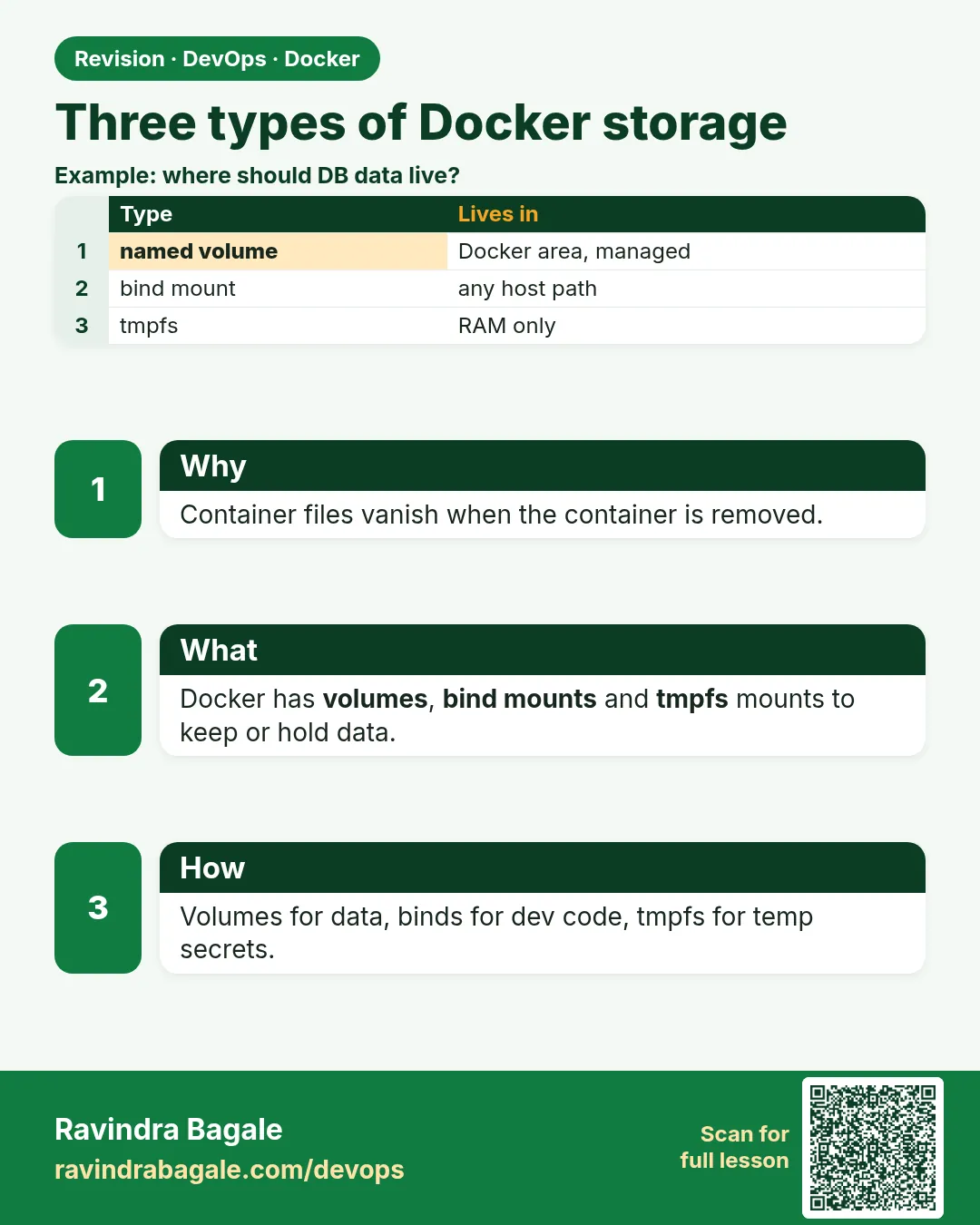
Friends, when a container is removed, its data goes too. Today we see this with our own eyes, then learn three ways to save data: named volume, bind mount and tmpfs. Three examples for each.
मित्रांनो, container काढला की त्यातला data पण जातो. हे आज आपण स्वतः डोळ्यांनी बघू, आणि मग data वाचवण्याचे तीन मार्ग शिकू: named volume, bind mount आणि tmpfs. प्रत्येकाला तीन उदाहरणं.
दोस्तों, container हटाया तो उसका data भी चला जाता है. आज यह अपनी आँखों से देखेंगे, फिर data बचाने के तीन रास्ते सीखेंगे: named volume, bind mount और tmpfs. हर एक के तीन उदाहरण.
1. Start from a story
At Zomato, a new engineer runs MySQL in a container for a test. She adds 50 restaurants. Later she runs docker rm -f to restart cleanly. When she starts MySQL again, all 50 restaurants are gone.
Nothing was broken. The data lived inside the container's own top layer. When the container was removed, that layer was removed with it.
Think of a hotel room. You can keep things in the room, but when you check out, housekeeping clears it. If you want to keep something, you put it in a locker outside the room. A volume is that locker.
In this lesson we first break things on purpose, so you see the loss with your own eyes. Then we fix it three ways and pick the right one for each job at Zomato: the database, the menu config and the temporary files.
2. Why data disappears
Step 1: The writable layer
Why: Every container needs somewhere to write files.
What: Docker gives each container one thin writable layer on top of the read-only image layers. Every file you create or change goes there.
Example 1: Write a file
Type this:
docker run --name t1 alpine:3.20 sh -c 'echo hello > /note.txt'
You will see:
(no output)
What it means: The file went into t1's writable layer.
Example 2: See the change
Type this:
docker diff t1
You will see:
A /note.txt
What it means: A means added. docker diff lists what is in the writable layer.
Example 3: Read it from a stopped container
Type this:
docker cp t1:/note.txt - | tar -xO
You will see:
hello
What it means: The data is still there while the container exists, even stopped.
Step 2: Remove means gone
Why: Engineers often remove containers to restart cleanly.
What: docker rm deletes the container and its writable layer. There is no undo.
Example 4: Remove it
Type this:
docker rm t1
You will see:
t1
What it means: The container is deleted.
Example 5: Try to read again
Type this:
docker cp t1:/note.txt -
You will see:
Error response from daemon: No such container: t1
What it means: The file is gone with it.
Example 6: A new container is empty
Type this:
docker run --rm alpine:3.20 ls /note.txt
You will see:
ls: /note.txt: No such file or directory
What it means: Each new container starts from the clean image.
Step 3: Stop is not remove
Why: People confuse stop with remove.
What: docker stop only ends the process. The writable layer stays. docker start brings it back with the data.
Example 7: Make and stop
Type this:
docker run -d --name t2 alpine:3.20 sh -c 'echo keep > /k.txt; sleep 3600'
docker stop t2
You will see:
t2
What it means: Stopped, not removed.
Example 8: Start again
Type this:
docker start t2 && docker exec t2 cat /k.txt
You will see:
t2
keep
What it means: The file survived the stop.
Example 9: Clean up
Type this:
docker rm -f t2
You will see:
t2
What it means: Now the data is really gone.
Step 4: The Zomato MySQL loss
Why: Seeing the real problem makes the rule stick.
What: A database writes to /var/lib/mysql. Without a volume, that folder is in the writable layer.
Example 10: Start MySQL with no volume
Type this:
docker run -d --name db1 -e MYSQL_ROOT_PASSWORD=example mysql:8.4
You will see:
5c1e...
What it means: The example password is for practice only.
Example 11: Add a row
Type this:
sleep 20; docker exec db1 mysql -uroot -pexample -e "CREATE DATABASE z; CREATE TABLE z.r(n VARCHAR(20)); INSERT INTO z.r VALUES('Haldiram');"
You will see:
mysql: [Warning] Using a password on the command line interface can be insecure.
What it means: The row is saved inside the container.
Example 12: Remove and recreate
Type this:
docker rm -f db1
docker run -d --name db1 -e MYSQL_ROOT_PASSWORD=example mysql:8.4
sleep 20; docker exec db1 mysql -uroot -pexample -e 'SHOW DATABASES' | grep -c '^z$'
You will see:
0
What it means: Database z is gone. This is the exact Zomato story.
3. The three ways to keep data
Step 5: Named volume
Why: Databases need data that outlives containers.
What: A named volume is a storage area that Docker creates and manages under /var/lib/docker/volumes. You refer to it by name.
Example 13: Create one
Type this:
docker volume create zdata
You will see:
zdata
What it means: A volume called zdata now exists.
Example 14: Use it
Type this:
docker run --rm -v zdata:/data alpine:3.20 sh -c 'echo Haldiram > /data/r.txt'
You will see:
(no output)
What it means: The file went into the volume, not the writable layer.
Example 15: Read from a new container
Type this:
docker run --rm -v zdata:/data alpine:3.20 cat /data/r.txt
You will see:
Haldiram
What it means: The data survived the first container's removal.
Step 6: Bind mount
Why: Developers want the container to see code they edit on their laptop.
What: A bind mount maps a folder or file you choose on the host into the container. Both sides see the same files instantly.
Example 16: Make a host folder
Type this:
mkdir -p menu && printf 'Paneer Tikka\n' > menu/today.txt
You will see:
(no output)
What it means: A normal folder on the host.
Example 17: Mount it
Type this:
docker run --rm -v $PWD/menu:/menu alpine:3.20 cat /menu/today.txt
You will see:
Paneer Tikka
What it means: The container reads the host file.
Example 18: Change from inside
Type this:
docker run --rm -v $PWD/menu:/menu alpine:3.20 sh -c 'echo Dosa >> /menu/today.txt'
cat menu/today.txt
You will see:
Paneer Tikka
Dosa
What it means: The host file changed too. Same files, two views.
Step 7: tmpfs mount
Why: Some files must never touch the disk, like temporary tokens.
What: A tmpfs mount lives only in memory. It is fast and disappears when the container stops.
Example 19: Mount tmpfs
Type this:
docker run --rm --tmpfs /scratch alpine:3.20 sh -c 'df -h /scratch | tail -1'
You will see:
tmpfs ... /scratch
What it means: The folder is in RAM.
Example 20: Write to it
Type this:
docker run --rm --tmpfs /scratch alpine:3.20 sh -c 'echo temp > /scratch/a; cat /scratch/a'
You will see:
temp
What it means: Works like a normal folder.
Example 21: Gone after stop
Type this:
docker run -d --name tf --tmpfs /scratch alpine:3.20 sh -c 'echo x > /scratch/a; sleep 3600'
docker restart tf; docker exec tf ls /scratch
You will see:
tf
(empty)
What it means: Restart cleared it. Lesson 50.4 goes deep.
4. Fix the Zomato problem
Step 8: MySQL with a named volume
Why: Now we apply the locker idea to the real database.
What: Mount a named volume on /var/lib/mysql. The data lives in the volume, so removing the container does not touch it.
Example 22: Start with a volume
Type this:
docker rm -f db1
docker run -d --name db1 -e MYSQL_ROOT_PASSWORD=example -v zmysql:/var/lib/mysql mysql:8.4
You will see:
8a2d...
What it means: The data folder is now the volume zmysql.
Example 23: Add a row
Type this:
sleep 20; docker exec db1 mysql -uroot -pexample -e "CREATE DATABASE z; CREATE TABLE z.r(n VARCHAR(20)); INSERT INTO z.r VALUES('Haldiram');"
You will see:
mysql: [Warning] Using a password on the command line interface can be insecure.
What it means: Saved in the volume.
Example 24: Remove and recreate
Type this:
docker rm -f db1
docker run -d --name db1 -e MYSQL_ROOT_PASSWORD=example -v zmysql:/var/lib/mysql mysql:8.4
sleep 15; docker exec db1 mysql -uroot -pexample -N -e 'SELECT n FROM z.r'
You will see:
Haldiram
What it means: The row is back. Problem solved.
Step 9: See what a container has mounted
Why: When debugging, you must know where data really lives.
What: docker inspect shows the Mounts list: type, source and destination for each mount.
Example 25: List mounts
Type this:
docker inspect db1 --format '{{range .Mounts}}{{.Type}} {{.Name}} -> {{.Destination}}{{end}}'
You will see:
volume zmysql -> /var/lib/mysql
What it means: One named volume on the data folder.
Example 26: Anonymous volume
Type this:
docker run -d --name db2 -e MYSQL_ROOT_PASSWORD=example mysql:8.4
docker inspect db2 --format '{{range .Mounts}}{{.Name}}{{end}}'
You will see:
3f9c0d7e1a...
What it means: The MySQL image declares a VOLUME, so Docker made one with a random name. Hard to find later.
Example 27: Clean anonymous ones
Type this:
docker rm -f -v db2
You will see:
db2
What it means: -v removes anonymous volumes with the container. Named ones stay.
Step 10: -v versus --mount
Why: You will see both forms in company scripts and must read either.
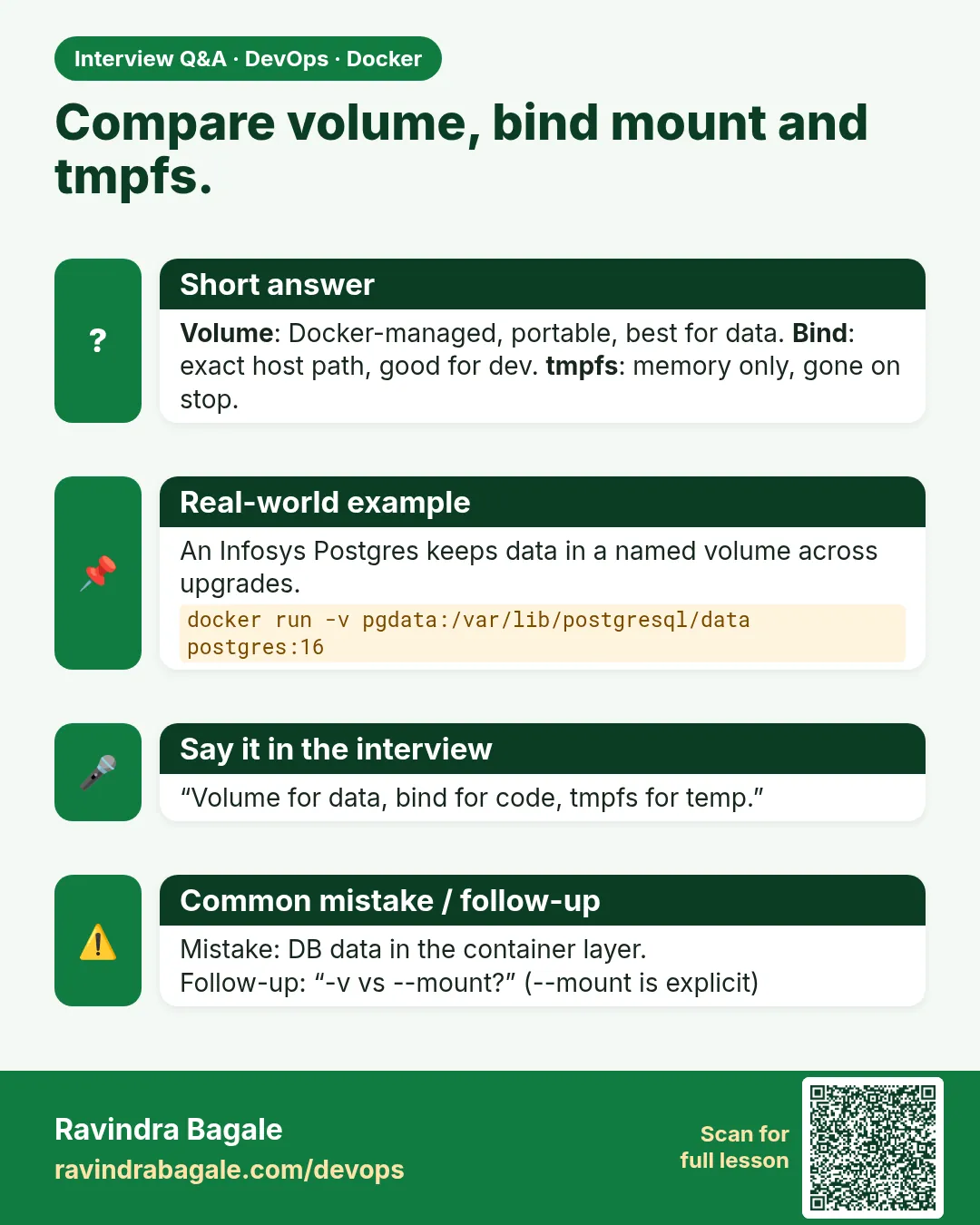
What: -v is short: source:target:options. --mount is long: type=,source=,target=,readonly. They do the same job; --mount gives a clear error when something is wrong.
Example 28: Short form
Type this:
docker run --rm -v zdata2:/data alpine:3.20 sh -c 'echo short > /data/s.txt; cat /data/s.txt'
You will see:
short
What it means: Docker creates zdata2 if it does not exist.
Example 29: Long form
Type this:
docker run --rm --mount type=volume,source=zdata2,target=/data alpine:3.20 cat /data/s.txt
You will see:
short
What it means: Same volume, every part named.
Example 30: The difference on a typo
Type this:
docker run --rm -v /no/such/dir:/x alpine:3.20 ls /x
docker run --rm --mount type=bind,source=/no/such/dir,target=/x alpine:3.20 ls /x
You will see:
(empty)
docker: Error response from daemon: invalid mount config for type "bind": bind source path does not exist: /no/such/dir
What it means: -v silently created an empty host folder. --mount stopped you. That is why teams prefer --mount.
Step 11: Where volumes live on the host
Why: Ops engineers at Flipkart check disk use on servers, and volumes fill disks.
What: Named volumes live under /var/lib/docker/volumes/NAME/_data on Linux. docker system df shows how much space they take.
Example 31: Find the path
Type this:
docker volume inspect zdata2 --format '{{.Mountpoint}}'
You will see:
/var/lib/docker/volumes/zdata2/_data
What it means: The real folder on the host.
Example 32: Look inside (needs sudo)
Type this:
sudo ls /var/lib/docker/volumes/zdata2/_data
You will see:
s.txt
What it means: The same file the container wrote.
Example 33: Space used
Type this:
docker system df -v | grep -A3 'VOLUME NAME' | head -3
You will see:
VOLUME NAME   LINKS   SIZE
zdata2        0       6B
What it means: Small now, but databases grow. Watch this on servers.
Step 12: Choosing the right type
Why: Wrong choice means lost data or slow apps.
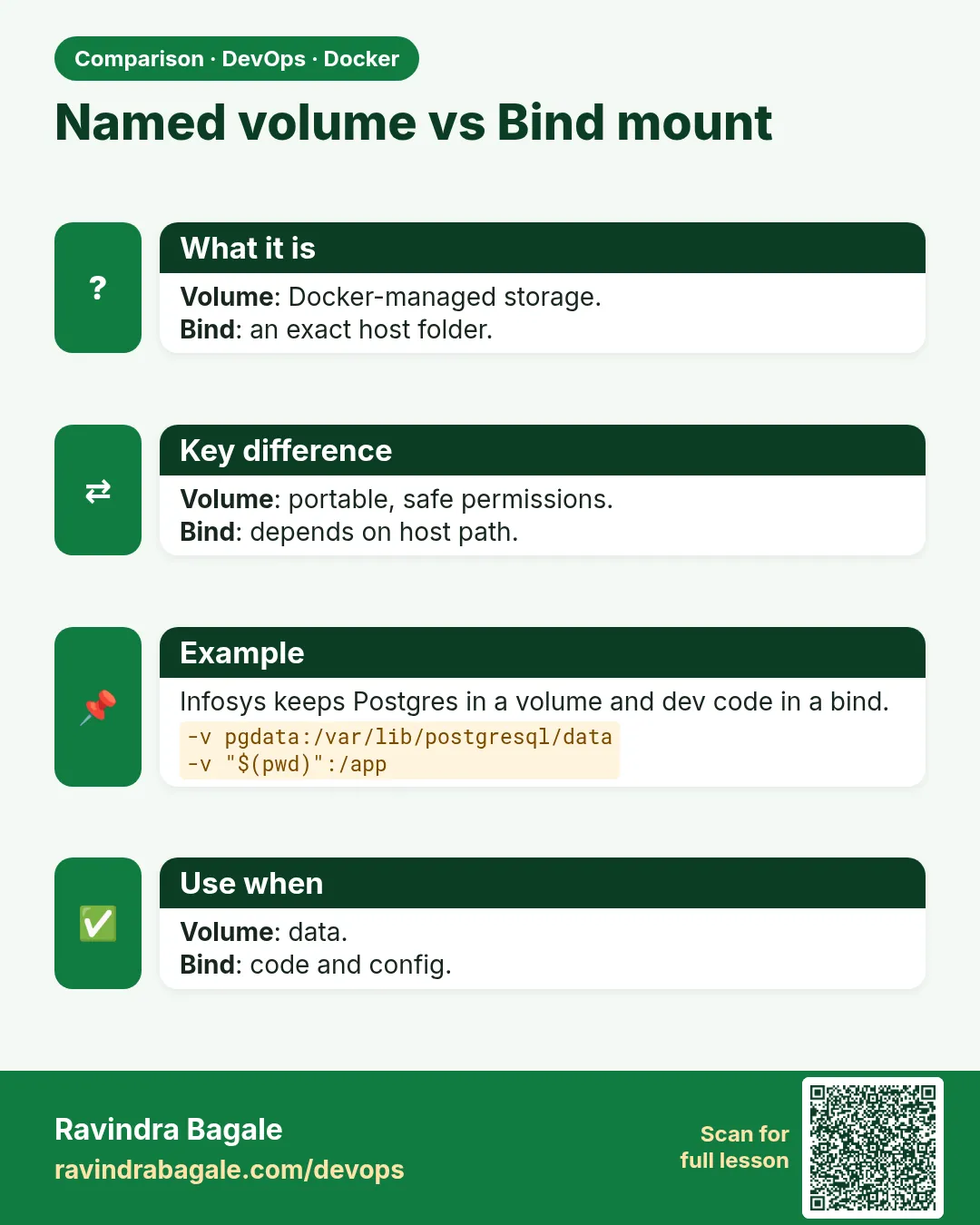
What: Use a named volume for databases and app data. Use a bind mount for code and config during development. Use tmpfs for temporary or sensitive files.
Example 34: Database
Type this:
docker run -d --name pg -e POSTGRES_PASSWORD=example -v pgdata:/var/lib/postgresql/data postgres:16
You will see:
...
What it means: Named volume: safe and managed.
Example 35: Config file
Type this:
docker run -d --name web -p 8080:80 -v $PWD/menu:/usr/share/nginx/html:ro nginx:1.27
You will see:
...
What it means: Bind mount, read-only.
Example 36: Clean up
Type this:
docker rm -f db1 pg web tf; docker volume rm zdata zmysql pgdata zdata2
You will see:
db1
pg
web
tf
zdata
zmysql
pgdata
zdata2
What it means: Everything removed for the next lesson.
Check yourself
Q1. Where does a container write files by default?
In its own writable layer.
Q2. Does docker stop delete data?
No. Only docker rm deletes the writable layer.
Q3. Which type does Docker manage for you?
Named volume.
Q4. Which type is best for live code editing?
Bind mount.
Q5. Which type never touches disk?
tmpfs.
Friends, think of a hotel room and a locker. The container is the room, the volume is the locker. Did you understand? Let us try it once more. Always give a database a named volume.
मित्रांनो, hotel room आणि locker आठवा. Container म्हणजे room, volume म्हणजे locker. समजलं का? चला, पुन्हा एकदा करून पाहू. Database ला नेहमी named volume द्या.
दोस्तों, hotel room और locker याद कीजिए. Container मतलब room, volume मतलब locker. समझ आया? चलिए, एक बार फिर करके देखते हैं। Database को हमेशा named volume दीजिए.
Ravindra Bagale's Tip
Before docker rm, check Mounts with docker inspect. If there is no volume, take a backup first.
docker rm करण्याआधी docker inspect ने Mounts बघा. Volume नसेल तर आधी backup घ्या.
docker rm से पहले docker inspect से Mounts देखिए. Volume न हो तो पहले backup लीजिए.
Lab: try at home
- Write a file in a container, remove it, and prove the file is gone.
- Repeat with a named volume and prove the file survives.
- Bind-mount a host folder and edit a file from both sides.
- Use tmpfs and show it empties on restart.
- Run MySQL with a volume, recreate it and read your row back.
Recap
- The writable layer dies with the container.
- Stop keeps data; remove deletes it.
- Named volume for data, bind mount for code, tmpfs for scratch.
- docker inspect shows every mount.
- Always give databases a named volume.
 Revision card
 Interview card
 Comparison card