50.3 Bind mounts for development
Friends, when a developer changes code, the change should show in the container right away. Building the image every time wastes time. That is what a bind mount is for. Today we learn it step by step, three examples each.
मित्रांनो, developer ने code बदलला की लगेच container मध्ये बदल दिसायला हवा. प्रत्येक वेळी image build करणं म्हणजे वेळ वाया. यासाठी bind mount. आज ते एकेक step ने शिकू, प्रत्येकाला तीन उदाहरणं.
दोस्तों, developer code बदले तो container में तुरंत दिखना चाहिए. हर बार image build करना मतलब समय बर्बाद. इसके लिए bind mount. आज इसे step by step सीखेंगे, हर एक के तीन उदाहरण.
1. Start from a story
At Razorpay, a frontend developer changes one line of HTML. To see it, she rebuilds the image, removes the old container and runs a new one. That takes two minutes, fifty times a day.
Her senior shows her a better way. Mount the code folder from the laptop straight into the container. Save the file, refresh the browser, done. No rebuild.
Think of a window between two rooms. Whatever you put on the table in your room is visible through the window in the other room. A bind mount is that window between your laptop folder and the container folder.
We will start with a plain HTML page, then a single config file, then real Node.js and Python apps that reload on save. At the end we learn the traps: typos, file owners, and why production servers do not use this.
2. Basic bind mounts
Step 1: Mount a folder
Why: You want nginx to serve your local HTML.
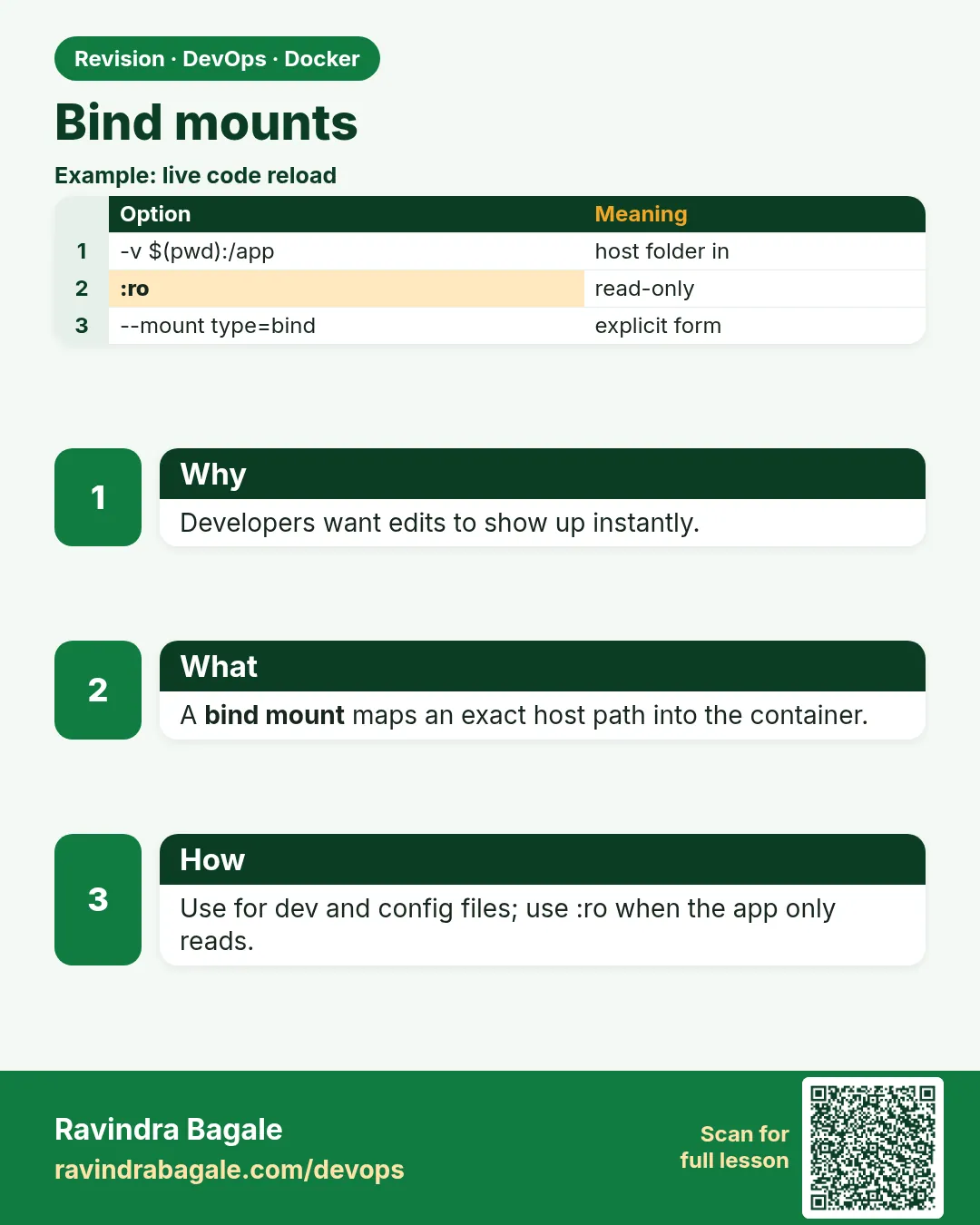
What: -v /absolute/host/path:/container/path mounts a host folder. $PWD gives the absolute path of your current folder.
Example 1: Make the site
Type this:
mkdir -p site && printf '<h1>Razorpay Checkout v1</h1>\n' > site/index.html
You will see:
(no output)
What it means: A tiny web page on the host.
Example 2: Mount and run
Type this:
docker run -d --name dev -p 8080:80 -v $PWD/site:/usr/share/nginx/html nginx:1.27
You will see:
9e4b...
What it means: The container now uses our folder.
Example 3: See the page
Type this:
curl -s localhost:8080
You will see:
<h1>Razorpay Checkout v1</h1>
What it means: nginx serves the host file.
Step 2: Live changes
Why: This is the reason bind mounts exist.
What: Both sides see the same files. A change on the host appears in the container at once.
Example 4: Edit on the host
Type this:
printf '<h1>Razorpay Checkout v2</h1>\n' > site/index.html
You will see:
(no output)
What it means: Just save the file.
Example 5: Refresh
Type this:
curl -s localhost:8080
You will see:
<h1>Razorpay Checkout v2</h1>
What it means: No rebuild, no restart.
Example 6: Add a new file
Type this:
printf 'ok\n' > site/health.txt && curl -s localhost:8080/health.txt
You will see:
ok
What it means: New files appear too.
Step 3: Mount a single file
Why: You only want to replace one config file.
What: You can bind-mount one file instead of a whole folder.
Example 7: Write a config
Type this:
printf 'server { listen 80; location / { return 200 "from my conf\\n"; } }\n' > my.conf
You will see:
(no output)
What it means: A tiny nginx config.
Example 8: Mount the file
Type this:
docker run -d --name conf -p 8081:80 -v $PWD/my.conf:/etc/nginx/conf.d/default.conf:ro nginx:1.27
curl -s localhost:8081
You will see:
from my conf
What it means: Only default.conf was replaced.
Example 9: Editor gotcha
Type this:
docker exec conf cat /etc/nginx/conf.d/default.conf | head -c 30
You will see:
server { listen 80; location
What it means: Some editors save by making a new file. A single-file mount then still shows the old file; mount the folder if that happens.
Step 4: Read-only for safety
Why: The container should not change your config.
What: Add :ro. The container can read but not write.
Example 10: Try to write
Type this:
docker exec conf sh -c 'echo x >> /etc/nginx/conf.d/default.conf'
You will see:
sh: 1: cannot create /etc/nginx/conf.d/default.conf: Read-only file system
What it means: Your file is safe.
Example 11: Folder read-only
Type this:
docker run --rm -v $PWD/site:/s:ro alpine:3.20 rm /s/health.txt
You will see:
rm: can't remove '/s/health.txt': Read-only file system
What it means: Same for folders.
Example 12: Check the mode
Type this:
docker inspect conf --format '{{range .Mounts}}{{.RW}}{{end}}'
You will see:
false
What it means: RW false means read-only.
3. Bind mounts with --mount
Step 5: --mount type=bind
Why: Long form is clearer in scripts and Compose.
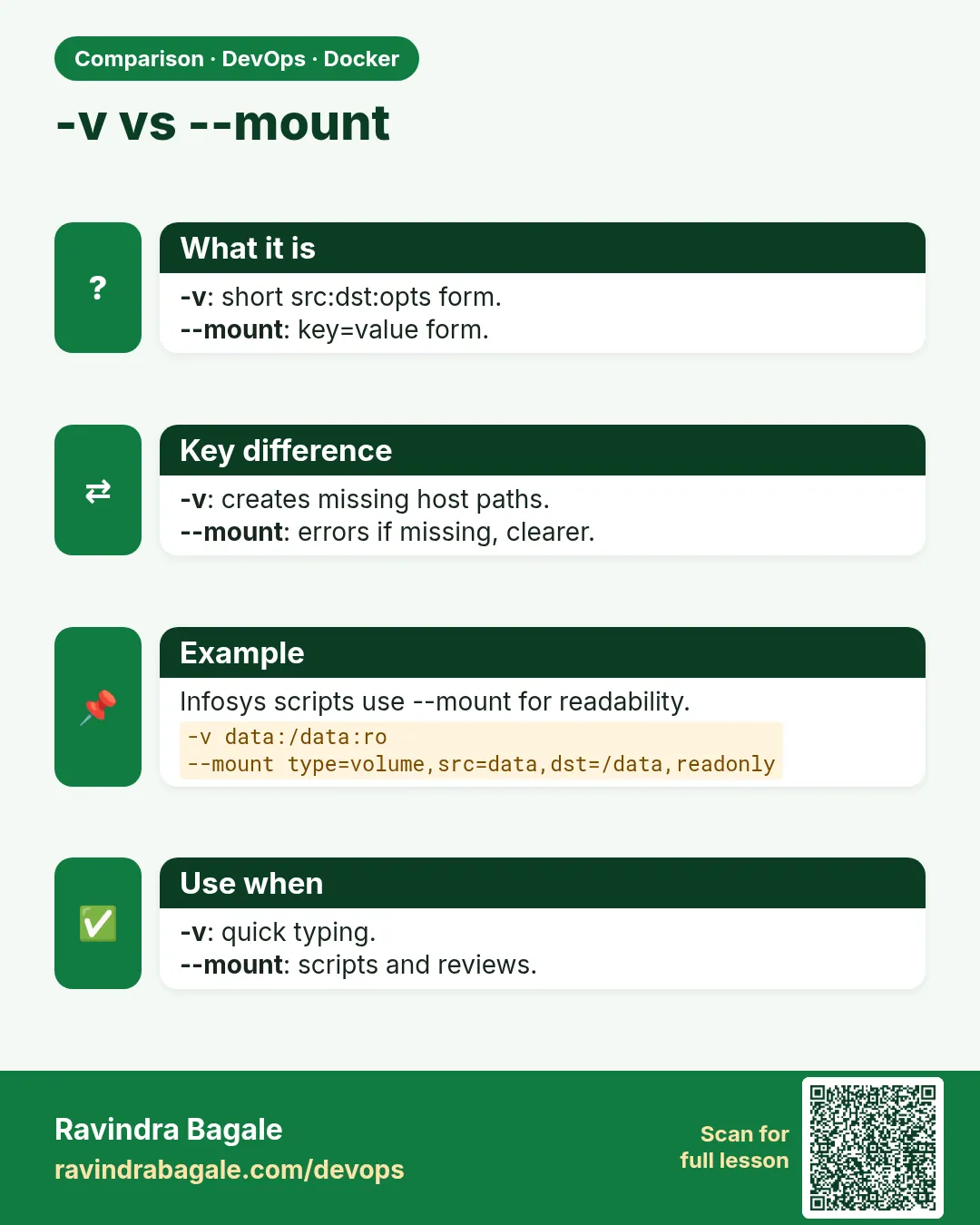
What: --mount type=bind,source=HOST,target=CONTAINER,readonly. It fails if the host path does not exist, which catches typos.
Example 13: Long form
Type this:
docker run --rm --mount type=bind,source=$PWD/site,target=/s alpine:3.20 ls /s
You will see:
health.txt
index.html
What it means: Same result as -v.
Example 14: Typo caught
Type this:
docker run --rm --mount type=bind,source=$PWD/sitee,target=/s alpine:3.20 ls /s
You will see:
docker: Error response from daemon: invalid mount config for type "bind": bind source path does not exist
What it means: Good error.
Example 15: -v hides the typo
Type this:
docker run --rm -v $PWD/sitee:/s alpine:3.20 ls /s; ls -d sitee
You will see:
(empty)
sitee
What it means: -v made an empty folder owned by root. Delete it with sudo rm -r sitee.
Step 6: Relative paths
Why: Beginners type -v ./site:/x and get confused.
What: docker run -v needs an absolute path for bind mounts on older versions. Use $PWD. Compose files accept ./ paths.
Example 16: Relative with -v
Type this:
docker run --rm -v site:/x alpine:3.20 ls /x
You will see:
(empty)
What it means: site without a slash is treated as a volume name, not a folder.
Example 17: With $PWD
Type this:
docker run --rm -v $PWD/site:/x alpine:3.20 ls /x
You will see:
health.txt
index.html
What it means: Correct.
Example 18: In Compose
Type this:
printf 'services:\n  web:\n    image: nginx:1.27\n    volumes:\n      - ./site:/usr/share/nginx/html\n' > compose.yaml
docker compose config | grep source
You will see:
source: /home/ravi/site
What it means: Compose turns ./ into a full path.
4. A real dev setup
Now we use the window for real work. A developer at Paytm or Zerodha does not edit plain HTML all day. She edits JavaScript or Python, and the server must restart by itself after every save. We get that with two things: a bind mount for the code, and a watcher program inside the container that notices file changes. Most languages have one: node --watch for Node.js, flask --debug for Python, and air for Go.
Step 7: Node.js with auto-reload
Why: A Paytm backend developer wants the server to restart on save.
What: Mount the code folder, and run a watcher like node --watch inside.
Example 19: Write the app
Type this:
mkdir -p api && printf 'require("http").createServer((q,r)=>r.end("v1\\n")).listen(3000)\n' > api/app.js
You will see:
(no output)
What it means: A tiny Node server.
Example 20: Run with watch
Type this:
docker run -d --name napi -p 3000:3000 -v $PWD/api:/app -w /app node:22-alpine node --watch app.js
sleep 2; curl -s localhost:3000
You will see:
v1
What it means: Running from the host file.
Example 21: Edit and see
Type this:
sed -i 's/v1/v2/' api/app.js; sleep 2; curl -s localhost:3000
You will see:
v2
What it means: node --watch restarted it on save.
Step 8: Keep node_modules inside
Why: Host and container may need different builds of packages.
What: Mount the code with a bind mount, and put node_modules on a separate named volume so the host folder does not cover it.
Example 22: The problem
Type this:
docker run --rm -v $PWD/api:/app -w /app node:22-alpine ls node_modules
You will see:
ls: node_modules: No such file or directory
What it means: The bind mount hid anything the image had there.
Example 23: The fix
Type this:
docker run --rm -v $PWD/api:/app -v napi_mods:/app/node_modules -w /app node:22-alpine sh -c 'npm init -y >/dev/null; npm i ms >/dev/null; ls node_modules'
You will see:
ms
What it means: Packages live in the volume.
Example 24: Host stays clean
Type this:
ls api
You will see:
app.js
node_modules
package.json
What it means: Docker made an empty mount-point folder; the packages themselves are in the volume.
Step 9: File ownership
Why: Files made by the container can be owned by root on your laptop.
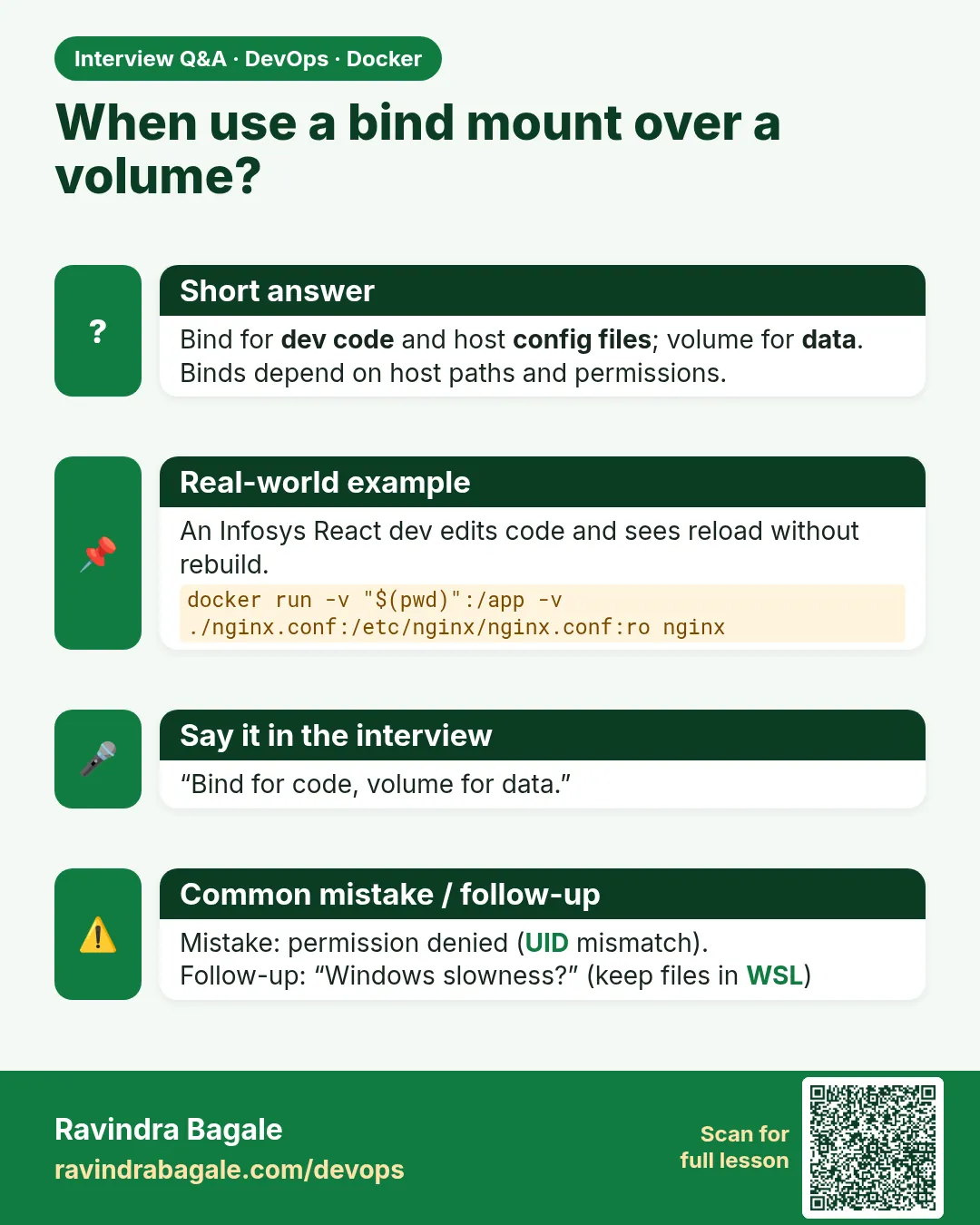
What: The container user writes files with its own user ID. Run with -u $(id -u):$(id -g) so new files belong to you.
Example 25: Root-owned file
Type this:
docker run --rm -v $PWD/site:/s alpine:3.20 touch /s/root.txt; ls -l site/root.txt
You will see:
-rw-r--r-- 1 root root 0 Oct 25 05:40 site/root.txt
What it means: You cannot edit it without sudo.
Example 26: Run as yourself
Type this:
docker run --rm -u $(id -u):$(id -g) -v $PWD/site:/s alpine:3.20 touch /s/me.txt; ls -l site/me.txt
You will see:
-rw-r--r-- 1 ravi ravi 0 Oct 25 05:40 site/me.txt
What it means: Owned by you, normal 0644 mode.
Example 27: Fix the old one
Type this:
sudo chown $(id -u):$(id -g) site/root.txt
You will see:
(no output)
What it means: Change owner, never use a world-writable mode.
Step 10: Python with live reload
Why: A Zerodha developer builds a Flask API and wants the same fast loop.
What: Mount the code and run Flask in debug mode. It reloads when a .py file changes.
Example 28: Write the app
Type this:
mkdir -p py && printf 'from flask import Flask\napp=Flask(__name__)\n@app.get("/")\ndef h(): return "price v1\\n"\n' > py/app.py
You will see:
(no output)
What it means: A tiny Flask app.
Example 29: Run with reload
Type this:
docker run -d --name fl -p 5000:5000 -v $PWD/py:/app -w /app python:3.12-slim sh -c 'pip install -q flask && flask --app app run --debug --host 0.0.0.0'
sleep 15; curl -s localhost:5000
You will see:
price v1
What it means: Running from the host file.
Example 30: Edit and see
Type this:
sed -i 's/v1/v2/' py/app.py; sleep 2; curl -s localhost:5000
You will see:
price v2
What it means: Flask noticed the change and reloaded.
Step 11: Find and debug bind mounts
Why: When a page shows old content, check what is really mounted.
What: docker inspect lists each mount with Type bind, Source and Destination. docker exec lets you look from inside.
Example 31: List mounts
Type this:
docker inspect dev --format '{{range .Mounts}}{{.Type}} {{.Source}} -> {{.Destination}}{{end}}'
You will see:
bind /home/ravi/site -> /usr/share/nginx/html
What it means: The real host folder.
Example 32: Compare both sides
Type this:
ls site; docker exec dev ls /usr/share/nginx/html
You will see:
health.txt index.html me.txt root.txt
health.txt  index.html  me.txt  root.txt
What it means: Same files, so the mount is right.
Example 33: Wrong folder mounted
Type this:
docker run -d --name wrong -v $PWD/sit:/usr/share/nginx/html -p 8085:80 nginx:1.27
curl -s -o /dev/null -w '%{http_code}\n' localhost:8085
You will see:
403
What it means: An empty folder gives 403 Forbidden. inspect would show the typo sit. Remove with docker rm -f wrong fl.
Step 12: Bind mounts are for dev, not production
Why: At Swiggy, production servers do not hold source code folders.
What: In production, copy code into the image with COPY so the image is complete. Use bind mounts in production only for small config files or sockets.
Example 34: Dev run
Type this:
docker run -d -v $PWD/site:/usr/share/nginx/html nginx:1.27
You will see:
...
What it means: Fast edits.
Example 35: Prod image
Type this:
printf 'FROM nginx:1.27\nCOPY site/ /usr/share/nginx/html/\n' > Dockerfile
docker build -q -t checkout:1.0 .
You will see:
sha256:4d1f...
What it means: Code is baked in.
Example 36: Clean up
Type this:
docker rm -f dev conf napi; docker volume rm napi_mods
You will see:
dev
conf
napi
napi_mods
What it means: Done.
Check yourself
Q1. What does a bind mount connect?
A host file or folder to a path in the container.
Q2. Why use :ro?
So the container cannot change your files.
Q3. Why prefer --mount type=bind?
It errors if the host path is missing.
Q4. How do you keep files owned by you?
Run with -u $(id -u):$(id -g).
Q5. Use bind mounts for app code in production?
No, COPY code into the image.
Friends, a bind mount is a window between two rooms. Save on the laptop and it shows in the container at once. Did you understand? Let us try it once more. For production, though, use COPY.
मित्रांनो, bind mount म्हणजे दोन खोल्यांमधली खिडकी. Laptop वर save करा, container मध्ये लगेच दिसेल. समजलं का? चला, पुन्हा एकदा करून पाहू. Production साठी मात्र COPY वापरा.
दोस्तों, bind mount मतलब दो कमरों के बीच की खिड़की. Laptop पर save कीजिए, container में तुरंत दिखेगा. समझ आया? चलिए, एक बार फिर करके देखते हैं। Production के लिए लेकिन COPY इस्तेमाल कीजिए.
Ravindra Bagale's Tip
For dev use -u $(id -u):$(id -g), so you will not need sudo.
Dev साठी -u $(id -u):$(id -g) वापरा, म्हणजे sudo ची गरज पडणार नाही.
Dev के लिए -u $(id -u):$(id -g) इस्तेमाल कीजिए, तब sudo की ज़रूरत नहीं पड़ेगी.
Lab: try at home
- Serve a local folder with nginx and edit it live.
- Mount one config file read-only.
- Show the typo difference between -v and --mount.
- Run a Node app with --watch and edit it.
- Make files owned by you, not root.
Recap
- Bind mounts share host files with the container.
- Changes appear instantly; great for development.
- Use :ro and --mount for safety.
- Separate node_modules with a volume.
- In production, COPY code into the image.
 Revision card
 Interview card
 Comparison card