50.6 Volume drivers: NFS, EFS and plugins
Friends, so far a volume lived on one server. But what if containers on three servers need the same data? For that we use network storage: NFS and AWS EFS. Today we see what a volume driver is, step by step, three examples each.
मित्रांनो, आतापर्यंत volume एका server वर होता. पण तीन server वर चालणाऱ्या containers ना एकच data लागला तर? त्यासाठी network storage: NFS आणि AWS EFS. आज volume driver म्हणजे काय ते एकेक step ने बघू, प्रत्येकाला तीन उदाहरणं.
दोस्तों, अब तक volume एक server पर था. पर तीन servers के containers को एक ही data चाहिए तो? इसके लिए network storage: NFS और AWS EFS. आज volume driver क्या है, step by step देखेंगे, हर एक के तीन उदाहरण.
1. Start from a story
At MakeMyTrip, the hotel-photos service runs on three EC2 servers behind a load balancer. A user uploads a hotel photo. The request lands on server 1, which saves it in its local volume. The next request goes to server 2, and the photo is missing.
Local volumes live on one machine. To share files across machines, the volume must point to network storage that every server can reach. On AWS that is Amazon EFS, which speaks the NFS protocol.
Think of a family WhatsApp group instead of photos on one phone. If the photo is only on Papa's phone, nobody else sees it. Put it in the group, and every phone sees it. NFS is that group for files.
We will first learn what a volume driver is, then mount an NFS share as a Docker volume, then do the same with EFS on AWS, and finally look at plugins and Compose.
2. What a volume driver is
Step 1: The local driver
Why: Every volume so far used a driver without us noticing.
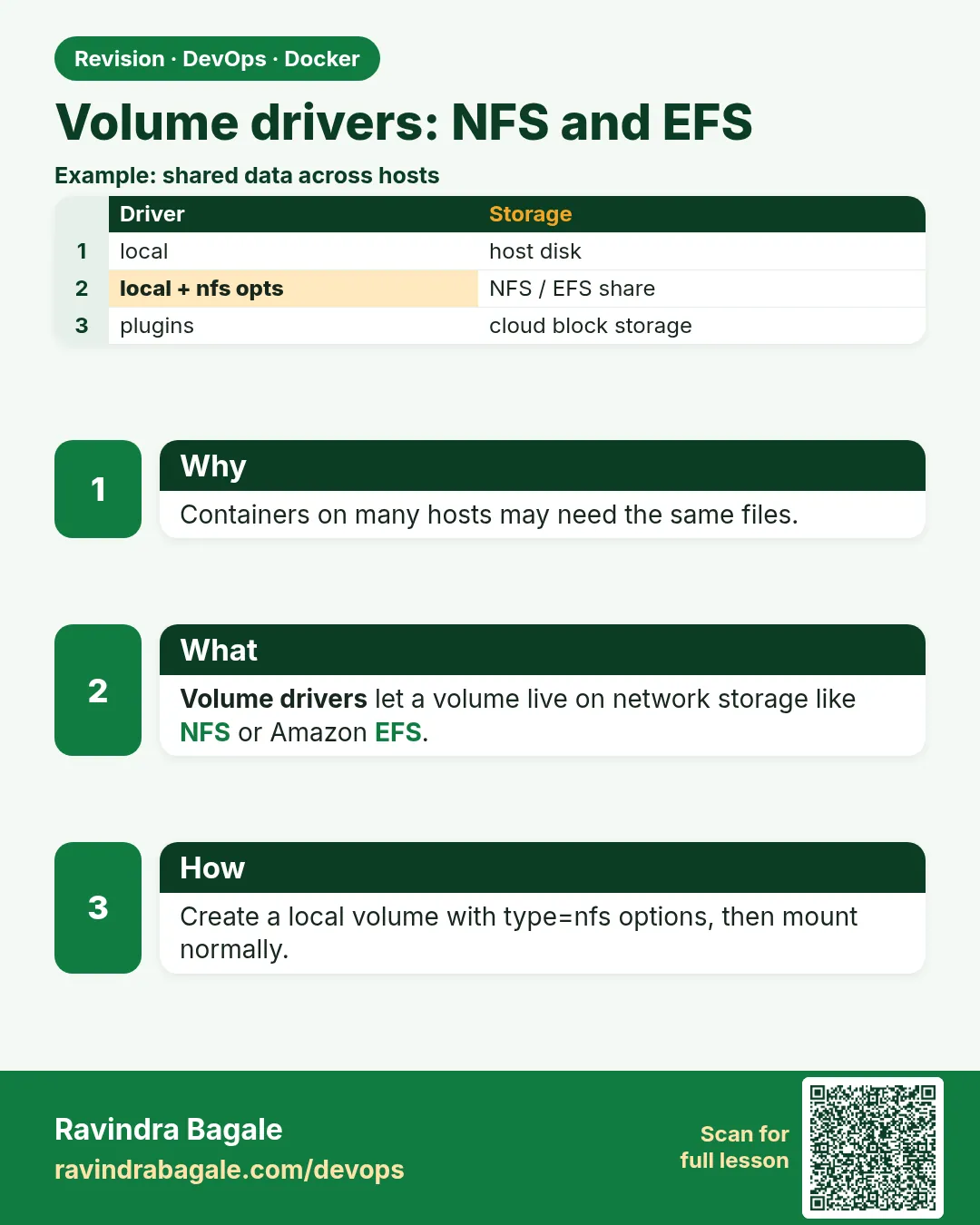
What: A volume driver decides where volume data really lives. The default is local, which stores data on this host. local can also mount NFS when you give it options.
Example 1: See the driver
Type this:
docker volume create photos
docker volume inspect photos --format '{{.Driver}}'
You will see:
photos
local
What it means: Default driver.
Example 2: List driver plugins
Type this:
docker info --format '{{.Plugins.Volume}}'
You will see:
[local]
What it means: Only local is installed.
Example 3: Driver per volume
Type this:
docker volume ls --format '{{.Driver}} {{.Name}}'
You will see:
local photos
What it means: Each volume records its driver.
Step 2: Driver options with -o
Why: local needs to know the NFS server and folder.
What: docker volume create --driver local -o type=nfs -o o=addr=SERVER,rw -o device=:/path makes a volume that mounts NFS when a container uses it.
Example 4: Read the help
Type this:
docker volume create --help | grep -E 'driver|opt'
You will see:
-d, --driver string   Specify volume driver name (default "local")
-o, --opt map         Set driver specific options (default map[])
What it means: Two flags matter.
Example 5: Bad option
Type this:
docker volume create -o type=nfs -o device=:/x bad
docker run --rm -v bad:/m alpine:3.20 ls /m
You will see:
docker: Error response from daemon: error while mounting volume ... invalid argument
What it means: Options are checked only at mount time.
Example 6: Remove the bad one
Type this:
docker volume rm bad
You will see:
bad
What it means: Fix options by deleting and recreating; you cannot edit a volume.
3. A lab NFS server
Step 3: Run an NFS server for practice
Why: You need something to connect to before touching AWS.
What: On a Linux test machine, install the NFS server and share one folder to your network only.
Example 7: Install
Type this:
sudo apt-get install -y nfs-kernel-server
You will see:
Setting up nfs-kernel-server ...
What it means: Ubuntu package.
Example 8: Share a folder
Type this:
sudo mkdir -p /srv/photos && sudo chown nobody:nogroup /srv/photos && sudo chmod 0755 /srv/photos
printf '/srv/photos 10.0.0.0/24(rw,sync,no_subtree_check)\n' | sudo tee /etc/exports
sudo exportfs -ra
You will see:
/srv/photos 10.0.0.0/24(rw,sync,no_subtree_check)
What it means: Only the 10.0.0.0/24 network may mount it.
Example 9: Check the share
Type this:
showmount -e 10.0.0.5
You will see:
Export list for 10.0.0.5:
/srv/photos 10.0.0.0/24
What it means: 10.0.0.5 is our NFS server.
Step 4: Clients need NFS tools
Why: The Docker host mounts NFS using the kernel and helper tools.
What: Install nfs-common on every Docker host that will use the volume.
Example 10: Install on Ubuntu
Type this:
sudo apt-get install -y nfs-common
You will see:
Setting up nfs-common ...
What it means: Client tools.
Example 11: On Amazon Linux
Type this:
sudo dnf install -y nfs-utils
You will see:
Complete!
What it means: Different package name.
Example 12: Test by hand
Type this:
sudo mount -t nfs 10.0.0.5:/srv/photos /mnt && ls /mnt && sudo umount /mnt
You will see:
(empty)
What it means: If this fails, Docker will fail too. Fix network first.
4. NFS as a Docker volume
Step 5: Create the NFS volume
Why: Now plug the share into Docker.
What: Use the local driver with type=nfs.
Example 13: Create
Type this:
docker volume create --driver local -o type=nfs -o o=addr=10.0.0.5,rw,nfsvers=4 -o device=:/srv/photos photos-nfs
You will see:
photos-nfs
What it means: Nothing mounts yet.
Example 14: Inspect
Type this:
docker volume inspect photos-nfs --format '{{json .Options}}'
You will see:
{"device":":/srv/photos","o":"addr=10.0.0.5,rw,nfsvers=4","type":"nfs"}
What it means: Options stored.
Example 15: Use it
Type this:
docker run --rm -v photos-nfs:/photos alpine:3.20 sh -c 'echo taj.jpg > /photos/list.txt; cat /photos/list.txt'
You will see:
taj.jpg
What it means: Written to the NFS server.
Step 6: Prove it is shared
Why: The whole point: another server sees the same file.
What: Create the same volume on a second Docker host and read the file.
Example 16: On server 2
Type this:
docker volume create --driver local -o type=nfs -o o=addr=10.0.0.5,rw,nfsvers=4 -o device=:/srv/photos photos-nfs
docker run --rm -v photos-nfs:/photos alpine:3.20 cat /photos/list.txt
You will see:
photos-nfs
taj.jpg
What it means: Server 2 sees server 1's file.
Example 17: On the NFS server
Type this:
ls /srv/photos
You will see:
list.txt
What it means: The real copy lives here.
Example 18: Write from server 2
Type this:
docker run --rm -v photos-nfs:/photos alpine:3.20 sh -c 'echo goa.jpg >> /photos/list.txt'
You will see:
(no output)
What it means: Server 1 will now see both names.
Step 7: --mount with NFS options
Why: Compose and scripts often use the long form.
What: volume-driver and volume-opt fields carry the same options, and Docker creates the volume on first use.
Example 19: Long form
Type this:
docker run --rm --mount 'type=volume,source=nfs2,target=/p,volume-driver=local,volume-opt=type=nfs,"volume-opt=o=addr=10.0.0.5,rw",volume-opt=device=:/srv/photos' alpine:3.20 cat /p/list.txt
You will see:
taj.jpg
goa.jpg
What it means: Quotes are needed because the o value has commas.
Example 20: Volume was created
Type this:
docker volume ls -q | grep nfs2
You will see:
nfs2
What it means: Made on first use.
Example 21: Clean
Type this:
docker volume rm nfs2
You will see:
nfs2
What it means: Removing the volume does not delete files on the NFS server.
Step 8: Permissions on NFS: root_squash
Why: Containers running as root suddenly get Permission denied on NFS.
What: By default an NFS server maps the remote root user to nobody. This is called root_squash and protects the server. Run the container as a user that owns the folder.
Example 22: Root is squashed
Type this:
docker run --rm -v photos-nfs:/p alpine:3.20 sh -c 'mkdir /p/new'
You will see:
mkdir: can't create directory '/p/new': Permission denied
What it means: Root became nobody on the server.
Example 23: See the owner
Type this:
docker run --rm -v photos-nfs:/p alpine:3.20 stat -c '%u:%g' /p
You will see:
65534:65534
What it means: nobody:nogroup owns the share.
Example 24: Run as that user
Type this:
docker run --rm -u 65534:65534 -v photos-nfs:/p alpine:3.20 sh -c 'mkdir /p/new && ls /p'
You will see:
list.txt
new
What it means: Works without loosening the server.
Step 9: When not to use NFS
Why: A team once put MySQL on NFS and saw strange slowness and locking errors.
What: NFS is great for shared files like photos, uploads and reports. Databases want fast local disk; for them use a local volume or EBS, and a managed service like RDS for sharing.
Example 25: Measure NFS write speed
Type this:
docker run --rm -v photos-nfs:/p alpine:3.20 sh -c 'time dd if=/dev/zero of=/p/t bs=1M count=200 conv=fsync' 2>&1 | grep real
You will see:
real 0m 4.10s
What it means: Network adds delay.
Example 26: Local volume speed
Type this:
docker run --rm -v photos:/p alpine:3.20 sh -c 'time dd if=/dev/zero of=/p/t bs=1M count=200 conv=fsync' 2>&1 | grep real
You will see:
real 0m 0.62s
What it means: Much faster here.
Example 27: Right tool per job
Type this:
echo 'photos: EFS | database: EBS or RDS | cache: tmpfs'
You will see:
photos: EFS | database: EBS or RDS | cache: tmpfs
What it means: A simple rule to remember.
5. Amazon EFS
Step 10: Create EFS
Why: On AWS you do not run your own NFS server.
What: Create an EFS file system and a mount target in each subnet. Allow port 2049 from the Docker hosts' security group.
Example 28: Create
Type this:
aws efs create-file-system --performance-mode generalPurpose --encrypted --tags Key=Name,Value=photos --query FileSystemId --output text
You will see:
fs-0abc1234
What it means: Encrypted at rest.
Example 29: Mount target
Type this:
aws efs create-mount-target --file-system-id fs-0abc1234 --subnet-id subnet-0aa11 --security-groups sg-0efs22 --query LifeCycleState --output text
You will see:
creating
What it means: Repeat for each subnet.
Example 30: DNS name
Type this:
echo fs-0abc1234.efs.ap-south-1.amazonaws.com
You will see:
fs-0abc1234.efs.ap-south-1.amazonaws.com
What it means: Hosts mount this name. IDs here are examples.
Step 11: EFS as a Docker volume
Why: Same local driver, AWS recommended NFS options.
What: Use nfsvers=4.1 and the EFS DNS name.
Example 31: Create
Type this:
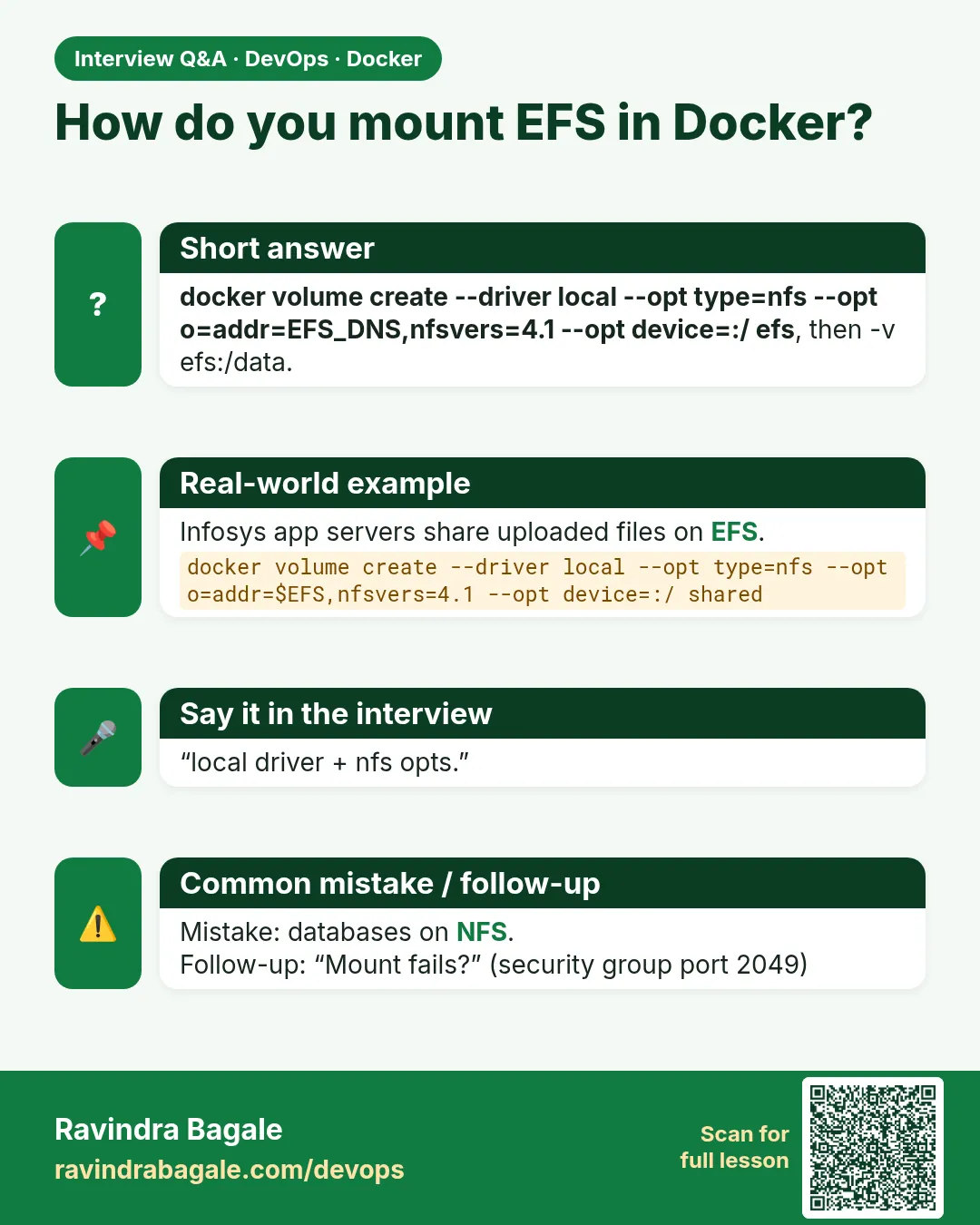
docker volume create --driver local -o type=nfs -o o=addr=fs-0abc1234.efs.ap-south-1.amazonaws.com,nfsvers=4.1,rsize=1048576,wsize=1048576,hard,timeo=600,retrans=2 -o device=:/ photos-efs
You will see:
photos-efs
What it means: Options from the AWS guide.
Example 32: Use it
Type this:
docker run --rm -v photos-efs:/p alpine:3.20 sh -c 'echo ok > /p/t; cat /p/t'
You will see:
ok
What it means: Stored in EFS.
Example 33: Port blocked
Type this:
docker run --rm -v photos-efs:/p alpine:3.20 ls /p
You will see:
docker: Error response from daemon: ... connection timed out
What it means: Usually the security group misses TCP 2049. Fix it, then retry.
Step 12: Plugins and Compose
Why: Other storage systems ship their own drivers.
What: Install a plugin with docker plugin install, then use --driver NAME. In Compose, put driver and driver_opts under the volume.
Example 34: List plugins
Type this:
docker plugin ls
You will see:
ID NAME DESCRIPTION ENABLED
What it means: None yet. Vendors like NetApp and Portworx publish plugins.
Example 35: Compose NFS volume
Type this:
printf 'services:\n  web:\n    image: nginx:1.27\n    volumes:\n      - photos:/usr/share/nginx/html/photos\nvolumes:\n  photos:\n    driver: local\n    driver_opts:\n      type: nfs\n      o: addr=10.0.0.5,rw,nfsvers=4\n      device: ":/srv/photos"\n' > compose.yaml
docker compose up -d
You will see:
Volume "demo_photos"  Created
Container demo-web-1  Started
What it means: Same options, in YAML.
Example 36: Clean up
Type this:
docker compose down; docker volume rm photos photos-nfs photos-efs demo_photos
You will see:
photos
photos-nfs
photos-efs
demo_photos
What it means: Files on NFS and EFS stay.
Check yourself
Q1. What is the default volume driver?
local.
Q2. Why do multiple servers need NFS or EFS?
Local volumes exist on only one machine.
Q3. Which port must be open for EFS?
TCP 2049.
Q4. When are NFS options checked?
When a container first mounts the volume.
Q5. Does docker volume rm delete NFS files?
No, only Docker's record of the volume.
Friends, NFS is a family WhatsApp group: post one photo and everyone sees it. Did you understand? Let us try it once more. For EFS, do not forget port 2049 in the security group.
मित्रांनो, NFS म्हणजे family WhatsApp group: एक photo टाका, सगळे बघतात. समजलं का? चला, पुन्हा एकदा करून पाहू. EFS साठी security group मध्ये 2049 port विसरू नका.
दोस्तों, NFS मतलब family WhatsApp group: एक photo डालो, सब देखते हैं. समझ आया? चलिए, एक बार फिर करके देखते हैं। EFS के लिए security group में 2049 port मत भूलिए.
Ravindra Bagale's Tip
Before creating the volume in Docker, test with mount -t nfs by hand on the host. If it does not work there, it will not work in Docker either.
Docker मध्ये volume बनवण्याआधी host वर हाताने mount -t nfs करून test करा. तिथे चालत नसेल तर Docker मध्ये पण चालणार नाही.
Docker में volume बनाने से पहले host पर खुद mount -t nfs करके test कीजिए. वहाँ नहीं चला तो Docker में भी नहीं चलेगा.
Lab: try at home
- Install an NFS server and share one folder to your subnet.
- Create an NFS Docker volume on two hosts and share a file.
- Use the --mount long form with NFS.
- Create EFS and mount it as a volume.
- Write the NFS volume in compose.yaml.
Recap
- A driver decides where volume data lives.
- local plus type=nfs mounts network storage.
- Every host needs NFS client tools and port 2049.
- EFS is managed NFS on AWS.
- Plugins and Compose driver_opts cover the rest.
 Revision card
 Interview card