50.4 tmpfs mounts for secrets and scratch space
Friends, some files must never reach the disk, like a temporary token or a cache. For that there is tmpfs: data only in RAM, gone when the container stops. Today we learn it step by step, three examples each.
मित्रांनो, काही files disk वर कधीही जायला नकोत, जसं की temporary token किंवा cache. त्यासाठी tmpfs: data फक्त RAM मध्ये, container थांबला की संपला. आज हे एकेक step ने शिकू, प्रत्येकाला तीन उदाहरणं.
दोस्तों, कुछ files कभी disk पर नहीं जानी चाहिए, जैसे temporary token या cache. इसके लिए tmpfs: data सिर्फ़ RAM में, container रुका तो खत्म. आज इसे step by step सीखेंगे, हर एक के तीन उदाहरण.
1. Start from a story
At PhonePe, a payment container receives a short-lived token every few minutes. The security team has one rule: the token must never be written to the server's disk. If the disk is copied or a backup leaks, no token should be inside.
The answer is a tmpfs mount. It looks like a normal folder to the app, but it lives only in memory. When the container stops, the content is gone, and it never touched the disk.
Think of writing on a whiteboard instead of in a notebook. The whiteboard is fast, and when the class ends you wipe it. Nothing is left for anyone to read later. tmpfs is the whiteboard.
In this lesson we make tmpfs mounts, set their size and permissions, prove that the data vanishes, and use them for real jobs: tokens, caches, and read-only containers that still need a place to write.
2. Make a tmpfs mount
Step 1: --tmpfs
Why: The quickest way to get an in-memory folder.
What: --tmpfs /path mounts an empty RAM folder at that path. Linux only.
Example 1: Mount it
Type this:
docker run --rm --tmpfs /run/secrets-tmp alpine:3.20 sh -c 'mount | grep secrets-tmp'
You will see:
tmpfs on /run/secrets-tmp type tmpfs (rw,nosuid,nodev,noexec,relatime)
What it means: It is a tmpfs, with safe default flags.
Example 2: Use it
Type this:
docker run --rm --tmpfs /work alpine:3.20 sh -c 'echo token-abc > /work/t; cat /work/t'
You will see:
token-abc
What it means: Works like any folder. token-abc is a fake practice value.
Example 3: Not in docker diff
Type this:
docker run -d --name pp --tmpfs /work alpine:3.20 sh -c 'echo x > /work/t; sleep 3600'
sleep 1; docker diff pp
You will see:
(no output)
What it means: Nothing went to the writable layer on disk.
Step 2: --mount type=tmpfs
Why: Long form lets you set size and mode clearly.
What: --mount type=tmpfs,target=/path,tmpfs-size=BYTES,tmpfs-mode=OCTAL.
Example 4: Long form
Type this:
docker run --rm --mount type=tmpfs,target=/cache alpine:3.20 df -h /cache
You will see:
Filesystem  Size  Used Available Use% Mounted on
tmpfs       3.8G     0      3.8G   0% /cache
What it means: Without a size it can grow to half the host RAM.
Example 5: Set a size
Type this:
docker run --rm --mount type=tmpfs,target=/cache,tmpfs-size=64m alpine:3.20 df -h /cache
You will see:
tmpfs 64.0M 0 64.0M 0% /cache
What it means: Capped at 64 MB.
Example 6: Size with --tmpfs
Type this:
docker run --rm --tmpfs /cache:size=32m alpine:3.20 df -h /cache | tail -1
You will see:
tmpfs 32.0M 0 32.0M 0% /cache
What it means: Short form takes options after a colon.
Step 3: Size limit in action
Why: A runaway cache must not eat all the server's RAM.
What: When the tmpfs is full, writes fail with No space left on device. The rest of the host is safe.
Example 7: Fill it
Type this:
docker run --rm --tmpfs /c:size=10m alpine:3.20 sh -c 'dd if=/dev/zero of=/c/big bs=1M count=20'
You will see:
dd: error writing '/c/big': No space left on device
11+0 records in
What it means: Stopped at 10 MB.
Example 8: Exactly at the limit
Type this:
docker run --rm --tmpfs /c:size=10m alpine:3.20 sh -c 'dd if=/dev/zero of=/c/ok bs=1M count=8 2>/dev/null; du -h /c/ok'
You will see:
8.0M /c/ok
What it means: Below the limit is fine.
Example 9: Counts toward memory
Type this:
docker run --rm -m 64m --tmpfs /c:size=200m alpine:3.20 sh -c 'dd if=/dev/zero of=/c/x bs=1M count=100'; echo exit $?
You will see:
exit 137
What it means: tmpfs pages count as container memory. Over -m 64m, the kernel killed it.
Step 4: Permissions with tmpfs-mode
Why: An app running as a normal user must write there, but others must not.
What: Always set a tight mode like 0700 or 0750, and choose the owner with uid in the --tmpfs options. Do not leave it open to every user.
Example 10: Owner only
Type this:
docker run --rm --mount type=tmpfs,target=/t,tmpfs-mode=0700 alpine:3.20 stat -c '%a %U' /t
You will see:
700 root
What it means: Only the owner can enter.
Example 11: Owned by the app user
Type this:
docker run --rm -u 1000 --tmpfs /t:uid=1000,mode=0700 alpine:3.20 sh -c 'touch /t/a && stat -c "%a %u" /t'
You will see:
700 1000
What it means: The non-root app owns its private folder.
Example 12: Another user is blocked
Type this:
docker run --rm -u 2000 --tmpfs /t:uid=1000,mode=0700 alpine:3.20 touch /t/b
You will see:
touch: /t/b: Permission denied
What it means: User 2000 cannot use user 1000's folder.
Step 5: Options: noexec and nosuid
Why: Attackers like to drop a program in /tmp and run it.
What: tmpfs mounts get noexec, nosuid and nodev by default. noexec means files there cannot be run as programs. You can allow exec only when a tool truly needs it.
Example 13: Program will not run
Type this:
docker run --rm --tmpfs /t alpine:3.20 sh -c 'cp /bin/busybox /t/bb; /t/bb echo hi'
You will see:
sh: /t/bb: Permission denied
What it means: noexec blocked it. Good.
Example 14: Read the flags
Type this:
docker run --rm --tmpfs /t alpine:3.20 sh -c 'grep " /t " /proc/mounts'
You will see:
tmpfs /t tmpfs rw,nosuid,nodev,noexec,relatime 0 0
What it means: All three safety flags.
Example 15: Allow exec when needed
Type this:
docker run --rm --tmpfs /t:exec alpine:3.20 sh -c 'cp /bin/busybox /t/bb; /t/bb echo hi'
You will see:
hi
What it means: Only for build tools that compile into /tmp.
3. Prove it vanishes
Saying the data vanishes is easy. A security auditor at PhonePe will ask you to prove it. So in this part we do three small tests: restart the container and look, search the host disk for a marker string, and try to copy the data out with commit or --volumes-from. If all three come back empty, the rule is met.
Step 6: Gone on restart
Why: You must trust that the token really disappears.
What: Stopping, restarting or removing the container drops the tmpfs content.
Example 16: Before restart
Type this:
docker exec pp cat /work/t
You will see:
x
What it means: The data is there.
Example 17: Restart
Type this:
docker restart pp; docker exec pp ls /work
You will see:
pp
(empty)
What it means: Wiped.
Example 18: Compare with the writable layer
Type this:
docker exec pp sh -c 'echo y > /disk.txt'; docker restart pp; docker exec pp cat /disk.txt
You will see:
pp
y
What it means: Writable-layer files survive a restart; tmpfs does not.
Step 7: Not on the host disk
Why: Security teams ask for proof.
What: Search the container's files on the host. The tmpfs content is not under /var/lib/docker.
Example 19: Write a marker
Type this:
docker exec pp sh -c 'echo PHONEPE_MARKER_42 > /work/m'
You will see:
(no output)
What it means: A unique string.
Example 20: Search the disk
Type this:
sudo grep -rl PHONEPE_MARKER_42 /var/lib/docker/ 2>/dev/null | wc -l
You will see:
0
What it means: Not found on disk.
Example 21: Disk file is found
Type this:
docker exec pp sh -c 'echo PHONEPE_DISK_43 > /d2'; sudo grep -rl PHONEPE_DISK_43 /var/lib/docker/overlay2 | wc -l
You will see:
1
What it means: The writable-layer file is on disk. That is the difference.
Step 8: Not shared, not committed
Why: Some people expect docker commit or other containers to see tmpfs data.
What: tmpfs belongs to one container. It is not copied by docker commit and cannot be shared like a volume.
Example 22: commit skips it
Type this:
docker commit pp ppimg:1 >/dev/null; docker run --rm ppimg:1 ls /work
You will see:
(empty)
What it means: The image has the folder but not the data.
Example 23: No --volumes-from
Type this:
docker run --rm --volumes-from pp alpine:3.20 ls /work
You will see:
ls: /work: No such file or directory
What it means: tmpfs is not passed on.
Example 24: Clean up
Type this:
docker rm -f pp; docker rmi ppimg:1
You will see:
pp
Untagged: ppimg:1
What it means: Done.
4. Real uses
Step 9: tmpfs on Docker Desktop and Windows
Why: Mac and Windows users ask if this works for them.
What: tmpfs needs a Linux kernel. Docker Desktop runs a small Linux VM, so it works there for Linux containers. Windows containers do not support tmpfs.
Example 25: On a Mac with Docker Desktop
Type this:
docker run --rm --tmpfs /t alpine:3.20 sh -c 'mount | grep -c " /t "'
You will see:
1
What it means: Works inside the Linux VM.
Example 26: Check the engine OS
Type this:
docker info --format '{{.OSType}}'
You will see:
linux
What it means: linux means tmpfs is available.
Example 27: Windows containers
Type this:
docker run --rm --tmpfs C:\t mcr.microsoft.com/windows/nanoserver:ltsc2022 cmd /c dir
You will see:
docker: Error response from daemon: invalid option: Windows does not support tmpfs
What it means: Use a volume on Windows instead.
Step 10: Read-only container with tmpfs
Why: Hardened containers use --read-only, but nginx still needs to write temp files.
What: --read-only makes the whole root filesystem read-only. Give the app tmpfs folders for the few places it must write.
Example 28: Fails without tmpfs
Type this:
docker run --rm --read-only nginx:1.27
You will see:
nginx: [emerg] mkdir() "/var/cache/nginx/client_temp" failed (30: Read-only file system)
What it means: nginx needs write space.
Example 29: Add tmpfs
Type this:
docker run -d --name ro --read-only --tmpfs /var/cache/nginx --tmpfs /var/run -p 8086:80 nginx:1.27
curl -s -o /dev/null -w '%{http_code}\n' localhost:8086
You will see:
200
What it means: Hardened and working.
Example 30: Root is still locked
Type this:
docker exec ro touch /etc/hack
You will see:
touch: cannot touch '/etc/hack': Read-only file system
What it means: An attacker cannot change files.
Step 11: Fast scratch space
Why: A Flipkart image-resize job writes thousands of temp files.
What: RAM is much faster than disk. Put scratch work on tmpfs with a size cap.
Example 31: Disk speed
Type this:
docker run --rm alpine:3.20 sh -c 'time sh -c "for i in \$(seq 3000); do echo x > /tmp/f\$i; done"' 2>&1 | grep real
You will see:
real 0m 1.92s
What it means: On the writable layer.
Example 32: tmpfs speed
Type this:
docker run --rm --tmpfs /tmp:size=64m alpine:3.20 sh -c 'time sh -c "for i in \$(seq 3000); do echo x > /tmp/f\$i; done"' 2>&1 | grep real
You will see:
real 0m 0.41s
What it means: Several times faster here.
Example 33: Clean automatically
Type this:
docker run --rm --tmpfs /tmp alpine:3.20 sh -c 'ls /tmp | wc -l'
You will see:
0
What it means: Every run starts clean; no leftover junk.
Step 12: tmpfs in Compose
Why: Teams write this once in compose.yaml.
What: Use the tmpfs key, or a volumes entry with type: tmpfs and a size.
Example 34: Short key
Type this:
printf 'services:\n  api:\n    image: nginx:1.27\n    read_only: true\n    tmpfs:\n      - /var/cache/nginx\n      - /var/run\n' > compose.yaml
docker compose up -d
You will see:
Container demo-api-1 Started
What it means: Read-only with two tmpfs folders.
Example 35: Check it
Type this:
docker compose exec api sh -c 'mount | grep -c tmpfs'
You will see:
3
What it means: Two of ours plus /dev style mounts.
Example 36: Tear down
Type this:
docker compose down; docker rm -f ro
You will see:
Container demo-api-1  Removed
ro
What it means: Done.
Common mistakes with tmpfs
The first mistake is putting real data in tmpfs and then being surprised when it disappears after a restart. tmpfs is only for things you can lose: session files, temporary tokens, build scratch space and caches that refill themselves.
The second mistake is forgetting the size option. Without it, a runaway process can fill RAM and the kernel may kill other containers. Always write tmpfs-size, for example 64m, and check it with df -h inside the container.
Check yourself
Q1. Where does tmpfs data live?
Only in RAM.
Q2. What happens to it on restart?
It is wiped.
Q3. How do you cap its size?
tmpfs-size or size= option.
Q4. Does tmpfs count toward -m memory?
Yes.
Q5. Why pair tmpfs with --read-only?
The app gets small writable spots while the rest stays locked.
Friends, tmpfs is a whiteboard: use it, wipe it, nothing is left. Did you understand? Let us try it once more. tmpfs for tokens and cache, never for a database.
मित्रांनो, tmpfs म्हणजे whiteboard: वापरला, पुसला, काही उरलं नाही. समजलं का? चला, पुन्हा एकदा करून पाहू. Token आणि cache साठी tmpfs, database साठी कधीही नाही.
दोस्तों, tmpfs मतलब whiteboard: इस्तेमाल किया, मिटाया, कुछ नहीं बचा. समझ आया? चलिए, एक बार फिर करके देखते हैं। Token और cache के लिए tmpfs, database के लिए कभी नहीं.
Ravindra Bagale's Tip
Always give tmpfs a size, or one mistake can eat the host's RAM.
tmpfs ला नेहमी size द्या, नाहीतर एक चूक host ची RAM खाऊन टाकेल.
tmpfs को हमेशा size दीजिए, नहीं तो एक गलती host की RAM खा जाएगी.
Lab: try at home
- Mount tmpfs and prove nothing shows in docker diff.
- Set a 10 MB cap and fill it.
- Restart and show the data is gone.
- Run nginx with --read-only plus tmpfs.
- Compare scratch speed on disk and tmpfs.
Recap
- tmpfs is an in-memory folder.
- Set size and mode; it counts as container memory.
- Data vanishes on stop and never hits disk.
- Great for tokens, caches and read-only containers.
- Never use it for data you need to keep.
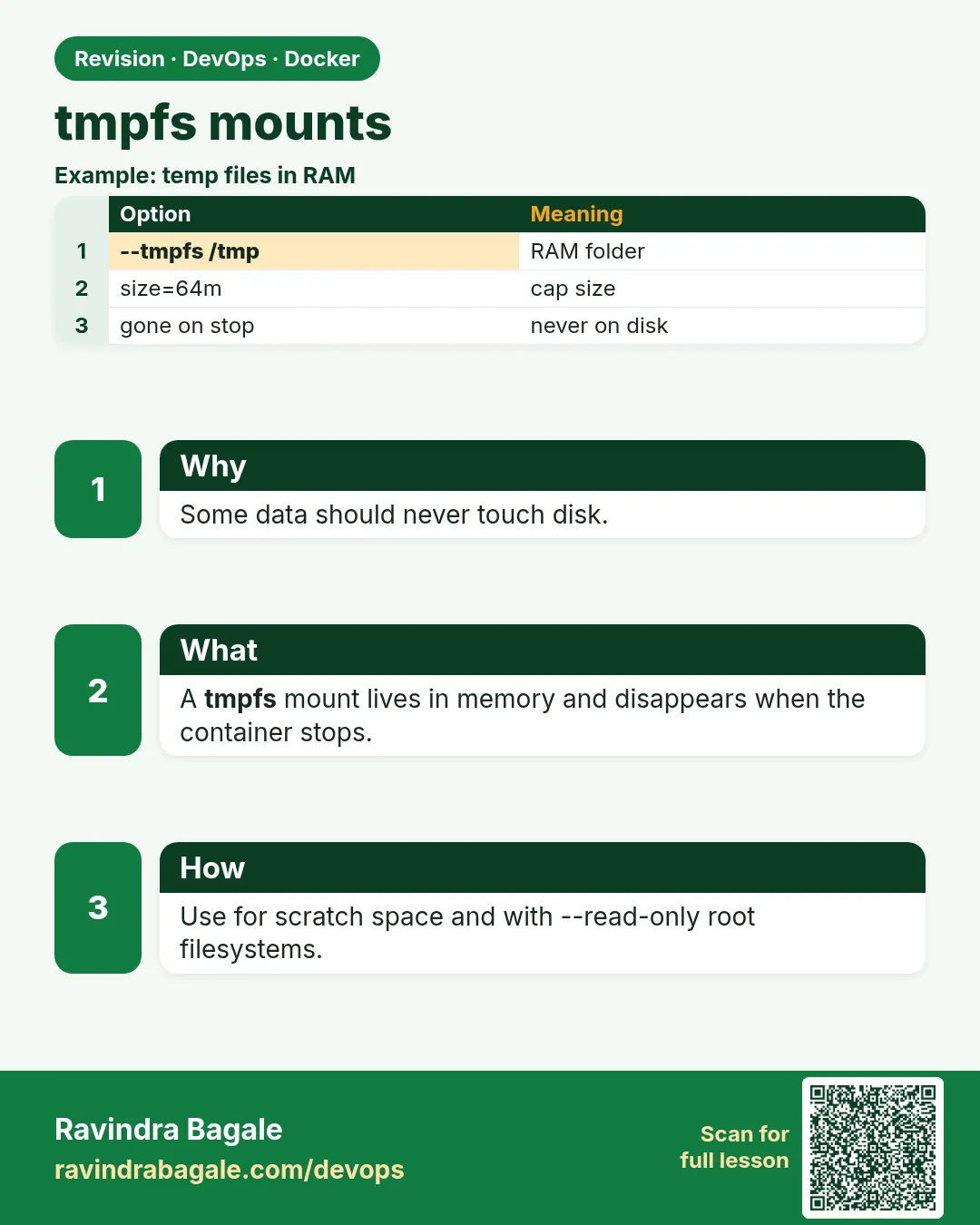 Revision card
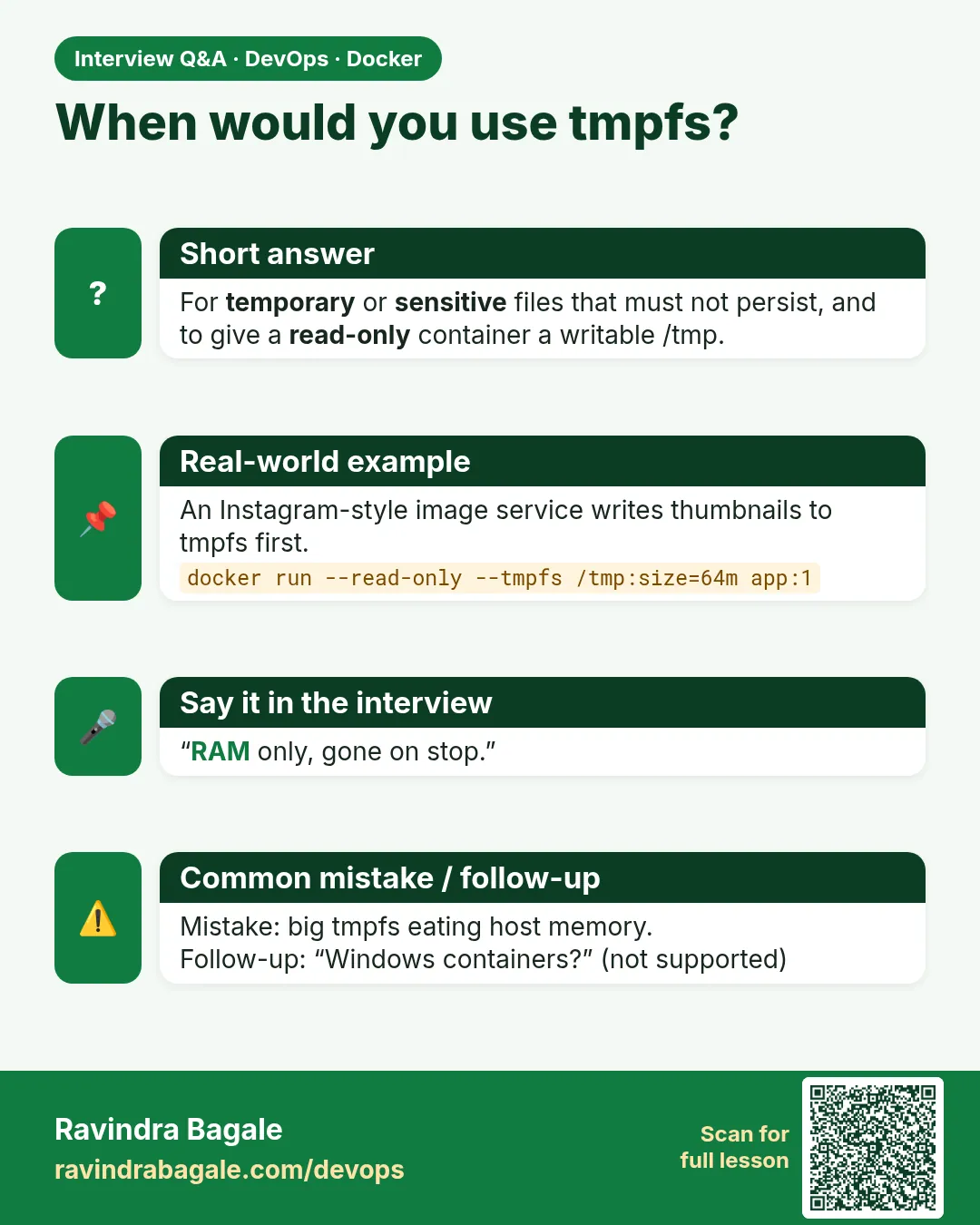 Interview card
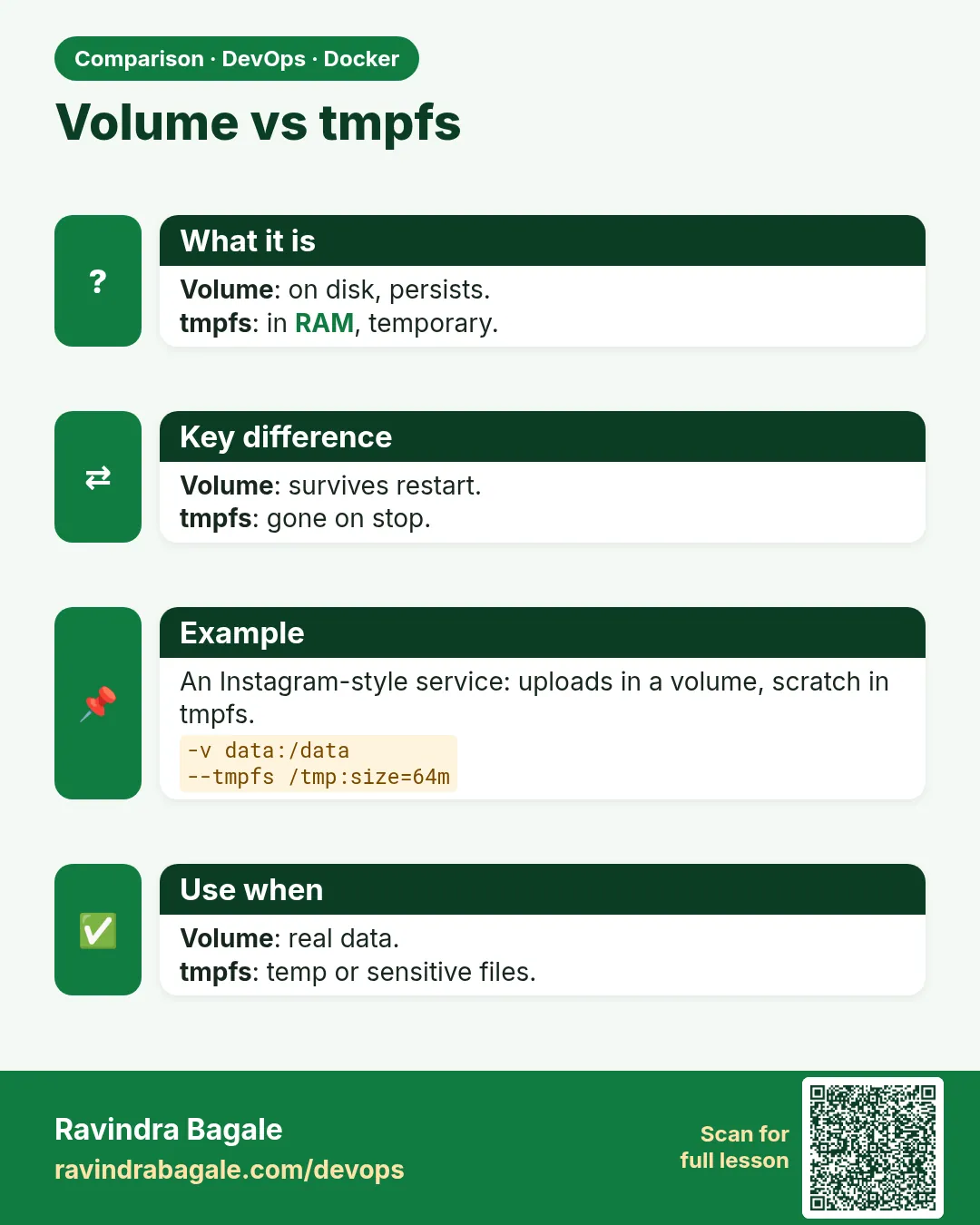 Comparison card