Chapter 38: Terraform CLI Commands fmt validate plan apply state and more
38.3 apply and destroy — and why -target is an emergency tool
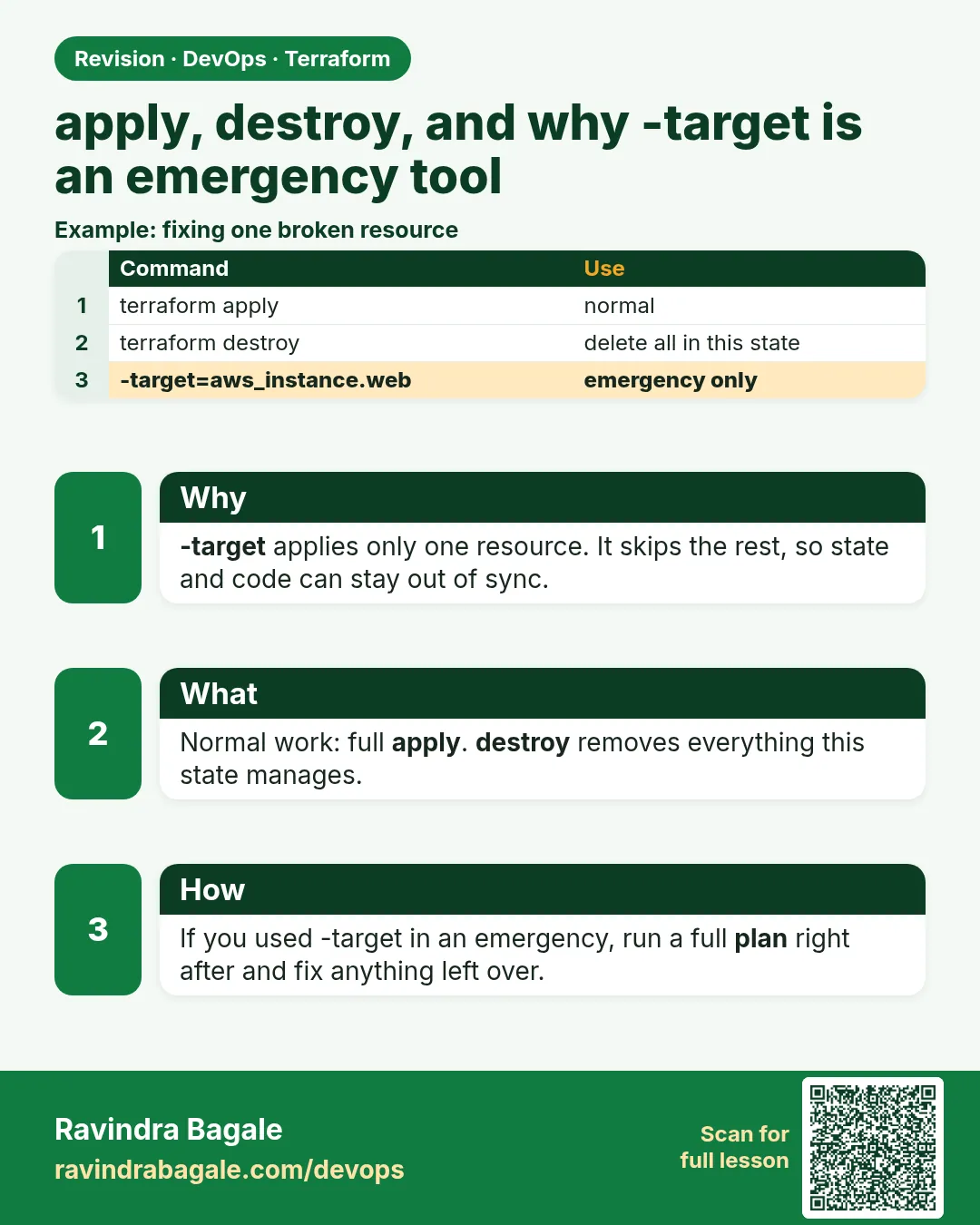
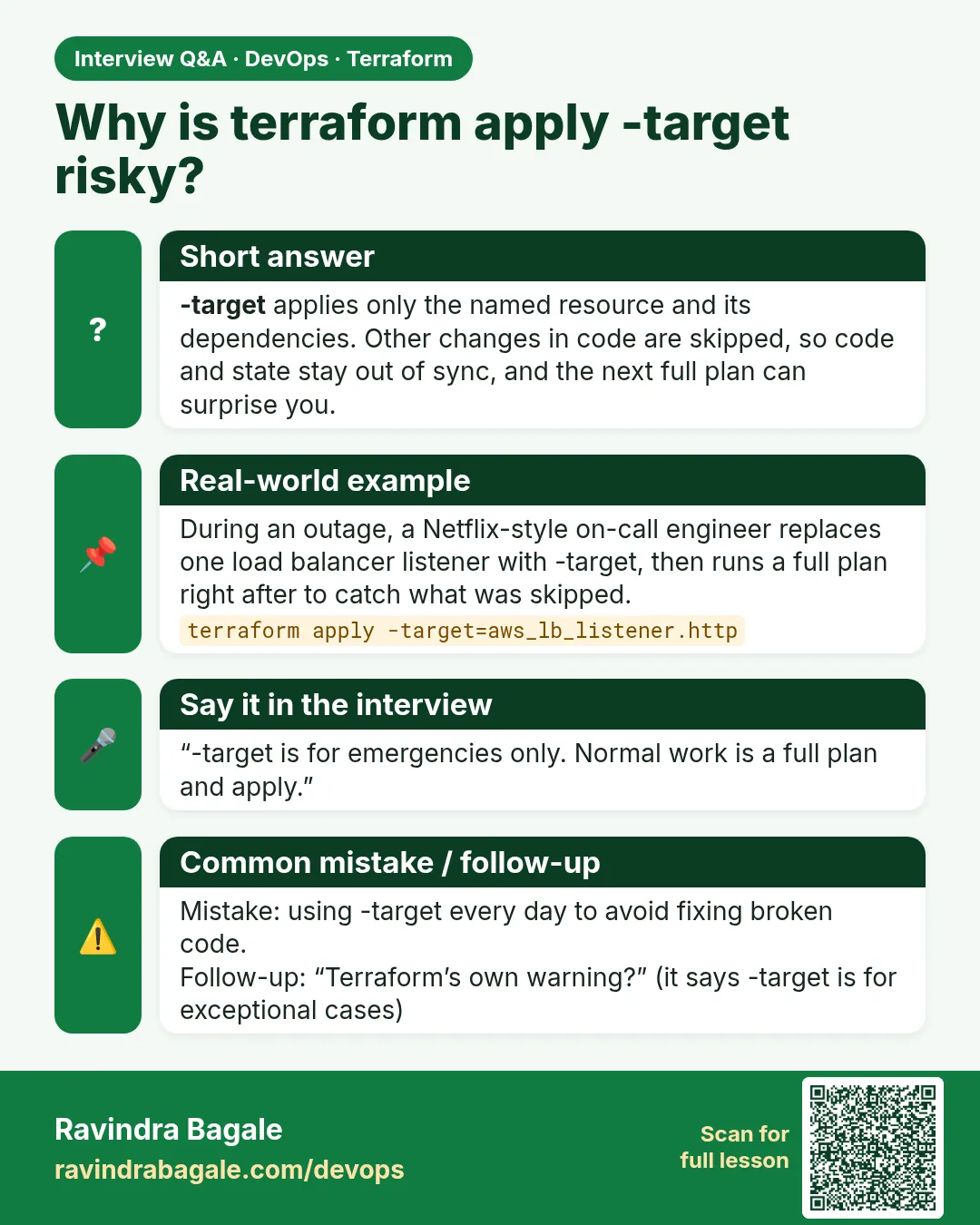
Story. An Instagram-style team ran destroy in the wrong folder and removed a staging database. Destroy is apply with every resource marked for deletion, so read its plan exactly like any other. -target limits a run to some resources; it is useful in an emergency but leaves the rest of the configuration unchecked, so never make it a habit.
terraform apply tfplan
terraform apply -auto-approve -var-file=dev.tfvars
terraform plan -destroy -var-file=dev.tfvars
terraform destroy -var-file=dev.tfvars
terraform apply -target=aws_security_group.web
What each line does
terraform apply tfplan— Applies the saved plan with no prompt because it was already reviewed.terraform apply -auto-approve -var-file=dev.tfvars— Plans and applies with no prompt; only for disposable labs or after a pipeline approval.terraform plan -destroy -var-file=dev.tfvars— Shows what destroy would delete without deleting it.terraform destroy -var-file=dev.tfvars— Deletes everything in this state; pass the same vars you used to apply.terraform apply -target=aws_security_group.web— Applies only this resource and its dependencies; Terraform warns you each time.
When it is green.
Apply complete! Resources: 3 added, 0 changed, 0 destroyed.
Plan: 0 to add, 0 to change, 3 to destroy.
Destroy complete! Resources: 3 destroyed.
When it is red.
Warning: Resource targeting is in effect
The current plan may not represent all of the changes requested by the current configuration.
Error: deleting EC2 VPC (vpc-0abc...): DependencyViolation: The vpc has dependencies and cannot be deleted.
Fix. Something outside Terraform, such as a hand-made ENI or load balancer, still uses the VPC. Find it, delete it, and run destroy again.
What: every term in plain English
- apply — Makes the plan real in AWS and updates state.
- -auto-approve — Skips the yes prompt. Only for labs or after a pipeline approval.
- destroy — Deletes everything this state tracks. It is apply with every resource marked for delete.
- plan -destroy — A preview of destroy. Nothing is deleted.
- -target — Limits a run to one address and its dependencies. An emergency tool only.
- -parallelism — How many resources Terraform works on at once. Default 10.
Example 1: Apply a small EC2 lab with a yes prompt
Your first real apply. Read the plan, type yes, then check AWS.
- Save ec2.tf below next to versions.tf.
- Run apply without a saved plan.
- Type yes only after reading.
data "aws_ami" "al2023" {
  most_recent = true
  owners      = ["amazon"]
  filter {
    name   = "name"
    values = ["al2023-ami-2023.*-x86_64"]
  }
}

resource "aws_instance" "web" {
  ami           = data.aws_ami.al2023.id
  instance_type = "t3.micro"
  tags = {
    Name = "apply-lab"
  }
}

output "public_ip" {
  value = aws_instance.web.public_ip
}
terraform apply
Output
Plan: 1 to add, 0 to change, 0 to destroy.

Do you want to perform these actions?
  Enter a value: yes

aws_instance.web: Creating...
aws_instance.web: Still creating... [10s elapsed]
aws_instance.web: Creation complete after 13s [id=i-0abc12de34f567890]

Apply complete! Resources: 1 added, 0 changed, 0 destroyed.

Outputs:

public_ip = "13.233.45.67"
What it shows: Only the word yes continues. Anything else cancels safely.
Example 2: Preview destroy, then destroy
At the end of every lab you destroy, so you are not billed overnight.
- Run plan -destroy first.
- Read the list.
- Run destroy and type yes.
terraform plan -destroy
terraform destroy
Output
  # aws_instance.web will be destroyed
  - resource "aws_instance" "web" {
Plan: 0 to add, 0 to change, 1 to destroy.

aws_instance.web: Destroying... [id=i-0abc12de34f567890]
aws_instance.web: Destruction complete after 41s

Destroy complete! Resources: 1 destroyed.
What it shows: Destroy lists every resource first. Always check you are in the right folder and workspace.
Example 3: Use -target in an emergency, then run a full plan
Prod is down. Only the security group rule must change now. Everything else waits.
- Change the port in the security group.
- Apply only that resource.
- Then run a full plan to see what was skipped.
terraform apply -target=aws_security_group.web
terraform plan
Output
Warning: Resource targeting is in effect

You are creating a plan with the -target option, which means that the result of this plan may not represent all of the changes requested by the current configuration.

Apply complete! Resources: 0 added, 1 changed, 0 destroyed.

Plan: 0 to add, 1 to change, 0 to destroy.
What it shows: The full plan still shows one change waiting. -target hides work, so finish with a normal apply.
Example 4: Protect a database from destroy
One wrong destroy deleted a staging database at a startup. A lifecycle rule blocks it.
- Add prevent_destroy to an important resource.
- Try terraform destroy.
resource "aws_s3_bucket" "orders" {
  bucket = "shopkart-orders-prod-1234"
  lifecycle {
    prevent_destroy = true
  }
}
terraform destroy
Output
Error: Instance cannot be destroyed

  on s3.tf line 1:
   1: resource "aws_s3_bucket" "orders" {

Resource aws_s3_bucket.orders has lifecycle.prevent_destroy set, but the plan calls for this resource to be destroyed.
What it shows: Terraform stops before deleting anything. To really delete, a human must first remove the rule in a reviewed commit.
Command cheat sheet
| Command | What it does | When to use it |
|---|---|---|
terraform apply |
Plan plus yes prompt | Labs and manual changes |
terraform apply tfplan |
Applies a saved plan, no prompt | Pipelines |
terraform apply -auto-approve |
No prompt | Only throwaway labs |
terraform plan -destroy |
Delete preview | Before every destroy |
terraform destroy |
Deletes all in state | End of a lab |
terraform apply -target=ADDR |
Only one resource | Emergencies only |
terraform apply -parallelism=20 |
More work at once | Large stacks |
Verify: did it work?
-
The instance is gone
aws ec2 describe-instances --filters Name=tag:Name,Values=apply-lab --query "Reservations[].Instances[].State.Name"Output
[ "terminated" ] -
State is empty
terraform state listOutput
(no output)
When it is red 1
Error: deleting EC2 VPC (vpc-0abc...): DependencyViolation: The vpc has dependencies and cannot be deleted.
Cause. Something made outside Terraform still uses the VPC, such as a hand-made load balancer or network interface.
Fix, step by step
- Open VPC, then Network interfaces, filter by the VPC id.
- Delete what was made by hand.
- Run terraform destroy again.
When it is red 2
Error: creating EC2 Instance: UnauthorizedOperation: You are not authorized to perform this operation.
Cause. Your IAM user or role lacks ec2:RunInstances.
Fix, step by step
- Run aws sts get-caller-identity to see who you are.
- Ask for the right policy, or use the lab role.
When it is red 3
Error: Error acquiring the state lock
Lock Info:
  ID:        6f1c...
  Who:       jenkins@build-07
Cause. Another run, often a pipeline, is using this state.
Fix, step by step
- Wait for that run to finish.
- Only if it crashed, run terraform force-unlock 6f1c... after checking with the team.
Cleanup
terraform destroy -auto-approve
Practice tasks
Easy Cancel an apply
Why: Saying no is safe.
What to do: Run apply and type no.
- Read the plan.
- Type no.
Check: Apply cancelled. and nothing changed.
Medium Target and finish
Why: -target leaves work behind.
What to do: Use -target on one resource, then run a full apply.
- Edit two resources.
- Target one.
- Plan and apply the rest.
Check: Final plan says No changes.
Medium Block a delete
Why: Protect important data.
What to do: Add prevent_destroy and see destroy fail.
- Add the lifecycle block.
- Run destroy.
Check: You see Instance cannot be destroyed.
Hard Speed up a big apply
Why: Large stacks are slow.
What to do: Try -parallelism=20 on a lab with 10 resources.
- Use count = 10 on a random_pet.
- Time both runs.
Check: You can explain the difference.
Easy Say it in two lines
Why: If you can say it simply, you understand it.
What to do: Write two short lines about this lesson for a fresher.
- Write the problem it solves.
- Write the one command or file you use.
- Read it aloud.
Check: A fresher understands it without a question.
Easy Start a safe lab folder
Why: Practice needs a throwaway place.
What to do: Make a new folder with versions.tf and a random_pet resource, so no AWS cost.
- mkdir tf-lab and cd into it.
- Add the hashicorp/random provider and one random_pet.
- Run terraform init and terraform apply.
Check: Apply complete! with 1 added.
Medium Break it on purpose
Why: You must know the red output by face.
What to do: Cause one error from the red part of this lesson and fix it.
- Follow one red section.
- Copy the exact message to your notes.
- Write the fix in one line.
Check: You fixed it without searching the web.
Medium Run it twice
Why: A second run must be quiet.
What to do: Run the same plan two times with no edits.
- Run terraform plan.
- Run it again.
- Explain any change it still shows.
Check: The second plan says No changes, or you can explain each line.
Medium Write a runbook page
Why: At 2 a.m. nobody remembers flags.
What to do: Write a one-page runbook for this lesson.
- Title, when to use, exact commands, how to check, how to undo.
Check: A teammate can follow it alone.
Medium Run it from a pipeline
Why: Real teams run Terraform from CI, not from laptops.
What to do: Run the main command of this lesson inside a GitHub Actions or Jenkins job.
- Add a job with hashicorp/setup-terraform or a Terraform Docker image.
- Give it AWS access through an IAM role, never a key in the file.
- Run init, then the command from this lesson.
Check: The job log shows the same output you saw on your laptop.
Medium Check the cost
Why: Labs left running cost real money.
What to do: Find what this lesson would cost per day if you forgot to destroy it.
- Open the AWS Pricing Calculator.
- Add each resource from your plan.
- Write the daily cost in your notes.
Check: You know the daily cost and you ran terraform destroy.
Hard Draw the flow top to bottom
Why: A drawing shows the order of work.
What to do: Draw this lesson as boxes from top to bottom.
- Start at your code, go through plan and state, end at AWS.
- Mark where each command reads or writes.
Check: Each box matches a real step you ran.
Hard Explain it like an interview
Why: Interviewers want real stories.
What to do: Record a 60 second answer about this lesson.
- Say the problem, the command, and one error you hit.
Check: Your answer has a real command and a real error message.
Homework: try at home
Try at home
Build the EC2 lab, open the public IP in AWS console, then destroy it the same day. Write the time each step took.
Recap
- apply asks for yes unless you apply a saved plan.
- Use -auto-approve only in labs or after an approval.
- Preview destroy with plan -destroy.
- -target is for emergencies; always follow with a full plan.
- prevent_destroy blocks deletes of important resources.
FAQ
Can I undo an apply?
There is no undo button. Revert the code in Git and apply again.
Why did destroy fail halfway?
Usually a dependency made outside Terraform. Remove it and run destroy again; it continues.
Does destroy delete S3 objects?
Not by default. A non-empty bucket fails unless force_destroy is true.
Is -auto-approve bad?
Only when no human reviewed the plan first.
Can I destroy only one resource?
Use terraform destroy -target=ADDRESS in an emergency, or remove it from code and apply.
Interview questions
-
Why is -target an anti-pattern?
It skips part of the config, so state and code can drift apart. Use it only to recover.
-
How do you stop accidental deletes?
prevent_destroy, deletion protection on RDS, reviewed plans and separate state per environment.
-
What happens if apply fails halfway?
Created resources stay in state. Fix the error and run apply again; it continues.
-
What does destroy really do?
It plans a delete for everything in state and applies it.
-
How do you apply safely in CI?
plan -out, review or approval, then apply that saved plan.
Quick quiz
Q1. Which word continues an apply prompt?
yes.
Q2. What previews a destroy?
terraform plan -destroy.
Q3. What does -target warn about?
Resource targeting is in effect.
Q4. Which rule blocks destroy?
lifecycle prevent_destroy.
Q5. Can a failed apply be re-run?
Yes, it continues from state.
Samajla ka?
 Revision card
 Interview card