Chapter 38: Terraform CLI Commands fmt validate plan apply state and more
38.2 plan, show and saved plan files
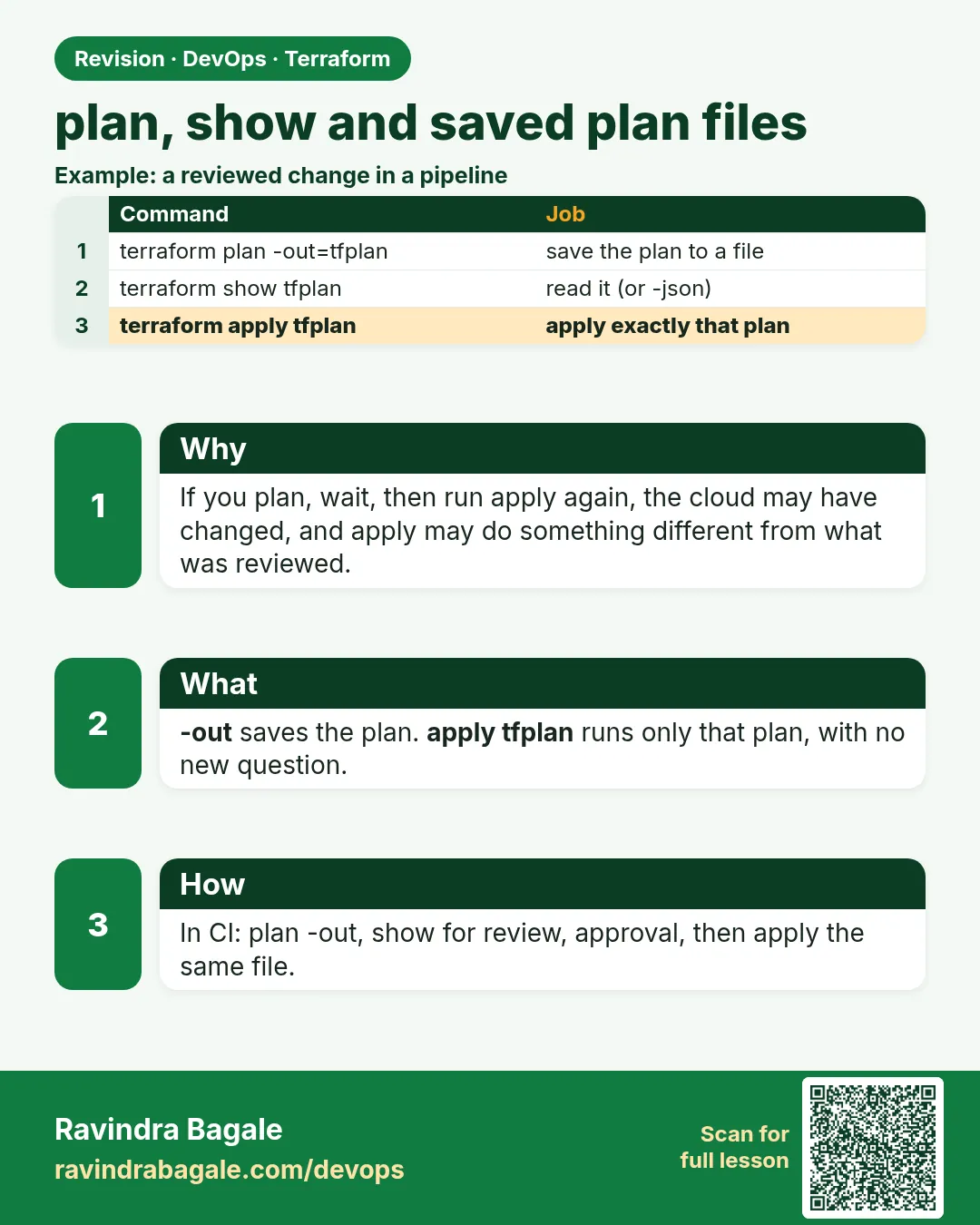
Story. On a Netflix-style release, the plan reviewed at 10 AM must be the plan applied at 11 AM, not whatever the code says by then. Saving the plan with -out freezes it. terraform show reads it back as text or JSON, which scanners and approvers can inspect. -detailed-exitcode tells scripts whether anything would change.
terraform plan -out=tfplan -var-file=dev.tfvars
terraform show tfplan
terraform show -json tfplan > tfplan.json
terraform plan -detailed-exitcode
echo $?
What each line does
terraform plan -out=tfplan -var-file=dev.tfvars— Computes the change for dev and saves it to a binary file.terraform show tfplan— Prints the saved plan in readable form.terraform show -json tfplan > tfplan.json— Exports the plan as JSON for tools such as Checkov.terraform plan -detailed-exitcode— Exits 0 for no changes, 2 for changes, 1 for errors.echo $?— Shows that exit code.
When it is green.
Plan: 3 to add, 0 to change, 0 to destroy.
Saved the plan to: tfplan
To perform exactly these actions, run: terraform apply "tfplan"
2
When it is red.
Error: Saved plan is stale
The given plan file can no longer be applied because the state was changed by another operation
after the plan was created.
Fix. Someone applied in between. Plan again, review the new plan, and apply that.
What: every term in plain English
- plan — Terraform compares code, state and real AWS, then lists what it will add, change or destroy.
- + create, ~ update, - destroy, -/+ replace — The symbols in a plan. Replace means delete and create again.
- -out=tfplan — Saves the plan to a file, so you can apply exactly that plan later.
- terraform show — Prints a saved plan or the current state in readable form.
- show -json — The same plan as JSON, for scanners and scripts.
- -detailed-exitcode — Exit 0 means no changes, 2 means changes, 1 means error.
- stale plan — A saved plan that no longer matches state because someone applied after it was made.
Example 1: Read a plan for one security group
Before any apply, you must read the plan like a bill before paying.
- Save versions.tf and sg.tf below.
- Run init and plan.
- Read the + lines and the summary line.
terraform {
  required_version = ">= 1.6"
  required_providers {
    aws = {
      source  = "hashicorp/aws"
      version = "~> 5.0"
    }
  }
}

provider "aws" {
  region = "ap-south-1"
}
data "aws_vpc" "default" {
  default = true
}

resource "aws_security_group" "web" {
  name   = "plan-lab-web"
  vpc_id = data.aws_vpc.default.id

  ingress {
    from_port   = 80
    to_port     = 80
    protocol    = "tcp"
    cidr_blocks = ["0.0.0.0/0"]
  }
}
terraform init
terraform plan
Output
data.aws_vpc.default: Reading...
data.aws_vpc.default: Read complete after 1s [id=vpc-0a1b2c3d4e5f60789]

Terraform will perform the following actions:

  # aws_security_group.web will be created
  + resource "aws_security_group" "web" {
      + arn    = (known after apply)
      + id     = (known after apply)
      + name   = "plan-lab-web"
      + vpc_id = "vpc-0a1b2c3d4e5f60789"
      ...
    }

Plan: 1 to add, 0 to change, 0 to destroy.
What it shows: known after apply means AWS decides that value. The last line is the summary to read first.
Example 2: Save, show and apply the exact plan
At Swiggy-scale teams, the reviewed plan must be the applied plan.
- Save the plan with -out.
- Show it in text and as JSON.
- Count changes with jq.
- Apply the file.
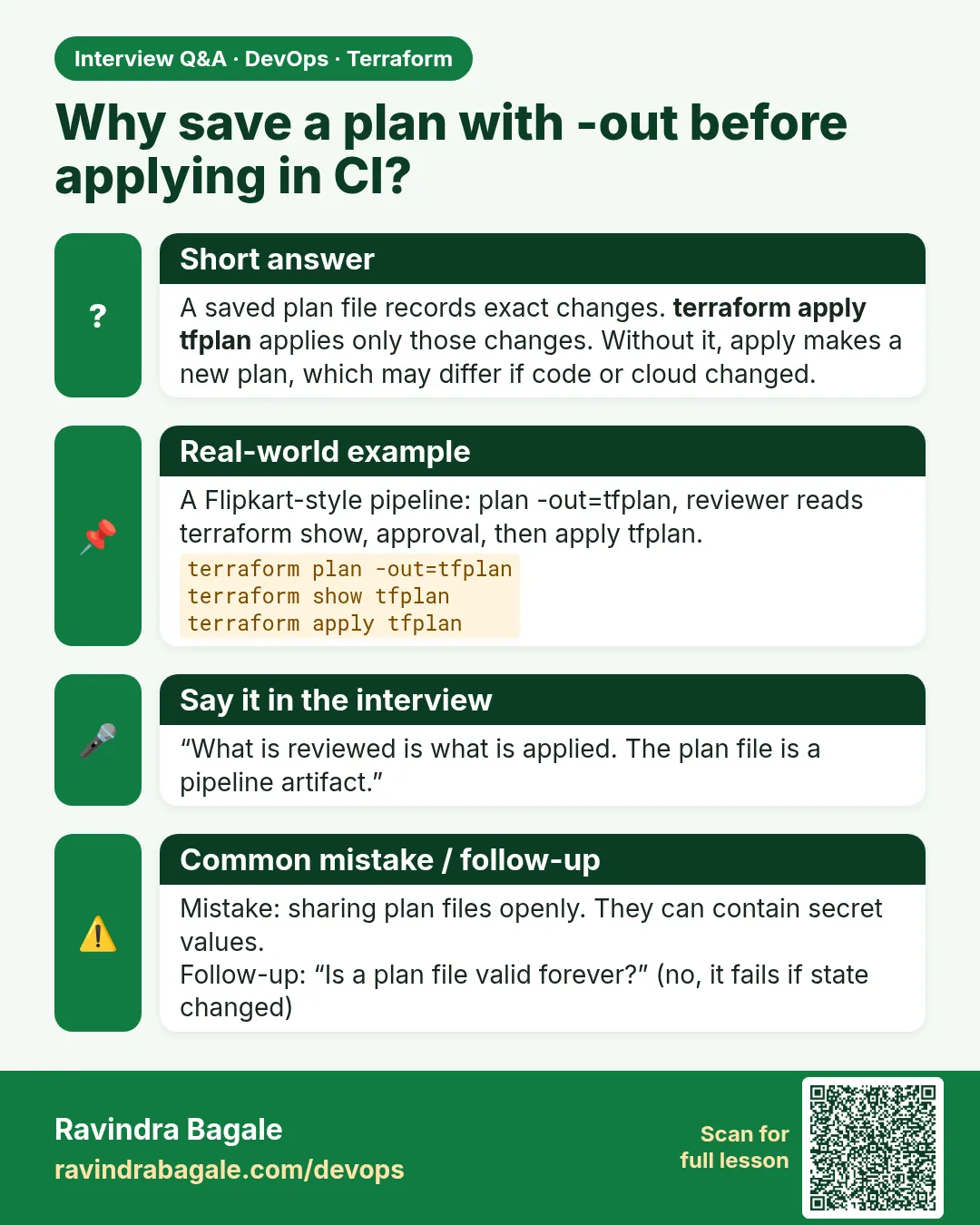
terraform plan -out=tfplan
terraform show tfplan | tail -3
terraform show -json tfplan > tfplan.json
jq '[.resource_changes[] | .change.actions[]] | group_by(.) | map({(.[0]): length}) | add' tfplan.json
terraform apply tfplan
Output
Saved the plan to: tfplan

To perform exactly these actions, run the following command to apply:
    terraform apply "tfplan"
Plan: 1 to add, 0 to change, 0 to destroy.
{
  "create": 1
}
aws_security_group.web: Creating...
aws_security_group.web: Creation complete after 2s [id=sg-0f1e2d3c4b5a69788]

Apply complete! Resources: 1 added, 0 changed, 0 destroyed.
What it shows: apply did not ask yes. A saved plan was already reviewed, so it runs directly.
Example 3: Spot a replace before it hurts
Some edits delete and recreate a resource. On a database that means data loss. Learn to see -/+ fast.
- Change name to plan-lab-web-v2. Security group names cannot change in place.
- Run plan.
- Look for -/+ and forces replacement.
sed -i 's/plan-lab-web"/plan-lab-web-v2"/' sg.tf
terraform plan
Output
  # aws_security_group.web must be replaced
-/+ resource "aws_security_group" "web" {
      ~ id   = "sg-0f1e2d3c4b5a69788" -> (known after apply)
      ~ name = "plan-lab-web" -> "plan-lab-web-v2" # forces replacement
    }

Plan: 1 to add, 0 to change, 1 to destroy.
What it shows: forces replacement names the exact argument. On RDS or a bucket, stop and think before apply.
Example 4: Drift check with -detailed-exitcode
A nightly job can tell you if anything changed outside Terraform.
- Run plan with -detailed-exitcode in a small script.
- Act on the exit code.
terraform plan -detailed-exitcode -input=false -no-color > plan.txt
rc=$?
if [ "$rc" -eq 0 ]; then echo "No drift"; fi
if [ "$rc" -eq 2 ]; then echo "Changes found"; grep 'Plan:' plan.txt; fi
if [ "$rc" -eq 1 ]; then echo "Plan failed"; fi
Output
Changes found
Plan: 1 to add, 0 to change, 1 to destroy.
What it shows: Exit 2 is not an error. It means work to do. Your script decides what to do next.
Command cheat sheet
| Command | What it does | When to use it |
|---|---|---|
terraform plan |
Shows the change | Before every apply |
terraform plan -out=tfplan |
Saves the change | Pipelines and reviews |
terraform show tfplan |
Reads a saved plan | Approval step |
terraform show -json tfplan |
Plan as JSON | Checkov, tfsec, scripts |
terraform plan -var-file=prod.tfvars |
Plan with prod values | Per environment |
terraform plan -detailed-exitcode |
Exit 0, 1 or 2 | Drift checks and gates |
terraform plan -destroy |
Previews deletes | Before destroy |
Verify: did it work?
-
A saved plan exists
ls -l tfplanOutput
-rw-r--r-- 1 ravi ravi 4120 Oct 25 10:12 tfplan -
Nothing left to do after apply
terraform plan -detailed-exitcode; echo $?Output
No changes. Your infrastructure matches the configuration.
0
When it is red 1
Error: Saved plan is stale
The given plan file can no longer be applied because the state was changed by another operation after the plan was created.
Cause. Someone applied between your plan and your apply.
Fix, step by step
- Delete the old tfplan.
- Run plan -out=tfplan again and review it.
- Apply the new file.
When it is red 2
Error: No valid credential sources found
Please see https://registry.terraform.io/providers/hashicorp/aws for more information about providing credentials.
Cause. plan must call AWS and found no login.
Fix, step by step
- Run aws sts get-caller-identity to test.
- Run aws configure or use an IAM role.
- Plan again.
When it is red 3
Error: Failed to load "tfplan" as a plan file
plan file was created by Terraform 1.9.5, but this is 1.8.2
Cause. The plan was saved by a different Terraform version.
Fix, step by step
- Use the same Terraform version for plan and apply.
- Pin it in CI with required_version.
Cleanup
terraform destroy -auto-approve
rm -f tfplan tfplan.json plan.txt
Practice tasks
Easy Read three summaries
Why: The summary line is read first.
What to do: Run plan for three small changes and write each summary line.
- Add a tag.
- Change a port.
- Rename the group.
Check: You can say which one replaces.
Medium Plan for prod values
Why: One code, many inputs.
What to do: Run plan with -var-file=dev.tfvars and prod.tfvars.
- Create both files with a different name.
- Compare the plans.
Check: Only the values differ.
Medium Count changes with jq
Why: Robots read JSON.
What to do: Export show -json and count delete actions.
- Use the jq line from Example 2.
Check: Your script prints the delete count.
Hard Make a stale plan
Why: Know the error by face.
What to do: Save a plan, apply a change from another terminal, then apply the old plan.
- Use two terminals in the same folder.
Check: You see Saved plan is stale.
Easy Say it in two lines
Why: If you can say it simply, you understand it.
What to do: Write two short lines about this lesson for a fresher.
- Write the problem it solves.
- Write the one command or file you use.
- Read it aloud.
Check: A fresher understands it without a question.
Easy Start a safe lab folder
Why: Practice needs a throwaway place.
What to do: Make a new folder with versions.tf and a random_pet resource, so no AWS cost.
- mkdir tf-lab and cd into it.
- Add the hashicorp/random provider and one random_pet.
- Run terraform init and terraform apply.
Check: Apply complete! with 1 added.
Medium Break it on purpose
Why: You must know the red output by face.
What to do: Cause one error from the red part of this lesson and fix it.
- Follow one red section.
- Copy the exact message to your notes.
- Write the fix in one line.
Check: You fixed it without searching the web.
Medium Run it twice
Why: A second run must be quiet.
What to do: Run the same plan two times with no edits.
- Run terraform plan.
- Run it again.
- Explain any change it still shows.
Check: The second plan says No changes, or you can explain each line.
Medium Write a runbook page
Why: At 2 a.m. nobody remembers flags.
What to do: Write a one-page runbook for this lesson.
- Title, when to use, exact commands, how to check, how to undo.
Check: A teammate can follow it alone.
Medium Run it from a pipeline
Why: Real teams run Terraform from CI, not from laptops.
What to do: Run the main command of this lesson inside a GitHub Actions or Jenkins job.
- Add a job with hashicorp/setup-terraform or a Terraform Docker image.
- Give it AWS access through an IAM role, never a key in the file.
- Run init, then the command from this lesson.
Check: The job log shows the same output you saw on your laptop.
Medium Check the cost
Why: Labs left running cost real money.
What to do: Find what this lesson would cost per day if you forgot to destroy it.
- Open the AWS Pricing Calculator.
- Add each resource from your plan.
- Write the daily cost in your notes.
Check: You know the daily cost and you ran terraform destroy.
Hard Draw the flow top to bottom
Why: A drawing shows the order of work.
What to do: Draw this lesson as boxes from top to bottom.
- Start at your code, go through plan and state, end at AWS.
- Mark where each command reads or writes.
Check: Each box matches a real step you ran.
Hard Explain it like an interview
Why: Interviewers want real stories.
What to do: Record a 60 second answer about this lesson.
- Say the problem, the command, and one error you hit.
Check: Your answer has a real command and a real error message.
Homework: try at home
Try at home
Save a plan for any small lab. Open it with terraform show and write in your own words what each + and ~ line means.
Recap
- plan is a preview. Read the summary line first.
- -out saves the plan. apply tfplan runs exactly that, with no prompt.
- show and show -json read a saved plan.
- -/+ and forces replacement mean delete then create.
- -detailed-exitcode gives 0, 2 or 1 for scripts.
FAQ
Is the plan file safe to share?
No. It can hold secret values. Treat it like the state file.
Can I edit a saved plan?
No. Change the code and plan again.
Why does plan say known after apply?
AWS creates that value, such as an id, only during apply.
Does plan change anything?
No. It only reads and compares.
Why does plan take long?
It refreshes every resource. Large states take longer. Split big stacks.
Interview questions
-
Why use plan -out in pipelines?
So the approved plan is exactly what applies. Without it, code could change between review and apply.
-
What does -/+ mean?
Replace. Terraform deletes and creates the resource because an argument cannot change in place.
-
What is -detailed-exitcode used for?
Drift checks and gates. 0 no changes, 2 changes, 1 error.
-
How do security scanners read a plan?
From terraform show -json tfplan.
-
What is a stale plan?
A saved plan made before another apply changed state. Terraform refuses it.
Quick quiz
Q1. Which flag saves a plan?
-out.
Q2. What does exit code 2 mean with -detailed-exitcode?
There are changes.
Q3. Does apply tfplan ask for yes?
No.
Q4. What does forces replacement mean?
The resource will be deleted and created again.
Q5. Which command exports plan JSON?
terraform show -json tfplan.
Samajla ka?
 Revision card
 Interview card