Chapter 38: Terraform CLI Commands fmt validate plan apply state and more
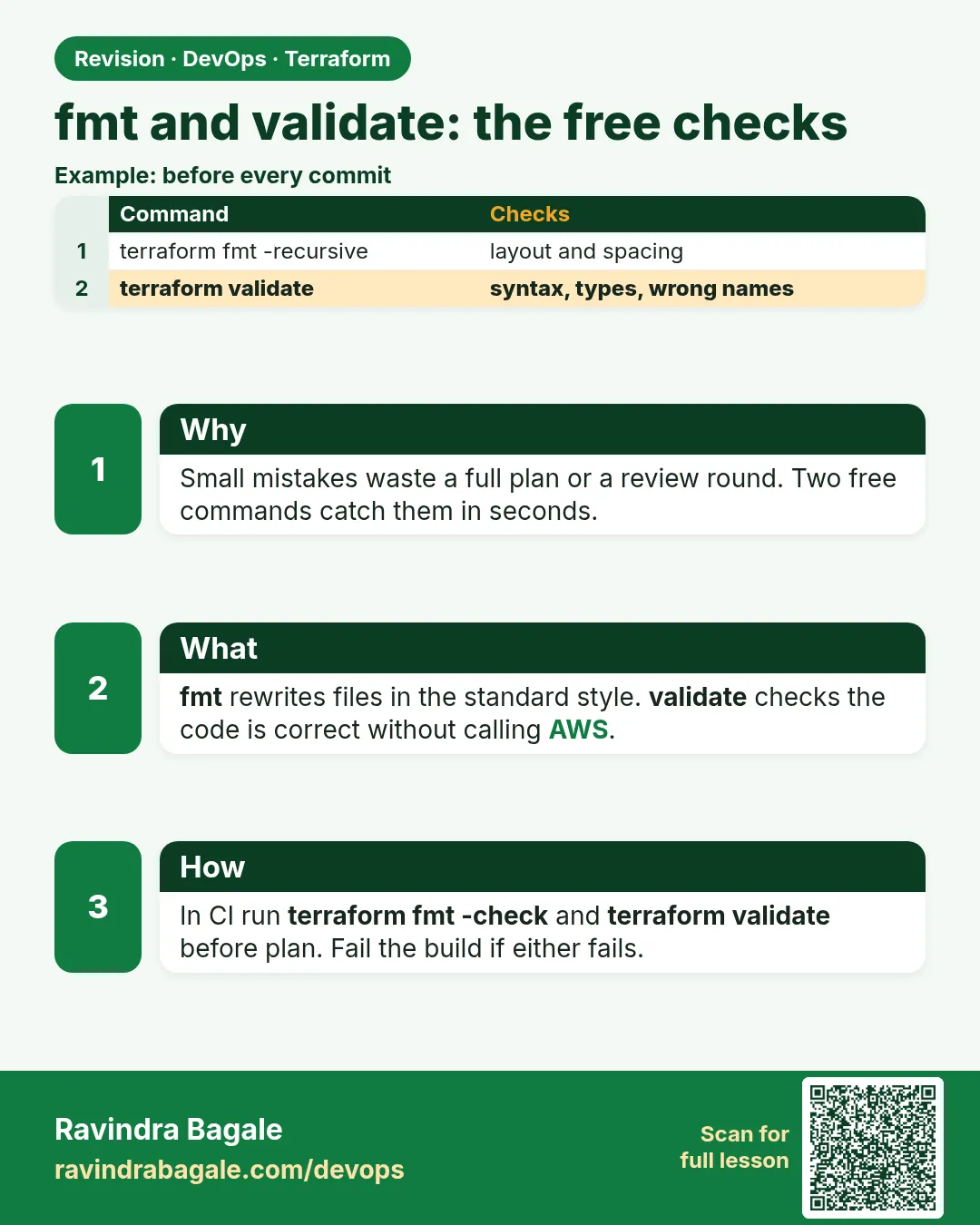
38.1 fmt and validate — the free checks
Story. An Infosys client review board rejected pull requests with messy spacing, and reviewers spent their time on whitespace instead of logic. terraform fmt makes every file look the same, and validate catches broken references without calling AWS. Both are fast, need no credentials once init has run, and belong as the first stage in every pipeline.
terraform fmt -recursive
terraform fmt -check -diff -recursive
terraform init -backend=false
terraform validate
What each line does
terraform fmt -recursive— Formats every .tf file in this folder and its subfolders.terraform fmt -check -diff -recursive— Changes nothing, prints the diff, and exits non-zero if formatting is needed; use this in CI.terraform init -backend=false— Downloads providers without touching remote state, enough for validate.terraform validate— Checks syntax, types and references.
When it is green.
main.tf
variables.tf
Success! The configuration is valid.
When it is red.
Error: Reference to undeclared resource
  on outputs.tf line 2: aws_instance.webb.id
A managed resource "aws_instance" "webb" has not been declared in the root module.
Fix. A typo in a reference. validate gives the file and line; fix it before plan.
What: every term in plain English
- terraform fmt — Rewrites .tf files into the standard layout. It changes spaces and alignment, never logic.
- -check — Only checks. It changes nothing and exits with code 3 if a file needs formatting.
- -diff — Prints what fmt would change, line by line.
- -recursive — Also looks inside subfolders, such as modules/.
- terraform validate — Checks syntax, types and references inside your code. It never calls AWS.
- init -backend=false — Downloads providers but does not connect to remote state. Enough for validate in CI.
- exit code — A number a command returns. 0 means fine. Anything else means a problem. Pipelines stop on non-zero.
Example 1: Format one messy file
A new joiner at a Pune startup wrote this file by hand. The spacing is messy. Let fmt clean it.
- Make a folder called fmt-lab.
- Save the file below as main.tf.
- Run terraform fmt.
- Open main.tf again and compare.
resource "aws_s3_bucket" "logs" {
bucket = "shopkart-logs-dev-1234"
  tags={
      Team="platform"
   Env = "dev"
  }
}
terraform fmt
cat main.tf
Output
main.tf
resource "aws_s3_bucket" "logs" {
  bucket = "shopkart-logs-dev-1234"
  tags = {
    Team = "platform"
    Env  = "dev"
  }
}
What it shows: fmt printed the file name it changed. The equals signs now line up. Nothing about the bucket changed.
Example 2: Use fmt -check in a pipeline
In CI you never want the robot to change files silently. You want it to fail and tell the developer.
- Mess up the spacing in main.tf again.
- Run fmt with -check and -diff.
- Print the exit code.
- Run plain fmt, then check again.
terraform fmt -check -diff -recursive
echo "exit code: $?"
terraform fmt -recursive
terraform fmt -check -recursive
echo "exit code: $?"
Output
main.tf
--- old/main.tf
+++ new/main.tf
@@ -1,3 +1,3 @@
 resource "aws_s3_bucket" "logs" {
-bucket = "shopkart-logs-dev-1234"
+  bucket = "shopkart-logs-dev-1234"
exit code: 3
main.tf
exit code: 0
What it shows: Exit code 3 fails the pipeline. After formatting, the same check returns 0 and the pipeline passes.
Example 3: Catch a broken reference with validate
A typo in a name is the most common mistake. validate finds it in one second, with no AWS login.
- Add the outputs.tf file below. It has a typo: logz instead of logs.
- Run init without a backend.
- Run validate.
- Fix the typo and run validate again.
output "bucket_name" {
  value = aws_s3_bucket.logz.bucket
}
terraform init -backend=false
terraform validate
sed -i 's/logz/logs/' outputs.tf
terraform validate
Output
Terraform has been successfully initialized!

Error: Reference to undeclared resource

  on outputs.tf line 2, in output "bucket_name":
   2:   value = aws_s3_bucket.logz.bucket

A managed resource "aws_s3_bucket" "logz" has not been declared in the root module.

Success! The configuration is valid.
What it shows: validate gives the file, the line and the exact wrong word. After the fix it prints Success.
Example 4: Both checks as a Git pre-commit hook
Catch problems on your laptop, before you even push.
- Create the hook file.
- Make it executable for your user only.
- Try a commit with a messy file.
printf '%s
' '#!/bin/sh' 'terraform fmt -check -recursive || { echo "Run terraform fmt"; exit 1; }' 'terraform validate || exit 1' > .git/hooks/pre-commit
chmod u+x .git/hooks/pre-commit
git commit -am "add logs bucket"
Output
main.tf
Run terraform fmt
What it shows: The commit was stopped. Run terraform fmt, then commit again and it goes through.
Command cheat sheet
| Command | What it does | When to use it |
|---|---|---|
terraform fmt |
Fixes layout in this folder | Before every commit |
terraform fmt -recursive |
Also fixes subfolders | Repos with modules |
terraform fmt -check -diff -recursive |
Shows problems, changes nothing, exit 3 | In CI |
terraform init -backend=false |
Gets providers without state access | Before validate in CI |
terraform validate |
Checks names, types, references | After every edit |
terraform validate -json |
Same check as JSON | When a tool reads the result |
tflint |
Extra provider rules, such as bad instance types | After validate |
Verify: did it work?
-
Formatting is clean
terraform fmt -check -recursive; echo $?Output
0 -
Code is valid
terraform validateOutput
Success! The configuration is valid.
When it is red 1
Error: Module not installed
  on main.tf line 10:
  10: module "vpc" {
This module is not yet installed. Run "terraform init" to install all modules required by this configuration.
Cause. validate needs providers and modules downloaded first.
Fix, step by step
- Run terraform init -backend=false.
- Run terraform validate again.
When it is red 2
Error: Unsupported argument
  on main.tf line 3, in resource "aws_s3_bucket" "logs":
   3:   acl = "private"
An argument named "acl" is not expected here.
Cause. The argument is wrong for this resource or provider version. In AWS provider 5.x, ACLs moved to a separate resource.
Fix, step by step
- Open the provider docs for the resource.
- Move the setting to aws_s3_bucket_acl or remove it.
- Run validate again.
When it is red 3
Error: Argument or block definition required
  on main.tf line 4:
   4:   tags = { Team = "platform" Env = "dev" }
An argument or block definition is required here.
Cause. Two map items on one line need a comma between them.
Fix, step by step
- Put each item on its own line, or add a comma.
- Run terraform fmt, then validate.
Practice tasks
Easy Format a module folder
Why: Modules hide in subfolders.
What to do: Create modules/web/main.tf with bad spacing and format it.
- Run terraform fmt without -recursive and see nothing changes.
- Run it with -recursive.
Check: The module file is listed and fixed.
Medium Add the checks to GitHub Actions
Why: Every pull request should be checked.
What to do: Write a workflow step that runs fmt -check and validate.
- Use hashicorp/setup-terraform.
- Run terraform init -backend=false.
- Run fmt -check -recursive and validate.
Check: A messy pull request turns red.
Medium Find three validate errors
Why: Practice reading error text.
What to do: Plant a typo, a missing comma and a wrong type in one file.
- Run validate after each fix.
Check: You fixed all three by reading only the error lines.
Easy Read the exit codes
Why: Scripts depend on exit codes.
What to do: Write down the exit code of fmt -check for a clean and a messy file.
- Use echo $? after each run.
Check: You have 0 and 3 written down.
Easy Say it in two lines
Why: If you can say it simply, you understand it.
What to do: Write two short lines about this lesson for a fresher.
- Write the problem it solves.
- Write the one command or file you use.
- Read it aloud.
Check: A fresher understands it without a question.
Easy Start a safe lab folder
Why: Practice needs a throwaway place.
What to do: Make a new folder with versions.tf and a random_pet resource, so no AWS cost.
- mkdir tf-lab and cd into it.
- Add the hashicorp/random provider and one random_pet.
- Run terraform init and terraform apply.
Check: Apply complete! with 1 added.
Medium Break it on purpose
Why: You must know the red output by face.
What to do: Cause one error from the red part of this lesson and fix it.
- Follow one red section.
- Copy the exact message to your notes.
- Write the fix in one line.
Check: You fixed it without searching the web.
Medium Run it twice
Why: A second run must be quiet.
What to do: Run the same plan two times with no edits.
- Run terraform plan.
- Run it again.
- Explain any change it still shows.
Check: The second plan says No changes, or you can explain each line.
Medium Write a runbook page
Why: At 2 a.m. nobody remembers flags.
What to do: Write a one-page runbook for this lesson.
- Title, when to use, exact commands, how to check, how to undo.
Check: A teammate can follow it alone.
Medium Run it from a pipeline
Why: Real teams run Terraform from CI, not from laptops.
What to do: Run the main command of this lesson inside a GitHub Actions or Jenkins job.
- Add a job with hashicorp/setup-terraform or a Terraform Docker image.
- Give it AWS access through an IAM role, never a key in the file.
- Run init, then the command from this lesson.
Check: The job log shows the same output you saw on your laptop.
Medium Check the cost
Why: Labs left running cost real money.
What to do: Find what this lesson would cost per day if you forgot to destroy it.
- Open the AWS Pricing Calculator.
- Add each resource from your plan.
- Write the daily cost in your notes.
Check: You know the daily cost and you ran terraform destroy.
Hard Draw the flow top to bottom
Why: A drawing shows the order of work.
What to do: Draw this lesson as boxes from top to bottom.
- Start at your code, go through plan and state, end at AWS.
- Mark where each command reads or writes.
Check: Each box matches a real step you ran.
Hard Explain it like an interview
Why: Interviewers want real stories.
What to do: Record a 60 second answer about this lesson.
- Say the problem, the command, and one error you hit.
Check: Your answer has a real command and a real error message.
Homework: try at home
Try at home
Take any old Terraform folder you have. Run terraform fmt -check -diff -recursive and count the files. Then fix them and add the pre-commit hook.
Recap
- fmt fixes layout only. It never changes what gets built.
- fmt -check -diff is for CI. It fails with exit code 3.
- validate checks names, types and references with no AWS call.
- Run init -backend=false before validate in CI.
- Put both checks first in every pipeline and in a pre-commit hook.
FAQ
Does fmt change my resources?
No. It only changes spaces, alignment and quotes layout. The plan stays the same.
Does validate need AWS keys?
No. It works offline after init has downloaded the provider.
Why does validate pass but plan fails?
validate checks your code only. plan also talks to AWS, so it finds things like a missing AMI or wrong permissions.
Should fmt run on .tfvars files?
Yes. fmt formats .tf and .tfvars files.
What is terraform test?
A newer command for tests written in .tftest.hcl files. It comes after fmt and validate, not instead of them.
Interview questions
-
What is the difference between fmt and validate?
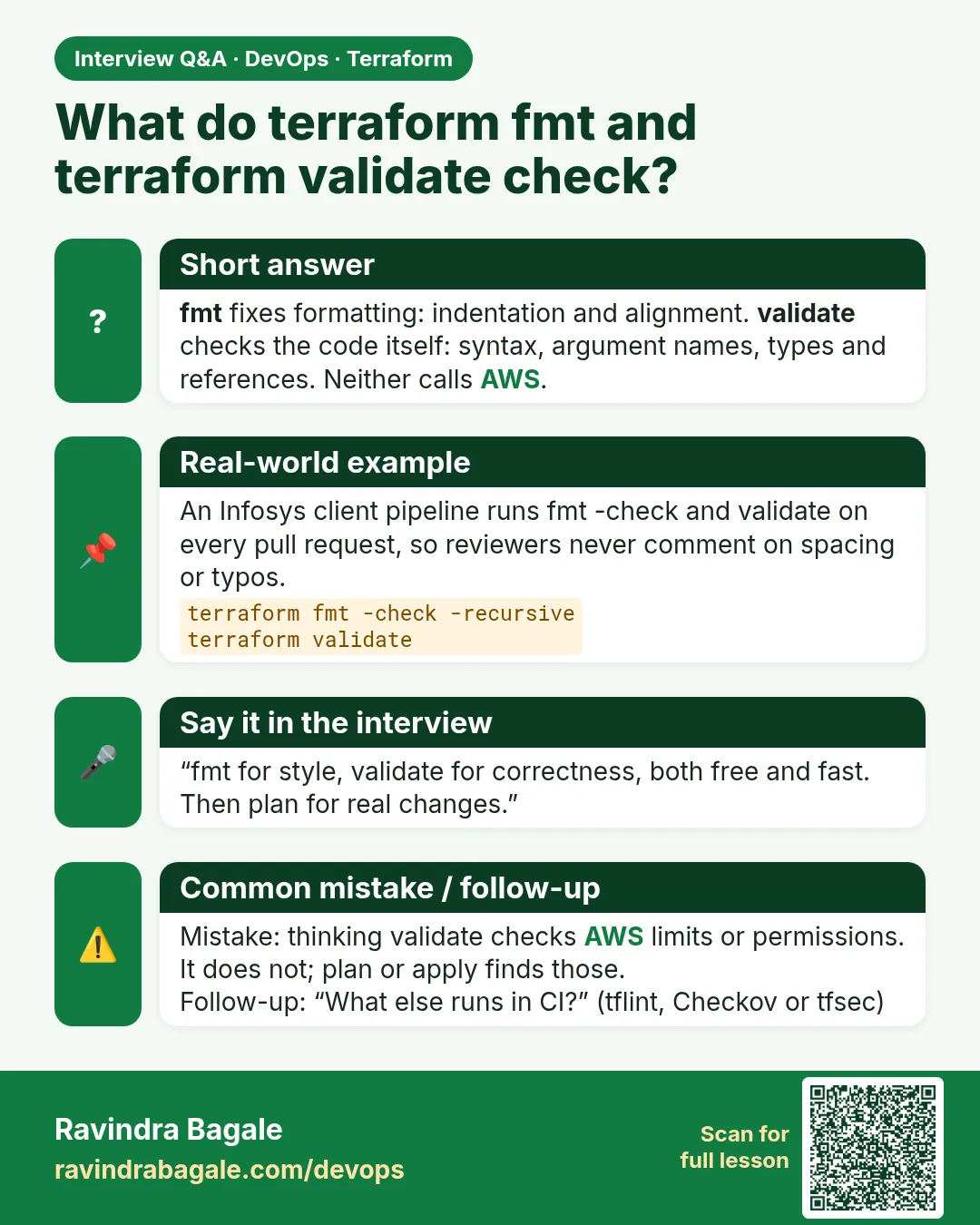
fmt fixes layout. validate checks that the code is correct, such as references and types. Neither calls the cloud.
-
How do you enforce formatting in a team?
Run terraform fmt -check -recursive in CI and in a pre-commit hook. A non-zero exit fails the build.
-
Why use init -backend=false in CI?
It downloads providers for validate without needing access to the remote state bucket.
-
Can validate catch a wrong AMI id?
No. It does not call AWS. plan or apply will catch that.
-
What tools come after validate?
tflint for provider rules and Checkov or tfsec for security rules.
Quick quiz
Q1. What exit code does fmt -check give for a messy file?
3.
Q2. Does validate call AWS?
No.
Q3. Which flag also formats subfolders?
-recursive.
Q4. What must run before validate?
terraform init, at least with -backend=false.
Q5. Does fmt change what Terraform builds?
No, only the layout.
Samajla ka?
 Revision card
 Interview card