Chapter 32: Jenkins Governance, Troubleshooting and Expert Projects
32.4 Agent offline
Why: the problem
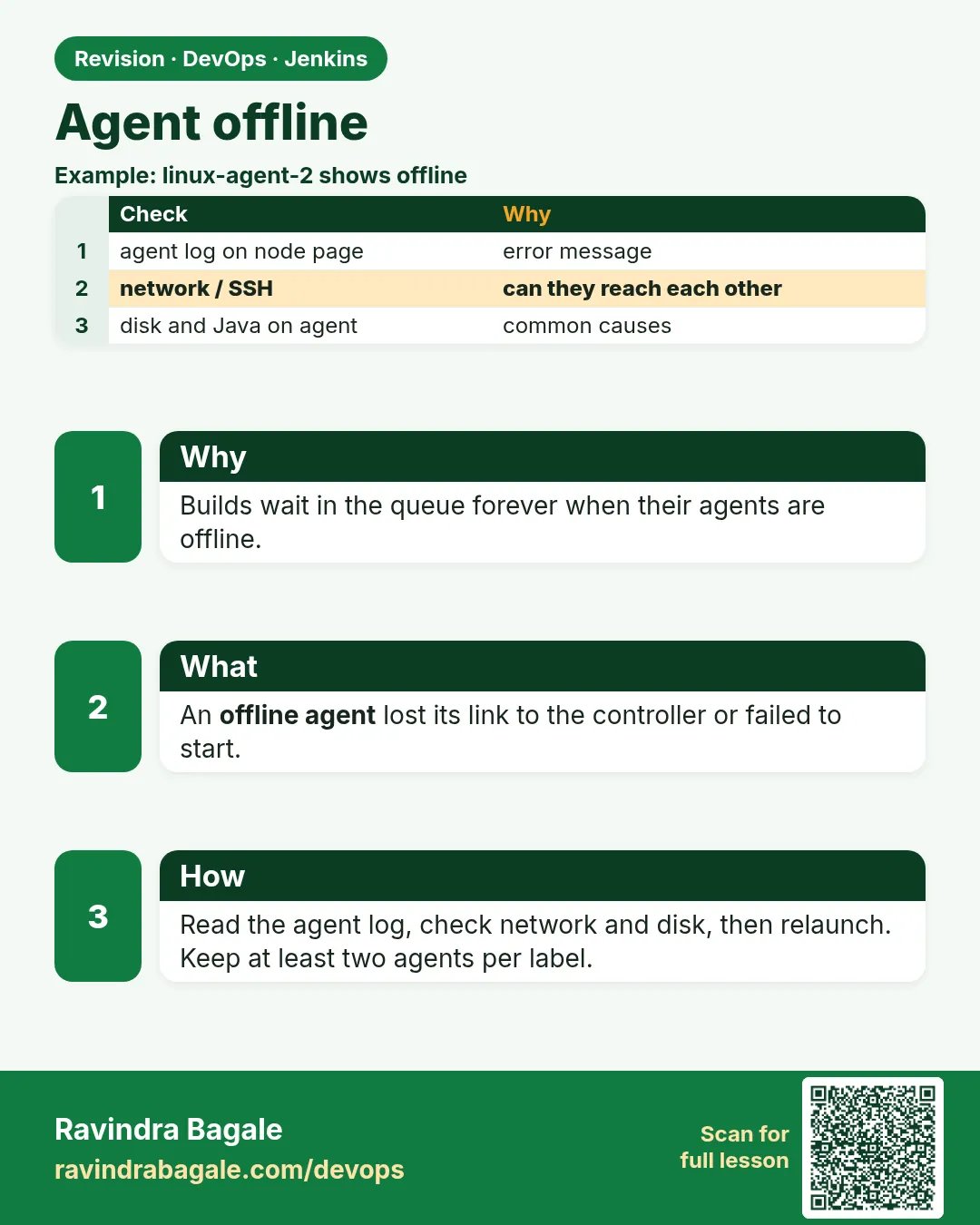
Suppose we are at Wipro and the build queue shows "Waiting for next available executor on linux-docker" for 40 minutes. The jobs are fine. The problem is the agent: the machine that runs builds is offline. Agents go offline for simple reasons: the agent machine rebooted, Java is missing, the network blocks the port, the agent secret changed, or the disk on the agent is full. The fix is to look at the node page in Jenkins, read the agent log, and test the connection by hand.
What we will build
You will connect an agent in two ways (SSH and inbound/WebSocket), break each one on purpose, read the exact error, and fix it. You will also use Kubernetes Pod agents, where offline means the Pod could not start.
What: every term in plain English
- Agent (node) — A machine that runs builds for the controller.
- Executor — One build slot on an agent. An agent with 4 executors runs 4 builds at once.
- SSH agent — The controller logs in to the agent over SSH and starts agent.jar.
- Inbound agent — The agent starts agent.jar itself and connects to the controller, over port 50000 or WebSocket.
- Agent secret — A token the inbound agent uses to prove who it is. Store it like a password.
- Label — A tag on agents like linux-docker. Jobs ask for a label, not a machine name.
- Pod agent — With the Kubernetes plugin, each build gets a fresh Pod as its agent.
How: step by step
-
See all nodes and their state
Manage Jenkins > NodesWhat it does: Offline nodes have a red X and a reason.
Output
linux-docker-1 Offline (Connection was broken) linux-docker-2 Idle -
Open the agent log
Manage Jenkins > Nodes > linux-docker-1 > LogWhat it does: The real error is at the bottom.
Output
[10/26/26 10:01:22] [SSH] Opening SSH connection to 10.0.2.21:22. ERROR: Server rejected the 1 private key(s) for jenkins -
Test SSH by hand from the controller
sudo -u jenkins ssh -i /var/lib/jenkins/.ssh/agent_key jenkins@10.0.2.21 java -versionWhat it does: The same user and key as Jenkins.
Output
openjdk version "17.0.12" 2024-07-16 -
Check the agent machine is up
ping -c 2 10.0.2.21 && nc -zv 10.0.2.21 22What it does: Is it reachable on the SSH port?
Output
Connection to 10.0.2.21 22 port [tcp/ssh] succeeded! -
Check Java on the agent
ssh jenkins@10.0.2.21 "java -version"What it does: agent.jar needs Java 17 or 21, like the controller.
Output
openjdk version "17.0.12" -
Check disk on the agent
ssh jenkins@10.0.2.21 "df -h /home/jenkins"What it does: Jenkins marks an agent offline when free space is low.
Output
/dev/xvda1 30G 29G 1.0G 97% / -
Relaunch the agent
Nodes > linux-docker-1 > Launch agentWhat it does: After the fix, try again.
Output
Agent successfully connected and online
Example 1: SSH agent: the key changed
Stack. Ubuntu agents, SSH Build Agents plugin
Goal. SSH agent: the key changed. Add the new public key and trust the host key.
terminal
# on the controller, as the jenkins user
sudo -u jenkins ssh-keygen -t ed25519 -f /var/lib/jenkins/.ssh/agent_key -N "" -C "jenkins-controller"
sudo -u jenkins cat /var/lib/jenkins/.ssh/agent_key.pub
# on the agent, as the jenkins user, add that line to ~/.ssh/authorized_keys
# back on the controller: record the agent host key
sudo -u jenkins ssh-keyscan -H 10.0.2.21 >> /var/lib/jenkins/.ssh/known_hosts
sudo -u jenkins ssh -i /var/lib/jenkins/.ssh/agent_key jenkins@10.0.2.21 hostname
What each line does
ssh-keygen -t ed25519— Makes a new key pair. The private part stays on the controller.-N ""— No passphrase, because Jenkins must use it alone.authorized_keys— The agent trusts this public key.ssh-keyscan -H— Saves the agent host key, so Jenkins can use "Known hosts file" verification instead of trusting anything.ssh ... hostname— Proves the full path works.
Green output
Generating public/private ed25519 key pair.
Your identification has been saved in /var/lib/jenkins/.ssh/agent_key
ssh-ed25519 AAAAC3NzaC1lZDI1NTE5AAAAI... jenkins-controller
# 10.0.2.21:22 SSH-2.0-OpenSSH_8.9p1 Ubuntu-3ubuntu0.10
linux-docker-1
Expected result. In Jenkins, update the SSH credential with the new private key and press Launch agent. The node goes online.
Example 2: Inbound agent with WebSocket: no port 50000 needed, works through a load balancer
Stack. Linux VM, systemd, WebSocket inbound agent
Goal. Inbound agent with WebSocket: no port 50000 needed, works through a load balancer.
/etc/systemd/system/jenkins-agent.service
[Unit]
Description=Jenkins inbound agent
After=network-online.target

[Service]
User=jenkins
WorkingDirectory=/home/jenkins/agent
EnvironmentFile=/etc/jenkins-agent.env
ExecStart=/usr/bin/java -jar /home/jenkins/agent.jar -url https://ci.example.com/ -name win-build-3 -secret ${AGENT_SECRET} -webSocket -workDir /home/jenkins/agent
Restart=always
RestartSec=10

[Install]
WantedBy=multi-user.target
terminal
curl -sO https://ci.example.com/jnlpJars/agent.jar && mv agent.jar /home/jenkins/
sudo systemctl daemon-reload
sudo systemctl enable --now jenkins-agent
journalctl -u jenkins-agent -n 5 --no-pager
What each line does
EnvironmentFile=/etc/jenkins-agent.env— The secret lives in a root-only file, not in the unit file.-webSocket— Connect over HTTPS on 443. No extra port to open in the firewall.-workDir— Where the agent keeps its logs and cache.Restart=always— If the network drops, systemd starts it again.jnlpJars/agent.jar— Download agent.jar from your own controller, so versions match.
Green output
INFO: Using Remoting version: 3261.v9c670a_4748a_9
INFO: WebSocket connection open
INFO: Connected
Expected result. The agent shows online and reconnects by itself after reboots.
Example 3: Kubernetes Pod agent: the build waits because the Pod cannot be scheduled
Stack. Kubernetes plugin, EKS
Goal. Kubernetes Pod agent: the build waits because the Pod cannot be scheduled.
Jenkinsfile
pipeline {
  agent {
    kubernetes {
      yaml '''
        apiVersion: v1
        kind: Pod
        spec:
          containers:
            - name: maven
              image: maven:3.9-eclipse-temurin-17
              command: ["sleep"]
              args: ["infinity"]
              resources:
                requests: { cpu: "500m", memory: "1Gi" }
                limits:   { memory: "2Gi" }
      '''
    }
  }
  stages {
    stage('Build') { steps { container('maven') { sh 'mvn -B -ntp package' } } }
  }
}
terminal
kubectl -n jenkins get pods -l jenkins/label
kubectl -n jenkins describe pod build-7-x2kq-abcd | tail -5
What each line does
kubernetes { yaml ... }— The Pod spec for this build agent.command sleep infinity— Keeps the maven container alive so Jenkins can run steps in it.requests cpu 500m memory 1Gi— The scheduler needs a node with this much free.container('maven')— Run the step inside the maven container.describe pod— Shows why the Pod is Pending.
Green output
NAME                 READY   STATUS    AGE
build-7-x2kq-abcd    0/2     Pending   4m
Events:
  Warning  FailedScheduling  0/3 nodes are available: 3 Insufficient memory.
Expected result. Fix: lower the request, or let Cluster Autoscaler or Karpenter add a node. After a node joins, the Pod starts and the build runs.
Verify: did it work?
-
Node state by API
curl -s -u ravi:$JENKINS_TOKEN "http://localhost:8080/computer/api/json?tree=computer[displayName,offline]" | jq -c ".computer[]"What it does: Quick list.
Output
{"displayName":"linux-docker-1","offline":false} -
Run a tiny job on the label
A pipeline with agent { label "linux-docker" } and sh "hostname"What it does: Proves builds can run there.
Output
linux-docker-1 -
Agent service status
systemctl is-active jenkins-agentWhat it does: For inbound agents.
Output
active
When it is red 1
ERROR: Server rejected the 1 private key(s) for jenkins
Cause. The public key is not in the agent authorized_keys, or the agent home folder has wrong ownership.
Fix, step by step
- Add the public key to /home/jenkins/.ssh/authorized_keys.
- sudo chown -R jenkins:jenkins /home/jenkins/.ssh
When it is red 2
Agent went offline: Disk space is too low. Only 0.98GB left on /home/jenkins/agent
Cause. The agent disk monitor marked it offline.
Fix, step by step
- Run docker system prune -af and clean old workspaces.
- Bring it online again from the node page.
When it is red 3
SEVERE: Handshake error / Failed to connect to https://ci.example.com/tcpSlaveAgentListener/: 404
Cause. Inbound TCP port is disabled and the agent does not use WebSocket.
Fix, step by step
- Add -webSocket to the agent command.
- Or enable the inbound TCP port in Security settings and open it in the firewall.
When it is red 4
java.lang.UnsupportedClassVersionError: hudson/remoting/Launcher has been compiled by a more recent version of the Java Runtime (class file version 61.0)
Cause. The agent has Java 11, but agent.jar needs Java 17.
Fix, step by step
- Install Java 17 on the agent.
- Set the Java path in the node settings.
Cleanup
-
Remove a test agent
Manage Jenkins > Nodes > test-agent > Delete AgentWhat it does: Lab only.
Output
Node deleted -
Stop the agent service
sudo systemctl disable --now jenkins-agentWhat it does: Lab only.
Output
Removed /etc/systemd/system/multi-user.target.wants/jenkins-agent.service.
Ravindra Bagale's Tip
Agent offline asel tar node cha Log ughada. Tithech kaaran lihilela asta!
Practice tasks
Easy Read three agent logs
Why: Learn normal lines.
What to do: Open the log of every node.
- Manage Jenkins > Nodes > each > Log
Check: You know what "online" looks like.
Medium Move one agent to WebSocket
Why: Fewer firewall rules.
What to do: Change an inbound agent to -webSocket.
- Edit the service file.
- Restart the service.
Check: Log says WebSocket connection open.
Hard Auto-heal agents
Why: Agents should come back alone.
What to do: Use systemd Restart=always and test by killing java.
- sudo pkill -f agent.jar
- Wait 10 seconds.
Check: Node is back online without help.
Easy Say Jenkins agents in two lines
Why: If you can say it simply, you understand it. Juniors and interviewers both want the short version first.
What to do: Write two short lines about Jenkins agents for a fresher who knows only Linux and Git basics.
- Write the problem it solves.
- Write the one Jenkinsfile step or command you use for it.
- Read it aloud to a friend.
Check: A fresher understands it without asking a question.
Easy Start a fresh lab Jenkins
Why: Practice needs a throwaway Jenkins. If you break it, you delete it and start again.
What to do: Run Jenkins LTS in Docker with a named volume.
- docker volume create jenkins_home
- docker run -d --name jenkins -p 8080:8080 -v jenkins_home:/var/jenkins_home jenkins/jenkins:lts-jdk17
- docker logs jenkins 2>&1 | grep -A2 "initialAdminPassword"
Check: The Jenkins login page opens on localhost:8080.
Medium Do it on the second setup
Why: A release idea must work on a VM, on Docker and on Kubernetes. Only the deploy step should change.
What to do: Repeat this lesson on a different target than the one you used first.
- If you used Docker, use kind or minikube now.
- Change only the deploy commands.
- Keep the same Jenkinsfile stages.
Check: Same result, and the stage names did not change.
Medium Break it on purpose
Why: You must know the red output by face. In a real outage there is no time to read slowly.
What to do: Cause one error from the "When it is red" part of this lesson and fix it.
- Follow the error section.
- Copy the exact message into your notes.
- Write the fix in one line.
Check: You fixed it using only the steps, without searching the web.
Medium Write a release runbook page
Why: At 2 a.m. nobody remembers flags. A short page saves the on-call person.
What to do: Write a one-page runbook for this lesson.
- Title, when to use, exact commands, how to check, how to undo.
Check: A teammate can follow it alone.
Hard Explain it like an interview
Why: Interviewers want real stories, not definitions.
What to do: Record a 60 second answer about this lesson.
- Say the problem, the Jenkinsfile step, and one error you hit.
Check: Your answer has a real command and a real error message.
Hard Draw the flow top to bottom
Why: A drawing shows the order of work and who is waiting on whom.
What to do: Draw this lesson as boxes from top to bottom.
- Start at git push, go through the stages, end at the check in production.
Check: Each box matches a real step you ran.
Homework: try at home
Try at home
At home, add an SSH agent container to your lab Jenkins, run one job on it, then remove its public key and read the exact error in the agent log.
Recap
- Builds waiting for an executor usually mean an agent problem.
- Read the node log first.
- Test SSH, Java, disk and network by hand.
- WebSocket inbound agents avoid port 50000.
- Pod agents wait when the cluster lacks resources.
FAQ
How many executors per agent?
About one per CPU core for heavy builds. Keep the controller at 0.
Can I use Windows agents?
Yes, with the inbound agent as a Windows service, or SSH on Windows.
Do agents need the same Java as the controller?
A supported version, 17 or 21. Same major version is simplest.
Why are my Pod agents slow to start?
Image pulls. Use smaller images and keep them cached on nodes.
Is agent.jar the same as slave.jar?
Yes, agent.jar is the new name.
Interview questions
-
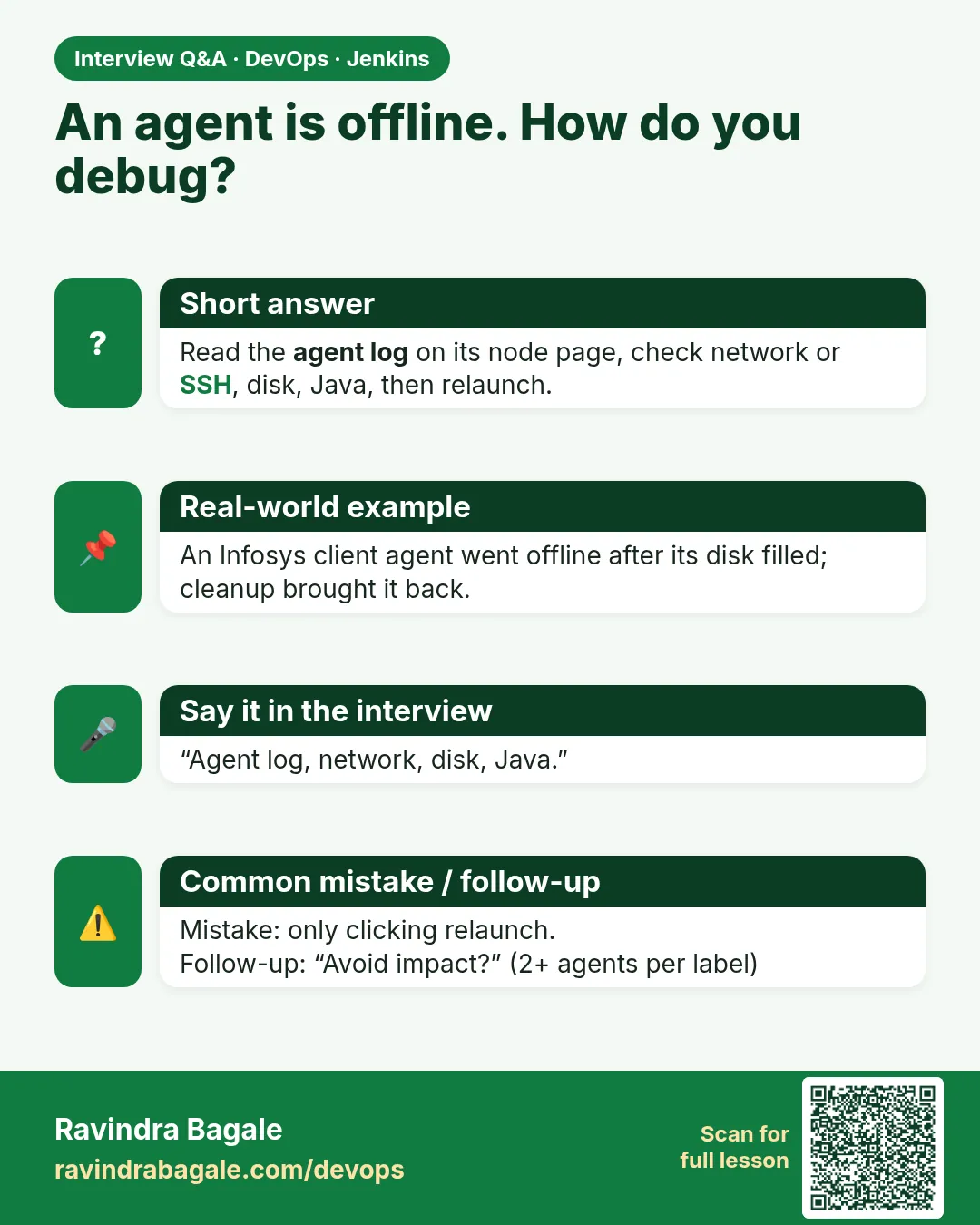
Builds stuck waiting for executors. How do you troubleshoot?
Check Nodes for offline agents, read the agent log, test SSH or connectivity, Java and disk, then relaunch. Check labels match.
-
SSH vs inbound agents?
SSH: controller starts the agent over SSH. Inbound: agent connects in, over TCP 50000 or WebSocket.
-
Why should the controller have 0 executors?
Builds on the controller can read JENKINS_HOME and slow it down.
-
How do Kubernetes agents work?
The Kubernetes plugin creates a Pod per build from a template and deletes it after.
-
An agent keeps going offline for low disk. Fix?
Clean workspaces and Docker on a schedule and size the disk properly.
Quick quiz
Q1. Where do you see why an agent is offline?
The node page and its Log.
Q2. SSH agent vs inbound agent?
SSH: controller connects to the agent. Inbound: agent connects to the controller.
Q3. Why use -webSocket?
No extra port needed, works through HTTPS.
Q4. Why is a Pod agent stuck in Pending?
Not enough CPU or memory on any node.
Q5. Why do jobs use labels?
So any agent with that label can take the build.
Samajla ka?
 Revision card
 Interview card