Chapter 32: Jenkins Governance, Troubleshooting and Expert Projects
32.3 Disk full
Why: the problem
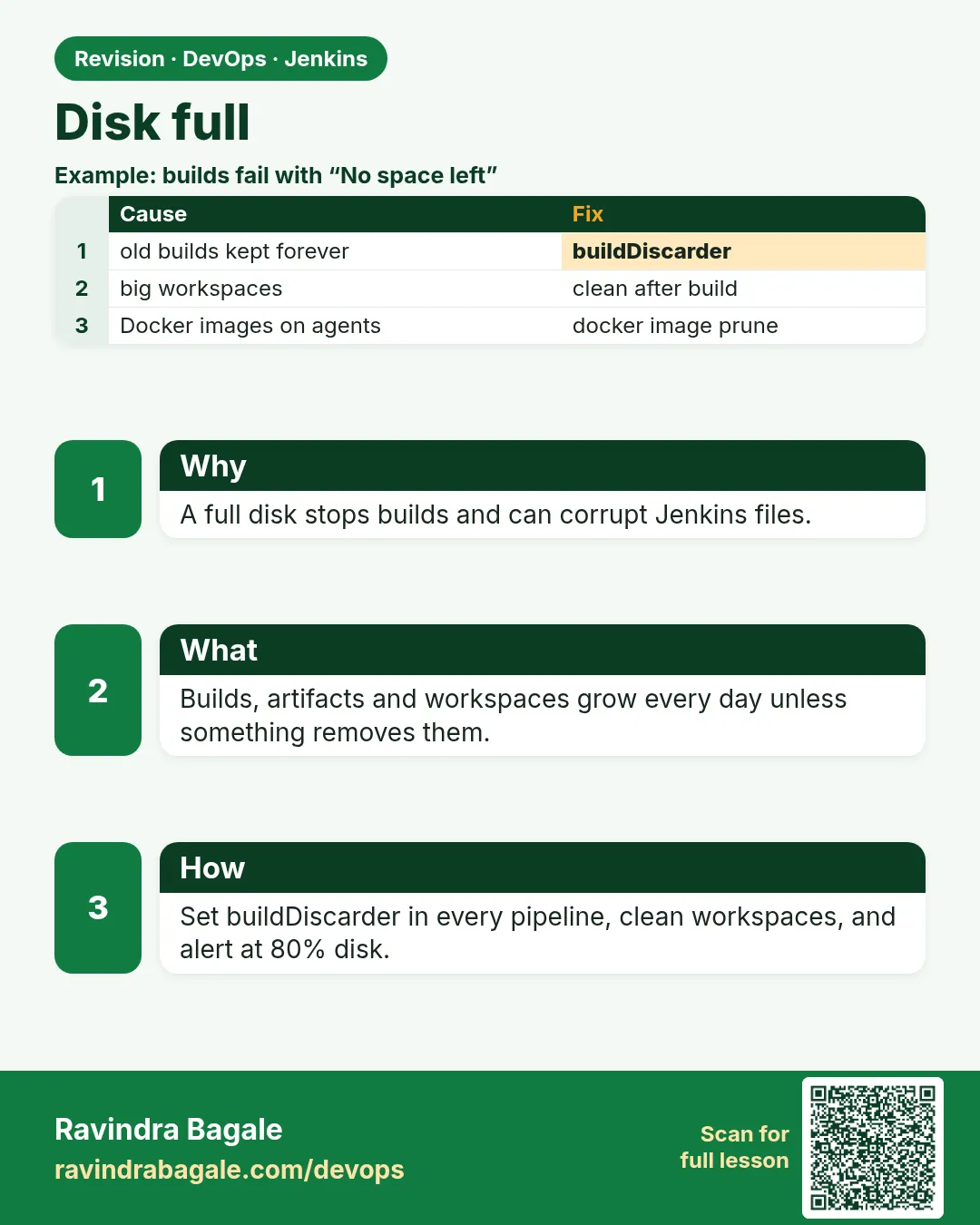
Suppose we are at Ola and the Jenkins disk fills up at 3 a.m. Builds fail with strange errors. Jenkins may even stop. Disks fill slowly: old build logs, old artifacts, workspaces of deleted branches, Docker images on agents. Nobody notices until it is 100 percent. The fix has two parts. First, free space safely now. Second, set rules so it never fills again: keep only N builds, clean workspaces, prune Docker, and alert at 80 percent.
What we will build
You will find what eats the disk, free it safely, and add lasting rules. You will do it on the controller (builds and artifacts), on agents (workspaces and Docker), and with an alert in CloudWatch and a cron job.
What: every term in plain English
- JENKINS_HOME — The folder with all Jenkins data, like /var/lib/jenkins.
- builds/ — Each job keeps one folder per build with logs and artifacts. This grows fast.
- workspace — The folder where an agent checks out code and builds. Can be large.
- buildDiscarder — A Jenkinsfile option that deletes old builds automatically.
- cleanWs() — A step from Workspace Cleanup plugin that deletes the workspace after a build.
- docker system prune — Deletes stopped containers, unused networks and dangling images.
- du — Disk usage command that shows folder sizes.
How: step by step
-
See how full the disk is
df -h /var/lib/jenkinsWhat it does: Start with numbers.
Output
Filesystem Size Used Avail Use% Mounted on /dev/nvme1n1 100G 94G 6.0G 94% /var/lib/jenkins -
Find the biggest folders
sudo du -xh --max-depth=1 /var/lib/jenkins | sort -rh | head -5What it does: Shows where the space went.
Output
94G /var/lib/jenkins 71G /var/lib/jenkins/jobs 15G /var/lib/jenkins/workspace 5.2G /var/lib/jenkins/caches -
Find the biggest jobs
sudo du -sh /var/lib/jenkins/jobs/* | sort -rh | head -3What it does: Usually two or three jobs use most space.
Output
38G /var/lib/jenkins/jobs/android-app 12G /var/lib/jenkins/jobs/data-export 4.1G /var/lib/jenkins/jobs/web -
Count builds of the worst job
ls /var/lib/jenkins/jobs/android-app/builds | wc -lWhat it does: Thousands of builds means no discard rule.
Output
4128 -
Free space with the Script Console safely
Manage Jenkins > Script Console: Jenkins.instance.getItemByFullName("android-app").builds.drop(30).each{ it.delete() }What it does: Builds are newest first, so drop(30) keeps the newest 30 and deletes the rest. Jenkins updates its memory too. Do not rm folders while Jenkins runs.
Output
Result: [android-app #4098, android-app #4097, ...] -
Check space again
df -h /var/lib/jenkinsWhat it does: Confirm the result.
Output
/dev/nvme1n1 100G 58G 42G 58% /var/lib/jenkins -
Add a discard rule so it stays fixed
options { buildDiscarder(logRotator(numToKeepStr: "30", artifactNumToKeepStr: "5")) }What it does: Put it in the Jenkinsfile of every job, or in the shared library.
Output
(no output)
Example 1: Controller: keep 30 builds and 5 with artifacts, and clean the workspace after each build
Stack. Android Gradle, Workspace Cleanup plugin
Goal. Controller: keep 30 builds and 5 with artifacts, and clean the workspace after each build.
Jenkinsfile
pipeline {
  agent { label 'android' }
  options {
    buildDiscarder(logRotator(numToKeepStr: '30', daysToKeepStr: '30', artifactNumToKeepStr: '5'))
    disableConcurrentBuilds()
  }
  stages {
    stage('Build APK') { steps { sh './gradlew assembleRelease' } }
    stage('Keep APK') { steps { archiveArtifacts artifacts: 'app/build/outputs/apk/release/*.apk', fingerprint: true } }
  }
  post {
    always { cleanWs(deleteDirs: true, notFailBuild: true) }
  }
}
What each line does
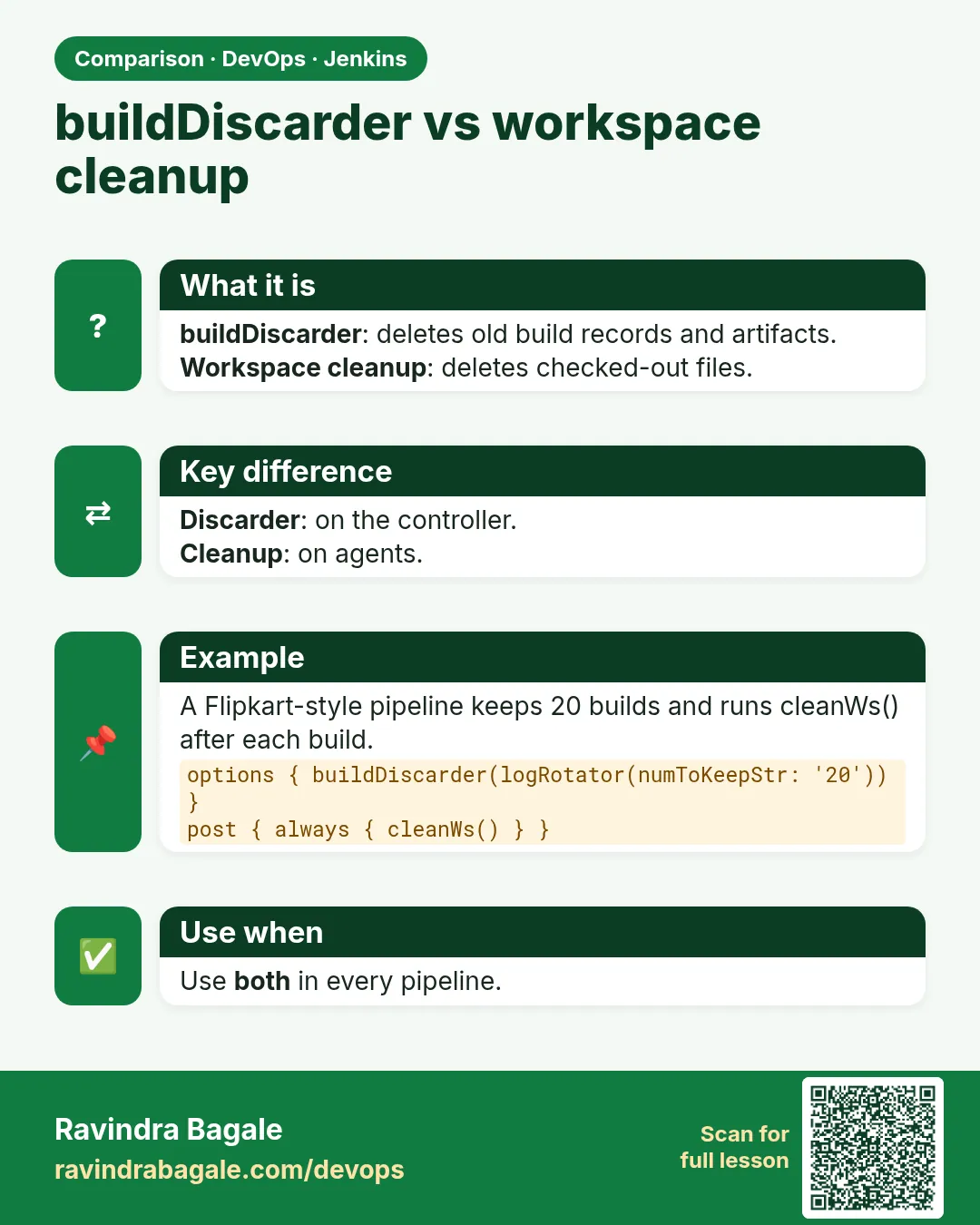
numToKeepStr: '30'— Keep the last 30 builds, delete older ones.daysToKeepStr: '30'— Also delete builds older than 30 days.artifactNumToKeepStr: '5'— Only the last 5 builds keep their APK files. Logs stay for 30.disableConcurrentBuilds()— Two builds at once would use two workspaces.cleanWs(deleteDirs: true)— Delete the workspace after the build.notFailBuild: true— A cleanup error does not turn the build red.
Green output
[Pipeline] archiveArtifacts
Archiving artifacts
[Pipeline] cleanWs
[WS-CLEANUP] Deleting project workspace...
[WS-CLEANUP] done
Finished: SUCCESS
Expected result. The job never keeps more than 30 builds or 5 APK sets. Disk use for this job drops from 38 GB to about 2 GB.
Example 2: Agents: a nightly cron job that prunes Docker and old workspaces
Stack. Ubuntu agents, cron, Docker
Goal. Agents: a nightly cron job that prunes Docker and old workspaces.
/etc/cron.d/agent-cleanup
# m h dom mon dow user command
30 2 * * * root docker system prune -af --filter "until=72h" > /var/log/agent-cleanup.log 2>&1
45 2 * * * root find /home/jenkins/agent/workspace -maxdepth 1 -type d -mtime +3 -exec rm -rf {} + >> /var/log/agent-cleanup.log 2>&1
What each line does
30 2 * * *— Run every day at 2:30 a.m.docker system prune -af— Remove unused images, stopped containers and build cache.--filter "until=72h"— Keep anything used in the last 3 days, so builds stay fast.find ... -mtime +3— Workspaces not changed for 3 days.-exec rm -rf {} +— Delete them. Agents only, never on JENKINS_HOME.
Green output
$ cat /var/log/agent-cleanup.log
Deleted Images:
untagged: payments-api:7c1e9a2
deleted: sha256:4b9d...
Total reclaimed space: 23.4GB
Expected result. Agent disk drops from 91 to 47 percent overnight, every night.
Example 3: Alert before it is full: CloudWatch agent disk metric with an alarm at 80 percent
Stack. AWS EC2, CloudWatch agent, SNS
Goal. Alert before it is full: CloudWatch agent disk metric with an alarm at 80 percent.
terminal
aws cloudwatch put-metric-alarm \
  --alarm-name jenkins-disk-80 \
  --namespace CWAgent --metric-name disk_used_percent \
  --dimensions Name=InstanceId,Value=i-0abc1234def567890 Name=path,Value=/var/lib/jenkins Name=device,Value=nvme1n1 Name=fstype,Value=xfs \
  --statistic Average --period 300 --evaluation-periods 2 \
  --threshold 80 --comparison-operator GreaterThanThreshold \
  --alarm-actions arn:aws:sns:ap-south-1:111122223333:ci-oncall
aws cloudwatch describe-alarms --alarm-names jenkins-disk-80 --query "MetricAlarms[0].StateValue"
What each line does
CWAgent disk_used_percent— The CloudWatch agent on the VM reports disk percent.path=/var/lib/jenkins— Watch the Jenkins disk, not the root disk.--period 300 --evaluation-periods 2— Above the limit for 10 minutes.--threshold 80— Warn at 80 percent, while there is still time.--alarm-actions ... sns— Send to the on-call email or Slack topic.
Green output
"OK"
Expected result. When the disk passes 80 percent for 10 minutes, on-call gets a message before builds break.
Verify: did it work?
-
Disk percent
df -h /var/lib/jenkins | tail -1What it does: Below 70 is healthy.
Output
/dev/nvme1n1 100G 58G 42G 58% /var/lib/jenkins -
Jobs without a discard rule
grep -L "BuildDiscarderProperty" /var/lib/jenkins/jobs/*/config.xml | headWhat it does: Old freestyle jobs may need the rule set in the UI.
Output
/var/lib/jenkins/jobs/data-export/config.xml -
Docker space on an agent
docker system dfWhat it does: Shows images, containers and cache sizes.
Output
TYPE         TOTAL  ACTIVE  SIZE    RECLAIMABLE
Images       41     6       18.2GB  14.9GB (81%)
When it is red 1
java.io.IOException: No space left on device
Cause. The disk is 100 percent full.
Fix, step by step
- Free space with the Script Console build delete.
- Delete agent workspaces.
- Grow the disk if needed.
When it is red 2
ERROR: Cannot delete workspace: Unable to delete ... Permission denied
Cause. Files in the workspace were made by root inside a Docker build.
Fix, step by step
- Run docker run --rm -v "$WORKSPACE":/w alpine rm -rf /w/* first.
- Use --user in docker agents so files belong to jenkins.
When it is red 3
df says 100 percent but du shows much less
Cause. A deleted file is still open by a running process, often a huge log.
Fix, step by step
- sudo lsof +L1 | head
- Restart that process to release the space.
When it is red 4
Disk fills again in a week
Cause. No discard rules and no agent cleanup.
Fix, step by step
- Put buildDiscarder in the shared library.
- Add the cron cleanup to every agent.
When it is red 5
ERROR: failed to solve: write /var/lib/docker/tmp/...: no space left on device
Cause. The agent Docker folder is full, not the Jenkins disk. Docker build cache grows silently.
Fix, step by step
- docker builder prune -af --filter until=72h
- docker system df to confirm.
- Put /var/lib/docker on its own larger disk on busy agents.
When it is red 6
Script Console: groovy.lang.MissingMethodException: No signature of method: null.getBuilds()
Cause. getItemByFullName returned null, because the job is inside a folder.
Fix, step by step
- Use the full name with the folder, like mobile/android-app.
- Copy it from the job URL.
Cleanup
-
Remove the test alarm
aws cloudwatch delete-alarms --alarm-names jenkins-disk-80What it does: Only in the lab.
Output
(no output) -
Remove the cron file in the lab
sudo rm /etc/cron.d/agent-cleanupWhat it does: Lab only.
Output
(no output)
Ravindra Bagale's Tip
Disk 80 takke zali ki alert yayla hava. 100 la kalla tar ushir zala!
Practice tasks
Easy Find your top 3 jobs
Why: Know where space goes.
What to do: Run du on jobs and list the top three.
- sudo du -sh /var/lib/jenkins/jobs/* | sort -rh | head -3
Check: You have three names and sizes.
Medium Add discard to the library
Why: One change fixes all apps.
What to do: Put buildDiscarder in the shared library options.
- Edit vars/shopPipeline.groovy.
- Tag a new version.
Check: New builds show the rule in job config.
Hard Move artifacts to S3
Why: The controller is not a warehouse.
What to do: Upload big artifacts to S3 and keep only 1 in Jenkins.
- aws s3 cp app.apk s3://ci-artifacts/android/
Check: Controller disk stays flat.
Easy Say Jenkins disk space in two lines
Why: If you can say it simply, you understand it. Juniors and interviewers both want the short version first.
What to do: Write two short lines about Jenkins disk space for a fresher who knows only Linux and Git basics.
- Write the problem it solves.
- Write the one Jenkinsfile step or command you use for it.
- Read it aloud to a friend.
Check: A fresher understands it without asking a question.
Easy Start a fresh lab Jenkins
Why: Practice needs a throwaway Jenkins. If you break it, you delete it and start again.
What to do: Run Jenkins LTS in Docker with a named volume.
- docker volume create jenkins_home
- docker run -d --name jenkins -p 8080:8080 -v jenkins_home:/var/jenkins_home jenkins/jenkins:lts-jdk17
- docker logs jenkins 2>&1 | grep -A2 "initialAdminPassword"
Check: The Jenkins login page opens on localhost:8080.
Medium Do it on the second setup
Why: A release idea must work on a VM, on Docker and on Kubernetes. Only the deploy step should change.
What to do: Repeat this lesson on a different target than the one you used first.
- If you used Docker, use kind or minikube now.
- Change only the deploy commands.
- Keep the same Jenkinsfile stages.
Check: Same result, and the stage names did not change.
Medium Break it on purpose
Why: You must know the red output by face. In a real outage there is no time to read slowly.
What to do: Cause one error from the "When it is red" part of this lesson and fix it.
- Follow the error section.
- Copy the exact message into your notes.
- Write the fix in one line.
Check: You fixed it using only the steps, without searching the web.
Medium Write a release runbook page
Why: At 2 a.m. nobody remembers flags. A short page saves the on-call person.
What to do: Write a one-page runbook for this lesson.
- Title, when to use, exact commands, how to check, how to undo.
Check: A teammate can follow it alone.
Hard Explain it like an interview
Why: Interviewers want real stories, not definitions.
What to do: Record a 60 second answer about this lesson.
- Say the problem, the Jenkinsfile step, and one error you hit.
Check: Your answer has a real command and a real error message.
Hard Draw the flow top to bottom
Why: A drawing shows the order of work and who is waiting on whom.
What to do: Draw this lesson as boxes from top to bottom.
- Start at git push, go through the stages, end at the check in production.
Check: Each box matches a real step you ran.
Homework: try at home
Try at home
At home, make a job that writes a 50 MB file and archives it, run it 20 times, check du, then add buildDiscarder with 5 builds and run once more. See the old builds vanish.
Recap
- Disks fill slowly from builds, artifacts, workspaces and Docker.
- Measure with df and du first.
- Delete builds through Jenkins, not with rm.
- buildDiscarder, cleanWs and Docker prune keep it clean.
- Alert at 80 percent.
FAQ
How many builds should I keep?
20 to 50 is common. Keep long history only for release jobs.
Is cleanWs bad for build speed?
A little. Use caches for dependencies, not old workspaces.
Can I move JENKINS_HOME to a bigger disk?
Yes: stop Jenkins, copy with rsync -a, update the mount, start.
Do Kubernetes agents need cleanup?
Less, because Pods are thrown away. But the node Docker or containerd cache still grows.
What uses the most space usually?
Archived artifacts like APKs, jars and test videos, then old build logs, then agent Docker images.
Can I compress old logs?
Jenkins does not compress build logs by default. Deleting old builds is simpler and safer than compressing.
Why use the Script Console carefully?
It runs with full admin power. Test on one job first.
Interview questions
-
Jenkins disk is full. What do you do?
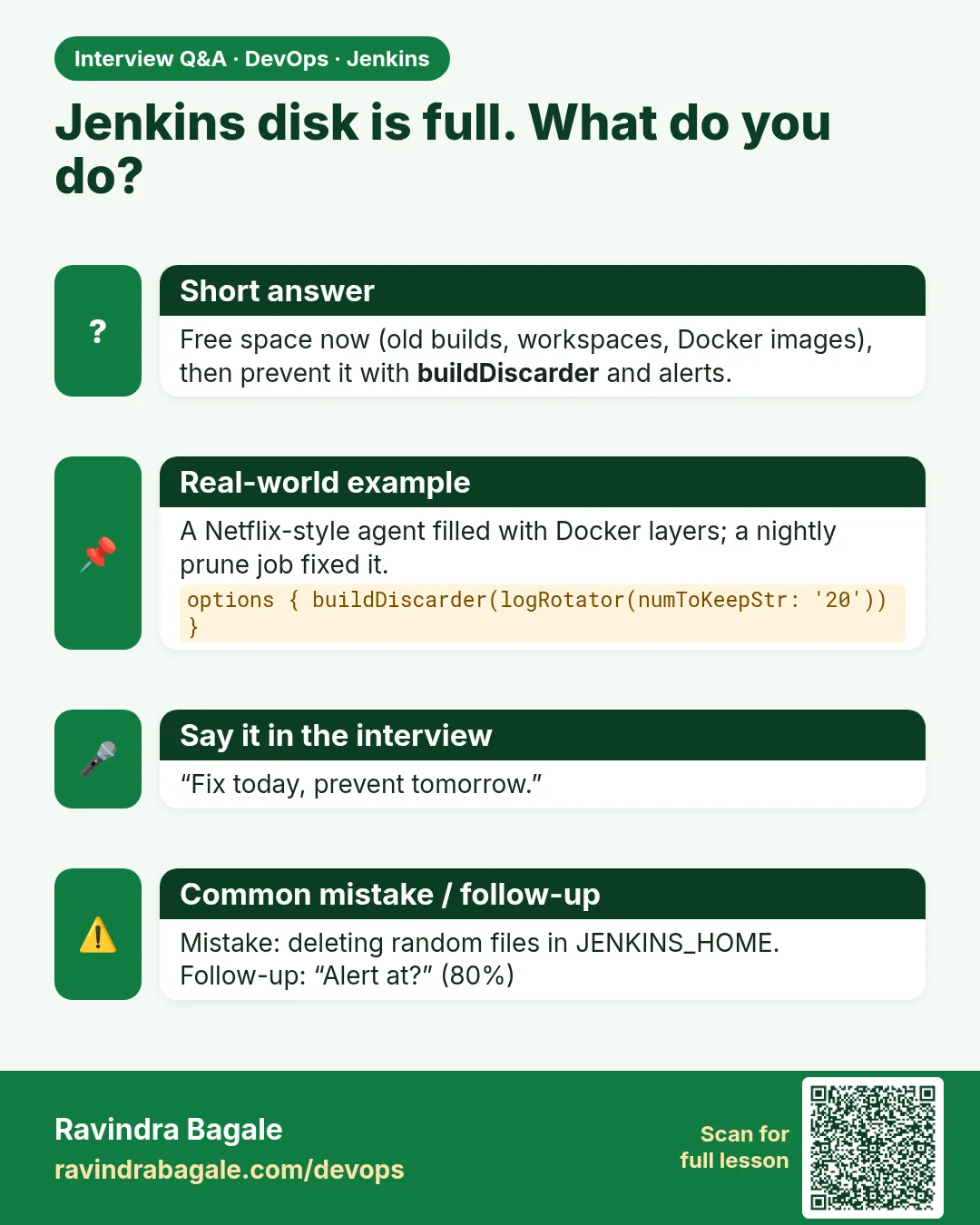
df and du to find the cause, delete old builds through Jenkins, clean workspaces, prune Docker on agents, then add discard rules and an 80 percent alert.
-
How do you stop old builds piling up?
buildDiscarder with logRotator in every pipeline, ideally from a shared library.
-
Why might df and du disagree?
Deleted files held open by a process; find with lsof +L1.
-
Where should large artifacts live?
In S3, Nexus or Artifactory, not on the controller.
-
How do you clean agents?
cleanWs after builds and a scheduled docker system prune with a time filter.
Quick quiz
Q1. First command for a full disk?
df -h, then du to find the big folders.
Q2. Which option deletes old builds?
buildDiscarder with logRotator.
Q3. Why not rm build folders while Jenkins runs?
Jenkins memory still lists them; use the Script Console or UI.
Q4. What does docker system prune -af do?
Removes unused Docker data.
Q5. At what percent should you alert?
Around 80 percent.
Samajla ka?
 Revision card
 Interview card
 Comparison card