Chapter 28: Registries, Kubernetes, Terraform and Ansible from Jenkins
28.5 Terraform: init, validate, plan, approval, apply
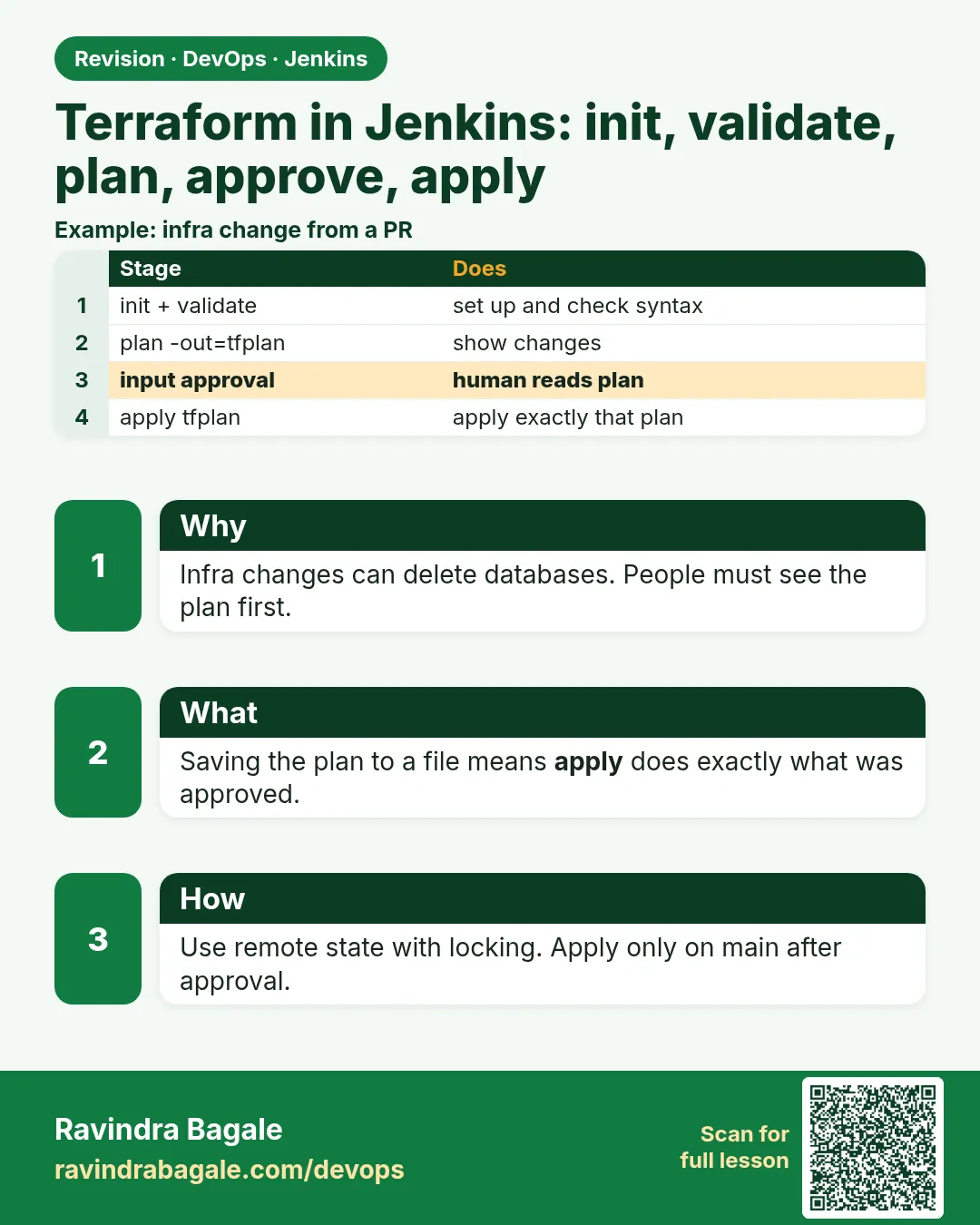
Why: the problem
Think of Zepto opening dark stores in a new city. Each city needs the same cloud setup: a VPC, subnets, a load balancer, an RDS database and S3 buckets. The team writes it once in Terraform. But who runs terraform apply? If every engineer runs it from a laptop, two people may apply at the same time and break the state. Someone applies a plan they never read and deletes a database. Someone has old code on their laptop. The answer is to run Terraform only from Jenkins, in a fixed order: init, format check, validate, plan saved to a file, a person reads the plan and approves, then apply that exact plan file. State lives in S3 with locking, so two runs cannot clash. In this lesson you build that pipeline. (The Terraform language itself is taught in the Terraform chapters; here we focus on the Jenkins side.)
What we will build
You will take a tiny Terraform root module that creates one S3 bucket. You will configure an S3 backend with locking. Then you will write a Jenkinsfile that runs fmt, validate, plan with -out, shows the plan summary, waits for approval only if something changes, and applies the saved plan. You will also add a scheduled drift check that fails the job if real cloud resources differ from the code.
What: every term in plain English
- Terraform — A tool that creates cloud resources from code files (.tf).
- Root module — The folder where you run terraform commands.
- State — A file that records what Terraform created. Keep it remote, never in Git.
- Backend — Where state is stored, for example an S3 bucket.
- State locking — Stops two runs from changing state at the same time.
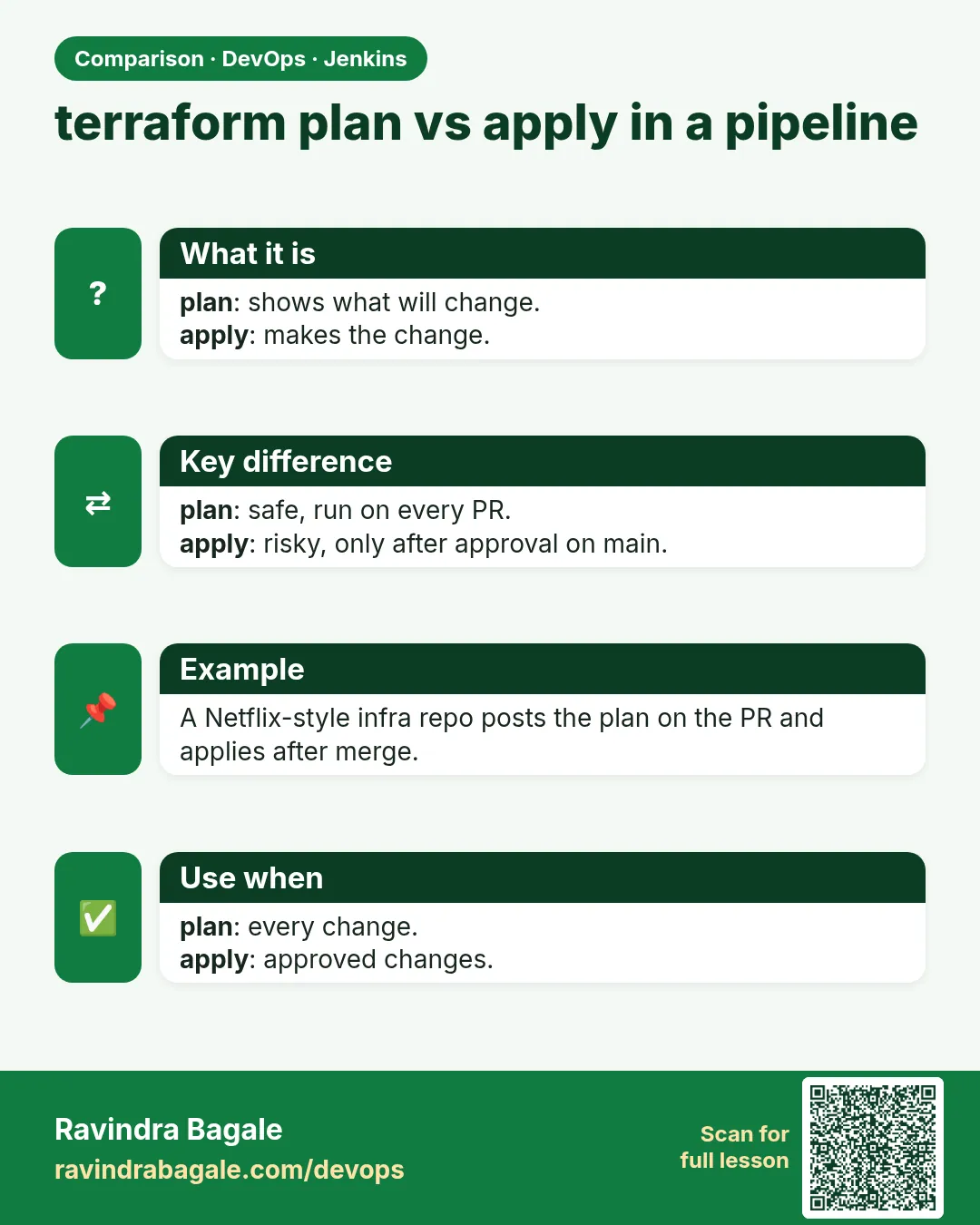
- Plan — A preview of what Terraform will add, change or destroy.
- -out=tfplan — Saves the plan to a file, so apply does exactly what was reviewed.
- -detailed-exitcode — plan exit code 0 means no changes, 2 means changes, 1 means error.
How: step by step
-
Pin the Terraform version on the agent
terraform versionWhat it does: All runs use the same version.
Output
Terraform v1.9.8 -
Init with the backend
terraform init -input=falseWhat it does: Downloads providers and connects to S3 state.
Output
Successfully configured the backend "s3"! Terraform has been successfully initialized! -
Check format
terraform fmt -check -recursiveWhat it does: Fails if files are not formatted.
Output
(no output means OK) -
Validate
terraform validateWhat it does: Checks syntax and references.
Output
Success! The configuration is valid. -
Plan to a file
terraform plan -input=false -out=tfplan -detailed-exitcodeWhat it does: Saves the plan; exit 2 if there are changes.
Output
Plan: 1 to add, 0 to change, 0 to destroy. -
Approve
Jenkins input stepWhat it does: A person reads the plan and clicks Apply.
Output
Approved by asha -
Apply the saved plan
terraform apply -input=false tfplanWhat it does: Applies exactly the reviewed plan.
Output
Apply complete! Resources: 1 added, 0 changed, 0 destroyed.
Example 1: A tiny root module with remote state and locking
Stack. Terraform 1.9+, AWS provider 5, S3 backend
Goal. A tiny root module with remote state and locking.
main.tf
terraform {
  required_version = "~> 1.9"
  required_providers {
    aws = { source = "hashicorp/aws", version = "~> 5.70" }
  }
  backend "s3" {
    bucket       = "shoplab-tfstate-ap-south-1"
    key          = "ci-demo/terraform.tfstate"
    region       = "ap-south-1"
    encrypt      = true
    use_lockfile = true
  }
}
provider "aws" { region = "ap-south-1" }

variable "env" { type = string }

resource "aws_s3_bucket" "reports" {
  bucket = "shoplab-${var.env}-ci-reports"
  tags   = { env = var.env, managed_by = "terraform-jenkins" }
}
output "bucket" { value = aws_s3_bucket.reports.bucket }
staging.tfvars
env = "staging"
What each line does
required_version / version pins— Every run uses compatible Terraform and AWS provider versions.backend "s3"— State is stored in S3, not on the agent disk.encrypt = true— State is encrypted at rest. State can hold sensitive values.use_lockfile = true— Terraform 1.10+ S3 native locking. On older versions use a DynamoDB table with dynamodb_table.variable "env"— One code, many environments through tfvars files.tags— Shows who manages the resource. Helps in audits.
Green output
$ terraform init -input=false
Initializing the backend...
Successfully configured the backend "s3"!
Initializing provider plugins...
- Installing hashicorp/aws v5.72.1...
Terraform has been successfully initialized!
Expected result. State now lives in S3. Any agent can run the pipeline and see the same state.
Example 2: The Jenkins pipeline: plan, approve only if needed, apply the saved plan
Stack. Jenkins, Terraform Docker image, AWS IAM role
Goal. The Jenkins pipeline: plan, approve only if needed, apply the saved plan.
Jenkinsfile
pipeline {
  agent { docker { image 'hashicorp/terraform:1.9.8'; args '--entrypoint=' ; label 'linux-docker' } }
  options { disableConcurrentBuilds(); timestamps() }
  parameters { choice(name: 'ENV', choices: ['staging', 'prod']) }
  environment { TF_IN_AUTOMATION = '1'; AWS_REGION = 'ap-south-1' }
  stages {
    stage('Init')     { steps { sh 'terraform init -input=false -backend-config="key=ci-demo/${ENV}.tfstate"' } }
    stage('Fmt')      { steps { sh 'terraform fmt -check -recursive' } }
    stage('Validate') { steps { sh 'terraform validate' } }
    stage('Plan') {
      steps {
        script {
          def rc = sh(returnStatus: true, script: 'terraform plan -input=false -var-file=${ENV}.tfvars -out=tfplan -detailed-exitcode')
          if (rc == 1) { error 'terraform plan failed' }
          env.HAS_CHANGES = (rc == 2) ? 'true' : 'false'
        }
        sh 'terraform show -no-color tfplan > plan.txt'
        archiveArtifacts 'plan.txt'
      }
    }
    stage('Approve') {
      when { environment name: 'HAS_CHANGES', value: 'true' }
      steps {
        sh 'grep -E "^Plan:|will be destroyed" plan.txt || true'
        timeout(time: 30, unit: 'MINUTES') { input message: "Apply plan to ${params.ENV}?", submitter: 'infra-admins' }
      }
    }
    stage('Apply') {
      when { environment name: 'HAS_CHANGES', value: 'true' }
      steps { sh 'terraform apply -input=false tfplan' }
    }
  }
  post { always { sh 'rm -f tfplan' } }
}
What each line does
image 'hashicorp/terraform:1.9.8'; args '--entrypoint='— Official Terraform image, with its entrypoint cleared so Jenkins can run sh steps.disableConcurrentBuilds()— Only one Terraform run at a time per job, on top of state locking.-backend-config=key=...${ENV}— Separate state file per environment.returnStatus: true— Get the exit code instead of failing the step.rc == 2— There are changes, so we need approval and apply.terraform show tfplan > plan.txt— Readable plan saved as an artifact for reviewers.apply tfplan— Applies only the saved plan. If state changed since plan, Terraform refuses.AWS access— The agent uses an IAM role (lesson 28.2). No keys in this file.
Green output
[Pipeline] stage (Plan)
+ terraform plan -input=false -var-file=staging.tfvars -out=tfplan -detailed-exitcode
  # aws_s3_bucket.reports will be created
  + resource "aws_s3_bucket" "reports" {
      + bucket = "shoplab-staging-ci-reports"
    }
Plan: 1 to add, 0 to change, 0 to destroy.
Saved the plan to: tfplan
[Pipeline] stage (Approve)
Plan: 1 to add, 0 to change, 0 to destroy.
Apply plan to staging?
Approved by asha
[Pipeline] stage (Apply)
aws_s3_bucket.reports: Creating...
aws_s3_bucket.reports: Creation complete after 2s [id=shoplab-staging-ci-reports]
Apply complete! Resources: 1 added, 0 changed, 0 destroyed.
Expected result. Run it again: plan exits 0, the Approve and Apply stages are skipped, and nobody is bothered.
Example 3: A nightly drift check that fails if the cloud changed by hand
Stack. Jenkins cron trigger, Terraform
Goal. A nightly drift check that fails if the cloud changed by hand.
Jenkinsfile.drift
pipeline {
  agent { docker { image 'hashicorp/terraform:1.9.8'; args '--entrypoint='; label 'linux-docker' } }
  triggers { cron('H 2 * * *') }
  stages {
    stage('Drift') {
      steps {
        sh 'terraform init -input=false -backend-config="key=ci-demo/prod.tfstate"'
        script {
          def rc = sh(returnStatus: true, script: 'terraform plan -input=false -var-file=prod.tfvars -detailed-exitcode -lock=false -refresh-only')
          if (rc == 2) { unstable 'Drift found: real resources differ from state' }
          if (rc == 1) { error 'plan failed' }
        }
      }
    }
  }
}
What each line does
cron('H 2 * * *')— Runs once a night around 2 a.m. H spreads jobs so they do not all start together.-refresh-only— Compares real cloud resources with state, without planning code changes.-lock=false— Read-only check; do not block real deploys.unstable— Marks the build yellow, so it is visible but different from a failure.rc == 1— Real errors still fail red.prod.tfvars— Check the most important environment.
Green output
+ terraform plan -refresh-only -detailed-exitcode
  # aws_s3_bucket.reports has changed
  ~ resource "aws_s3_bucket" "reports" {
      ~ tags = {
          + "owner" = "someone-in-console"
        }
    }
Drift found: real resources differ from state
Finished: UNSTABLE
Expected result. Someone added a tag in the AWS console. The team sees a yellow build in the morning and either adds it to code or removes it.
Verify: did it work?
-
State is in S3
aws s3 ls s3://shoplab-tfstate-ap-south-1/ci-demo/What it does: The state files per environment.
Output
2026-10-25 13:10:02 2843 staging.tfstate -
Plan artifact is saved
Open the build > Build Artifacts > plan.txtWhat it does: Reviewers can read the full plan.
Output
Plan: 1 to add, 0 to change, 0 to destroy.
When it is red 1
Error acquiring the state lock
Lock Info:
  Who: jenkins@agent2
Cause. Another run holds the lock, or a killed run left it behind.
Fix, step by step
- Wait for the other run.
- If it is truly dead, terraform force-unlock LOCK_ID, carefully, once.
- Keep disableConcurrentBuilds on.
When it is red 2
Error: Saved plan is stale
The given plan file can no longer be applied because the state was changed by another operation
Cause. State changed between plan and apply.
Fix, step by step
- Run the pipeline again to make a fresh plan.
- Approve the new plan.
When it is red 3
Error: No valid credential sources found for AWS Provider
Cause. The agent has no IAM role or the container cannot reach instance metadata.
Fix, step by step
- Attach the role to the agent.
- Set IMDS hop limit to 2 for containers.
- Check aws sts get-caller-identity inside the container.
Cleanup
-
Destroy the lab bucket
terraform destroy -var-file=staging.tfvars -auto-approveWhat it does: Lab only. In real life destroy goes through the same approval.
Output
Destroy complete! Resources: 1 destroyed.
Ravindra Bagale's Tip
Plan vacha, mag apply. Saved tfplan ch apply kara. State S3 madhe lock sobat theva. Lakshat theva!
Practice tasks
Easy Read a plan
Why: Reading plans prevents disasters.
What to do: Find adds, changes and destroys in plan.txt.
- Open the artifact.
- Count + ~ and - lines.
Check: You can say what will happen.
Medium Block destroys
Why: Some changes need extra care.
What to do: Fail the pipeline if the plan destroys anything in prod.
- grep "will be destroyed" plan.txt.
- error if found.
Check: A destroy plan stops red.
Hard Add a policy check
Why: Companies check rules automatically.
What to do: Run Checkov or tfsec on the code before plan.
- Add a Scan stage.
- Fail on HIGH.
Check: An open security group fails the build.
Easy Say Terraform from Jenkins in two lines
Why: If you can say it simply, you understand it. Juniors and interviewers want the short version first.
What to do: Write two short lines about Terraform from Jenkins for a fresher who knows only Linux basics.
- Write what problem it solves.
- Write the one command or menu you use for it.
- Read it aloud to a friend.
Check: A fresher understands it without asking a question.
Easy Start a fresh lab Jenkins
Why: Practice needs a throwaway Jenkins. If you break it, you delete it and start again.
What to do: Run Jenkins LTS in Docker with a named volume.
- docker volume create jenkins_home
- docker run -d --name jenkins -p 8080:8080 -v jenkins_home:/var/jenkins_home jenkins/jenkins:lts-jdk17
- docker exec jenkins cat /var/jenkins_home/secrets/initialAdminPassword
Check: The Jenkins unlock page opens on localhost:8080.
Medium Break it on purpose
Why: You must know the red message by face. During an outage there is no time to read slowly.
What to do: Cause one error from the "When it is red" part of this lesson and fix it.
- Follow the error section.
- Copy the exact message into your notes.
- Write the fix in one line.
Check: You fixed it using only the steps, without searching the web.
Medium Write a one-page runbook
Why: At 2 a.m. nobody remembers where a file lives. A short page saves the on-call person.
What to do: Write a runbook page for this lesson.
- Title, when to use, exact command, how to check, how to undo.
Check: A teammate can follow it alone.
Medium Repeat it on a cloud VM
Why: A laptop is not a server. Real Jenkins runs on EC2 or a company VM.
What to do: Do the main steps of this lesson again on a small Ubuntu 22.04 EC2 instance.
- Launch t3.small with 20 GB disk.
- Open port 22 only to your IP.
- Repeat the steps and compare the output.
Check: Same green output on the VM as on your laptop.
Hard Explain it like an interview
Why: Interviewers want real stories, not definitions.
What to do: Record a 60 second answer about this lesson.
- Say the problem, the command you ran, and one error you hit.
Check: Your answer has a real command and a real error message.
Hard Draw the flow top to bottom
Why: A drawing shows who talks to whom and in what order.
What to do: Draw this lesson as boxes from top to bottom.
- Start at the developer push, go through the controller and agent, end at the result.
Check: Each box matches a real thing you saw on screen.
Homework: try at home
Try at home
At home, run the pipeline twice for staging and prove the second run skips approval. Then add a tag to the bucket by hand in the AWS console and run the drift job.
Recap
- Run Terraform from Jenkins, not laptops.
- Order: init, fmt -check, validate, plan -out, approve, apply the saved plan.
- Remote S3 state with locking and encryption; one state per environment.
- Skip approval when plan shows no changes.
- A nightly refresh-only plan finds drift.
FAQ
Why not terraform apply -auto-approve in CI?
It applies without anyone reading the plan. Use it only for throwaway labs.
Can Jenkins and humans both run Terraform?
Better not. Make Jenkins the only writer; humans run plan locally.
Is Atlantis or Terraform Cloud better?
They are good alternatives. Jenkins works well when the team already uses it.
How do I handle secrets in Terraform?
Read them from AWS Secrets Manager at apply time; never commit them in tfvars.
Where do I learn the Terraform language?
In the Terraform chapters of this course.
Interview questions
-
How do you run Terraform in a CI pipeline?
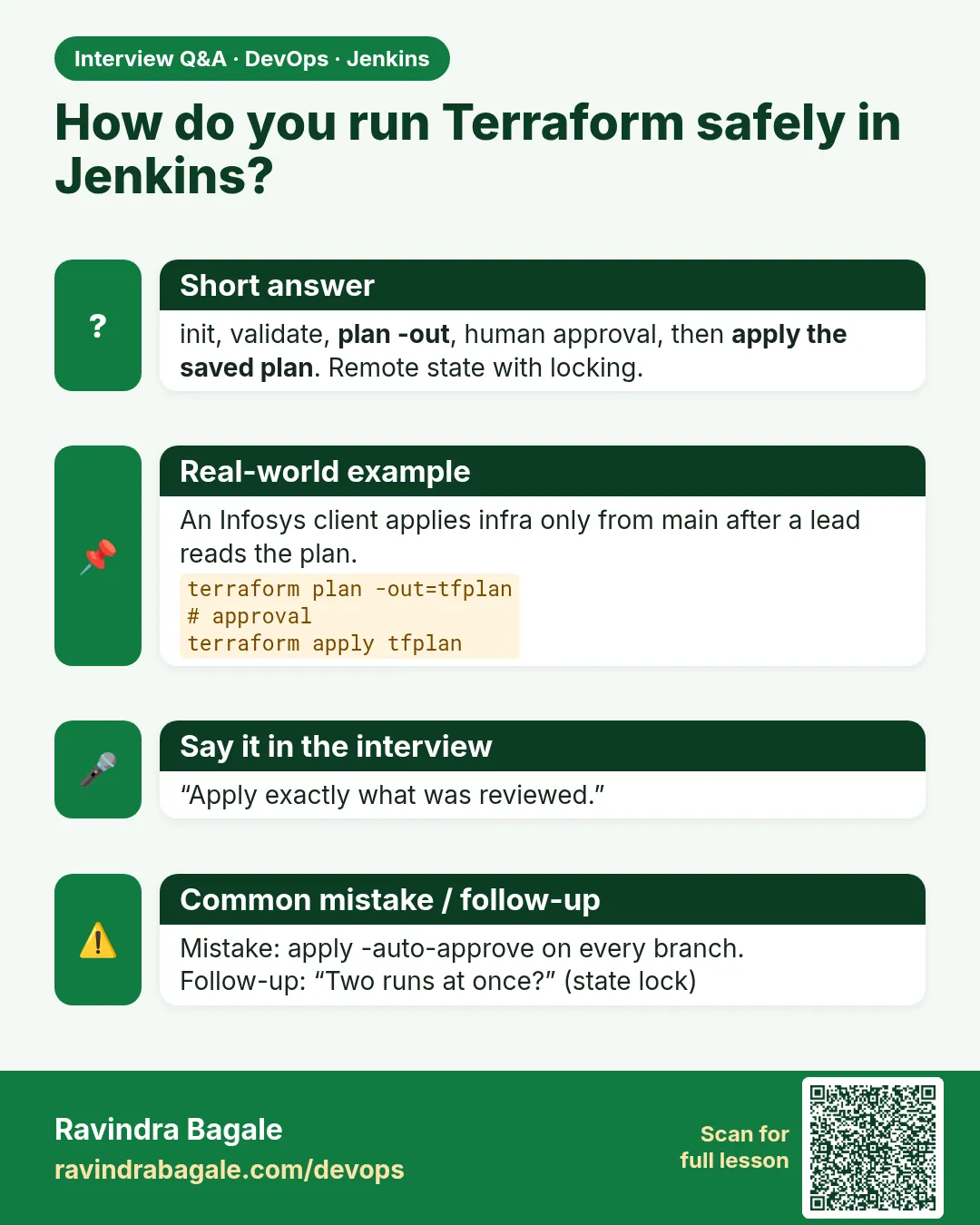
init with a remote backend, fmt -check, validate, plan -out with -detailed-exitcode, archive the plan, manual approval if there are changes, then apply the saved plan file.
-
Why apply a saved plan?
It guarantees the applied changes match the reviewed plan; Terraform rejects stale plans.
-
How do you avoid state conflicts?
Remote state with locking, one writer (Jenkins), and disabled concurrent builds.
-
How do you detect drift?
A scheduled terraform plan -refresh-only -detailed-exitcode that alerts on exit code 2.
-
How does Jenkins authenticate to AWS for Terraform?
An IAM role on the agent or an assumed role per environment, not stored keys.
Quick quiz
Q1. Why save the plan with -out?
So apply does exactly what was reviewed.
Q2. What does exit code 2 from plan mean with -detailed-exitcode?
There are changes.
Q3. Why disableConcurrentBuilds for Terraform jobs?
To avoid two runs changing the same infrastructure.
Q4. Where should state live?
In a remote backend like S3 with locking and encryption.
Q5. What does -refresh-only find?
Drift between real resources and state.
Samajla ka?
 Revision card
 Interview card
 Comparison card