Chapter 28: Registries, Kubernetes, Terraform and Ansible from Jenkins
28.4 Helm upgrade and rollback
Why: the problem
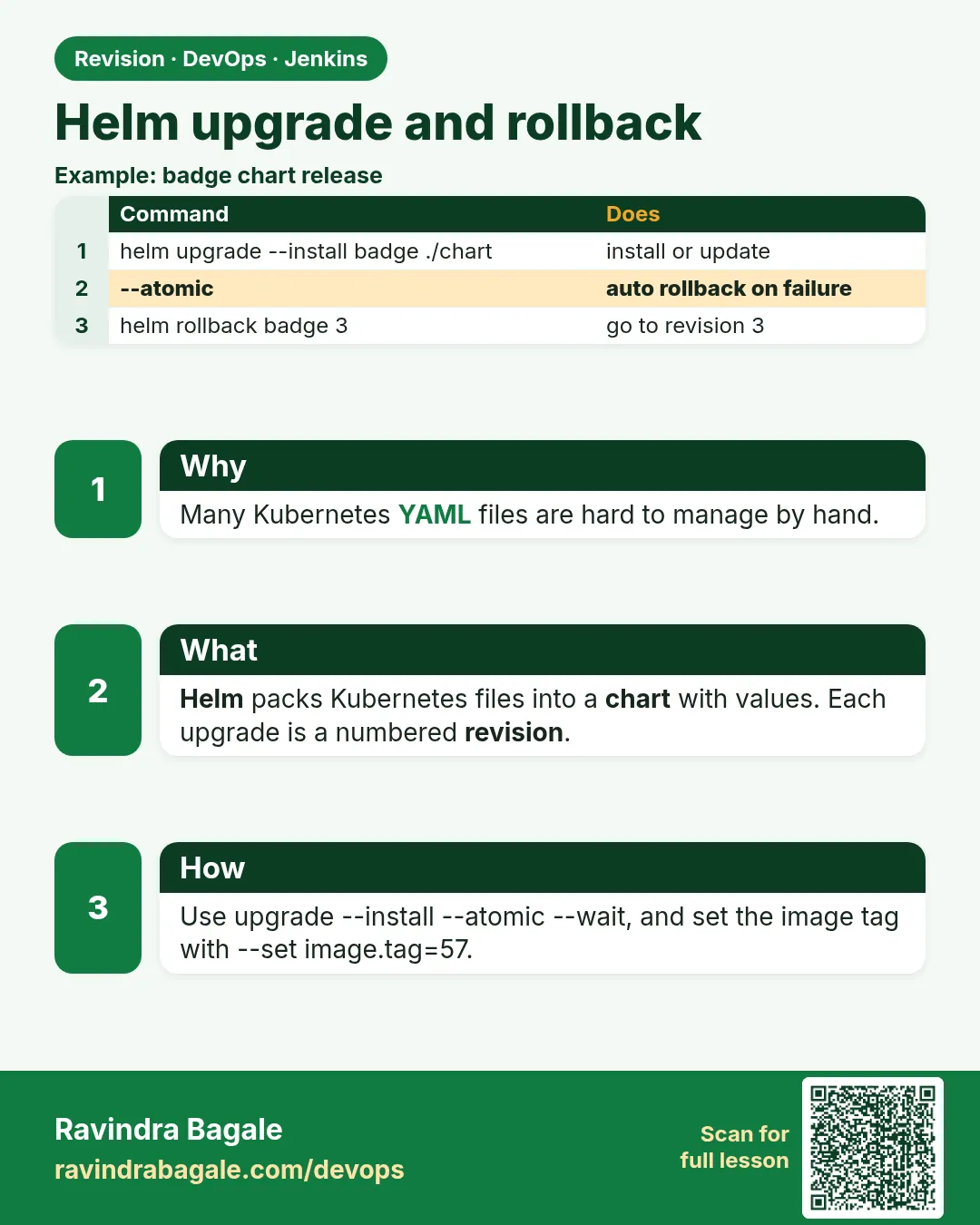
Think of Paytm with forty microservices on Kubernetes. Each service has a Deployment, a Service, an Ingress, a ConfigMap and an autoscaler. Each has three environments: dev, staging and prod, with different replicas and domains. Copying forty times three sets of YAML files leads to mistakes: someone updates prod but forgets staging. Helm fixes this. A Helm chart is a template for all those files. Values files hold what changes per environment. helm upgrade --install deploys or updates in one command, keeps a numbered history, and helm rollback goes back to any old release. With the --atomic flag, Helm rolls back by itself if the upgrade fails. In this lesson you will make a chart, deploy it to two environments from Jenkins, and roll back a bad release.
What we will build
You will create a chart with helm create and trim it to a Deployment and Service. You will write values-staging.yaml and values-prod.yaml. You will run helm lint and helm template in CI to catch errors before deploying. Then a Jenkinsfile will deploy to staging with --atomic, wait for approval, deploy to prod, and show helm history. Last, you will roll back with helm rollback.
What: every term in plain English
- Helm — A package manager for Kubernetes.
- Chart — A folder of templates plus default values that describe an app.
- Values file — A YAML file with settings like image tag or replicas that fill the templates.
- Release — One installed copy of a chart in a namespace, like shop-api in staging.
- Revision — A numbered version of a release. Each upgrade adds one.
- helm upgrade --install — Install if missing, upgrade if present. Safe to run every time.
- --atomic — If the upgrade fails, roll back automatically.
- helm template — Prints the final YAML without deploying. Great for review and CI checks.
How: step by step
-
Install Helm on the agent
curl -fsSL https://get.helm.sh/helm-v3.16.2-linux-amd64.tar.gz | tar xz && sudo mv linux-amd64/helm /usr/local/bin/helm && helm version --shortWhat it does: Installs Helm 3.
Output
v3.16.2+g13654a5 -
Create a chart
helm create shop-apiWhat it does: A starter chart.
Output
Creating shop-api -
Look at the chart
ls shop-api shop-api/templatesWhat it does: Chart.yaml, values.yaml and templates.
Output
Chart.yaml charts templates values.yaml deployment.yaml service.yaml ingress.yaml hpa.yaml ... -
Lint it
helm lint shop-api -f values-staging.yamlWhat it does: Finds template and YAML errors.
Output
1 chart(s) linted, 0 chart(s) failed -
Render it
helm template shop-api ./shop-api -f values-prod.yaml | head -30What it does: See the real YAML before deploying.
Output
kind: Deployment ... replicas: 4 -
Deploy to staging
helm upgrade --install shop-api ./shop-api -n staging --create-namespace -f values-staging.yaml --set image.tag=45 --atomic --timeout 3mWhat it does: Installs revision 1.
Output
Release "shop-api" does not exist. Installing it now. STATUS: deployed -
See history
helm history shop-api -n stagingWhat it does: Lists revisions.
Output
REVISION  STATUS    CHART           DESCRIPTION
1         deployed  shop-api-0.1.0  Install complete
Example 1: A small chart with environment values
Stack. Helm 3
Goal. A small chart with environment values.
shop-api/values.yaml
replicaCount: 2
image:
  repository: ravilab/shop-api
  tag: "latest"
  pullPolicy: IfNotPresent
service:
  type: ClusterIP
  port: 80
containerPort: 3000
resources:
  requests: { cpu: 100m, memory: 128Mi }
  limits: { memory: 256Mi }
values-staging.yaml
replicaCount: 1
env: staging
values-prod.yaml
replicaCount: 4
env: prod
resources:
  requests: { cpu: 250m, memory: 256Mi }
  limits: { memory: 512Mi }
shop-api/templates/deployment.yaml (core part)
spec:
  replicas: {{ .Values.replicaCount }}
  template:
    spec:
      containers:
        - name: api
          image: "{{ .Values.image.repository }}:{{ .Values.image.tag }}"
          env:
            - name: APP_ENV
              value: {{ .Values.env | default "dev" | quote }}
          ports:
            - containerPort: {{ .Values.containerPort }}
          readinessProbe:
            httpGet: { path: /health, port: {{ .Values.containerPort }} }
          resources: {{- toYaml .Values.resources | nindent 12 }}
What each line does
values.yaml— Defaults for every environment.values-prod.yaml— Only what is different in prod: more replicas and resources.{{ .Values.replicaCount }}— Template placeholder filled from values.image: "repo:tag"— Image built from two values; Jenkins passes the tag with --set.default "dev" | quote— Use dev if env is missing, and wrap in quotes.toYaml ... | nindent 12— Turns the resources map into YAML indented 12 spaces.
Green output
$ helm template shop-api ./shop-api -f values-prod.yaml --set image.tag=45 | grep -E "replicas|image:|APP_ENV" -A1
  replicas: 4
          image: "ravilab/shop-api:45"
            - name: APP_ENV
              value: "prod"
Expected result. One chart, two environments. Prod gets 4 replicas, staging 1, from the same templates.
Example 2: Jenkins pipeline: lint, staging, approval, prod
Stack. Jenkins, Helm 3, two namespaces or clusters
Goal. Jenkins pipeline: lint, staging, approval, prod.
Jenkinsfile
pipeline {
  agent { label 'linux-docker' }
  parameters { string(name: 'TAG', defaultValue: '45') }
  stages {
    stage('Lint and render') {
      steps {
        sh 'helm lint ./shop-api -f values-staging.yaml'
        sh 'helm lint ./shop-api -f values-prod.yaml'
        sh 'helm template shop-api ./shop-api -f values-prod.yaml --set image.tag=$TAG > rendered-prod.yaml'
        archiveArtifacts 'rendered-prod.yaml'
      }
    }
    stage('Staging') {
      steps {
        withCredentials([file(credentialsId: 'kubeconfig-staging', variable: 'KUBECONFIG')]) {
          sh 'helm upgrade --install shop-api ./shop-api -n staging -f values-staging.yaml --set image.tag=$TAG --atomic --timeout 3m --description "jenkins $BUILD_NUMBER"'
          sh 'helm history shop-api -n staging --max 3'
        }
      }
    }
    stage('Approve prod') {
      steps { timeout(time: 30, unit: 'MINUTES') { input message: "Deploy ${params.TAG} to prod?", submitter: 'release-managers' } }
    }
    stage('Prod') {
      steps {
        withCredentials([file(credentialsId: 'kubeconfig-prod', variable: 'KUBECONFIG')]) {
          sh 'helm upgrade --install shop-api ./shop-api -n prod -f values-prod.yaml --set image.tag=$TAG --atomic --timeout 5m --description "jenkins $BUILD_NUMBER"'
        }
      }
    }
  }
}
What each line does
helm lint for both value files— Catches errors for each environment before deploying anything.helm template ... > rendered-prod.yaml— Saves the exact YAML as an artifact, so reviewers can read it.kubeconfig-staging / kubeconfig-prod— Separate credentials per cluster or namespace.--atomic --timeout 3m— Wait for pods; if not ready in 3 minutes, roll back by itself.--description "jenkins $BUILD_NUMBER"— Shows the build in helm history.submitter: 'release-managers'— Only that group can approve prod.
Green output
[Pipeline] stage (Lint and render)
==> Linting ./shop-api
1 chart(s) linted, 0 chart(s) failed
[Pipeline] stage (Staging)
Release "shop-api" has been upgraded. Happy Helming!
REVISION  STATUS      DESCRIPTION
4         superseded  jenkins 70
5         deployed    jenkins 71
[Pipeline] stage (Approve prod)
Deploy 45 to prod?
Approved by asha
[Pipeline] stage (Prod)
Release "shop-api" has been upgraded. Happy Helming!
Finished: SUCCESS
Expected result. Staging and prod are updated from one chart, with a person approving prod.
Example 3: A bad release: atomic rollback, then manual rollback
Stack. Helm 3, Kubernetes
Goal. A bad release: atomic rollback, then manual rollback.
commands
# 1. Try a broken tag. --atomic rolls back by itself.
helm upgrade --install shop-api ./shop-api -n staging -f values-staging.yaml --set image.tag=46-broken --atomic --timeout 90s
helm history shop-api -n staging --max 4
# 2. A release that passed probes but has a bug. Roll back by hand.
helm rollback shop-api 5 -n staging --wait
helm history shop-api -n staging --max 3
kubectl -n staging get deploy shop-api -o jsonpath="{.spec.template.spec.containers[0].image}"; echo
What each line does
--set image.tag=46-broken— A tag whose /health fails.--atomic --timeout 90s— After 90 seconds of not ready, Helm restores the last good revision.helm history --max 4— Last 4 revisions with status.helm rollback shop-api 5— Go back to revision 5, which becomes a new revision.--wait— Wait until pods are ready.jsonpath image— Confirms which image runs now.
Green output
Error: UPGRADE FAILED: release shop-api failed, and has been rolled back due to atomic being set: context deadline exceeded
REVISION  STATUS      DESCRIPTION
5         superseded  jenkins 71
6         failed      Upgrade "shop-api" failed: context deadline exceeded
7         deployed    Rollback to 5
Rollback was a success! Happy Helming!
REVISION  STATUS      DESCRIPTION
7         superseded  Rollback to 5
8         deployed    Rollback to 5
ravilab/shop-api:45
Expected result. Users stayed on version 45 the whole time. helm rollback brings back any older revision, including its values.
Verify: did it work?
-
List releases
helm list -AWhat it does: All releases in all namespaces.
Output
NAME NAMESPACE REVISION STATUS CHART shop-api prod 3 deployed shop-api-0.1.0 shop-api staging 8 deployed shop-api-0.1.0 -
See values used
helm get values shop-api -n prodWhat it does: The values of the current revision.
Output
USER-SUPPLIED VALUES:
image:
  tag: "45"
replicaCount: 4
When it is red 1
Error: UPGRADE FAILED: another operation (install/upgrade/rollback) is in progress
Cause. A previous helm command was killed and left the release pending.
Fix, step by step
- helm history to find the pending revision.
- helm rollback to the last deployed revision.
- Use disableConcurrentBuilds in the Jenkinsfile.
When it is red 2
Error: INSTALLATION FAILED: cannot re-use a name that is still in use
Cause. helm install was used on an existing release.
Fix, step by step
- Use helm upgrade --install, which works both ways.
When it is red 3
Error: YAML parse error on shop-api/templates/deployment.yaml: error converting YAML to JSON
Cause. Bad indentation in a template, often around nindent.
Fix, step by step
- Run helm template to see the bad output.
- Fix the nindent number.
- Run helm lint again.
Cleanup
-
Uninstall lab releases
helm uninstall shop-api -n staging && helm uninstall shop-api -n prodWhat it does: Removes the releases and their objects.
Output
release "shop-api" uninstalled
Ravindra Bagale's Tip
Nehmi helm upgrade --install --atomic vapra. Prod aadhi helm template vachun bagha. Lakshat theva!
Practice tasks
Easy Change replicas
Why: Values drive everything.
What to do: Set staging replicas to 2 and upgrade.
- Edit values-staging.yaml.
- helm upgrade.
Check: Two pods in staging.
Medium Diff before upgrade
Why: Know what changes.
What to do: Install the helm-diff plugin and run helm diff upgrade.
- helm plugin install the diff plugin.
- helm diff upgrade ...
Check: You see only the tag change.
Hard Chart in a registry
Why: Teams share charts.
What to do: Package and push the chart to an OCI registry like ECR.
- helm package.
- helm push oci://...
Check: helm pull from the registry works.
Easy Say Helm upgrade and rollback in two lines
Why: If you can say it simply, you understand it. Juniors and interviewers want the short version first.
What to do: Write two short lines about Helm upgrade and rollback for a fresher who knows only Linux basics.
- Write what problem it solves.
- Write the one command or menu you use for it.
- Read it aloud to a friend.
Check: A fresher understands it without asking a question.
Easy Start a fresh lab Jenkins
Why: Practice needs a throwaway Jenkins. If you break it, you delete it and start again.
What to do: Run Jenkins LTS in Docker with a named volume.
- docker volume create jenkins_home
- docker run -d --name jenkins -p 8080:8080 -v jenkins_home:/var/jenkins_home jenkins/jenkins:lts-jdk17
- docker exec jenkins cat /var/jenkins_home/secrets/initialAdminPassword
Check: The Jenkins unlock page opens on localhost:8080.
Medium Break it on purpose
Why: You must know the red message by face. During an outage there is no time to read slowly.
What to do: Cause one error from the "When it is red" part of this lesson and fix it.
- Follow the error section.
- Copy the exact message into your notes.
- Write the fix in one line.
Check: You fixed it using only the steps, without searching the web.
Medium Write a one-page runbook
Why: At 2 a.m. nobody remembers where a file lives. A short page saves the on-call person.
What to do: Write a runbook page for this lesson.
- Title, when to use, exact command, how to check, how to undo.
Check: A teammate can follow it alone.
Medium Repeat it on a cloud VM
Why: A laptop is not a server. Real Jenkins runs on EC2 or a company VM.
What to do: Do the main steps of this lesson again on a small Ubuntu 22.04 EC2 instance.
- Launch t3.small with 20 GB disk.
- Open port 22 only to your IP.
- Repeat the steps and compare the output.
Check: Same green output on the VM as on your laptop.
Hard Explain it like an interview
Why: Interviewers want real stories, not definitions.
What to do: Record a 60 second answer about this lesson.
- Say the problem, the command you ran, and one error you hit.
Check: Your answer has a real command and a real error message.
Hard Draw the flow top to bottom
Why: A drawing shows who talks to whom and in what order.
What to do: Draw this lesson as boxes from top to bottom.
- Start at the developer push, go through the controller and agent, end at the result.
Check: Each box matches a real thing you saw on screen.
Homework: try at home
Try at home
At home, add an Ingress to the chart that is on only in prod values. Deploy staging and prod from Jenkins, then roll prod back one revision with helm rollback and check helm history.
Recap
- Helm templates all Kubernetes files for an app; values files hold environment differences.
- Lint and render in CI before deploying.
- helm upgrade --install --atomic gives safe, repeatable deploys.
- helm history and helm rollback give fast recovery.
- Use separate kubeconfig credentials and an approval for prod.
FAQ
Helm or plain kubectl?
Helm when you have many environments or services; kubectl for one simple app.
Where should the chart live?
In the app repo or a shared charts repo, versioned in Git.
Does rollback restore the database?
No. Only Kubernetes objects. Plan database changes separately.
Helm 2 or 3?
Helm 3. Helm 2 with Tiller is retired.
How do secrets work with Helm?
Do not put secrets in values in Git. Use External Secrets, Sealed Secrets or a secrets manager.
Interview questions
-
What is Helm and why use it?
A Kubernetes package manager. Charts template manifests, values handle environments, and releases give history and rollback.
-
How do you deploy with Helm from Jenkins?
helm lint and template in CI, then helm upgrade --install with environment values, --set image.tag, --atomic and a timeout, using a kubeconfig credential.
-
How do you roll back with Helm?
helm history to pick a revision, then helm rollback RELEASE REVISION --wait.
-
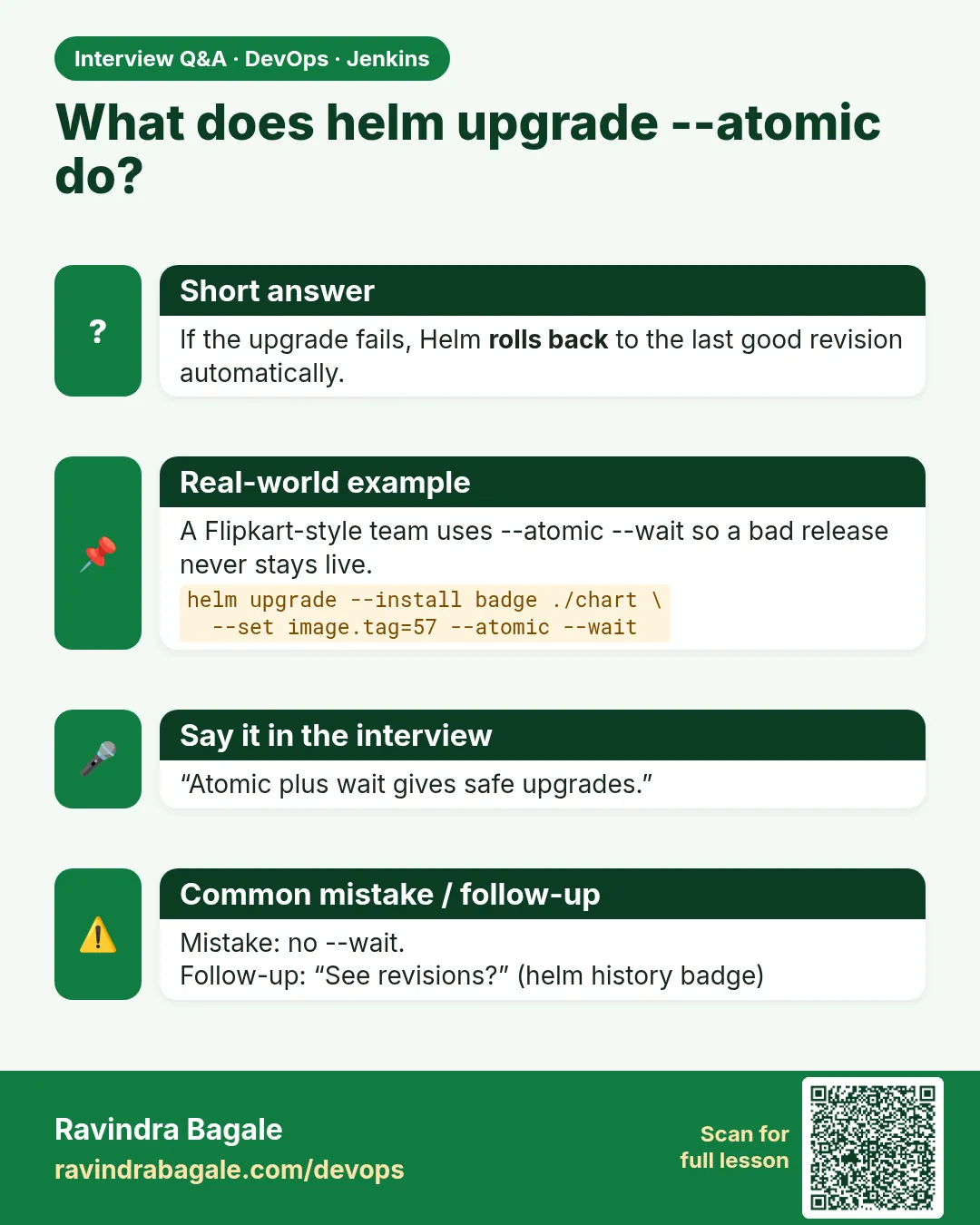
What does --atomic do?
Waits for resources and rolls back automatically if the upgrade fails.
-
How do you fix a release stuck in pending-upgrade?
Roll back to the last deployed revision with helm rollback, and stop concurrent deploys.
Quick quiz
Q1. What does --atomic do?
Rolls back automatically if the upgrade fails.
Q2. Why use upgrade --install?
It installs or upgrades, so the same command always works.
Q3. How do you see YAML before deploying?
helm template.
Q4. How do you roll back to revision 5?
helm rollback RELEASE 5 -n NAMESPACE.
Q5. Where do environment differences go?
Values files like values-prod.yaml.
Samajla ka?
 Revision card
 Interview card