Chapter 26: Jenkins Security, RBAC and Hardening
26.2 Authentication
Why: the problem
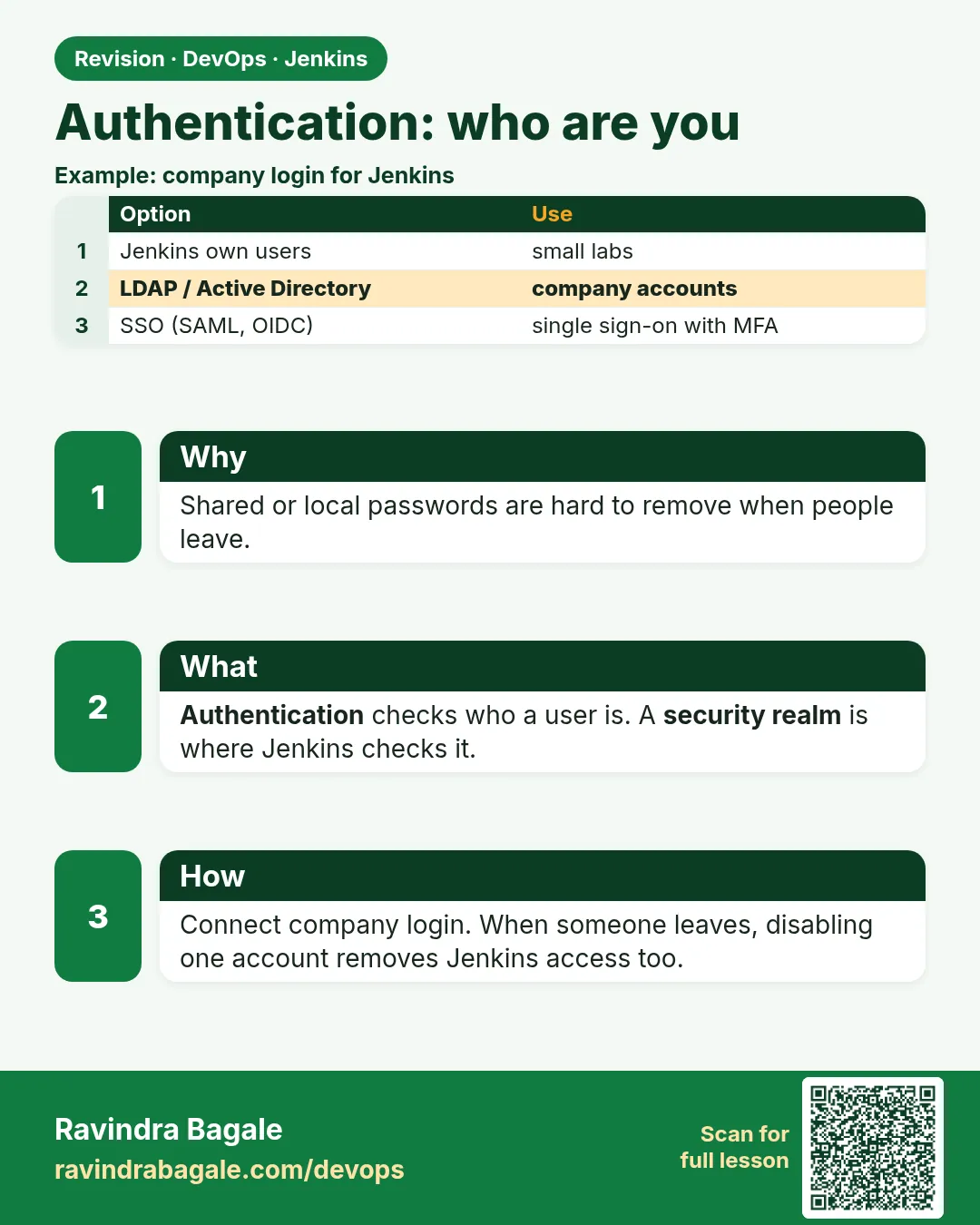
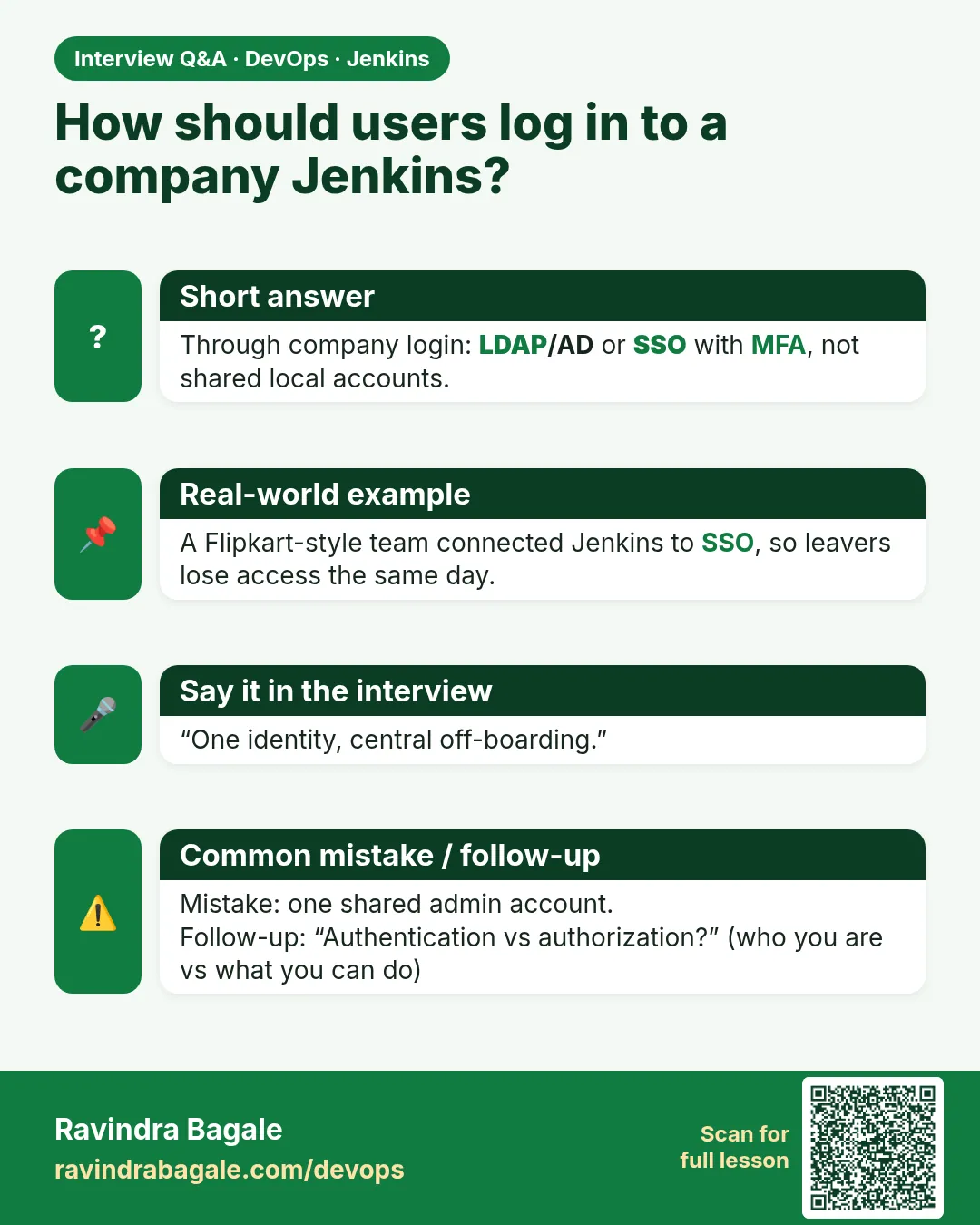
Think of Infosys. A new developer joins on Monday. On the first day, she needs to log in to Jenkins. On her last day, two years later, her access must stop at once. If Jenkins keeps its own list of users and passwords, someone must add her by hand and remember to remove her later. People forget. Old accounts stay alive for months. This is why big companies connect Jenkins to the company login: LDAP or Active Directory, or single sign-on with Google Workspace, Okta or Microsoft Entra ID. Then HR disables one account and Jenkins access is gone too. In this lesson you will start with the Jenkins own user database, which is fine for a lab or a tiny team. Then you will connect Jenkins to an LDAP server and to an OpenID Connect login, so that groups from the company decide who gets in.
What we will build
You will create users in the Jenkins own user database and turn off self signup. Then you will run a small OpenLDAP server in Docker with two groups, jenkins-admins and jenkins-devs, and connect Jenkins to it. Finally you will see the shape of an OIDC (OpenID Connect) setup with Keycloak, which works the same way as Okta or Entra ID. You will check each step with the whoAmI page, which shows who Jenkins thinks you are and your groups.
What: every term in plain English
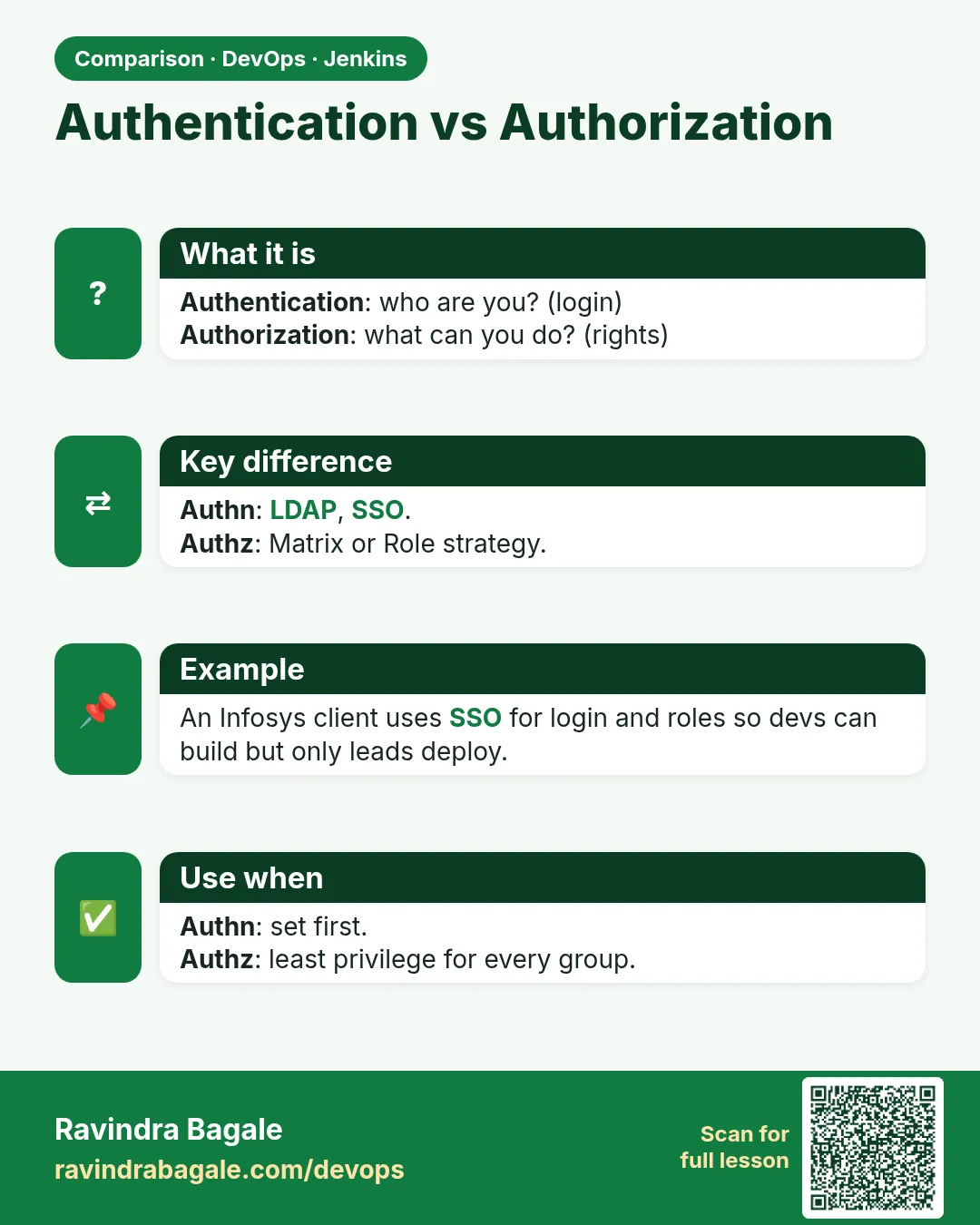
- Authentication — Proving who you are, usually with a username and password, or a company login.
- Jenkins own user database — Users and password hashes stored inside Jenkins. Good for labs and small teams.
- Self signup — A "Sign up" link that lets anyone create an account. Always turn it off.
- LDAP — A company directory of users and groups. Active Directory speaks LDAP.
- Bind DN — The service account Jenkins uses to search the directory.
- OIDC (OpenID Connect) — A modern login standard. You are sent to the company login page, then back to Jenkins.
- SSO (single sign-on) — One login for many tools. Log in once, open Jenkins, Jira and Grafana.
- whoAmI — A Jenkins page at /whoAmI that shows your name and groups. Your best debug tool for login.
How: step by step
-
Turn off self signup
Manage Jenkins > Security > Security Realm: Jenkins own user database > untick Allow users to sign up > SaveWhat it does: Nobody can create their own account.
Output
Saved -
Create a developer user
Manage Jenkins > Users > Create User > dev1What it does: A second, normal user for tests.
Output
User dev1 created -
Start an LDAP server
docker network create jnet && docker network connect jnet j26 && docker run -d --name ldap --network jnet -e LDAP_ORGANISATION=ShopLab -e LDAP_DOMAIN=shoplab.in -e LDAP_ADMIN_PASSWORD=ChangeMeLab1 osixia/openldap:1.5.0What it does: A directory server reachable from Jenkins by the name ldap.
Output
8a1b2c3d4e5f... -
Load users and groups
docker cp people.ldif ldap:/tmp/people.ldif && docker exec ldap ldapadd -x -D "cn=admin,dc=shoplab,dc=in" -w ChangeMeLab1 -f /tmp/people.ldifWhat it does: Adds two users and two groups.
Output
adding new entry "uid=asha,ou=people,dc=shoplab,dc=in" adding new entry "cn=jenkins-admins,ou=groups,dc=shoplab,dc=in" -
Install the LDAP plugin
docker exec j26 jenkins-plugin-cli --plugins ldap && docker restart j26What it does: Adds the LDAP option to Security Realm.
Output
Done -
Connect Jenkins to LDAP
Manage Jenkins > Security > Security Realm: LDAP > Server ldap://ldap:389 > root DN dc=shoplab,dc=in > fill user and group search > Test LDAP settingsWhat it does: Jenkins can find users and their groups.
Output
Authentication: successful User ID: asha LDAP Group membership: jenkins-admins -
Check who you are
Open http://localhost:8080/whoAmI after login as ashaWhat it does: Shows the groups Jenkins will use for roles.
Output
Name: asha
Authorities: authenticated, jenkins-admins
Example 1: Load two users and two groups into OpenLDAP
Stack. OpenLDAP 1.5 in Docker
Goal. Load two users and two groups into OpenLDAP.
people.ldif
dn: ou=people,dc=shoplab,dc=in
objectClass: organizationalUnit
ou: people

dn: ou=groups,dc=shoplab,dc=in
objectClass: organizationalUnit
ou: groups

dn: uid=asha,ou=people,dc=shoplab,dc=in
objectClass: inetOrgPerson
uid: asha
cn: Asha Patil
sn: Patil
mail: asha@shoplab.in
userPassword: AshaLab#2026

dn: uid=rohan,ou=people,dc=shoplab,dc=in
objectClass: inetOrgPerson
uid: rohan
cn: Rohan Kulkarni
sn: Kulkarni
mail: rohan@shoplab.in
userPassword: RohanLab#2026

dn: cn=jenkins-admins,ou=groups,dc=shoplab,dc=in
objectClass: groupOfNames
cn: jenkins-admins
member: uid=asha,ou=people,dc=shoplab,dc=in

dn: cn=jenkins-devs,ou=groups,dc=shoplab,dc=in
objectClass: groupOfNames
cn: jenkins-devs
member: uid=rohan,ou=people,dc=shoplab,dc=in
What each line does
dn:— The full name of an entry, like a file path in the directory.ou=people / ou=groups— Two folders: one for users, one for groups.objectClass: inetOrgPerson— A normal person entry with name and email.userPassword— Lab-only password. In a company, the directory team manages this.objectClass: groupOfNames— A group with a list of members.member: uid=asha,...— Asha is in jenkins-admins. Rohan is in jenkins-devs.
Green output
$ docker exec ldap ldapsearch -x -b "ou=groups,dc=shoplab,dc=in" "(cn=jenkins-*)" cn member
# jenkins-admins, groups, shoplab.in
cn: jenkins-admins
member: uid=asha,ou=people,dc=shoplab,dc=in
# jenkins-devs, groups, shoplab.in
cn: jenkins-devs
member: uid=rohan,ou=people,dc=shoplab,dc=in
# numEntries: 2
Expected result. The directory has two groups. Jenkins will map these groups to roles in lesson 26.3.
Example 2: Set the LDAP realm as code with JCasC, so a rebuild keeps it
Stack. Jenkins JCasC plugin, LDAP plugin
Goal. Set the LDAP realm as code with JCasC, so a rebuild keeps it.
jenkins.yaml
jenkins:
  securityRealm:
    ldap:
      configurations:
        - server: "ldap://ldap:389"
          rootDN: "dc=shoplab,dc=in"
          userSearchBase: "ou=people"
          userSearch: "uid={0}"
          groupSearchBase: "ou=groups"
          groupSearchFilter: "(&(objectClass=groupOfNames)(cn={0}))"
          groupMembershipStrategy:
            fromGroupSearch:
              filter: "(member={0})"
          managerDN: "cn=admin,dc=shoplab,dc=in"
          managerPasswordSecret: "${LDAP_BIND_PASSWORD}"
      cache:
        size: 100
        ttl: 300
  disableRememberMe: true
run.sh
docker exec j26 jenkins-plugin-cli --plugins configuration-as-code ldap
docker cp jenkins.yaml j26:/var/jenkins_home/jenkins.yaml
docker restart j26
docker logs j26 2>&1 | grep -i "configuration as code"
What each line does
securityRealm: ldap:— Use LDAP to check users.userSearch: "uid={0}"— The login name is matched to the uid field.groupMembershipStrategy fromGroupSearch— Find groups where the member line holds this user.managerPasswordSecret: "${LDAP_BIND_PASSWORD}"— The bind password comes from an environment variable or secret, not from the file.cache ttl: 300— Remember lookups for 5 minutes, so LDAP is not hit on every click.disableRememberMe: true— No long-lived "remember me" cookie on shared machines.
Green output
Configuration as Code: applying configuration from /var/jenkins_home/jenkins.yaml
Setting class hudson.security.LDAPSecurityRealm.configurations = [...]
Configuration as Code: configuration applied
Jenkins is fully up and running
Expected result. After restart, the realm is LDAP without any clicks. If someone changes it in the UI, the next restart puts it back.
Example 3: Log in with company SSO using OIDC and Keycloak
Stack. Keycloak 25, Jenkins OIDC plugin
Goal. Log in with company SSO using OIDC and Keycloak.
keycloak.sh
docker run -d --name kc --network jnet -p 8180:8080 \
  -e KEYCLOAK_ADMIN=admin -e KEYCLOAK_ADMIN_PASSWORD=ChangeMeLab1 \
  quay.io/keycloak/keycloak:25.0 start-dev
# In Keycloak: create realm shoplab, client "jenkins",
# Client authentication ON, Valid redirect URI:
#   http://localhost:8080/securityRealm/finishLogin
# Add a "groups" mapper so the token carries group names.
jenkins.yaml (OIDC part)
jenkins:
  securityRealm:
    oic:
      clientId: "jenkins"
      clientSecret: "${OIDC_CLIENT_SECRET}"
      serverConfiguration:
        wellKnown:
          wellKnownOpenIDConfigurationUrl: "http://kc:8080/realms/shoplab/.well-known/openid-configuration"
      userNameField: "preferred_username"
      groupsFieldName: "groups"
      logoutFromOpenidProvider: true
What each line does
quay.io/keycloak/keycloak start-dev— A lab login server. In a company this is Okta, Entra ID or Google.Valid redirect URI .../securityRealm/finishLogin— After login, Keycloak sends the user back to this Jenkins address.oic:— The OpenID Connect Authentication plugin.clientSecret: "${OIDC_CLIENT_SECRET}"— Read from a secret, never typed in the file.wellKnownOpenIDConfigurationUrl— One URL that tells Jenkins every other login address.groupsFieldName: "groups"— Jenkins reads groups from the token and uses them for roles.
Green output
Browser: http://localhost:8080  ->  302 to http://localhost:8180/realms/shoplab/protocol/openid-connect/auth?...
Keycloak login page: user asha
Back to Jenkins: /securityRealm/finishLogin -> 302 /
/whoAmI
Name: asha
Authenticated: true
Authorities: authenticated, jenkins-admins
Expected result. Asha never typed a Jenkins password. When the company disables her account in Keycloak, she cannot log in to Jenkins any more.
Verify: did it work?
-
See your groups
curl -s -u asha:$ASHA_TOKEN http://localhost:8080/whoAmI/api/json | jq .authoritiesWhat it does: Groups from LDAP or OIDC must appear.
Output
[ "authenticated", "jenkins-admins" ] -
Signup is off
curl -s -o /dev/null -w "%{http_code}\n" http://localhost:8080/signupWhat it does: 404 means the signup page does not exist.
Output
404
When it is red 1
Test LDAP settings: javax.naming.CommunicationException: ldap:389
Cause. Jenkins cannot reach the LDAP host. Wrong name, network or port.
Fix, step by step
- docker network connect jnet j26.
- From Jenkins: docker exec j26 getent hosts ldap.
- Use ldap://ldap:389 in the Server box.
When it is red 2
User logs in but whoAmI shows only "authenticated", no groups
Cause. Group search base or filter is wrong.
Fix, step by step
- Run ldapsearch with the same filter by hand.
- Fix groupSearchBase and the member filter.
- Log out and log in again; groups are read at login.
When it is red 3
OIDC: "Invalid parameter: redirect_uri"
Cause. The redirect URI in Keycloak does not match the Jenkins URL.
Fix, step by step
- Set Jenkins URL in Manage Jenkins > System.
- Add exactly JENKINS_URL/securityRealm/finishLogin in the client.
Cleanup
-
Stop lab login servers
docker rm -f kcWhat it does: Keycloak is no longer needed after the test.
Output
kc -
Keep LDAP for 26.3
docker ps --filter name=ldap --format "{{.Names}}"What it does: You will map these groups to roles next.
Output
ldap
Ravindra Bagale's Tip
Company madhe SSO vapra. Manus company sodto tevha Jenkins access aapoaap band hoto. Dhyan rakho!
Practice tasks
Easy Turn off signup
Why: Open signup is the easiest door to close.
What to do: Untick Allow users to sign up.
- Save.
- Open /signup in a private window.
Check: You see 404.
Medium Connect LDAP
Why: Groups make roles easy.
What to do: Connect Jenkins to the lab OpenLDAP.
- Use people.ldif.
- Test LDAP settings.
Check: whoAmI shows jenkins-devs for rohan.
Hard Try SSO
Why: Most product companies use SSO.
What to do: Set up Keycloak and OIDC.
- Add a groups mapper.
- Log in as asha.
Check: Login works without a Jenkins password.
Easy Say Jenkins login with LDAP and SSO in two lines
Why: If you can say it simply, you understand it. Juniors, auditors and interviewers all want the short version first.
What to do: Write two short lines about Jenkins login with LDAP and SSO for a fresher who knows only Linux and basic Jenkins.
- Write the risk it removes.
- Write the one setting or command you use for it.
- Read it aloud to a friend.
Check: A fresher understands it without asking a question.
Easy Start a fresh lab Jenkins
Why: Security practice needs a throwaway Jenkins. If you lock yourself out, you delete it and start again.
What to do: Run Jenkins LTS in Docker with a named volume.
- docker volume create jenkins_home
- docker run -d --name jenkins -p 8080:8080 -v jenkins_home:/var/jenkins_home jenkins/jenkins:lts-jdk17
- docker exec jenkins cat /var/jenkins_home/secrets/initialAdminPassword
Check: The Jenkins login page opens on localhost:8080 and asks for a password.
Medium Test with a second user
Why: Admins see everything, so they never notice a missing permission. Always test as a normal user.
What to do: Log in as a non-admin user in a private browser window and repeat this lesson.
- Create the user dev1.
- Open a private window.
- Do the lesson steps as dev1 and note what you can and cannot see.
Check: You can list exactly which menus dev1 sees.
Medium Break it on purpose
Why: You must know the red message by face. During an audit or an outage there is no time to read slowly.
What to do: Cause one error from the "When it is red" part of this lesson and fix it.
- Follow the error section.
- Copy the exact message into your notes.
- Write the fix in one line.
Check: You fixed it using only the steps, without searching the web.
Medium Write a security runbook page
Why: At 2 a.m. nobody remembers where a setting lives. A short page saves the on-call person.
What to do: Write a one-page runbook for this lesson.
- Title, when to use, exact menu path or command, how to check, how to undo.
Check: A teammate can follow it alone.
Hard Explain it like an interview
Why: Interviewers want real stories, not definitions.
What to do: Record a 60 second answer about this lesson.
- Say the risk, the setting you changed, and one error you hit.
Check: Your answer has a real menu path or command and a real error message.
Hard Draw the flow top to bottom
Why: A drawing shows who is checked, where, and in what order.
What to do: Draw this lesson as boxes from top to bottom.
- Start at the user in the browser, go through login and permission checks, end at the job or agent.
Check: Each box matches a real check you saw.
Homework: try at home
Try at home
At home, connect your lab Jenkins to OpenLDAP with two groups. Log in as each user and save the whoAmI output. Write which group each user has.
Recap
- Use the Jenkins own user database only for labs or very small teams.
- Always turn off self signup.
- In companies, use LDAP, Active Directory or OIDC SSO so leavers lose access at once.
- Use groups from the directory, not single users, for permissions.
- Check login problems with /whoAmI.
FAQ
Can I mix local users and LDAP?
Not in one realm. Keep one break-glass admin with a strong password in a vault, and know the recovery steps.
Does Jenkins support MFA?
Use SSO for MFA. Okta, Entra ID and Google all add MFA before Jenkins.
What if LDAP is down?
Nobody can log in. Keep LDAP highly available and keep a recovery plan.
Why are my groups not updated?
Groups are read at login and cached. Log out and in, or wait for the cache time.
Is SAML also fine?
Yes. The SAML plugin works with ADFS and Okta. OIDC is simpler to set up.
Interview questions
-
How do you connect Jenkins to Active Directory?
With the Active Directory or LDAP plugin, a bind account, user and group search, and roles mapped to AD groups.
-
Why should you not give rights to single users?
People change teams. Groups make adding and removing access one step in the directory.
-
How do you debug a user who logs in but has no access?
Check /whoAmI for groups, then check the role or matrix mapping for that group.
-
What is OIDC?
A login standard on top of OAuth 2.0. Jenkins sends the user to the identity provider and gets back a token with name and groups.
-
Why disable remember me?
To avoid long-lived cookies on shared or lost machines.
Quick quiz
Q1. Why turn off self signup?
So strangers cannot create accounts.
Q2. What does the bind DN do?
It is the account Jenkins uses to search LDAP.
Q3. Which page shows your groups?
/whoAmI.
Q4. Why prefer SSO in a company?
One place to add and remove access, plus MFA.
Q5. Where should the LDAP bind password live?
In a secret or environment variable, not in jenkins.yaml as plain text.
Samajla ka?
 Revision card
 Interview card
 Comparison card