Chapter 26: Jenkins Security, RBAC and Hardening
26.1 Why this chapter is a checklist
Why: the problem
Think of Paytm. Every payment app build goes through one Jenkins. That Jenkins can read the source code. It holds the AWS keys, the Play Store signing key and the database passwords. It can run any shell command on its agents. Now imagine that Jenkins opens with no login page. Anyone on the office Wi-Fi can open it. They can click Configure on a job and add one shell line. That line runs on the agent with all the keys. This is not a story from a film. Every year, security teams scan the internet and find thousands of open Jenkins dashboards. So the first rule of Jenkins security is simple. Jenkins is a remote command runner with your secrets inside. Treat it like a production server, not like a toy. In this lesson you will find out how open your lab Jenkins is right now, turn on login, and write the first five lines of a hardening checklist. The rest of the chapter fills in each line.
What we will build
You will start a fresh Jenkins in Docker. You will check, as an outsider, what an anonymous person can see. You will use curl to ask the Jenkins API questions without logging in. Then you will turn on the security realm and authorization, and repeat the same checks. At the end you will have a small script called open-check.sh that prints PASS or FAIL for five basic checks. You will run this script again at the end of the chapter.
What: every term in plain English
- Controller — The main Jenkins server. It shows the web page, keeps job settings and sends work to agents.
- Agent — A machine that runs the build steps. It gets commands from the controller.
- Anonymous user — Anyone who opens Jenkins without logging in.
- Security realm — How Jenkins checks who you are. For example its own user list, LDAP or Google login.
- Authorization strategy — What a logged-in person may do. For example read only, build, or configure.
- Attack surface — All the doors someone could try to open. Fewer doors means less risk.
- Hardening — Closing doors you do not need and locking the ones you keep.
- Least privilege — Give each person only the rights they need for their work. Nothing more.
How: step by step
-
Start a fresh lab Jenkins
docker volume create jh26 && docker run -d --name j26 -p 8080:8080 -v jh26:/var/jenkins_home jenkins/jenkins:lts-jdk17What it does: A new Jenkins controller in a container.
Output
3f9c1b0e7a2d... -
Read the first admin password
docker exec j26 cat /var/jenkins_home/secrets/initialAdminPasswordWhat it does: Jenkins makes a one-time password for the setup wizard.
Output
a3f1c9d07b2e4f6a8c1d2e3f4a5b6c7d -
Finish the wizard
Open http://localhost:8080 > paste password > Install suggested plugins > Create First Admin User: raviWhat it does: The wizard turns on login with the Jenkins own user database.
Output
Jenkins is ready! -
Check as an outsider
curl -s -o /dev/null -w "%{http_code}\n" http://localhost:8080/api/jsonWhat it does: Asks for the job list with no login.
Output
403 -
Look at the security page
Manage Jenkins > SecurityWhat it does: See which realm and authorization are active.
Output
Security Realm: Jenkins own user database Authorization: Logged-in users can do anything -
Turn off "Allow anonymous read access"
Manage Jenkins > Security > Authorization > untick Allow anonymous read access > SaveWhat it does: Outsiders get the login page, not the dashboard.
Output
Saved -
Write the first checklist lines
nano hardening.mdWhat it does: Five lines: login on, signup off, anonymous no read, executors on controller 0, plugins updated.
Output
(file saved)
Example 1: Prove what an anonymous person can see, with only curl
Stack. bash, curl, Jenkins LTS in Docker
Goal. Prove what an anonymous person can see, with only curl.
open-check.sh
#!/usr/bin/env bash
# Usage: bash open-check.sh http://localhost:8080
set -uo pipefail
J="${1:-http://localhost:8080}"
code() { curl -s -o /dev/null -w "%{http_code}" "$J$1"; }
check() {
  local name="$1" path="$2" want="$3"
  got=$(code "$path")
  if [ "$got" = "$want" ]; then echo "PASS $name ($got)"; else echo "FAIL $name (got $got, want $want)"; fi
}
check "dashboard needs login"   "/api/json"            403
check "script console closed"   "/script"              403
check "people list closed"      "/asynchPeople/api/json" 403
check "signup page closed"      "/signup"              404
check "cli over http closed"    "/cli"                 403
What each line does
set -uo pipefail— Stop on unset variables and catch failures in pipes. No -e, so one FAIL does not stop the other checks.curl -s -o /dev/null -w "%{http_code}"— Throw away the page and print only the HTTP status number./api/json— The job list as JSON. Open Jenkins answers 200 here. Locked Jenkins answers 403./script— The script console. It runs Groovy on the controller. It must never be open./signup— The self signup page. 404 means signup is turned off.check "name" "path" want— Compares the real status with the status we want and prints PASS or FAIL.
Green output
$ bash open-check.sh http://localhost:8080
PASS dashboard needs login (403)
PASS script console closed (403)
PASS people list closed (403)
PASS signup page closed (404)
PASS cli over http closed (403)
Expected result. All five checks pass on a Jenkins that finished the wizard. Run it on any Jenkins you are given on day one.
Example 2: See the danger: the same script on an old, open Jenkins
Stack. Docker, Jenkins LTS
Goal. See the danger: the same script on an old, open Jenkins.
open-jenkins.sh
#!/usr/bin/env bash
# LAB ONLY. Start a Jenkins with the setup wizard skipped and no security.
set -euo pipefail
docker run -d --name jopen -p 8081:8080 \
  -e JAVA_OPTS="-Djenkins.install.runSetupWizard=false" \
  jenkins/jenkins:lts-jdk17
sleep 40
bash open-check.sh http://localhost:8081
What each line does
-Djenkins.install.runSetupWizard=false— Skips the wizard. Old guides use this. It leaves Jenkins with no login at all.-p 8081:8080— Second Jenkins on port 8081, so it does not clash with the first one.sleep 40— Jenkins needs some seconds to start.bash open-check.sh http://localhost:8081— Same five checks, now on the open one.LAB ONLY— Never run this on a server with a public IP address.
Green output
FAIL dashboard needs login (got 200, want 403)
FAIL script console closed (got 200, want 403)
FAIL people list closed (got 200, want 403)
PASS signup page closed (404)
FAIL cli over http closed (got 200, want 403)
Expected result. Four FAILs. Anyone who can reach port 8081 can open the script console and run commands as the jenkins user. Delete this container now: docker rm -f jopen.
Example 3: Put Jenkins behind nginx with HTTPS, so passwords never travel in plain text
Stack. nginx, certbot, Jenkins on EC2 (Ubuntu 22.04)
Goal. Put Jenkins behind nginx with HTTPS, so passwords never travel in plain text.
/etc/nginx/conf.d/jenkins.conf
server {
  listen 443 ssl http2;
  server_name jenkins.shop-lab.in;
  ssl_certificate     /etc/letsencrypt/live/jenkins.shop-lab.in/fullchain.pem;
  ssl_certificate_key /etc/letsencrypt/live/jenkins.shop-lab.in/privkey.pem;
  location / {
    proxy_pass         http://127.0.0.1:8080;
    proxy_set_header   Host $host;
    proxy_set_header   X-Forwarded-Proto https;
    proxy_set_header   X-Forwarded-For $proxy_add_x_forwarded_for;
  }
}
server {
  listen 80;
  server_name jenkins.shop-lab.in;
  return 301 https://$host$request_uri;
}
docker run line
docker run -d --name j26 -p 127.0.0.1:8080:8080 \
  -v jh26:/var/jenkins_home jenkins/jenkins:lts-jdk17
What each line does
listen 443 ssl http2— nginx takes HTTPS on port 443.ssl_certificate ...— Free certificate from Let us Encrypt, made with certbot.proxy_pass http://127.0.0.1:8080— nginx passes the request to Jenkins on the same machine.X-Forwarded-Proto https— Tells Jenkins the user came over HTTPS, so links it makes use https.return 301 https://...— Anyone who types http is sent to https.-p 127.0.0.1:8080:8080— Jenkins listens only on the local machine. The internet can reach it only through nginx.
Green output
$ curl -I http://jenkins.shop-lab.in
HTTP/1.1 301 Moved Permanently
Location: https://jenkins.shop-lab.in/
$ curl -sI https://jenkins.shop-lab.in/login | head -1
HTTP/2 200
$ curl -s -o /dev/null -w "%{http_code}\n" http://SERVER_IP:8080/
000
Expected result. Port 8080 is not reachable from outside (000 means no answer). The login page works on HTTPS. Also set Manage Jenkins > System > Jenkins URL to https://jenkins.shop-lab.in/.
Verify: did it work?
-
Run the checker again
bash open-check.sh http://localhost:8080What it does: All lines should say PASS.
Output
PASS dashboard needs login (403) ... PASS cli over http closed (403) -
Confirm the security realm
curl -s -u ravi:$JENKINS_TOKEN http://localhost:8080/whoAmI/api/json | jq .authoritiesWhat it does: Shows you are logged in and authenticated.
Output
[
  "authenticated"
]
When it is red 1
Dashboard opens without a login page
Cause. Setup wizard was skipped, or "Allow anonymous read access" is ticked.
Fix, step by step
- Manage Jenkins > Security.
- Pick Jenkins own user database.
- Untick Allow anonymous read access.
- Run open-check.sh again.
When it is red 2
HTTP ERROR 403 No valid crumb was included in the request
Cause. You sent a POST with curl but no CSRF crumb or API token.
Fix, step by step
- Use an API token with -u user:token. Tokens do not need a crumb.
- Or fetch a crumb from /crumbIssuer/api/json first.
When it is red 3
Locked out: "Invalid username or password" for the only admin
Cause. Password forgotten on a lab Jenkins.
Fix, step by step
- On a lab only: stop the container.
- Recreate the volume and start fresh.
- On a real server, use a second admin account. Always keep two admins.
Cleanup
-
Remove the open Jenkins
docker rm -f jopenWhat it does: The dangerous lab container is gone.
Output
jopen -
Keep j26
docker ps --filter name=j26 --format "{{.Names}} {{.Status}}"What it does: You will use j26 for the rest of the chapter.
Output
j26 Up 12 minutes
Ravindra Bagale's Tip
Jenkins mhanje secrets asleli command machine. Pahila divas open-check.sh chalva. Lakshat theva!
Practice tasks
Easy Run open-check.sh
Why: A quick test shows the truth faster than reading settings.
What to do: Run the checker on your lab Jenkins.
- Save the script.
- Run it.
- Paste the output in your notes.
Check: Five PASS lines.
Medium Find one open Jenkins setting
Why: Real servers drift over time.
What to do: Compare your lab with the five checklist lines.
- Open Manage Jenkins > Security.
- Write each value next to the checklist line.
Check: Every line has a value and PASS or FAIL.
Hard Add HTTPS in front
Why: Passwords over plain HTTP can be read on the network.
What to do: Put nginx with a certificate in front of a Jenkins on a cloud VM.
- Use certbot.
- Bind Jenkins to 127.0.0.1.
Check: curl to port 8080 from outside gives no answer.
Easy Say why Jenkins needs locking in two lines
Why: If you can say it simply, you understand it. Juniors, auditors and interviewers all want the short version first.
What to do: Write two short lines about why Jenkins needs locking for a fresher who knows only Linux and basic Jenkins.
- Write the risk it removes.
- Write the one setting or command you use for it.
- Read it aloud to a friend.
Check: A fresher understands it without asking a question.
Easy Start a fresh lab Jenkins
Why: Security practice needs a throwaway Jenkins. If you lock yourself out, you delete it and start again.
What to do: Run Jenkins LTS in Docker with a named volume.
- docker volume create jenkins_home
- docker run -d --name jenkins -p 8080:8080 -v jenkins_home:/var/jenkins_home jenkins/jenkins:lts-jdk17
- docker exec jenkins cat /var/jenkins_home/secrets/initialAdminPassword
Check: The Jenkins login page opens on localhost:8080 and asks for a password.
Medium Test with a second user
Why: Admins see everything, so they never notice a missing permission. Always test as a normal user.
What to do: Log in as a non-admin user in a private browser window and repeat this lesson.
- Create the user dev1.
- Open a private window.
- Do the lesson steps as dev1 and note what you can and cannot see.
Check: You can list exactly which menus dev1 sees.
Medium Break it on purpose
Why: You must know the red message by face. During an audit or an outage there is no time to read slowly.
What to do: Cause one error from the "When it is red" part of this lesson and fix it.
- Follow the error section.
- Copy the exact message into your notes.
- Write the fix in one line.
Check: You fixed it using only the steps, without searching the web.
Medium Write a security runbook page
Why: At 2 a.m. nobody remembers where a setting lives. A short page saves the on-call person.
What to do: Write a one-page runbook for this lesson.
- Title, when to use, exact menu path or command, how to check, how to undo.
Check: A teammate can follow it alone.
Hard Explain it like an interview
Why: Interviewers want real stories, not definitions.
What to do: Record a 60 second answer about this lesson.
- Say the risk, the setting you changed, and one error you hit.
Check: Your answer has a real menu path or command and a real error message.
Hard Draw the flow top to bottom
Why: A drawing shows who is checked, where, and in what order.
What to do: Draw this lesson as boxes from top to bottom.
- Start at the user in the browser, go through login and permission checks, end at the job or agent.
Check: Each box matches a real check you saw.
Homework: try at home
Try at home
At home, run open-check.sh against your lab Jenkins before and after the wizard. Save both outputs. Then write five lines in hardening.md and keep it for lesson 26.7.
Recap
- Jenkins runs commands and holds secrets, so treat it as production.
- Security realm decides who you are; authorization decides what you may do.
- Never skip the setup wizard or allow anonymous read.
- Put Jenkins behind HTTPS and do not expose port 8080.
- Use open-check.sh on day one on any Jenkins.
FAQ
Is a Jenkins inside the office network safe without login?
No. Laptops get infected, and insiders make mistakes. Always log in.
Is the script console needed?
Admins use it rarely for fixes. Only admins should ever see it.
Can I use self-signed certificates?
In a lab, yes. On a team server, use a real certificate like Let us Encrypt.
Does a VPN replace login?
No. A VPN is one more lock. Keep login and roles too.
How often should I run the checker?
After every upgrade and every plugin change, and once a month.
Interview questions
-
What is the biggest risk with Jenkins?
It runs any command and holds secrets. Anyone who can configure a job can run shell on an agent and read credentials.
-
Difference between security realm and authorization?
Realm is authentication, who you are. Authorization is what you may do.
-
How do you check a Jenkins is not open?
Call /api/json and /script without login and expect 403. I keep a small curl script for this.
-
Why put nginx in front of Jenkins?
For HTTPS, a clean domain name, and to keep port 8080 private.
-
What is least privilege in Jenkins?
Each user gets only the permissions needed for their jobs, usually through roles and folders.
Quick quiz
Q1. What does the security realm decide?
Who you are: how users log in.
Q2. What does authorization decide?
What a logged-in user may do.
Q3. Why is the script console dangerous?
It runs any Groovy code on the controller with full rights.
Q4. What HTTP code should /api/json give to an outsider?
403.
Q5. Why bind Jenkins to 127.0.0.1 behind nginx?
So only nginx with HTTPS is reachable from outside.
Samajla ka?
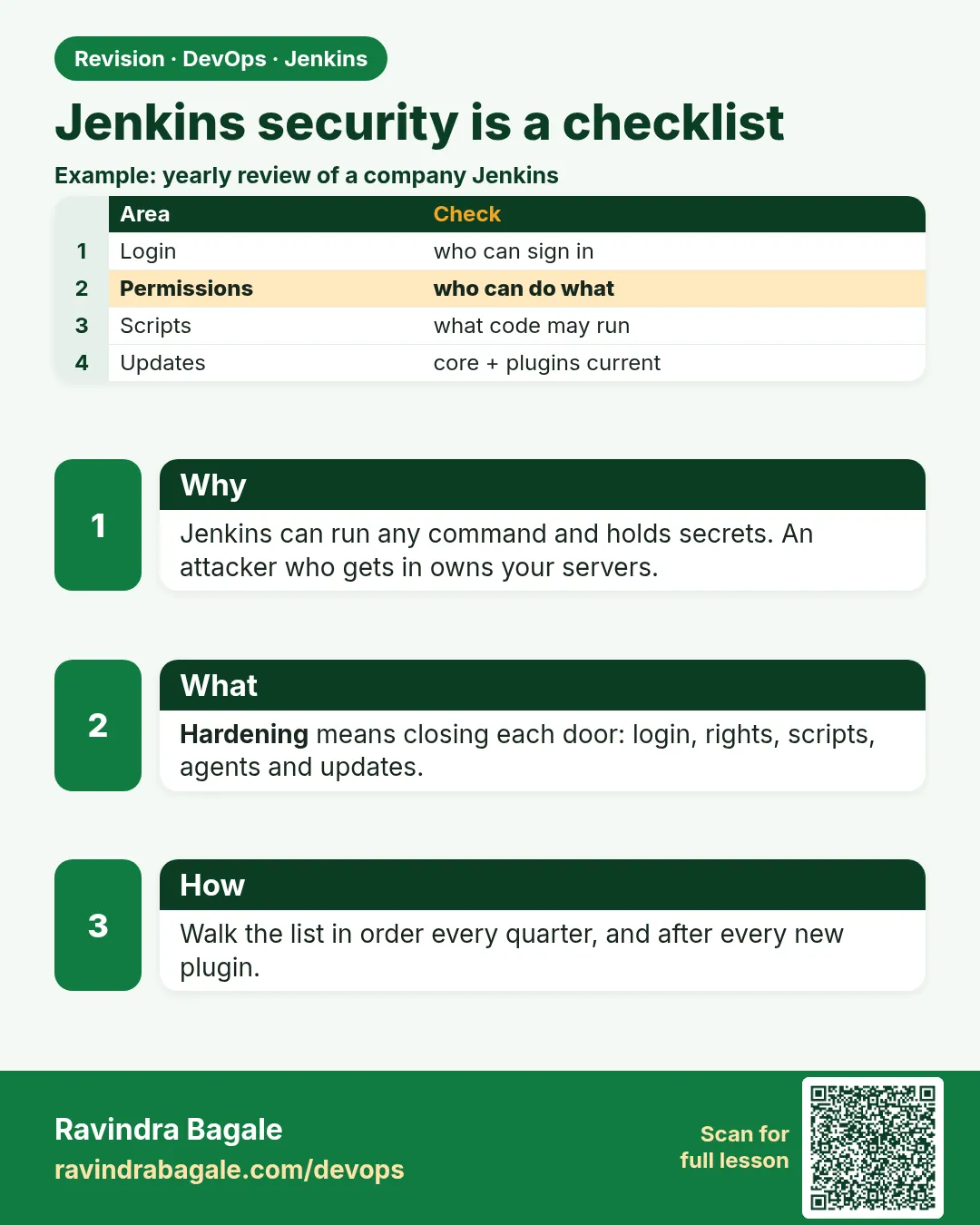 Revision card
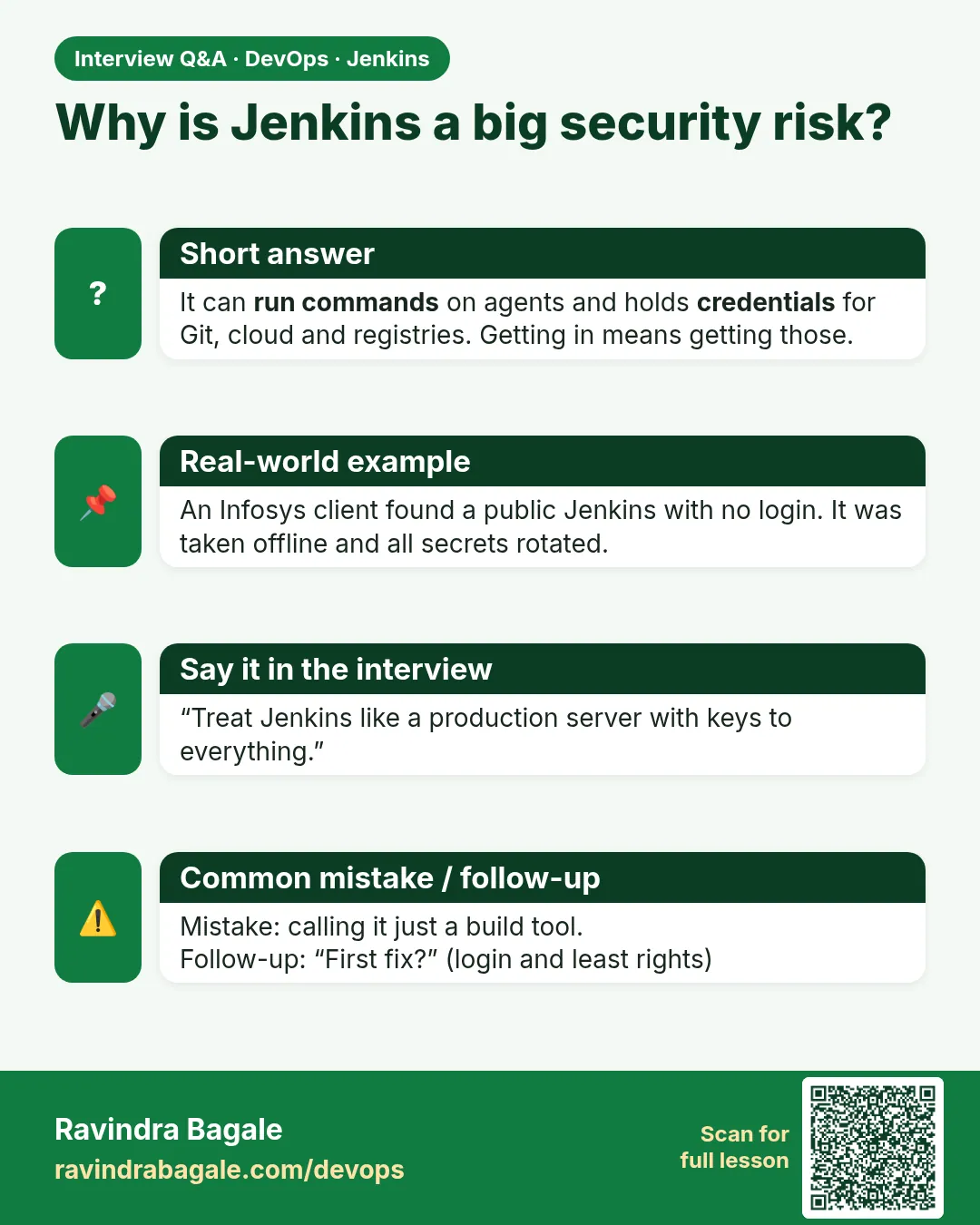 Interview card