Chapter 23: Jenkins Fundamentals, Install and Architecture
23.7 WAR, Docker, Kubernetes, Nginx, firewall
Why: the problem
Think of a startup in Bengaluru. Every engineer installs Jenkins a different way. One runs the WAR file on a laptop. One uses Docker. The platform team runs it on Kubernetes. And someone opened port 8080 to the whole internet. All four are real ways to run Jenkins, but each has a place. The WAR file is quick for a demo. Docker with Compose is great for small teams and labs. Kubernetes with Helm gives auto-restart and agents that start on demand. And in every case, Jenkins should sit behind nginx with HTTPS and a firewall, not open on port 8080. In this lesson you will run Jenkins all four ways and finish with a safe setup.
What we will build
You will run jenkins.war with Java. You will write a docker-compose.yml for Jenkins plus nginx. You will install Jenkins on a kind Kubernetes cluster with the official Helm chart. Then you will put nginx with a free Let us Encrypt certificate in front, and close everything except ports 22, 80 and 443 with ufw.
What: every term in plain English
- WAR file — Web Archive. The whole Jenkins in one file you can run with java -jar.
- Docker Compose — A tool that starts several containers from one YAML file.
- Helm — A package manager for Kubernetes. A chart is a ready package.
- kind — Kubernetes in Docker. A small lab cluster on your laptop.
- Reverse proxy — A server (nginx) that takes user requests and passes them to Jenkins.
- TLS certificate — A file that lets the site use HTTPS. Let us Encrypt gives free ones with certbot.
- ufw — Uncomplicated Firewall on Ubuntu. It decides which ports are open.
- Persistent volume — Disk storage in Kubernetes that survives pod restarts.
How: step by step
-
Run the WAR file
curl -fsSLO https://get.jenkins.io/war-stable/latest/jenkins.war && java -jar jenkins.war --httpPort=8080What it does: Jenkins starts in the terminal. Home is ~/.jenkins.
Output
Jenkins is fully up and running -
Start Jenkins and nginx with Compose
docker compose up -dWhat it does: Two containers on one network.
Output
Container jenkins Started Container nginx Started -
Create a kind cluster
kind create cluster --name ciWhat it does: A local Kubernetes cluster.
Output
Set kubectl context to "kind-ci" -
Add the Jenkins Helm repo
helm repo add jenkins https://charts.jenkins.io && helm repo updateWhat it does: Downloads the chart list.
Output
"jenkins" has been added to your repositories -
Install the chart
helm install jenkins jenkins/jenkins -n jenkins --create-namespace -f values.yamlWhat it does: Jenkins runs as a StatefulSet with a volume.
Output
STATUS: deployed -
Get a certificate
sudo certbot --nginx -d jenkins.shop-lab.inWhat it does: certbot proves you own the domain and installs a free certificate.
Output
Successfully deployed certificate -
Close extra ports
sudo ufw allow OpenSSH && sudo ufw allow 80,443/tcp && sudo ufw enableWhat it does: Only SSH and web stay open.
Output
Firewall is active and enabled on system startup
Example 1: Jenkins and nginx with Docker Compose
Stack. Docker Compose, Jenkins LTS, nginx 1.27
Goal. Jenkins and nginx with Docker Compose.
docker-compose.yml
services:
  jenkins:
    image: jenkins/jenkins:lts-jdk17
    container_name: jenkins
    restart: unless-stopped
    environment:
      JAVA_OPTS: "-Xmx2g"
    volumes:
      - jenkins_home:/var/jenkins_home
    expose:
      - "8080"
    ports:
      - "50000:50000"
  nginx:
    image: nginx:1.27-alpine
    container_name: nginx
    restart: unless-stopped
    ports:
      - "80:80"
    volumes:
      - ./nginx.conf:/etc/nginx/conf.d/default.conf:ro
    depends_on:
      - jenkins
volumes:
  jenkins_home:
nginx.conf
server {
  listen 80;
  server_name _;
  client_max_body_size 100m;
  location / {
    proxy_pass http://jenkins:8080;
    proxy_set_header Host $host;
    proxy_set_header X-Real-IP $remote_addr;
    proxy_set_header X-Forwarded-For $proxy_add_x_forwarded_for;
    proxy_set_header X-Forwarded-Proto $scheme;
    proxy_http_version 1.1;
    proxy_set_header Upgrade $http_upgrade;
    proxy_set_header Connection "upgrade";
  }
}
What each line does
expose: "8080"— Port 8080 is open only inside the Compose network, not on the host.ports: "50000:50000"— For inbound agents. Remove it if you use WebSocket agents.proxy_pass http://jenkins:8080— nginx reaches Jenkins by its service name.client_max_body_size 100m— Allows big plugin uploads and artifacts.Upgrade / Connection headers— Needed for WebSocket agents and live console logs.restart: unless-stopped— Containers come back after a reboot.
Green output
$ docker compose up -d
[+] Running 3/3
 Volume "lab_jenkins_home"  Created
 Container jenkins          Started
 Container nginx            Started
$ curl -s -o /dev/null -w "%{http_code}\n" http://localhost/login
200
Expected result. Jenkins opens on http://localhost (port 80) through nginx. Port 8080 is not on the host at all.
Example 2: Jenkins on Kubernetes with the official Helm chart
Stack. kind, Helm 3, Jenkins Helm chart
Goal. Jenkins on Kubernetes with the official Helm chart.
values.yaml
controller:
  admin:
    existingSecret: jenkins-admin
    userKey: user
    passwordKey: password
  resources:
    requests: { cpu: "500m", memory: "1Gi" }
    limits:   { cpu: "2",    memory: "3Gi" }
  installPlugins:
    - kubernetes
    - workflow-aggregator
    - git
    - configuration-as-code
  serviceType: ClusterIP
persistence:
  enabled: true
  size: 20Gi
agent:
  enabled: true
  resources:
    requests: { cpu: "500m", memory: "512Mi" }
install.sh
kubectl create namespace jenkins
kubectl -n jenkins create secret generic jenkins-admin --from-literal=user=ravi --from-literal=password="$(openssl rand -base64 18)"
helm install jenkins jenkins/jenkins -n jenkins -f values.yaml
kubectl -n jenkins rollout status statefulset/jenkins --timeout=300s
kubectl -n jenkins port-forward svc/jenkins 8080:8080
What each line does
existingSecret: jenkins-admin— The admin password comes from a Kubernetes Secret, not from the values file.resources— CPU and memory the pod asks for and may not go over.installPlugins— Plugins installed at start. kubernetes makes agents as pods.serviceType: ClusterIP— Not open outside. Use an Ingress with TLS for real access.persistence size 20Gi— JENKINS_HOME on a persistent volume, so it survives pod restarts.openssl rand -base64 18— Makes a random password. Nothing real is written in files.port-forward— Opens the service on your laptop for testing.
Green output
statefulset rolling update complete 1 pods at revision 1...
Forwarding from 127.0.0.1:8080 -> 8080
$ kubectl -n jenkins get pods
NAME        READY   STATUS    RESTARTS   AGE
jenkins-0   2/2     Running   0          3m
Expected result. Jenkins runs as pod jenkins-0. When a pipeline uses agent { kubernetes { } }, a new agent pod starts and is deleted after the build.
Example 3: Secure a single VM: nginx with HTTPS plus ufw
Stack. Ubuntu 22.04, nginx, certbot, ufw
Goal. Secure a single VM: nginx with HTTPS plus ufw.
jenkins-site.conf
server {
  listen 80;
  server_name jenkins.shop-lab.in;
  location / {
    proxy_pass http://127.0.0.1:8080;
    proxy_set_header Host $host;
    proxy_set_header X-Forwarded-For $proxy_add_x_forwarded_for;
    proxy_set_header X-Forwarded-Proto $scheme;
  }
}
secure.sh
sudo apt-get install -y nginx certbot python3-certbot-nginx
sudo cp jenkins-site.conf /etc/nginx/sites-available/jenkins
sudo ln -sf /etc/nginx/sites-available/jenkins /etc/nginx/sites-enabled/jenkins
sudo nginx -t && sudo systemctl reload nginx
sudo certbot --nginx -d jenkins.shop-lab.in --redirect -m ops@shop-lab.in --agree-tos -n
sudo ufw allow OpenSSH
sudo ufw allow 80,443/tcp
sudo ufw deny 8080/tcp
sudo ufw --force enable
sudo ufw status numbered
What each line does
proxy_pass http://127.0.0.1:8080— nginx talks to Jenkins on the same server.nginx -t— Tests the config before reload. Never reload a broken config.certbot --nginx --redirect— Gets the certificate, edits nginx for 443, and redirects http to https.ufw allow OpenSSH— Always allow SSH first, or you lock yourself out.ufw deny 8080/tcp— Blocks direct access to Jenkins.Jenkins URL setting— Then set Manage Jenkins > System > Jenkins URL to https://jenkins.shop-lab.in/.
Green output
nginx: configuration file /etc/nginx/nginx.conf test is successful
Successfully deployed certificate for jenkins.shop-lab.in
Status: active
     To                         Action      From
[ 1] OpenSSH                    ALLOW IN    Anywhere
[ 2] 80,443/tcp                 ALLOW IN    Anywhere
[ 3] 8080/tcp                   DENY IN     Anywhere
Expected result. https://jenkins.shop-lab.in shows a lock icon. http://SERVER_IP:8080 times out. Also keep the EC2 security group to 22, 80 and 443 only.
Verify: did it work?
-
HTTPS works
curl -sI https://jenkins.shop-lab.in/login | head -1What it does: The login page answers on HTTPS.
Output
HTTP/1.1 200 OK -
Port 8080 is closed from outside
nc -zv -w 3 SERVER_IP 8080What it does: Run from your laptop. It must fail.
Output
nc: connect to SERVER_IP port 8080 (tcp) timed out -
Reverse proxy check
Manage Jenkins > System Log or the admin monitorWhat it does: No warning about a broken reverse proxy setup.
Output
(no "It appears that your reverse proxy set up is broken" message)
When it is red 1
It appears that your reverse proxy set up is broken.
Cause. The Jenkins URL or X-Forwarded-Proto header does not match how users reach Jenkins.
Fix, step by step
- Set Jenkins URL to the https address.
- Add proxy_set_header X-Forwarded-Proto $scheme and Host $host.
- Reload nginx.
When it is red 2
502 Bad Gateway
Cause. nginx cannot reach Jenkins: Jenkins is down or on a different port.
Fix, step by step
- curl http://127.0.0.1:8080/login on the server.
- Check systemctl status jenkins or docker ps.
- Fix the proxy_pass port.
When it is red 3
pod/jenkins-0 Pending: 0/1 nodes are available: pod has unbound immediate PersistentVolumeClaims
Cause. The cluster has no storage class for the volume.
Fix, step by step
- kubectl get storageclass.
- Set persistence.storageClass in values.yaml.
- On kind the default standard class works.
Cleanup
-
Remove the Compose lab
docker compose downWhat it does: Stops containers; the volume stays. Add -v to delete it.
Output
Container nginx Removed Container jenkins Removed -
Remove the kind cluster
kind delete cluster --name ciWhat it does: Deletes the whole lab cluster.
Output
Deleted nodes: ["ci-control-plane"]
Ravindra Bagale's Tip
8080 internet la ughda theu naka. nginx ani HTTPS pudhe theva, ufw madhe aadhi OpenSSH allow kara. Dhyan rakho!
Practice tasks
Easy Run the WAR
Why: Fast labs need fast starts.
What to do: Run jenkins.war on port 9090.
- java -jar jenkins.war --httpPort=9090
Check: Unlock page on 9090.
Medium Add HTTPS to Compose
Why: Plain HTTP leaks passwords.
What to do: Add a self-signed certificate to the nginx container.
- openssl req -x509 ...
- listen 443 ssl.
Check: https://localhost works with a warning.
Hard Ingress on Kubernetes
Why: Real clusters use Ingress.
What to do: Expose the Helm Jenkins with ingress-nginx and cert-manager.
- controller.ingress.enabled: true.
- Add a host and TLS secret.
Check: https://jenkins.lab.local opens Jenkins.
Easy Say ways to run Jenkins in two lines
Why: If you can say it simply, you understand it. Juniors and interviewers want the short version first.
What to do: Write two short lines about ways to run Jenkins for a fresher who knows only Linux basics.
- Write what problem it solves.
- Write the one command or menu you use for it.
- Read it aloud to a friend.
Check: A fresher understands it without asking a question.
Easy Start a fresh lab Jenkins
Why: Practice needs a throwaway Jenkins. If you break it, you delete it and start again.
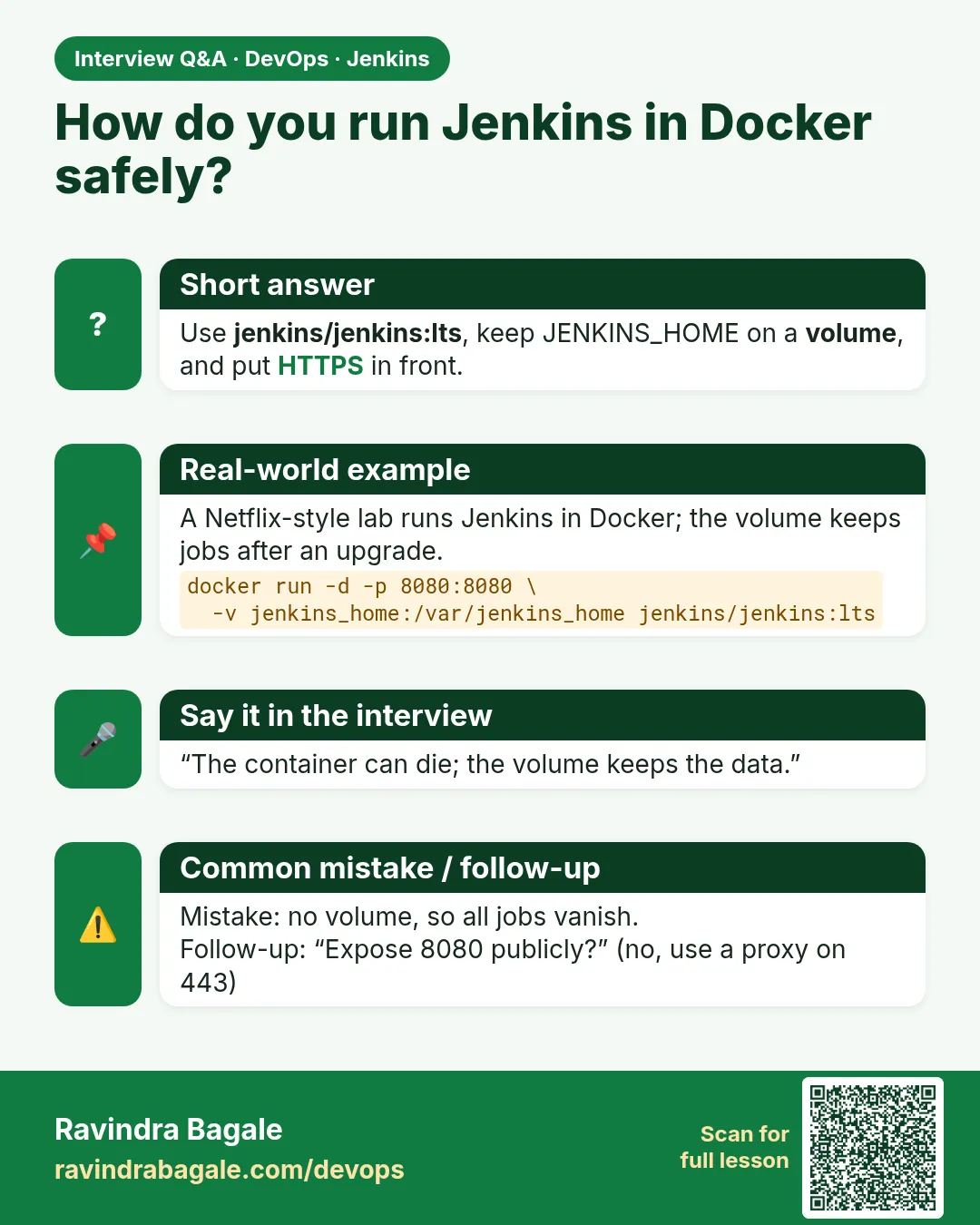
What to do: Run Jenkins LTS in Docker with a named volume.
- docker volume create jenkins_home
- docker run -d --name jenkins -p 8080:8080 -v jenkins_home:/var/jenkins_home jenkins/jenkins:lts-jdk17
- docker exec jenkins cat /var/jenkins_home/secrets/initialAdminPassword
Check: The Jenkins unlock page opens on localhost:8080.
Medium Break it on purpose
Why: You must know the red message by face. During an outage there is no time to read slowly.
What to do: Cause one error from the "When it is red" part of this lesson and fix it.
- Follow the error section.
- Copy the exact message into your notes.
- Write the fix in one line.
Check: You fixed it using only the steps, without searching the web.
Medium Write a one-page runbook
Why: At 2 a.m. nobody remembers where a file lives. A short page saves the on-call person.
What to do: Write a runbook page for this lesson.
- Title, when to use, exact command, how to check, how to undo.
Check: A teammate can follow it alone.
Medium Repeat it on a cloud VM
Why: A laptop is not a server. Real Jenkins runs on EC2 or a company VM.
What to do: Do the main steps of this lesson again on a small Ubuntu 22.04 EC2 instance.
- Launch t3.small with 20 GB disk.
- Open port 22 only to your IP.
- Repeat the steps and compare the output.
Check: Same green output on the VM as on your laptop.
Hard Explain it like an interview
Why: Interviewers want real stories, not definitions.
What to do: Record a 60 second answer about this lesson.
- Say the problem, the command you ran, and one error you hit.
Check: Your answer has a real command and a real error message.
Hard Draw the flow top to bottom
Why: A drawing shows who talks to whom and in what order.
What to do: Draw this lesson as boxes from top to bottom.
- Start at the developer push, go through the controller and agent, end at the result.
Check: Each box matches a real thing you saw on screen.
Homework: try at home
Try at home
At home, run Jenkins with Docker Compose behind nginx. Then add a second nginx server block for a fake domain in /etc/hosts and check that Jenkins builds links with your domain name, not localhost:8080.
Recap
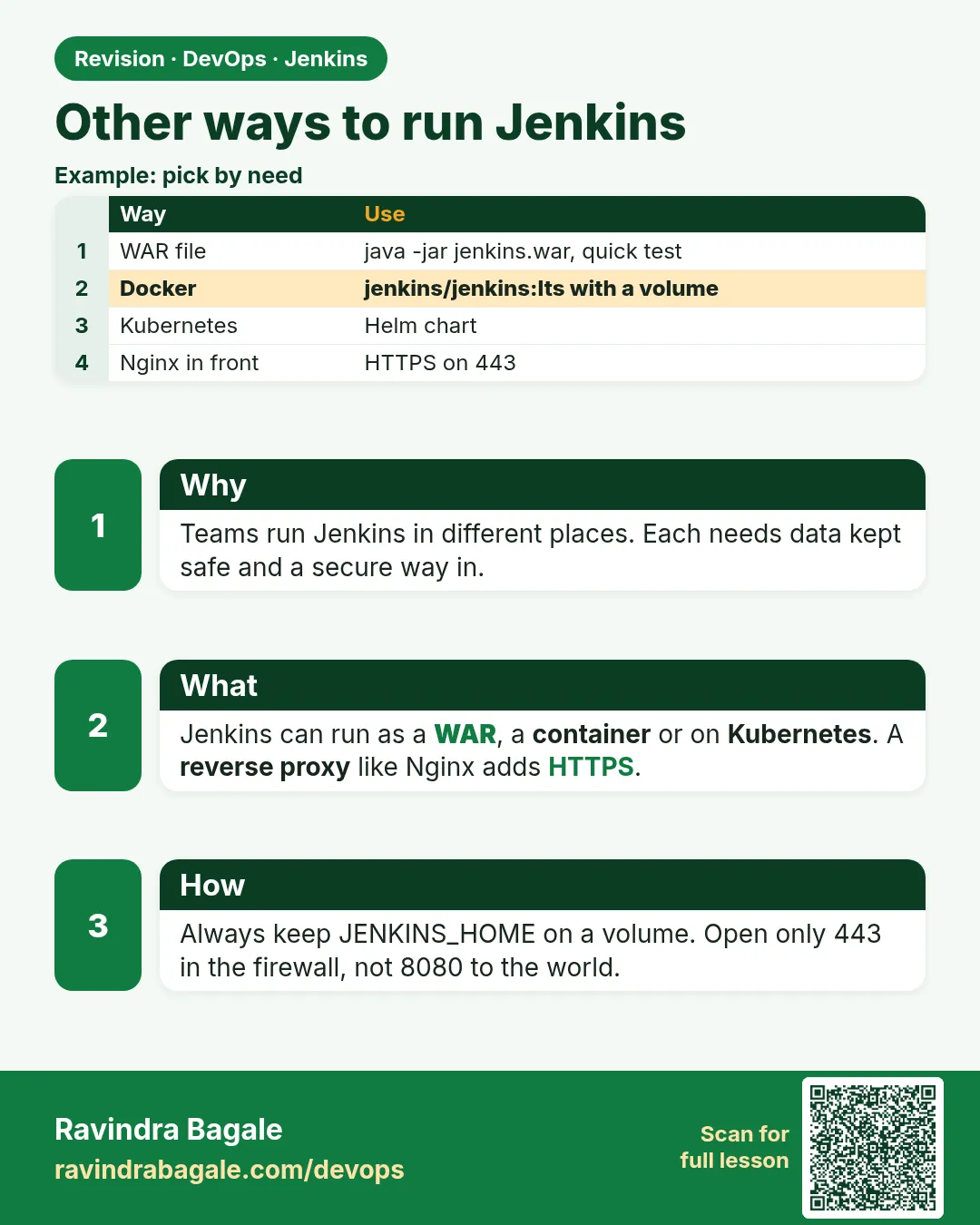
- WAR: quick demo. Docker Compose: small teams. Helm on Kubernetes: big teams with pod agents.
- Always keep JENKINS_HOME on a volume.
- Put nginx with HTTPS in front and keep 8080 private.
- Allow only 22, 80, 443 with ufw and security groups.
- Set the Jenkins URL to the public https address.
FAQ
Which install is best for production?
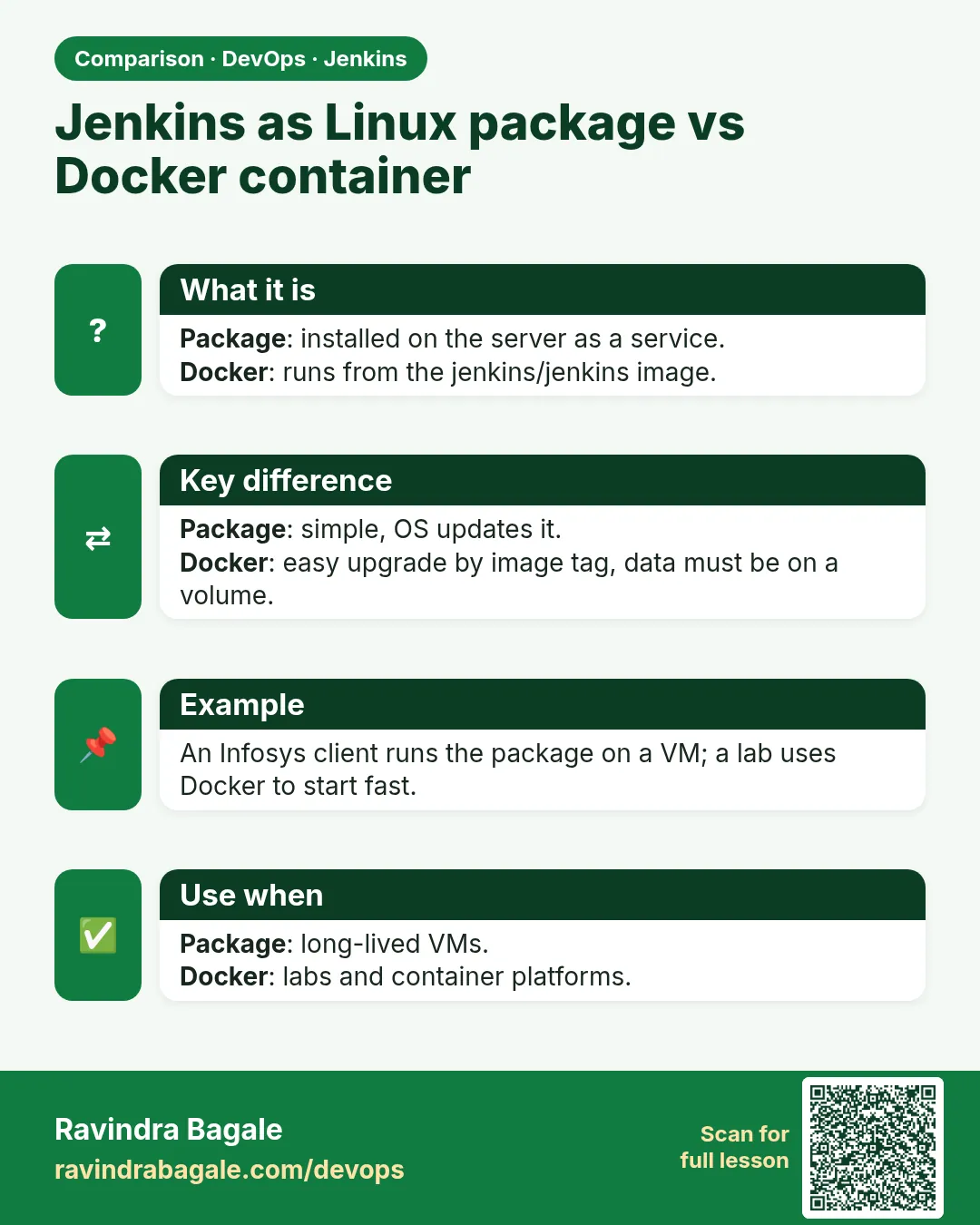
Package or Docker on a VM for most teams; Helm on Kubernetes if you already run Kubernetes well.
Can I skip nginx and use Jenkins HTTPS directly?
Possible, but nginx is easier for certificates and renewals.
Does certbot renew automatically?
Yes, a timer renews certificates before 90 days end.
Why a StatefulSet in Kubernetes?
Jenkins has one controller with its own disk; StatefulSet keeps the pod name and volume stable.
Can I run two controllers for high availability?
Open source Jenkins does not support active-active controllers. Use backups and fast restore.
Interview questions
-
What ways can you install Jenkins?
OS package, WAR file, Docker image, Docker Compose, Helm chart on Kubernetes, and cloud marketplace images.
-
How do you secure Jenkins on a VM?
HTTPS via nginx and Let us Encrypt, firewall to 22/80/443, Jenkins bound to localhost, login and roles, regular updates.
-
How does Jenkins on Kubernetes run builds?
The Kubernetes plugin creates an agent pod for each build and deletes it after.
-
What is a reverse proxy and why use it?
A server in front of Jenkins that handles TLS, domain names and headers, and hides port 8080.
-
How do you keep Jenkins data safe on Kubernetes?
Persistent volume for JENKINS_HOME, backups or snapshots, and config as code.
Quick quiz
Q1. Which way is fastest for a demo?
java -jar jenkins.war.
Q2. Why use expose instead of ports for Jenkins in Compose?
So 8080 is reachable only from nginx, not from outside.
Q3. What does the Helm chart create?
A StatefulSet, Service, volume and config for Jenkins.
Q4. Which ufw rule must come first?
Allow OpenSSH.
Q5. Which header tells Jenkins the user used HTTPS?
X-Forwarded-Proto.
Samajla ka?
 Revision card
 Interview card
 Comparison card