Chapter 23: Jenkins Fundamentals, Install and Architecture
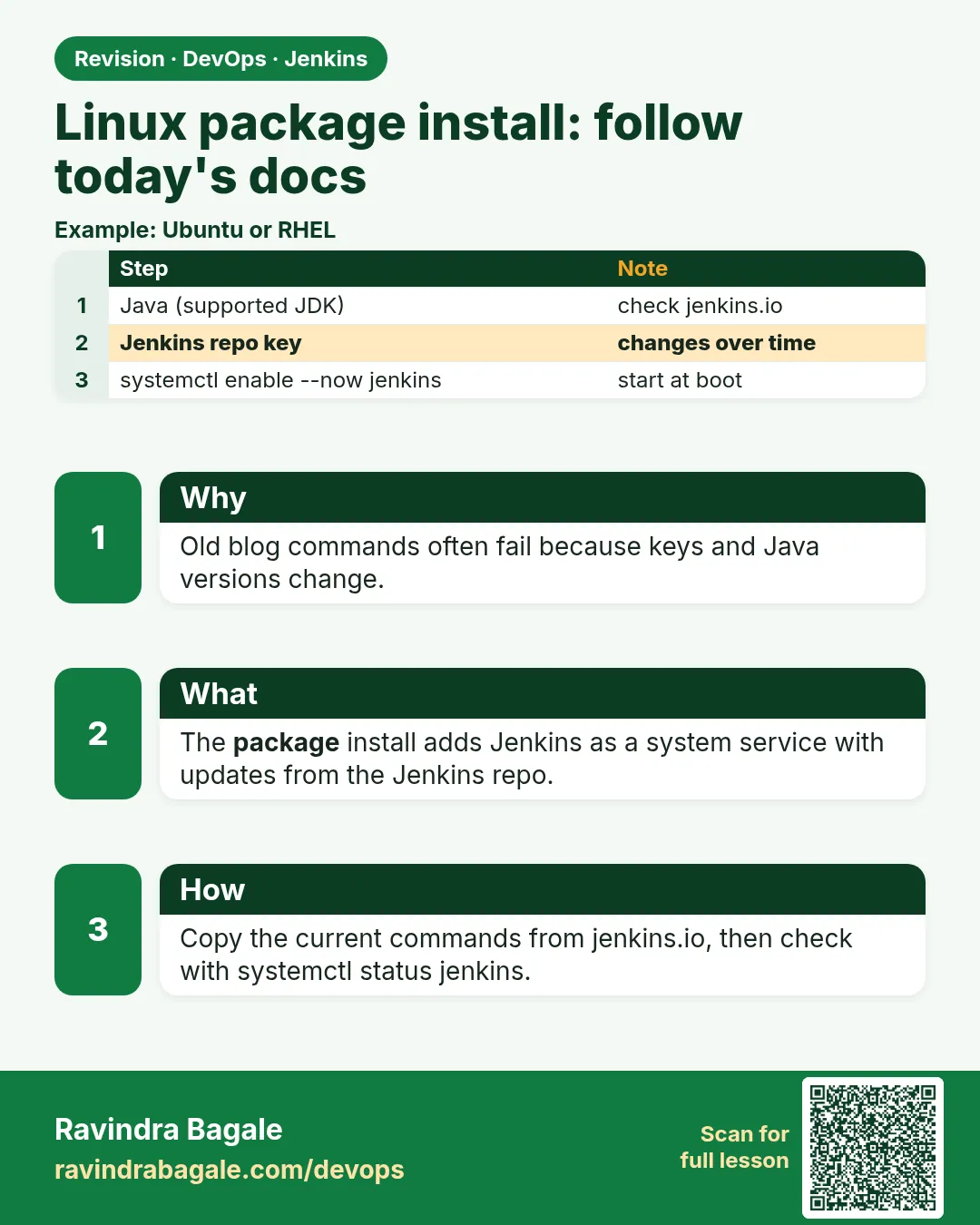
23.6 Linux package install — follow today's docs
Why: the problem
Think of a bank like HDFC. Its security team does not allow random Docker images on its servers. Jenkins must be installed from the official package, as a normal Linux service, so that patching, logging and monitoring follow the same rules as every other server. This is the most common way Jenkins runs in companies: a package on Ubuntu or Red Hat, started by systemd. The steps change a little every year. The signing key changes. The Java version changes. Old blog posts break. So the rule is: follow today's official docs at jenkins.io, and understand each step, so you can fix it when it breaks. In this lesson you will install Jenkins on Ubuntu 22.04 and on Amazon Linux 2023 or RHEL 9, run it as a service, change its port and memory, and read its logs.
What we will build
You will launch an Ubuntu 22.04 server (EC2 t3.medium or a local VM). You will install Java 17, add the Jenkins apt repository with its signing key, install the LTS package, and start the service. You will repeat the same on Amazon Linux 2023 with dnf. Then you will change the port and Java memory with a systemd override, read logs with journalctl, and upgrade Jenkins safely.
What: every term in plain English
- Package — A ready install file for Linux: .deb for Ubuntu, .rpm for Red Hat and Amazon Linux.
- Repository — A web server that holds packages. apt or dnf downloads from it.
- Signing key — A public key that proves the package really comes from Jenkins.
- LTS — Long Term Support. A stable Jenkins release every 12 weeks. Use it in companies.
- systemd — The Linux program that starts and watches services.
- Service — A program that runs in the background and starts on boot, like jenkins.service.
- journalctl — The command to read logs collected by systemd.
- Override — A small file that changes a service setting without editing the original.
How: step by step
-
Update and install Java 17
sudo apt update && sudo apt install -y fontconfig openjdk-17-jre && java -versionWhat it does: Jenkins needs Java 17 or 21.
Output
openjdk version "17.0.12" 2024-07-16 -
Add the Jenkins signing key
sudo wget -O /usr/share/keyrings/jenkins-keyring.asc https://pkg.jenkins.io/debian-stable/jenkins.io-2023.keyWhat it does: Downloads the key apt uses to check packages.
Output
saved [3175/3175] -
Add the repository
echo "deb [signed-by=/usr/share/keyrings/jenkins-keyring.asc] https://pkg.jenkins.io/debian-stable binary/" | sudo tee /etc/apt/sources.list.d/jenkins.listWhat it does: Tells apt where Jenkins LTS packages live.
Output
deb [signed-by=...] https://pkg.jenkins.io/debian-stable binary/ -
Install Jenkins
sudo apt update && sudo apt install -y jenkinsWhat it does: Installs the package and creates the jenkins user and service.
Output
Setting up jenkins (2.479.1) ... -
Start and enable
sudo systemctl enable --now jenkins && systemctl status jenkins --no-pager | head -5What it does: Starts now and on every boot.
Output
Active: active (running) since Sun 2026-10-25 11:02:10 IST -
Read the first password
sudo cat /var/lib/jenkins/secrets/initialAdminPasswordWhat it does: JENKINS_HOME for packages is /var/lib/jenkins.
Output
8d2f4a6c1e3b5d7f9a0b2c4d6e8f1a3b -
Open the port
Security group: allow TCP 8080 from your IP onlyWhat it does: Lets your browser reach Jenkins.
Output
http://EC2_PUBLIC_IP:8080 shows Unlock Jenkins
Example 1: One script that installs Jenkins LTS on a fresh Ubuntu 22
Stack. Ubuntu 22.04 on EC2 t3.medium, Jenkins LTS
Goal. One script that installs Jenkins LTS on a fresh Ubuntu 22.04 server.
install-jenkins-ubuntu.sh
#!/usr/bin/env bash
# Run as a sudo user on Ubuntu 22.04 or 24.04
set -euo pipefail
sudo apt-get update -y
sudo apt-get install -y fontconfig openjdk-17-jre curl
sudo curl -fsSL -o /usr/share/keyrings/jenkins-keyring.asc \
  https://pkg.jenkins.io/debian-stable/jenkins.io-2023.key
echo "deb [signed-by=/usr/share/keyrings/jenkins-keyring.asc] https://pkg.jenkins.io/debian-stable binary/" \
  | sudo tee /etc/apt/sources.list.d/jenkins.list
sudo apt-get update -y
sudo apt-get install -y jenkins
sudo systemctl enable --now jenkins
for i in $(seq 1 30); do
  code=$(curl -s -o /dev/null -w "%{http_code}" http://localhost:8080/login || true)
  [ "$code" = "200" ] || [ "$code" = "403" ] && break
  sleep 2
done
echo "Jenkins HTTP: $code"
sudo cat /var/lib/jenkins/secrets/initialAdminPassword
What each line does
openjdk-17-jre— Java runtime. Jenkins LTS needs Java 17 or 21.jenkins.io-2023.key— The current signing key. When Jenkins changes it, apt shows NO_PUBKEY and you download the new one.debian-stable— The LTS channel. Plain debian is the weekly channel; avoid it on servers.signed-by=— apt trusts this key only for this repository. This is the modern safe way.systemctl enable --now— Start now and at boot.for i in $(seq 1 30)— Wait up to 60 seconds for Jenkins to answer.
Green output
Setting up jenkins (2.479.1) ...
Created symlink /etc/systemd/system/multi-user.target.wants/jenkins.service
Jenkins HTTP: 403
8d2f4a6c1e3b5d7f9a0b2c4d6e8f1a3b
Expected result. Jenkins runs as a service. 403 is normal before setup: it means Jenkins is up and asking for login.
Example 2: Install on Amazon Linux 2023 or RHEL 9 with dnf
Stack. Amazon Linux 2023, Jenkins LTS
Goal. Install on Amazon Linux 2023 or RHEL 9 with dnf.
install-jenkins-al2023.sh
#!/usr/bin/env bash
set -euo pipefail
sudo dnf install -y java-17-amazon-corretto-headless wget
sudo wget -O /etc/yum.repos.d/jenkins.repo https://pkg.jenkins.io/redhat-stable/jenkins.repo
sudo rpm --import https://pkg.jenkins.io/redhat-stable/jenkins.io-2023.key
sudo dnf install -y jenkins
sudo systemctl daemon-reload
sudo systemctl enable --now jenkins
systemctl is-active jenkins
sudo firewall-cmd --permanent --add-port=8080/tcp 2>/dev/null && sudo firewall-cmd --reload || echo "firewalld not running (normal on EC2)"
What each line does
java-17-amazon-corretto-headless— Amazon build of Java 17. On RHEL use java-17-openjdk.jenkins.repo— The repo file for dnf, placed in /etc/yum.repos.d.rpm --import— Trusts the Jenkins signing key for rpm packages.daemon-reload— Tells systemd to read new service files.systemctl is-active— Prints active when it runs.firewall-cmd— Opens port 8080 in firewalld on RHEL. EC2 uses security groups instead.
Green output
Installed:
  jenkins-2.479.1-1.1.noarch
Created symlink /etc/systemd/system/multi-user.target.wants/jenkins.service
active
firewalld not running (normal on EC2)
Expected result. Same Jenkins, Red Hat family. Files: /var/lib/jenkins (home), /var/log or journalctl (logs), /usr/share/java/jenkins.war (program).
Example 3: Change the port and memory with a systemd override, then read logs
Stack. systemd, Ubuntu 22.04
Goal. Change the port and memory with a systemd override, then read logs.
override.conf (sudo systemctl edit jenkins)
[Service]
Environment="JENKINS_PORT=8090"
Environment="JAVA_OPTS=-Djava.awt.headless=true -Xms512m -Xmx2g"
Environment="JENKINS_LISTEN_ADDRESS=127.0.0.1"
apply.sh
sudo systemctl daemon-reload
sudo systemctl restart jenkins
sudo ss -ltnp | grep java
journalctl -u jenkins -n 20 --no-pager
What each line does
sudo systemctl edit jenkins— Opens an editor and saves the file in /etc/systemd/system/jenkins.service.d/override.conf.JENKINS_PORT=8090— Jenkins listens on 8090 instead of 8080.-Xms512m -Xmx2g— Start with 512 MB heap, grow up to 2 GB. Give about half of server RAM.JENKINS_LISTEN_ADDRESS=127.0.0.1— Listen only on the server itself. Use with nginx in front (lesson 23.7).ss -ltnp | grep java— Shows which port Java listens on.journalctl -u jenkins -n 20— Last 20 log lines of the Jenkins service.
Green output
LISTEN 0 50 [::ffff:127.0.0.1]:8090  *:*  users:(("java",pid=21877,fd=8))
Oct 25 11:20:41 ip-10-0-1-15 jenkins[21877]: INFO  jenkins.InitReactorRunner$1#onAttained: Completed initialization
Oct 25 11:20:42 ip-10-0-1-15 jenkins[21877]: INFO  hudson.lifecycle.Lifecycle#onReady: Jenkins is fully up and running
Expected result. Jenkins now runs on 127.0.0.1:8090 with 2 GB max heap. Never edit /lib/systemd/system/jenkins.service directly; upgrades overwrite it.
Verify: did it work?
-
Service is enabled
systemctl is-enabled jenkins && systemctl is-active jenkinsWhat it does: Both lines must be good.
Output
enabled active -
Version check
curl -sI http://localhost:8080/login | grep -i x-jenkinsWhat it does: Jenkins sends its version in a header.
Output
X-Jenkins: 2.479.1 -
Safe upgrade
sudo apt-get update && apt-cache policy jenkins && sudo apt-get install --only-upgrade -y jenkinsWhat it does: Shows the new version, then upgrades only Jenkins.
Output
Installed: 2.479.1
Candidate: 2.479.2
When it is red 1
NO_PUBKEY 5BA31D57EF5975CA
Cause. The Jenkins signing key changed, or the key file is old.
Fix, step by step
- Download the current key from the Jenkins Linux install page into /usr/share/keyrings.
- Run sudo apt update again.
When it is red 2
jenkins.service: Main process exited, code=exited, status=1/FAILURE
Running with Java 11 ... which is older than the minimum required version (Java 17)
Cause. Old Java version is the default.
Fix, step by step
- Install openjdk-17-jre.
- Run sudo update-alternatives --config java and pick 17.
- Restart jenkins.
When it is red 3
Job for jenkins.service failed because a timeout was exceeded.
Cause. Jenkins took too long to start, often on a small t2.micro with 1 GB RAM.
Fix, step by step
- Use at least 2 GB RAM (t3.small or bigger).
- Check journalctl -u jenkins for OutOfMemoryError.
- Add swap on a lab VM.
Cleanup
-
Remove a lab install
sudo systemctl disable --now jenkins && sudo apt-get purge -y jenkinsWhat it does: Removes the package. /var/lib/jenkins stays unless you delete it.
Output
Removing jenkins (2.479.1) ... -
Stop the EC2 lab
Terminate the instance in the EC2 consoleWhat it does: Stops the cost.
Output
instance-state: terminated
Ravindra Bagale's Tip
Juna blog copy karu naka; aajche jenkins.io docs vacha. Upgrade aadhi backup ghya. Lakshat theva!
Practice tasks
Easy Find the files
Why: Knowing where things live saves time.
What to do: Find the war file, home folder and service file.
- dpkg -L jenkins | head
- systemctl cat jenkins
Check: Three paths written down.
Medium Add swap on a small VM
Why: Small labs crash at start.
What to do: Add a 2 GB swap file and restart Jenkins.
- fallocate, mkswap, swapon.
- free -m.
Check: free -m shows swap.
Hard Automate with Ansible
Why: Ten servers by hand is slow.
What to do: Turn install-jenkins-ubuntu.sh into an Ansible playbook.
- Use apt_key or get_url, apt_repository, apt, systemd modules.
Check: One command installs Jenkins on a new VM.
Easy Say installing Jenkins as a package in two lines
Why: If you can say it simply, you understand it. Juniors and interviewers want the short version first.
What to do: Write two short lines about installing Jenkins as a package for a fresher who knows only Linux basics.
- Write what problem it solves.
- Write the one command or menu you use for it.
- Read it aloud to a friend.
Check: A fresher understands it without asking a question.
Easy Start a fresh lab Jenkins
Why: Practice needs a throwaway Jenkins. If you break it, you delete it and start again.
What to do: Run Jenkins LTS in Docker with a named volume.
- docker volume create jenkins_home
- docker run -d --name jenkins -p 8080:8080 -v jenkins_home:/var/jenkins_home jenkins/jenkins:lts-jdk17
- docker exec jenkins cat /var/jenkins_home/secrets/initialAdminPassword
Check: The Jenkins unlock page opens on localhost:8080.
Medium Break it on purpose
Why: You must know the red message by face. During an outage there is no time to read slowly.
What to do: Cause one error from the "When it is red" part of this lesson and fix it.
- Follow the error section.
- Copy the exact message into your notes.
- Write the fix in one line.
Check: You fixed it using only the steps, without searching the web.
Medium Write a one-page runbook
Why: At 2 a.m. nobody remembers where a file lives. A short page saves the on-call person.
What to do: Write a runbook page for this lesson.
- Title, when to use, exact command, how to check, how to undo.
Check: A teammate can follow it alone.
Medium Repeat it on a cloud VM
Why: A laptop is not a server. Real Jenkins runs on EC2 or a company VM.
What to do: Do the main steps of this lesson again on a small Ubuntu 22.04 EC2 instance.
- Launch t3.small with 20 GB disk.
- Open port 22 only to your IP.
- Repeat the steps and compare the output.
Check: Same green output on the VM as on your laptop.
Hard Explain it like an interview
Why: Interviewers want real stories, not definitions.
What to do: Record a 60 second answer about this lesson.
- Say the problem, the command you ran, and one error you hit.
Check: Your answer has a real command and a real error message.
Hard Draw the flow top to bottom
Why: A drawing shows who talks to whom and in what order.
What to do: Draw this lesson as boxes from top to bottom.
- Start at the developer push, go through the controller and agent, end at the result.
Check: Each box matches a real thing you saw on screen.
Homework: try at home
Try at home
At home, install Jenkins with the package on a VM, then upgrade it one LTS version with apt-get install --only-upgrade. Before the upgrade, take a backup of /var/lib/jenkins. Write the version before and after.
Recap
- Companies often install Jenkins from the official package as a systemd service.
- Use the LTS (stable) repo and the current signing key.
- Java 17 or 21 is required.
- Change port and memory with systemctl edit, not the original file.
- Read logs with journalctl -u jenkins; upgrade with --only-upgrade after a backup.
FAQ
apt or Docker for Jenkins?
Both work. Package is simpler for companies with VM rules; Docker is easier to move and test.
Can I use Java 21?
Yes, current LTS supports 17 and 21.
Why is my old blog command failing?
Keys and URLs changed. Always check the Linux page on jenkins.io.
Is t2.micro enough?
No. Use at least 2 GB RAM; 4 GB is better.
How often should I upgrade?
Every LTS release, about every 12 weeks, after a backup.
Interview questions
-
How do you install Jenkins on Ubuntu?
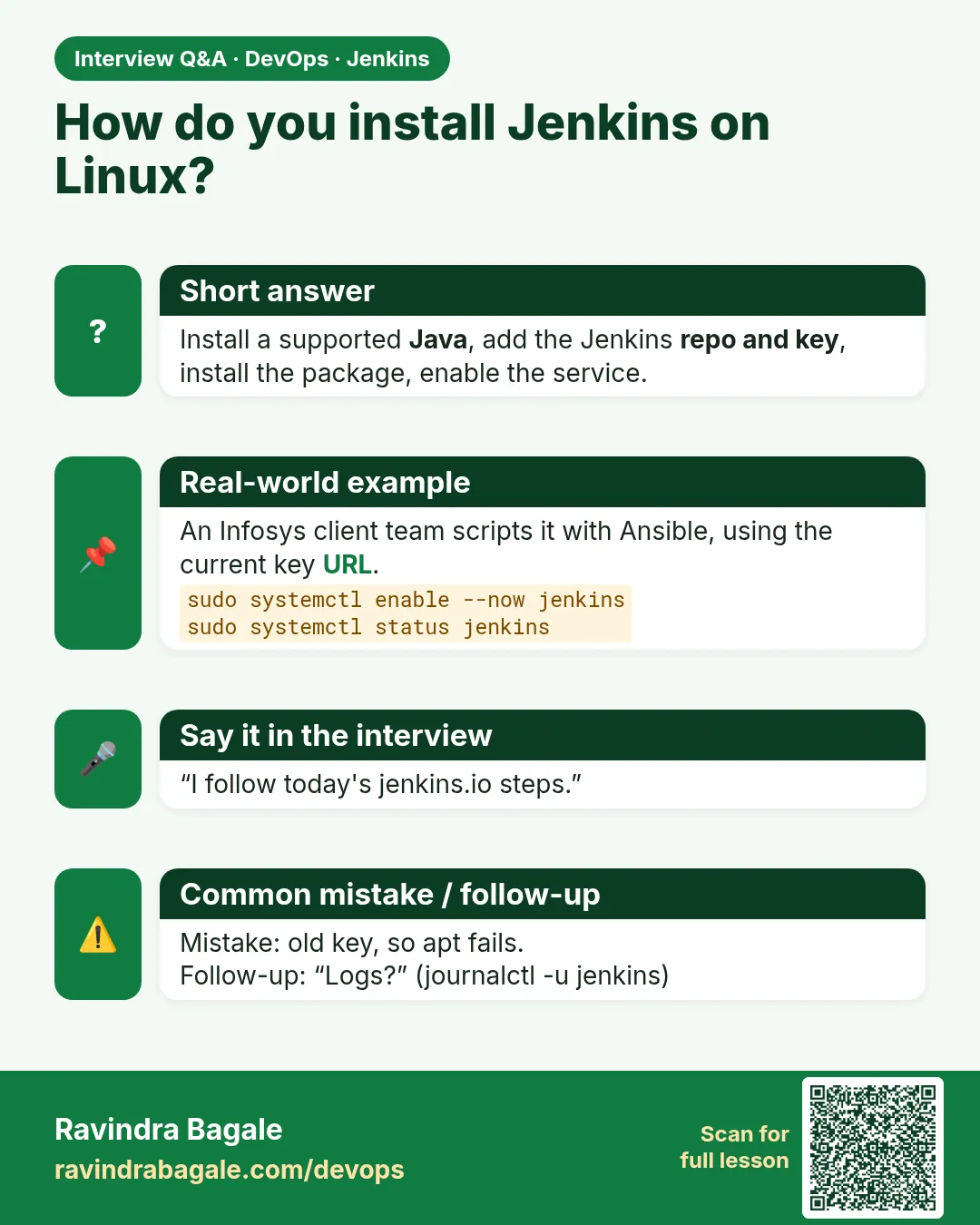
Install Java 17, add the Jenkins signing key and stable repository, apt install jenkins, enable the service, read the initial admin password.
-
How do you change the Jenkins port?
With a systemd override setting JENKINS_PORT, then daemon-reload and restart.
-
Where are Jenkins logs on a package install?
In the systemd journal: journalctl -u jenkins.
-
LTS vs weekly?
LTS is a stable line every 12 weeks with backported fixes. Weekly has new features and is for testing.
-
Jenkins fails to start after an OS update. What do you check?
journalctl for errors, Java version, disk space, memory and ownership of /var/lib/jenkins.
Quick quiz
Q1. Where is JENKINS_HOME for package installs?
/var/lib/jenkins.
Q2. Which repo channel is for servers?
debian-stable or redhat-stable (LTS).
Q3. How do you read Jenkins service logs?
journalctl -u jenkins.
Q4. How do you change the port safely?
systemctl edit jenkins and set JENKINS_PORT.
Q5. Which Java version does current LTS need?
17 or 21.
Samajla ka?
 Revision card
 Interview card