Chapter 23: Jenkins Fundamentals, Install and Architecture
23.2 Integration, delivery, deployment
Why: the problem
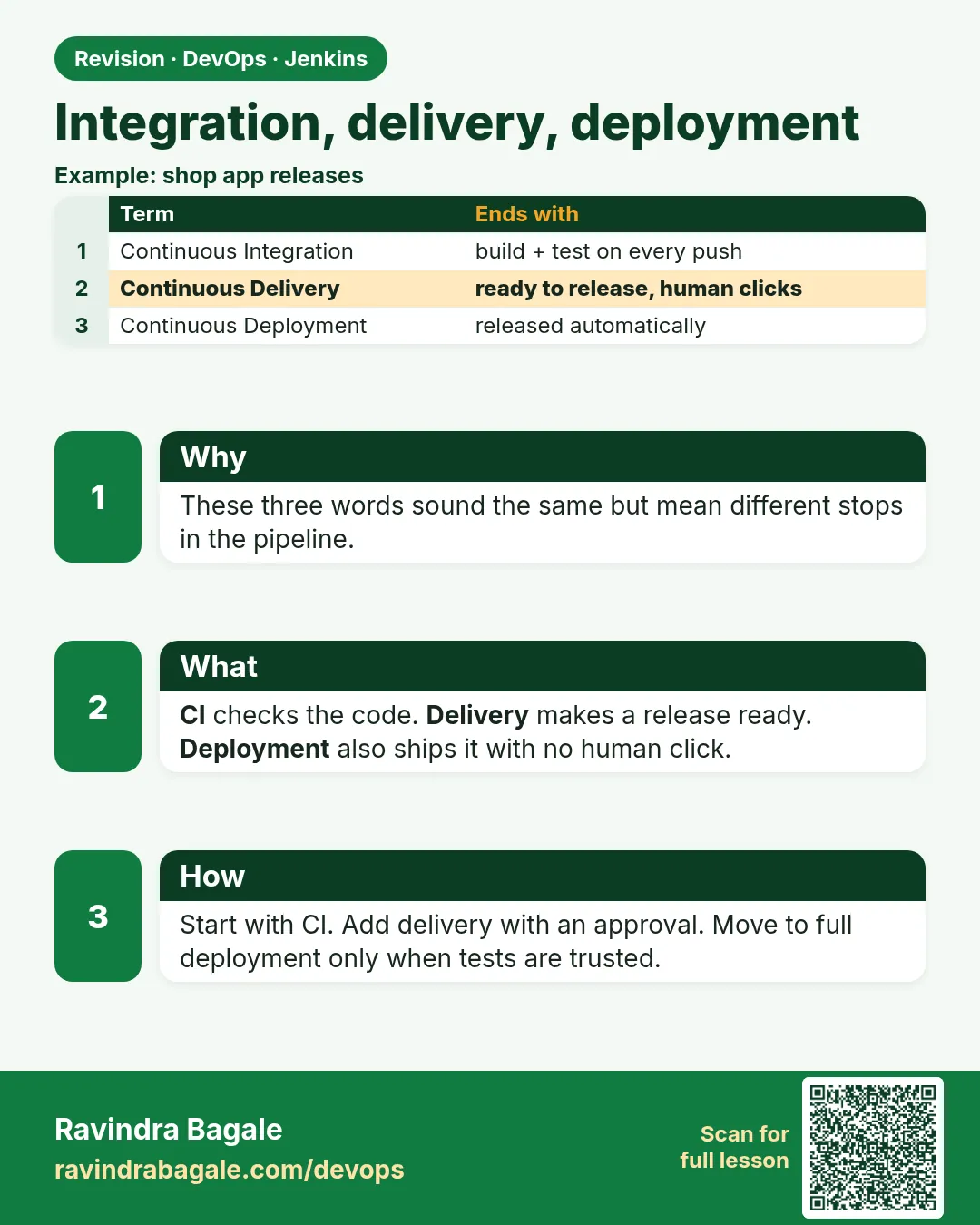
Think of Zomato. A developer fixes a bug in the payment page. Three questions come next. One: does the new code still pass all tests when it is joined with everyone else's code? Two: is there a ready, tested package that we could put live at any time? Three: does it go live by itself, or does a person press a button? These three questions have three names. Continuous Integration (CI) answers the first one. Continuous Delivery answers the second. Continuous Deployment answers the third. People mix these words up all the time, even in job interviews. The difference is not theory. It decides how your Jenkinsfile looks. A CI pipeline stops after tests. A delivery pipeline builds a package and waits for a person to approve. A deployment pipeline pushes to production with no human click. In this lesson you will write all three for the same small Python app, so you can see the difference line by line.
What we will build
You will take one small Flask app with two tests. You will write three Jenkinsfiles. The first runs tests on every push (CI). The second also builds a Docker image, pushes it to a registry, and stops at an approval button (Continuous Delivery). The third deploys to a staging server over SSH with no button, and checks a health URL (Continuous Deployment). You will compare the Stage View of all three.
What: every term in plain English
- Integration — Joining your code with the main branch that everyone else uses.
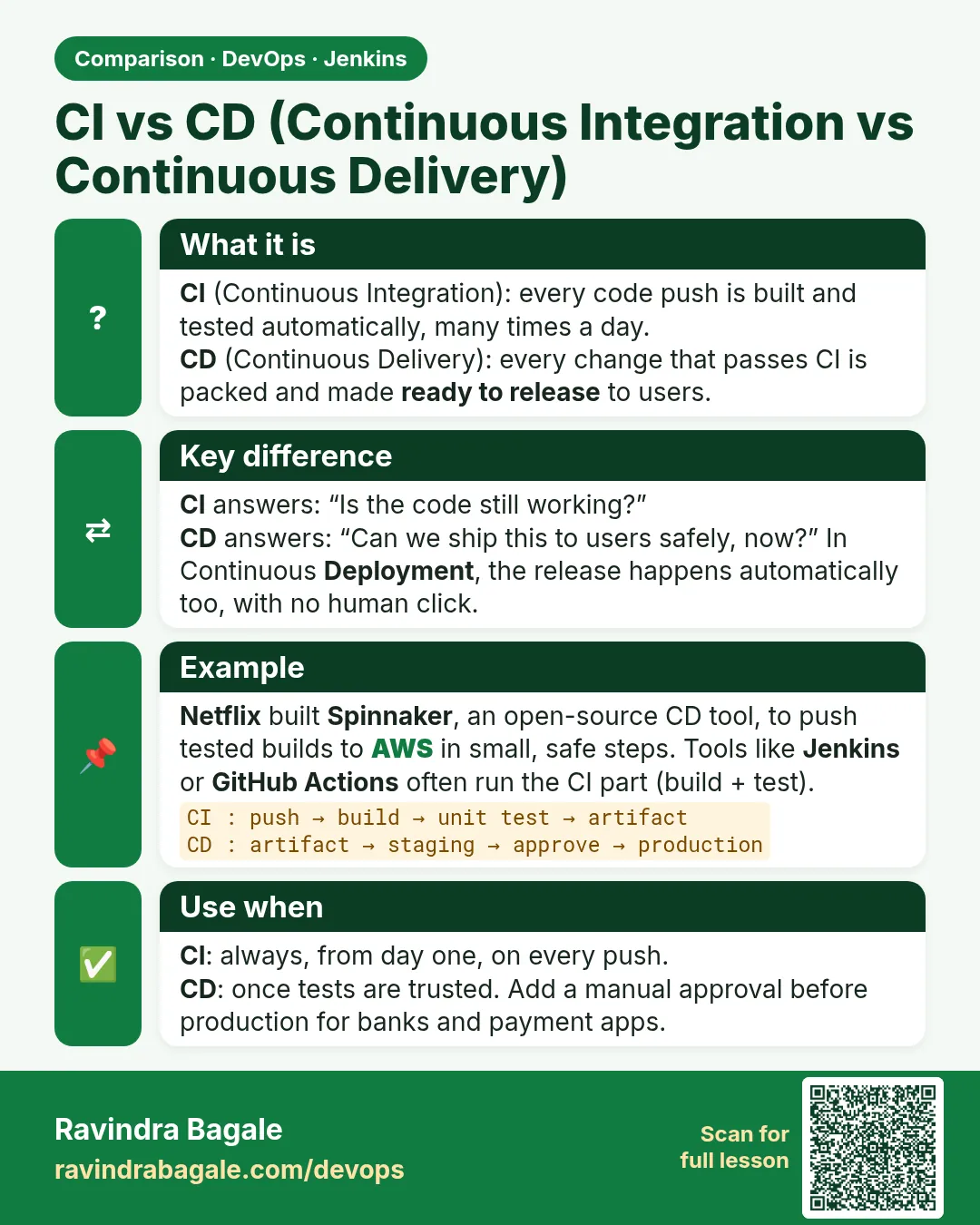
- Continuous Integration (CI) — Every push is built and tested automatically, many times a day.
- Continuous Delivery — Every green build makes a ready package. A person decides when it goes live.
- Continuous Deployment — Every green build goes live by itself, with no human click.
- Artifact — The output of a build, like a jar, a zip, or a Docker image.
- Approval gate — A pause in the pipeline where a person must click Proceed. In Jenkins it is the input step.
- Staging — A copy of production used for final checks before going live.
- Health check — A URL like /health that returns OK when the app is working.
How: step by step
-
Get the sample app
git clone https://gitlab.com/ravi-lab/flask-hello.git && cd flask-hello && lsWhat it does: A Flask app with app.py, test_app.py and requirements.txt.
Output
Dockerfile Jenkinsfile.ci Jenkinsfile.cd Jenkinsfile.deploy app.py requirements.txt test_app.py -
Run the tests locally first
python3 -m venv .venv && . .venv/bin/activate && pip install -r requirements.txt && pytest -qWhat it does: If it is red on your laptop, it will be red in Jenkins too.
Output
.. [100%] 2 passed in 0.31s -
Create the CI job
New Item > flask-ci > Pipeline > Pipeline script from SCM > Git > Script Path: Jenkinsfile.ciWhat it does: Jenkins reads the Jenkinsfile from Git, not from a text box.
Output
Saved -
Create the delivery job
New Item > flask-cd > Pipeline script from SCM > Script Path: Jenkinsfile.cdWhat it does: Same repo, different Jenkinsfile.
Output
Saved -
Add registry credentials
Manage Jenkins > Credentials > System > Global > Add > Username with password > ID: dockerhubWhat it does: Lets Jenkins push images without a password in the file.
Output
Credential dockerhub created -
Create the deployment job
New Item > flask-deploy > Script Path: Jenkinsfile.deployWhat it does: The fully automatic version.
Output
Saved -
Run all three and compare
Build Now on each job, then open Stage ViewWhat it does: You see where each one stops.
Output
flask-ci: 2 stages | flask-cd: 4 stages, paused | flask-deploy: 5 stages, done
Example 1: CI only: test every push, nothing more
Stack. Jenkins, Docker agent, Python 3.12, pytest
Goal. CI only: test every push, nothing more.
Jenkinsfile.ci
pipeline {
  agent { docker { image 'python:3.12-slim' } }
  stages {
    stage('Install') {
      steps { sh 'pip install --no-cache-dir -r requirements.txt' }
    }
    stage('Test') {
      steps { sh 'pytest -q --junitxml=report.xml' }
      post { always { junit 'report.xml' } }
    }
  }
}
What each line does
agent { docker { image 'python:3.12-slim' } }— Runs every step inside a fresh Python container. Needs the Docker Pipeline plugin and Docker on the agent.pip install --no-cache-dir— Installs packages without keeping a cache, so the container stays small.pytest -q --junitxml=report.xml— Runs tests quietly and writes results in JUnit XML format.junit 'report.xml'— Jenkins reads the XML and shows a test trend graph on the job page.post { always { } }— Publish results even when tests fail. That is when you need them most.
Green output
[Pipeline] stage (Install)
+ pip install --no-cache-dir -r requirements.txt
Successfully installed Flask-3.0.3 pytest-8.3.2 ...
[Pipeline] stage (Test)
+ pytest -q --junitxml=report.xml
..                                         [100%]
2 passed in 0.28s
Recording test results
Finished: SUCCESS
Expected result. Two green stages and a Test Result link showing 2 passed. This is CI: fast feedback, no package, no deploy.
Example 2: Continuous Delivery: build and push an image, then wait for a human
Stack. Jenkins, Docker, Docker Hub
Goal. Continuous Delivery: build and push an image, then wait for a human.
Jenkinsfile.cd
pipeline {
  agent any
  environment { IMAGE = "ravilab/flask-hello:${BUILD_NUMBER}" }
  stages {
    stage('Test') {
      agent { docker { image 'python:3.12-slim' } }
      steps { sh 'pip install -r requirements.txt && pytest -q' }
    }
    stage('Build image') {
      steps { sh 'docker build -t $IMAGE .' }
    }
    stage('Push image') {
      steps {
        withCredentials([usernamePassword(credentialsId: 'dockerhub', usernameVariable: 'U', passwordVariable: 'P')]) {
          sh 'echo "$P" | docker login -u "$U" --password-stdin'
          sh 'docker push $IMAGE'
        }
      }
    }
    stage('Approve release') {
      steps {
        timeout(time: 1, unit: 'HOURS') {
          input message: "Release ${IMAGE} to production?", ok: 'Release'
        }
      }
    }
  }
}
What each line does
environment { IMAGE = ... }— One variable for the image name and tag. The build number makes each tag unique.docker build -t $IMAGE .— Builds the image from the Dockerfile in the repo.withCredentials([usernamePassword(...)])— Takes the saved login and puts it in U and P only inside this block. Jenkins hides the values in logs.docker login --password-stdin— Reads the password from a pipe, so it never appears in the process list.input message: ...— Pauses the pipeline and shows a Release button to people with permission.timeout(time: 1, unit: HOURS)— If nobody clicks in one hour, the build stops instead of waiting forever.
Green output
[Pipeline] stage (Build image)
+ docker build -t ravilab/flask-hello:7 .
Successfully tagged ravilab/flask-hello:7
[Pipeline] stage (Push image)
+ docker login -u ravilab --password-stdin
Login Succeeded
+ docker push ravilab/flask-hello:7
7: digest: sha256:4b1e... size: 1573
[Pipeline] stage (Approve release)
Release ravilab/flask-hello:7 to production?
Release or Abort
Input requested
Expected result. The job shows a paused stage with Release and Abort buttons. The image is ready in the registry. A person decides the time. That is delivery.
Example 3: Continuous Deployment: deploy to staging automatically and check health
Stack. Jenkins, Docker, SSH Agent plugin, Ubuntu 22.04 server
Goal. Continuous Deployment: deploy to staging automatically and check health.
Jenkinsfile.deploy
pipeline {
  agent any
  environment {
    IMAGE  = "ravilab/flask-hello:${BUILD_NUMBER}"
    SERVER = "ubuntu@10.0.1.25"
  }
  stages {
    stage('Test')  { steps { sh 'docker run --rm -v "$PWD":/app -w /app python:3.12-slim sh -c "pip install -q -r requirements.txt && pytest -q"' } }
    stage('Build') { steps { sh 'docker build -t $IMAGE .' } }
    stage('Push') {
      steps {
        withCredentials([usernamePassword(credentialsId: 'dockerhub', usernameVariable: 'U', passwordVariable: 'P')]) {
          sh 'echo "$P" | docker login -u "$U" --password-stdin && docker push $IMAGE'
        }
      }
    }
    stage('Deploy staging') {
      steps {
        sshagent(['staging-ssh']) {
          sh 'ssh -o StrictHostKeyChecking=accept-new $SERVER "docker pull $IMAGE && docker rm -f web || true && docker run -d --name web -p 80:5000 --restart unless-stopped $IMAGE"'
        }
      }
    }
    stage('Health check') {
      steps {
        retry(5) { sleep 3; sh 'curl -fsS http://10.0.1.25/health' }
      }
    }
  }
}
What each line does
SERVER = "ubuntu@10.0.1.25"— The staging server user and private IP address.sshagent(['staging-ssh'])— Loads the SSH private key saved in Jenkins with id staging-ssh. Needs the SSH Agent plugin.StrictHostKeyChecking=accept-new— Trusts the server key the first time and refuses if it changes later.docker rm -f web || true— Removes the old container. || true means do not fail if it does not exist yet.--restart unless-stopped— Docker starts the app again after a server reboot.retry(5) { sleep 3; curl -fsS ... }— Tries the health URL up to 5 times, 3 seconds apart. -f makes curl fail on HTTP errors.
Green output
[Pipeline] stage (Deploy staging)
+ ssh ubuntu@10.0.1.25 docker pull ravilab/flask-hello:8 ...
8: Pulling from ravilab/flask-hello
Status: Downloaded newer image for ravilab/flask-hello:8
3a7c9e1d2f4b
[Pipeline] stage (Health check)
+ curl -fsS http://10.0.1.25/health
{"status":"ok","version":"8"}
Finished: SUCCESS
Expected result. No button anywhere. A push to main ends with version 8 running on staging. Big companies like Amazon and Netflix deploy this way many times a day, with strong tests and fast rollback.
Verify: did it work?
-
CI job has test results
curl -s -u ravi:$JENKINS_TOKEN http://localhost:8080/job/flask-ci/lastBuild/testReport/api/json?tree=passCount,failCountWhat it does: Reads the test counts.
Output
{"failCount":0,"passCount":2} -
Delivery job is waiting
curl -s -u ravi:$JENKINS_TOKEN http://localhost:8080/job/flask-cd/lastBuild/api/json?tree=building,resultWhat it does: building true and result null means it waits at input.
Output
{"building":true,"result":null} -
Staging runs the new tag
ssh ubuntu@10.0.1.25 docker ps --format "{{.Image}} {{.Status}}"What it does: Shows which image runs now.
Output
ravilab/flask-hello:8 Up 2 minutes
When it is red 1
denied: requested access to the resource is denied
Cause. The image name does not start with your Docker Hub username, or login failed.
Fix, step by step
- Check the IMAGE name: it must be yourname/app.
- Check the dockerhub credential username.
- Run docker login by hand on the agent to test.
When it is red 2
Host key verification failed.
Cause. The agent has never seen the server SSH key and strict checking blocked it.
Fix, step by step
- Add -o StrictHostKeyChecking=accept-new once.
- Or add the key to known_hosts on the agent with ssh-keyscan.
- Run the build again.
When it is red 3
curl: (7) Failed to connect to 10.0.1.25 port 80: Connection refused
Cause. The app container did not start, or the security group blocks port 80.
Fix, step by step
- ssh to the server and run docker logs web.
- Check the security group allows port 80 from the Jenkins IP.
- Raise retry to 10 if the app starts slowly.
Cleanup
-
Abort the waiting delivery build
Open flask-cd > paused stage > AbortWhat it does: Stops the build at the approval gate.
Output
Aborted by ravi -
Stop staging app
ssh ubuntu@10.0.1.25 docker rm -f webWhat it does: Removes the test container from staging.
Output
web
Ravindra Bagale's Tip
CI mhanje test, Delivery mhanje tayar package ani button, Deployment mhanje button nahi. Interview madhe farak spashta sanga. Dhyan dya!
Practice tasks
Easy Label the three pipelines
Why: Naming them right is half the interview.
What to do: Write CI, Delivery or Deployment next to each Jenkinsfile.
- Read each file.
- Find the last stage.
- Write the label.
Check: All three labels are right.
Medium Add submitter to input
Why: Not everyone should release.
What to do: Add submitter: 'release-managers' to the input step.
- Create the group or user.
- Edit Jenkinsfile.cd.
- Try to click Release as dev1.
Check: dev1 cannot release; the release manager can.
Hard Add automatic rollback
Why: Deployment needs a fast way back.
What to do: If the health check fails, run the previous tag again.
- Save the old tag before deploy.
- Add post { failure { } } that runs the old tag.
- Break /health on purpose.
Check: The old version runs again after a failed deploy.
Easy Say CI vs delivery vs deployment in two lines
Why: If you can say it simply, you understand it. Juniors and interviewers want the short version first.
What to do: Write two short lines about CI vs delivery vs deployment for a fresher who knows only Linux basics.
- Write what problem it solves.
- Write the one command or menu you use for it.
- Read it aloud to a friend.
Check: A fresher understands it without asking a question.
Easy Start a fresh lab Jenkins
Why: Practice needs a throwaway Jenkins. If you break it, you delete it and start again.
What to do: Run Jenkins LTS in Docker with a named volume.
- docker volume create jenkins_home
- docker run -d --name jenkins -p 8080:8080 -v jenkins_home:/var/jenkins_home jenkins/jenkins:lts-jdk17
- docker exec jenkins cat /var/jenkins_home/secrets/initialAdminPassword
Check: The Jenkins unlock page opens on localhost:8080.
Medium Break it on purpose
Why: You must know the red message by face. During an outage there is no time to read slowly.
What to do: Cause one error from the "When it is red" part of this lesson and fix it.
- Follow the error section.
- Copy the exact message into your notes.
- Write the fix in one line.
Check: You fixed it using only the steps, without searching the web.
Medium Write a one-page runbook
Why: At 2 a.m. nobody remembers where a file lives. A short page saves the on-call person.
What to do: Write a runbook page for this lesson.
- Title, when to use, exact command, how to check, how to undo.
Check: A teammate can follow it alone.
Medium Repeat it on a cloud VM
Why: A laptop is not a server. Real Jenkins runs on EC2 or a company VM.
What to do: Do the main steps of this lesson again on a small Ubuntu 22.04 EC2 instance.
- Launch t3.small with 20 GB disk.
- Open port 22 only to your IP.
- Repeat the steps and compare the output.
Check: Same green output on the VM as on your laptop.
Hard Explain it like an interview
Why: Interviewers want real stories, not definitions.
What to do: Record a 60 second answer about this lesson.
- Say the problem, the command you ran, and one error you hit.
Check: Your answer has a real command and a real error message.
Hard Draw the flow top to bottom
Why: A drawing shows who talks to whom and in what order.
What to do: Draw this lesson as boxes from top to bottom.
- Start at the developer push, go through the controller and agent, end at the result.
Check: Each box matches a real thing you saw on screen.
Homework: try at home
Try at home
At home, draw your own team (or an imaginary one) and decide: should you stop at CI, at delivery, or go to full deployment? Write three reasons. Then change Jenkinsfile.cd so only users in the release-managers group can click Release using submitter.
Recap
- CI means every push is built and tested.
- Continuous Delivery adds a ready artifact and a human approval.
- Continuous Deployment removes the human click.
- In Jenkins the difference is visible: the input step marks delivery.
- Deployment needs good tests, health checks and fast rollback.
FAQ
Can a company use CI without CD?
Yes. Many start with only CI. It already catches most bugs early.
Is continuous deployment risky?
Only without good tests. Teams add health checks, canary releases and quick rollback.
What is "CD" in CI/CD?
It can mean delivery or deployment. Always ask which one.
Where should the approval happen?
After the artifact is built and tested, just before production.
Does Jenkins do deployment by itself?
Jenkins runs the deploy commands. The real work is done by tools like ssh, kubectl, Helm or Ansible.
Interview questions
-
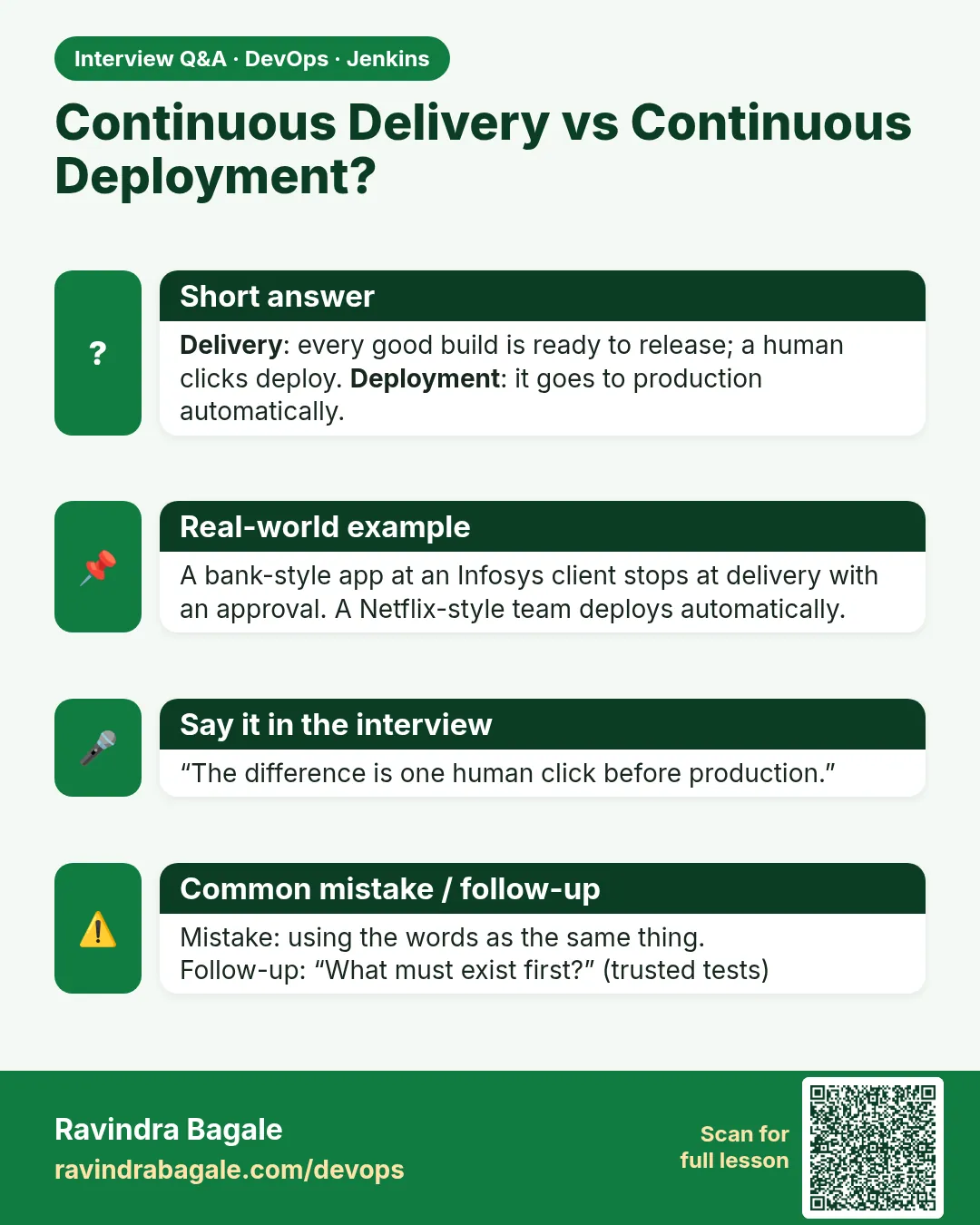
Explain CI, continuous delivery and continuous deployment.
CI builds and tests every change. Continuous delivery also produces a deployable artifact for every green build, released by a human. Continuous deployment releases every green build automatically.
-
How do you add manual approval in Jenkins?
With the input step inside a timeout, and submitter set to the allowed group.
-
How do you keep registry passwords out of a Jenkinsfile?
Save them as Jenkins credentials and use withCredentials or the docker.withRegistry step.
-
How would you verify a deployment?
Run a health check with retry, and smoke tests on key URLs. Fail the build and roll back if it fails.
-
What makes continuous deployment safe?
Automated tests, small changes, health checks, monitoring, feature flags and one-command rollback.
Quick quiz
Q1. Which practice stops after tests?
Continuous Integration.
Q2. What makes delivery different from deployment?
Delivery waits for a human approval; deployment goes live automatically.
Q3. Which Jenkins step creates an approval button?
input.
Q4. Why use the build number in the image tag?
Each build gets a unique, traceable tag.
Q5. Why retry the health check?
The app needs a few seconds to start after deploy.
Samajla ka?
 Revision card
 Interview card
 Comparison card