Excel TEXTBEFORE Function
Chala mitrano — tEXTBEFORE keeps the part before a marker. Email before @, SKU before dash — clear and modern.
चला मित्रांनो — TEXTBEFORE marker च्या आधीचा भाग ठेवते. @ आधी email, dash आधी SKU — स्पष्ट आणि आधुनिक.
चलो दोस्तों — TEXTBEFORE marker से पहले का भाग रखता है. @ से पहले email, dash से पहले SKU — साफ़ और आधुनिक.
Purpose
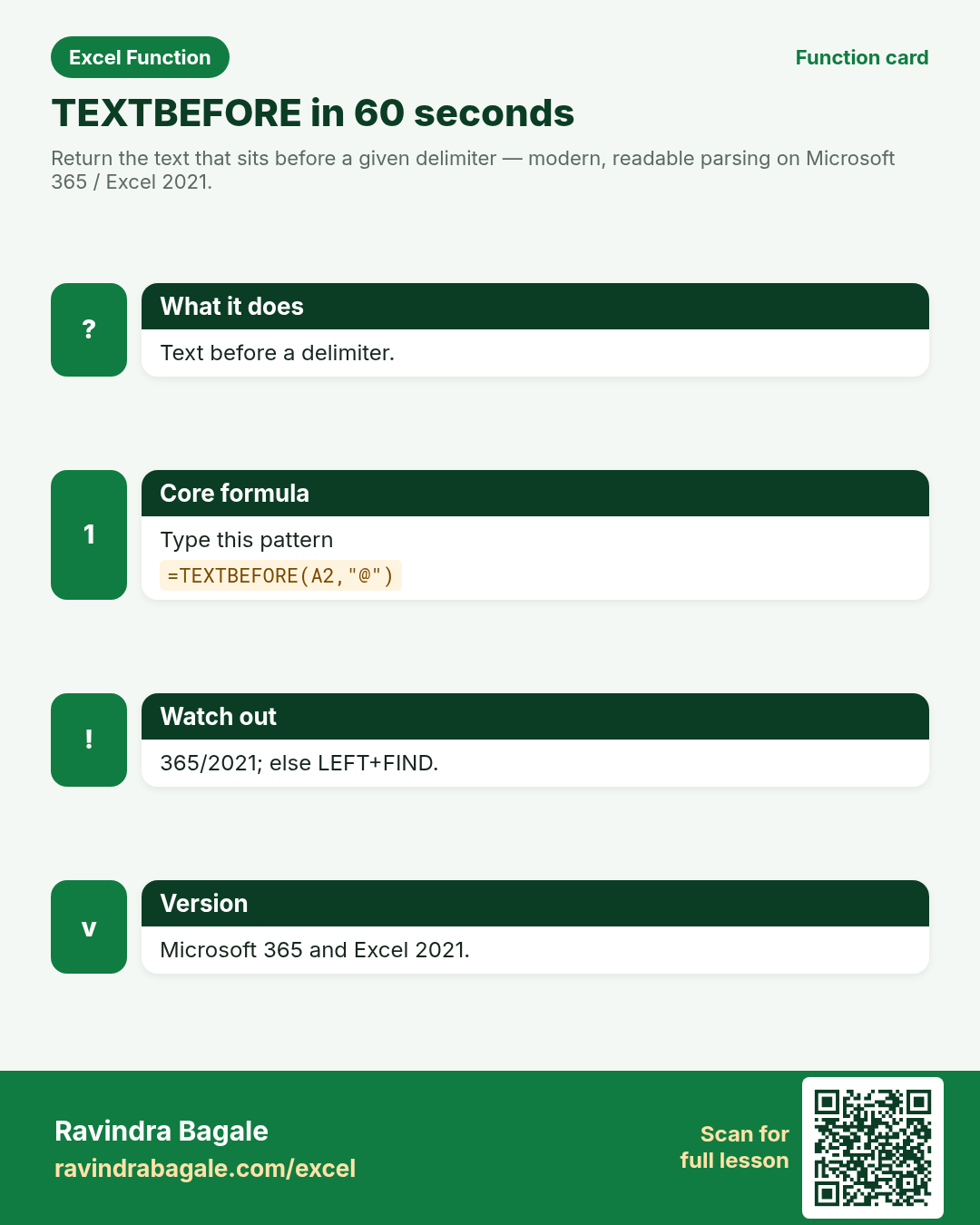
Return the text that sits before a given delimiter — modern, readable parsing on Microsoft 365 / Excel 2021.
Return value
Text before the delimiter, or #N/A if the delimiter is missing (unless you set if_not_found).
Syntax
Arguments
| Argument | Required? | Description |
|---|---|---|
text | Required | Full text. |
delimiter | Required | The marker to cut before. |
instance_num | Optional | Which delimiter (default 1; negative counts from end). |
match_mode | Optional | 0 case-sensitive (default), 1 case-insensitive. |
match_end | Optional | Treat end of text as delimiter if needed. |
if_not_found | Optional | Value when delimiter is missing. |
Version
Microsoft 365 and Excel 2021. Not in Excel 2019 or older. LibreOffice: usually missing — use LEFT+FIND fallback.
How to use — Why → What → How
Why: Kochi support wants the name part of emails. Amsterdam marketplace SKUs look like ACE-4412 and need the brand before the dash. TEXTBEFORE reads cleaner than LEFT+FIND. Modern first, fallback second: TEXTBEFORE on 365, LEFT+FIND on 2019. Ship both in the practice workbook so home PCs still work.
What: TEXTBEFORE returns everything before the chosen delimiter instance. Older Excel users should fall back to LEFT(FIND()-1). Read every argument in the table once before you type; each one changes the answer on purpose.
How — numbered steps:
- Type =TEXTBEFORE(A2,"@").
- Add if_not_found as the last argument you need.
- Use instance_num -1 for before the last delimiter.
- On Excel 2019, write =LEFT(A2,FIND("@",A2)-1).
- Verify with a few messy rows.
Ravindra Bagale's Tip
Friends, always set if_not_found for messy data so reports do not show #N/A.
Ravindra Bagale's Tip – मराठी
मित्रांनो, गोंधळलेल्या data साठी if_not_found द्या — report मध्ये #N/A दिसणार नाही.
Ravindra Bagale's Tip – हिंदी
दोस्तों, गंदे data पर if_not_found दो — report में #N/A नहीं दिखेगा.
Ravindra Bagale's Tip
Friends, sleep on TEXTBEFORE and rebuild example 1 tomorrow without looking. That five-minute test beats rereading the whole page.
Ravindra Bagale's Tip – मराठी
मित्रांनो, TEXTBEFORE वर एक रात्र झोपा आणि उद्या उदाहरण 1 न पाहता पुन्हा लिहा. पाच मिनिटांची ही चाचणी पूरे पृष्ठ वाचण्यापेक्षा जास्त मदत करते.
Ravindra Bagale's Tip – हिंदी
दोस्तों, TEXTBEFORE पर एक रात सोकर कल उदाहरण 1 बिना देखे फिर लिखो. पाँच मिनट का यह टेस्ट पूरा पेज पढ़ने से ज़्यादा मदद करता है.
Ravindra Bagale's Tip
Friends, after you finish TEXTBEFORE, open yesterday’s real workbook and find one place this function would have saved ten minutes. That habit turns lessons into salary skills.
Ravindra Bagale's Tip – मराठी
मित्रांनो, TEXTBEFORE शिकून झाल्यावर कालची खरी वर्कबुक उघडा आणि शोधा जिथे हे फंक्शन दहा मिनिटे वाचवू शकले असते. ही सवय धड्यांना पगाराची कौशल्ये बनवते.
Ravindra Bagale's Tip – हिंदी
दोस्तों, TEXTBEFORE सीखने के बाद कल की असली वर्कबुक खोलो और ढूँढो जहाँ यह फ़ंक्शन दस मिनट बचा सकता था. यही आदत पाठ को सैलरी स्किल बनाती है.
Download practice file: practice-textbefore.xlsx (includes sheet About this data, practice sheets, and Answers).
Worked examples
1) Email name
Kochi.
| neha@demo.in |
| omar.khan@firm.com |
Result: neha
What it means: Local part of email.
2) Brand before dash
Amsterdam.
| SKU | Price (€) |
|---|---|
| ACE-4412 | 12.5 |
| BOL-2201 | 9.9 |
Result: ACE
What it means: Brand ACE.
3) if_not_found
Missing @.
| not-an-email |
Result: No @
What it means: Friendly fallback.
4) Before last dash
Multi-dash.
| ID |
|---|
| INV-PUNE-7781 |
Result: INV-PUNE
What it means: Everything before the last dash.
5) Fallback formula
Excel 2019 style.
| neha@demo.in |
Result: neha
What it means: Same idea without TEXTBEFORE.
6) Case mode
Insensitive delimiter rare.
| Code |
|---|
| abXcd |
Result: ab
What it means: match_mode 1 ignores case of x/X.
Common errors and fixes
Notes and tips
- 365/2021 only for TEXTBEFORE itself.
- Negative instance_num counts from the end.
- Practice workbook includes LEFT+FIND fallback sheet for LibreOffice.
- Modern Excel classes in Kochi and Amsterdam should learn TEXTBEFORE first, then the LEFT+FIND fallback for company PCs still on Excel 2019.
- TEXTBEFORE vs LEFT+FIND: same job; TEXTBEFORE is readable. vs TEXTAFTER: opposite side of the delimiter.
- Fictional sample data only — practice amounts and names are made for learning.
- After the 10 tasks, re-read the errors table once.
- Say the business question in plain words before you type equals.
- Keep a scrap sheet for experiments so you do not overwrite class files.
- Fill formulas down only after the first row looks correct.
- When two answers look possible, write both on paper then test in Excel.
- Modern first, fallback second: TEXTBEFORE on 365, LEFT+FIND on 2019. Ship both in the practice workbook so home PCs still work.
- Revisit the TEXTBEFORE errors table after the quiz — most classroom mistakes are listed there.
- Build one brand-new example on a blank sheet from memory before you close the laptop.
- If a result looks wrong, check spaces with LEN and case with exact equals before changing the formula.
- Share one tip from this page with a classmate in Marathi or Hindi — teaching locks the idea.
- Keep currency symbols consistent inside a single report column even when practice mixes ₹ $ £ € across examples.
- When Excel versions differ at home and in class, write the fallback formula under the modern one in a comment cell.
- Print the revision card for TEXTBEFORE and stick it near your monitor for one week of real worksheets.
- When helping a junior, ask them to predict the result before pressing Enter — prediction builds judgement.
- Keep a personal notebook of the one mistake you make most often with this function; review it monthly.
In real work
Modern Excel classes in Kochi and Amsterdam should learn TEXTBEFORE first, then the LEFT+FIND fallback for company PCs still on Excel 2019. Modern first, fallback second: TEXTBEFORE on 365, LEFT+FIND on 2019. Ship both in the practice workbook so home PCs still work. Classroom drill: write three brand-new TEXTBEFORE formulas on a blank sheet using names from your own city — if you can invent them without the page open, you own the skill. Then break one formula on purpose (wrong case, wrong start, extra space) and watch the error; recovering from that break is half of interview readiness.
How it compares
TEXTBEFORE vs LEFT+FIND: same job; TEXTBEFORE is readable. vs TEXTAFTER: opposite side of the delimiter.
Interview corner
- Excel 2019 alternative?
- LEFT with FIND.
- Before last delimiter?
- instance_num -1.
- Missing delimiter?
- if_not_found or #N/A.
Related functions
TEXTAFTER, TEXTSPLIT, LEFT, FIND
Practice tasks (10)
- Task 1. Name from neha@demo.in.Hint: delimiter @.
- Task 2. Brand from ACE-4412.Hint: dash.
- Task 3. if_not_found demo.Hint: last argument idea.
- Task 4. Before last dash on INV-PUNE-7781.Hint: -1.
- Task 5. Write LEFT+FIND fallback.Hint: Excel 2019.
- Task 6. Fill two emails.Hint: fill down.
- Task 7. Note version requirement.Hint: 365/2021.
- Task 8. Compare to TEXTAFTER.Hint: other side.
- Task 9. LibreOffice plan.Hint: fallback sheet.
- Task 10. Interview: instance -1?Hint: from end.
Quick quiz
Answers: Q1=neha, Q2=Microsoft 365/2021, Q3=LEFT+FIND, Q4=instance_num -1, Q5=#N/A (check after you try).
Revision card
Standalone card (no tip or photo strip). QR opens this lesson. Download the PNG and revise offline.