Excel INFO Function
Chala mitrano — today INFO. Ask Excel which folder, OS, or release this workbook sees.
चला मित्रांनो — आज INFO. Excel ला विचारा — कुठली folder, OS, किंवा release दिसते.
चलो दोस्तों — आज INFO. Excel से पूछो — कौन-सी folder, OS, या release दिखती है.
Purpose
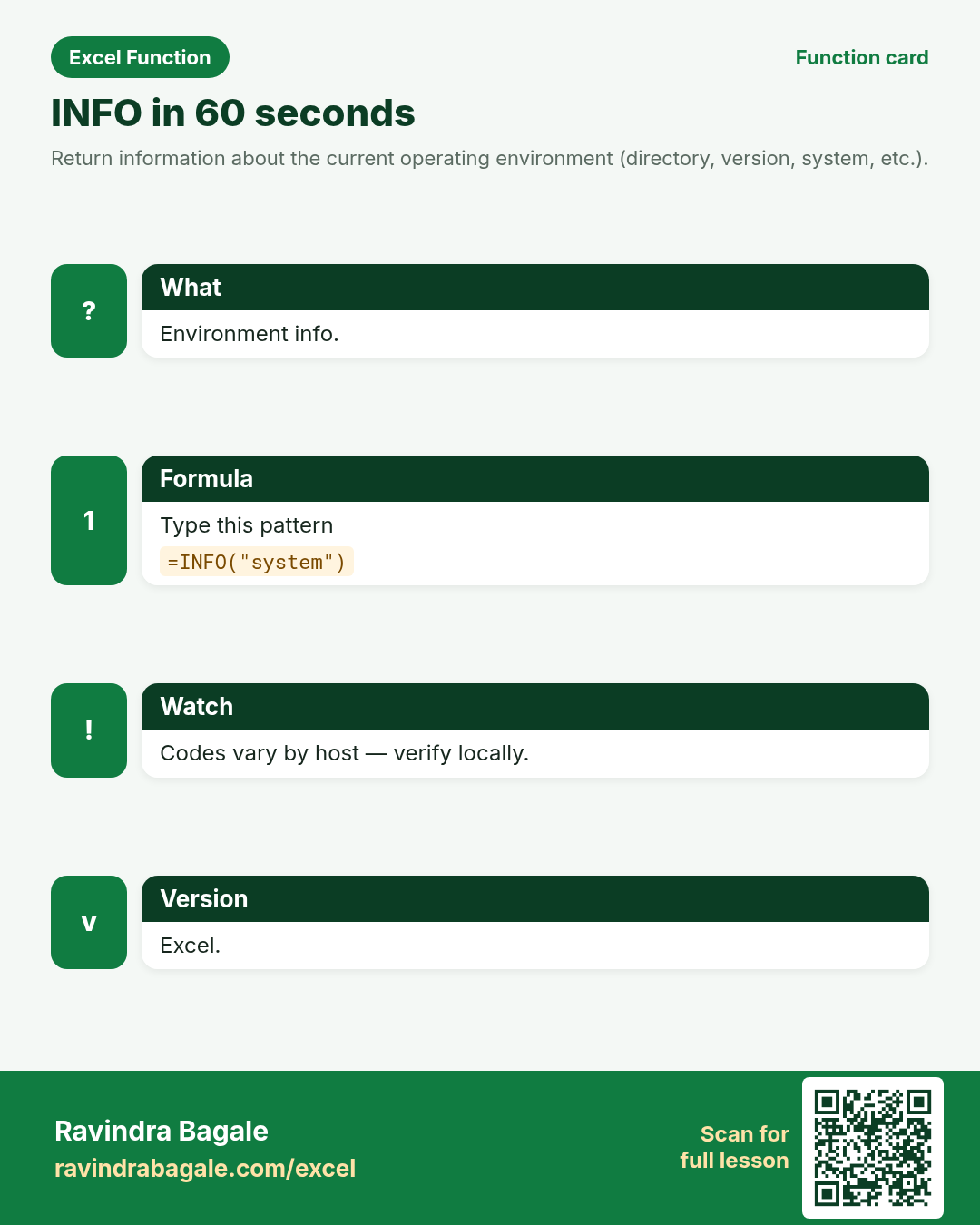
Return information about the current operating environment (directory, version, system, etc.).
Return value
Text (or number for some types) describing the environment.
Syntax
Arguments
| Argument | Required? | Description |
|---|---|---|
type_text | Required | What to return: common Excel values include "directory", "numfile", "origin", "osversion", "recalc", "release", "system". |
Version
Excel. INFO is limited/unavailable in some LibreOffice/Sheets builds — note the fallback.
How to use — Why → What → How
Why: Lab sheets print ‘where am I running?’ for support. INFO("system") / INFO("directory") help. Environment banners for Warangal lab PCs and Seattle classroom images. Uncertain: available type_text values differ by Excel vs LibreOffice/Sheets.
What: type_text codes are environment-specific. Confirm on your Excel build; some codes are unavailable or differ in LibreOffice/Sheets — classroom results are illustrative. Info functions are the seatbelts of messy imports: they tell you what kind of value you have before you compute. Prefer the narrow test (ISNA, ISBLANK) when you need precision; use ISERROR or TYPE when you need a broad gate. Always verify blanks versus empty strings versus zeros — they look alike on screen and fail differently in formulas. For CELL and INFO, treat format/environment codes as build-specific and document ‘verify on your Excel’ in class notes.
How — numbered steps:
- Type =INFO("system").
- Try "directory" on a saved file path context.
- Document that results vary by host.
Ravindra Bagale's Tip
Friends, after INFO, find one column or range in a real workbook this week where this lesson saves time.
Ravindra Bagale's Tip – मराठी
मित्रांनो, INFO नंतर या आठवड्यात खरी workbook मधील एक संख्या column सुधारा.
Ravindra Bagale's Tip – हिंदी
दोस्तों, INFO के बाद इस हफ़्ते असली workbook का एक संख्या column सुधारो.
Ravindra Bagale's Tip
Friends, sleep on INFO; rebuild example 1 tomorrow without looking.
Ravindra Bagale's Tip – मराठी
मित्रांनो, INFO वर झोपा; उद्या उदाहरण 1 न पाहता लिहा.
Ravindra Bagale's Tip – हिंदी
दोस्तों, INFO पर सोकर कल उदाहरण 1 बिना देखे लिखो.
Ravindra Bagale's Tip
Friends, say the business question in plain words before =INFO.
Ravindra Bagale's Tip – मराठी
मित्रांनो, =INFO आधी व्यवसाय प्रश्न साध्या शब्दांत सांगा.
Ravindra Bagale's Tip – हिंदी
दोस्तों, =INFO से पहले व्यवसाय प्रश्न सादे शब्दों में बोलो.
Ravindra Bagale's Tip
Friends, check a known case with a calculator before you trust a long INFO chain.
Ravindra Bagale's Tip – मराठी
मित्रांनो, लांब INFO chain वर विश्वास ठेवण्यापूर्वी कॅल्क्युलेटरने एक ज्ञात case तपासा.
Ravindra Bagale's Tip – हिंदी
दोस्तों, लंबी INFO chain पर भरोसा करने से पहले कैलकुलेटर से एक जाना हुआ case जाँचो.
Ravindra Bagale's Tip
Friends, after you finish INFO, open yesterday’s real workbook and find one place this function would have saved ten minutes.
Ravindra Bagale's Tip – मराठी
मित्रांनो, INFO नंतर कालची खरी वर्कबुक उघडा आणि शोधा जिथे हे फंक्शन दहा मिनिटे वाचवू शकले असते.
Ravindra Bagale's Tip – हिंदी
दोस्तों, INFO के बाद कल की असली वर्कबुक खोलो और ढूँढो जहाँ यह फ़ंक्शन दस मिनट बचा सकता था.
Ravindra Bagale's Tip
Friends, treat blank, zero, and empty text as three different animals when you use INFO.
Ravindra Bagale's Tip – मराठी
मित्रांनो, INFO वापरताना blank, zero आणि रिकाम्या मजकूराला तीन वेगळे प्राणी समजा.
Ravindra Bagale's Tip – हिंदी
दोस्तों, INFO इस्तेमाल करते समय blank, zero और खाली टेक्स्ट को तीन अलग जानवर समझो.
Download practice file: practice-info.xlsx (includes sheet About this data, practice sheets, and Answers).
Worked examples
1) System
Warangal.
| # |
|---|
Result: pcdos
What it means: Classic Windows marker (illustrative).
2) Directory
Path.
| # |
|---|
Result: (path)
What it means: Default folder — illustrative.
3) Release
Ver.
| # |
|---|
Result: (ver)
What it means: Excel release string — illustrative.
4) Seattle lab
Banner.
| # |
|---|
Result: (banner)
What it means: Support banner — illustrative.
5) Bad type
Typo.
| # |
|---|
Result: #VALUE!
What it means: Unknown type_text.
6) vs CELL filename
Compare.
| X |
|---|
| 1 |
Result: (path)
What it means: Workbook path vs INFO directory.
Common errors and fixes
Notes and tips
- Revisit the INFO errors table after the quiz.
- Build example 1 from memory on a blank sheet.
- Check number vs text if a result looks wrong.
- Teach one tip in Marathi or Hindi this week.
- Keep currency symbols consistent inside one report column (practice mixes ₹ $ £ €).
- Drill: build a one-cell system/release banner from memory (illustrative).
- INFO vs CELL: environment versus per-cell metadata.
- Fictional sample data only — names and amounts are for learning.
- Print the INFO revision card for one week of real worksheets.
- Ask juniors to predict before they press Enter.
- Track your top mistake with this function monthly.
- Environment banners for Warangal lab PCs and Seattle classroom images. Uncertain: available type_text values differ by Excel vs LibreOffice/Sheets.
- Interview tip: explain the business question before the formula.
- Classroom drill: invent three brand-new formulas from your city without the page open.
- If a result looks wrong, check blanks vs zeros before rewriting.
- When Excel versions differ, note the LibreOffice / Sheets fallback in a cell comment.
- Prefer clear ranges over whole-column refs on huge sheets if speed matters.
- Document units (₹, kg, days) in the header so totals stay honest.
- Distinguish blank, "", 0, and text "0" before you trust any IS* result.
- Prefer IFNA for lookup misses and IFERROR for broad display substitutes.
- TYPE codes: 1 number, 2 text, 4 logical, 16 error, 64 array — card them.
- ERROR.TYPE: 2=#DIV/0!, 7=#N/A — card the rest for audits.
- Always pass a reference to CELL; omitting it is volatile and confusing in shared books.
- INFO and some CELL format codes vary by host — flag uncertain in lesson notes.
- SHEETS includes hidden sheets; unhide before trusting a QA count.
- Fictional sample data only — never paste real customer sheets into class files.
- Teach one junior blank-vs-zero in Marathi or Hindi this week.
- Print the revision card and stick it near the monitor for one week of real worksheets.
In real work
Drill: build a one-cell system/release banner from memory (illustrative). Environment banners for Warangal lab PCs and Seattle classroom images. Uncertain: available type_text values differ by Excel vs LibreOffice/Sheets. Classroom drill: write three brand-new INFO formulas on a blank sheet using names from your own city — if you can invent them without the page open, you own the skill. Then break one formula on purpose and watch the error; recovering from that break is half of interview readiness. Always verify with a known case before trusting a long chain. Keep a personal notebook of the one mistake you make most often with this function; review it monthly. The IS* family returns booleans you can nest in IF; IFERROR/IFNA are the modern display wrappers when you only need a substitute value. TYPE collapses several tests into codes 1/2/4/16/64. N coerces logicals for SUMPRODUCT-era maths but does not parse digit-text — that is VALUE. NA() forces chart gaps; ERROR.TYPE triage codes let support count #DIV/0! separately from #N/A. SHEET/SHEETS index and count tabs including hidden ones — QA asserts love SHEETS()=n gates.
How it compares
INFO vs CELL: environment versus per-cell metadata.
Interview corner
- Args?
- type_text required.
- Bad code?
- #VALUE!.
- Privacy?
- Paths can leak folders.
Related functions
Practice tasks (10)
- Task 1. INFO system.OS.
- Task 2. INFO directory.Dir.
- Task 3. Bad type.Err.
- Task 4. Banner concat.Seattle.
- Task 5. Privacy note.Care.
- Task 6. Interview.Talk.
- Task 7. Teach.Teach.
- Task 8. Verify locally.Uncertain.
- Task 9. Fill.Fill.
- Task 10. Tease CELL.Related.
Quick quiz
Answers: Q1=type_text, Q2=#VALUE!, Q3=pcdos-like, Q4=User folders, Q5=Env vs workbook path (check after you try).
Revision card
Standalone card (no tip or photo strip). QR opens this lesson. Download the PNG and revise offline.