56.3 Docker troubleshooting playbook
Why: the problem
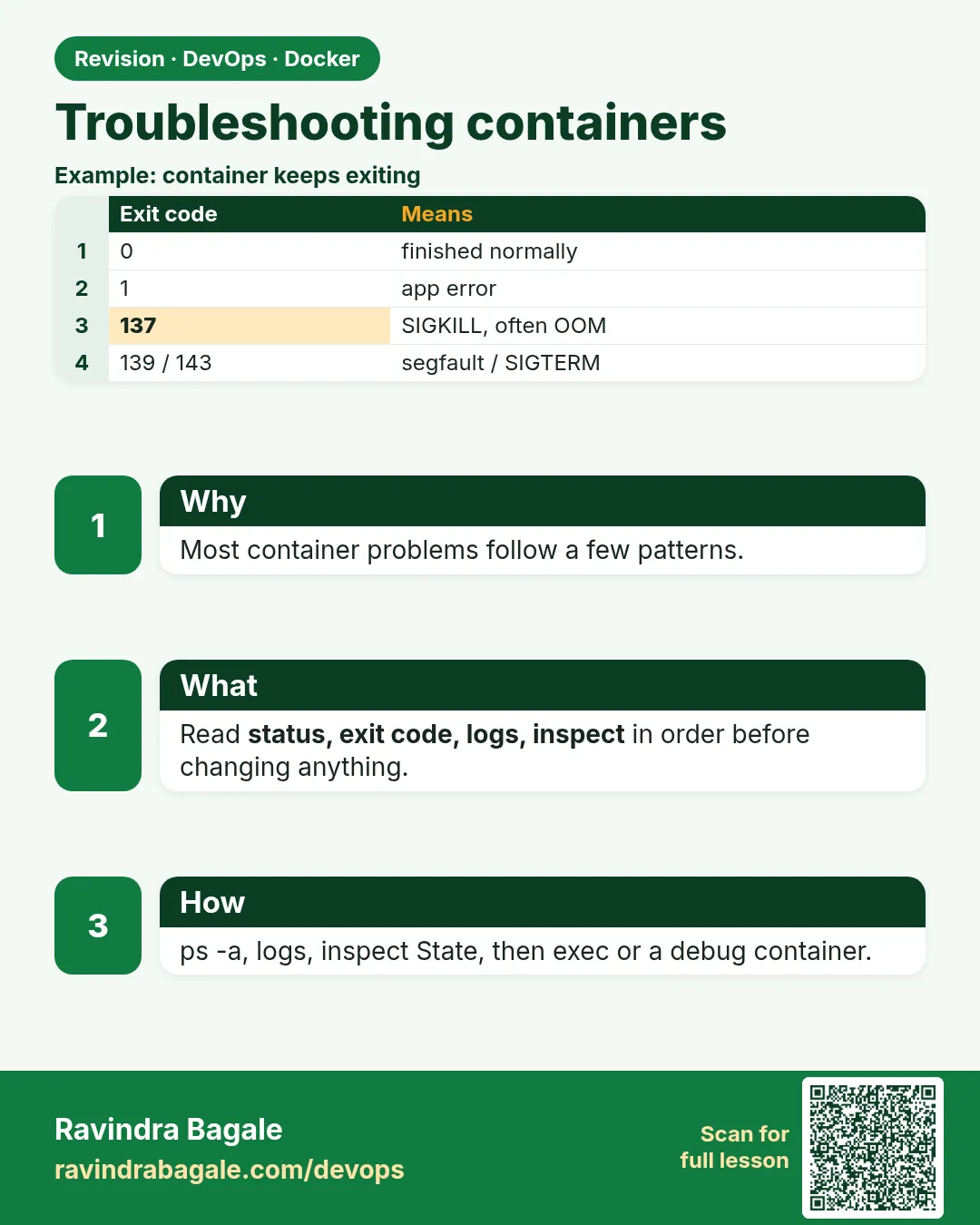
Suppose it is 2 am and we are on call at Paytm. An alert says the payments API is down. Panic makes people jump around: restart Docker, delete containers, reboot the server. That often destroys the evidence and sometimes makes things worse. Good engineers follow the same order every time. First, is the container running? docker ps -a. Second, what did it say? docker logs. Third, how was it started and why did it stop? docker inspect, exit code, OOMKilled, health. Fourth, look inside: docker exec. Fifth, what happened around it? docker events, disk, network. Exit codes alone often tell us the cause: 0, 1, 125, 126, 127, 137, 139, 143. In this lesson we break containers in five common ways and fix each with this order.
What: every term in plain English
- docker ps -a — Shows all containers, including stopped ones, with status and exit code.
- docker logs — stdout and stderr of a container, even after it stopped.
- docker inspect — Full JSON: config, state, mounts, network, health.
- docker exec — Run a command inside a running container.
- docker events — Live stream of create, start, die, oom and health events.
- Exit 125 / 126 / 127 — Docker run error / command not executable / command not found.
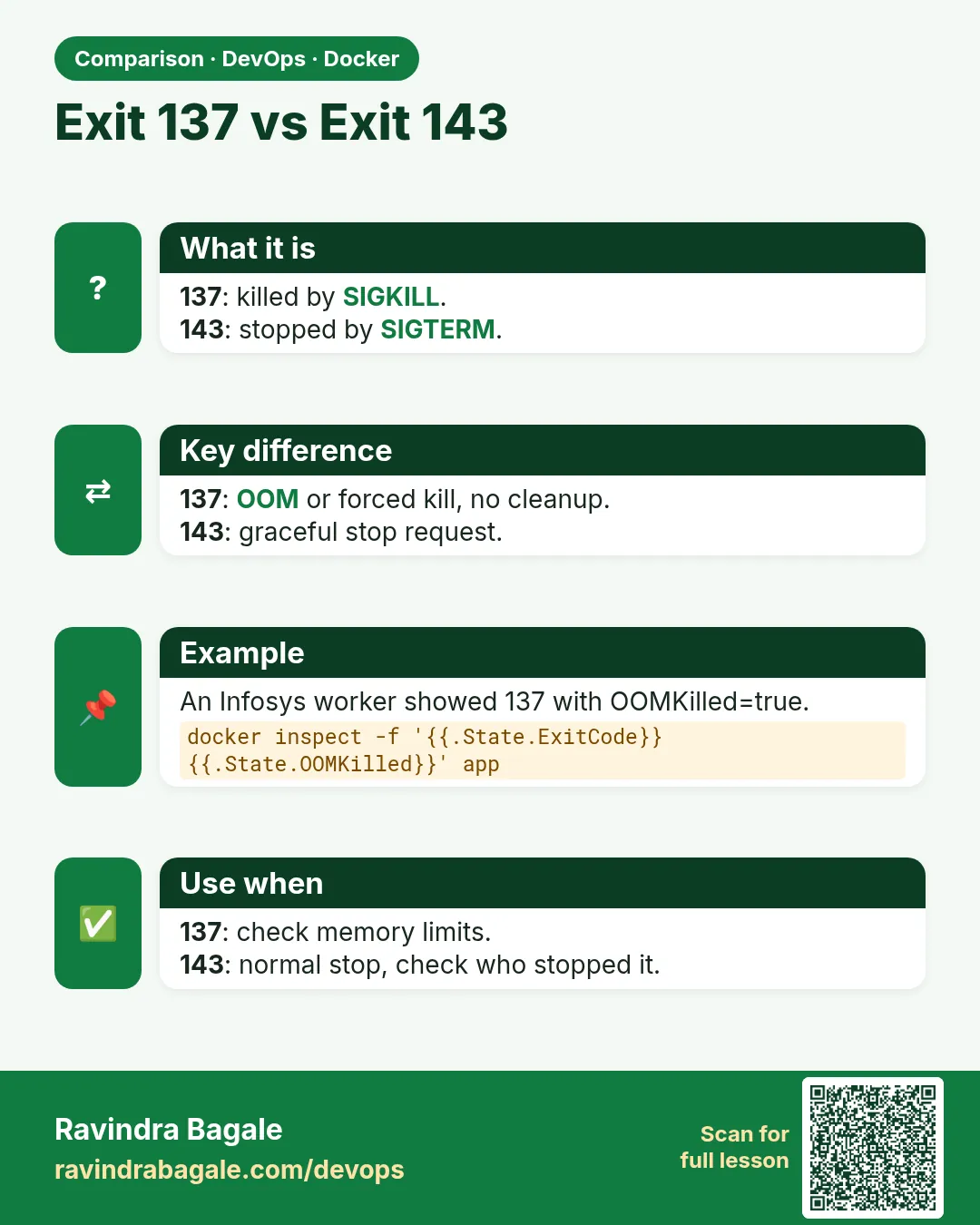
- Exit 137 — Killed by SIGKILL: OOM or docker kill or stop timeout.
- Exit 139 — Segmentation fault, often a wrong CPU arch or native library.
- Exit 143 — Stopped by SIGTERM, a normal docker stop.
How: step by step
- docker ps -a Running? Restarting? Exit code?
- docker logs --tail 100 Read the last error.
- docker inspect State ExitCode, OOMKilled, Error, Health.
- docker exec Check files, env, DNS, ports inside.
- docker events What happened and when.
- Host checks df -h, docker system df, free -m.
- Fix one thing, retest Change one thing at a time.
Example 1: Container exits at once: wrong command and missing env
Goal. Container exits at once: wrong command and missing env.
Commands
docker run -d --name a1 python:3.12-slim pyhton app.py
docker ps -a --filter name=a1 --format '{{.Names}} {{.Status}}'
docker inspect -f '{{.State.ExitCode}} {{.State.Error}}' a1

docker run -d --name a2 -e PORT=8000 python:3.12-slim python -c "import os; print('db', os.environ['DB_HOST'])"
docker logs a2
docker run -d --name a3 -e DB_HOST=db.internal python:3.12-slim python -c "import os; print('db', os.environ['DB_HOST'])"
docker logs a3
What each line does
pyhton (typo)— Command not found.Status Exited (127)— 127 = command not found.State.Error— Docker's own message.KeyError DB_HOST— App crashed on a missing env var: exit 1.-e DB_HOST=...— Supplying it fixes the crash.
Green output
a1 Created
127 failed to create task: exec: "pyhton": executable file not found in $PATH
Traceback (most recent call last):
KeyError: 'DB_HOST'
db db.internal
Expected result. Exit code plus logs named the cause in seconds: a typo and a missing variable. No restart or reboot was needed.
Example 2: Restart loop and OOM: read State, not guesses
Goal. Restart loop and OOM: read State, not guesses.
Commands
docker run -d --name loop --restart always alpine:3.20 sh -c 'echo starting; exit 1'
sleep 10
docker ps --filter name=loop --format '{{.Status}}'
docker inspect -f 'restarts={{.RestartCount}} exit={{.State.ExitCode}}' loop
docker update --restart no loop && docker stop loop

docker run -d --name oom --memory 50m python:3.12-slim python -c "x=' '*200_000_000"
sleep 3
docker inspect -f 'exit={{.State.ExitCode}} oom={{.State.OOMKilled}}' oom
docker events --since 2m --filter container=oom --format '{{.Time}} {{.Action}}'
What each line does
--restart always— Docker keeps restarting a failing app.Restarting (1)— The status shows a loop and the last exit code.RestartCount— How many times it restarted.docker update --restart no— Stop the loop so we can investigate calmly.OOMKilled=true, 137— Memory limit, not a code bug.docker events— Shows the oom event and the time.
Green output
Restarting (1) 2 seconds ago
restarts=6 exit=1
loop
exit=137 oom=true
1729834201 oom
1729834201 die
Expected result. The loop was the app exiting 1, so we read logs. The 137 was memory, so we raise the limit or fix the leak.
Example 3: Network problems: port, bind address and DNS
Goal. Network problems: port, bind address and DNS.
Commands
docker run -d --name web1 -p 8080:80 nginx:1.27
curl -s -o /dev/null -w '%{http_code}\n' localhost:8081
docker port web1

docker run -d --name py -p 8000:8000 python:3.12-slim python -m http.server 8000 --bind 127.0.0.1
curl -s -m 3 localhost:8000 || echo "no reply"
docker exec py python -c "import socket; s=socket.socket(); s.connect(('127.0.0.1',8000)); print('inside ok')"

docker network create appnet
docker run -d --name db --network appnet -e POSTGRES_PASSWORD=change-me postgres:16
docker run --rm alpine:3.20 nslookup db 2>&1 | tail -1
docker run --rm --network appnet alpine:3.20 nslookup db | tail -2
What each line does
curl 8081— Wrong port. docker port shows the real mapping.--bind 127.0.0.1— App listens only inside the container's own loopback, so -p cannot reach it.inside ok— Works inside, fails outside: bind address problem. Use 0.0.0.0.nslookup db (default network)— Name not found: different network.--network appnet— Same user-defined network: Docker DNS resolves db.
Green output
000
80/tcp -> 0.0.0.0:8080
no reply
inside ok
** server can't find db: NXDOMAIN
Name:   db
Address: 172.19.0.2
Expected result. Three classic network faults: wrong host port, app bound to 127.0.0.1, and containers on different networks.
Every command, step by step (plain docker and Compose)
-
1. Status
docker ps -a --format 'table {{.Names}}\t{{.Status}}\t{{.Ports}}'What it does: Running, restarting or exited, with code.
api Exited (1) 2 minutes ago -
2. Logs
docker logs --tail 100 -t apiWhat it does: Last 100 lines with time.
Error: connect ECONNREFUSED 172.19.0.3:5432 -
3. State
docker inspect -f '{{json .State}}' apiWhat it does: ExitCode, OOMKilled, Error, Health log.
{"Status":"exited","ExitCode":1,"OOMKilled":false} -
3b. Health
docker inspect -f '{{range .State.Health.Log}}{{.Output}}{{end}}' apiWhat it does: Output of failed health checks.
curl: (7) Failed to connect -
4. Inside
docker exec -it api shWhat it does: Check env, files, DNS.
/app $ -
4b. Env
docker exec api env | sortWhat it does: Did the variables arrive?
DB_HOST=db -
5. Events
docker events --since 30m --filter container=apiWhat it does: Timeline of the container.
die, start, health_status: unhealthy -
6. Disk
df -h /var/lib/docker
docker system df
What it does: Is the disk full?
/dev/xvda1 30G 29G 1.0G 97% -
7. Copy out evidence
docker cp api:/app/logs/error.log ./What it does: Grab files before removing a container.
Successfully copied 12kB
When it is red 1
docker: Error response from daemon: driver failed programming external connectivity: Bind for 0.0.0.0:8080 failed: port is already allocated.
Cause. Another container or process uses that host port.
Fix, step by step
- Find it: docker ps --filter publish=8080, or sudo ss -ltnp | grep 8080.
- Stop it or choose another host port.
When it is red 2
exec /usr/local/bin/app: exec format error
Cause. The image was built for another CPU (arm64 on amd64 or the reverse).
Fix, step by step
- Check: docker image inspect -f '{{.Architecture}}' IMAGE.
- Rebuild with docker buildx build --platform linux/amd64,linux/arm64.
When it is red 3
Error response from daemon: OCI runtime exec failed: exec: "bash": executable file not found
Cause. The image has no bash (alpine, slim or distroless).
Fix, step by step
- Try sh instead.
- For distroless use docker debug (lesson 56-7) or a netshoot sidecar.
Practice tasks
Easy Task 1: Exit 127
Why: Read codes.
What to do: Run a typo command and read the code.
- Open a terminal with Docker.
- Make an empty folder for the task.
- Break things on purpose, then fix them with the playbook order.
Solution
docker run --name a1 alpine:3.20 lssEasy Task 2: Logs
Why: Read errors.
What to do: Read logs of a crashed container.
- Open a terminal with Docker.
- Make an empty folder for the task.
- Break things on purpose, then fix them with the playbook order.
Solution
docker logs a2Medium Task 3: Missing env
Why: Common crash.
What to do: Fix KeyError with -e.
- Open a terminal with Docker.
- Make an empty folder for the task.
- Break things on purpose, then fix them with the playbook order.
Solution
docker run -e DB_HOST=db.internal ...Medium Task 4: Restart loop
Why: Calm down.
What to do: Stop a loop with docker update --restart no.
- Open a terminal with Docker.
- Make an empty folder for the task.
- Break things on purpose, then fix them with the playbook order.
Solution
docker update --restart no loopMedium Task 5: OOM
Why: Memory.
What to do: Confirm OOMKilled.
- Open a terminal with Docker.
- Make an empty folder for the task.
- Break things on purpose, then fix them with the playbook order.
Solution
docker inspect -f '{{.State.OOMKilled}}' oomMedium Task 6: Port
Why: Mapping.
What to do: Find the real host port with docker port.
- Open a terminal with Docker.
- Make an empty folder for the task.
- Break things on purpose, then fix them with the playbook order.
Solution
docker port web1Hard Task 7: Bind address
Why: Classic.
What to do: Fix 127.0.0.1 to 0.0.0.0.
- Open a terminal with Docker.
- Make an empty folder for the task.
- Break things on purpose, then fix them with the playbook order.
Solution
docker run -p 8000:8000 python:3.12-slim python -m http.server 8000 --bind 0.0.0.0Hard Task 8: DNS
Why: Networks.
What to do: Make nslookup db work.
- Open a terminal with Docker.
- Make an empty folder for the task.
- Break things on purpose, then fix them with the playbook order.
Solution
docker run --rm --network appnet alpine:3.20 nslookup dbMedium Task 9: Events
Why: Timeline.
What to do: Stream events while you stop a container.
- Open a terminal with Docker.
- Make an empty folder for the task.
- Break things on purpose, then fix them with the playbook order.
Solution
docker events --filter type=containerEasy Task 10: Evidence
Why: Keep data.
What to do: docker cp a file out before rm.
- Open a terminal with Docker.
- Make an empty folder for the task.
- Break things on purpose, then fix them with the playbook order.
Solution
docker cp api:/app/logs ./Homework: try at home
At home, break a container in each way from this lesson (typo, missing env, OOM, wrong bind address, different network) and fix each by following the 7 steps in order. Write down which step found the cause.
Recap
- Follow the order: ps, logs, inspect, exec, events, host.
- Exit codes point to the cause: 1, 125, 126, 127, 137, 139, 143.
- Stop restart loops before investigating.
- OOMKilled true means memory, not code.
- Inside works but outside fails means bind address.
- Copy evidence out before removing containers.
FAQ
Q. How do I check the daemon itself is healthy?
Run docker info and docker version. If the daemon is down you get Cannot connect to the Docker daemon; check systemctl status docker and journalctl -u docker for the reason.
Q. What should go into a post-incident note?
Time line from docker events, the exit code, the log lines, the root cause, the fix, and one change so it does not repeat, such as a health check, a memory limit or an alert.
Q. How do I find which container is using the most CPU or memory?
docker stats --no-stream shows CPU, memory, network and disk for every container; sort by the column you need.
Q. Container exits immediately with code 0. Why?
The main process finished. Containers live only as long as PID 1; run a foreground server.
Q. How do I see logs of a removed container?
You cannot with docker logs. Ship logs centrally (55-6).
Q. Should I restart Docker first?
No. It restarts every container and destroys evidence. Use it only after diagnosis.
Q. How do I debug a container that crashes too fast to exec?
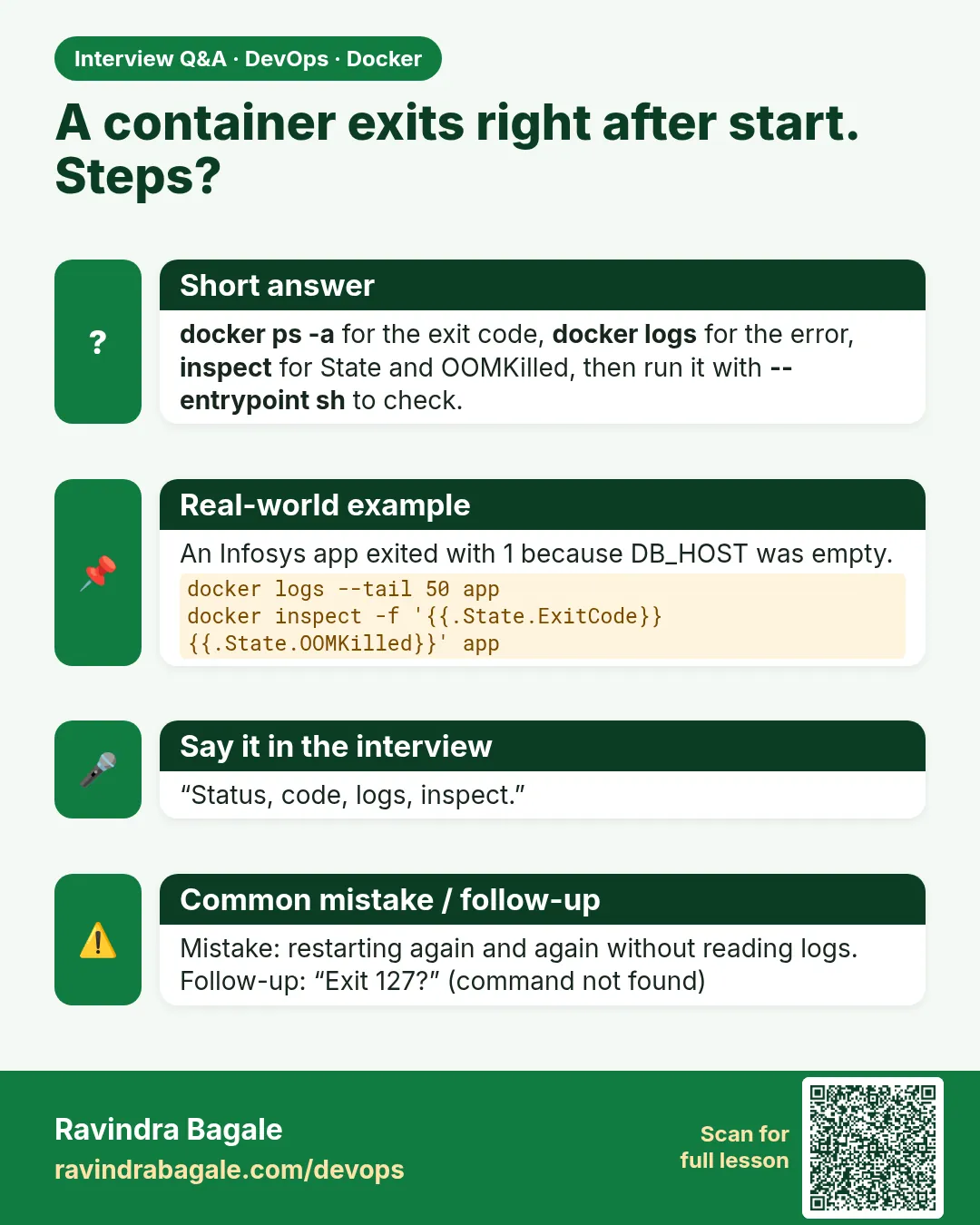
Override: docker run -it --entrypoint sh IMAGE, then run the command by hand.
Q. Where is the daemon log?
journalctl -u docker on systemd hosts.
Q. How do I check health check output?
docker inspect .State.Health.Log.
Interview questions
-
Walk me through debugging a container that keeps restarting.
Model answer: docker ps -a for exit code, logs for error, inspect State for OOMKilled and health, stop the loop, exec or run with --entrypoint sh, fix one thing.
-
What do exit codes 137 and 143 mean?
Model answer: 137 SIGKILL (OOM, kill, stop timeout); 143 SIGTERM (graceful stop).
-
Container runs but the port is unreachable. Causes?
Model answer: Wrong -p mapping, app bound to 127.0.0.1, firewall or security group, or app not ready.
-
Two containers cannot resolve each other by name. Why?
Model answer: They are on the default bridge or different networks; use a user-defined network.
-
How do you debug an image without a shell?
Model answer: docker debug, --entrypoint override with a debug tag, or a netshoot sidecar sharing the namespace.
-
Where are Docker daemon logs?
Model answer: journalctl -u docker, or Docker Desktop's troubleshoot logs.
Quick quiz
Q1. First command in the playbook?
docker ps -a.
Q2. Exit code 127 means?
Command not found.
Q3. Exit code 137 with OOMKilled=true means?
Memory limit hit.
Q4. App works inside but not from host?
It listens on 127.0.0.1; use 0.0.0.0.
Q5. How to see a timeline?
docker events.
Samajla ka?
 Revision card
 Interview card
 Comparison card