56.2 Deploy containers to Amazon ECS with Fargate
Friends, our image is now in ECR. But an image sitting in a registry serves no customer. We need something that runs it, keeps it running and replaces it when we release. Amazon ECS with Fargate does that without any server for us to manage. Today, step by step: cluster, task definition, logs, secrets, the service, the load balancer, a rolling deploy, a rollback, scaling and the errors you will meet.
मित्रांनो, आपली image आता ECR मध्ये आहे. पण registry मध्ये पडलेली image कोणत्याही customer ला सेवा देत नाही. ती चालवणारं, चालू ठेवणारं आणि release वेळी बदलणारं काहीतरी हवं. Amazon ECS with Fargate हे काम आपल्याला कोणताही server सांभाळायला न लावता करतं. आज step by step: cluster, task definition, logs, secrets, service, load balancer, rolling deploy, rollback, scaling आणि येणाऱ्या errors.
दोस्तों, हमारी image अब ECR में है. पर registry में पड़ी image किसी customer की सेवा नहीं करती. उसे चलाने वाला, चलाए रखने वाला और release पर बदलने वाला कुछ चाहिए. Amazon ECS with Fargate यह काम हमें कोई server संभाले बिना करता है. आज step by step: cluster, task definition, logs, secrets, service, load balancer, rolling deploy, rollback, scaling और आने वाली errors.
1. Start from a story
At a Zomato-style food startup, the shop API ran on two EC2 servers. Every month someone had to patch the operating system, resize disks and restart Docker. One night a server ran out of disk and the API was down for an hour.
The team moved the API to ECS on Fargate. Now AWS runs the containers on machines the team never sees. They describe what to run in a task definition, and an ECS service keeps two copies running behind a load balancer.
When Jenkins pushes a new image, one command registers a new task definition revision and updates the service. ECS starts new containers, waits until they are healthy, then stops the old ones. Customers notice nothing.
Today we deploy the same API step by step.
2. The foundations step by step
Step 1: Create a cluster
Why: A named group for services.
What: With Fargate, a cluster is just a name and a place to group services. There are no servers inside it to manage.
Example 1: Create
Type this:
aws ecs create-cluster --cluster-name shop --region ap-south-1 --query 'cluster.status' --output text
You will see:
ACTIVE
What it means: The cluster exists.
Example 2: List
Type this:
aws ecs list-clusters --region ap-south-1 --output text
You will see:
CLUSTERARNS arn:aws:ecs:ap-south-1:123456789012:cluster/shop
What it means: One cluster in the account.
Example 3: Describe
Type this:
aws ecs describe-clusters --clusters shop --region ap-south-1 --query 'clusters[0].[runningTasksCount,activeServicesCount]' --output text
You will see:
0 0
What it means: Empty for now.
Step 2: The task execution role
Why: How ECS pulls and logs.
What: ECS needs permission to pull from ECR, write logs to CloudWatch and read secrets. This is the task execution role. A separate task role gives your application its own AWS permissions.
Example 4: Create the role
Type this:
aws iam create-role --role-name ecsTaskExecutionRole --assume-role-policy-document file://ecs-trust.json --query Role.Arn --output text
You will see:
arn:aws:iam::123456789012:role/ecsTaskExecutionRole
What it means: The trust file lets ecs-tasks.amazonaws.com use this role.
Example 5: Attach the policy
Type this:
aws iam attach-role-policy --role-name ecsTaskExecutionRole --policy-arn arn:aws:iam::aws:policy/service-role/AmazonECSTaskExecutionRolePolicy && echo ok
You will see:
ok
What it means: Pull images and write logs.
Example 6: Trust file content
Type this:
cat ecs-trust.json
You will see:
{"Version":"2012-10-17","Statement":[{"Effect":"Allow","Principal":{"Service":"ecs-tasks.amazonaws.com"},"Action":"sts:AssumeRole"}]}
What it means: Only ECS tasks may assume it.
Step 3: A log group
Why: See what the container prints.
What: Containers on Fargate have no disk you can log in to. The awslogs driver sends everything the app prints to CloudWatch Logs.
Example 7: Create the log group
Type this:
aws logs create-log-group --log-group-name /ecs/shop-api --region ap-south-1 && echo created
You will see:
created
What it means: Logs will land here.
Example 8: Set retention
Type this:
aws logs put-retention-policy --log-group-name /ecs/shop-api --retention-in-days 14 && echo ok
You will see:
ok
What it means: Old logs deleted after 14 days to save money.
Example 9: Check
Type this:
aws logs describe-log-groups --log-group-name-prefix /ecs/shop --query 'logGroups[].[logGroupName,retentionInDays]' --output text
You will see:
/ecs/shop-api 14
What it means: Ready.
Step 4: A secret in Parameter Store
Why: Passwords never in the file.
What: Store the database password as a SecureString parameter. The task definition only holds its name, and ECS injects the value as an environment variable when the container starts.
Example 10: Store it
Type this:
aws ssm put-parameter --name /shop/db_pass --type SecureString --value 'example-only-pass' --query Version --output text
You will see:
1
What it means: Version 1 of the secret. Use your own value.
Example 11: Allow the role to read
Type this:
aws iam put-role-policy --role-name ecsTaskExecutionRole --policy-name read-shop-params --policy-document file://ssm-read.json && echo ok
You will see:
ok
What it means: Permission for ssm:GetParameters on /shop/*.
Example 12: Read without decrypting
Type this:
aws ssm get-parameter --name /shop/db_pass --query Parameter.Type --output text
You will see:
SecureString
What it means: The value stays encrypted.
3. Task definition and service step by step
Step 5: Write the task definition
Why: The recipe for one container.
What: The task definition says which image, how much CPU and memory, which port, which secrets and where logs go. Fargate needs networkMode awsvpc, so each task gets its own private IP.
Example 13: Main fields
Type this:
{
  "family": "shop-api",
  "requiresCompatibilities": ["FARGATE"],
  "networkMode": "awsvpc",
  "cpu": "512", "memory": "1024",
  "executionRoleArn": "arn:aws:iam::123456789012:role/ecsTaskExecutionRole"
}
You will see:
(part of taskdef.json)
What it means: Half a vCPU and 1 GB memory.
Example 14: Container part
Type this:
"containerDefinitions": [{
  "name": "api",
  "image": "123456789012.dkr.ecr.ap-south-1.amazonaws.com/shop-api:a1b2c3d",
  "portMappings": [{"containerPort": 3000}],
  "secrets": [{"name": "DB_PASSWORD", "valueFrom": "arn:aws:ssm:ap-south-1:123456789012:parameter/shop/db_pass"}],
  "logConfiguration": {"logDriver": "awslogs", "options": {"awslogs-group": "/ecs/shop-api", "awslogs-region": "ap-south-1", "awslogs-stream-prefix": "api"}}
}]
You will see:
(part of taskdef.json)
What it means: Image, port, secret by name and logs.
Example 15: Register it
Type this:
aws ecs register-task-definition --cli-input-json file://taskdef.json --query 'taskDefinition.revision' --output text
You will see:
1
What it means: Revision 1 of shop-api.
Step 6: Add a container health check
Why: ECS must know when the app is ready.
What: A healthCheck inside the container definition runs a command every few seconds. If it keeps failing, ECS replaces the task. The image needs curl or wget for this.
Example 16: Health check JSON
Type this:
"healthCheck": {
  "command": ["CMD-SHELL", "curl -fs http://localhost:3000/health || exit 1"],
  "interval": 15, "timeout": 5, "retries": 3, "startPeriod": 20
}
You will see:
(part of the container definition)
What it means: Three failures in a row means unhealthy.
Example 17: Test it locally first
Type this:
docker run -d --name t -p 3000:3000 123456789012.dkr.ecr.ap-south-1.amazonaws.com/shop-api:a1b2c3d && sleep 3 && curl -fs localhost:3000/health
You will see:
{"status":"ok"}
What it means: The endpoint works before we trust ECS with it.
Example 18: Register revision 2
Type this:
aws ecs register-task-definition --cli-input-json file://taskdef.json --query 'taskDefinition.revision' --output text
You will see:
2
What it means: Each change is a new revision.
Step 7: Create the service behind an ALB
Why: Keep two copies running.
What: An ECS service keeps the desired number of tasks running and registers them in a target group of an Application Load Balancer. Tasks run in private subnets; only the ALB is public.
Example 19: Create the service
Type this:
aws ecs create-service --cluster shop --service-name shop-api --task-definition shop-api:2 --desired-count 2 --launch-type FARGATE --network-configuration 'awsvpcConfiguration={subnets=[subnet-0a1,subnet-0b2],securityGroups=[sg-0api],assignPublicIp=DISABLED}' --load-balancers 'targetGroupArn=arn:aws:elasticloadbalancing:ap-south-1:123456789012:targetgroup/shop-api/abc,containerName=api,containerPort=3000' --query service.status --output text
You will see:
ACTIVE
What it means: Two tasks are starting.
Example 20: Watch tasks
Type this:
aws ecs describe-services --cluster shop --services shop-api --query 'services[0].[runningCount,desiredCount]' --output text
You will see:
2 2
What it means: Both copies are running.
Example 21: Call through the ALB
Type this:
curl -s http://shop-alb-123.ap-south-1.elb.amazonaws.com/health
You will see:
{"status":"ok"}
What it means: Customers reach the container through the load balancer.
4. Releases step by step
Step 8: Rolling deploy of a new image
Why: Release without downtime.
What: To release, put the new image tag in the task definition, register a new revision and update the service. ECS starts new tasks, waits for health checks, then drains the old ones.
Example 22: Change the image tag
Type this:
sed -i 's/shop-api:a1b2c3d/shop-api:e4f5a6b/' taskdef.json && grep -o 'shop-api:[a-z0-9]*' taskdef.json
You will see:
shop-api:e4f5a6b
What it means: The new commit tag from Jenkins.
Example 23: Register and update
Type this:
REV=$(aws ecs register-task-definition --cli-input-json file://taskdef.json --query taskDefinition.revision --output text) && aws ecs update-service --cluster shop --service shop-api --task-definition shop-api:$REV --query service.taskDefinition --output text
You will see:
arn:aws:ecs:ap-south-1:123456789012:task-definition/shop-api:3
What it means: Rollout started.
Example 24: Wait until stable
Type this:
aws ecs wait services-stable --cluster shop --services shop-api && echo stable
You will see:
stable
What it means: The new version is fully live.
Step 9: Deployment circuit breaker and rollback
Why: Bad releases undo themselves.
What: Turn on the deployment circuit breaker. If new tasks keep failing, ECS stops the rollout and goes back to the last working revision automatically. You can also roll back by hand.
Example 25: Turn it on
Type this:
aws ecs update-service --cluster shop --service shop-api --deployment-configuration 'deploymentCircuitBreaker={enable=true,rollback=true},minimumHealthyPercent=100,maximumPercent=200' --query 'service.deploymentConfiguration.deploymentCircuitBreaker' --output text
You will see:
True True
What it means: Enable and rollback are both on.
Example 26: See deployments
Type this:
aws ecs describe-services --cluster shop --services shop-api --query 'services[0].deployments[].[status,rolloutState,taskDefinition]' --output text
You will see:
PRIMARY COMPLETED ...shop-api:3
What it means: The current rollout finished.
Example 27: Manual rollback
Type this:
aws ecs update-service --cluster shop --service shop-api --task-definition shop-api:2 --query service.taskDefinition --output text
You will see:
...task-definition/shop-api:2
What it means: Back to the previous revision in one command.
Step 10: Scale and auto scale
Why: More users, more tasks.
What: Change desired count by hand, or register the service with Application Auto Scaling so it adds tasks when average CPU goes above a target.
Example 28: Scale by hand
Type this:
aws ecs update-service --cluster shop --service shop-api --desired-count 4 --query service.desiredCount --output text
You will see:
4
What it means: Four copies now.
Example 29: Register a scalable target
Type this:
aws application-autoscaling register-scalable-target --service-namespace ecs --resource-id service/shop/shop-api --scalable-dimension ecs:service:DesiredCount --min-capacity 2 --max-capacity 10 && echo ok
You will see:
ok
What it means: Between 2 and 10 tasks.
Example 30: Target tracking on CPU
Type this:
aws application-autoscaling put-scaling-policy --service-namespace ecs --resource-id service/shop/shop-api --scalable-dimension ecs:service:DesiredCount --policy-name cpu60 --policy-type TargetTrackingScaling --target-tracking-scaling-policy-configuration '{"TargetValue":60,"PredefinedMetricSpecification":{"PredefinedMetricType":"ECSServiceAverageCPUUtilization"}}' --query PolicyARN --output text | cut -c1-40
You will see:
arn:aws:autoscaling:ap-south-1:12345678
What it means: Keeps average CPU near 60 percent.
Step 11: Read logs and debug a task
Why: When something goes wrong.
What: Logs are in CloudWatch. Stopped tasks keep a stoppedReason for a while. ECS Exec opens a shell inside a running Fargate task, like docker exec.
Example 31: Tail logs
Type this:
aws logs tail /ecs/shop-api --since 10m --follow
You will see:
2026-10-25T06:41:12 api/api/7f3e... listening on 3000
What it means: Live output from all tasks.
Example 32: Why did a task stop
Type this:
aws ecs describe-tasks --cluster shop --tasks 7f3e9c --query 'tasks[0].[stoppedReason,containers[0].exitCode]' --output text
You will see:
Essential container in task exited 1
What it means: Exit code 1 means the app crashed; read the logs.
Example 33: ECS Exec
Type this:
aws ecs execute-command --cluster shop --task 7f3e9c --container api --interactive --command 'sh'
You will see:
Starting session with SessionId: ecs-execute-command-0a1b
/app $
What it means: A shell inside the task. Needs enableExecuteCommand on the service.
Step 12: Deploy from the Jenkins pipeline
Why: One more stage after Push.
What: Add a Deploy stage to the Jenkinsfile from the last lesson. It swaps the tag in taskdef.json, registers a revision, updates the service and waits for stable. If ECS rolls back, the wait fails and Jenkins shows a red build.
Example 34: Deploy stage
Type this:
stage('Deploy') {
  steps {
    sh 'sed -i "s/shop-api:[a-z0-9]*/shop-api:$TAG/" taskdef.json'
    sh 'REV=$(aws ecs register-task-definition --cli-input-json file://taskdef.json --query taskDefinition.revision --output text) && aws ecs update-service --cluster shop --service shop-api --task-definition shop-api:$REV'
    sh 'aws ecs wait services-stable --cluster shop --services shop-api'
  }
}
You will see:
[Pipeline] sh
+ aws ecs wait services-stable ...
Finished: SUCCESS
What it means: Commit to live in one pipeline.
Example 35: Agent permission
Type this:
aws iam attach-role-policy --role-name jenkins-agent-role --policy-arn arn:aws:iam::123456789012:policy/ecs-deploy-shop && echo ok
You will see:
ok
What it means: A small custom policy: RegisterTaskDefinition, UpdateService, DescribeServices and iam:PassRole for the execution role.
Example 36: Check the running tag
Type this:
aws ecs describe-task-definition --task-definition shop-api --query 'taskDefinition.containerDefinitions[0].image' --output text
You will see:
123456789012.dkr.ecr.ap-south-1.amazonaws.com/shop-api:e4f5a6b
What it means: The live tag matches the Jenkins build.
5. Common errors and how the team fixes them
Error one: CannotPullContainerError. The execution role lacks ECR permission, or private subnets have no NAT gateway or VPC endpoint to reach ECR.
Error two: ResourceInitializationError unable to retrieve secret. The execution role cannot read the SSM parameter.
Error three: tasks keep restarting with health check failures. The ALB health check path or port is wrong, or startPeriod is too short.
Error four: no logs at all. The log group name in the task definition does not match the real one.
Check yourself
Q1. What is the difference between task execution role and task role?
Execution role is for ECS to pull and log; task role is for your app's own AWS calls.
Q2. How do you release a new image?
Register a new task definition revision with the new tag and update the service.
Q3. What does the circuit breaker do?
Stops a failing rollout and rolls back to the last working revision.
Q4. Why awsvpc network mode?
Fargate gives each task its own network interface and private IP.
Friends, create the cluster, the roles, the log group and the secret, write the task definition with a health check, run it as a service behind an ALB, then release with a new revision and keep the circuit breaker on. Did you understand? Let us try it once more. Deploy your image, change one line of code, push through Jenkins and watch ECS roll it out.
मित्रांनो, cluster, roles, log group आणि secret बनवा, health check सह task definition लिहा, ALB मागे service म्हणून चालवा, मग नवीन revision ने release करा आणि circuit breaker चालू ठेवा. तुमची image deploy करा, code ची एक ओळ बदला, Jenkins मधून push करा आणि ECS rollout करताना बघा.
दोस्तों, cluster, roles, log group और secret बनाइए, health check के साथ task definition लिखिए, ALB के पीछे service की तरह चलाइए, फिर नए revision से release कीजिए और circuit breaker चालू रखिए. अपनी image deploy कीजिए, code की एक line बदलिए, Jenkins से push कीजिए और ECS को rollout करते देखिए.
Ravindra Bagale's Tip
Never put a password in the task definition environment section. Put it in Parameter Store or Secrets Manager and refer to it in secrets.
Task definition च्या environment section मध्ये कधीही password ठेवू नका. तो Parameter Store किंवा Secrets Manager मध्ये ठेवा आणि secrets मध्ये त्याचा संदर्भ द्या.
Task definition के environment section में कभी password मत रखिए. उसे Parameter Store या Secrets Manager में रखिए और secrets में उसका reference दीजिए.
Lab: try at home
- Create an ECS cluster and the task execution role.
- Create a log group with 14 day retention.
- Store an example secret in Parameter Store.
- Register a task definition with a health check.
- Create a service with 2 tasks behind an ALB.
- Release a new image tag with a new revision.
- Turn on the circuit breaker and roll back by hand once.
Recap
- Fargate runs containers without servers to manage.
- Task definition is the recipe; the service keeps tasks running.
- Secrets come from SSM by name; logs go to CloudWatch.
- Release by registering a revision and updating the service.
- Circuit breaker, auto scaling and ECS Exec keep it healthy.
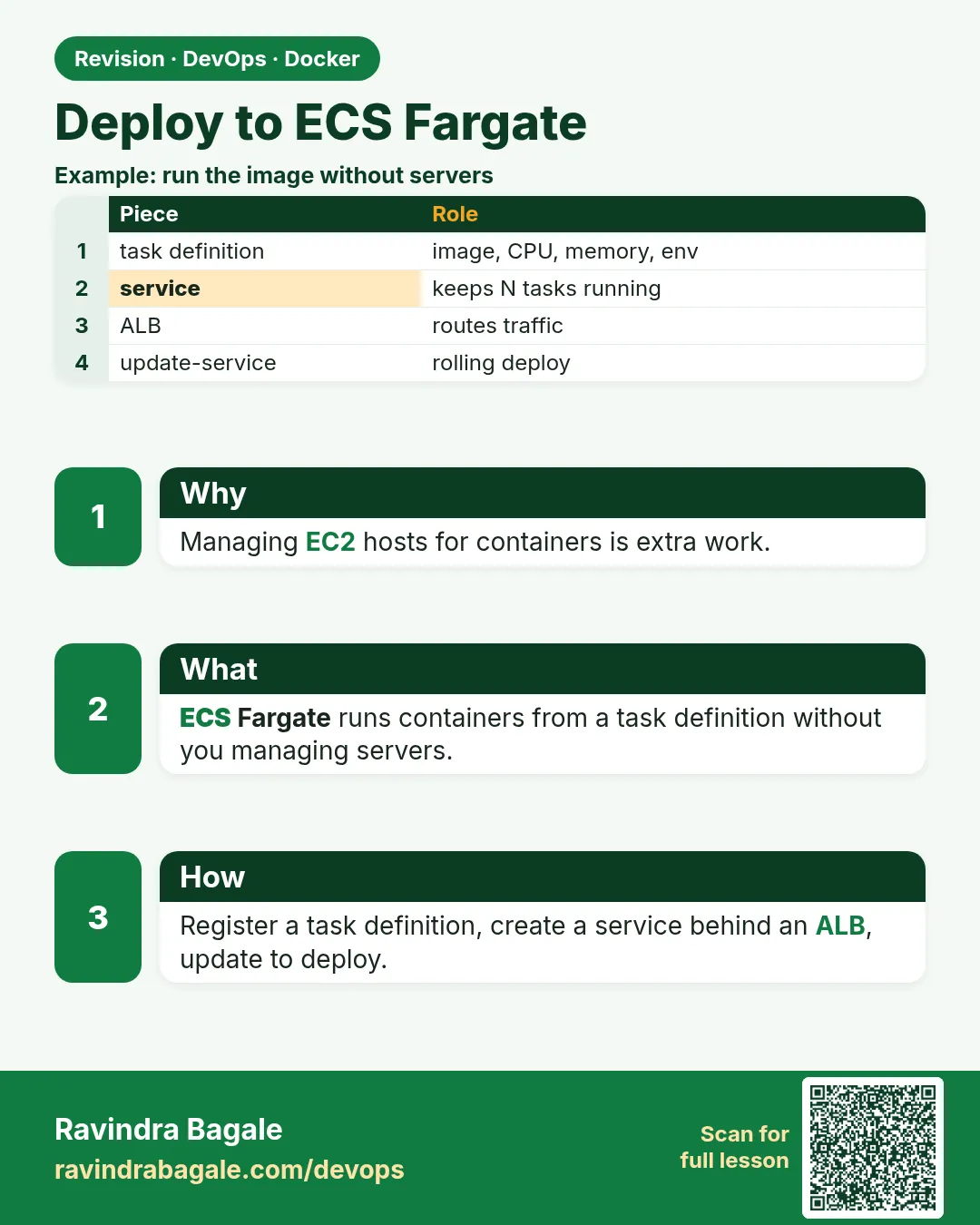 Revision card
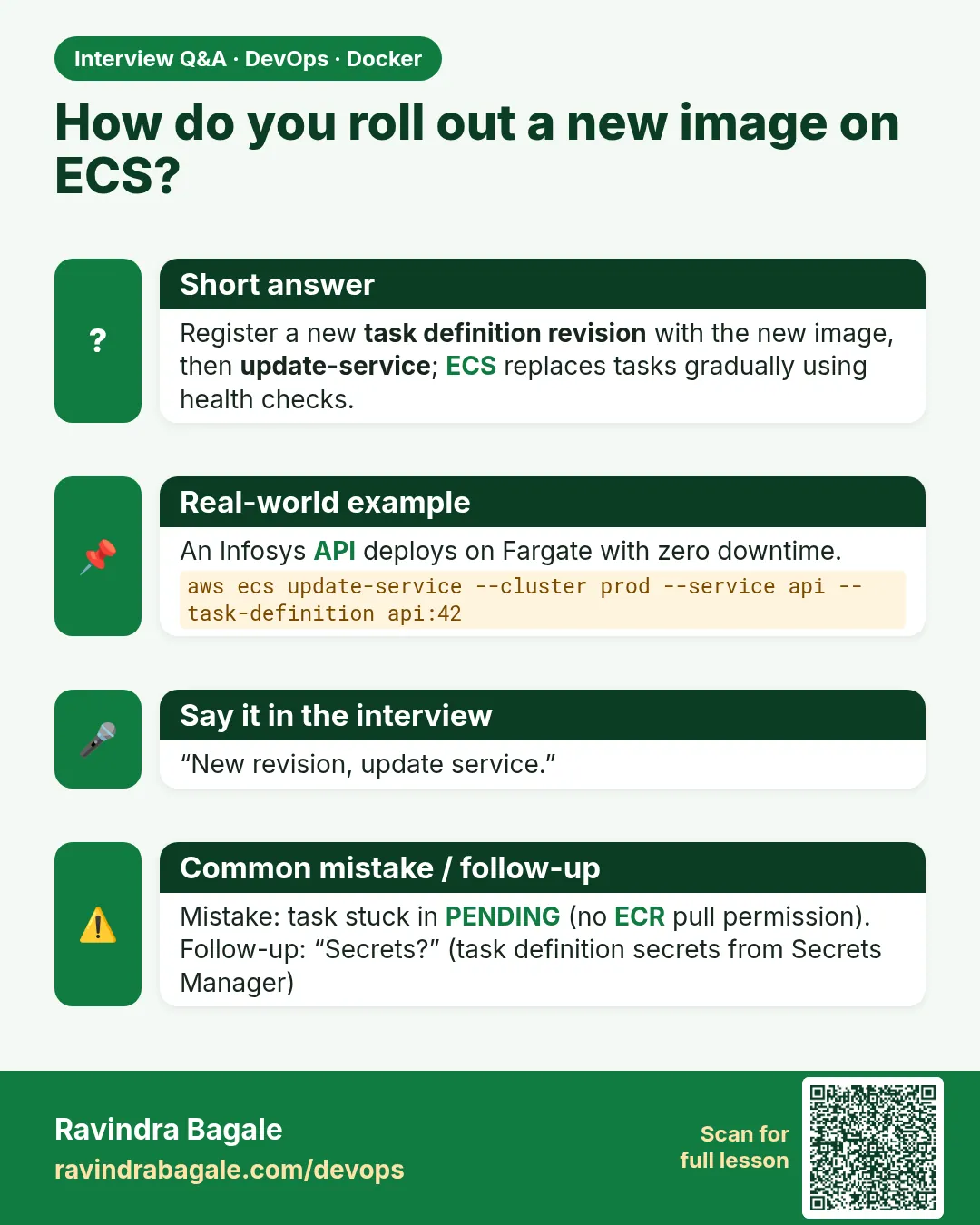 Interview card
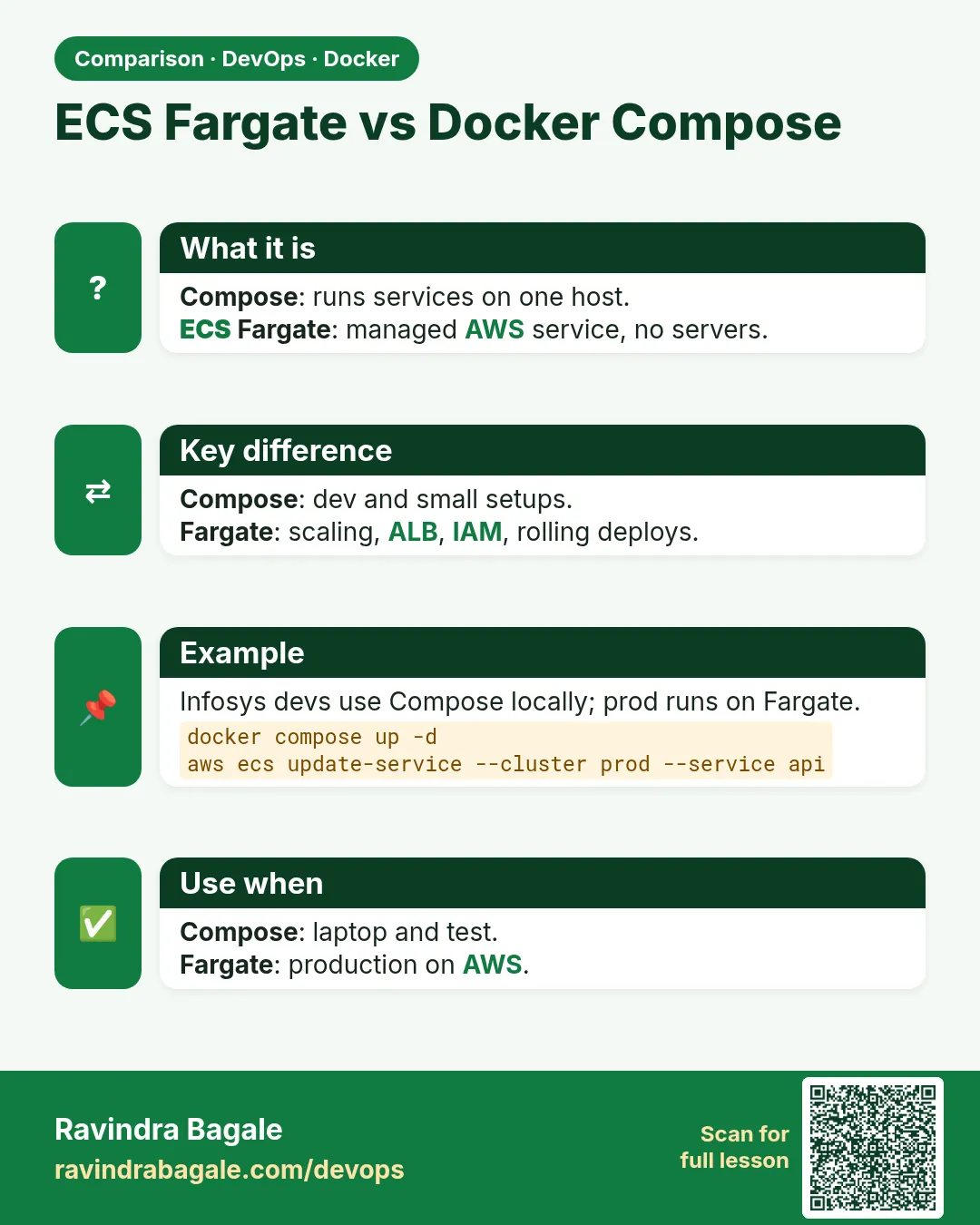 Comparison card