Chapter 39: Terraform Provisioners Secrets and Sensitive Values
39.2 sensitive values — hide from logs, protect state
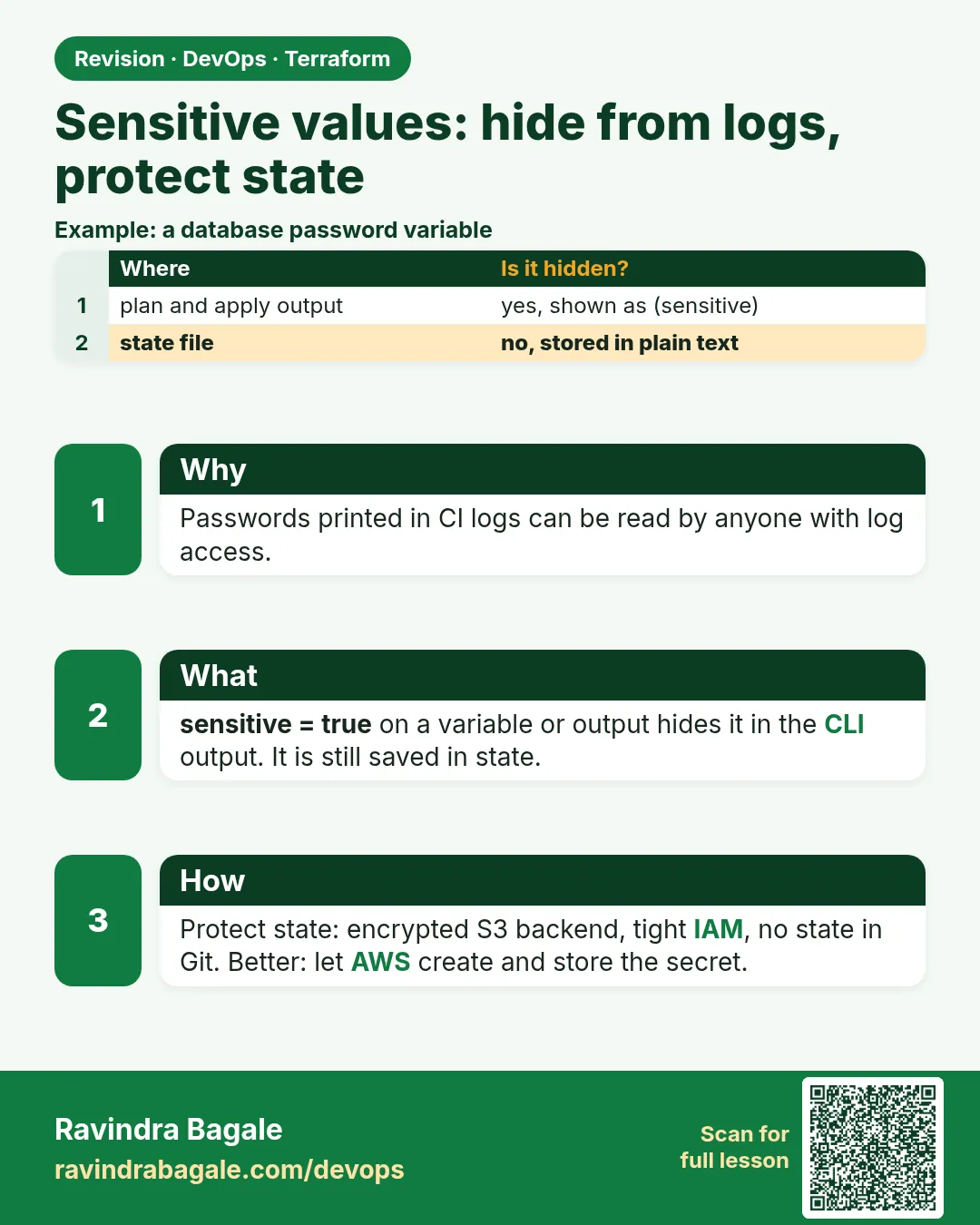
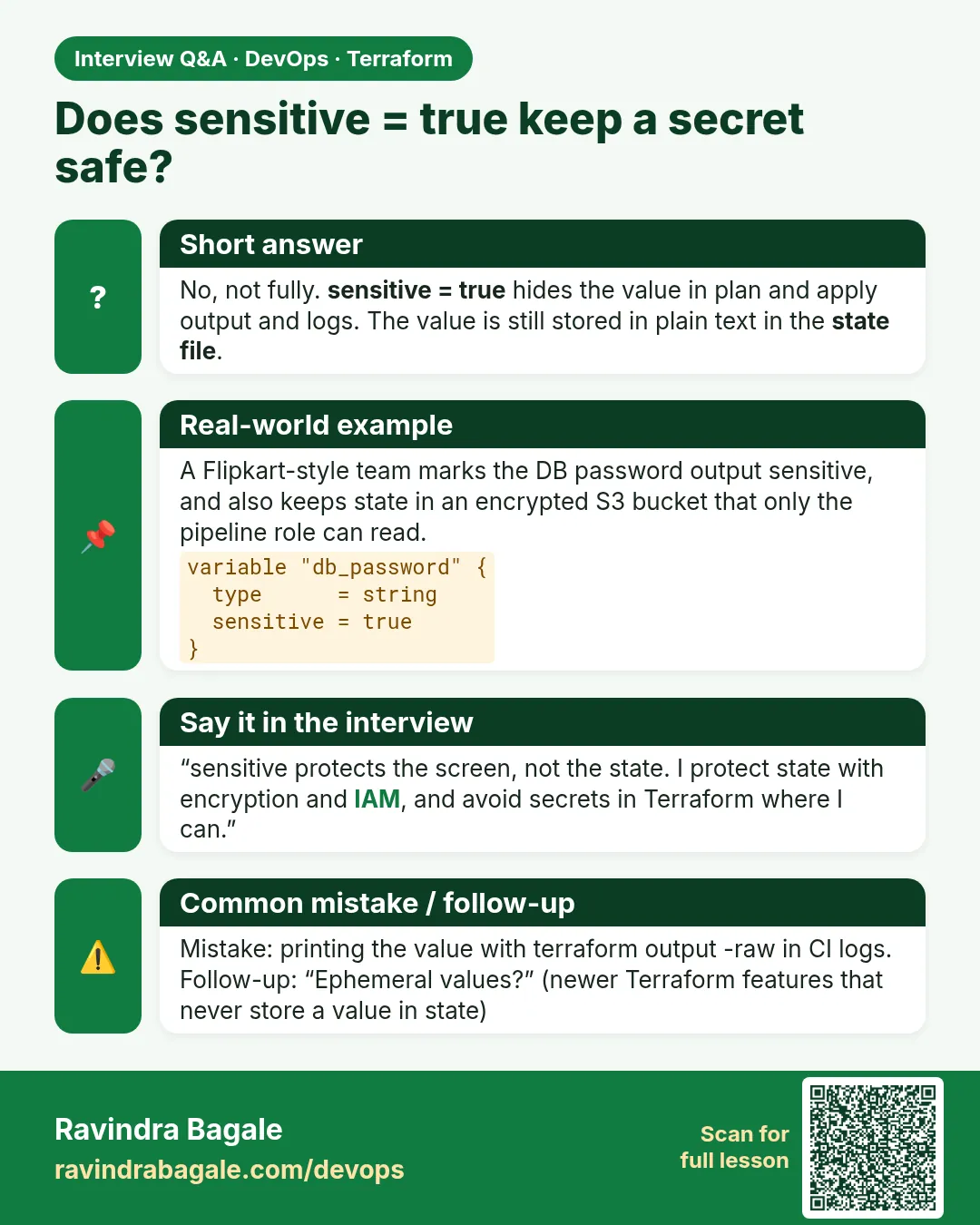
Story. A Netflix-style Jenkins log once printed a database password because a plan showed every attribute. Marking a variable or output sensitive = true makes Terraform show it as (sensitive value) in plan and apply output. It does not encrypt anything. The real value is still in state, so the encrypted, access-controlled S3 backend from Chapter 34 is what really protects it.
variable "db_password" {
  type      = string
  sensitive = true
}

resource "aws_db_instance" "app" {
  identifier          = "badge-dev-db"
  engine              = "mysql"
  instance_class      = "db.t3.micro"
  allocated_storage   = 20
  username            = "badgeadmin"
  password            = var.db_password
  skip_final_snapshot = true
}

# supply it without writing it in a file
read -s TF_VAR_db_password && export TF_VAR_db_password
terraform plan
What each line does
sensitive = true— Redacts this variable wherever Terraform prints it.password = var.db_password— Passes the secret to RDS; the plan shows it as sensitive.skip_final_snapshot = true— Lets the lab database be destroyed without leaving a snapshot; never use in prod.read -s TF_VAR_db_password && export TF_VAR_db_password— Reads the password without echoing it and exposes it to Terraform as the variable.terraform plan— Plan picks up TF_VAR_db_password automatically.
When it is green.
      + password = (sensitive value)
      + username = "badgeadmin"
Plan: 1 to add, 0 to change, 0 to destroy.
When it is red.
$ git log -p | grep password
+db_password = "Summer2026!"
Fix. A tfvars file with a real password was committed. Rotate the password now, remove the file from Git history with your team's process, and add *.tfvars to .gitignore.
What: every term in plain English
- sensitive = true — Hides a variable or output value in plan and apply output.
- (sensitive value) — What Terraform prints in place of a hidden value.
- nonsensitive() — A function that removes the sensitive mark. Use only on values you have proven are safe.
- terraform output -raw — Prints one output value in clear text, for scripts.
- TF_VAR_name — An environment variable that sets var.name without writing it in a file.
- ephemeral — Newer Terraform feature for values that are never written to state or plan files.
- write-only argument — An argument, such as password_wo, that is sent to AWS but never stored in state.
Example 1: Hide a variable in the plan
At a Bharti Airtel project, a Jenkins log printed a database password from a plan. sensitive = true would have hidden it.
- Declare a sensitive variable.
- Use it in a resource.
- Plan with the value from TF_VAR.
variable "db_password" {
  type      = string
  sensitive = true
}

resource "terraform_data" "demo" {
  input = var.db_password
}
export TF_VAR_db_password='S3cure-Lab-Only'
terraform plan | grep input
Output
+ input = (sensitive value)
What it shows: The value is hidden on screen and in Jenkins logs. It still sits in state, so state must stay private.
Example 2: See that outputs need the mark too
Terraform refuses to print an output built from a sensitive value unless you mark that output sensitive. That error protects you.
- Add an output without the mark.
- Plan and read the error.
- Add sensitive = true.
output "db_password" {
  value     = var.db_password
  sensitive = true
}
terraform apply -auto-approve | tail -2
terraform output
terraform output -raw db_password; echo
Output
Outputs:
db_password = <sensitive>
db_password = <sensitive>
S3cure-Lab-Only
What it shows: Normal output hides it; -raw prints it for a script that really needs it. Never run -raw in a shared log.
Example 3: Find the secret in state anyway
sensitive is a screen feature, not encryption. Prove it so you protect state properly.
- Search the state for the value.
terraform state pull | grep -c 'S3cure-Lab-Only'
Output
1
What it shows: The value is in state. Protect state with an encrypted, private S3 backend and tight IAM access.
Example 4: Keep the secret out of state with a write-only argument
Newer AWS provider versions offer write-only arguments such as password_wo on aws_db_instance. The value goes to AWS and never into state.
- Use an ephemeral random password.
- Pass it to password_wo with a version number.
- Plan and search state after apply.
ephemeral "random_password" "db" {
  length  = 20
  special = false
}

resource "aws_db_instance" "app" {
  identifier          = "badge-lab-db"
  engine              = "postgres"
  instance_class      = "db.t4g.micro"
  allocated_storage   = 20
  username            = "app"
  password_wo         = ephemeral.random_password.db.result
  password_wo_version = 1
  skip_final_snapshot = true
}
terraform plan | grep -E "password_wo|Plan"
Output
      + password_wo         = (write-only attribute)
      + password_wo_version = 1
Plan: 1 to add, 0 to change, 0 to destroy.
What it shows: This needs Terraform 1.11 or newer and a recent AWS provider. Raise password_wo_version to rotate the password. The RDS instance costs money, so plan only unless you will destroy it soon.
Example 5: Pass the secret from Jenkins credentials, masked
At a Mphasis client, the pipeline took the database password from Jenkins credentials. Jenkins masks it in the console, and Terraform hides it in the plan. Two layers of protection.
- Store the password in Jenkins as a Secret text credential named db-password.
- Wrap the Terraform steps in withCredentials.
- Run the job and read the console.
stage('Plan') {
  steps {
    withCredentials([string(credentialsId: 'db-password', variable: 'TF_VAR_db_password')]) {
      sh 'terraform plan -input=false -no-color'
    }
  }
}
Output
[Pipeline] withCredentials
Masking supported pattern matches of $TF_VAR_db_password
[Pipeline] sh
+ terraform plan -input=false -no-color
      + input  = (sensitive value)
Plan: 1 to add, 0 to change, 0 to destroy.
What it shows: Even if a script echoed the value by mistake, Jenkins would print four stars in place of it.
Command cheat sheet
| Command | What it does | When to use it |
|---|---|---|
export TF_VAR_db_password=... |
Sets a variable from the environment | Keep secrets out of files |
terraform output |
Shows outputs with sensitive ones hidden | Normal use |
terraform output -raw NAME |
Prints one value in clear | Scripts only |
terraform output -json |
JSON with sensitive values shown | Careful, scripts only |
terraform state pull | grep VALUE |
Checks if a value is in state | Prove the risk |
unset TF_VAR_db_password |
Removes the variable | After the session |
Verify: did it work?
-
Hidden in plan
terraform plan | grep -c "sensitive value"Output
1 -
Output hidden
terraform output db_passwordOutput
<sensitive>
When it is red 1
Error: Output refers to sensitive values
Cause. An output uses a sensitive value but is not marked sensitive.
Fix, step by step
- Add sensitive = true to the output.
- Or remove the output if no one needs it.
When it is red 2
Password visible in Jenkins console log
Cause. Someone ran terraform output -json or -raw in the pipeline.
Fix, step by step
- Remove that step.
- Rotate the password now.
- Use Jenkins credentials masking for any script that needs it.
When it is red 3
Error: Unsupported argument "password_wo"
Cause. Your AWS provider or Terraform version is too old.
Fix, step by step
- Run terraform version.
- Upgrade to Terraform 1.11 and a recent provider.
- Run init -upgrade.
Cleanup
terraform destroy -auto-approve
unset TF_VAR_db_password
Ravindra Bagale's Tip
Treat sensitive as curtains, not a lock. The lock is a private, encrypted state bucket.
Practice tasks
Easy Hide it
Why: Use sensitive.
What to do: Mark a variable and plan.
- Use TF_VAR.
Check: (sensitive value).
Easy Output
Why: Fix the error.
What to do: Create an output and mark it sensitive.
- Read the error first.
Check: Output hidden.
Medium Find in state
Why: See the risk.
What to do: grep state for the value.
- Use state pull.
Check: Count 1.
Medium Write-only
Why: Keep it out of state.
What to do: Plan an RDS with password_wo.
- Plan only.
Check: write-only attribute.
Easy Say it in two lines
Why: If you can say it simply, you understand it.
What to do: Write two short lines about this lesson for a fresher.
- Write the problem it solves.
- Write the one command or file you use.
- Read it aloud.
Check: A fresher understands it without a question.
Easy Start a safe lab folder
Why: Practice needs a throwaway place.
What to do: Make a new folder with versions.tf and a random_pet resource, so no AWS cost.
- mkdir tf-lab and cd into it.
- Add the hashicorp/random provider and one random_pet.
- Run terraform init and terraform apply.
Check: Apply complete! with 1 added.
Medium Break it on purpose
Why: You must know the red output by face.
What to do: Cause one error from the red part of this lesson and fix it.
- Follow one red section.
- Copy the exact message to your notes.
- Write the fix in one line.
Check: You fixed it without searching the web.
Medium Run it twice
Why: A second run must be quiet.
What to do: Run the same plan two times with no edits.
- Run terraform plan.
- Run it again.
- Explain any change it still shows.
Check: The second plan says No changes, or you can explain each line.
Medium Write a runbook page
Why: At 2 a.m. nobody remembers flags.
What to do: Write a one-page runbook for this lesson.
- Title, when to use, exact commands, how to check, how to undo.
Check: A teammate can follow it alone.
Medium Run it from a pipeline
Why: Real teams run Terraform from CI, not from laptops.
What to do: Run the main command of this lesson inside a GitHub Actions or Jenkins job.
- Add a job with hashicorp/setup-terraform or a Terraform Docker image.
- Give it AWS access through an IAM role, never a key in the file.
- Run init, then the command from this lesson.
Check: The job log shows the same output you saw on your laptop.
Medium Check the cost
Why: Labs left running cost real money.
What to do: Find what this lesson would cost per day if you forgot to destroy it.
- Open the AWS Pricing Calculator.
- Add each resource from your plan.
- Write the daily cost in your notes.
Check: You know the daily cost and you ran terraform destroy.
Hard Draw the flow top to bottom
Why: A drawing shows the order of work.
What to do: Draw this lesson as boxes from top to bottom.
- Start at your code, go through plan and state, end at AWS.
- Mark where each command reads or writes.
Check: Each box matches a real step you ran.
Hard Explain it like an interview
Why: Interviewers want real stories.
What to do: Record a 60 second answer about this lesson.
- Say the problem, the command, and one error you hit.
Check: Your answer has a real command and a real error message.
Homework: try at home
Try at home
List every place a secret could leak in a Terraform pipeline: code, tfvars, plan output, state, logs, and how to close each one.
Recap
- sensitive hides values on screen and in logs.
- Outputs built from secrets must be sensitive too.
- State still stores sensitive values in clear text.
- Write-only and ephemeral values stay out of state.
- Use TF_VAR and never commit tfvars with secrets.
FAQ
Does sensitive encrypt anything?
No. It only hides values in output.
Is plan.out safe to share?
No. A saved plan file can contain secrets.
How do apps get the secret?
From Secrets Manager at runtime, as the next lesson shows.
Can I use nonsensitive on a password?
No. Use it only on values you have proven are not secret, such as a length.
Is TF_VAR safe in Jenkins?
Use withCredentials so Jenkins masks the value in logs.
Interview questions
-
What does sensitive = true do?
Hides the value in plan, apply and output, not in state.
-
How do you keep a password out of state?
Write-only arguments and ephemeral resources in newer Terraform.
-
Why must outputs be marked sensitive?
Terraform refuses to print a sensitive-derived output unmarked.
-
How do you pass a secret without a file?
TF_VAR environment variables from a secret store.
-
Is a saved plan file safe?
No, it can include sensitive values.
Quick quiz
Q1. Is a sensitive value in state?
Yes, unless write-only or ephemeral
Q2. Env var for var.db_password?
TF_VAR_db_password
Q3. Output flag that prints clear text?
-raw
Q4. Minimum Terraform for write-only?
1.11
Q5. Shown in plan for hidden values?
(sensitive value)
Samajla ka?
 Revision card
 Interview card